
Build a prospect list with Lead Gen
Set up a Lead Gen search by area and business type; the results go to Leads for cold calling.
Open Lead Gen. Name the job (or leave it blank), type a ZIP code, city or area, choose the scan depth, keep Find emails on and This zip only if you want, filter and pick the business types, then press Launch scrape. When the job is done, Import to Leads puts the businesses on your calling list.
In this video
Step by step
- 1
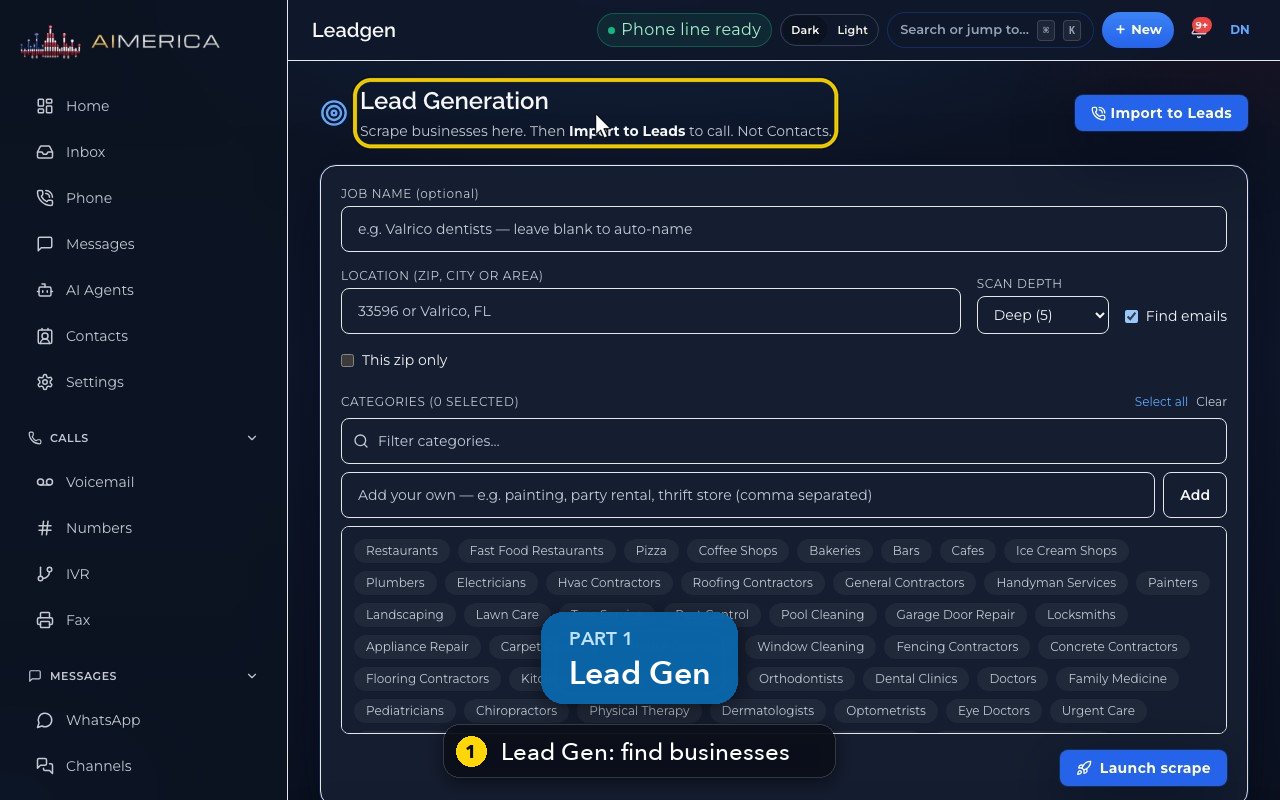
Lead Gen finds businesses in an area. You then import them to Leads, to call. They do not go to Contacts.
- 2
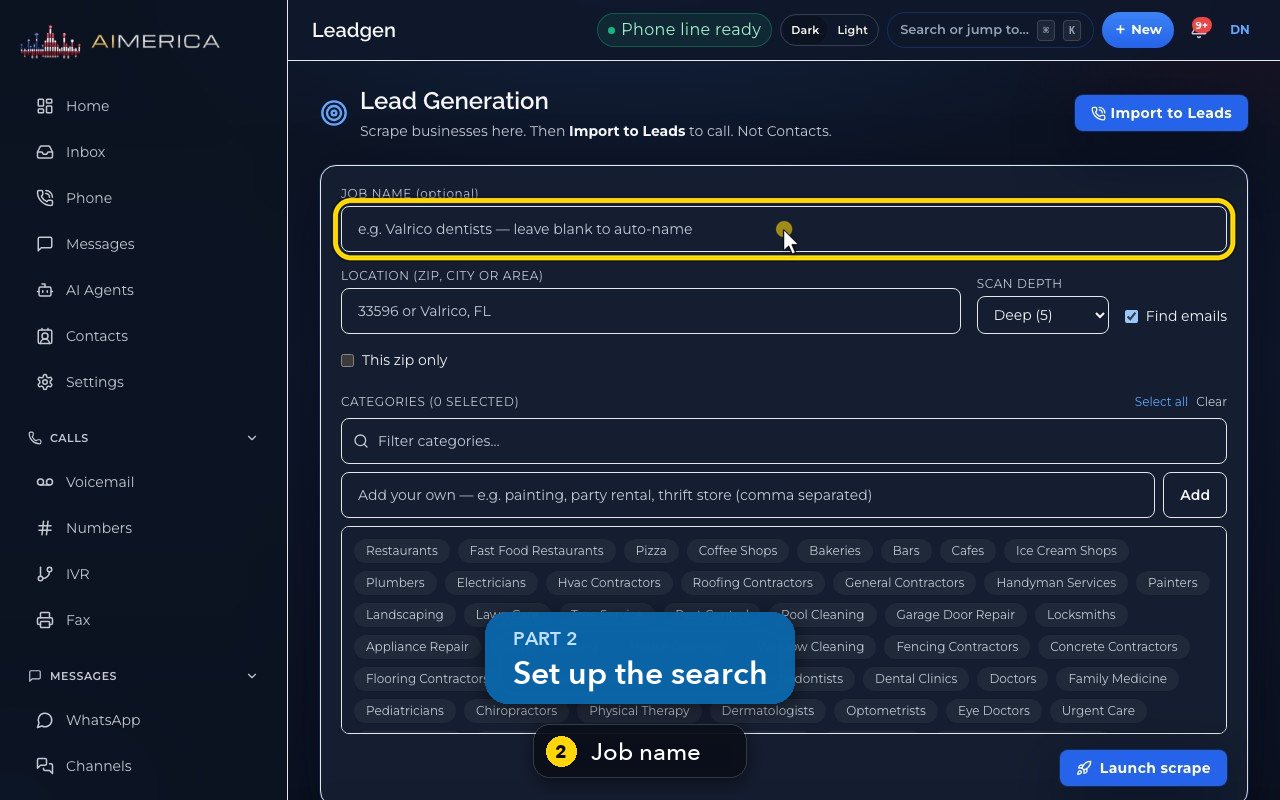
Name the search, or leave it blank, and it names itself.
- 3
Type a ZIP code, a city or an area.
- 4
Scan depth goes from quick to deep. Find emails is on, and This zip only keeps the results in that ZIP code.
- 5
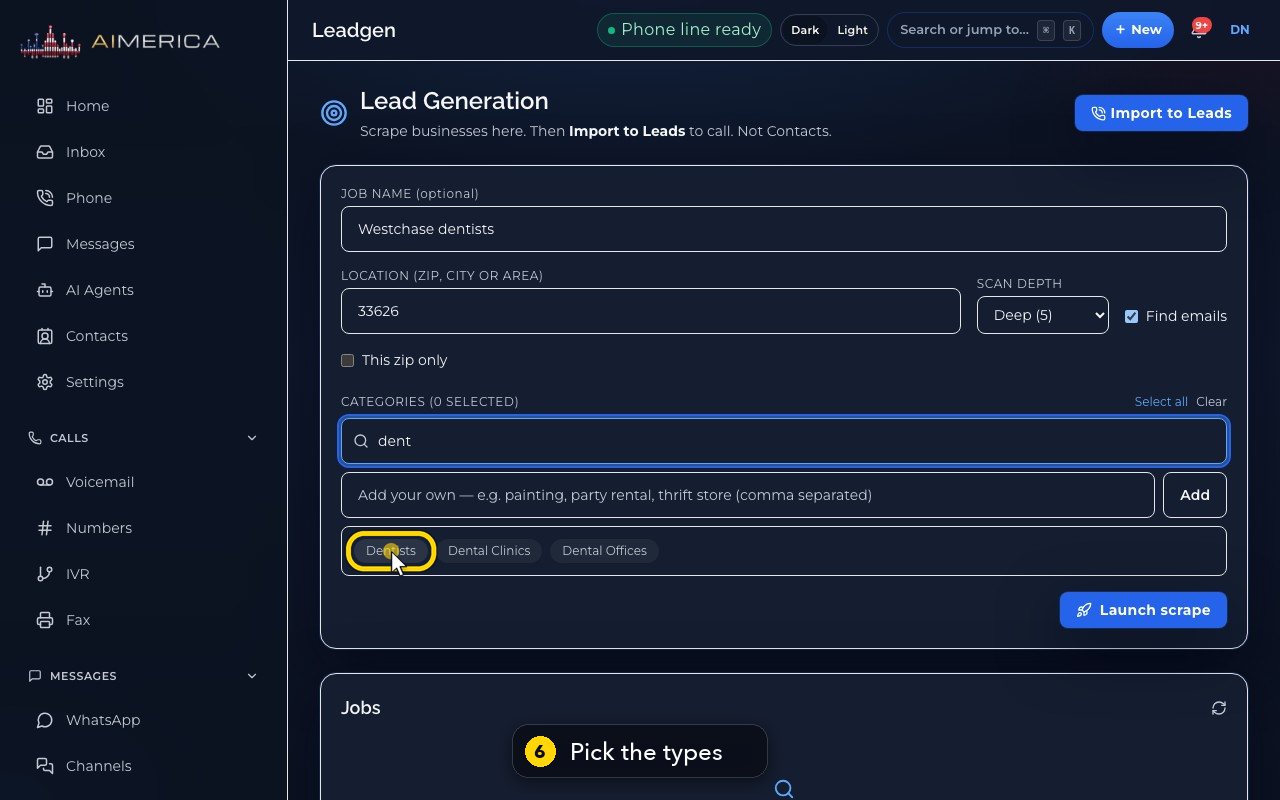
Filter the business types with a few letters.
- 6
Then pick one or more types: here, dentists.
- 7
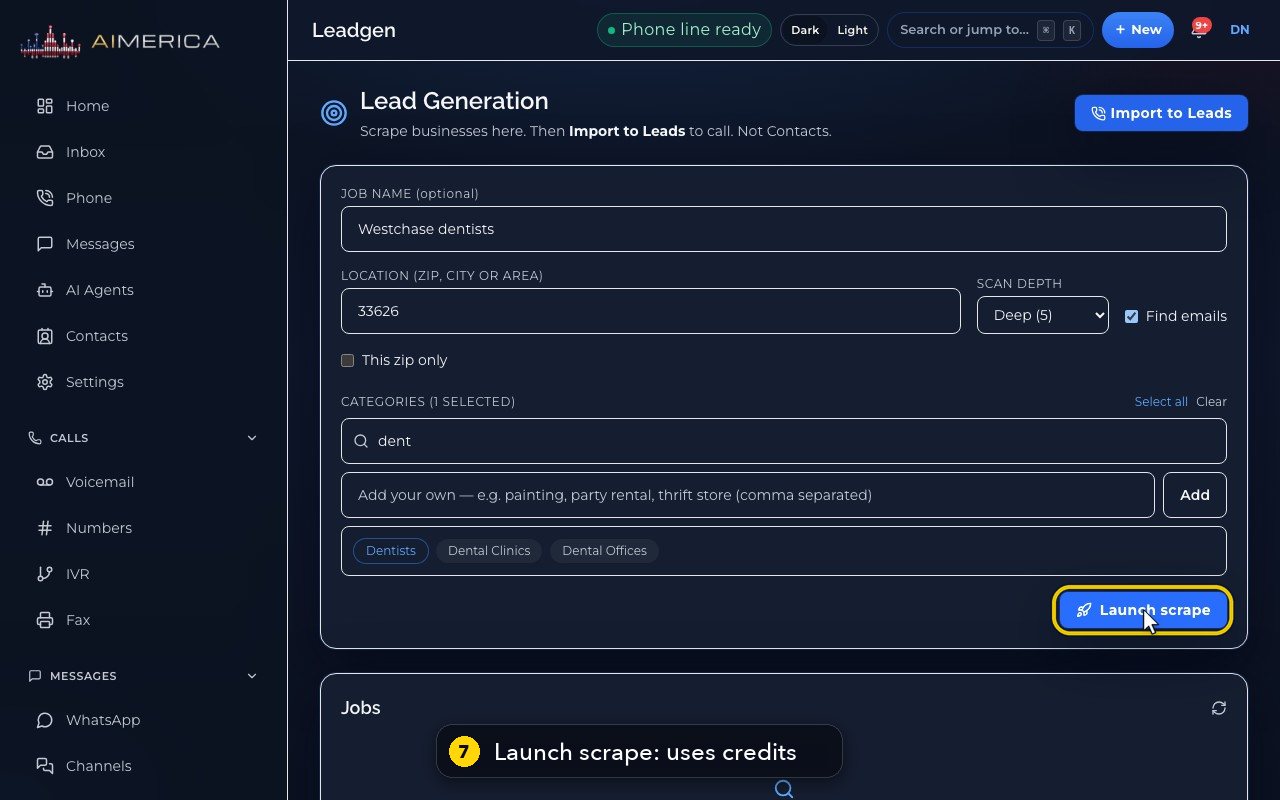
Launch scrape runs the search. Each business it finds uses one Prospect Finder credit, so here we stop.
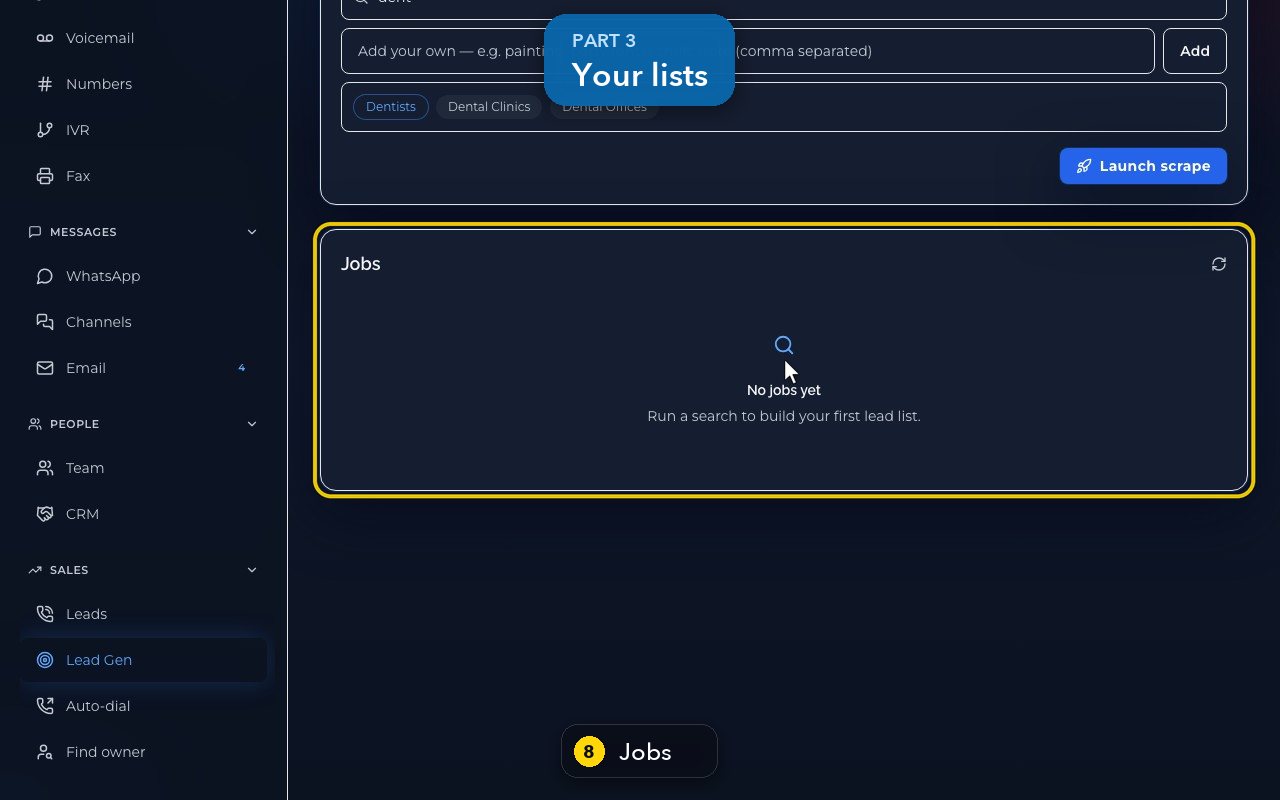
- 8
Your searches are listed below, under Jobs. There are none yet on this demo.
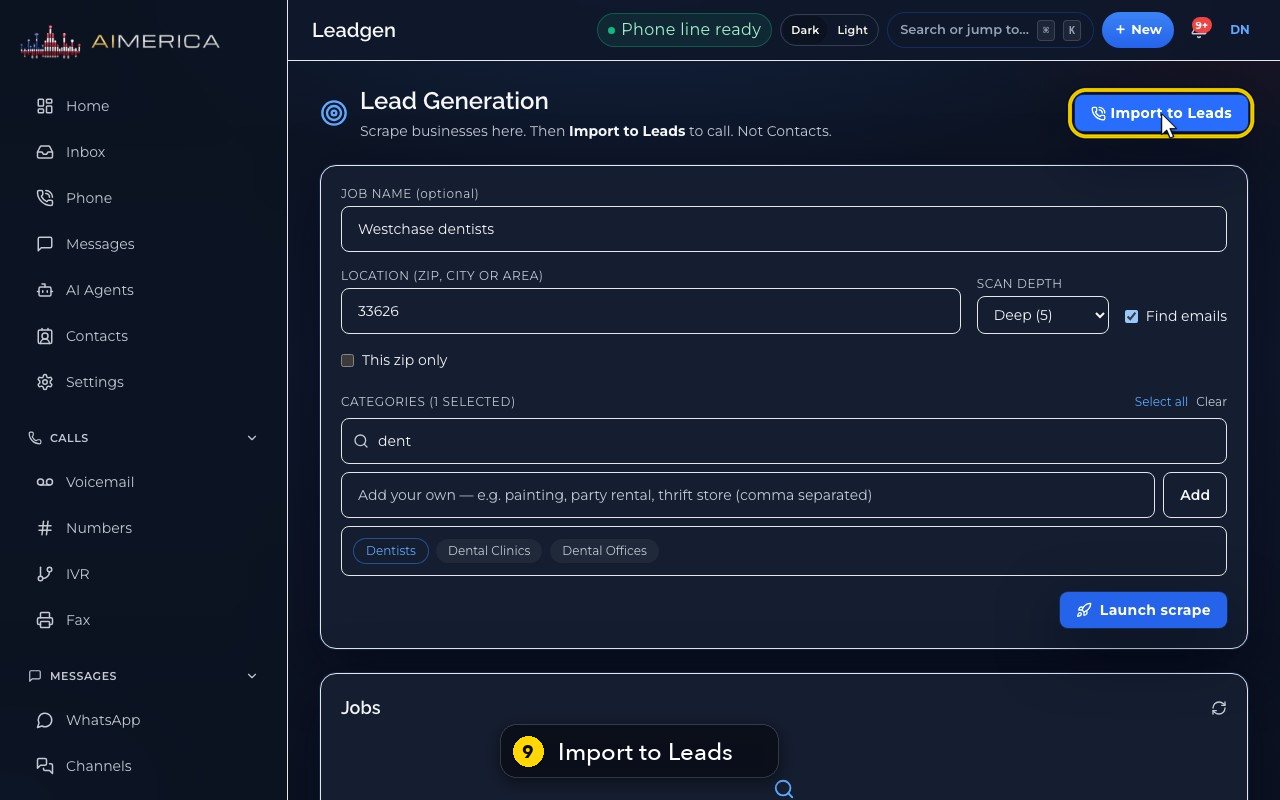
- 9
When a job is done, Import to Leads, at the top, puts it on your calling list.
Related tutorials
 1:05VideoYour sales pipeline at a glanceSee your contacts, companies, deals and where each deal stands.
 0:51VideoAdd a dealRecord a new opportunity with its value, stage and notes.
 0:55VideoAdd a company to the CRMKeep suppliers, labs or partners as companies, with their phone and website.
 0:49VideoSee every call in the CRM activity feedRead the call log with outcomes, AI summaries and transcript lines in one feed.
 0:54VideoAIMERICA Sign: find your agreementsSee which agreements need you, which wait on others and which are done.
 1:01VideoStart an agreement from a templateBegin a new agreement: title, company, fill from a contact, and pick a template.
Was this not what you needed? Write to us.