
Your restaurant menu: block, add and edit dishes
Block a sold-out dish, add a dish with a photo, change a price, set when a dish can be ordered, and remove or restore a dish. Changes reach your phone AI, WhatsApp and text AI and table ordering at once.
The Cardápio / Menu tab in QR ordering is your restaurant's one menu. Owners and admins find it there; managers (teammates with AI Agents access) find Cardápio in the menu on the left. Assista em português.
In this video
Step by step
- 1
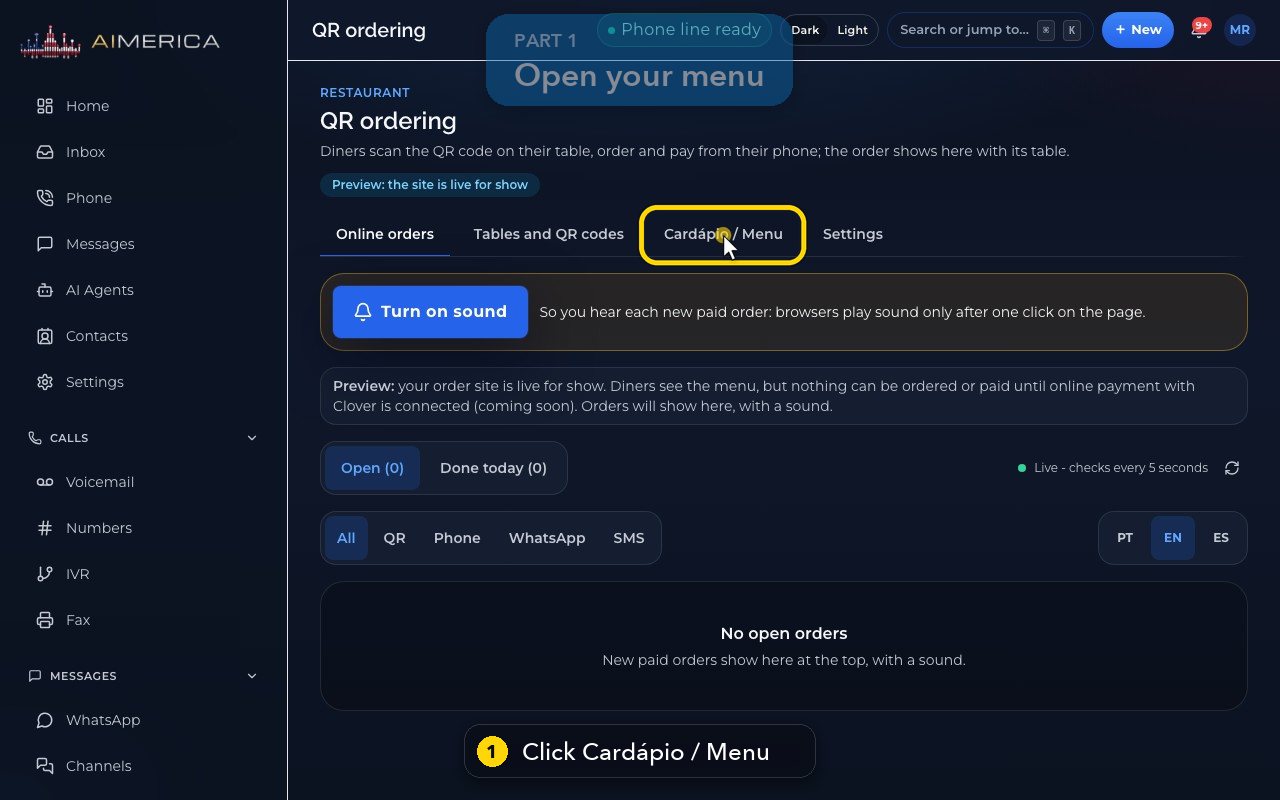
Open QR ordering, then click the Menu tab.
- 2
This one menu feeds your phone AI, your WhatsApp and text AI, and your table ordering site.
- 3
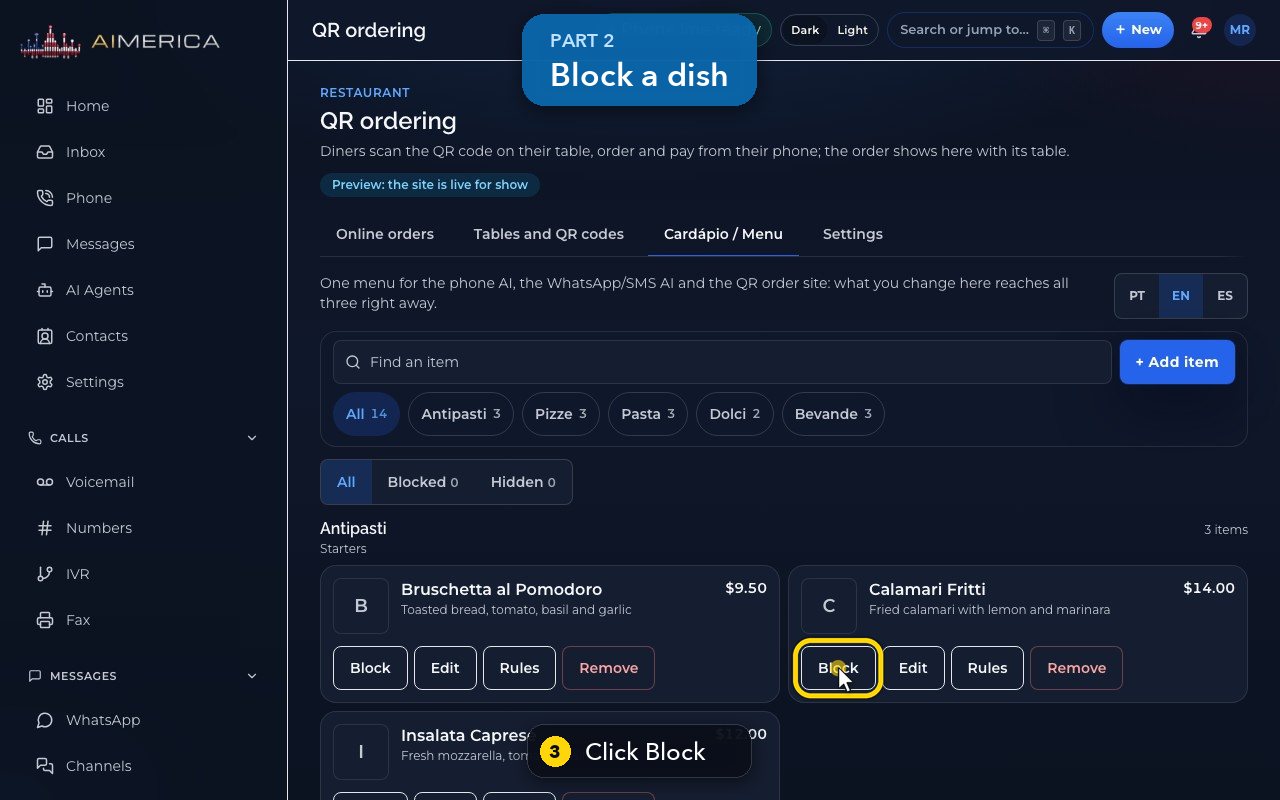
Out of calamari tonight? Click Block on the dish.
- 4
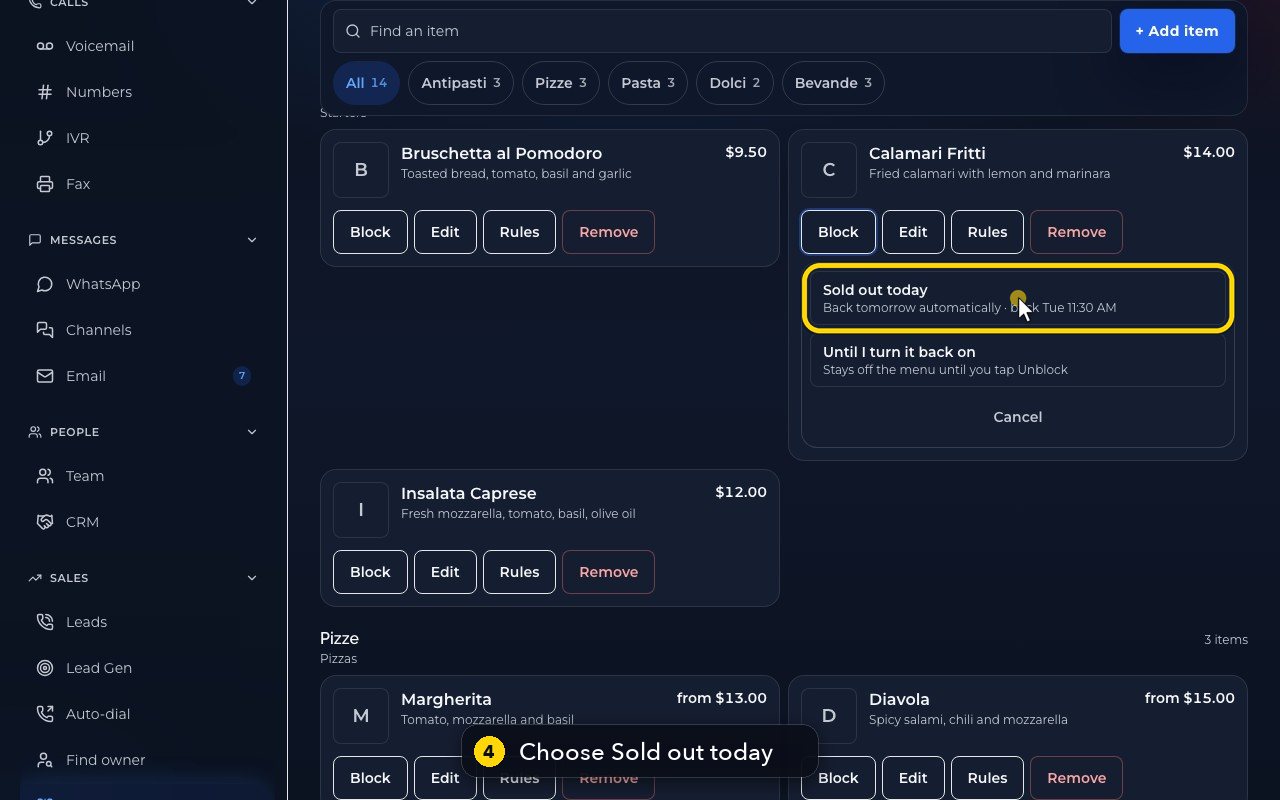
Until I turn it back on keeps a dish off until you unblock it. For tonight, choose Sold out today: it comes back by itself tomorrow.
- 5
To add a dish, click Add item.
- 6
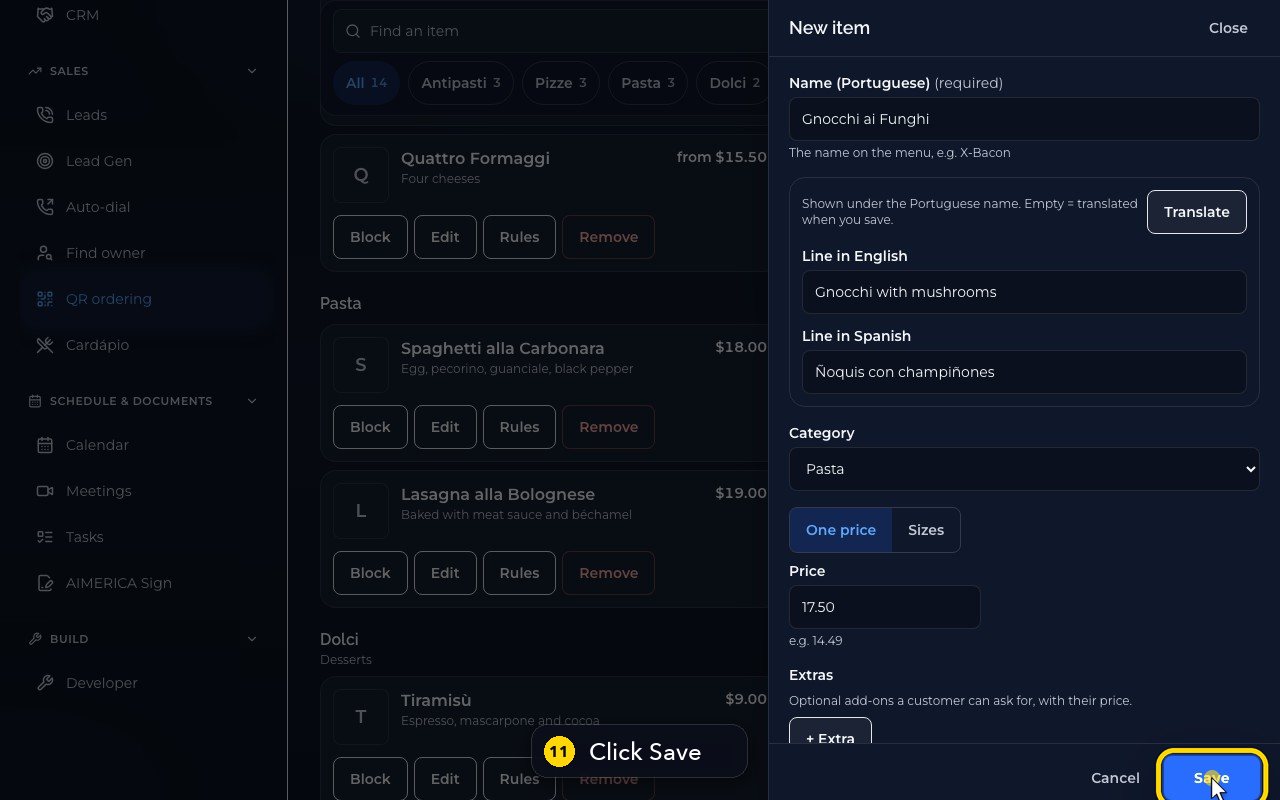
Type the name of the dish.
- 7
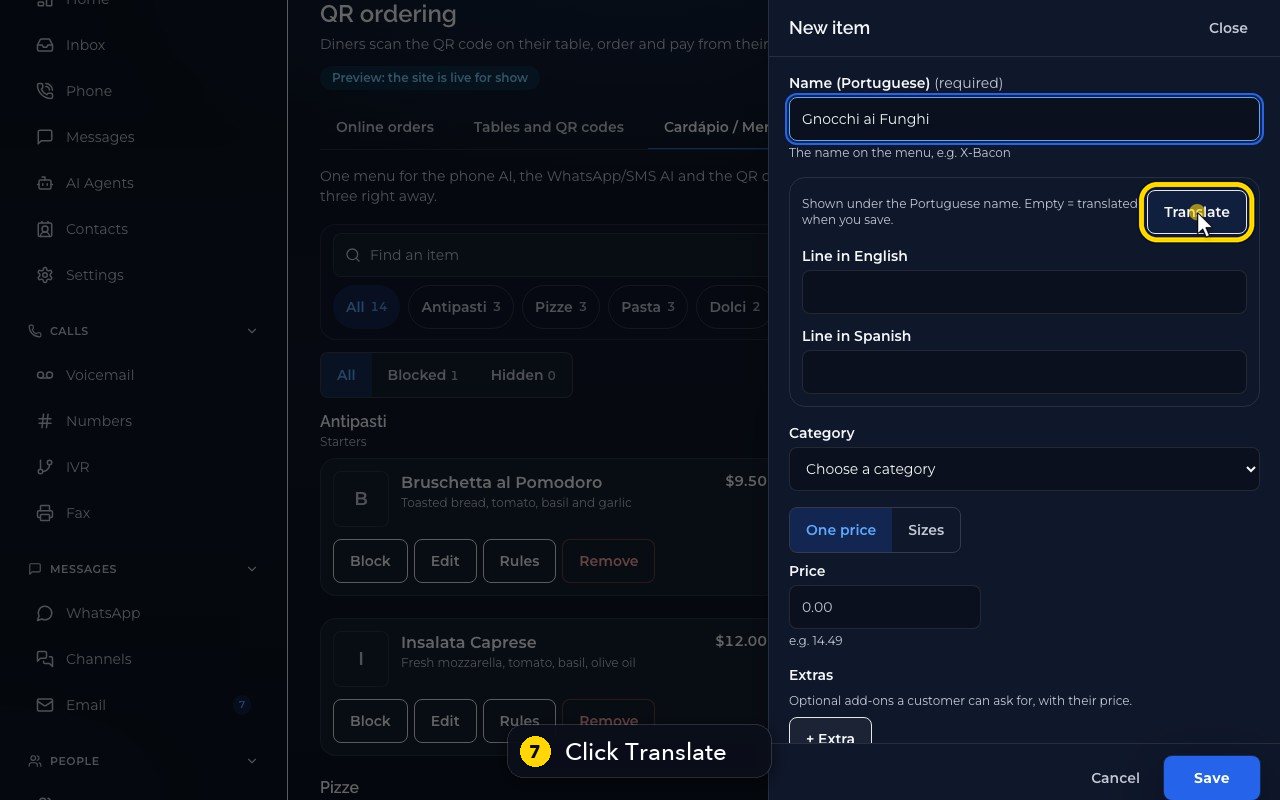
Click Translate to fill in the English and Spanish lines. You can still change them.
- 8
Choose the category in the list, then type the price.
- 9
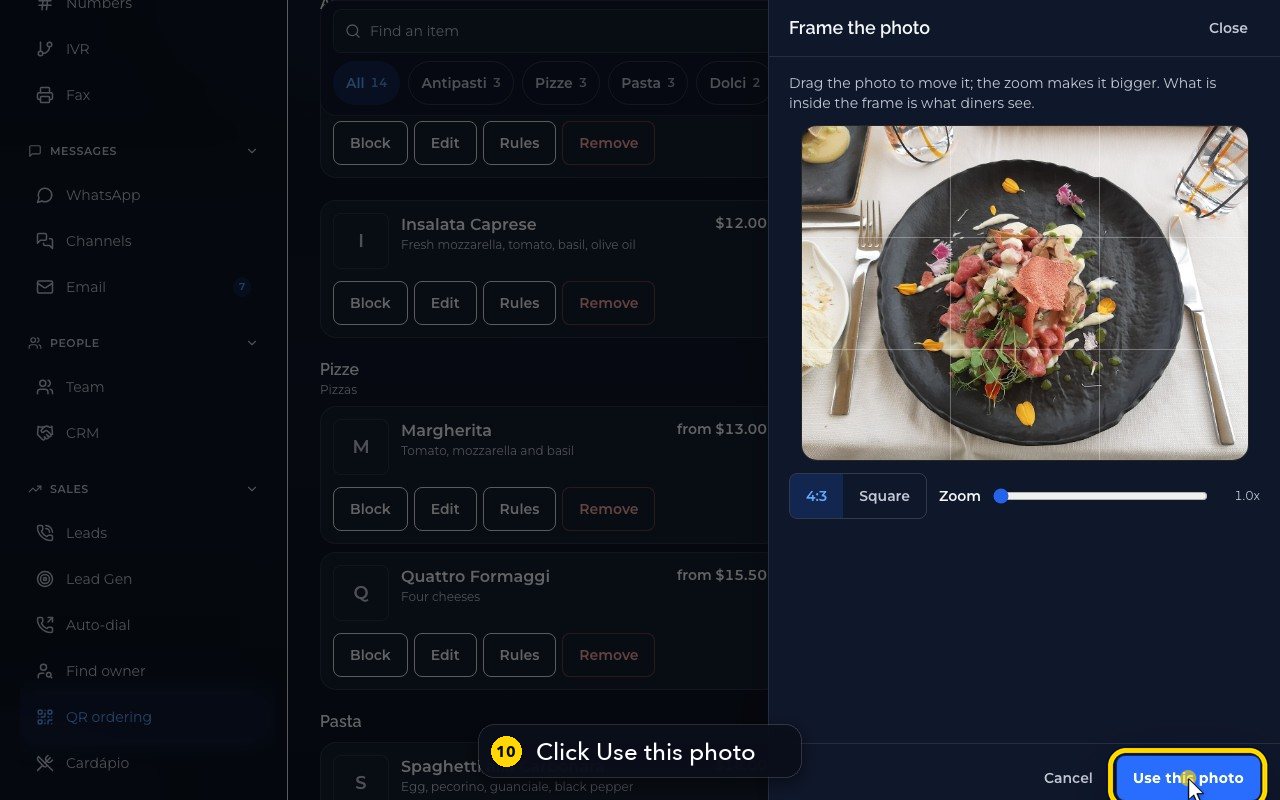
To add a photo from your phone or computer, click Choose a photo.
- 10
Frame it, and click Use this photo.
- 11
Click Save. The new dish is on your menu, with its photo.
- 12
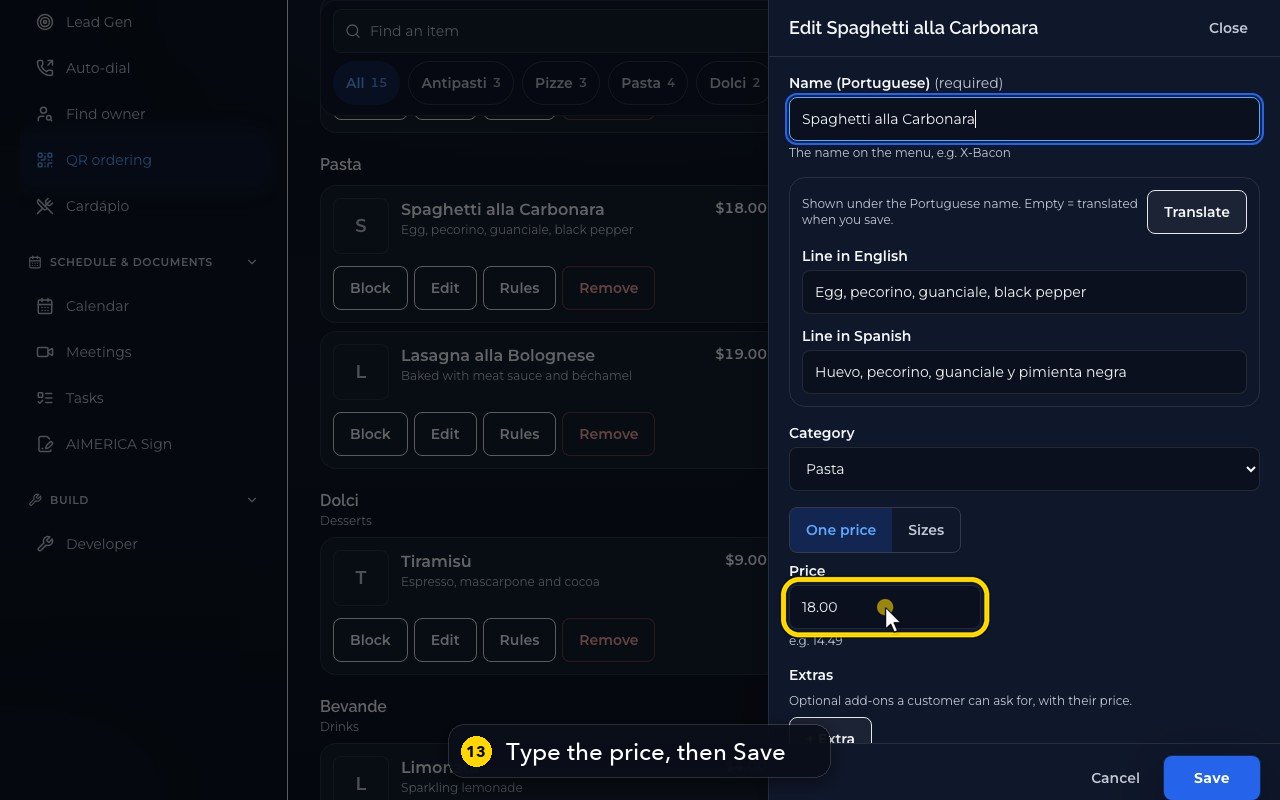
To change a price, click Edit on the dish.
- 13
Type the new price, then click Save.
- 14
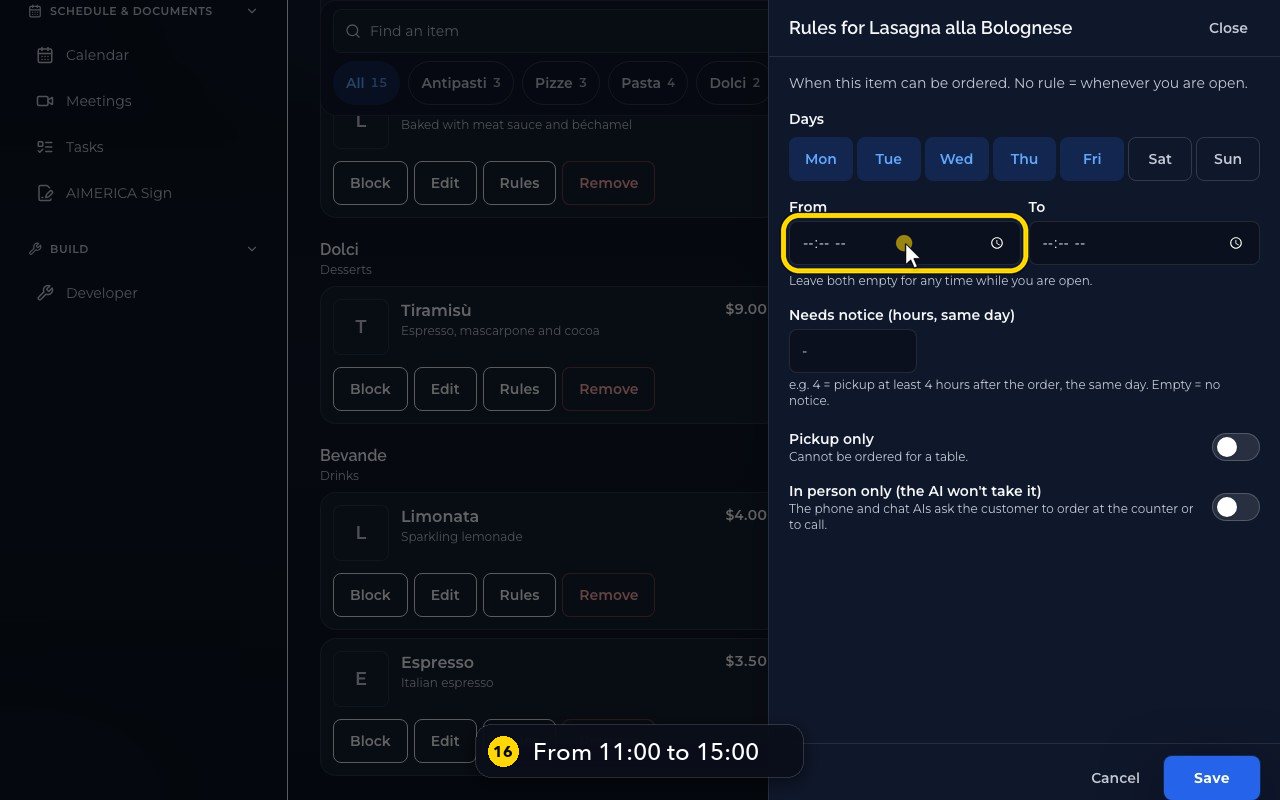
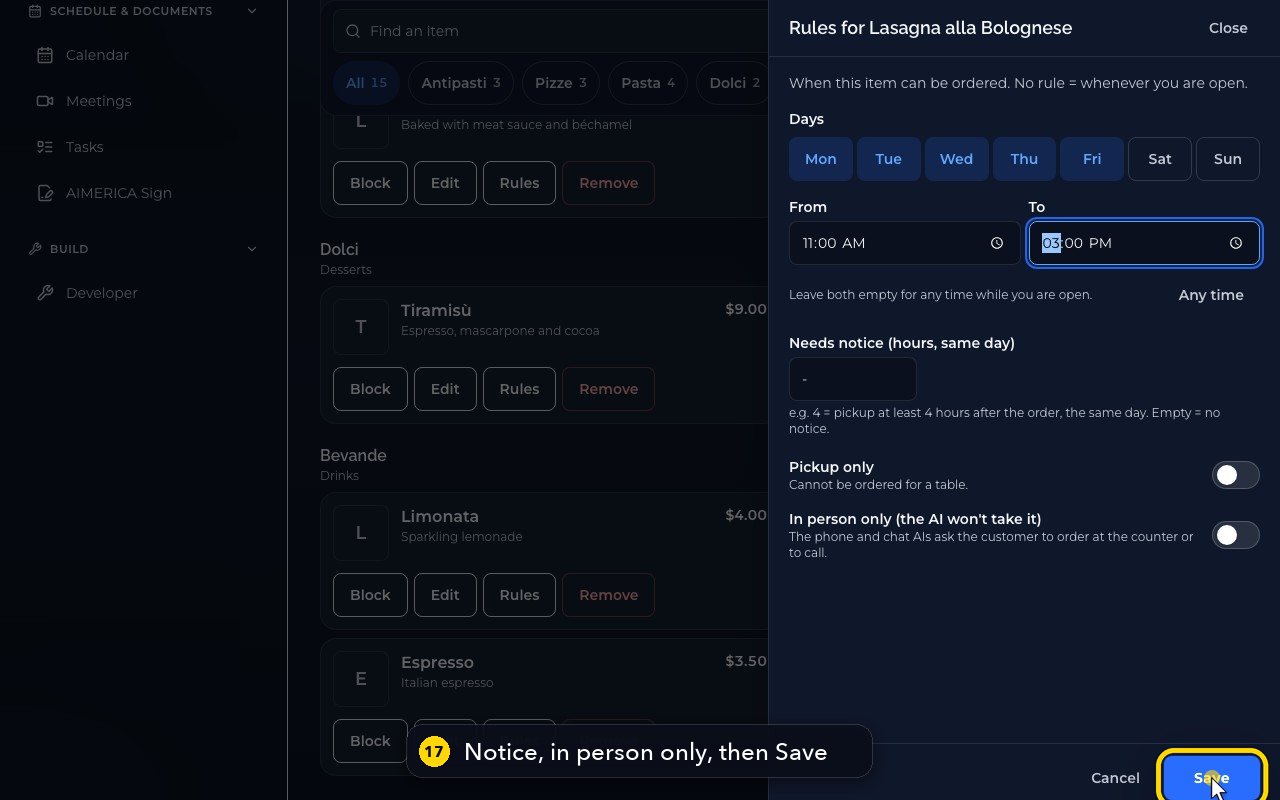
Rules decide when a dish can be ordered. On the lasagna, click Rules.
- 15
It is a weekday lunch dish: turn off Saturday, and Sunday.
- 16
Then set the hours: from 11 AM, to 3 PM.
- 17
You can also ask for hours of notice, or make a dish in person only, so the AI won't take it. Click Save.
- 18
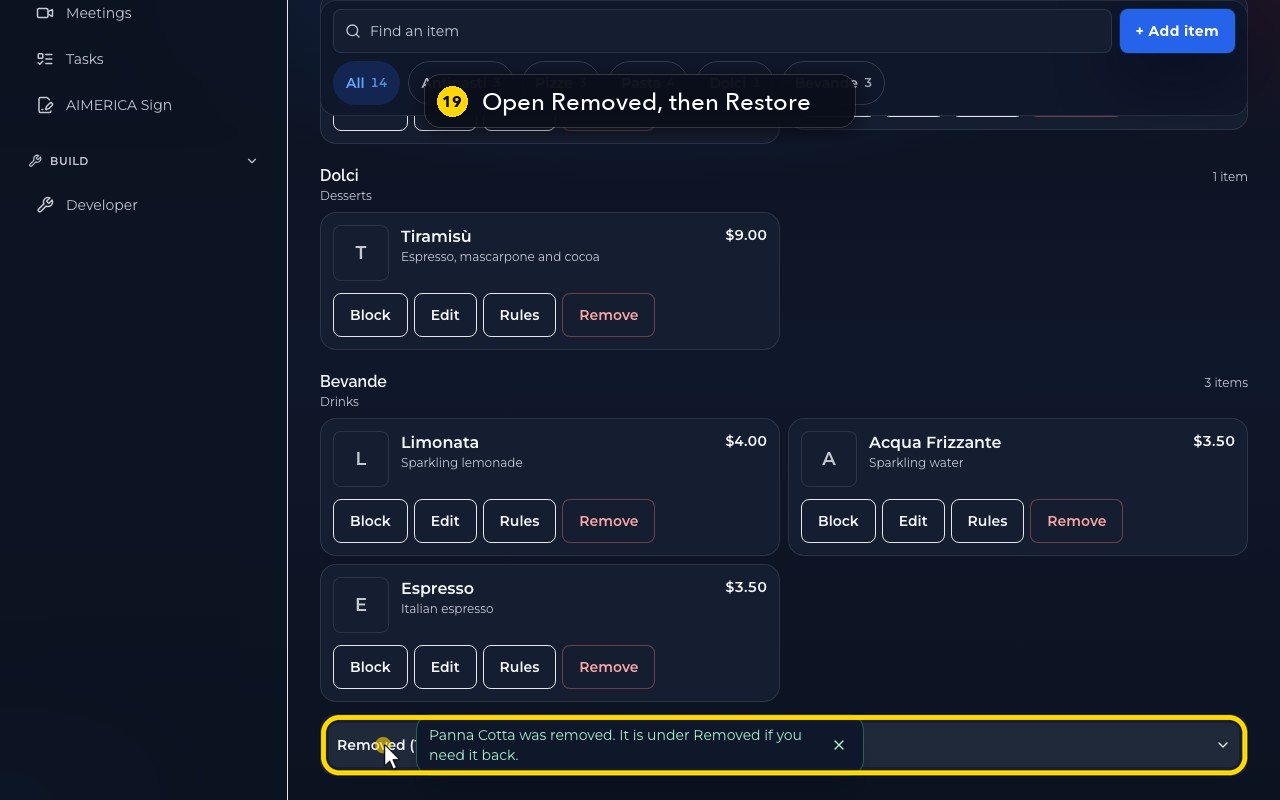
To take a dish off the menu, click Remove. Then confirm with Yes, remove.
- 19
Removed dishes wait at the bottom. Open Removed, and click Restore to bring one back.
Every change applies at once to your phone AI, your WhatsApp and text AI and your table and pickup ordering site. If your restaurant uses Clover, AIMERICA copies each dish to your Clover as a hidden item ending in "(auto)", so the kitchen tickets print as usual; your own Clover menu is never changed.
Related tutorials
 2:10VideoCardápio do restaurante: bloquear, adicionar e editar pratos (em português)Bloqueie um prato esgotado, adicione um prato com foto, mude um preço, defina quando um prato pode ser pedido e remova ou restaure um prato. Tudo chega na hora à IA do telefone, do WhatsApp e do SMS e aos pedidos das mesas.
 7 stepsPicture guideSet up table QR codesGive each table its own QR code so diners can scan it, see your menu and order from their phone.
 1:36VideoSet up table QR codes and print the cardsAdd your tables in QR ordering and print one QR card per table, so every order says which table it came from.
 1:28VideoOrder from your table with the QR codeScan the table's QR code, open a dish, add it with a note, and check your order before paying.
 1:17VideoTake QR orders on the live boardTurn the sound on and move each table's order to Ready and Served on the Online orders board.
 1:24VideoQR ordering settings: ordering, tips and menuSwitch table ordering on or off, copy your order site's address, set tip choices and hide or reorder menu items.
Was this not what you needed? Write to us.