
Set up table QR codes
Como configurar os QR codes das mesas
Each table gets its own QR code. A diner scans it and sees your menu with the table name, and the order comes to your screen with that table. Seven steps, about 15 minutes.
PTCada mesa tem o seu QR code. O cliente escaneia, vê o cardápio com o nome da mesa, e o pedido chega na sua tela com essa mesa. Sete passos, uns 15 minutos.
Open QR ordering (menu on the left, under Sales), then Tables and QR codes. Each table has its own QR code, so every order says which table it came from. Under Add tables, add one table by name, or several at once with Quick add. Then Print all QR cards, or tick the tables you want and print the selection.
In this video
Step by step
- 1
In the menu on the left, under Sales, click QR ordering.
- 2
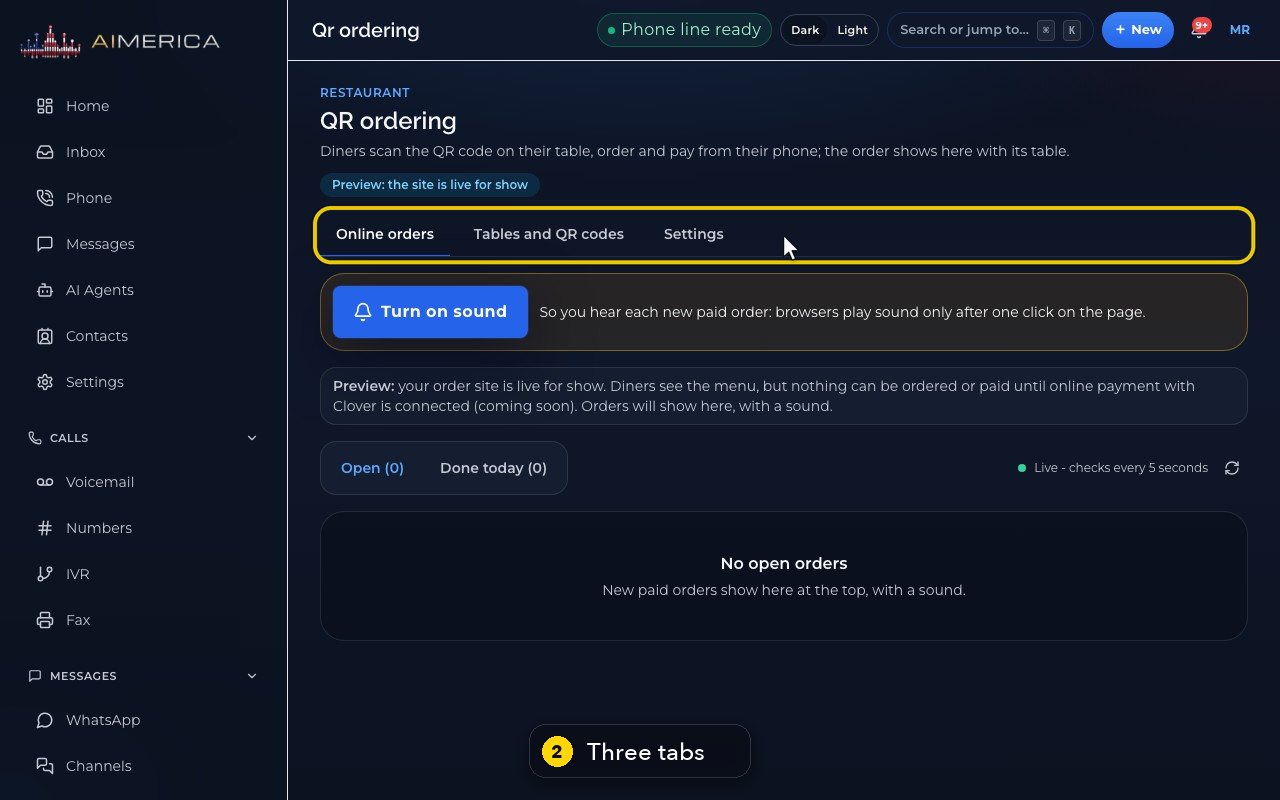
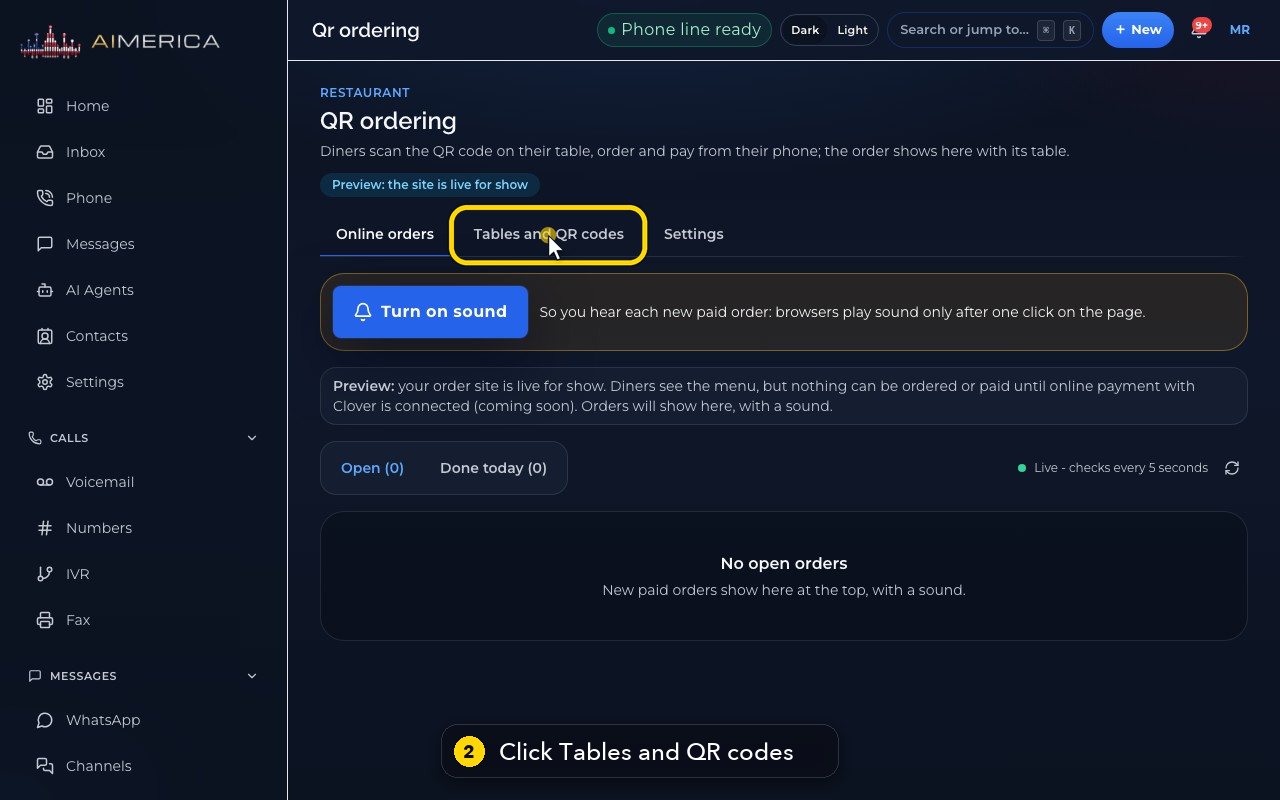
The page has three tabs: Online orders, Tables and QR codes, and Settings.
- 3
Open Tables and QR codes.
- 4
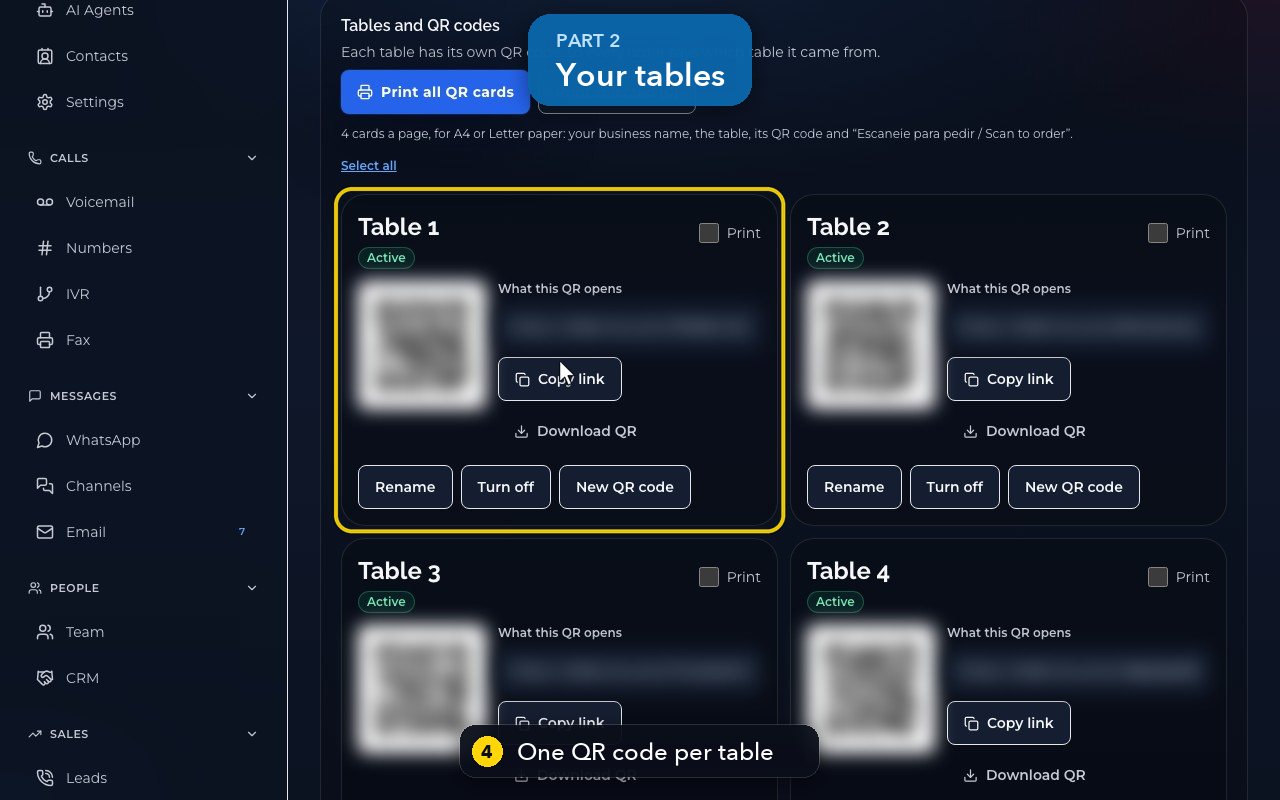
Each table has its own QR code, so every order says which table it came from.
- 5
A card shows the table's name, its QR code, and the address the code opens.
- 6
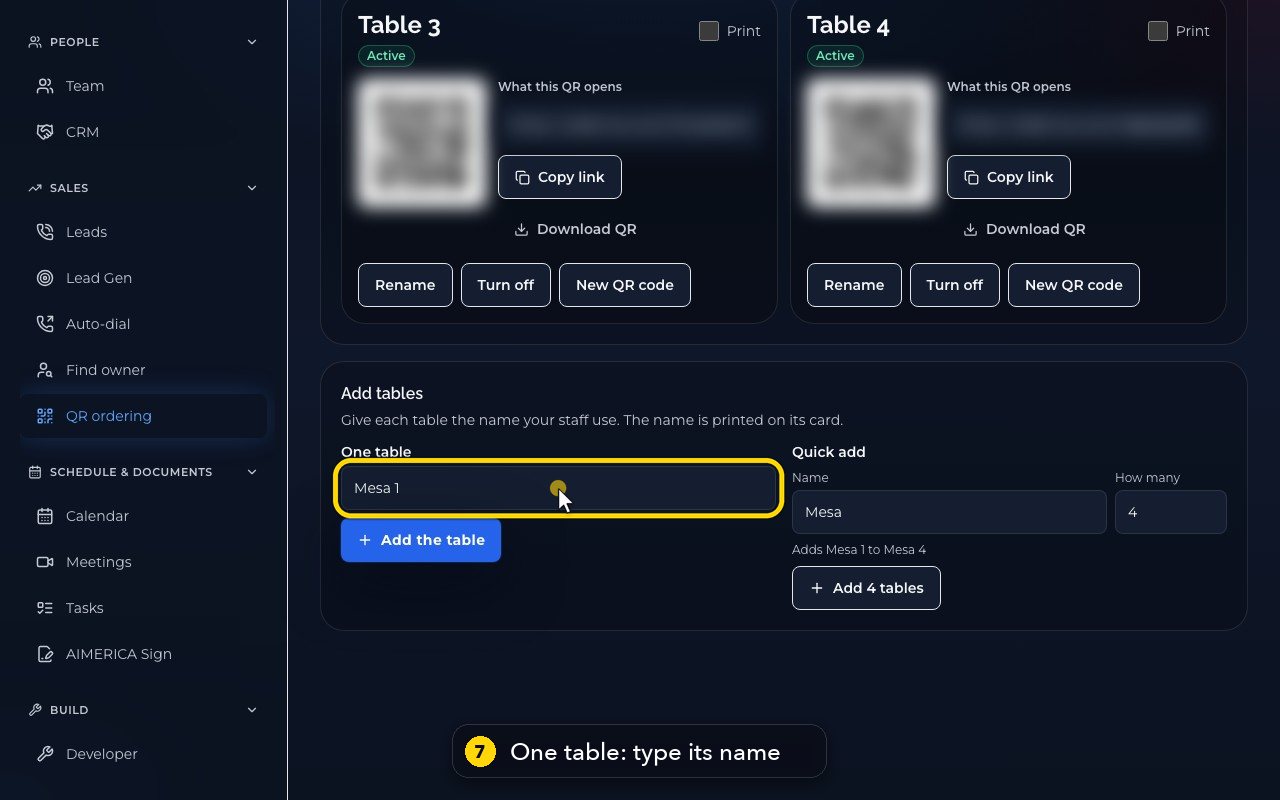
To add tables, scroll down to Add tables. Give each table the name your staff use: it is printed on its card.
- 7
Add one table by its name, for example, Patio.
- 8
Add the table creates it, with its own QR code. In this video, we only look.
- 9
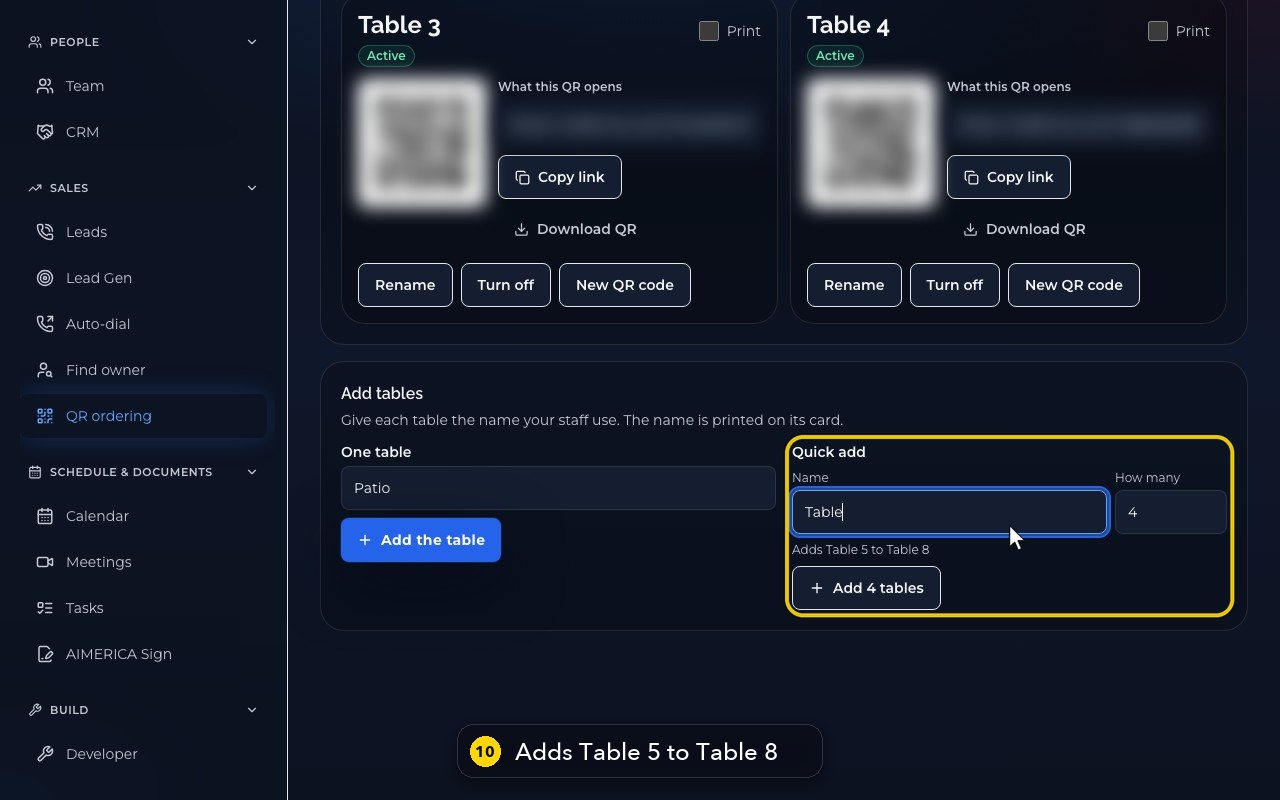
Or add several at once: a name, and how many. The numbers carry on from your last table.
- 10
The line under it, and the button, say exactly which tables it adds.
- 11
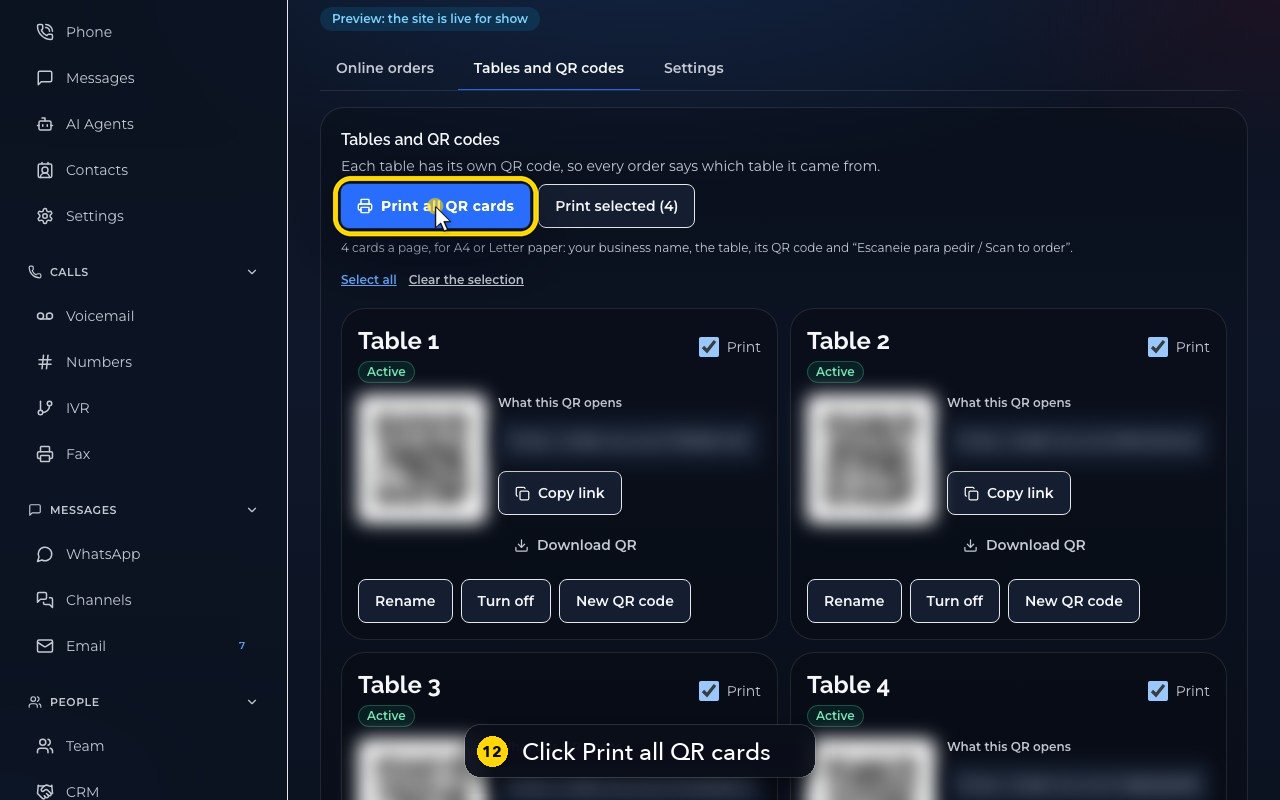
To print, tick Print on the tables you want, or click Select all.
- 12
Print all QR cards makes a PDF, four cards a page, for Letter or A4 paper: your restaurant's name, the table, its QR code, and Scan to order.
- 13
Cut the cards and put each one on its table. Test one with your phone camera: the menu opens with that table's name at the top.
Order from your table with the QR code
Scan the table's QR code, open a dish, add it with a note, and check your order before paying.
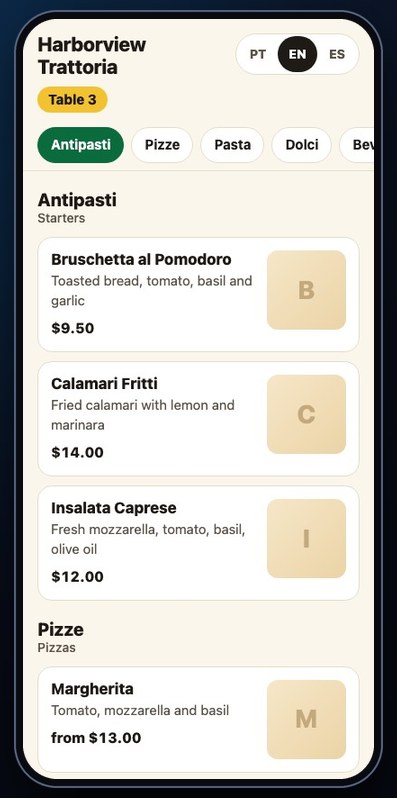
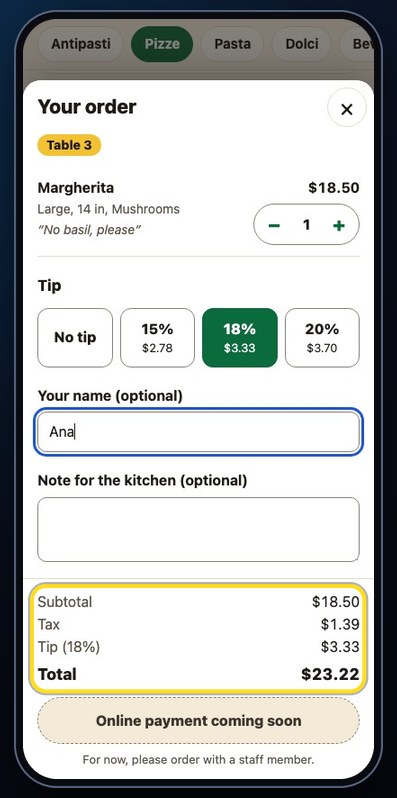
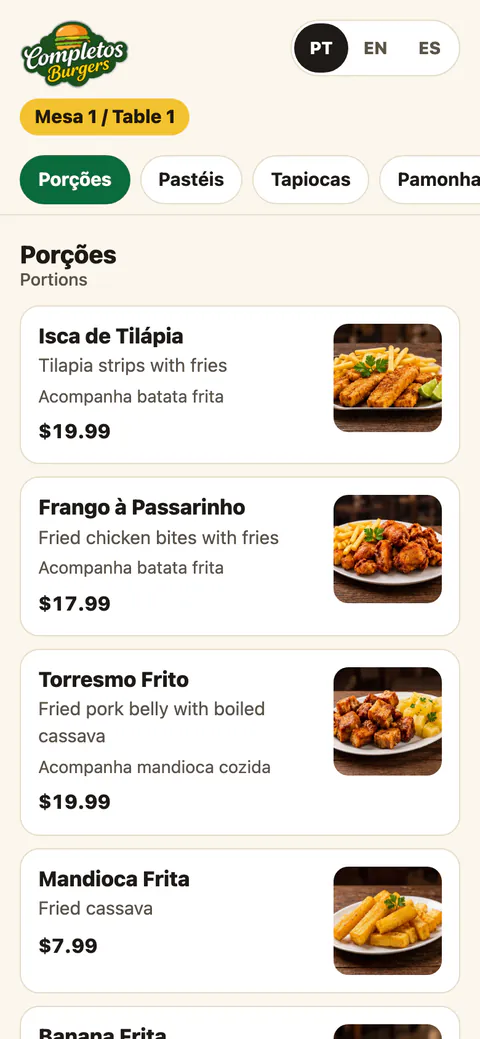
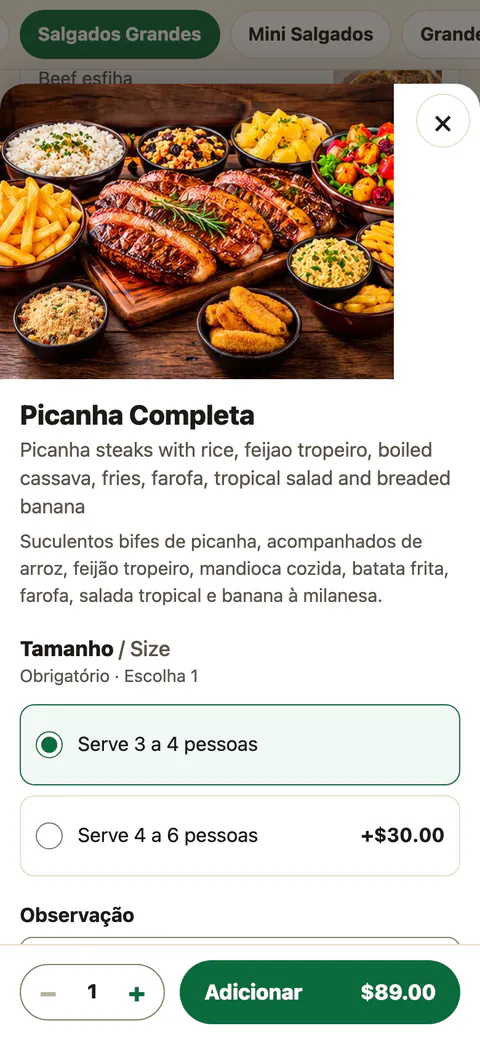
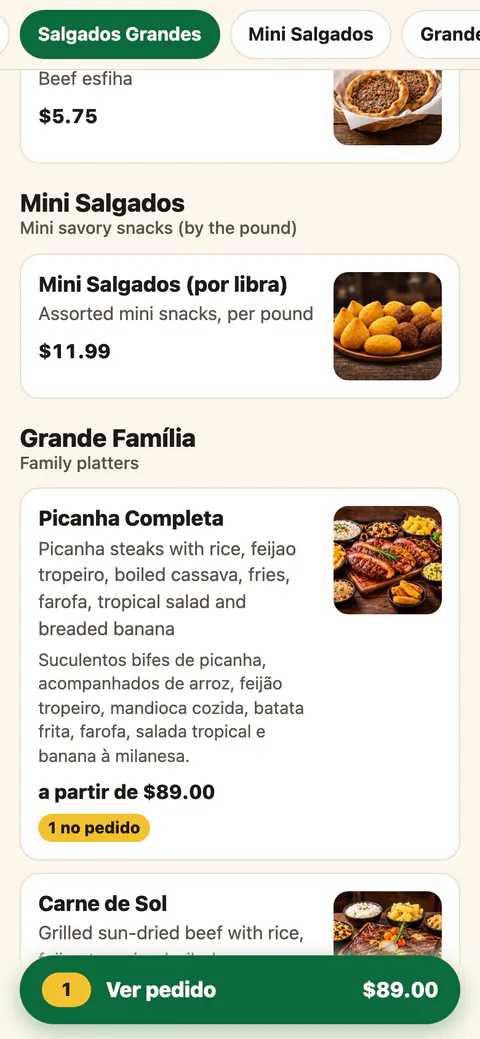
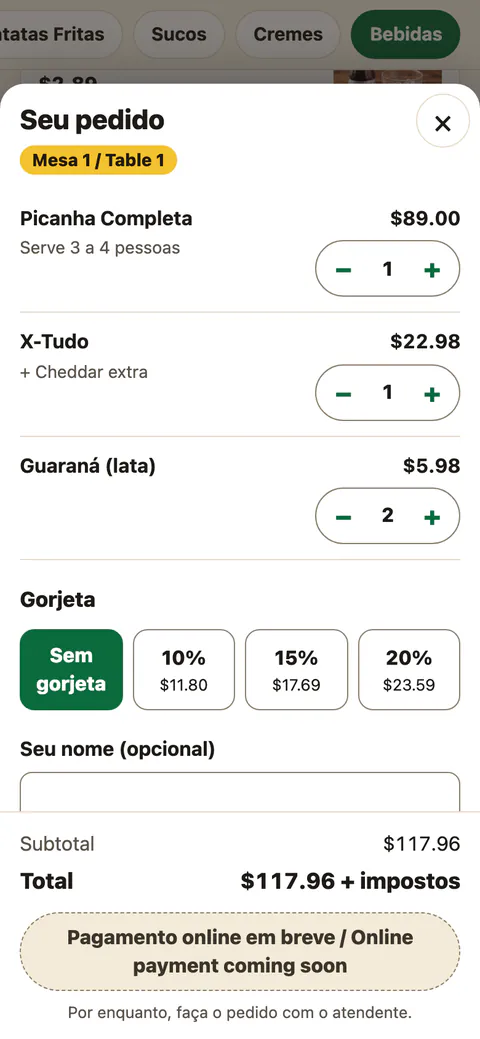
Diners scan the QR code on their table. The restaurant's order page opens in the phone's browser, with the table's name at the top. They pick a language, jump to a section, tap a dish, choose its size and options, leave a note for the kitchen, and tap the price to add it. View order shows the order: quantities, tip, their name, a note, and the subtotal, tax and total.
In this video
Step by step (17 steps)
- 1
Scanning the QR code on a table opens the restaurant's own order page, right in the phone's browser.
- 2
The table's name is at the top, so every order says where it came from.
- 3
Diners pick their language at the top, for example Spanish.
- 4
We'll keep English.
- 5
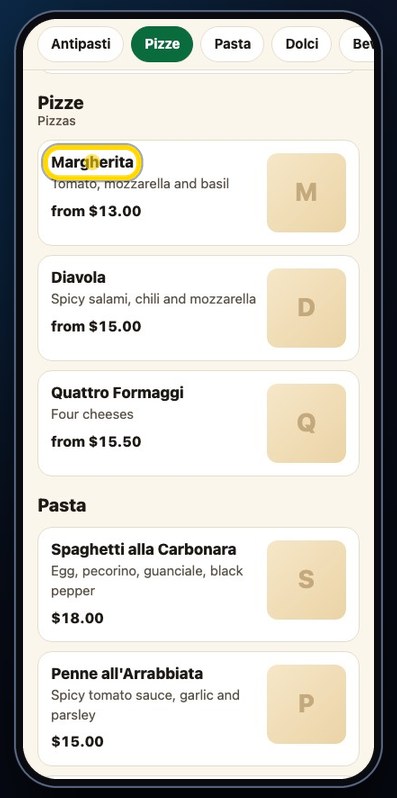
The bar at the top jumps straight to a section, like the pizzas.
- 6
Tap a dish to open it.
- 7
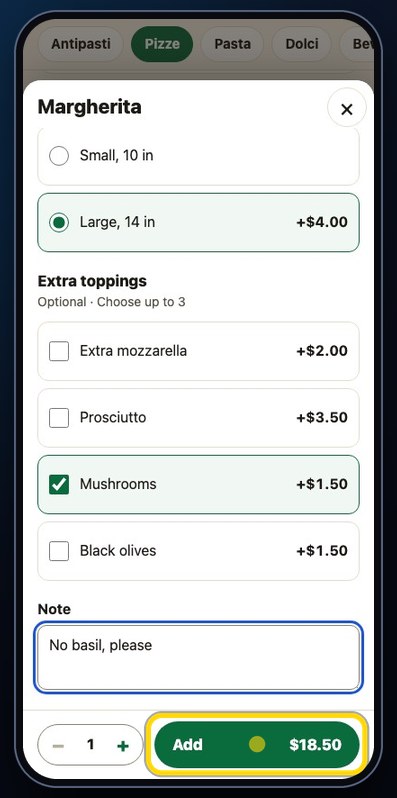
Choose a size. The price on the button follows each choice.
- 8
Add a topping, if you like.
- 9
Leave a note for the kitchen.
- 10
The button shows the price. Tap it to add the dish to the order.
- 11
The order waits in the bar at the bottom. Tap View order.
- 12
Change the quantity here, with minus and plus.
- 13
Pick a tip, or no tip.
- 14
Add your name, so the staff know whose order it is.
- 15
The subtotal, the tax and the total come from the restaurant's own prices.
- 16
While this order site is in preview, the last button reads Online payment coming soon, and diners order with a staff member.
- 17
Close the order to keep browsing.
Take QR orders on the live board
Turn the sound on and move each table's order to Ready and Served on the Online orders board.
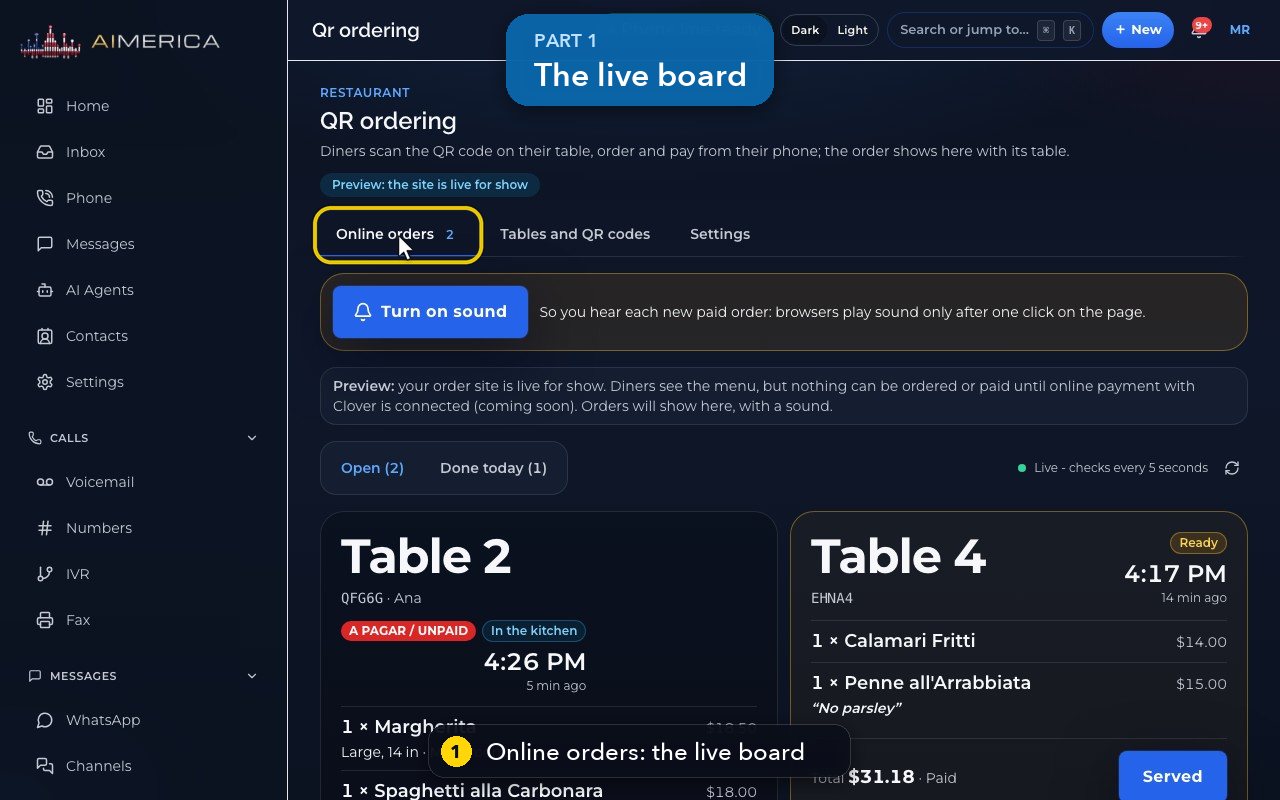
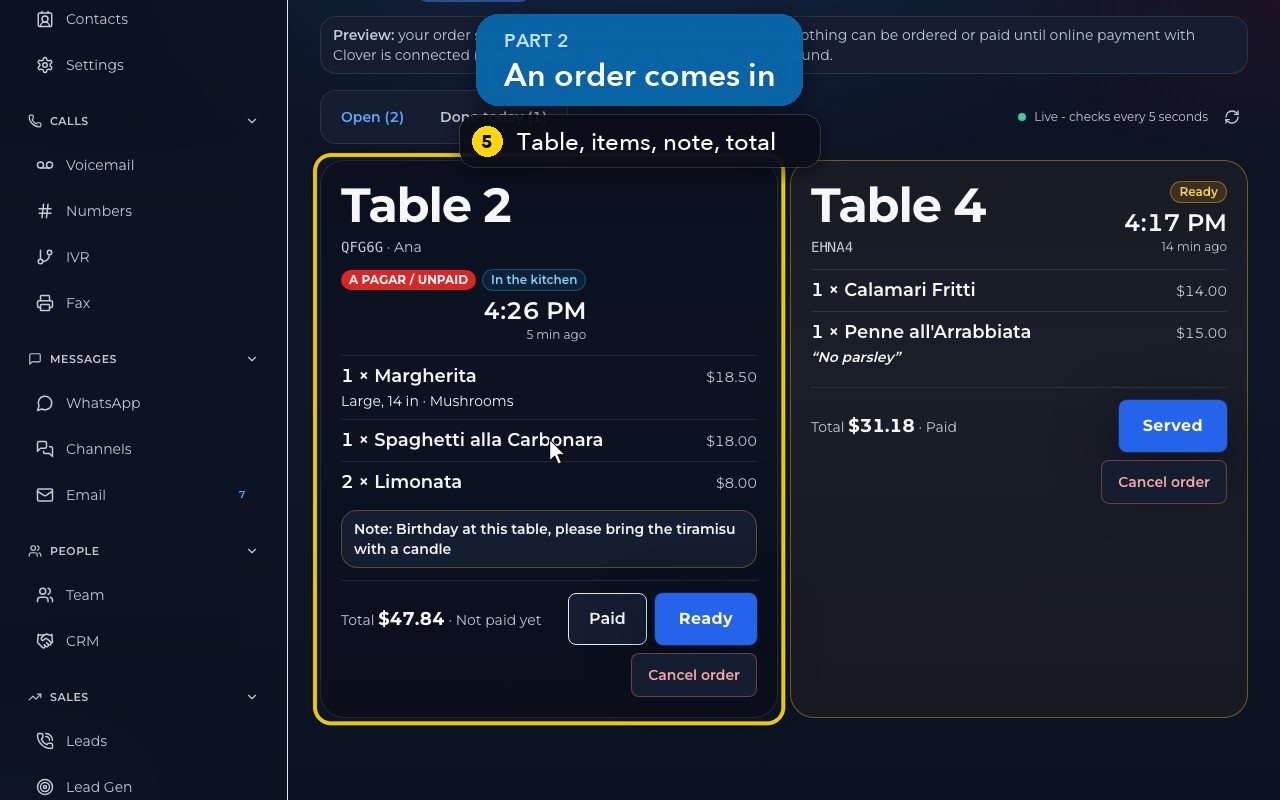
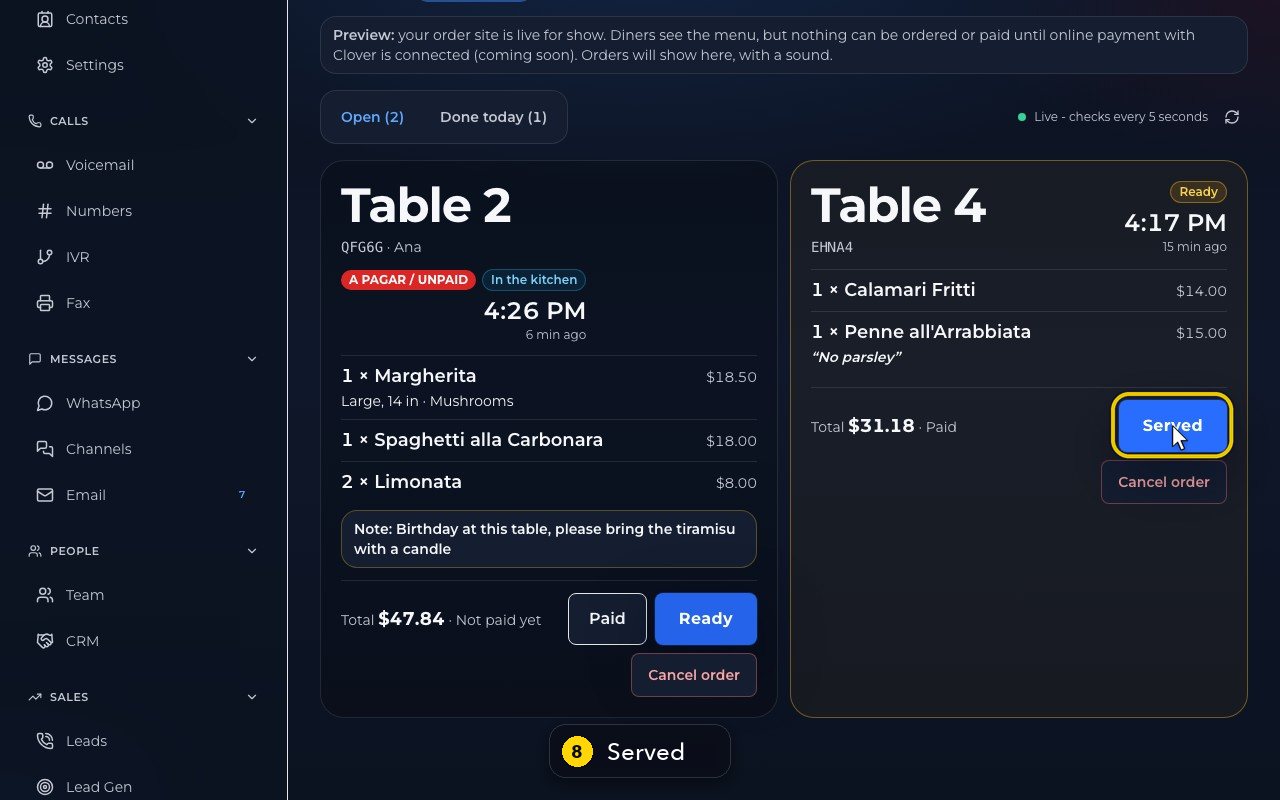
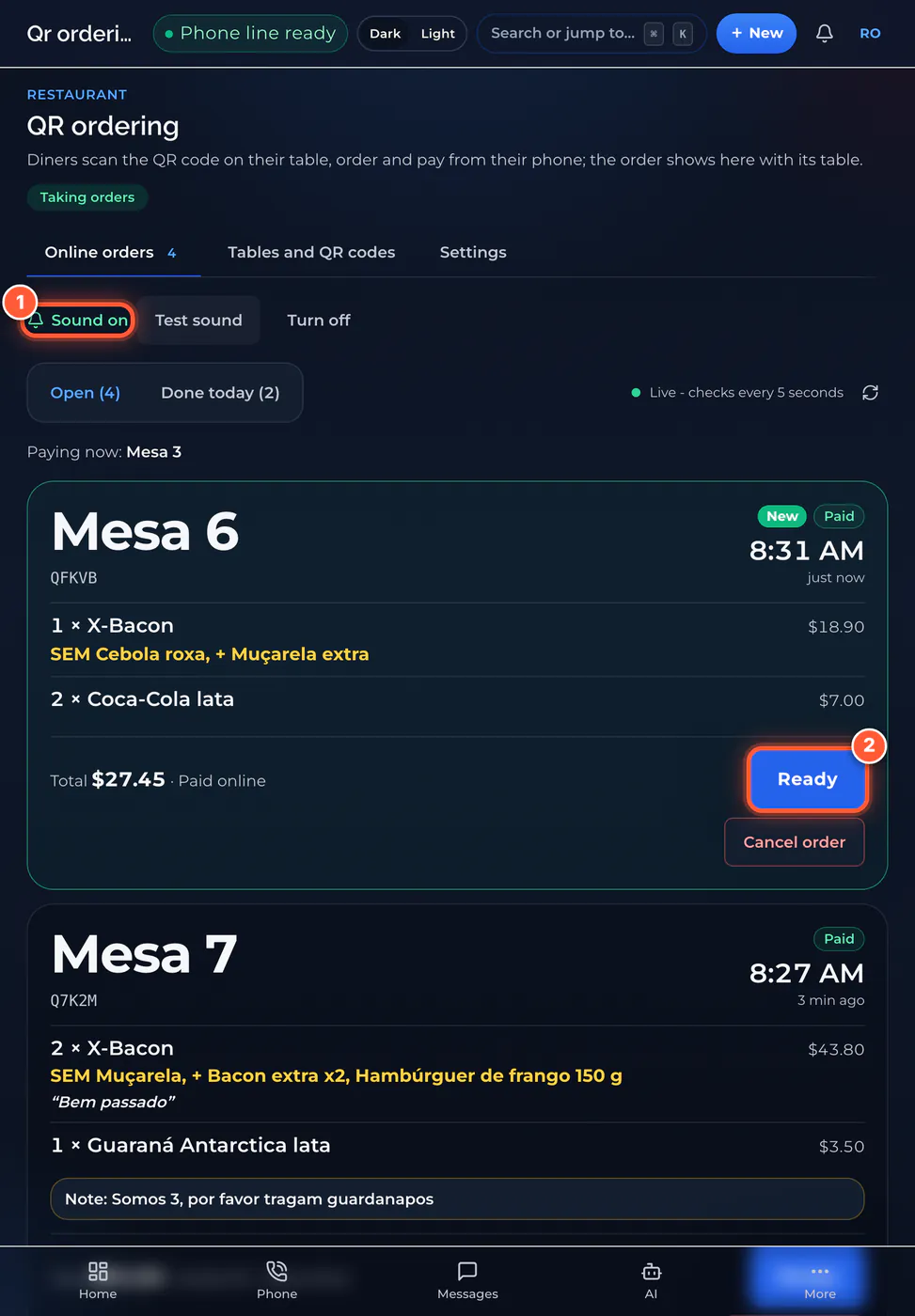
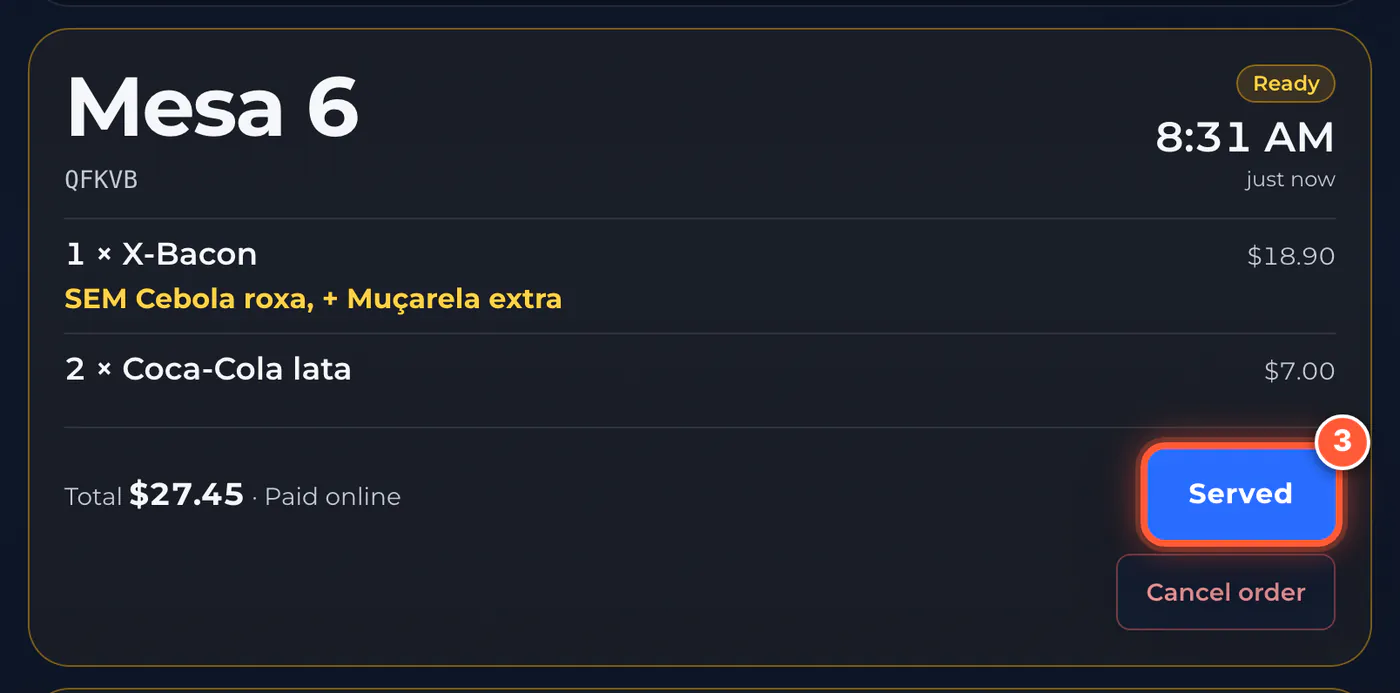
In QR ordering, Online orders is the live board: keep it open at the counter and click Turn on sound once, so every new order rings. Each order shows its table, the order number, the items, any note and the total. Click Ready when the food is ready and Served when it reaches the table. When diners pay at the counter, the card says UNPAID until you click Paid. Done today lists today's served and cancelled orders.
In this video
Step by step (12 steps)
- 1
Online orders is the live board. Keep it open on a screen at the counter.
- 2
Click Turn on sound once, so every new order rings.
- 3
Test sound plays the chime.
- 4
The board checks for new orders every five seconds, by itself.
- 5
Each order shows its table, the order number, the items and any note, with the total. These are sample orders on our demo restaurant.
- 6
When diners pay at the counter, the card says unpaid. Click Paid once you have the money.
- 7
When the food is ready, click Ready.
- 8
When it reaches the table, click Served, and the order leaves the board.
- 9
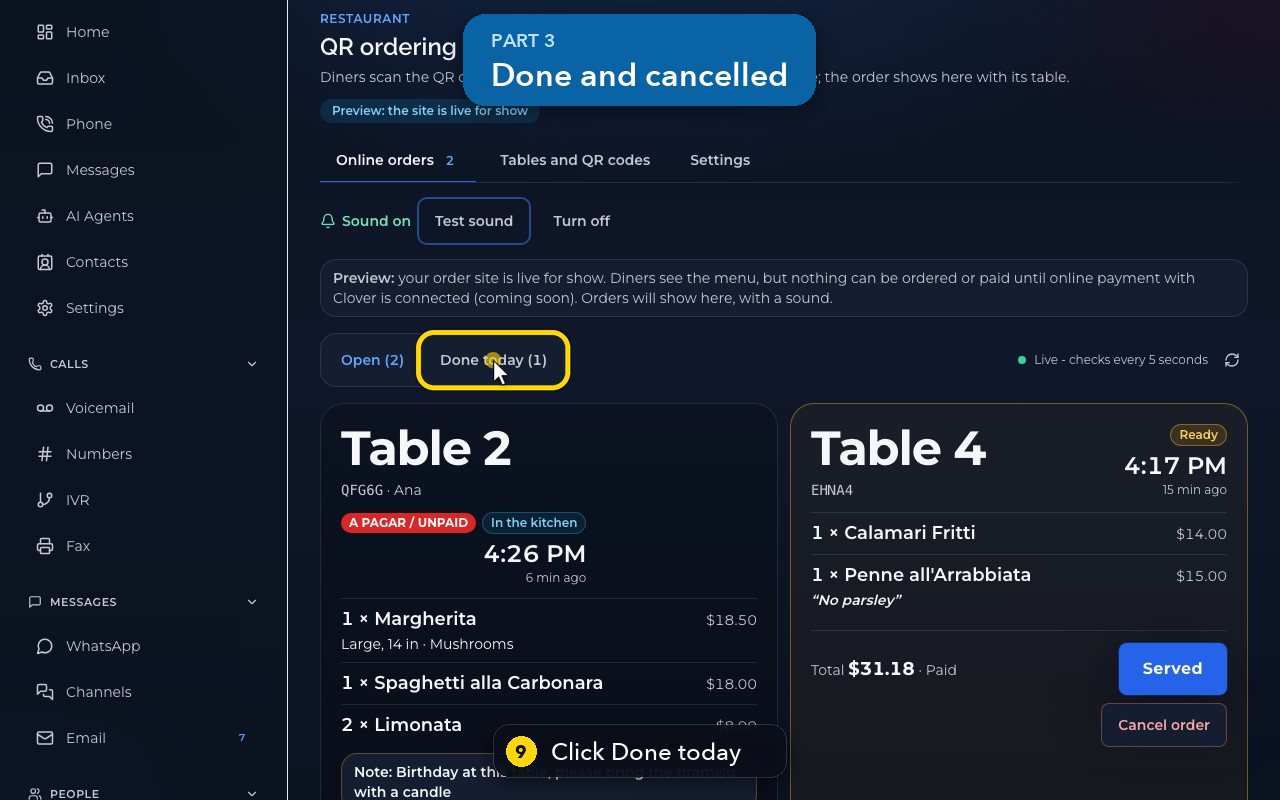
To see what is finished, click Done today. It lists today's served and cancelled orders.
- 10
Then go back to Open.
- 11
On an open order, Cancel order always asks first, and tells you what to do about the money.
- 12
Keep as is closes the question. Nothing changes.
QR ordering settings: ordering, tips and menu
Switch table ordering on or off, copy your order site's address, set tip choices and hide or reorder menu items.
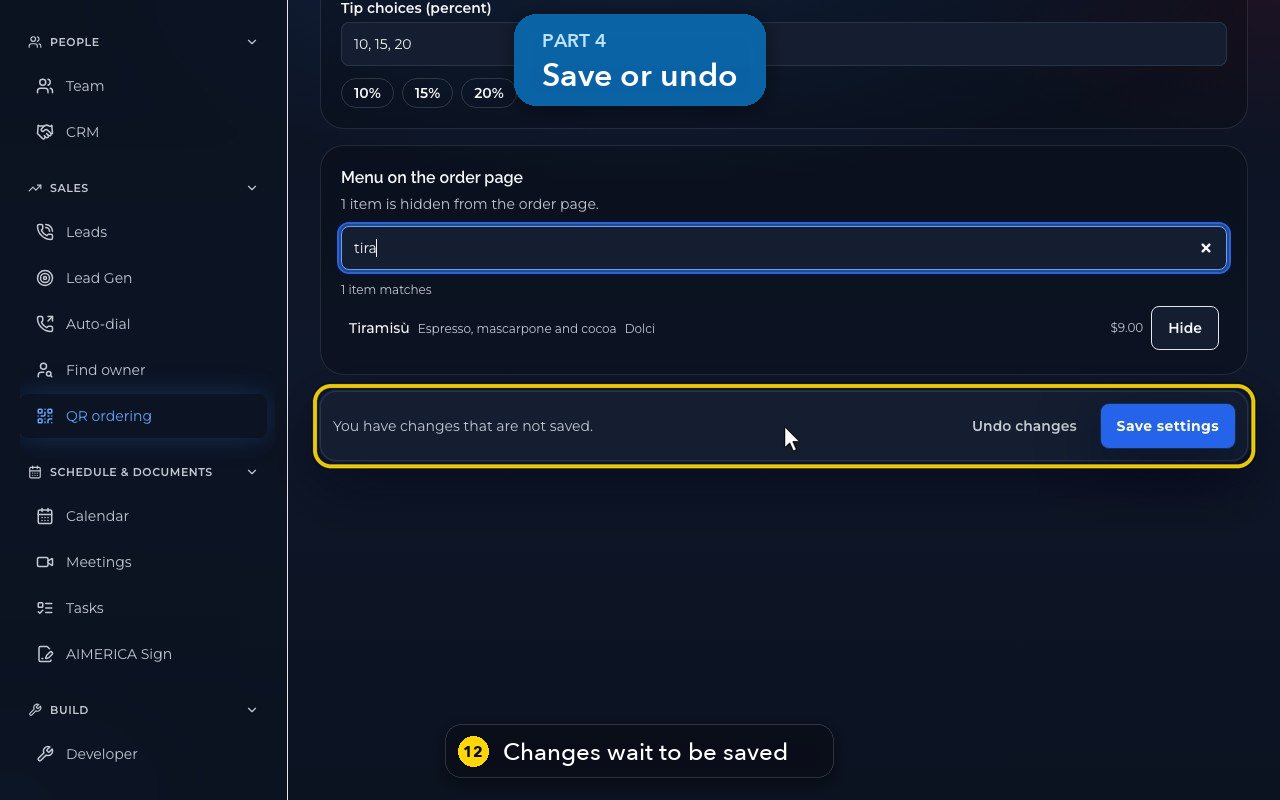
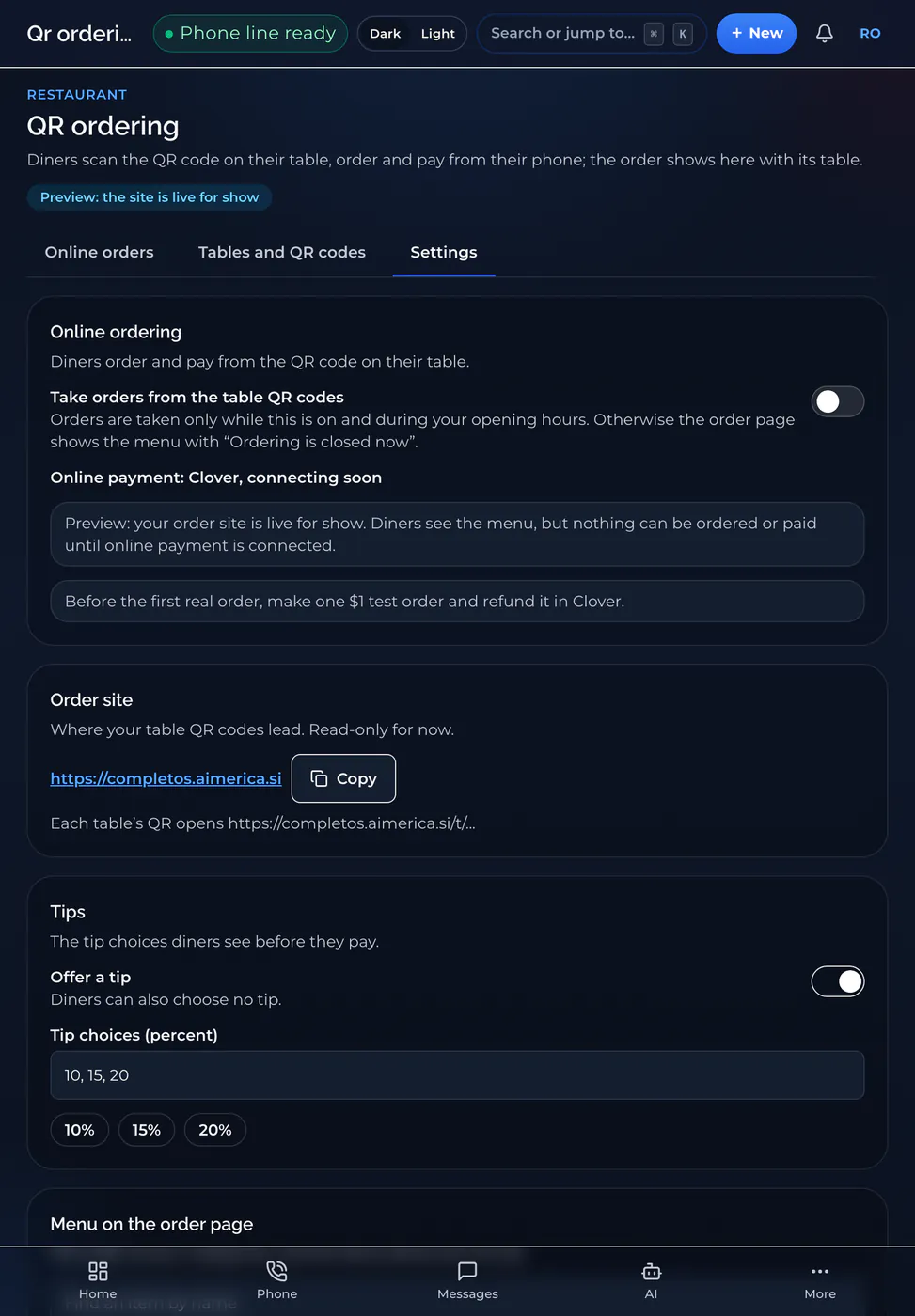
In QR ordering, open Settings. Take orders from the table QR codes switches ordering on or off (orders are taken only during your opening hours), and the line under it says how diners pay. Order site is where your table QR codes lead. Under Tips, choose the tip percentages. Menu on the order page sets the order of your categories and hides items diners should not see.
In this video
Step by step (13 steps)
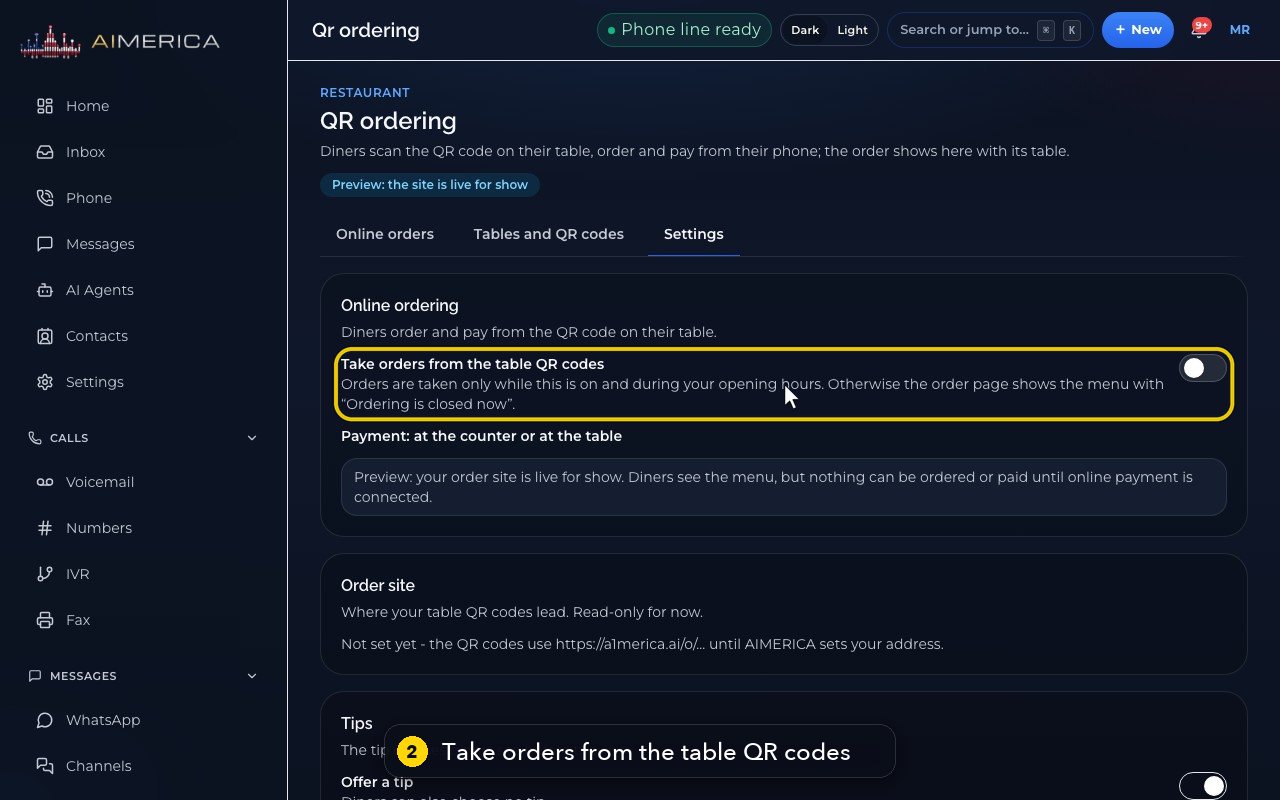
- 2
This switch takes orders from the table QR codes, during your opening hours.
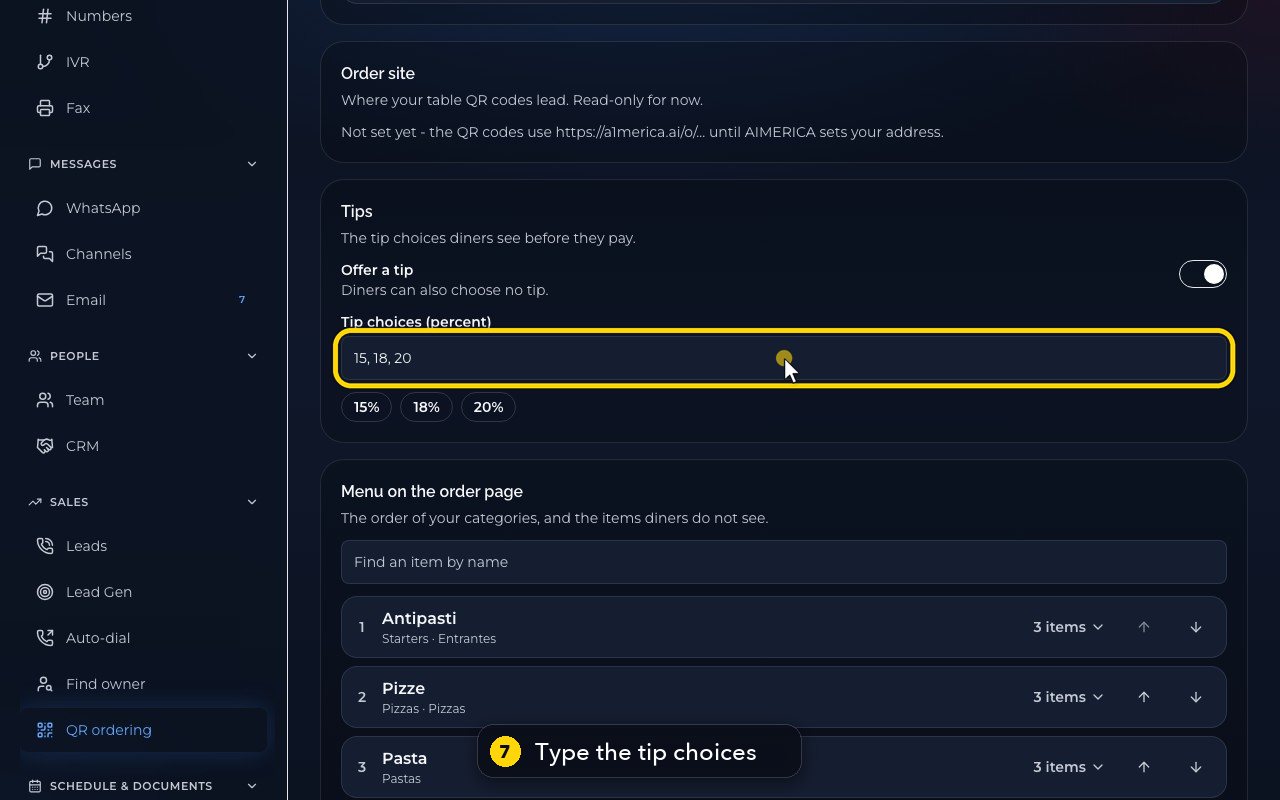
- 7
Type the tip choices in percent, separated by commas.
- 8
Menu on the order page sets the order of your categories. The arrows move a category up or down.
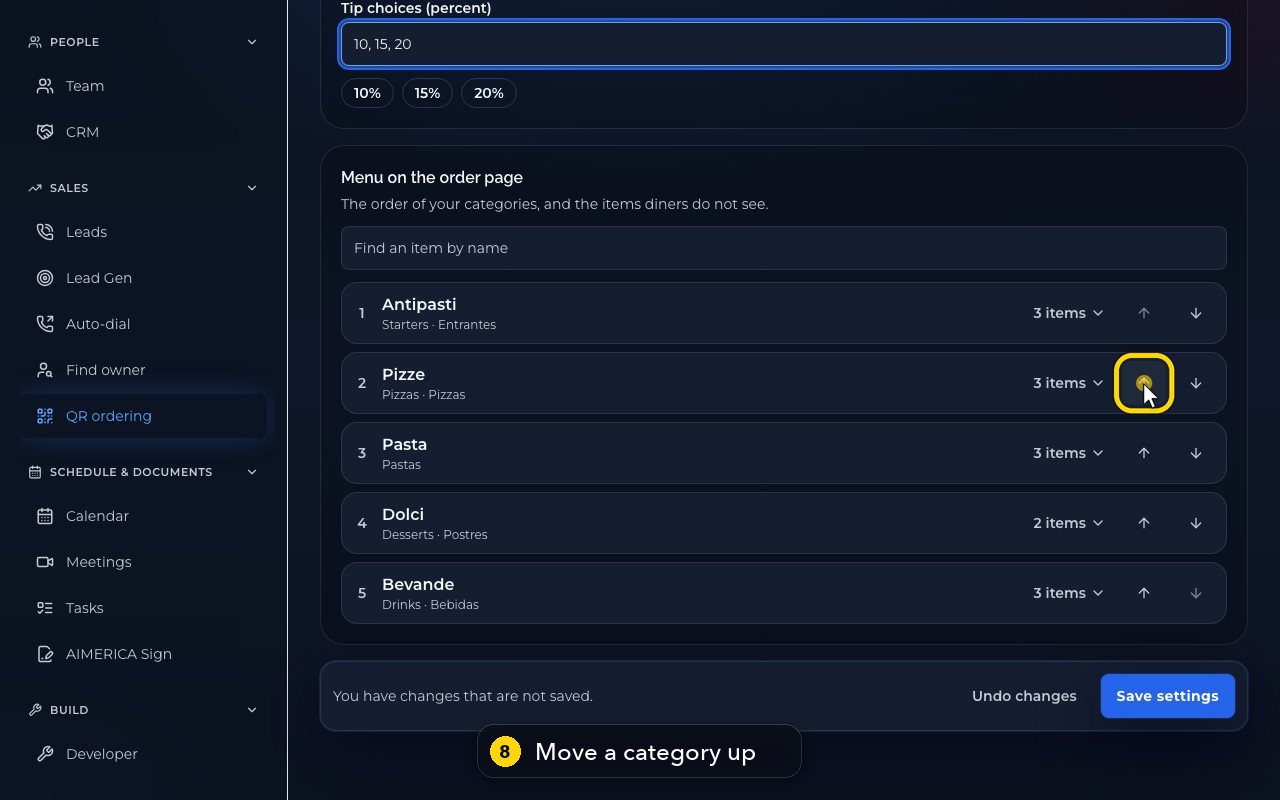
- 12
Your changes wait in a bar at the bottom, until you save them.
Replace a lost QR card, rename or turn off a table
Copy a table's link, rename it, turn it off, or make a new QR code when a card is lost or copied.
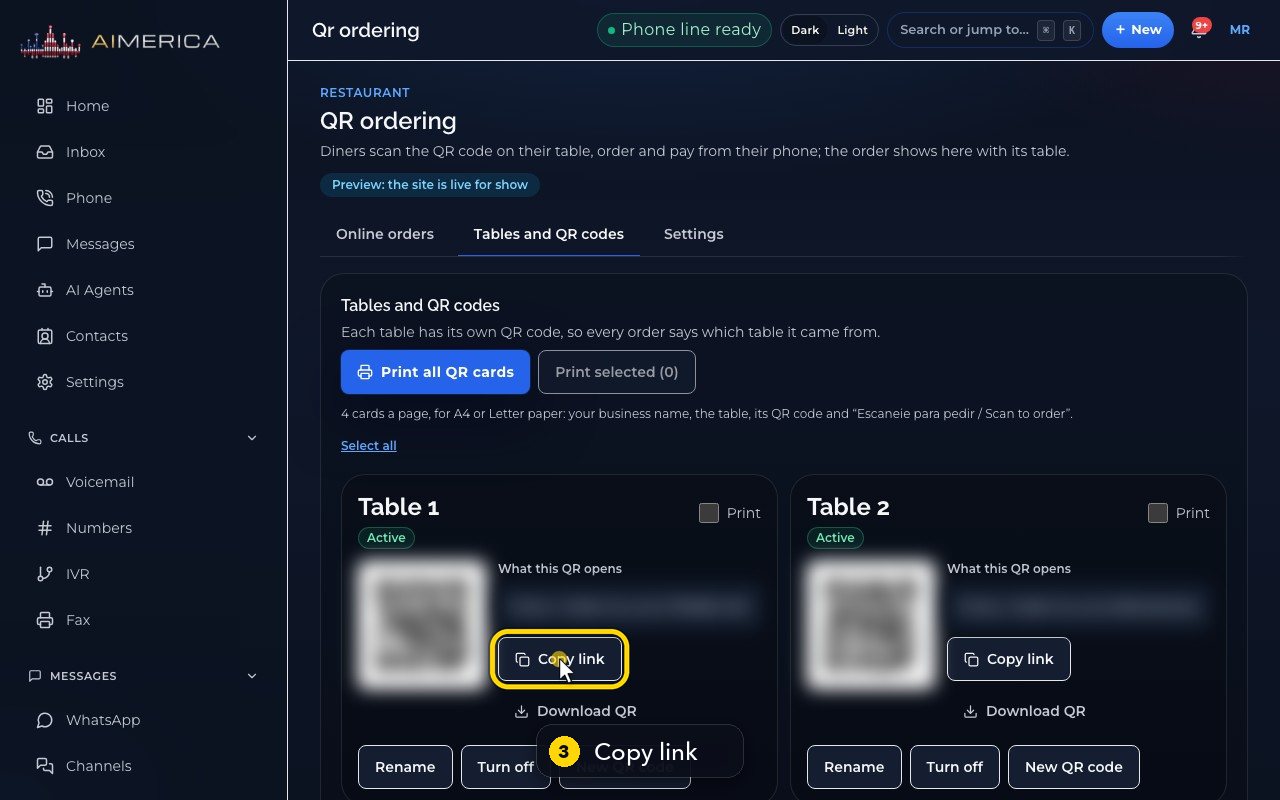
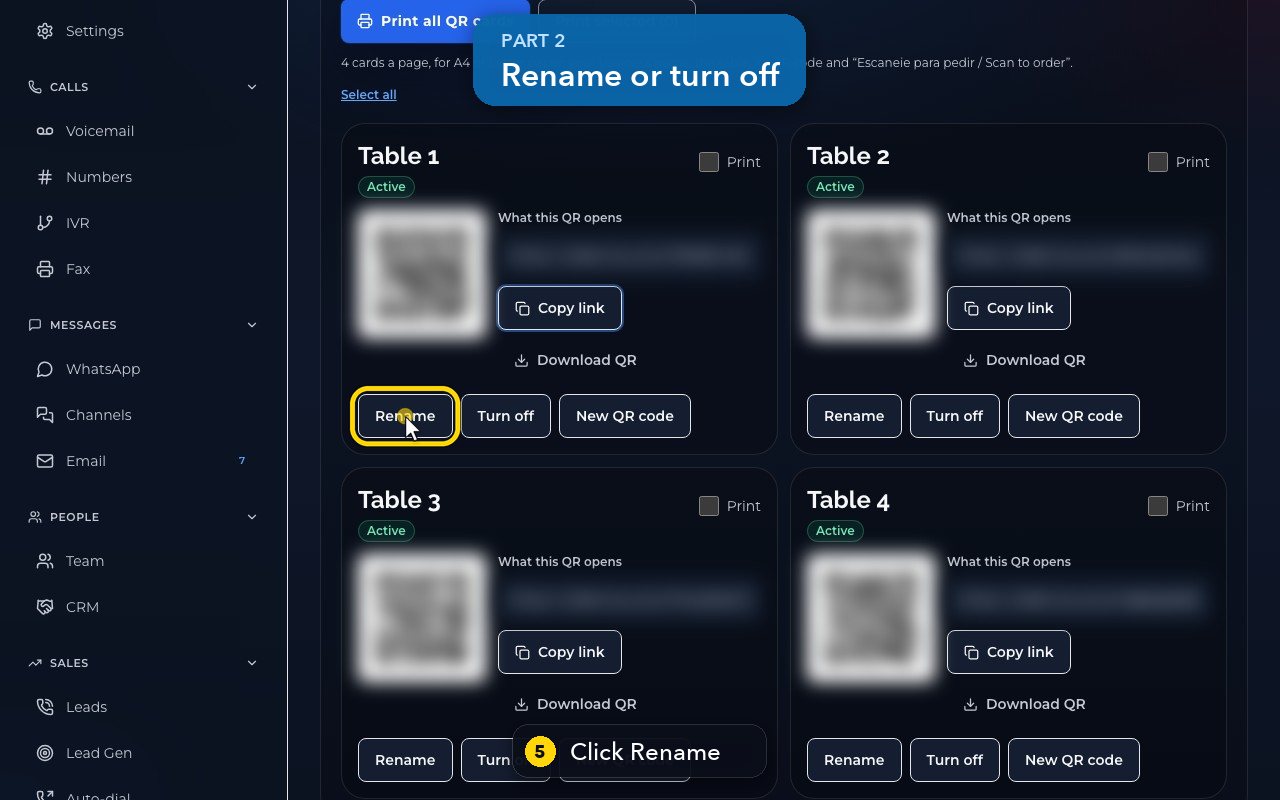
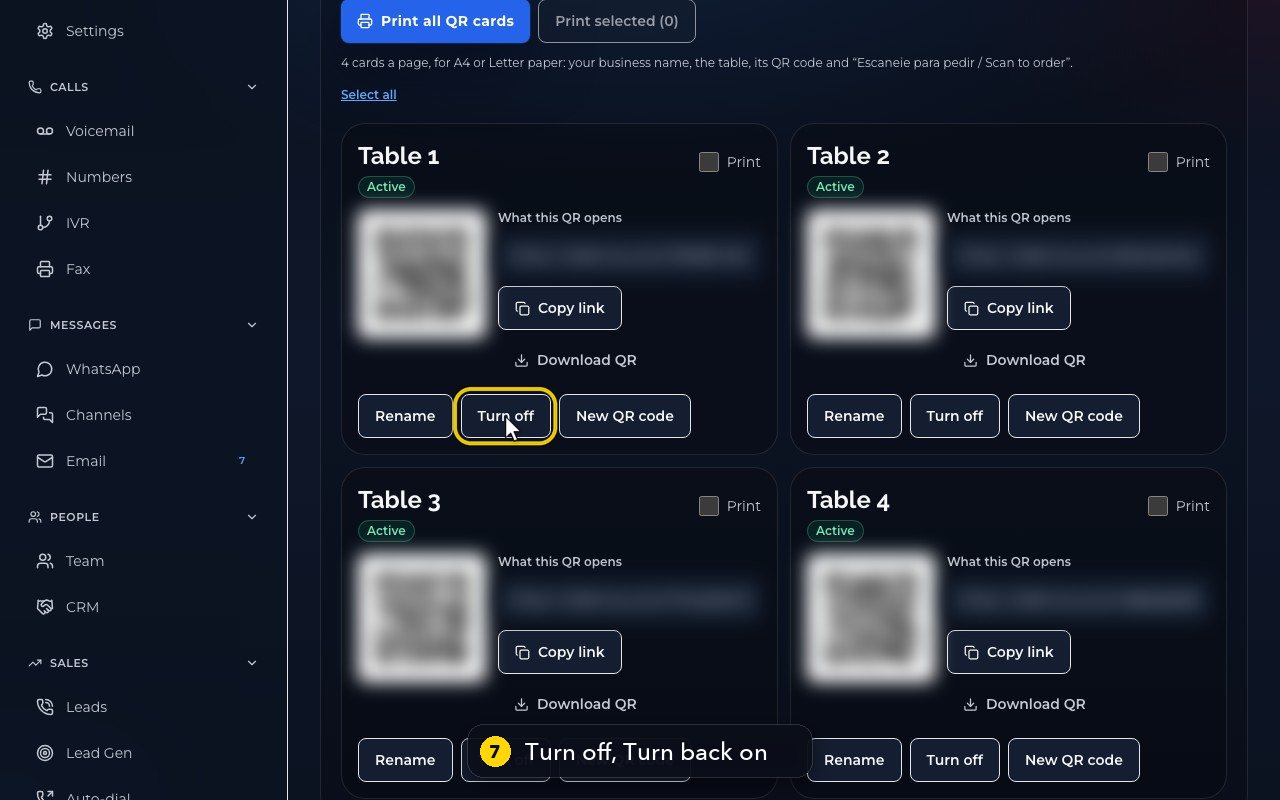
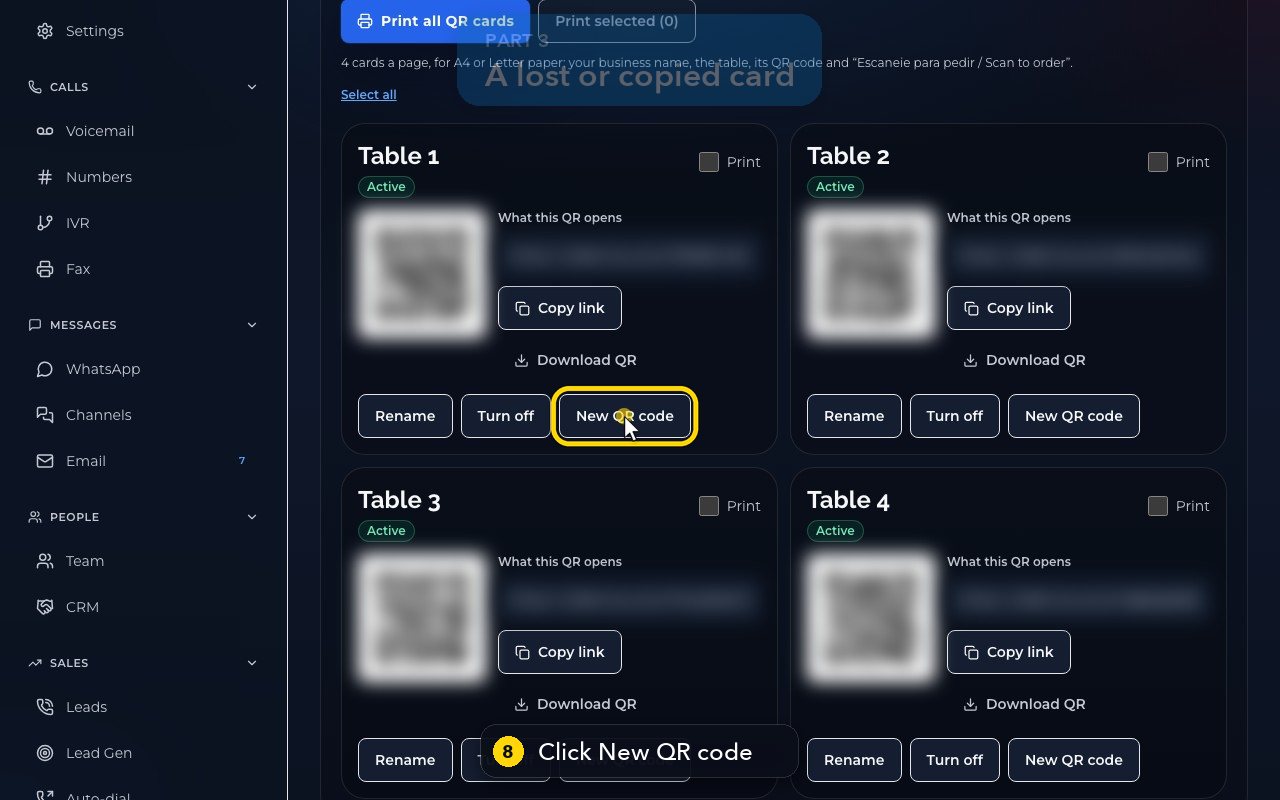
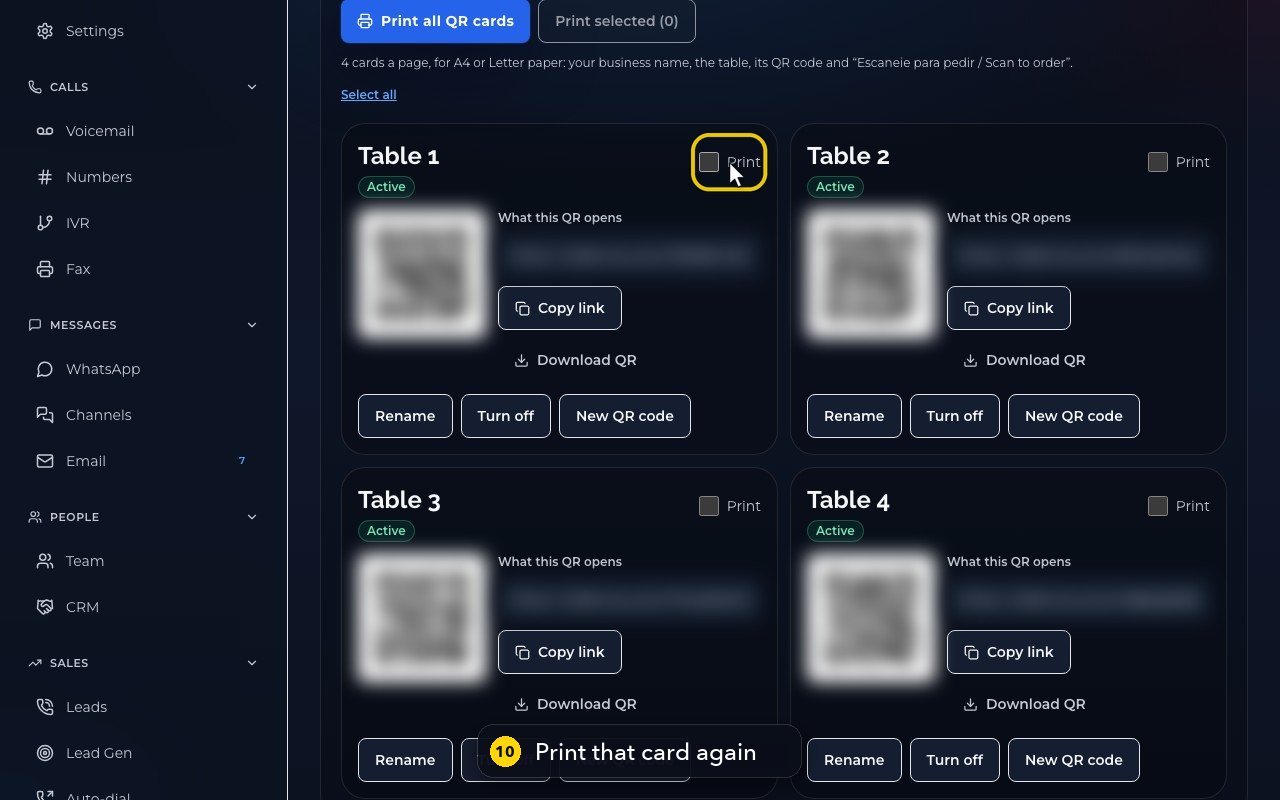
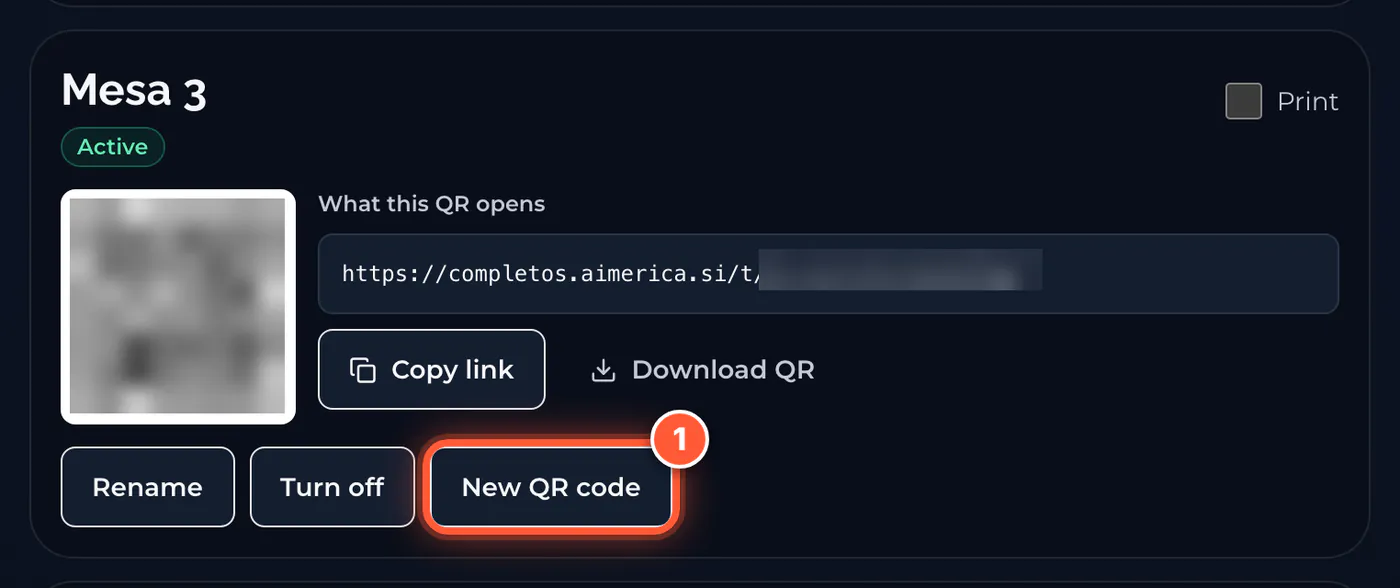
Open QR ordering > Tables and QR codes. On a table's card: Copy link copies the address its QR code opens (test it on your phone), Download QR saves the code as a picture, Rename changes the name printed on the card, Turn off stops orders from that table (Turn back on reopens it), and New QR code replaces a lost or copied card: the old one stops working at once. Then tick Print on that table and print its card again.
In this video
Step by step (10 steps)
- 1
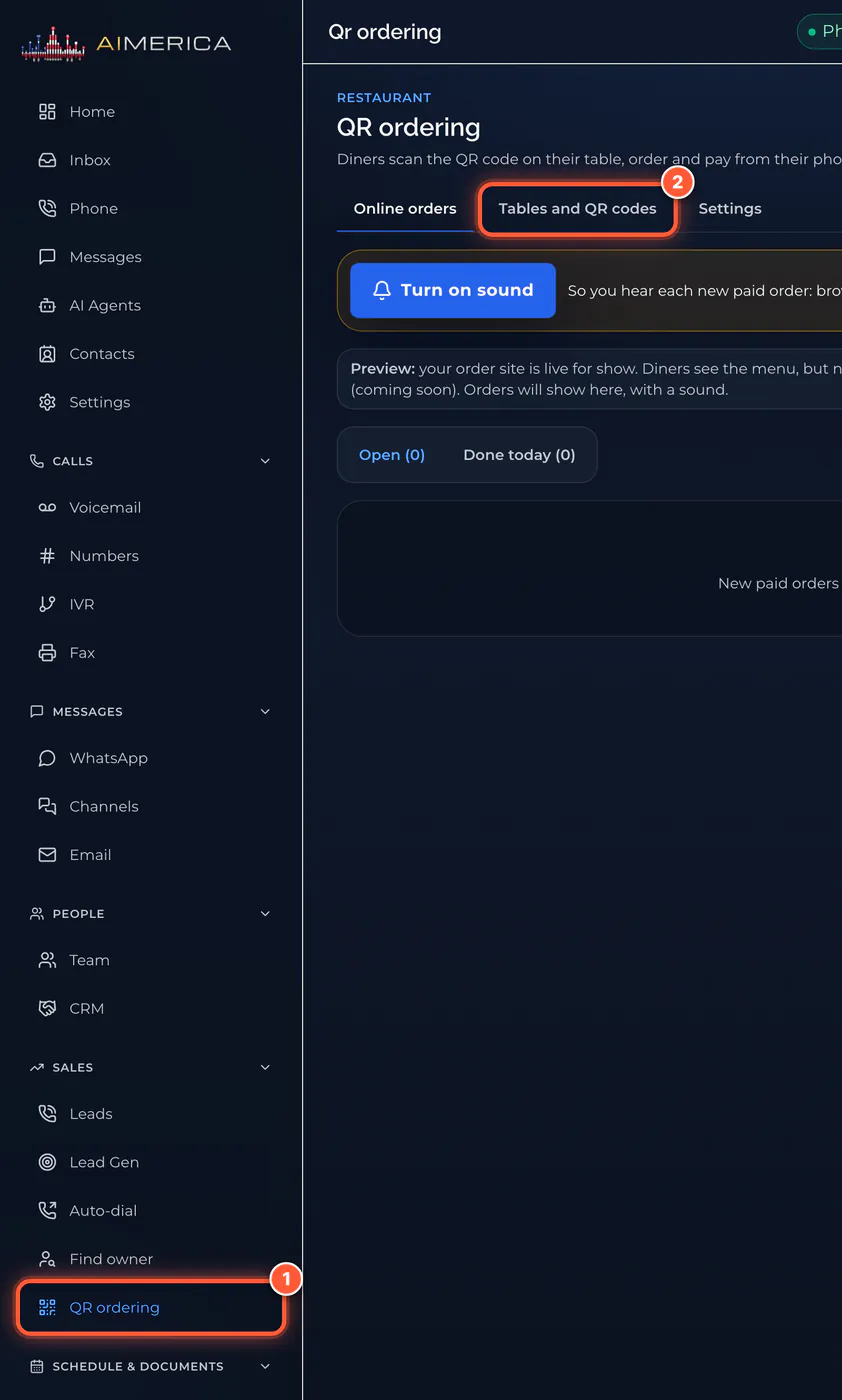
In the menu on the left, under Sales, click QR ordering.
- 2
Then, at the top, open Tables and QR codes. Each table has its own card.
- 3
Copy link copies the address the table's QR code opens, so you can test it on your phone.
- 4
Download QR saves the code as a picture.
- 5
Rename changes the name printed on the card.
- 6
Type the new name and press Save. Here, Cancel keeps the name.
- 7
Turn off stops orders from a table you are not using. Turn back on opens it again.
- 8
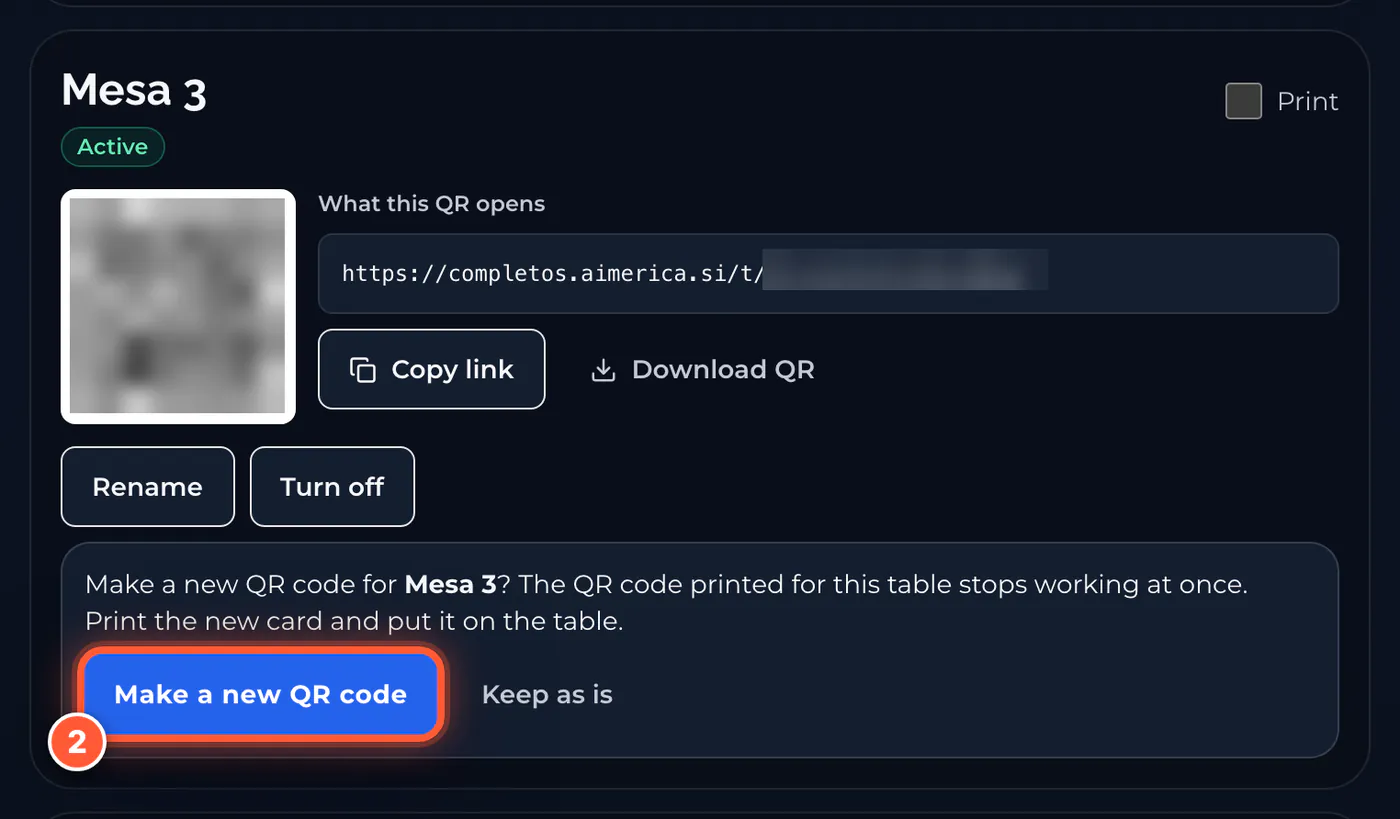
Card lost, or copied? New QR code makes a new one, and the old card stops working at once.
- 9
It asks first. Keep as is closes the question, and nothing changes.
- 10
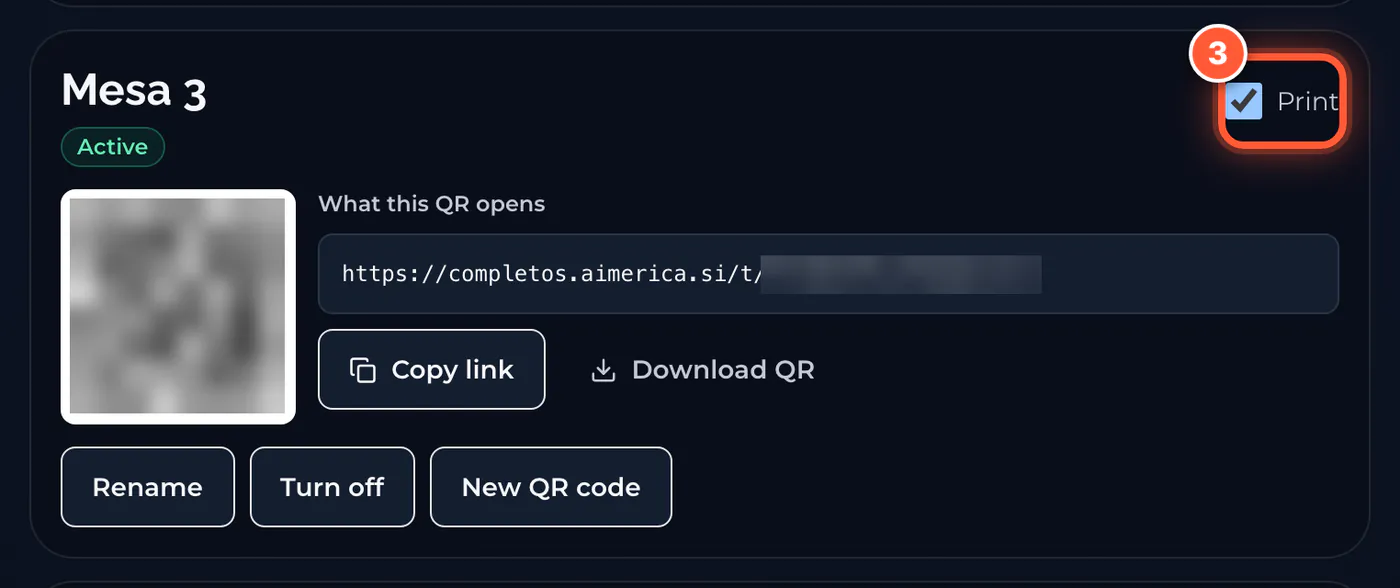
After a new code, tick Print on that table, and print its card again.
What you need
- The AIMERICA web app, signed in as the owner or an admin
- A computer or tablet at the counter
- A printer (Letter or A4 paper), scissors, and card stands or tape
PTVocê precisa: o app AIMERICA (login de dono ou admin), um computador ou tablet no balcão, uma impressora (papel Carta ou A4), tesoura e suportes ou fita.
Open QR ordering
Abra o QR ordering
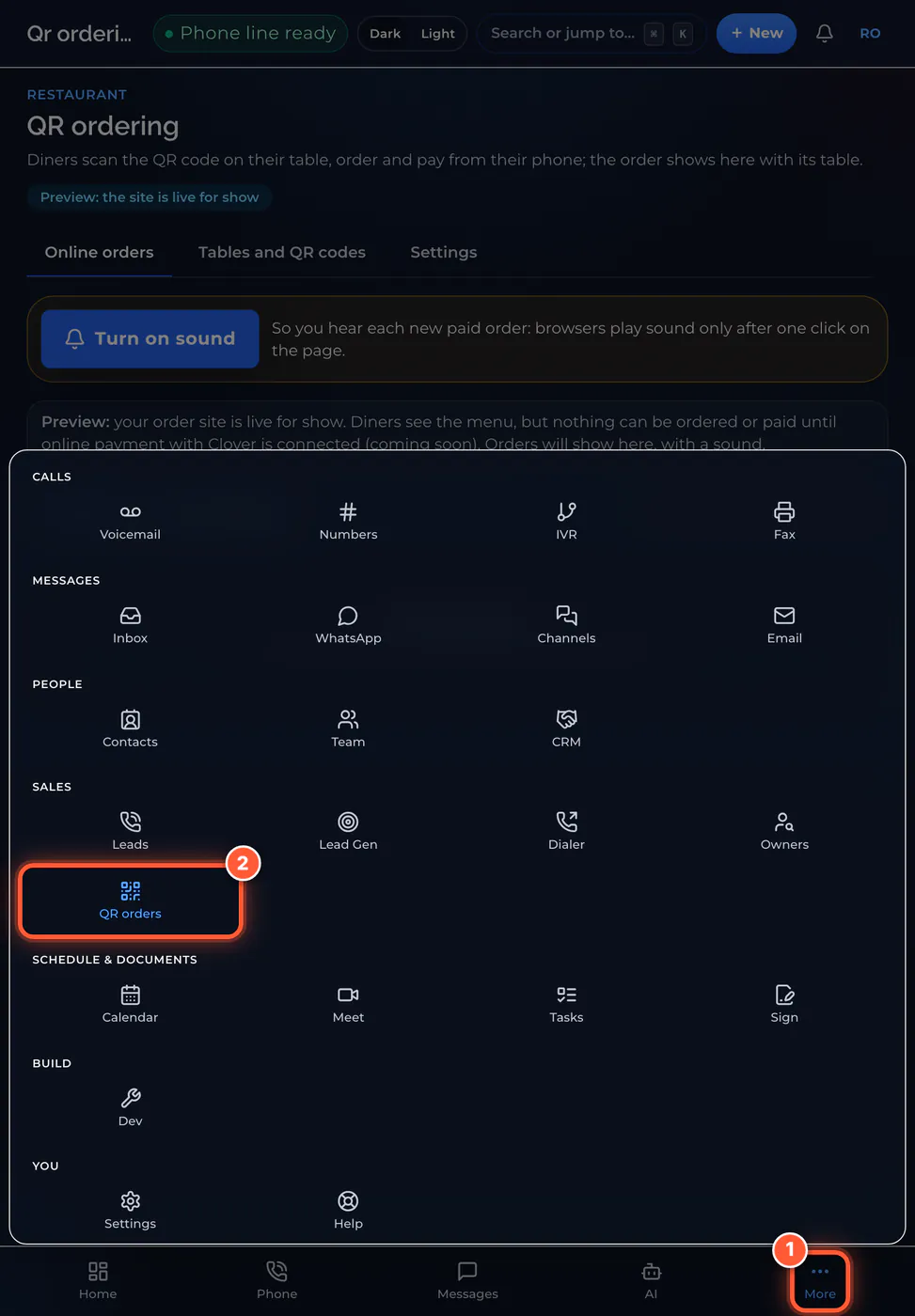
Sign in to the AIMERICA web app. In the menu on the left, go down to Sales and click QR ordering, then click the Tables and QR codes tab. On a tablet, tap More at the bottom, then QR orders.
PTNo menu à esquerda, em Sales, clique em QR ordering e depois na aba Tables and QR codes. No tablet: toque em More, embaixo, e depois em QR orders.
Add your tables
Cadastre as mesas
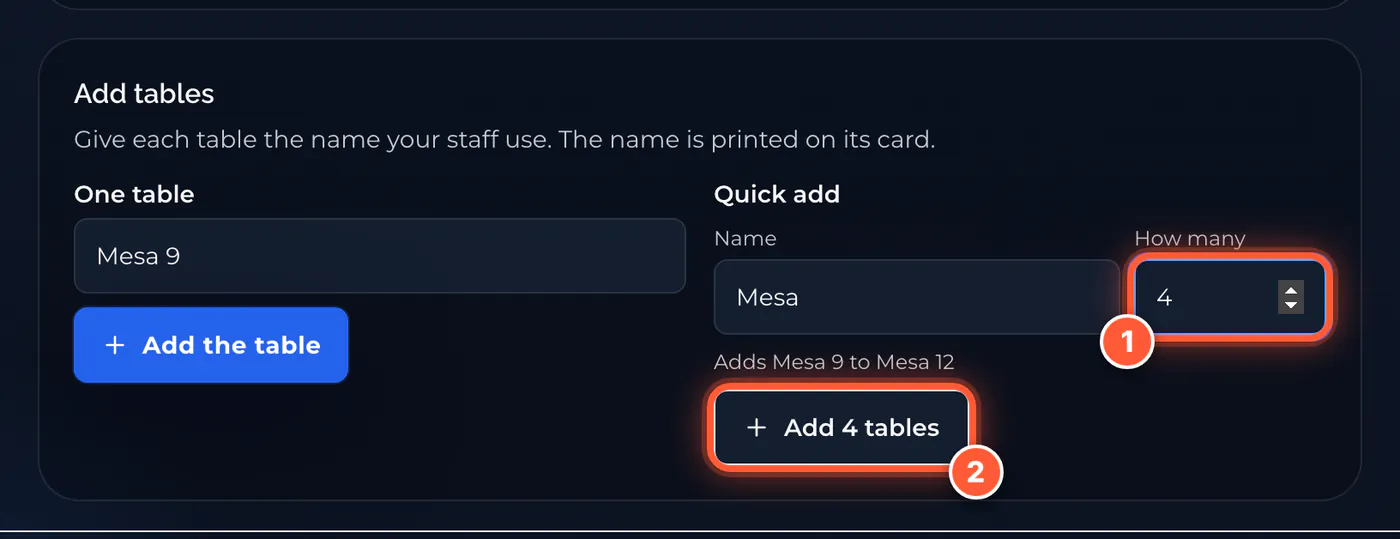
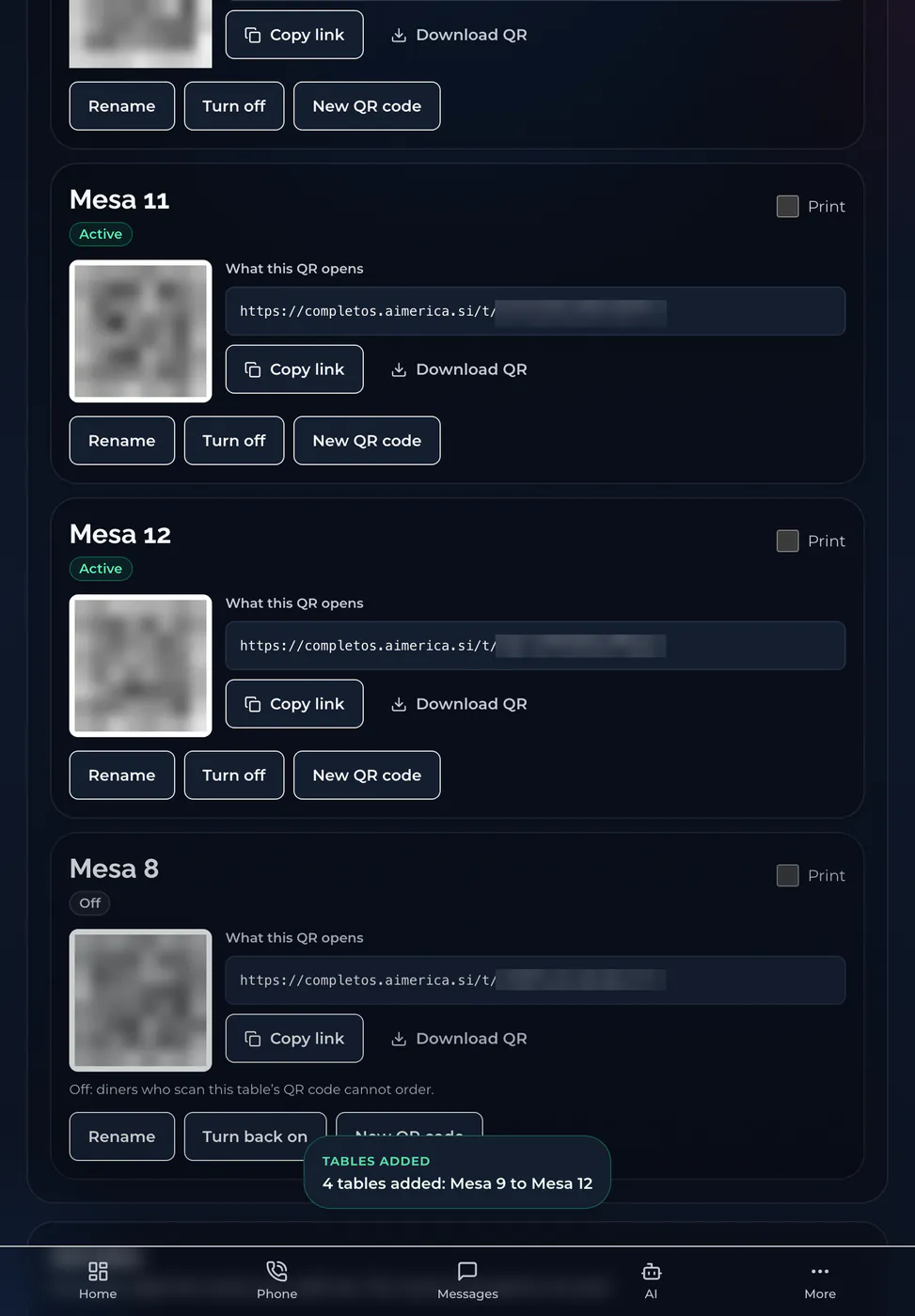
If your tables are already listed, each one already has its own QR code: go on to step 3. To add tables, go to Add tables, type how many under Quick add, and click Add. The numbers carry on from your last table. Rename changes a name, and Turn off stops orders from a table you don’t use.
PTSe as suas mesas já aparecem na lista, cada uma já tem o seu QR code: vá para o passo 3. Para adicionar mesas: em Quick add, digite quantas e clique em Add. A numeração continua sozinha. Rename muda o nome; Turn off desliga uma mesa que você não usa.
Print the QR cards
Imprima os cartões
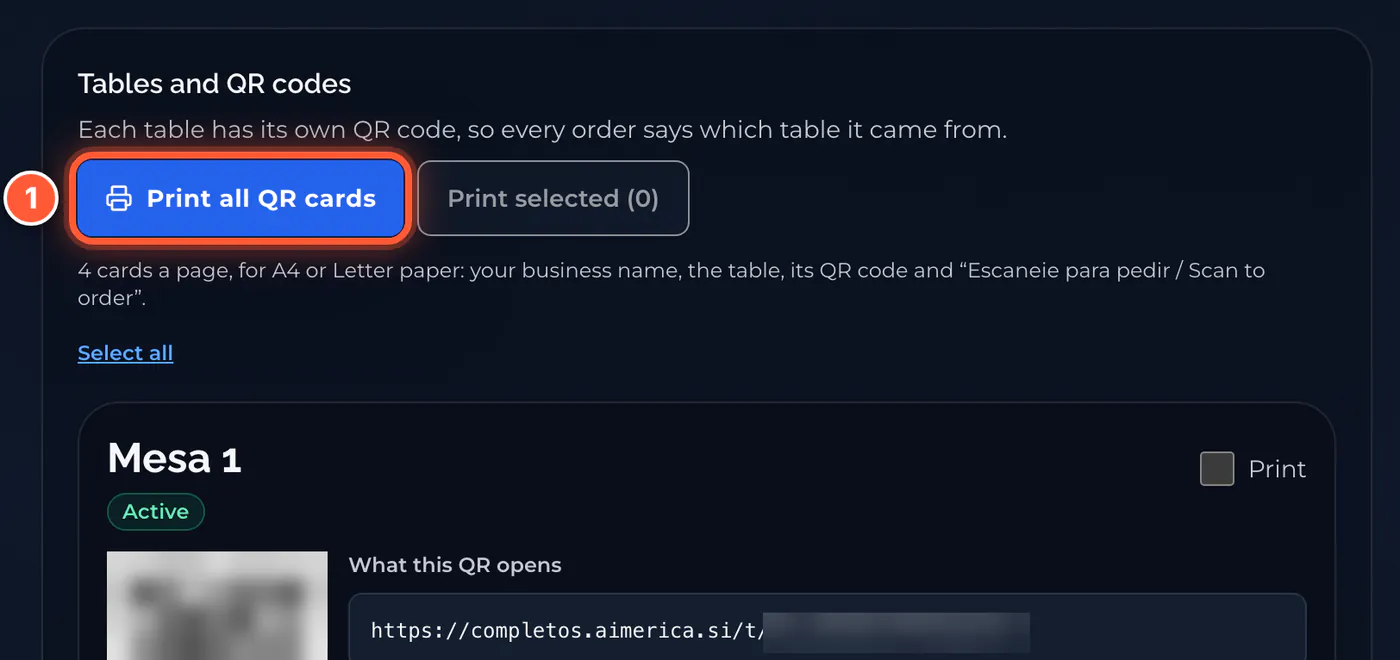
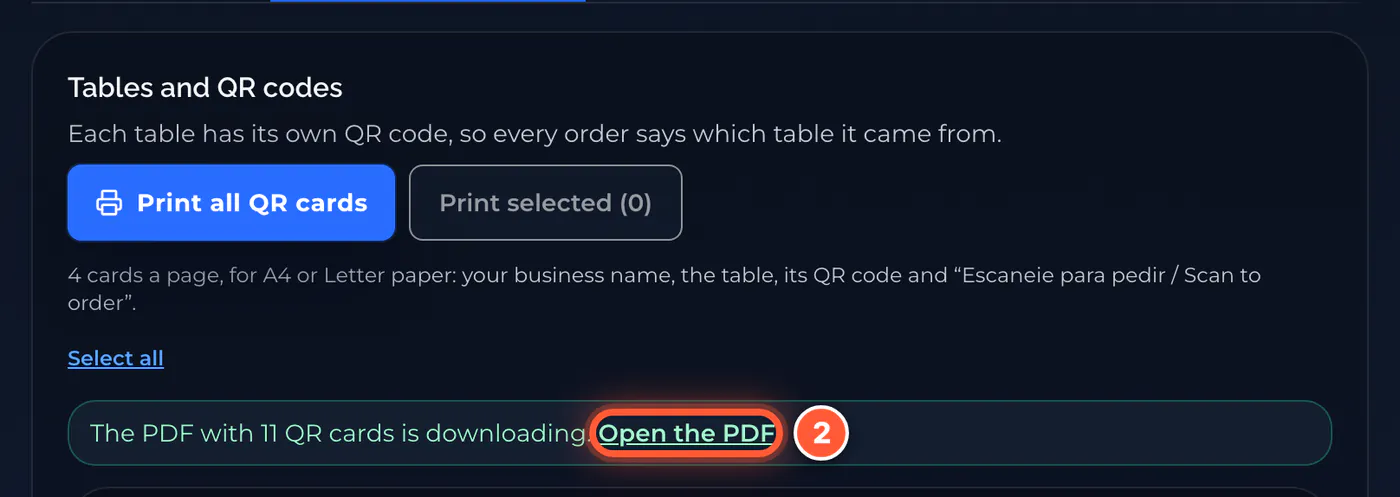
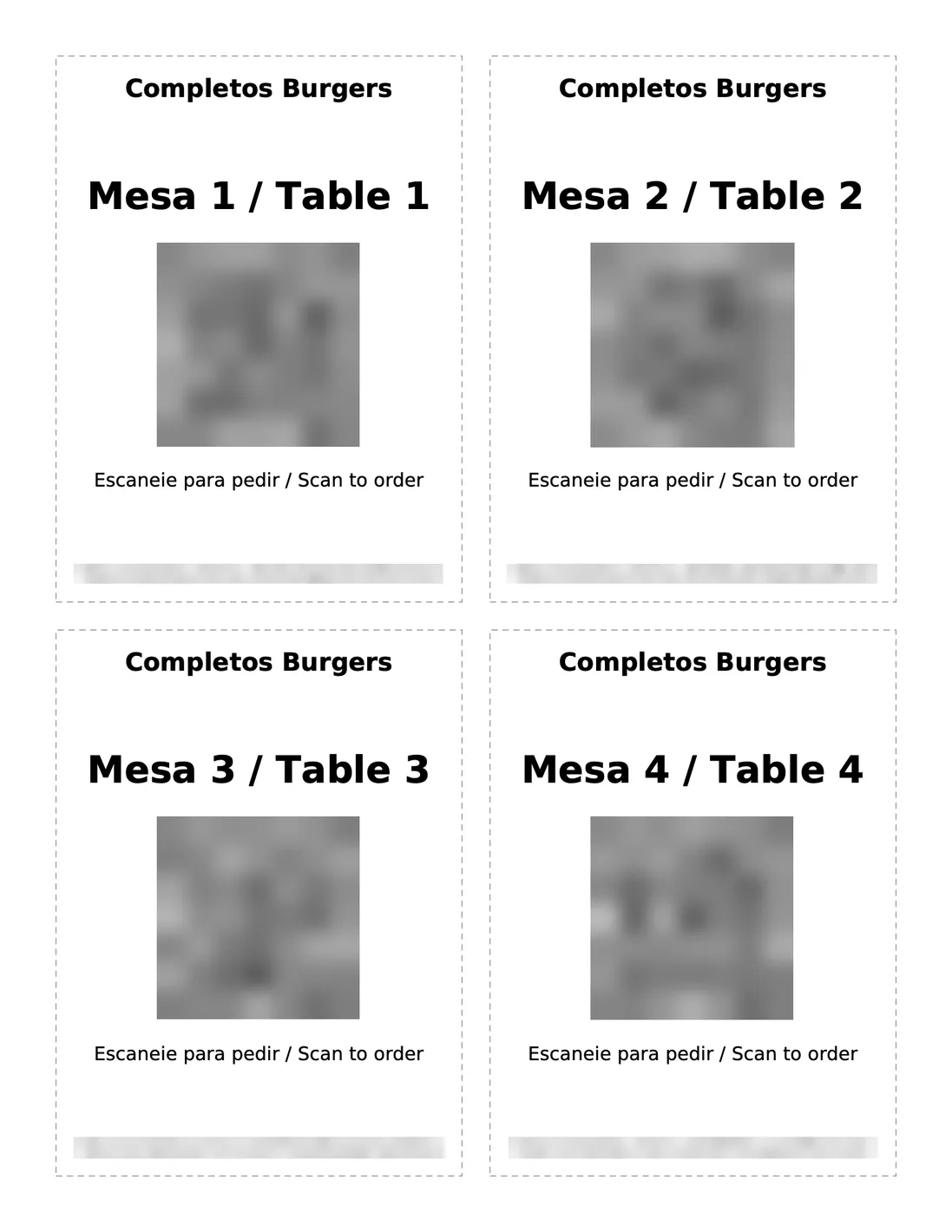
At the top of the list, click Print all QR cards. A PDF downloads; if it doesn’t open, click Open the PDF. It has 4 cards on each page, for Letter or A4 paper. Print it and cut along the dashed lines.
PTClique em Print all QR cards. Um PDF é baixado (se não abrir, clique em Open the PDF), com 4 cartões por folha, para papel Carta ou A4. Imprima e corte nas linhas tracejadas.
Put a card on each table
Coloque um cartão em cada mesa
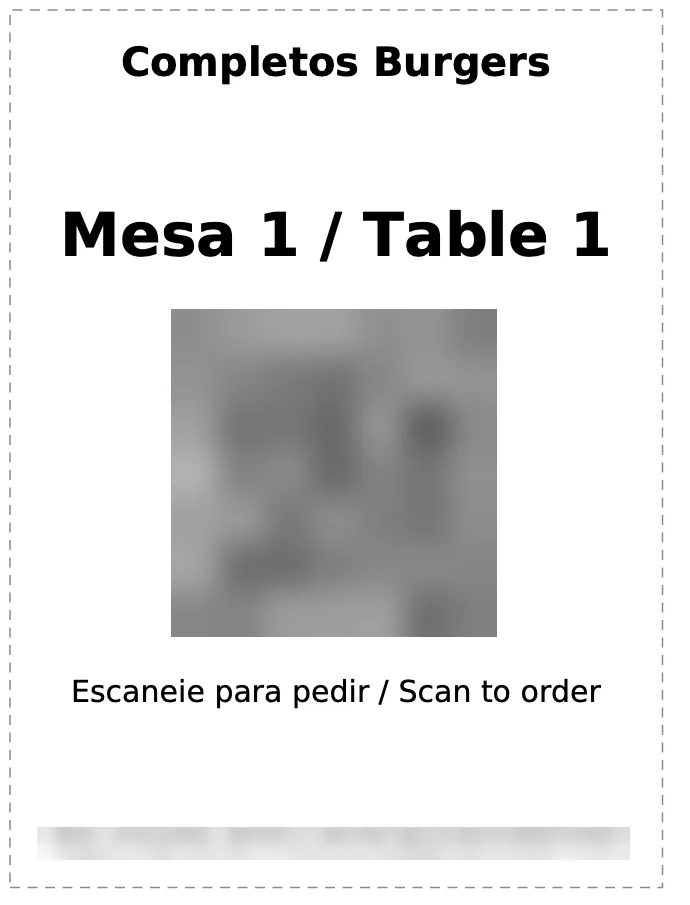
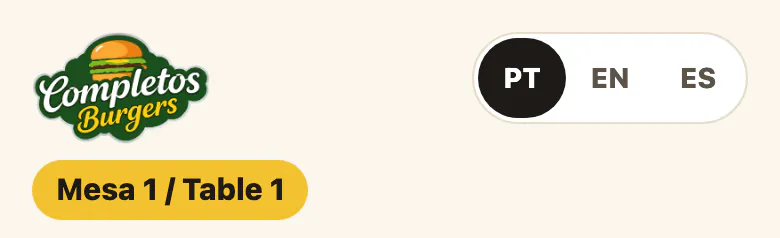
Match the names: the card for table 1 goes on table 1, and so on. Use a card stand or tape so it stays flat, dry and easy to see. Then test one card: open your phone’s camera, point it at the QR code and tap the link. The menu must show the same table name at the top.
PTO cartão da mesa 1 vai na mesa 1, e assim por diante. Use suporte ou fita. Teste um cartão: abra a câmera do celular, aponte para o QR code, toque no link e confira o nome da mesa no topo do cardápio.
A diner scans and orders
O cliente escaneia e pede
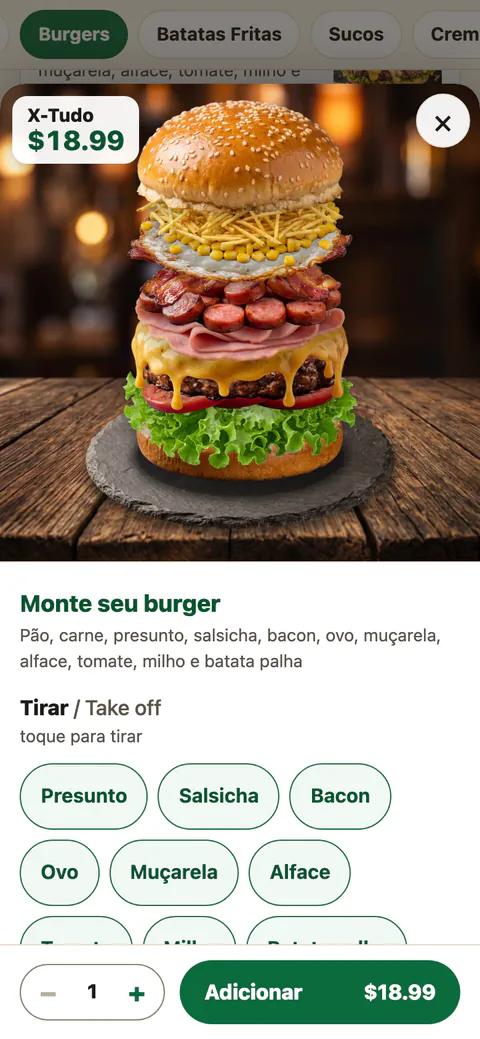
The diner scans the card and your menu opens on their phone, with the table name at the top. They tap a dish, choose its options (here, building a burger), then tap the order bar at the bottom (Ver pedido in Portuguese) to see the order.
PTO cliente escaneia o cartão e o cardápio abre no celular, com o nome da mesa no topo. Ele toca num prato, escolhe as opções e toca em Ver pedido. Enquanto o pagamento online não estiver ativo, o último botão diz “Pagamento online em breve” e o pedido é feito com o atendente.
Orders appear on the board. Turn the sound on.
Os pedidos aparecem na tela. Ligue o som.
Keep the Online orders tab open on the counter computer or tablet. Each time you open it, click Turn on sound once, so a chime plays for every new order. Each order shows the table in big letters, what to make and any note. Click Ready when the food is ready, then Served once it is on the table.
Orders start to arrive here once online payment is switched on. Until then this tab shows a Preview note and no orders. The pictures show sample orders.
PTDeixe a aba Online orders aberta no balcão. Toda vez que abrir, clique em Turn on sound para ouvir cada pedido novo. Clique em Ready quando estiver pronto e em Served quando entregar na mesa.

Card lost or copied? Make a new QR code
Cartão perdido ou copiado? Gere um QR novo
If a card goes missing, or someone may have a photo of it, give that table a new code. On that table, click New QR code, then Make a new QR code. The old card stops working at once. Tick Print on that table, click Print selected, and put the new card on the table.
PTClique em New QR code e depois em Make a new QR code: o cartão antigo para de funcionar na hora. Marque Print nessa mesa, clique em Print selected e coloque o cartão novo na mesa.

Good to know
Bom saber
- Copy link on a table copies its address, so you can test that table on your phone. Copia o link da mesa para testar no celular.
- Turn off a table you don’t use: diners who scan its card cannot order. Turn back on brings it back. Mesa desligada não recebe pedidos.
- The Settings tab: switch ordering on or off, choose the tip options, and hide dishes from the menu (sold out). Em Settings: ligar ou desligar os pedidos, gorjetas e esconder pratos (esgotados).
Related tutorials
 1:59VideoYour restaurant menu: block, add and edit dishesBlock a sold-out dish, add a dish with a photo, change a price, set when a dish can be ordered, and remove or restore a dish. Changes reach your phone AI, WhatsApp and text AI and table ordering at once.
 2:10VideoCardápio do restaurante: bloquear, adicionar e editar pratos (em português)Bloqueie um prato esgotado, adicione um prato com foto, mude um preço, defina quando um prato pode ser pedido e remova ou restaure um prato. Tudo chega na hora à IA do telefone, do WhatsApp e do SMS e aos pedidos das mesas.
Was this not what you needed? Write to us. Dúvidas? Fale com o suporte AIMERICA.