
Finish a draft and review it before sending
Open a saved draft, check the signers and the email, and see what Send would do.
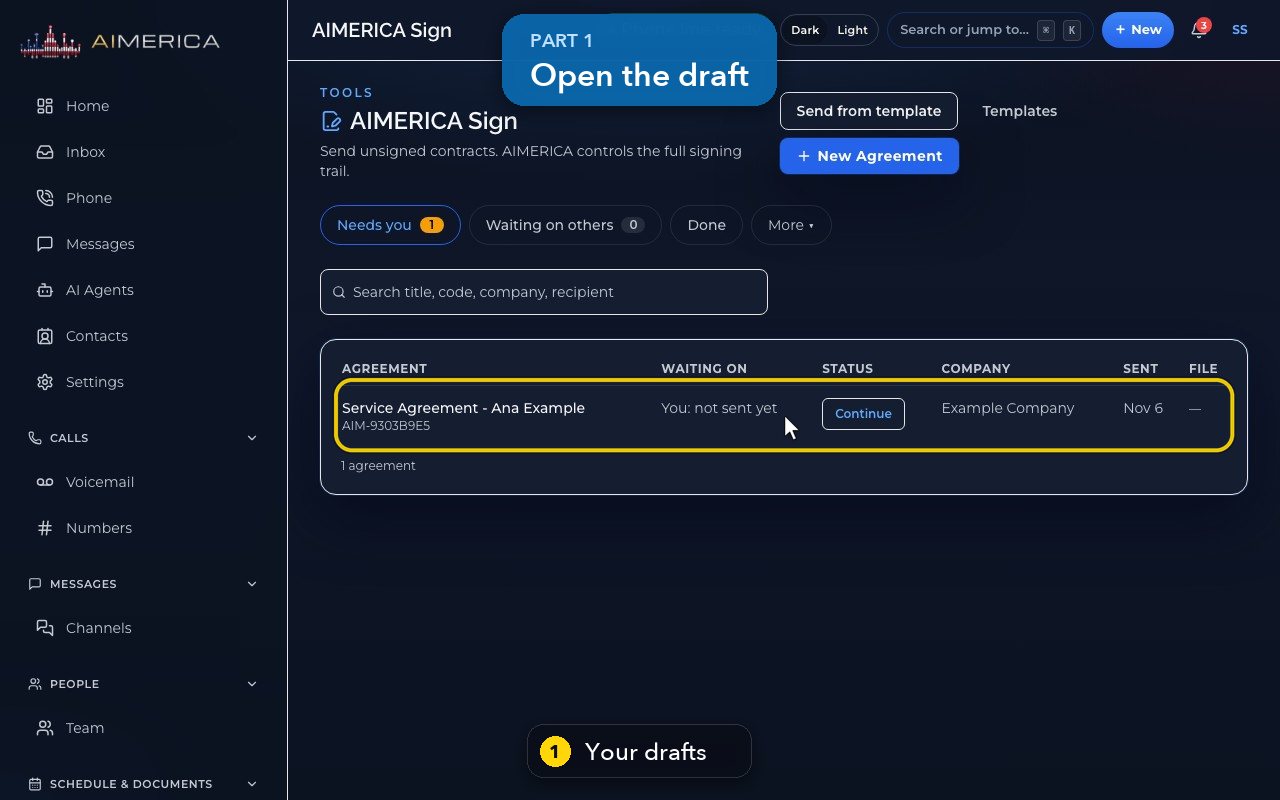
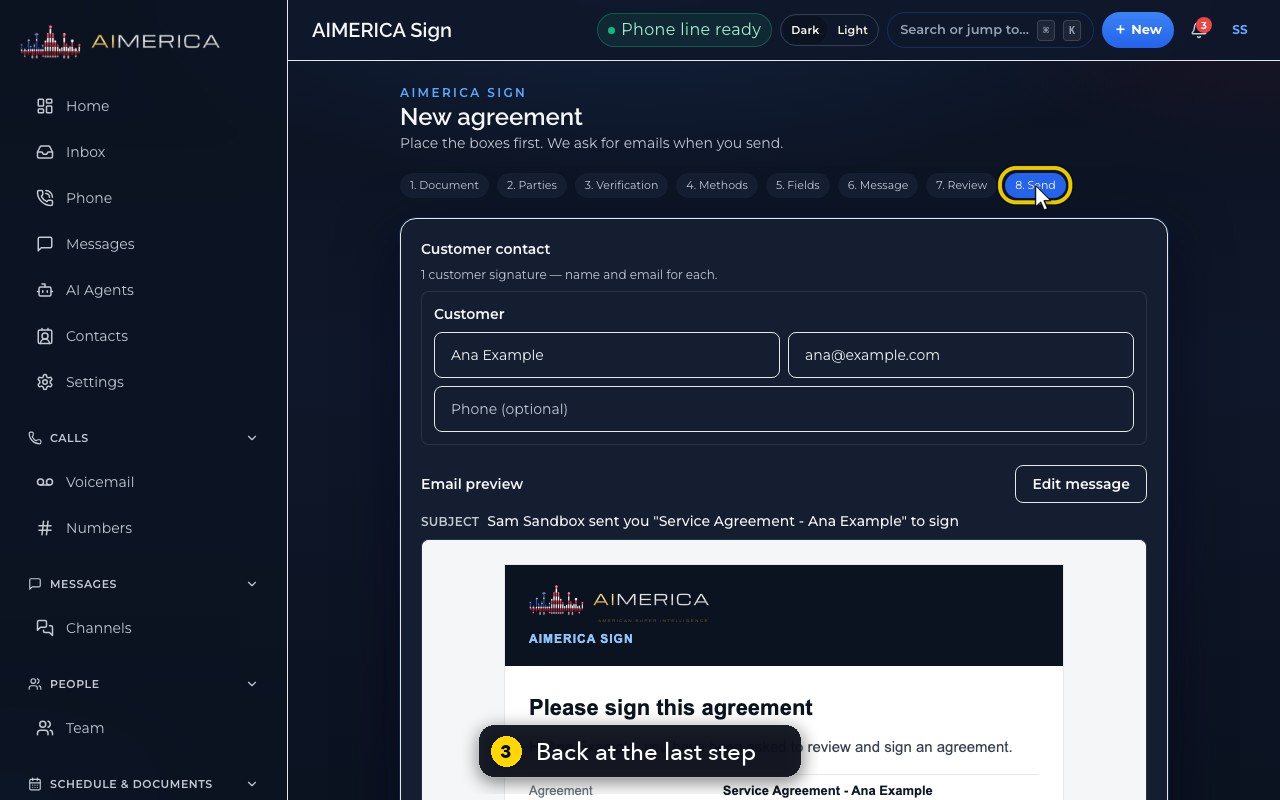
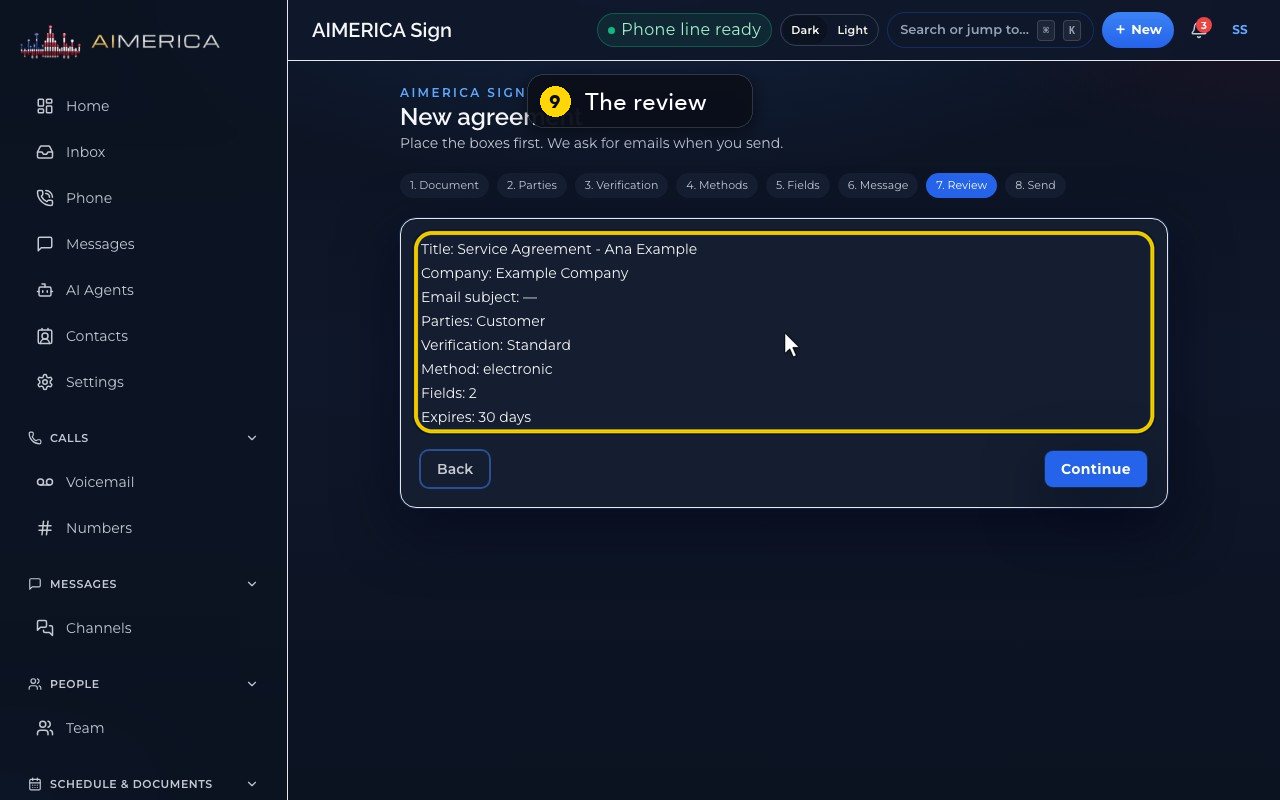
In AIMERICA Sign, drafts wait under Needs you ("You: not sent yet"). Click Continue: the draft opens where you stopped. On the last step, check each signer's name and email and the Email preview. Back walks through the earlier steps without sending; Review sums up the title, parties, verification, signing method, boxes and expiry.
In this video
Step by step
- 1
Drafts wait under Needs you. Each one says: you, not sent yet.
- 2
Click Continue to open the draft.
- 3
A draft opens where you stopped, here at the last step, ready to send.
- 4
Check each signer's name and email.
- 5
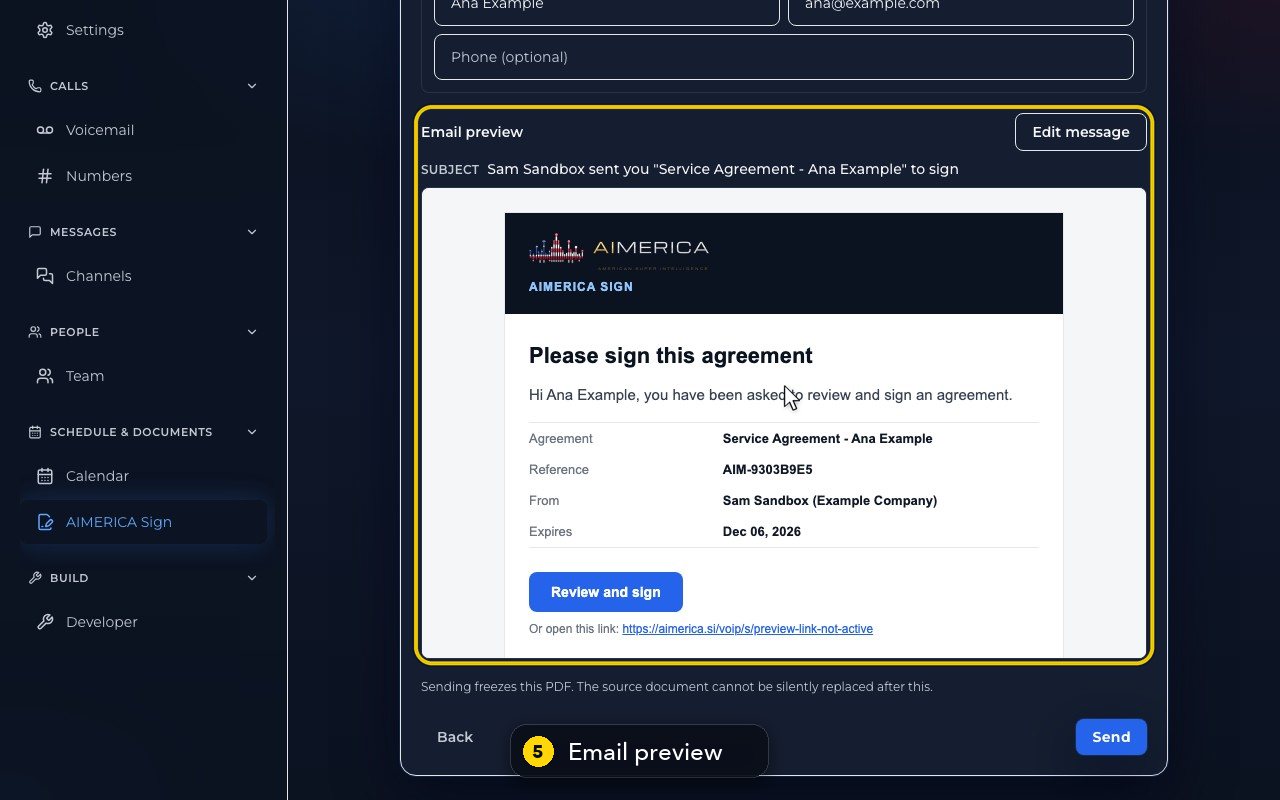
Email preview shows the message each signer receives, filled in with their own details.
- 6
Before sending, the app checks for missing details, and says what to fill in first.
- 7
Sending freezes the PDF, and emails the signing link. In this video, we never press Send.
- 8
To look again at the earlier steps, click Back. It never sends.
- 9
Review sums it up: the title, company, parties, verification, signing method, boxes, and expiry.
Related tutorials
 1:05VideoYour sales pipeline at a glanceSee your contacts, companies, deals and where each deal stands.
 0:51VideoAdd a dealRecord a new opportunity with its value, stage and notes.
 0:55VideoAdd a company to the CRMKeep suppliers, labs or partners as companies, with their phone and website.
 0:49VideoSee every call in the CRM activity feedRead the call log with outcomes, AI summaries and transcript lines in one feed.
 0:54VideoAIMERICA Sign: find your agreementsSee which agreements need you, which wait on others and which are done.
 1:01VideoStart an agreement from a templateBegin a new agreement: title, company, fill from a contact, and pick a template.
Was this not what you needed? Write to us.