
Write the email that goes with a template
Set the subject and message signers receive, with their own details filled in.
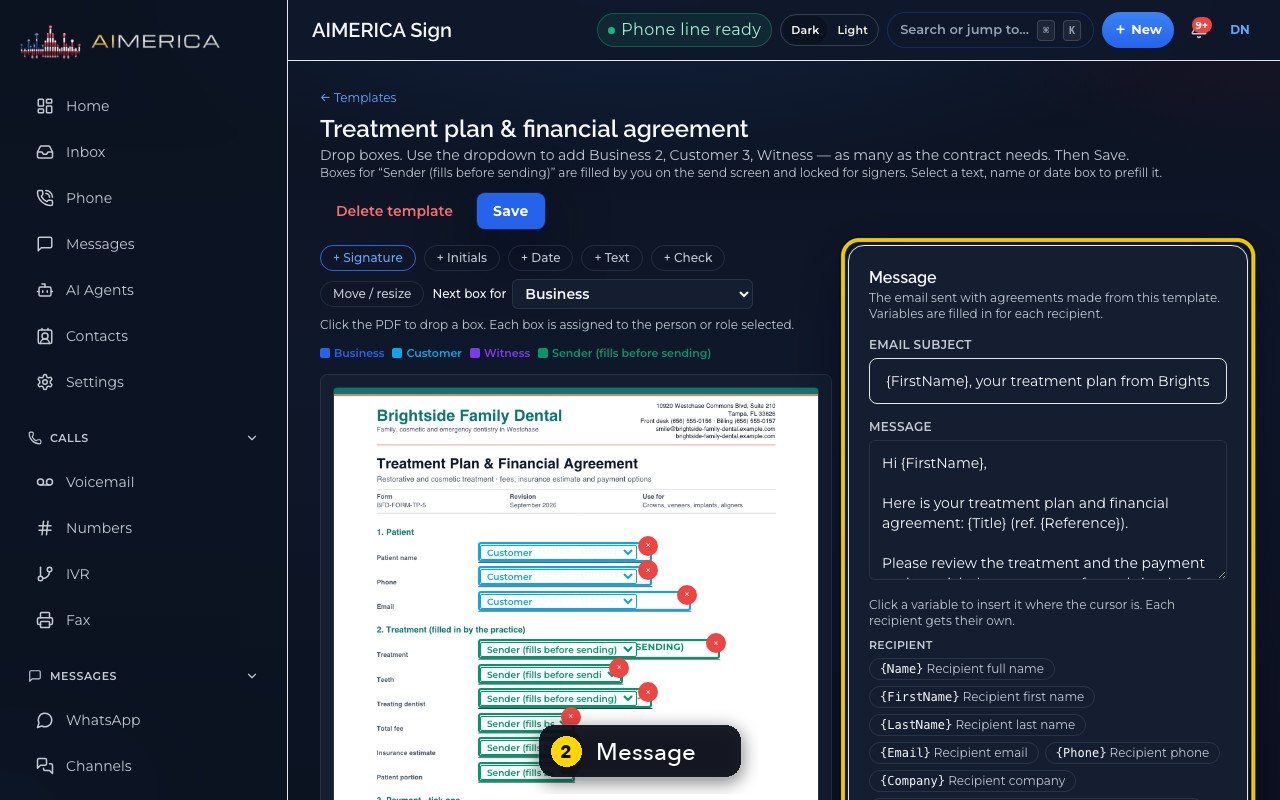
In AIMERICA Sign, open Templates and click a template. The Message card on the right holds the email subject and text sent with every agreement made from it; click a variable to insert it where your cursor is, then press Save.
In this video
Step by step
- 1
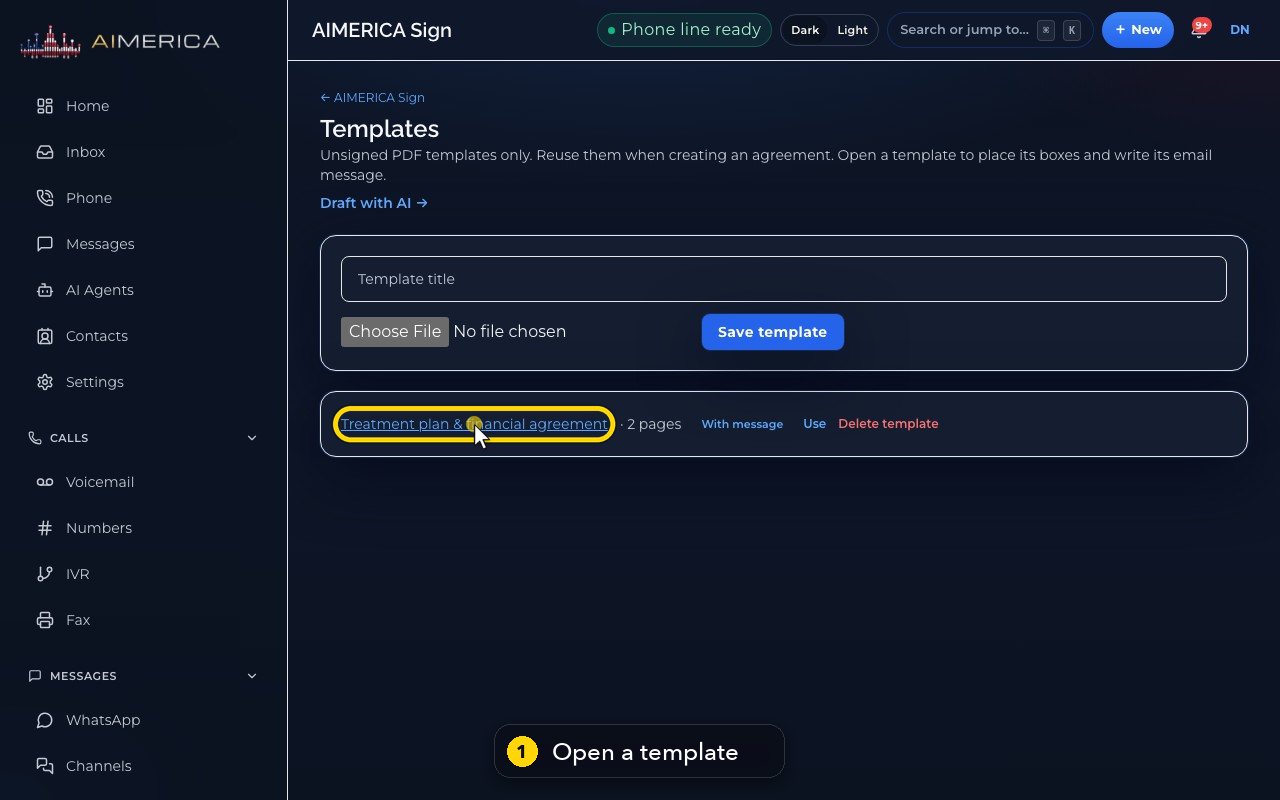
Each template carries the email your signers receive. Open a template.
- 2
Message, on the right, is the email sent with every agreement made from this template.
- 3
Leave the subject empty for the standard one, or write your own.
- 4
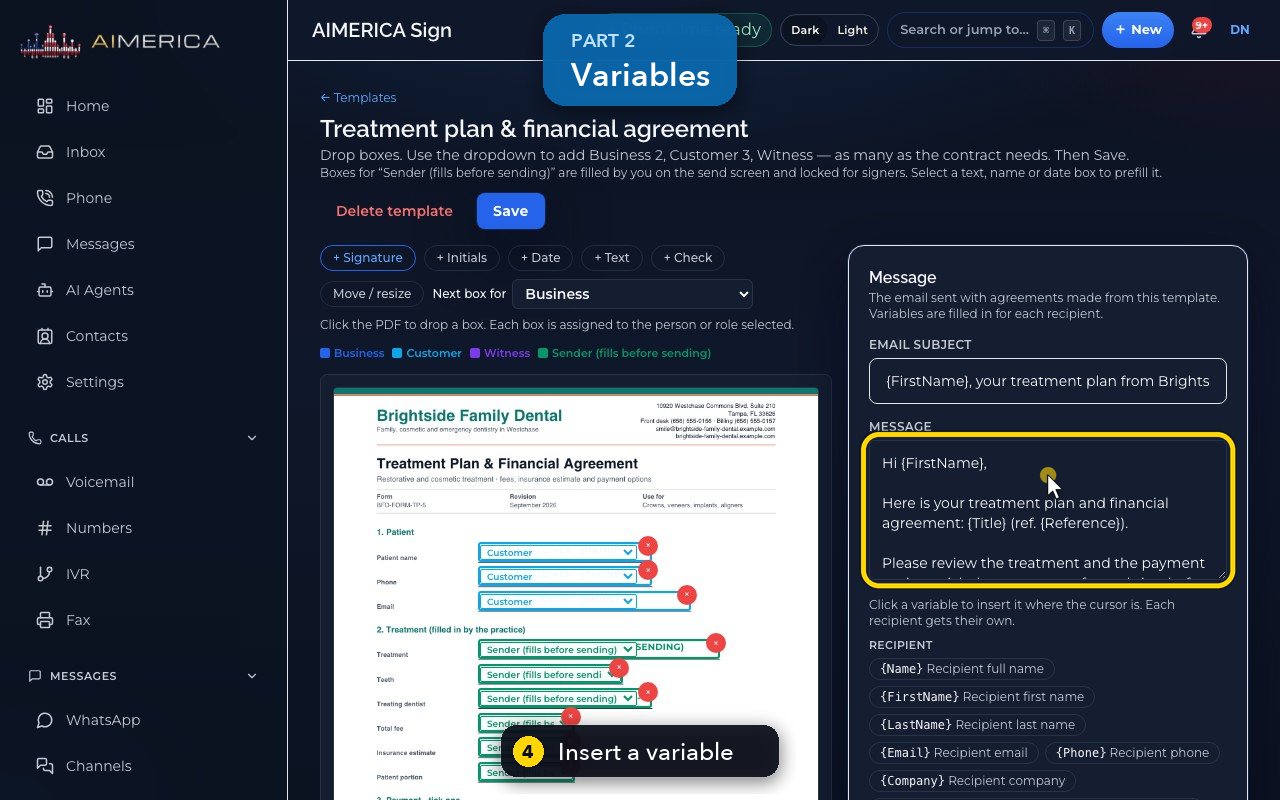
Click in the message, then click a variable to insert it where your cursor is. Each signer gets their own details.
- 5
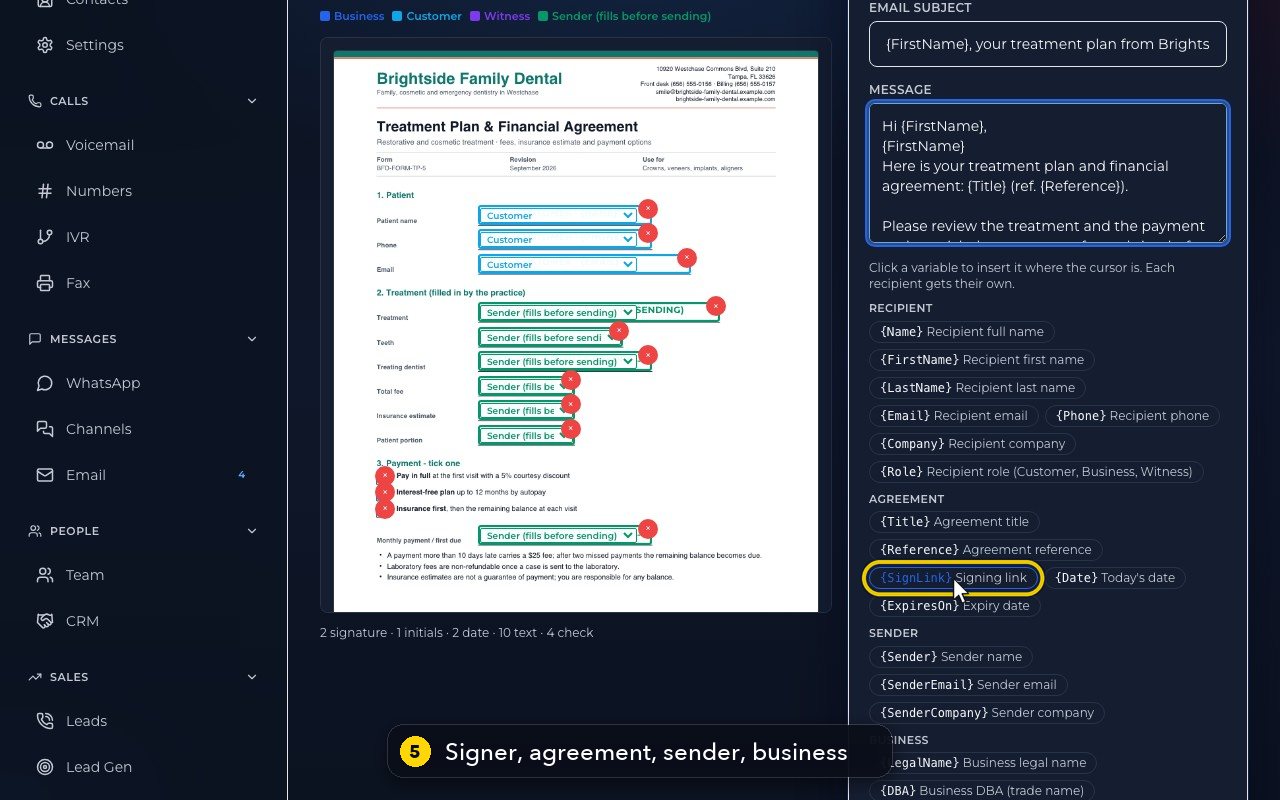
The variables cover the signer, the agreement, the sender and your business, like the signing link.
- 6
Further down, Email preview shows the email with sample values, as a signer would get it.
- 7
Save would keep the change. Here we go back to Templates without saving.
Related tutorials
 1:05VideoYour sales pipeline at a glanceSee your contacts, companies, deals and where each deal stands.
 0:51VideoAdd a dealRecord a new opportunity with its value, stage and notes.
 0:55VideoAdd a company to the CRMKeep suppliers, labs or partners as companies, with their phone and website.
 0:49VideoSee every call in the CRM activity feedRead the call log with outcomes, AI summaries and transcript lines in one feed.
 0:54VideoAIMERICA Sign: find your agreementsSee which agreements need you, which wait on others and which are done.
 1:01VideoStart an agreement from a templateBegin a new agreement: title, company, fill from a contact, and pick a template.
Was this not what you needed? Write to us.