
Keep a shared to-do list
See your team's lists, who is on what, and how to start a list or add a task.
Open Tasks. Your lists are on the left with the tasks done out of the total; click one to see its tasks, each with its status (To Do, In Progress or Done) and who set it. Type a name under New list and press + to start a list; type under Task and press + to add a task to the open list.
In this video
Step by step
- 1
Tasks are shared to-do lists for your team. Your lists are on the left, with the tasks done out of the total.
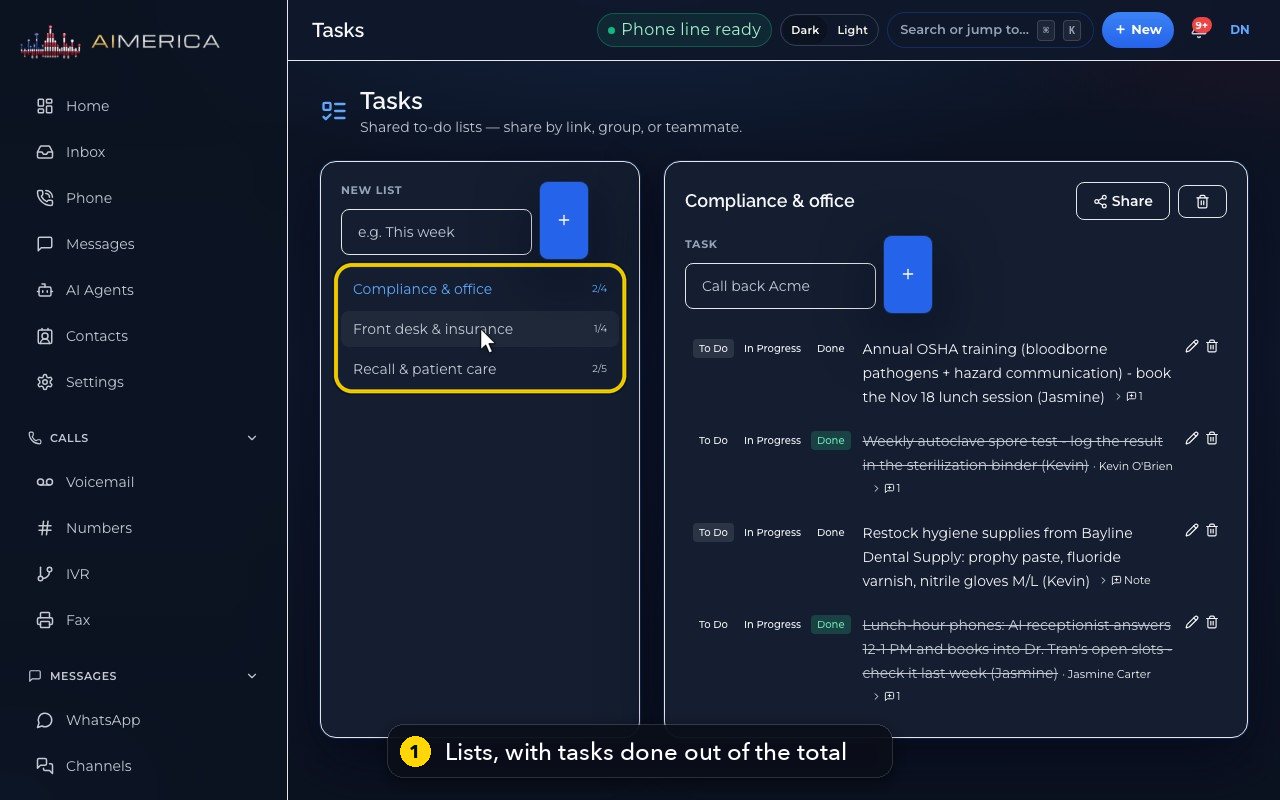
- 2
Open a list to see its tasks.
- 3
Each task has a status: To Do, In Progress or Done, with the name of whoever set it.
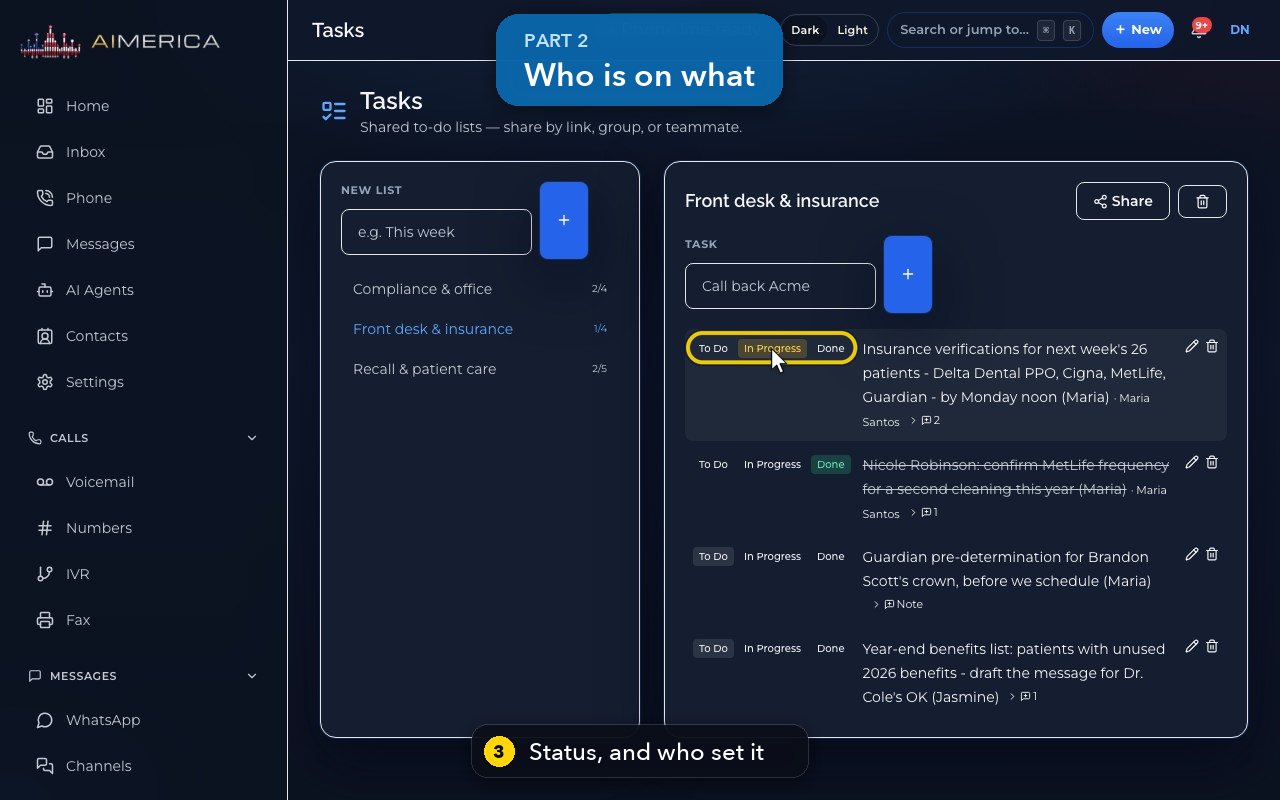
- 4
Clicking a status saves it for the whole team at once, so here we only point at them.
- 5
The small number after a task counts its notes.
- 6
To start a list, type its name here, then press the plus button.
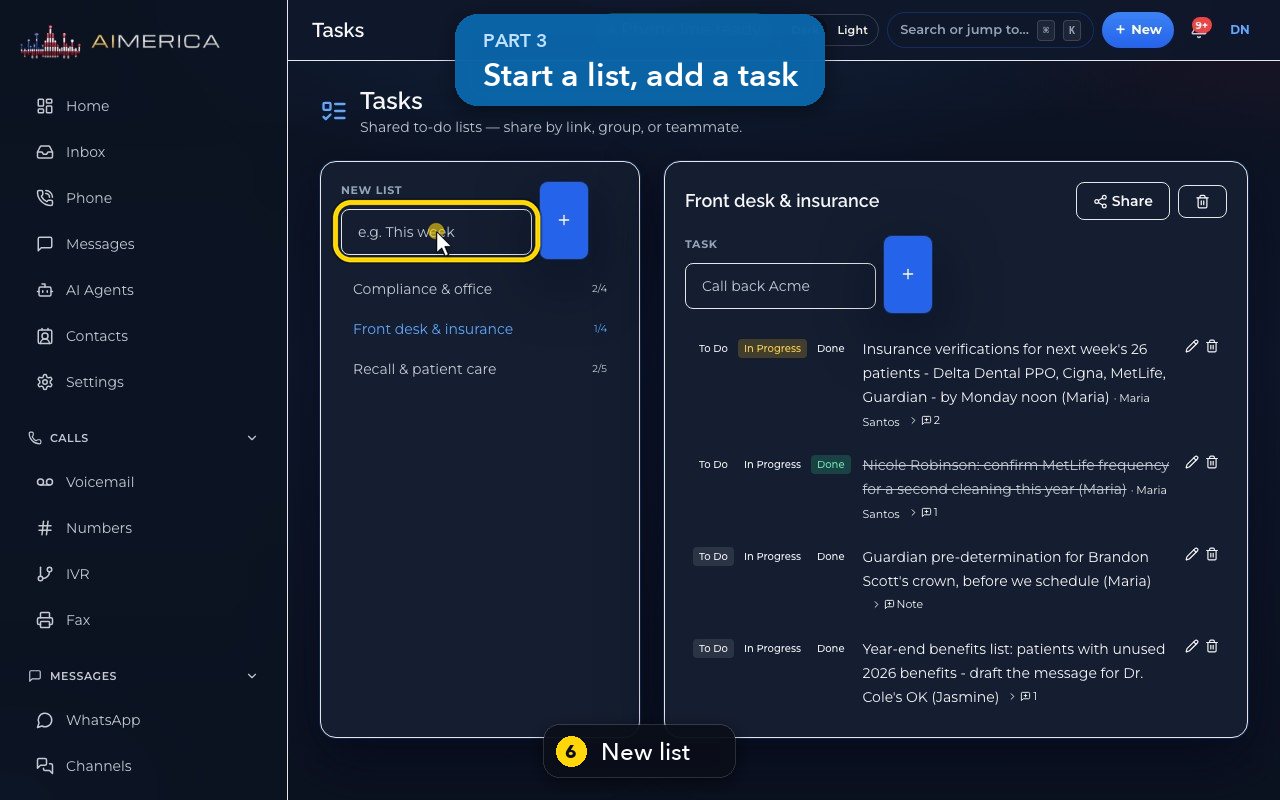
- 7
Add a task to the open list the same way.
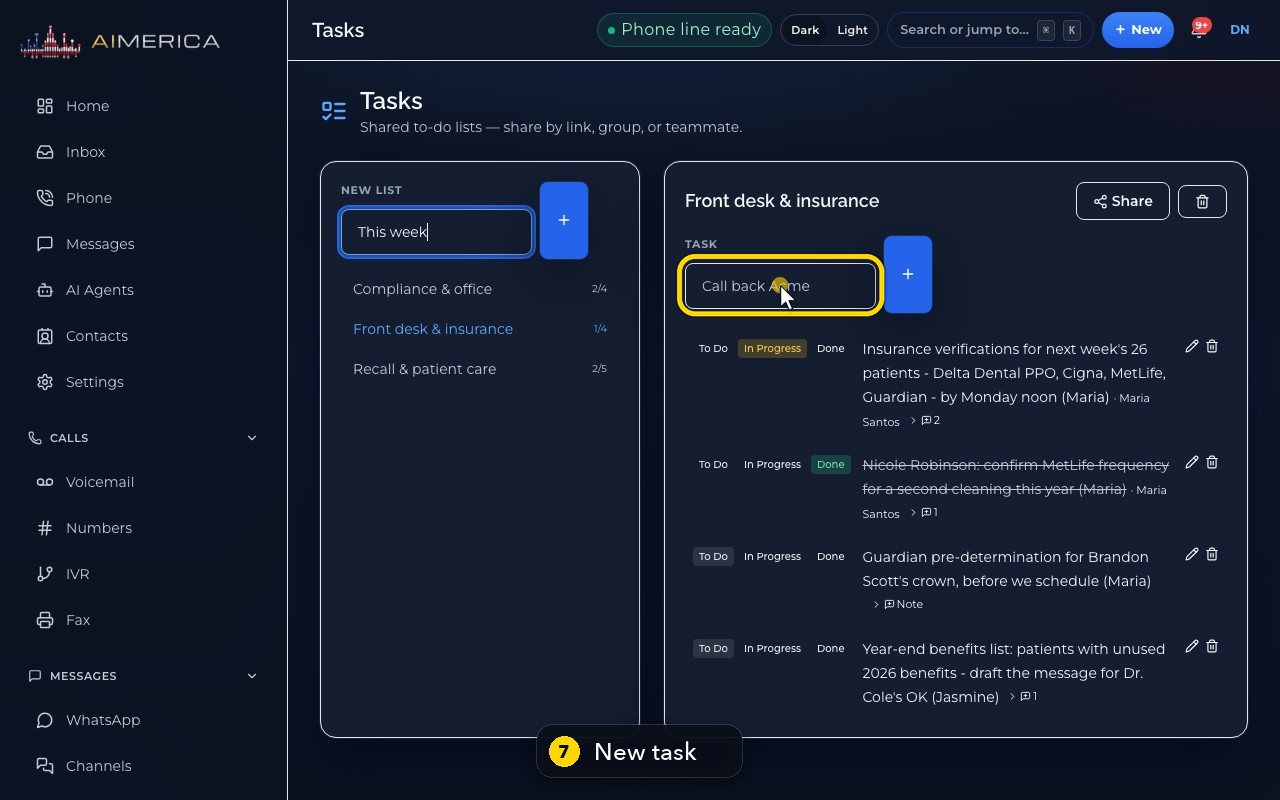
- 8
Here we clear both boxes instead, to keep the demo as it is.
- 9
The list's owner can also share it, or delete it with the bin.
Related tutorials
 1:05VideoYour sales pipeline at a glanceSee your contacts, companies, deals and where each deal stands.
 0:51VideoAdd a dealRecord a new opportunity with its value, stage and notes.
 0:55VideoAdd a company to the CRMKeep suppliers, labs or partners as companies, with their phone and website.
 0:49VideoSee every call in the CRM activity feedRead the call log with outcomes, AI summaries and transcript lines in one feed.
 0:54VideoAIMERICA Sign: find your agreementsSee which agreements need you, which wait on others and which are done.
 1:01VideoStart an agreement from a templateBegin a new agreement: title, company, fill from a contact, and pick a template.
Was this not what you needed? Write to us.