
Update a task and leave a note
Change a task's status, edit its text and read or add notes for the team.
Open Tasks and a list. Click To Do, In Progress or Done on a task to change its status (it saves for everyone at once). Click the number after a task to read its notes; type in Add a note… and press Post to add one. The pencil edits the text (Enter saves, Escape cancels).
In this video
Step by step
- 1
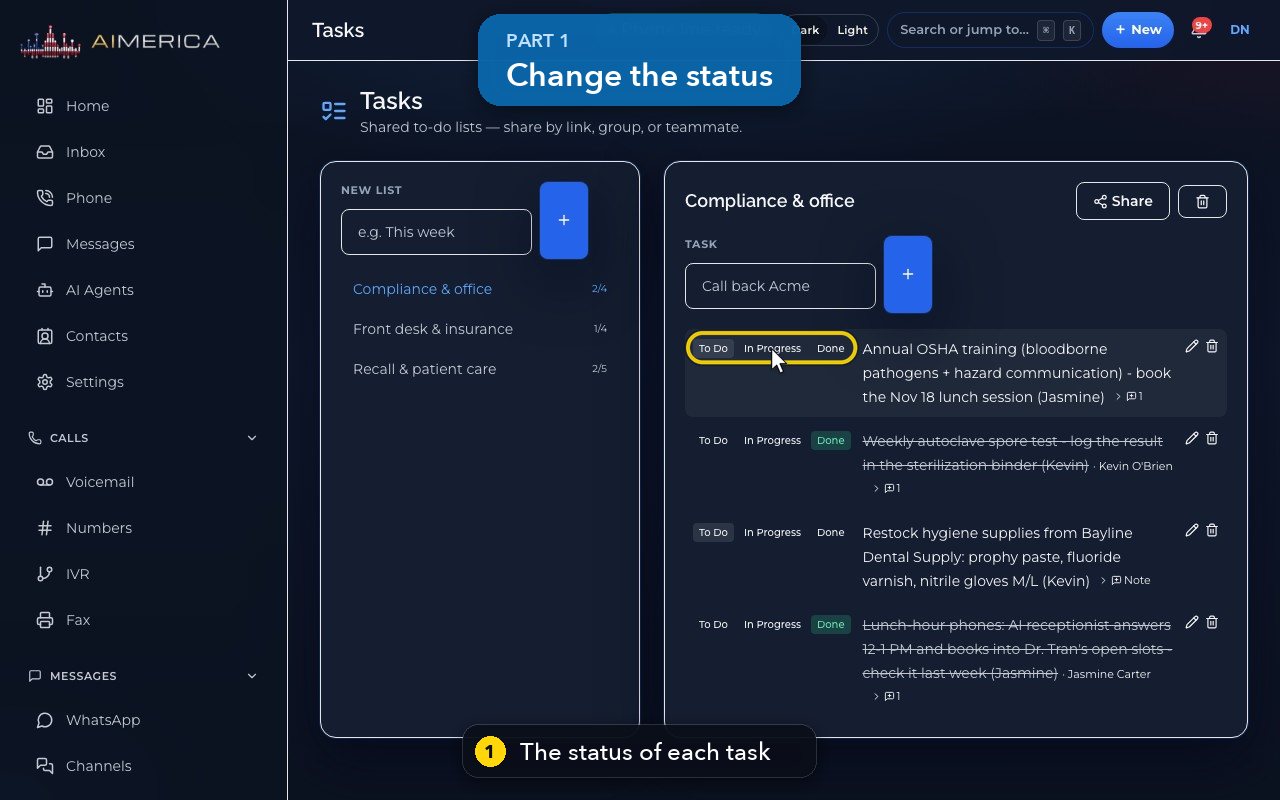
Each task shows its status on the left.
- 2
Click To Do, In Progress or Done to change it. It saves for everyone at once, so here we only point.
- 3
Done tasks are crossed out, with the name of who finished them.
- 4
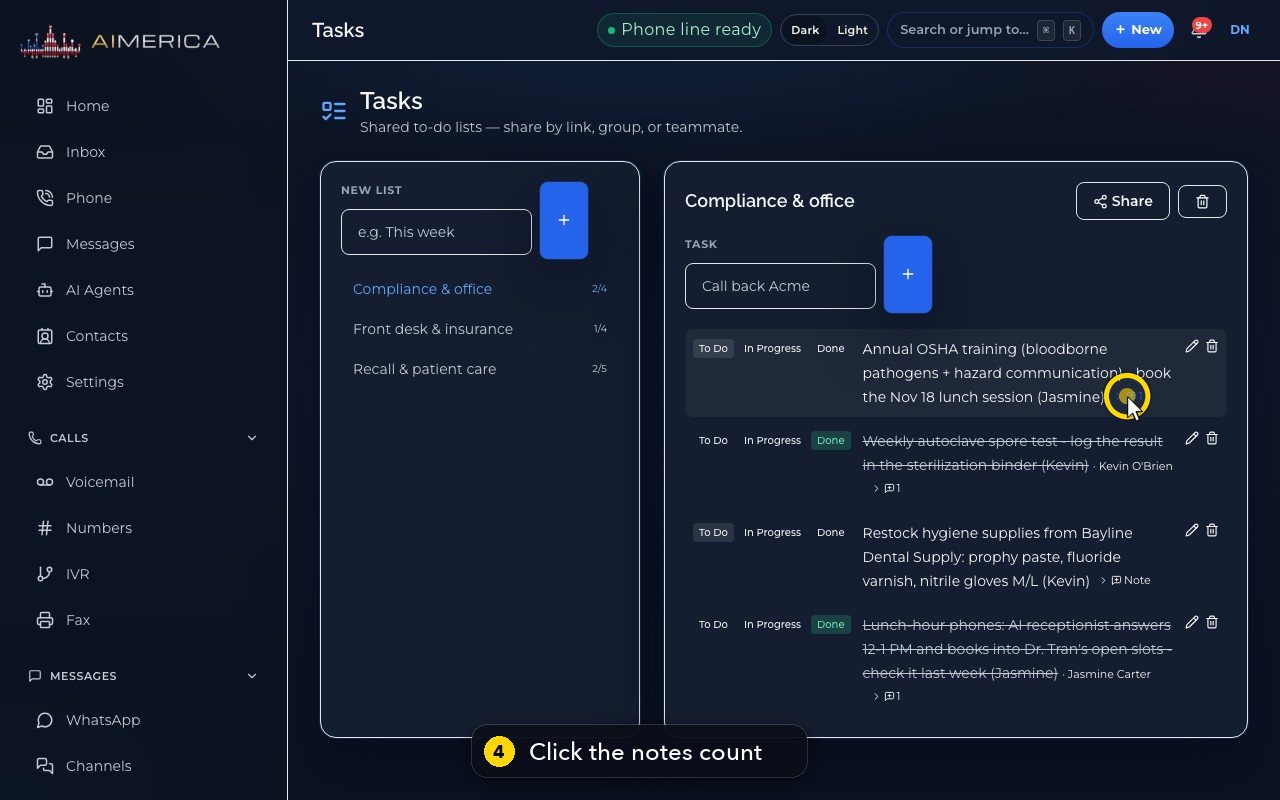
A number after a task means it has notes. Click it to read them.
- 5
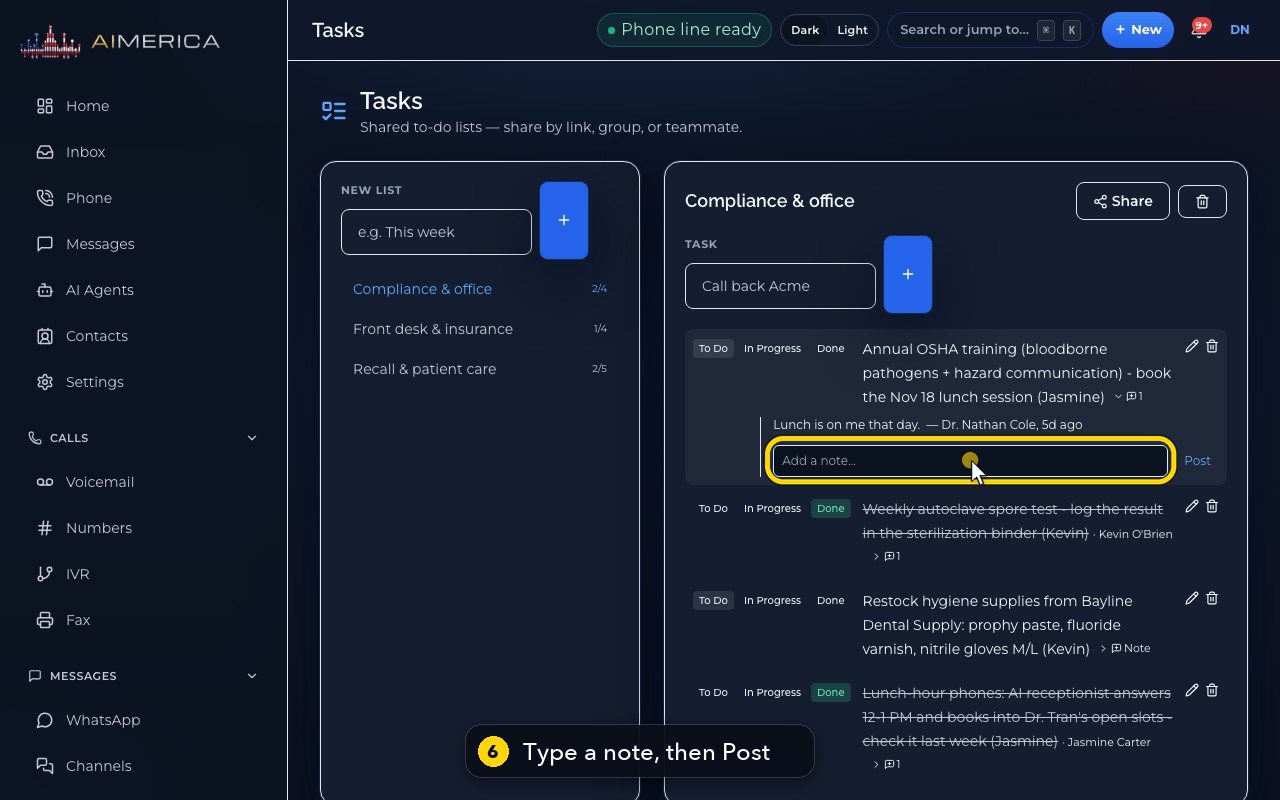
Each note shows who wrote it, and when.
- 6
To add one, type it here, then press Post.
- 7
Here we clear it instead.
- 8
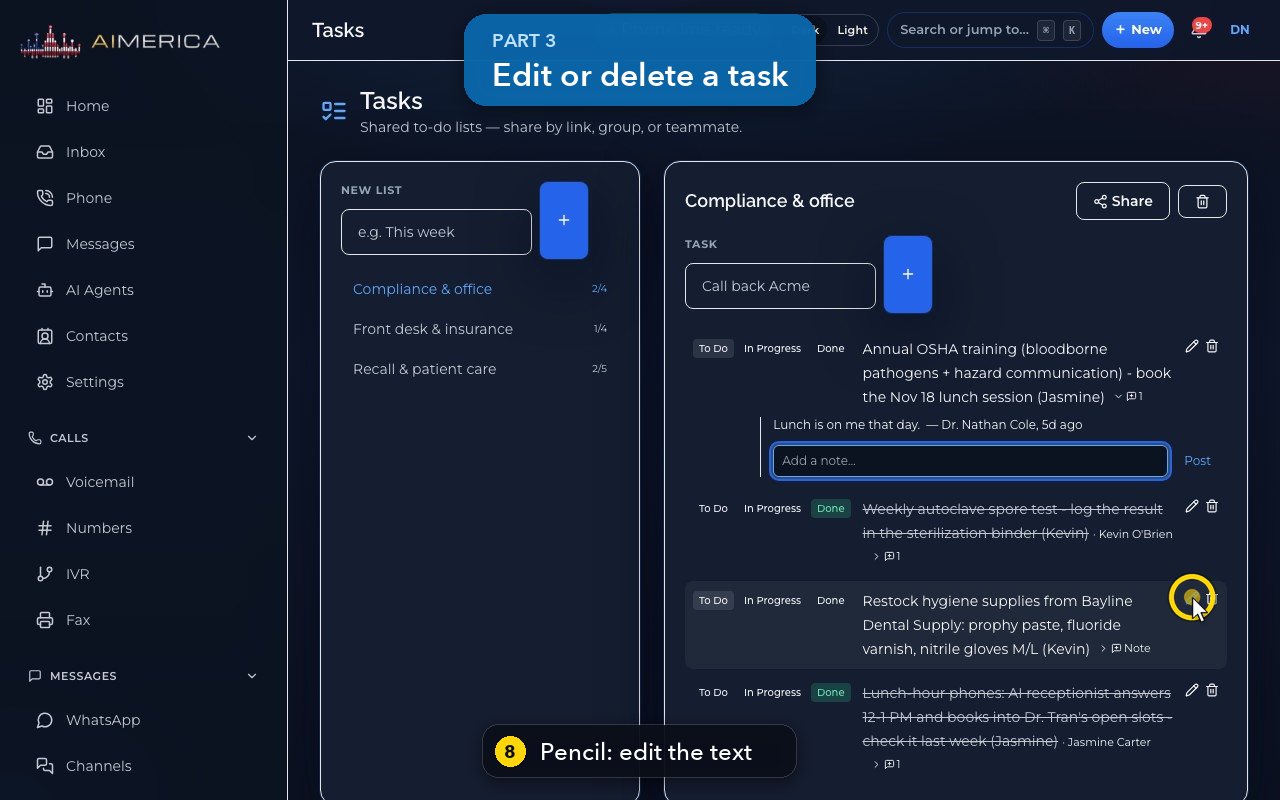
The pencil edits the task's text. Enter saves it, and Escape cancels.
- 9
The bin deletes a task at once, without asking, so take care.
Related tutorials
 1:05VideoYour sales pipeline at a glanceSee your contacts, companies, deals and where each deal stands.
 0:51VideoAdd a dealRecord a new opportunity with its value, stage and notes.
 0:55VideoAdd a company to the CRMKeep suppliers, labs or partners as companies, with their phone and website.
 0:49VideoSee every call in the CRM activity feedRead the call log with outcomes, AI summaries and transcript lines in one feed.
 0:54VideoAIMERICA Sign: find your agreementsSee which agreements need you, which wait on others and which are done.
 1:01VideoStart an agreement from a templateBegin a new agreement: title, company, fill from a contact, and pick a template.
Was this not what you needed? Write to us.