
Write a new email and find your drafts
Open a new email from your mailbox, see the From, To, CC and Subject fields, and pick up a draft you started earlier.
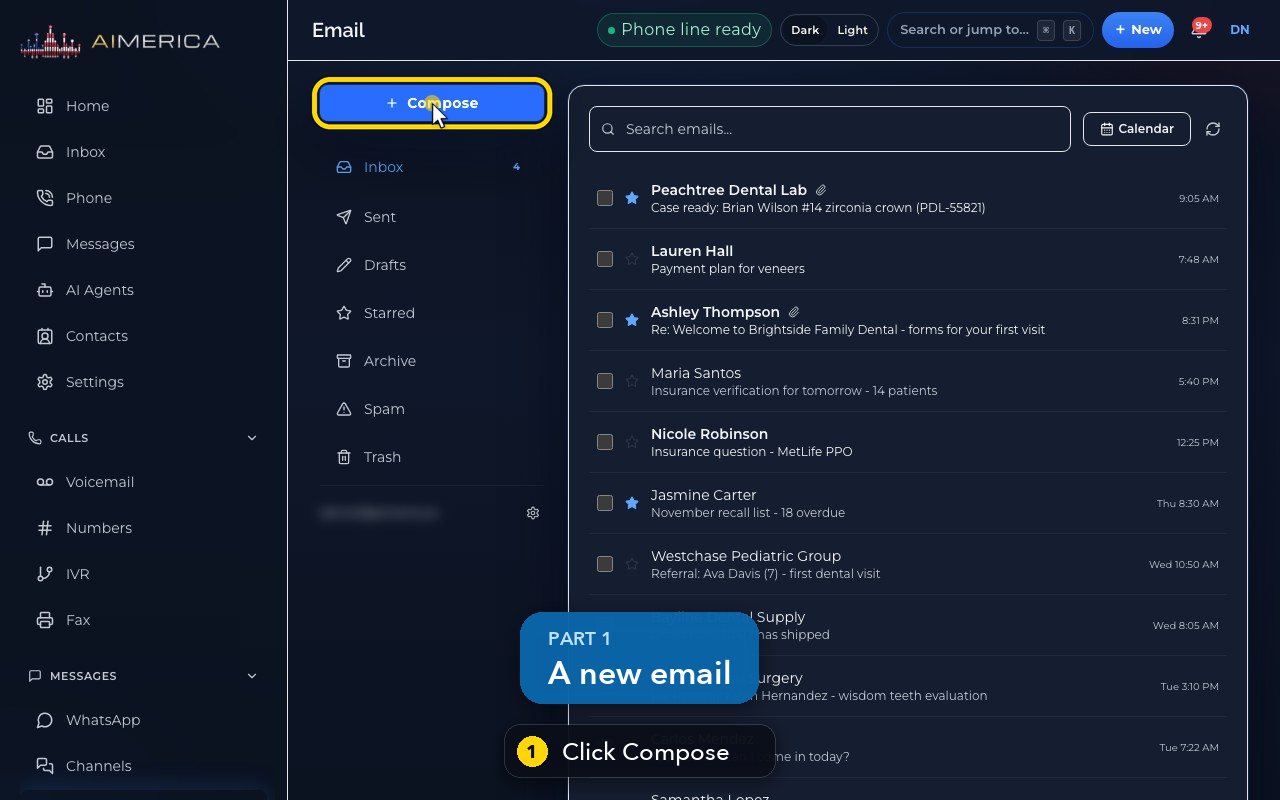
In Email, click Compose. The email leaves from your mailbox address, with your signature already in the message.
In this video
Step by step
- 1
To write a new email, click Compose.
- 2
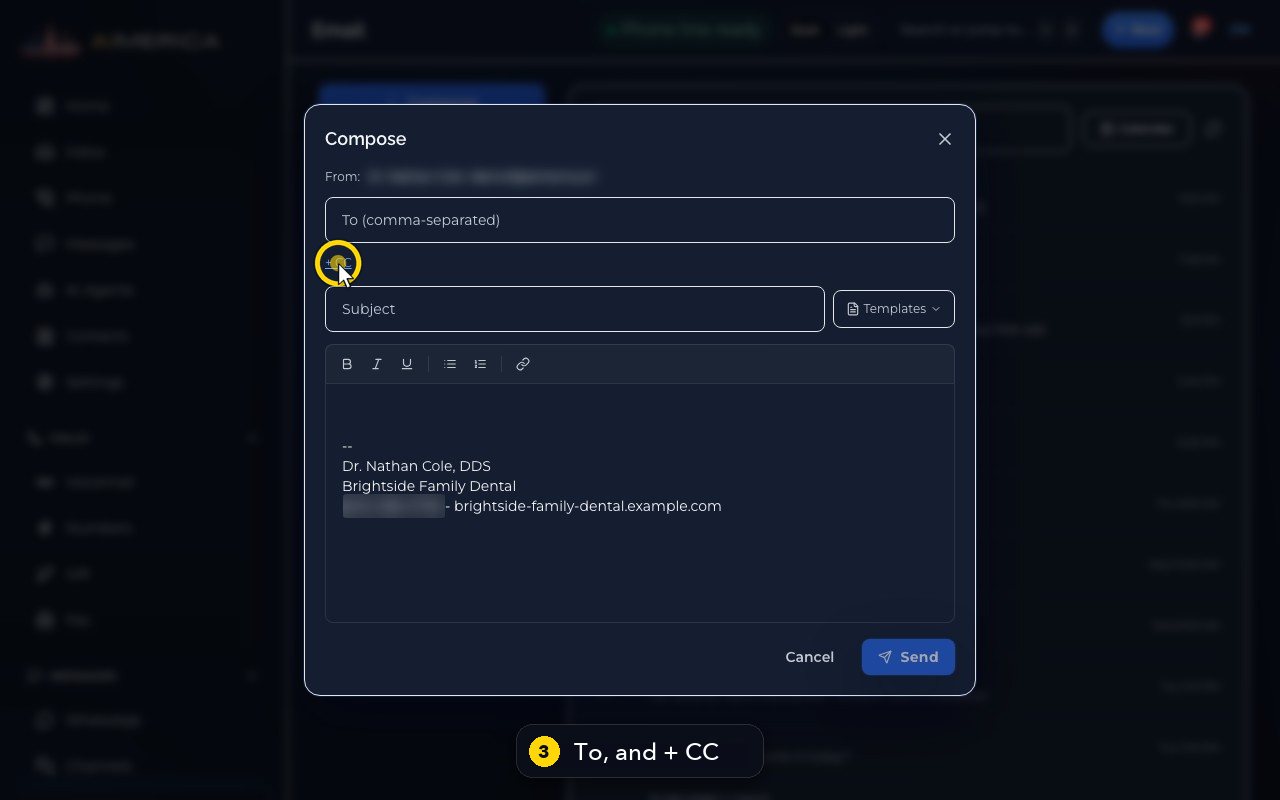
It comes from your own mailbox address.
- 3
Put one or more addresses in To, separated by commas. Plus CC adds people who get a copy.
- 4
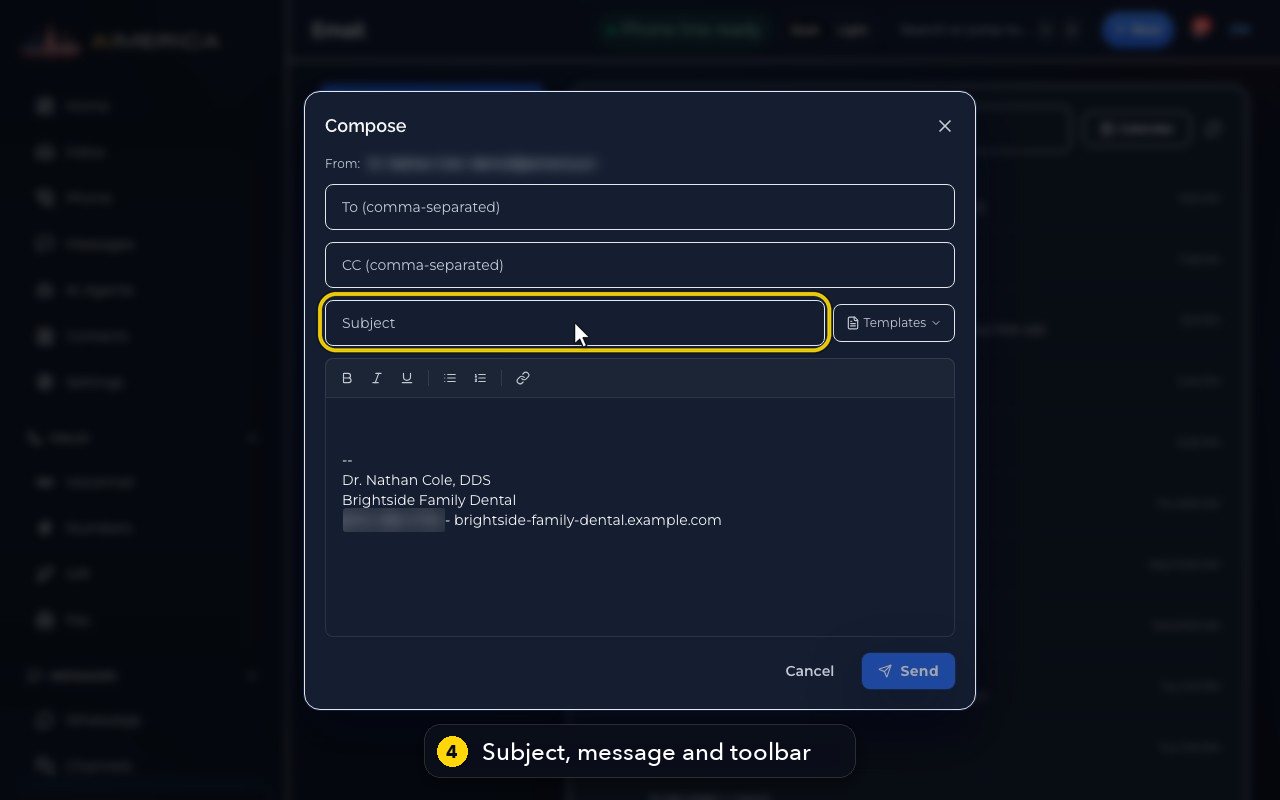
Then write a subject and your message. The toolbar adds bold, lists and links, and your signature is already in.
- 5
As soon as you type, the app keeps a draft for you. This window is still empty, so Cancel simply closes it.
- 6
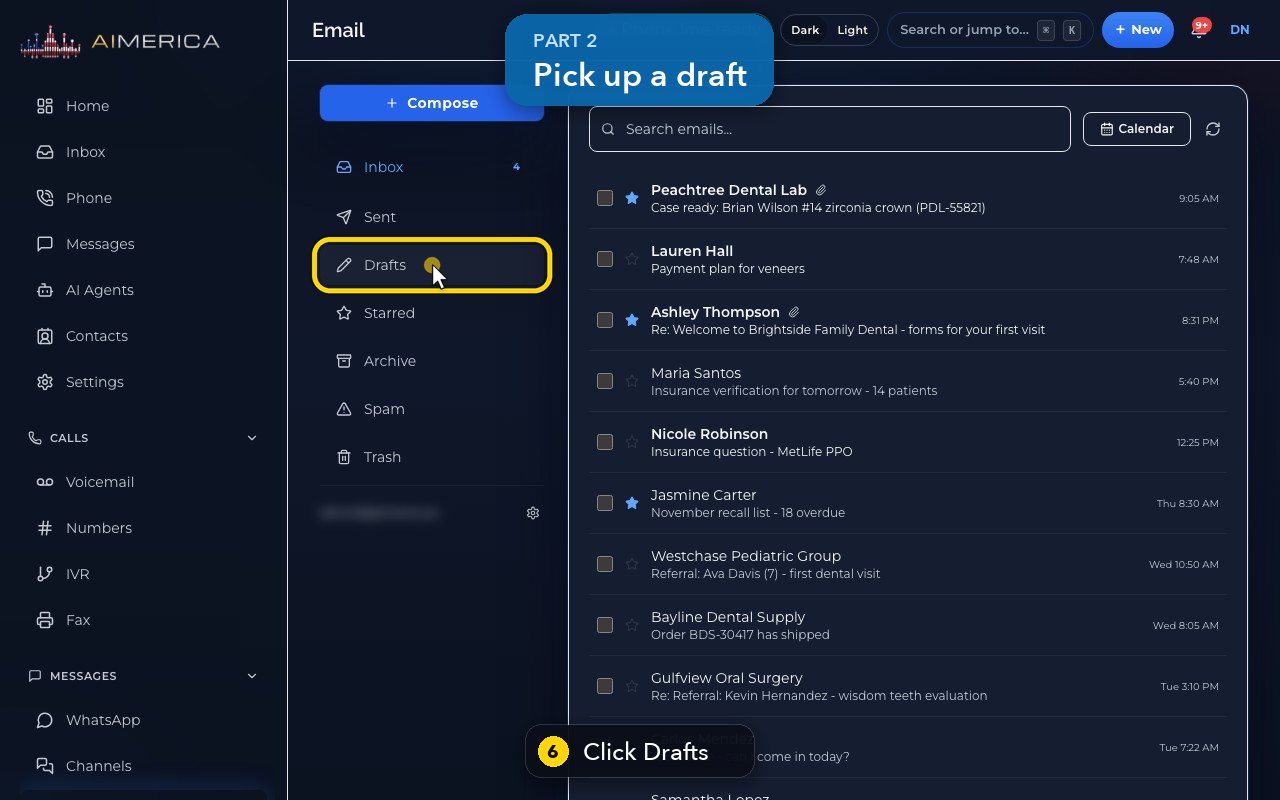
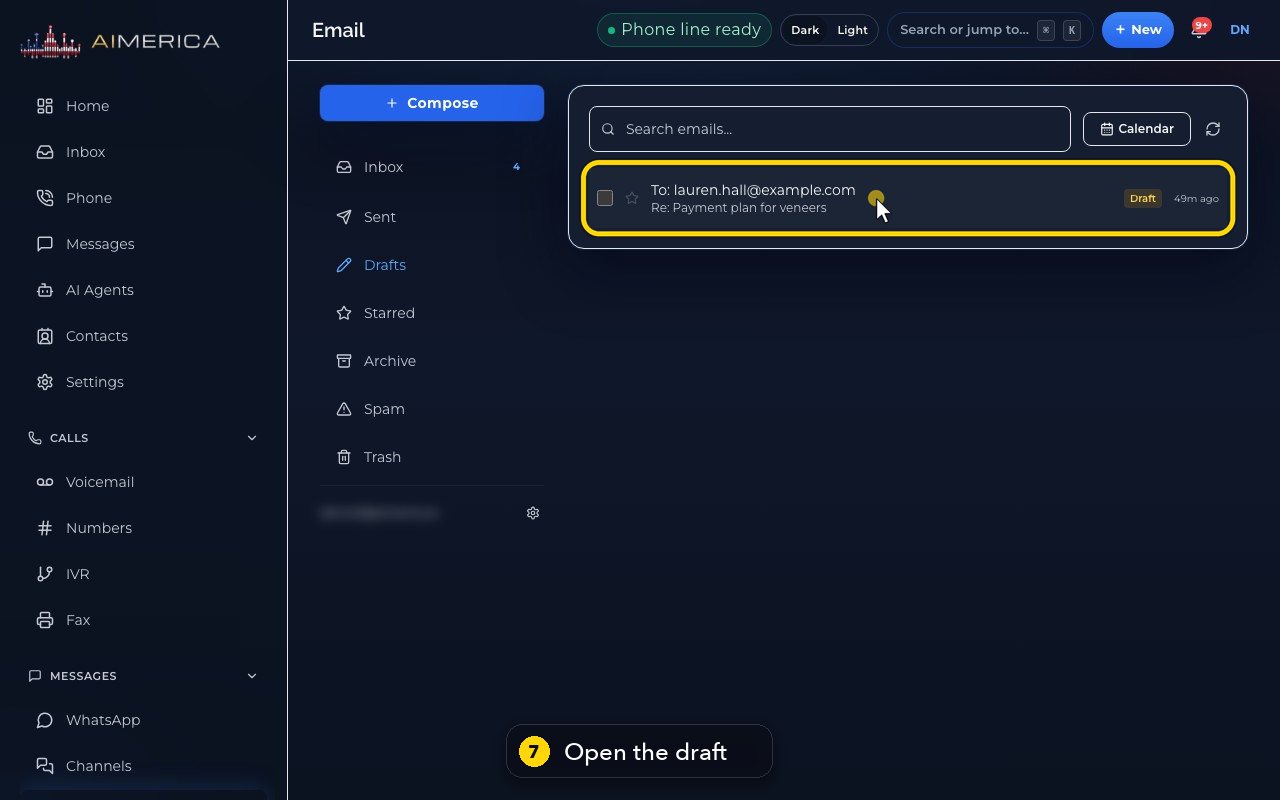
Drafts holds the emails you started.
- 7
Click one to carry on where you stopped.
- 8
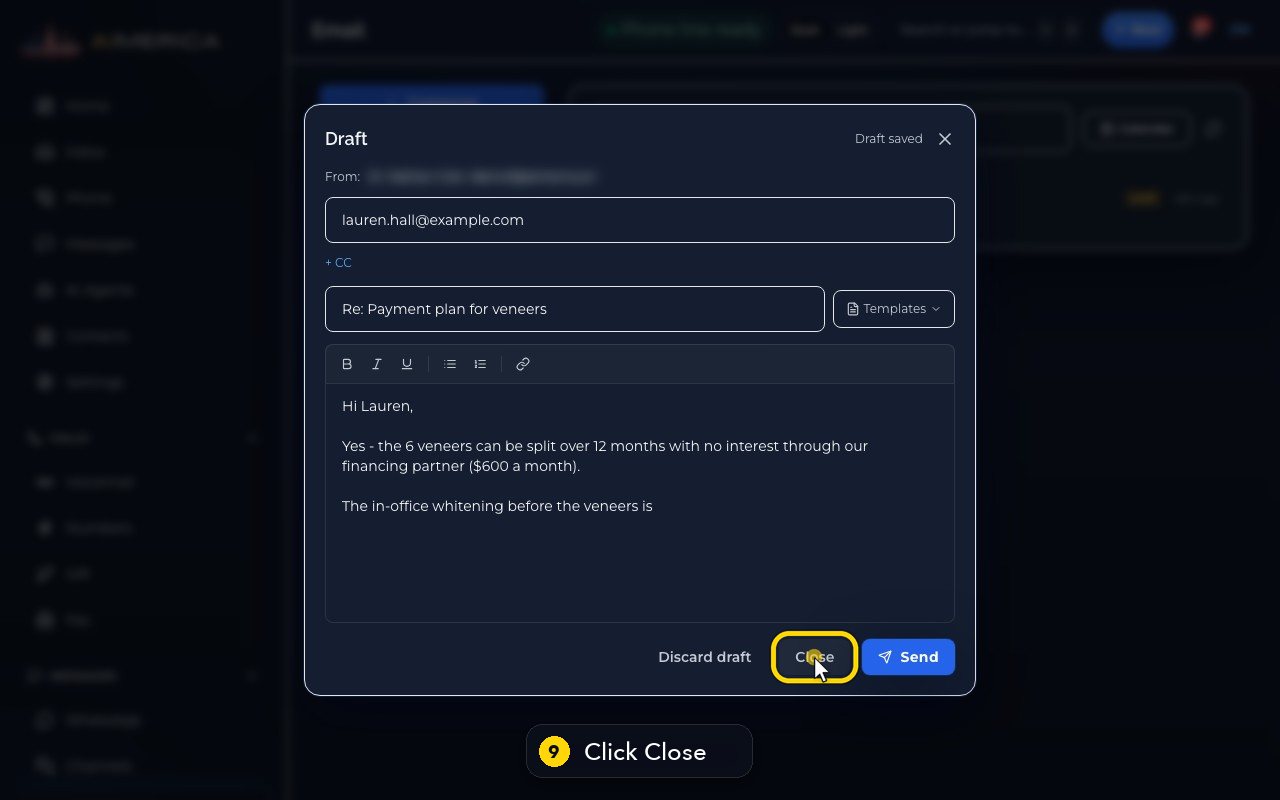
Send sends it. Discard draft throws it away for good.
- 9
Close keeps it in Drafts for later, just as it is.
Related tutorials
 1:24VideoFind your way around MessagesFind any text conversation: pick an inbox for each line, switch between Open and Done, and search by name, number or words.
 1:06VideoSend a new text messageStart a new text conversation: type the number, pick the line it comes from, write the message and add a picture if needed.
 1:30VideoReply to a customer's textOpen a conversation, see who said what, and write a reply that goes out from the conversation's own line.
 1:30VideoThe Inbox: every call, text, voicemail and faxSee the last 14 days of calls, texts, voicemail and fax in one list, spot what needs you, and open it where it is handled.
 1:32VideoRegister your business for texting (10DLC)Fill in the texting registration once so US carriers deliver your business texts; AIMERICA files it with the carriers for you.
 1:12VideoWhen a customer texts STOP (opt-outs)Know what happens when someone replies STOP or START, and where owners see everyone who opted out and keep a do-not-call list.
Was this not what you needed? Write to us.