
Texting and opt-outs
Business texts, STOP, and your do-not-contact list.
Your texts are in Messages, in the menu on the left. Every number you can text from has its own inbox.
In this video
Step by step
- 1
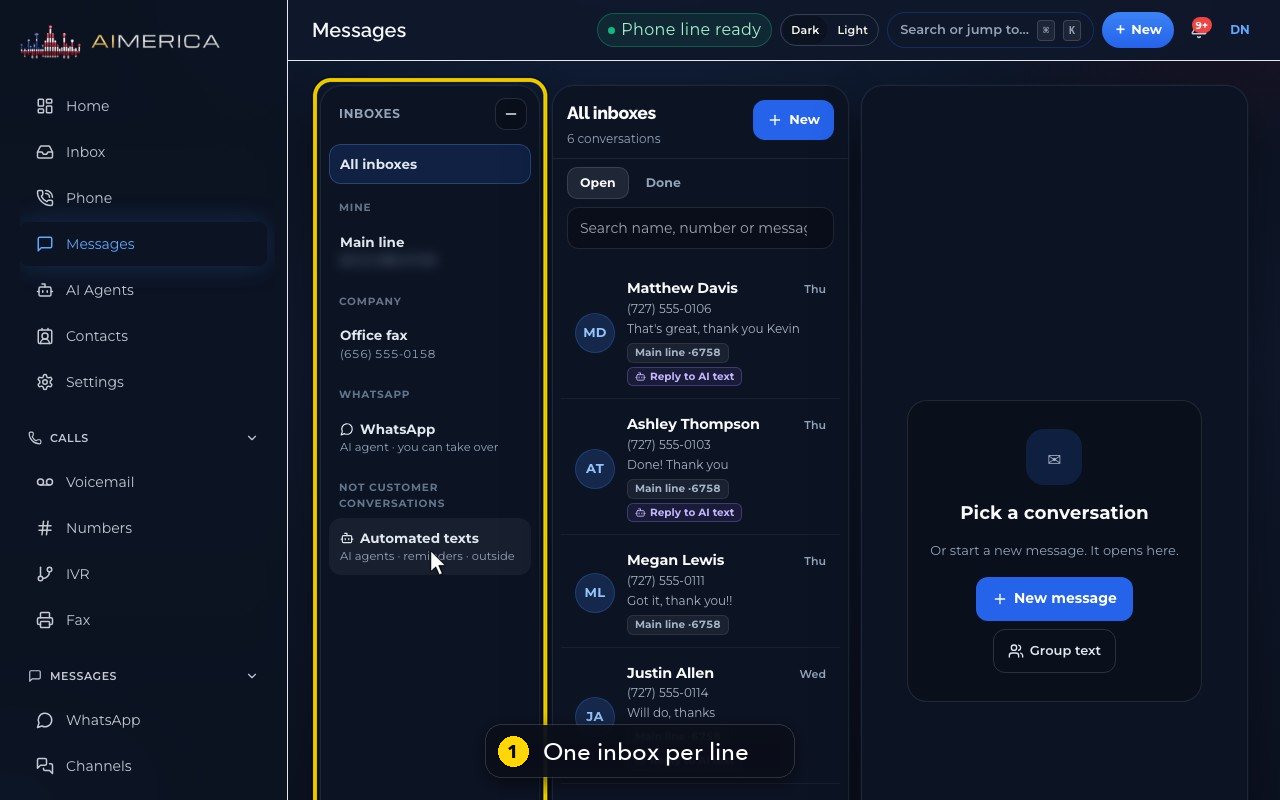
Messages is where your business texts live. Every number you can text from has its own inbox, in this column.
- 2
Mine are your own lines. Company lines belong to everyone, and Shared lines to a group you are in.
- 3
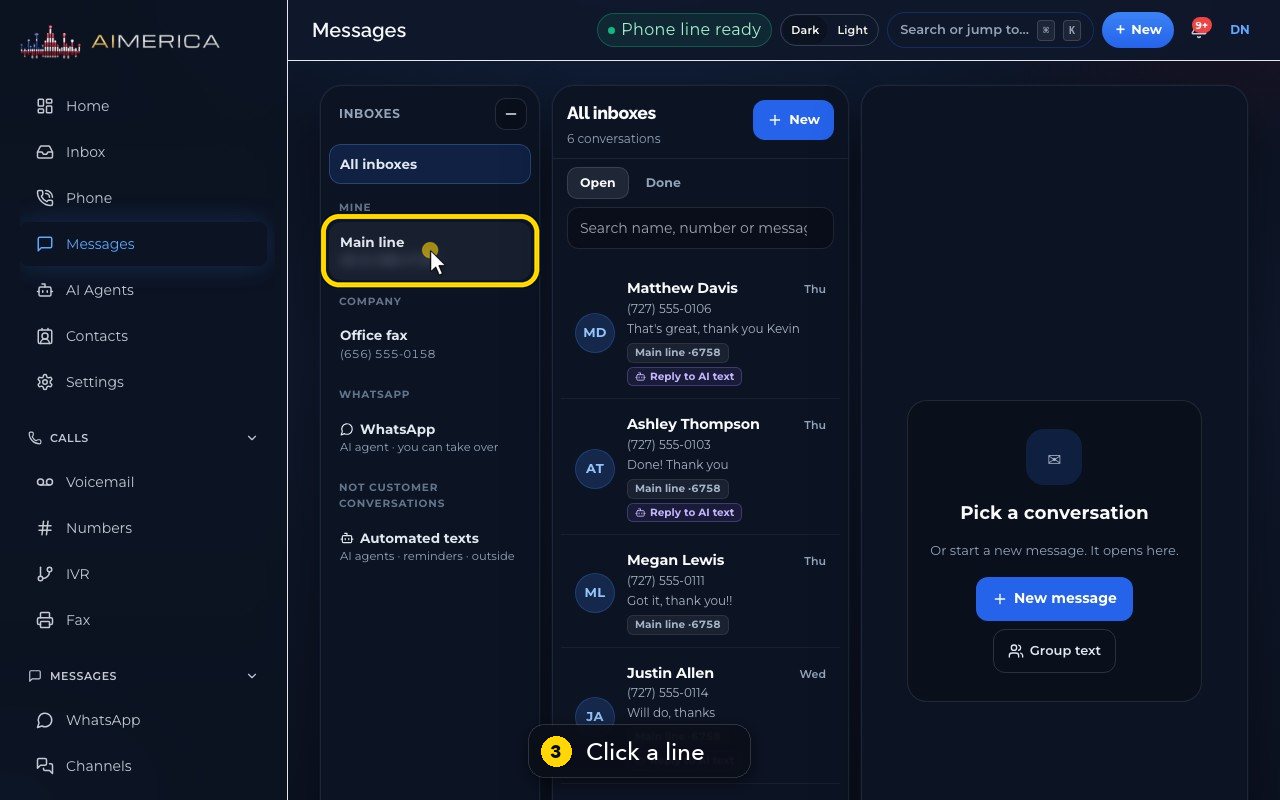
Click a line to see only its texts.
- 4
All inboxes shows every conversation together, and each row says which line it is on.
- 5
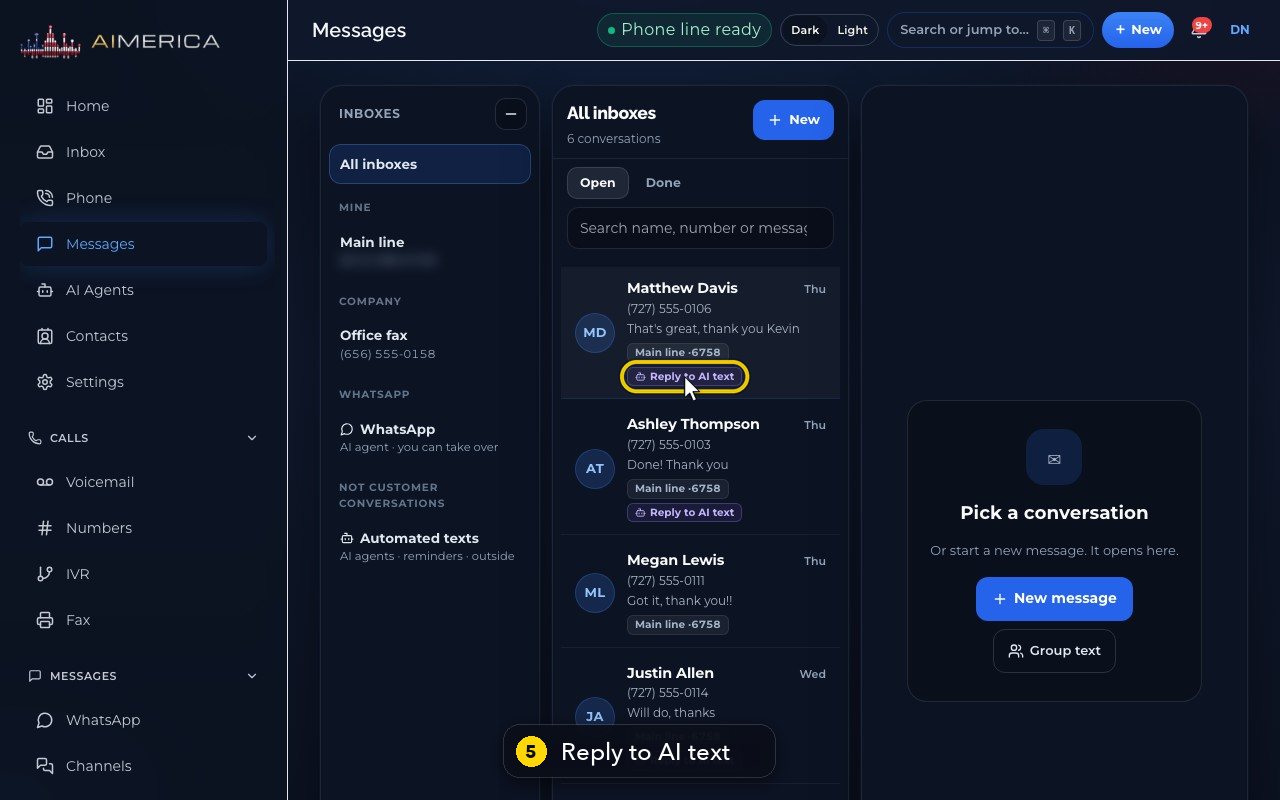
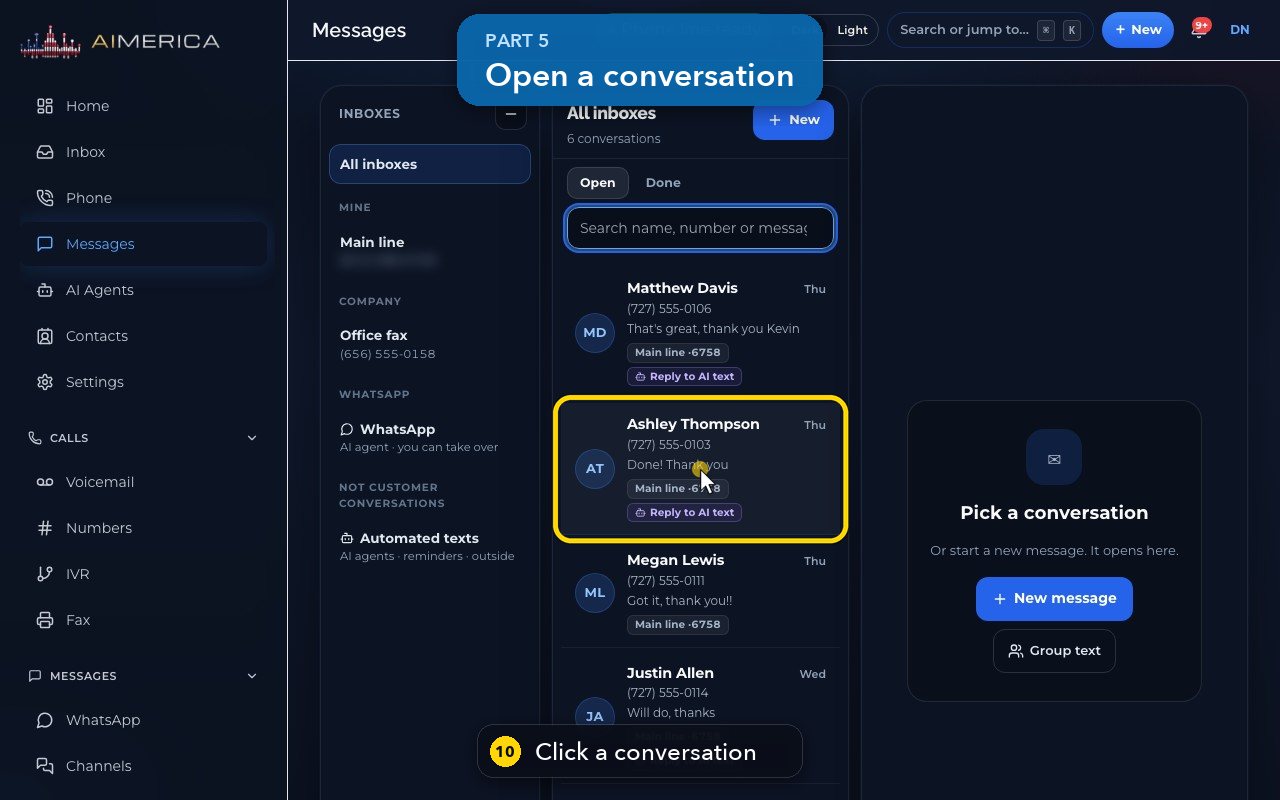
A row shows the customer, their number, the last message and when. Reply to AI text means they answered a text from your AI receptionist.
- 6
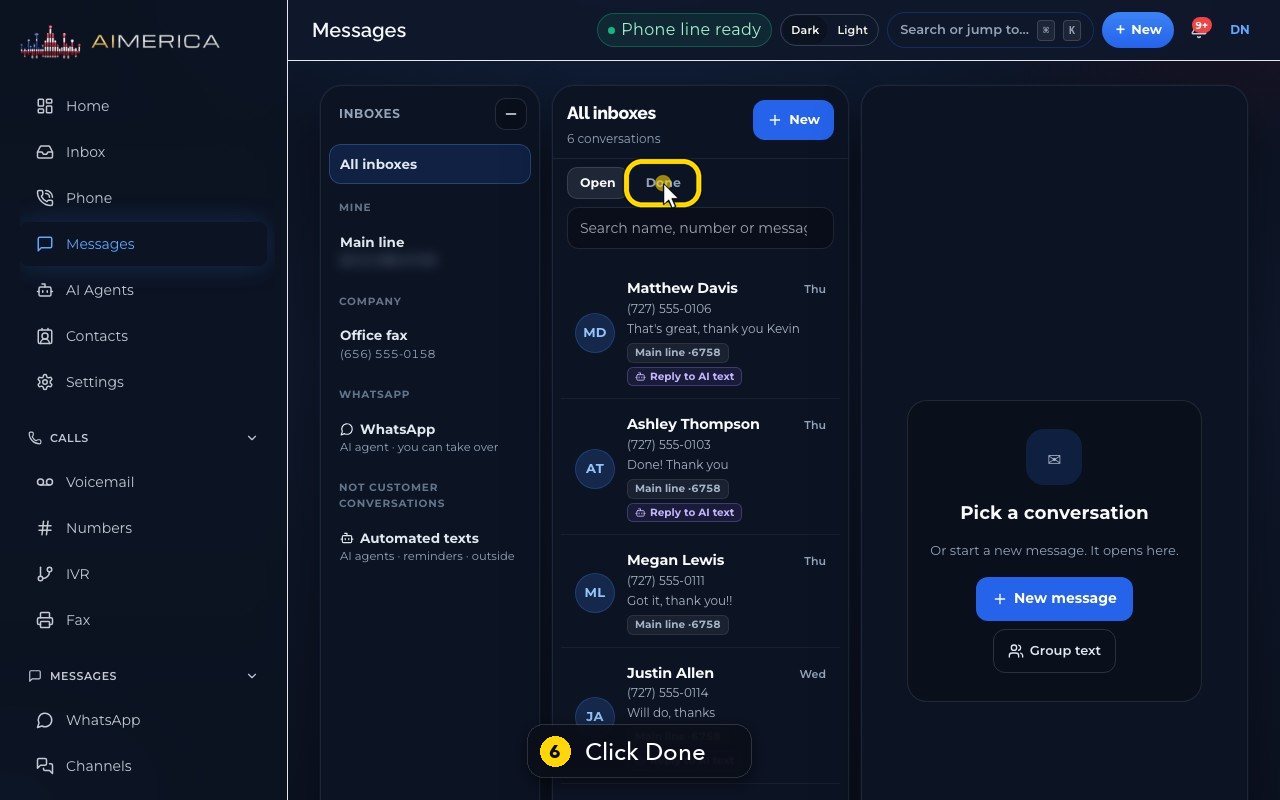
Open lists the conversations still waiting. Done lists the ones you finished.
- 7
When the customer texts again, the conversation comes back by itself. Click Open to go back.
- 8
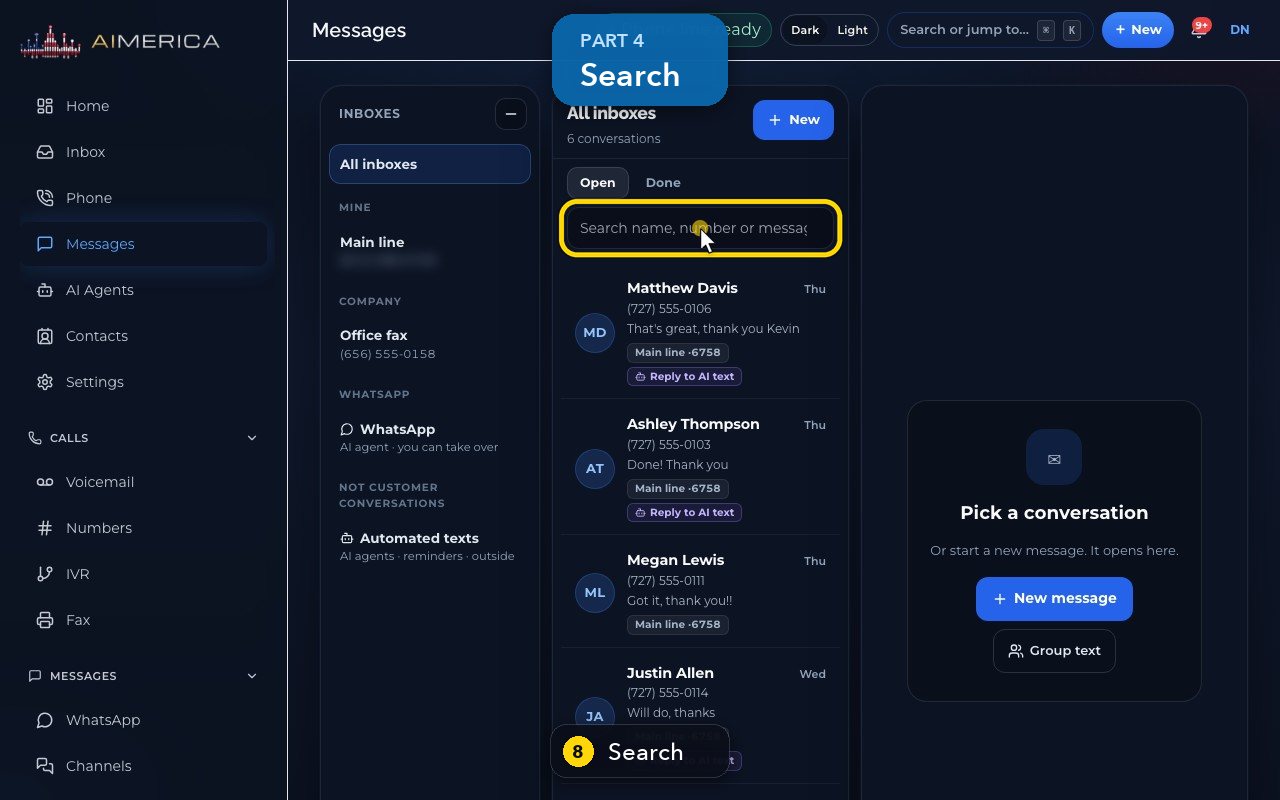
To find someone, search for a name, a number, or any word in the last message.
- 9
Clear the box to see everything again.
- 10
Click a conversation to open it on the right.
- 11
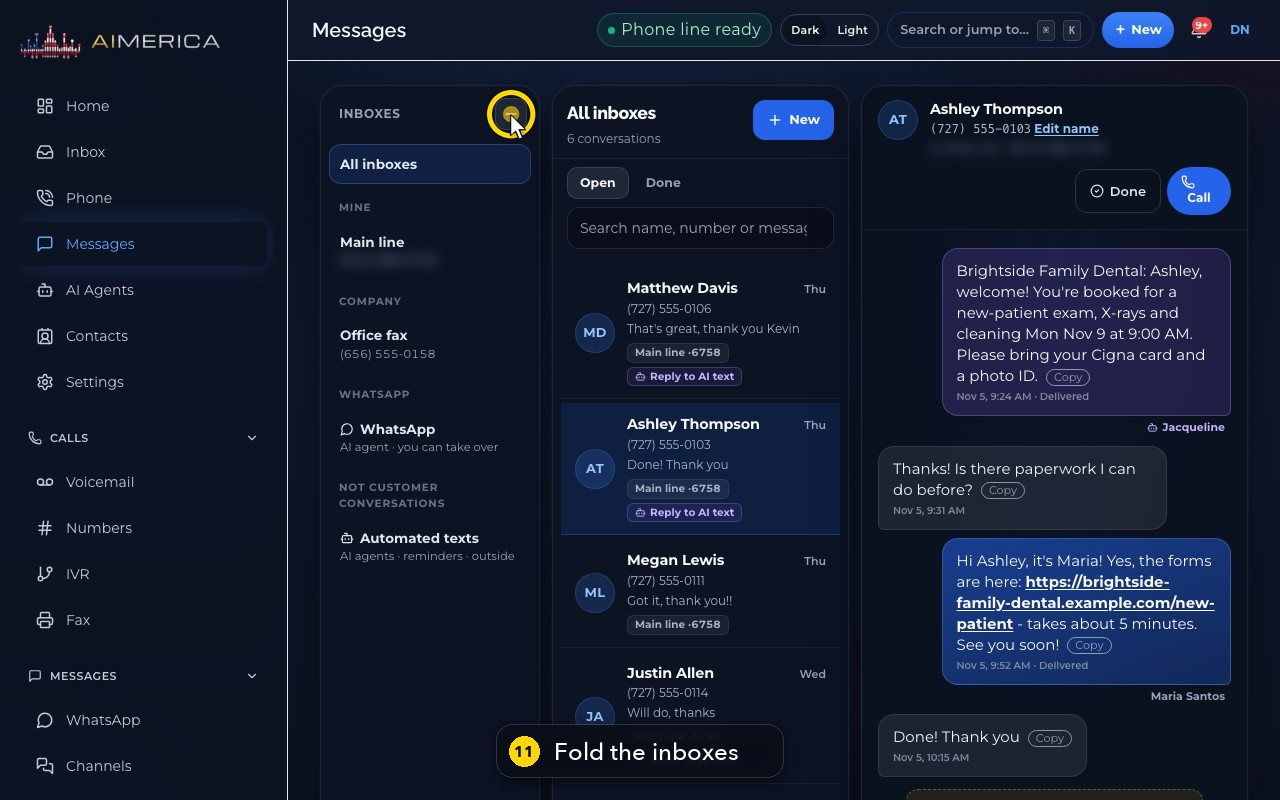
The minus button folds the inbox column, to give the conversation more room.
- 12
The plus button brings it back.
Send a new text message
Start a new text conversation: type the number, pick the line it comes from, write the message and add a picture if needed.
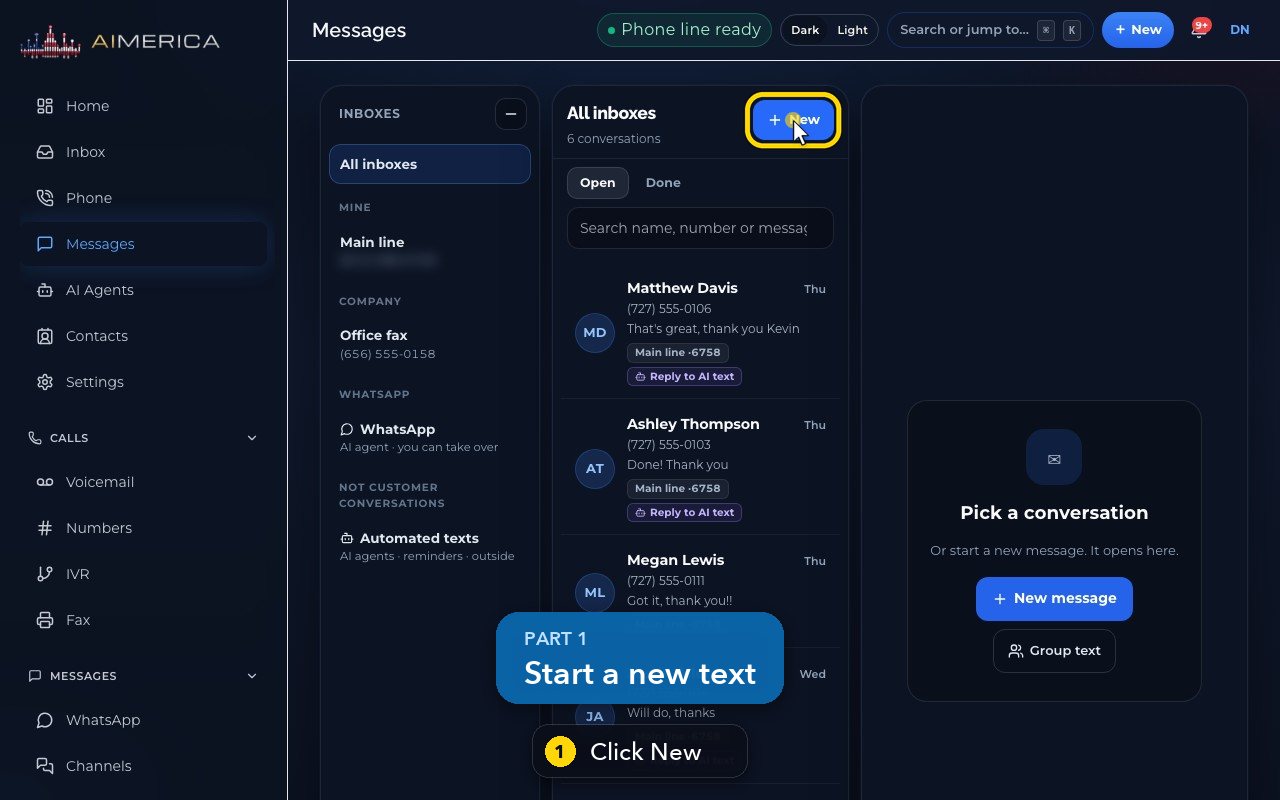
New texts start in Messages, with the New button above the list of conversations.
In this video
Step by step (9 steps)
- 1
To text someone new, open Messages and click New.
- 2
The form says it plainly: pick the line once, and every reply in this conversation goes out from it.
- 3
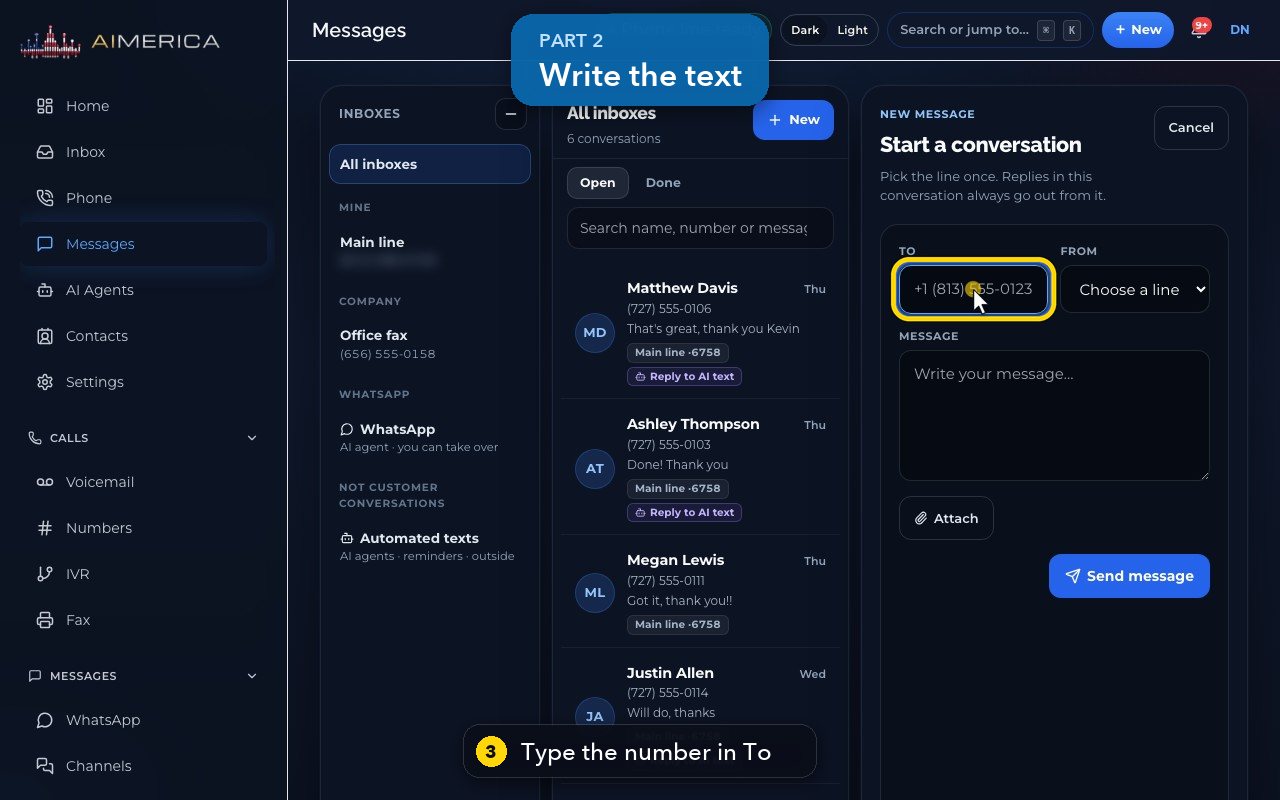
Type the customer's mobile number in To. Texts go to US and Canadian numbers.
- 4
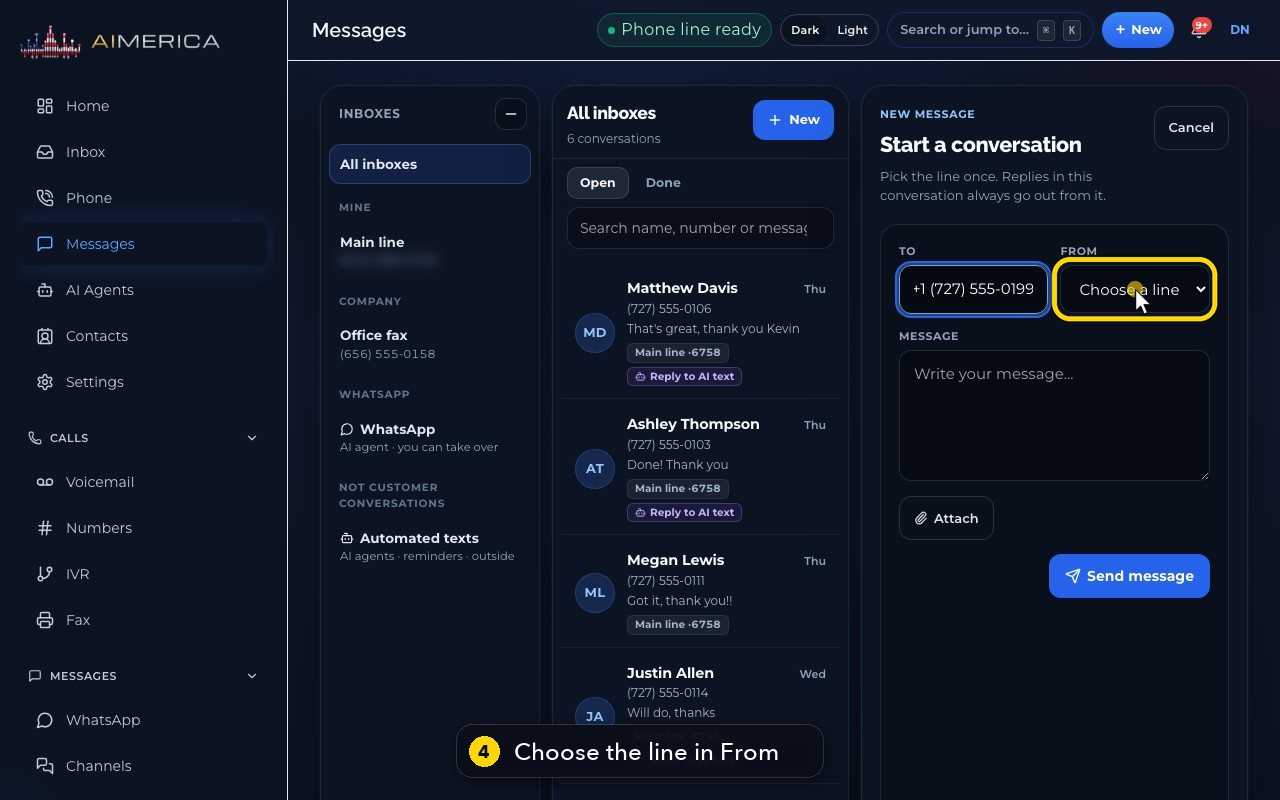
In From, choose which of your numbers sends it. The customer sees that number, and replies to it.
- 5
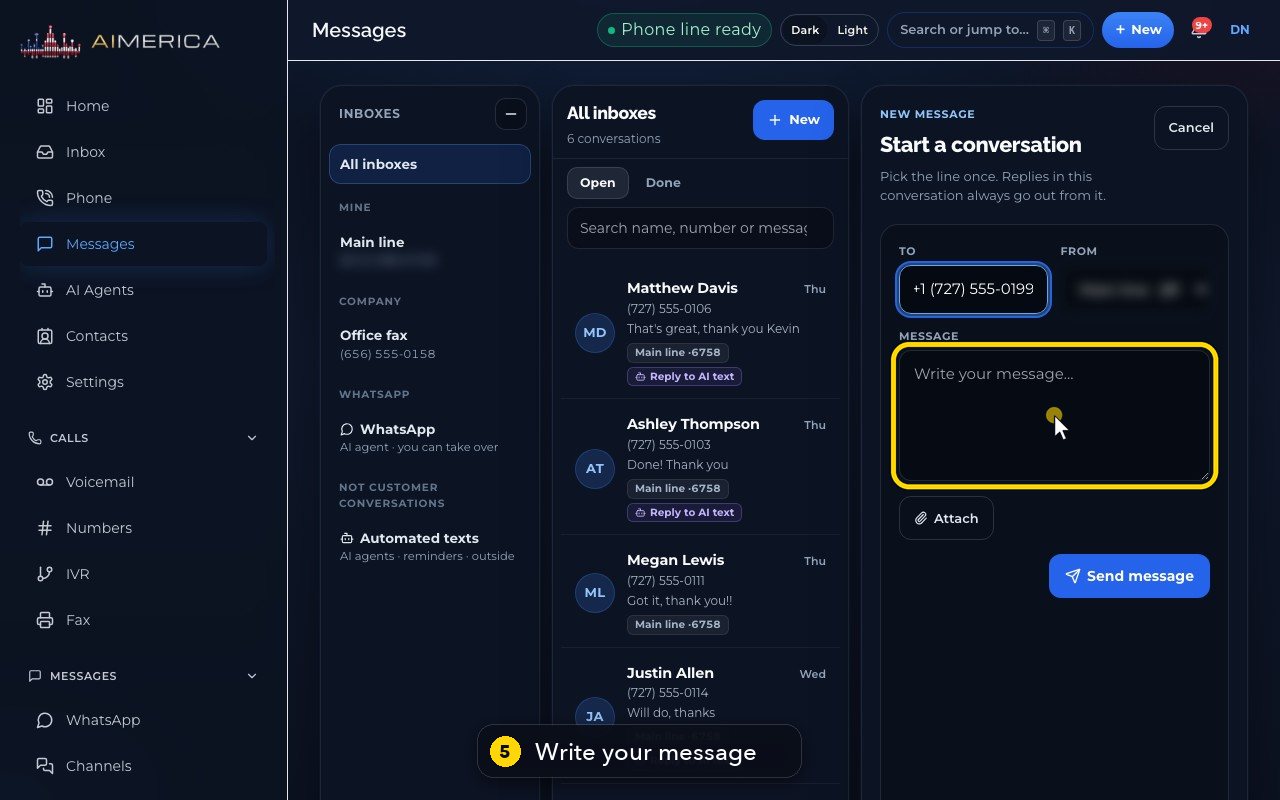
Write your message. Keep it short and clear: it arrives as a text on their phone.
- 6
Attach adds up to five pictures, PDFs or contact cards.
- 7
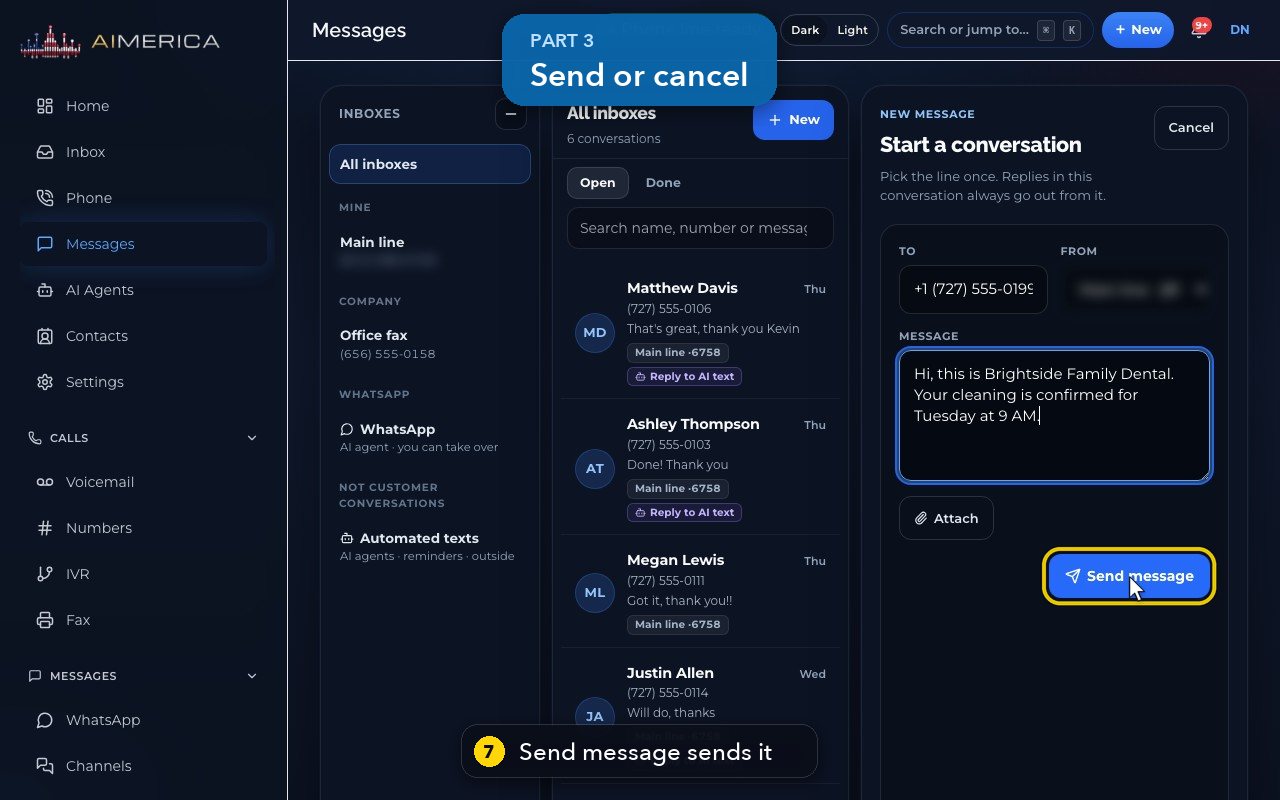
Send message sends the text, and opens the new conversation, ready for the answer.
- 8
Cancel closes the form without sending anything.
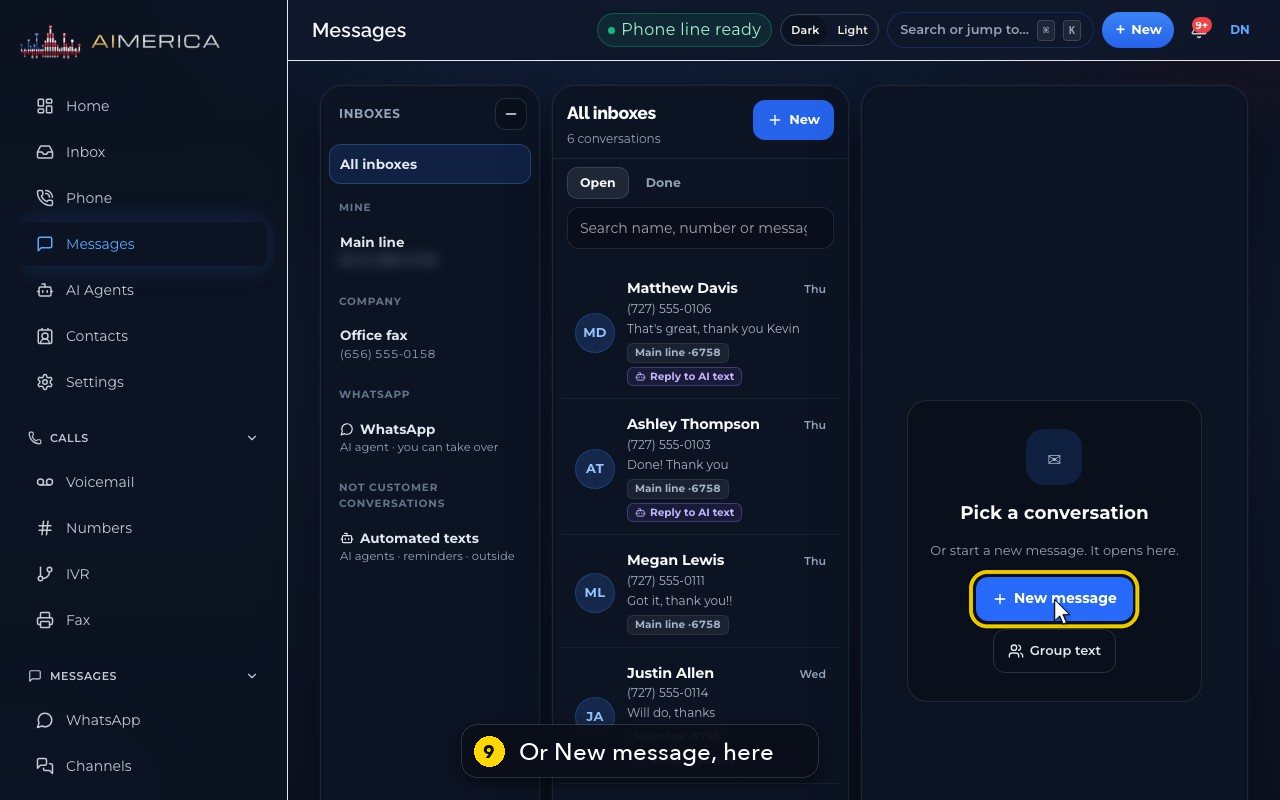
- 9
You can also start a text from New message, in this empty panel.
Reply to a customer's text
Open a conversation, see who said what, and write a reply that goes out from the conversation's own line.
Open the conversation in Messages and type your answer in the box under it. It goes out from the conversation's own line.
In this video
Step by step (12 steps)
- 1
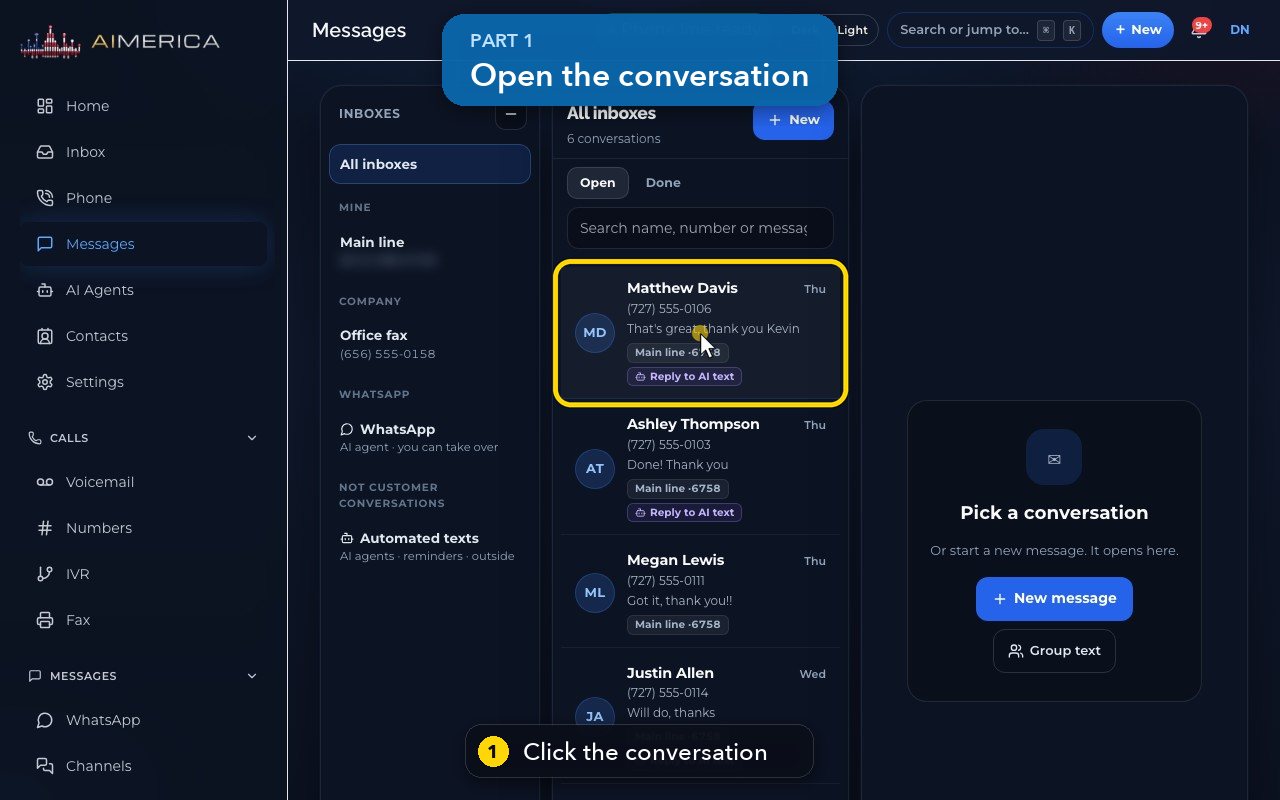
To answer a customer, click their conversation in Messages.
- 2
Fold the inbox column with the minus button, so the conversation gets more room.
- 3
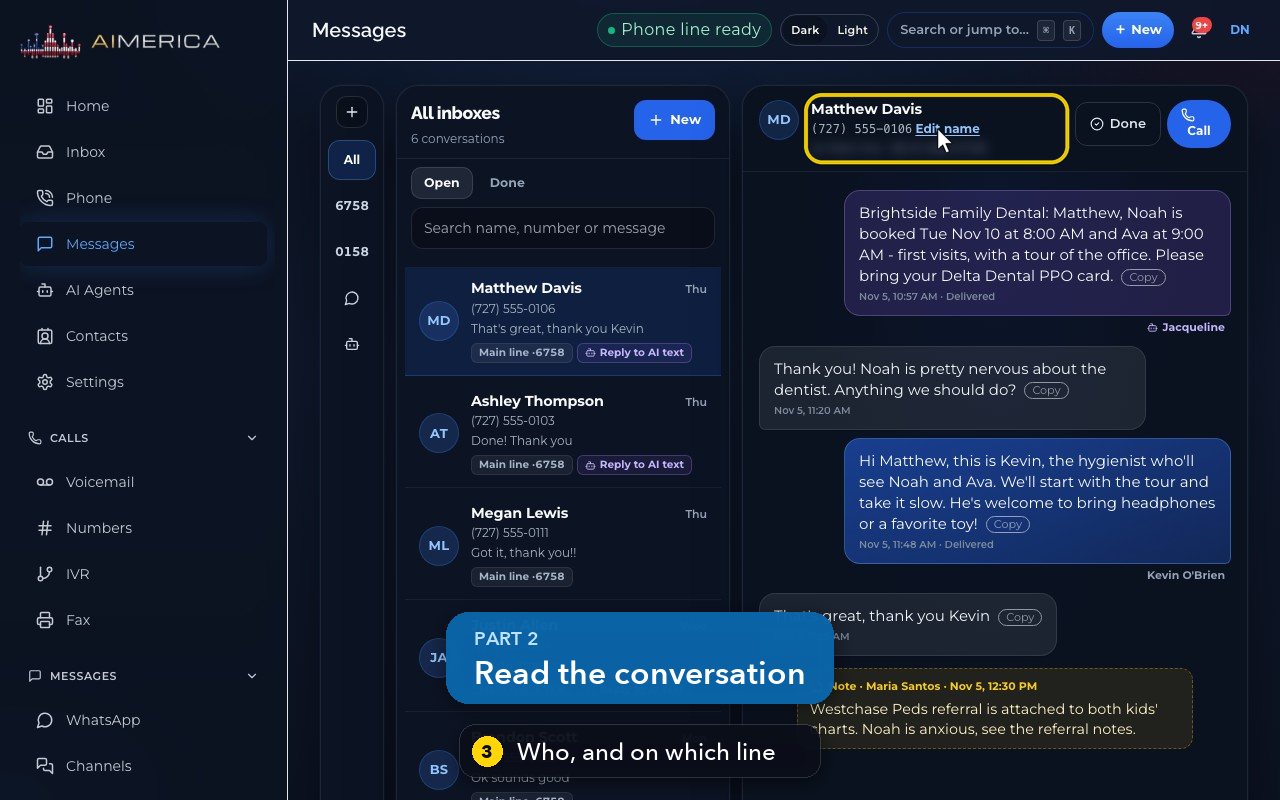
The header shows the customer, their number, and the line this conversation is on.
- 4
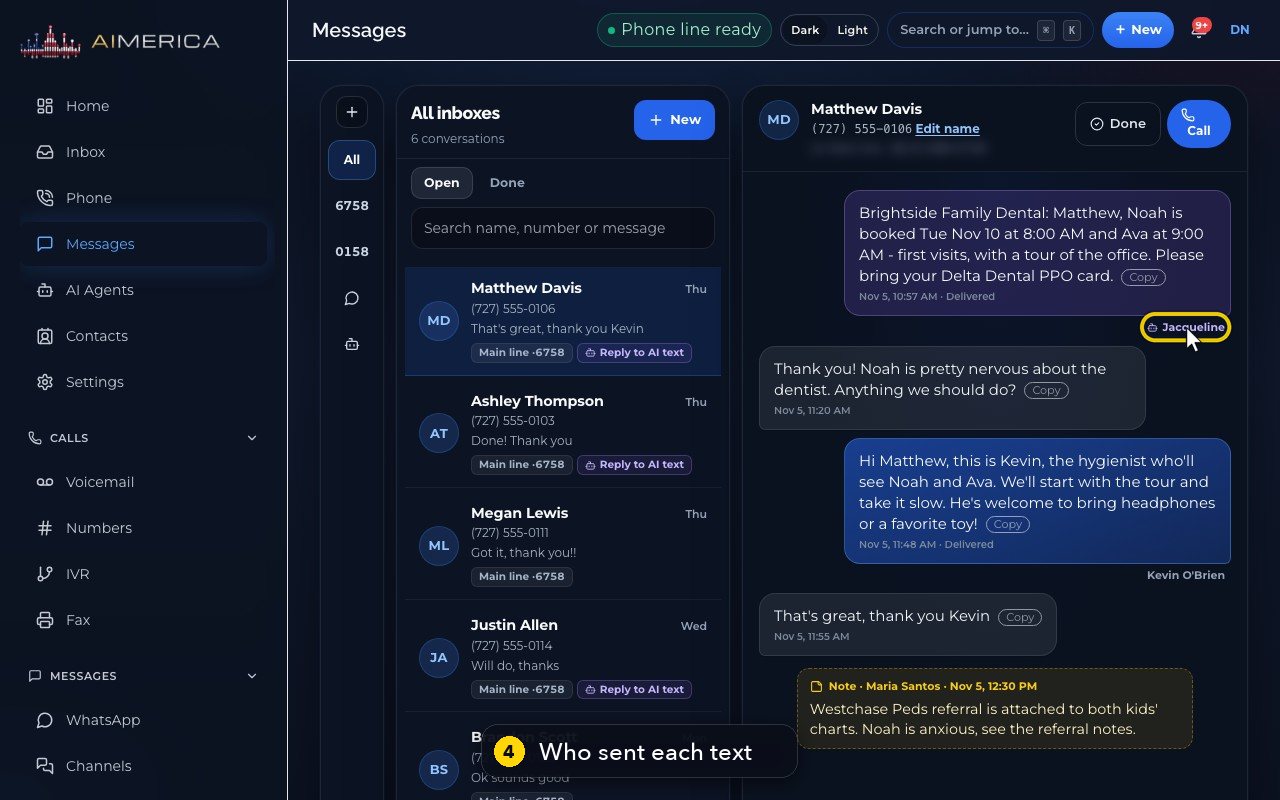
Texts from your side say who sent them. Jacqueline, the AI receptionist, booked the visit, and Kevin answered later.
- 5
Under each text, you see the time, and Delivered once the carrier confirms it reached the phone.
- 6
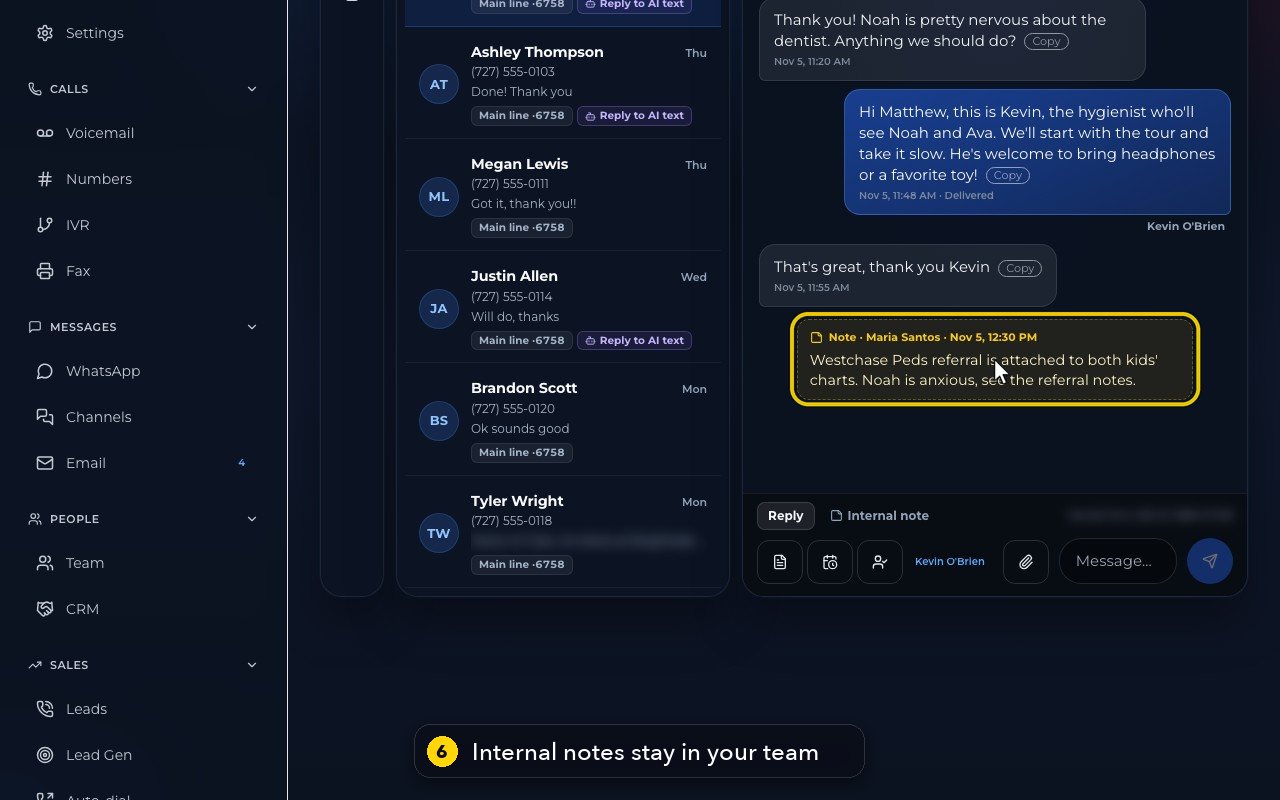
The yellow box is an internal note. Only your team sees it, never the customer.
- 7
Reply is selected under the conversation. Your answer goes out from the conversation's own line, shown on the right.
- 8
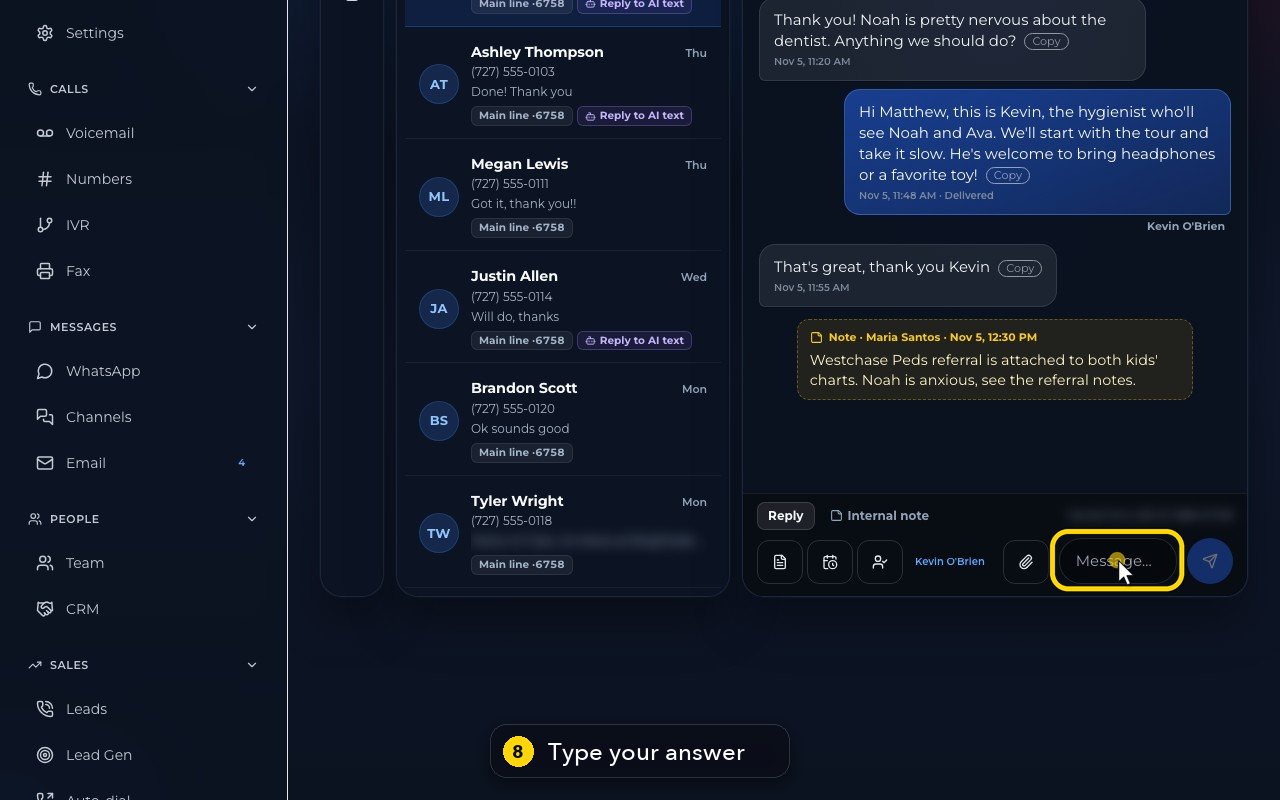
Type your answer in the message box.
- 9
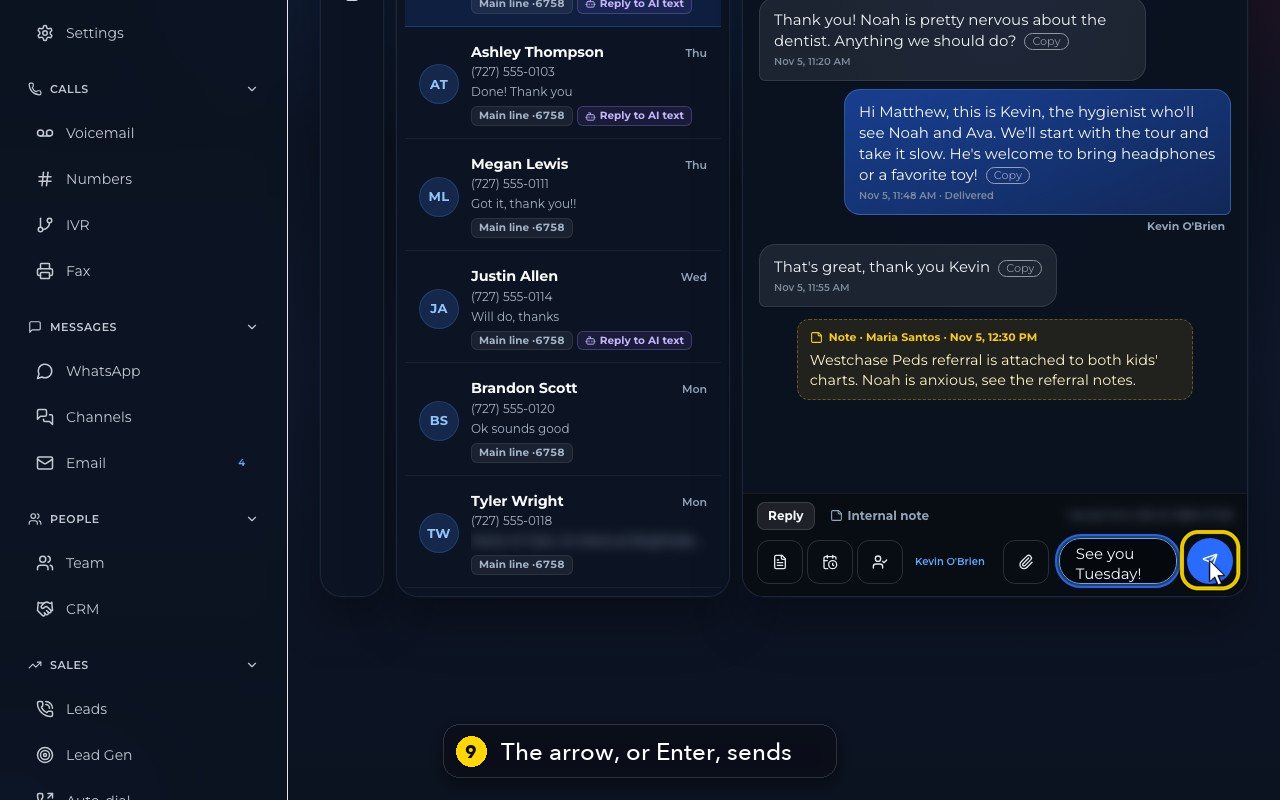
Click the arrow to send. On a computer, Enter also sends. Hold Shift and press Enter for a new line.
- 10
The paperclip adds up to five pictures, PDFs or contact cards.
- 11
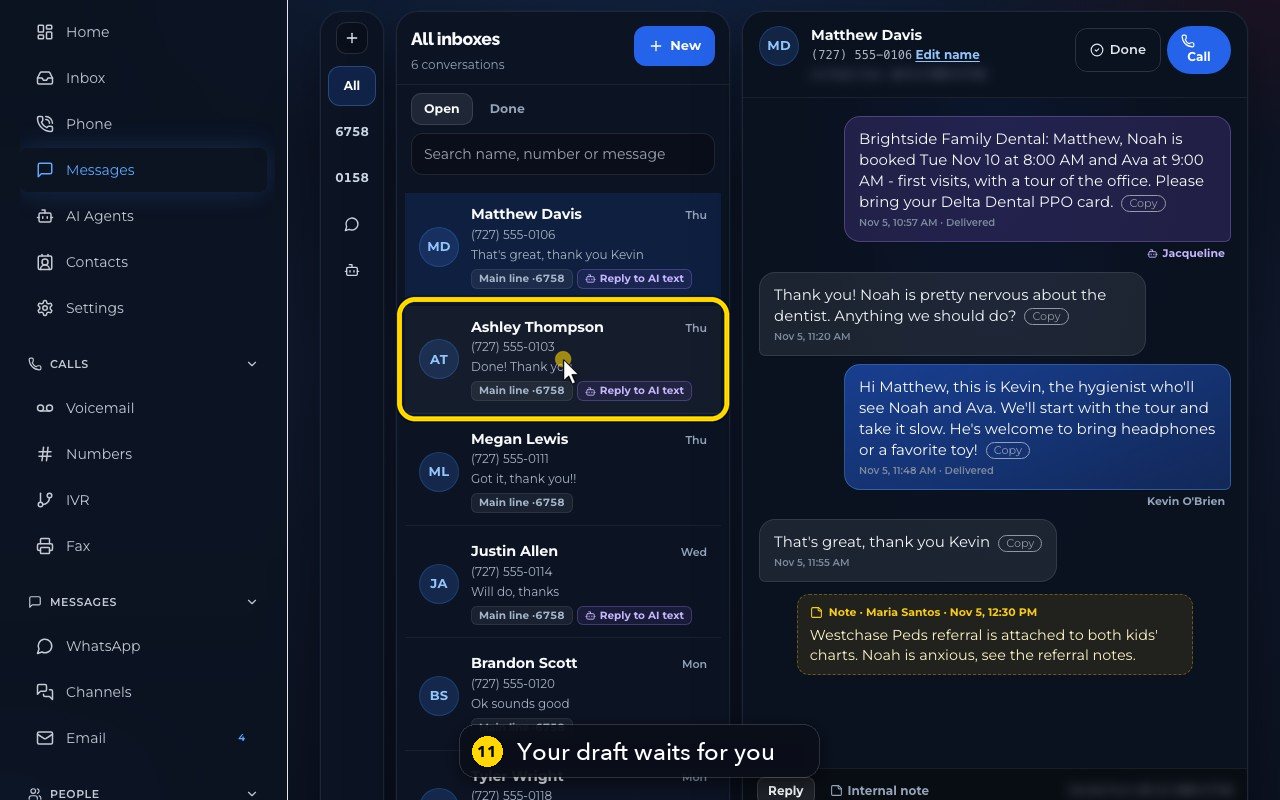
A half-written reply stays in its box. Open another conversation, then come back: your text is still there, waiting in the box.
- 12
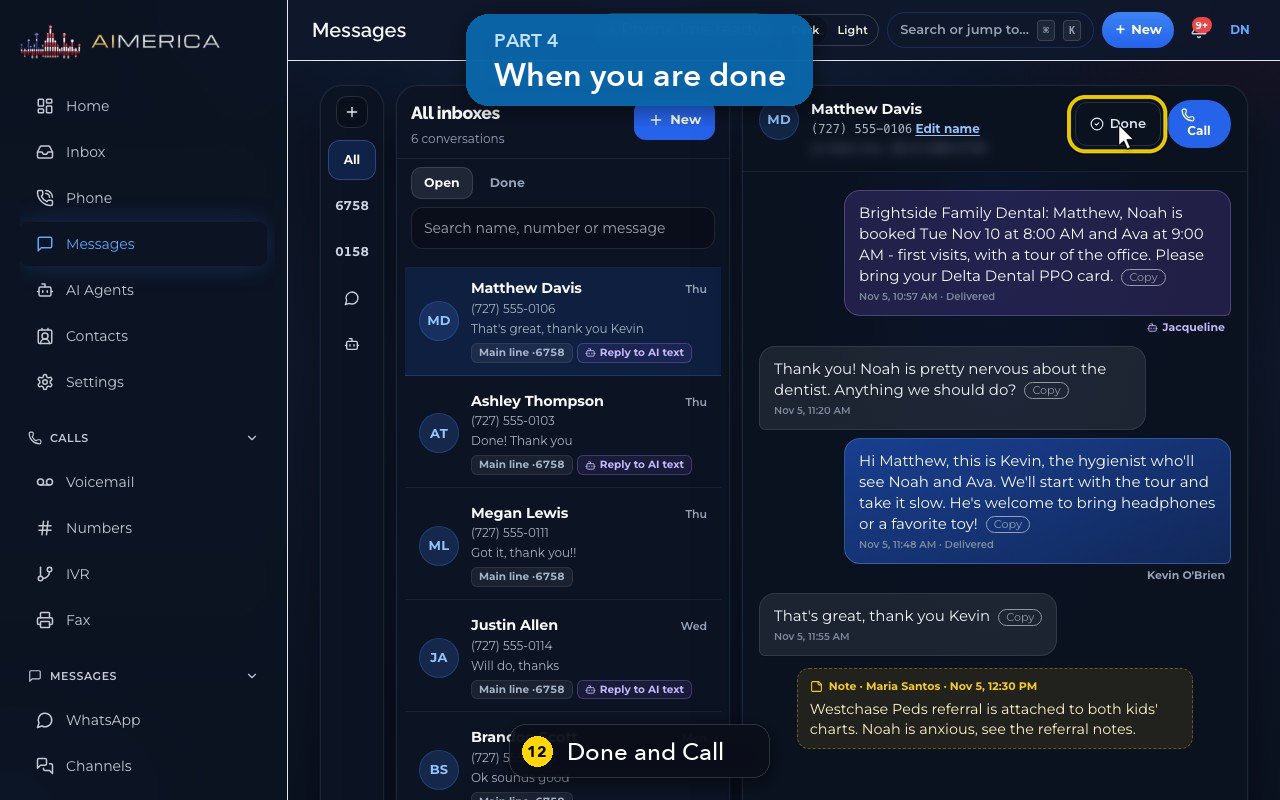
When the customer is taken care of, Done files the conversation away, and Call rings them from this line.
Register your business for texting (10DLC)
Fill in the texting registration once so US carriers deliver your business texts; AIMERICA files it with the carriers for you.
Owners and admins find it in Settings › Company › Texting, card Texting registration. You fill it in once; we file it with the carriers for you.
In this video
Step by step (12 steps)
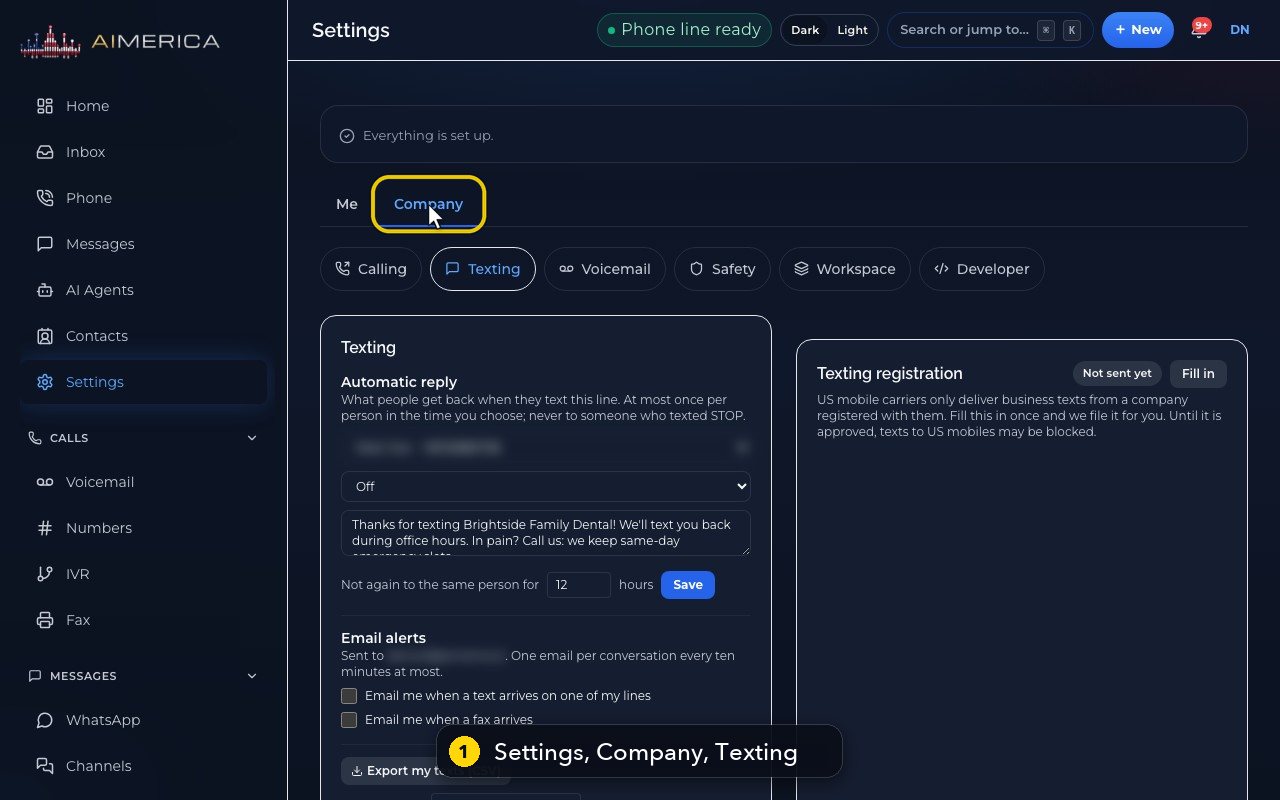
- 1
To register, open Settings, then Company, then Texting.
- 2
US mobile carriers only deliver business texts from a registered company. Until yours is approved, texts to US mobiles may be blocked.
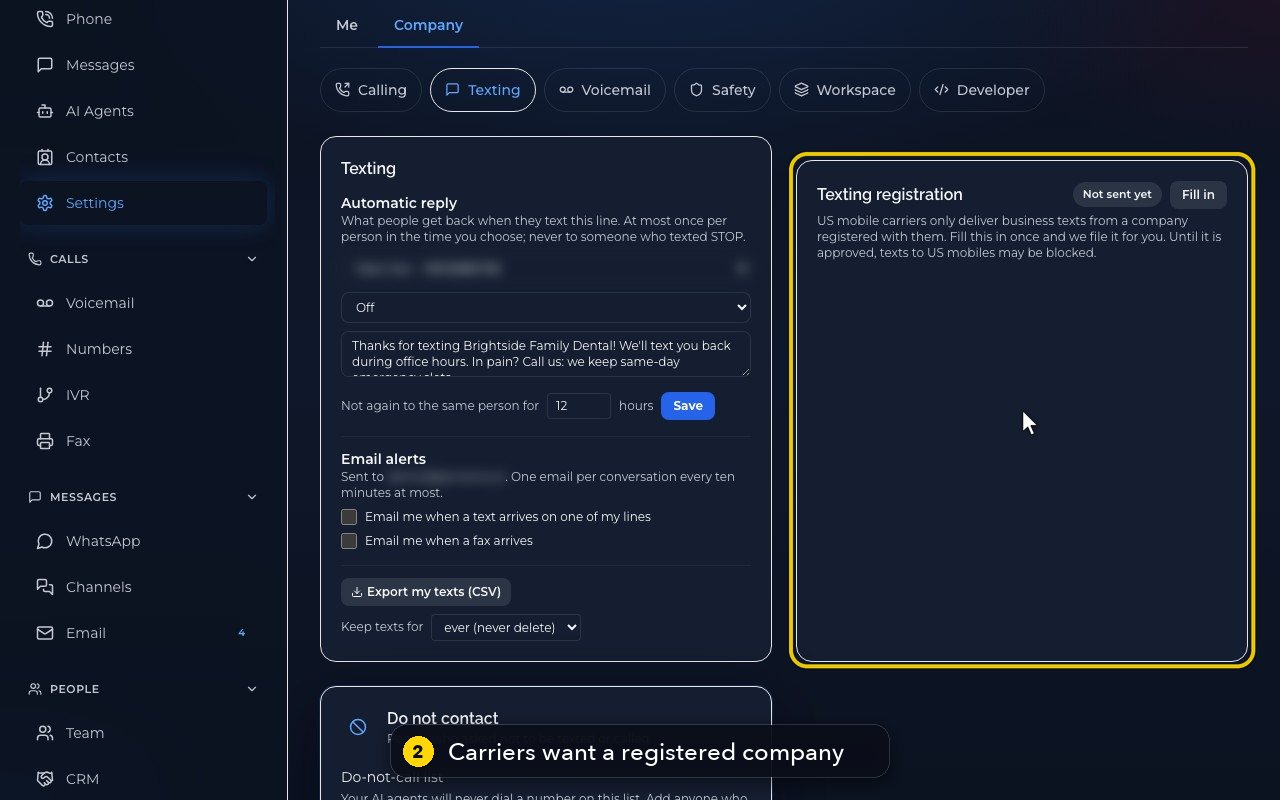
- 3
The badge shows where you are: not sent yet, sent to us, filed with the carriers, approved, or changes asked.
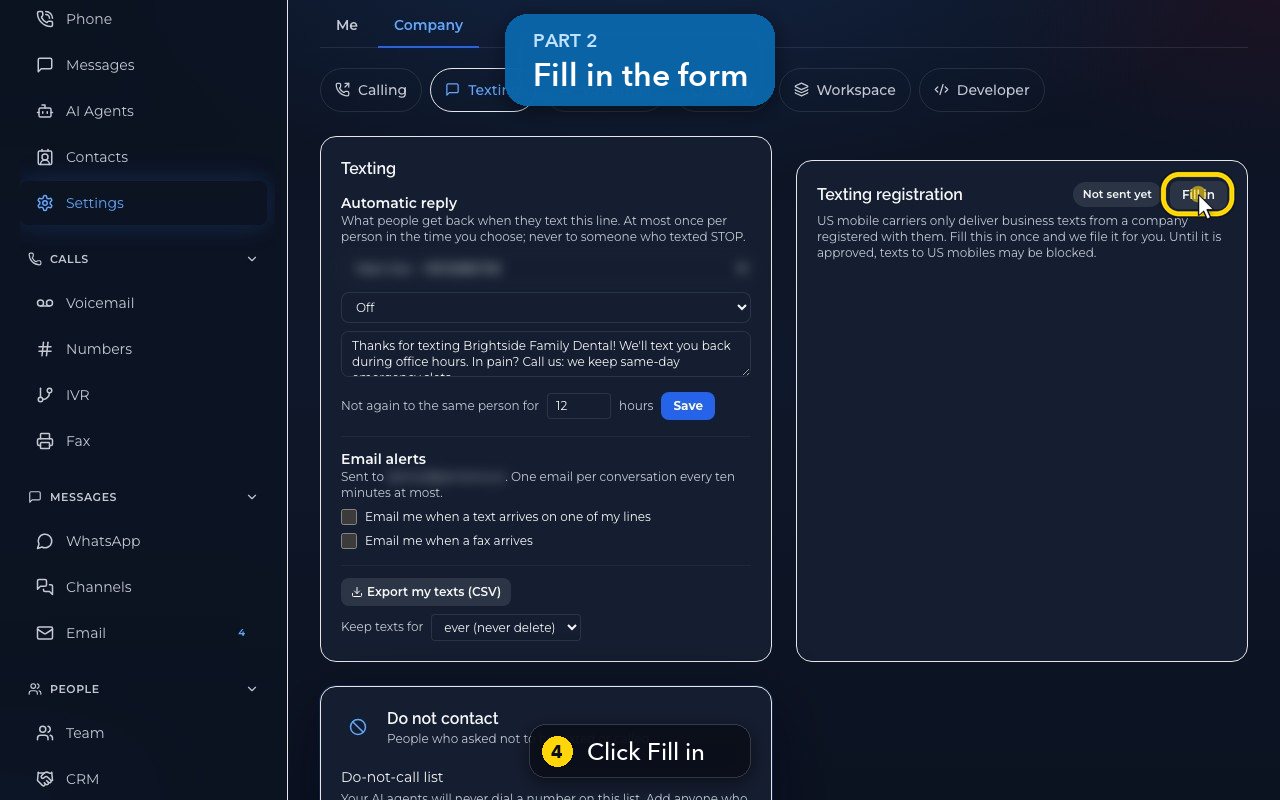
- 4
Click Fill in to open the form.
- 5
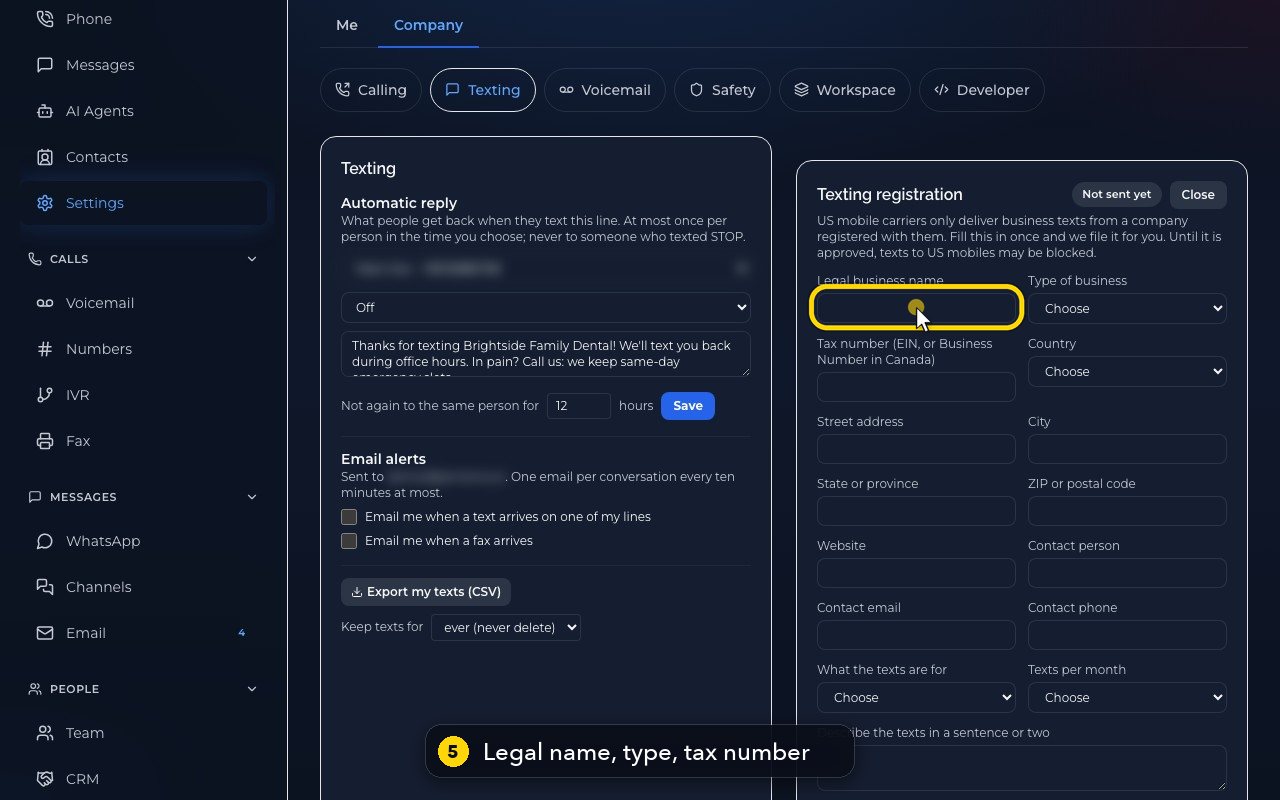
Start with the company: its legal name, the type of business, and the tax number. In the US, that is your EIN.
- 6
Then the address, the website, and a contact person. Carriers refuse a company without a website.
- 7
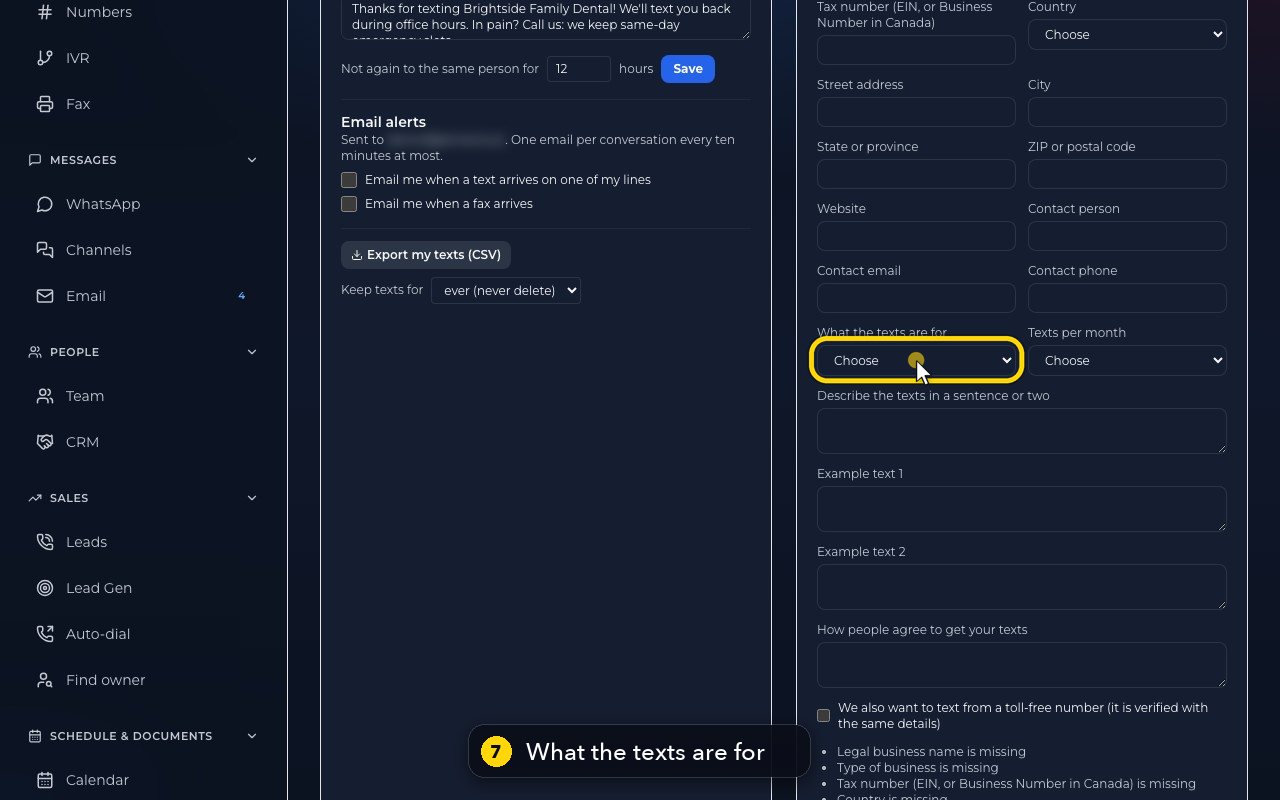
Say what the texts are for, and about how many you send each month.
- 8
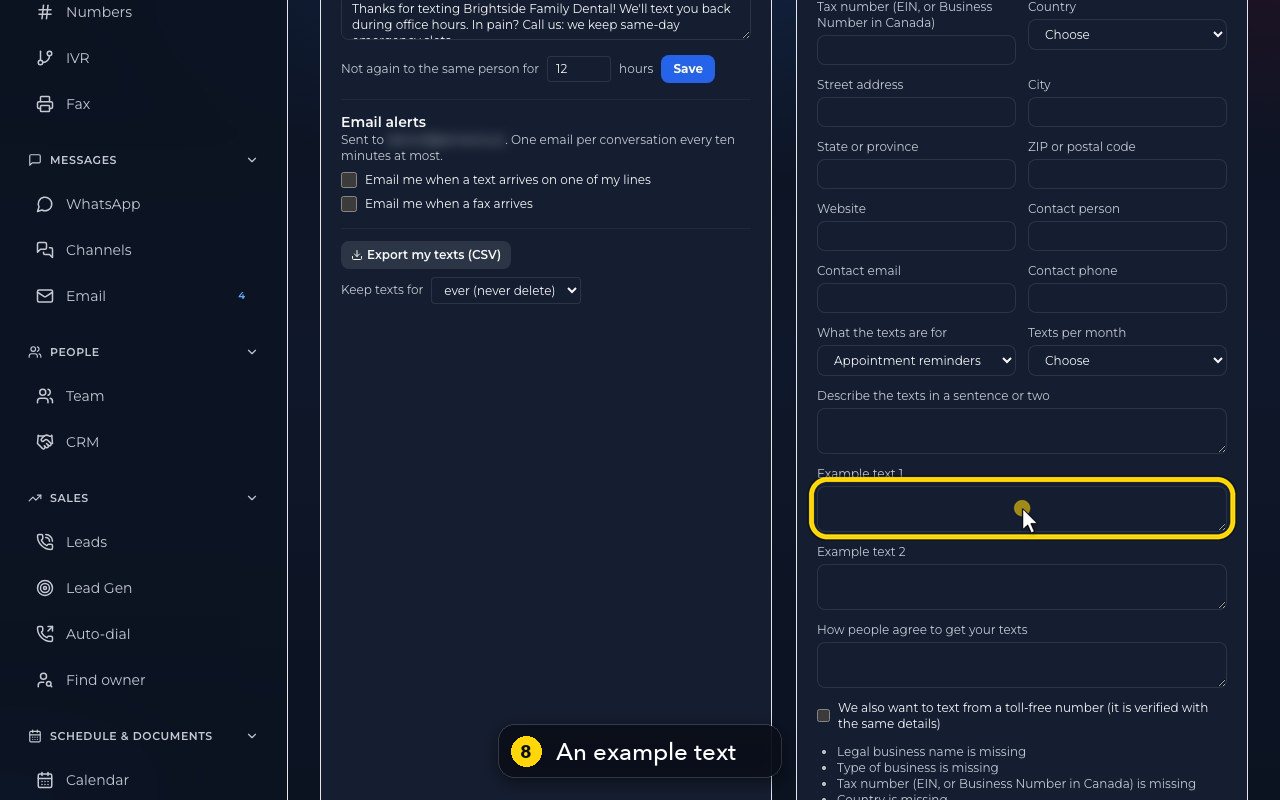
Give a real example of your texts, and say how customers agree to get them, for example when they book.
- 9
Tick this box if you also want to text from a toll-free number. It is checked with the same details.
- 10
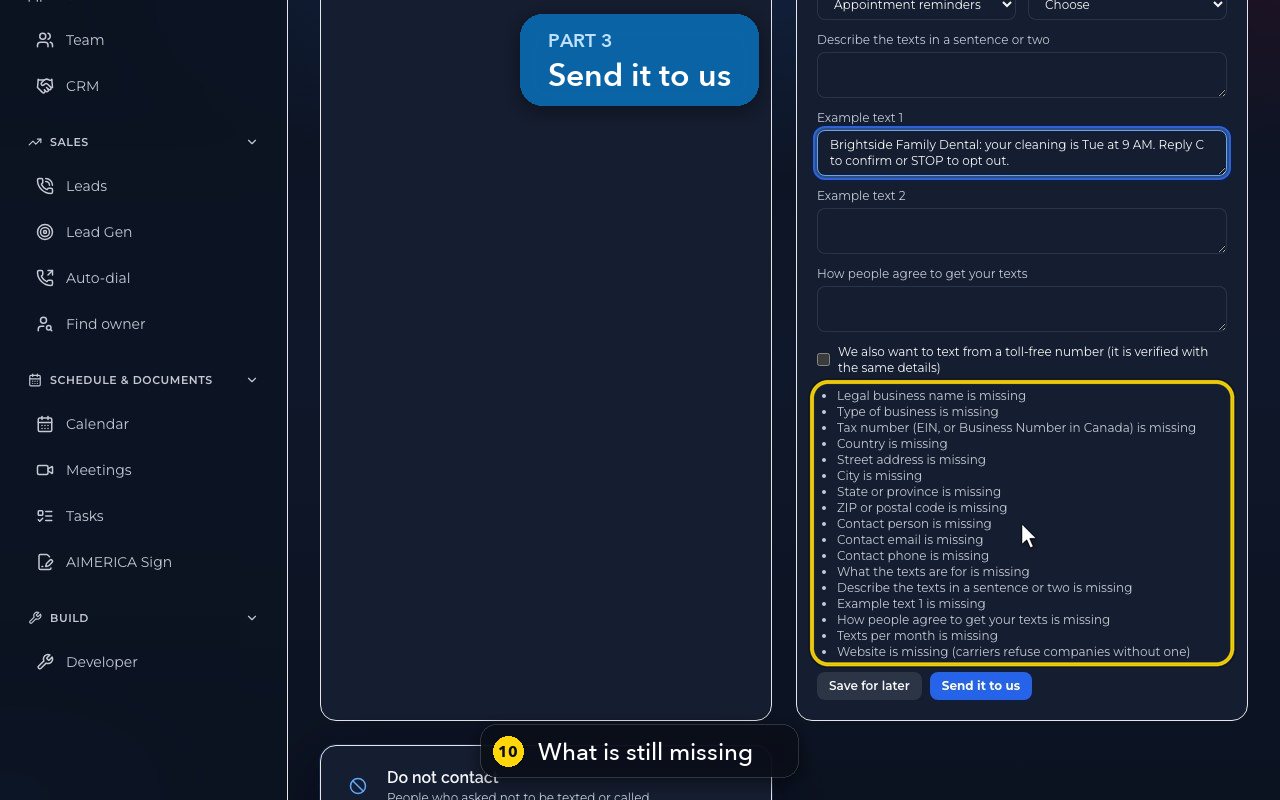
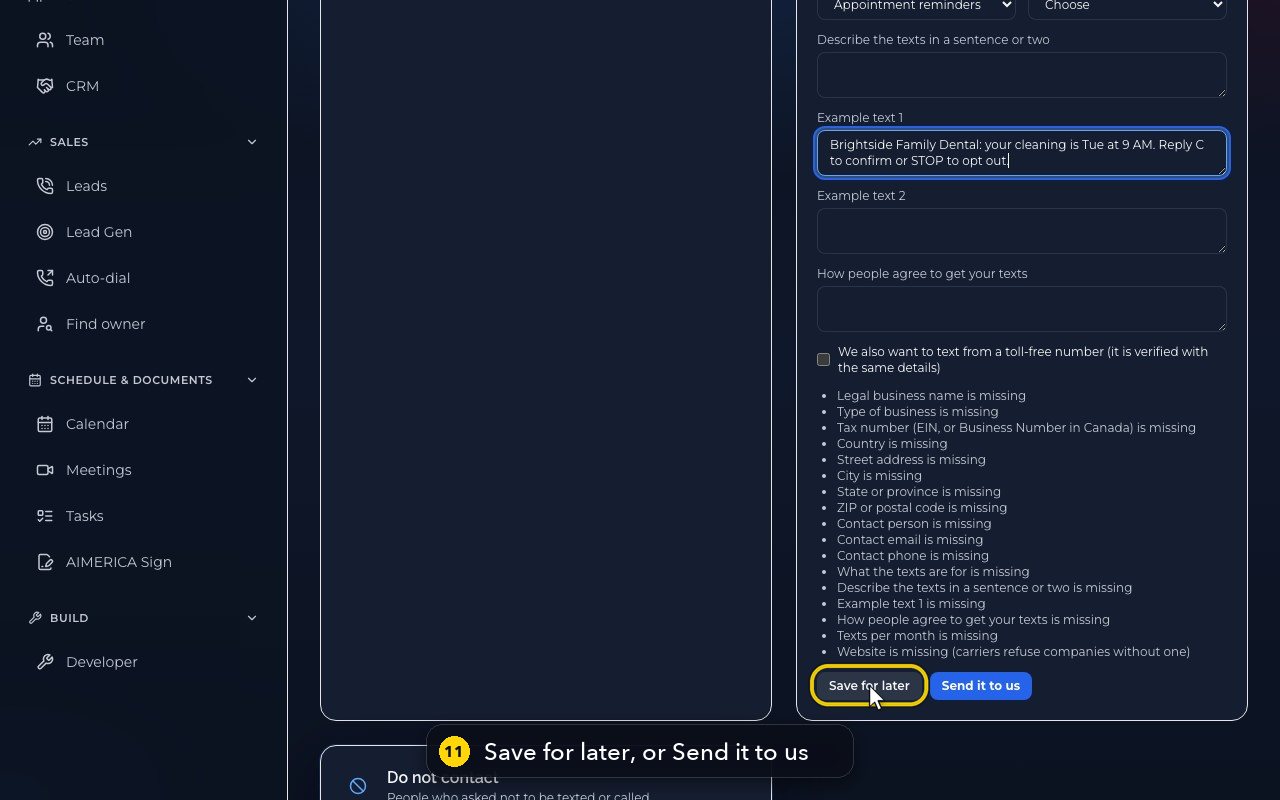
Anything still missing is listed under the form.
- 11
Save for later keeps your answers. Send it to us hands the form to our team, and we file it with the carriers for you.
- 12
When you are done, go back to the top of the card. Close folds the form away.
When a customer texts STOP (opt-outs)
Know what happens when someone replies STOP or START, and where owners see everyone who opted out and keep a do-not-call list.
Owners and admins find both lists in Settings › Company › Texting, card Do not contact. Opt-outs fill in by themselves; the do-not-call list is the one you keep by hand.
In this video
Step by step (7 steps)
- 1
Business texting has one firm rule: when someone replies STOP, you stop texting them. It happens automatically.
- 2
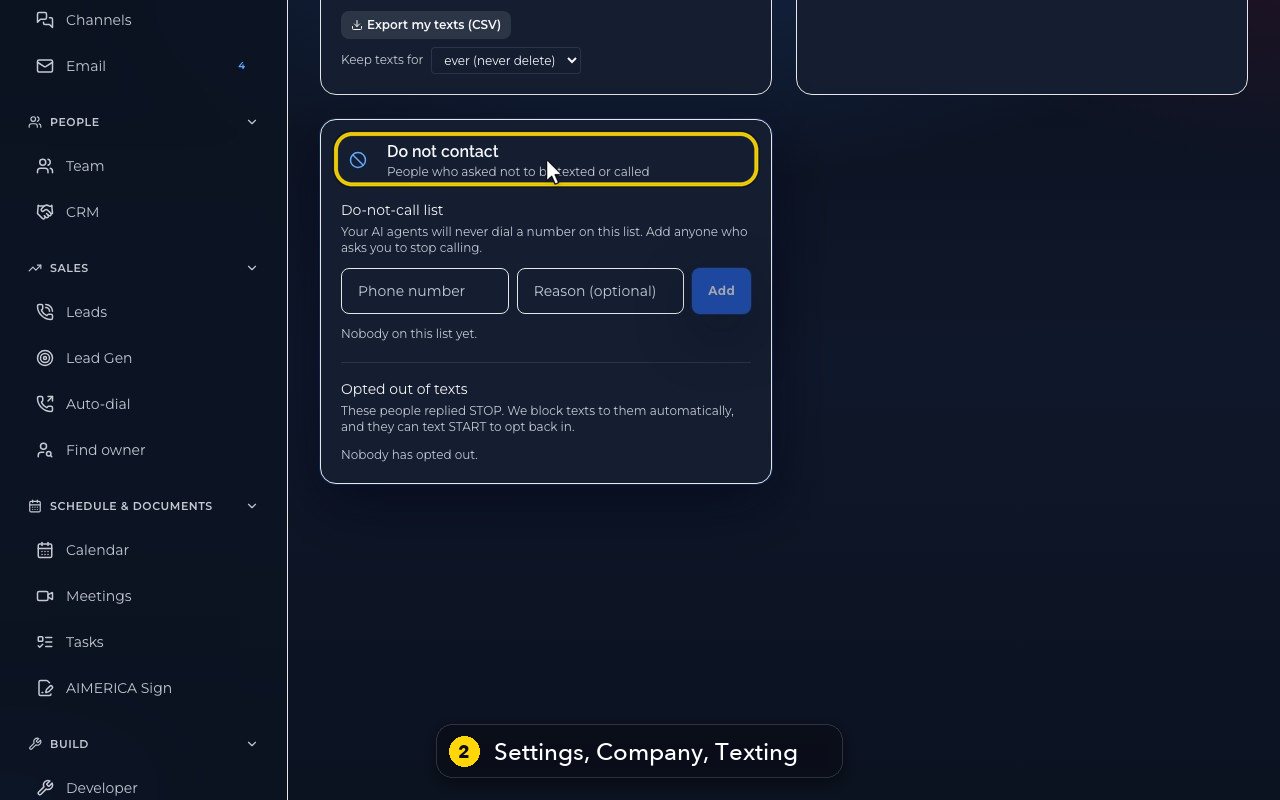
Owners and admins see the lists in Settings, under Company, then Texting, in the Do not contact card.
- 3
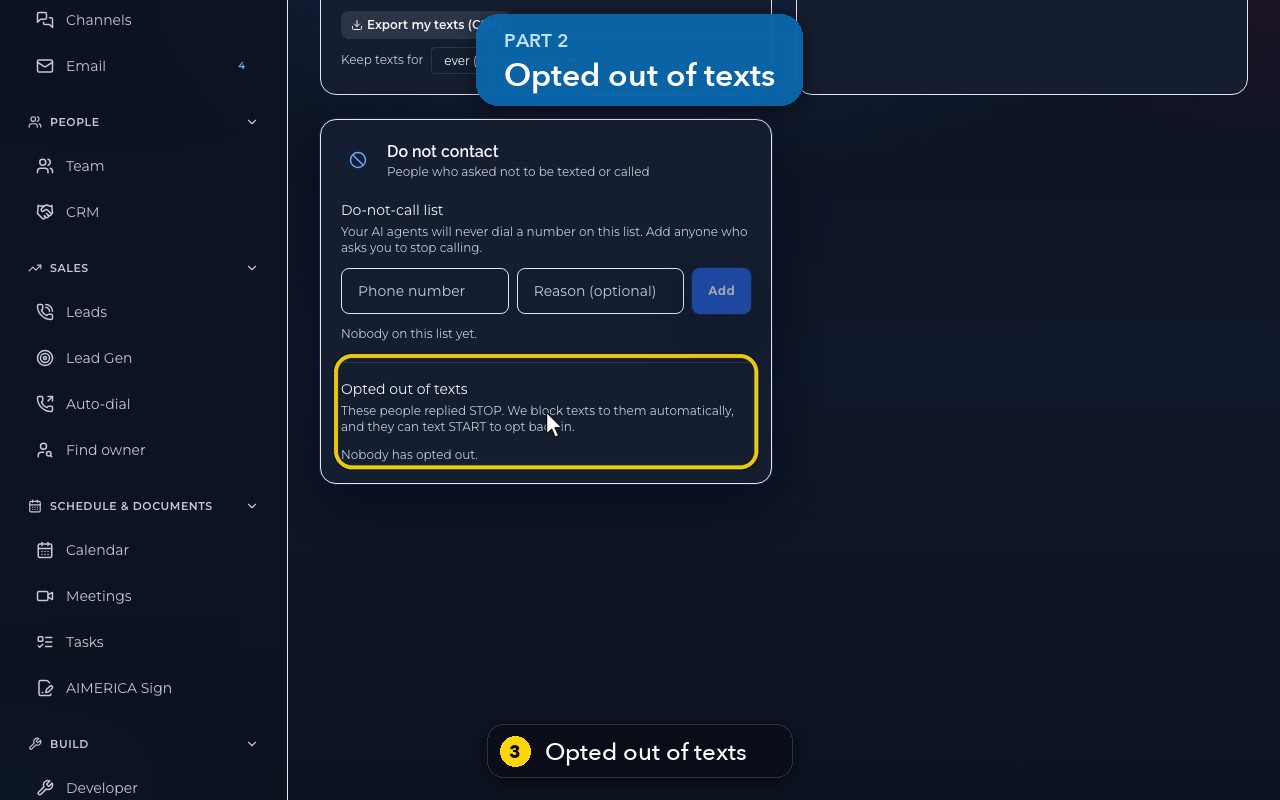
Opted out of texts fills in by itself. When a customer replies STOP, your company's texts to them are blocked.
- 4
STOP, UNSUBSCRIBE, CANCEL, END or QUIT all count. If they text START later, they can get your texts again.
- 5
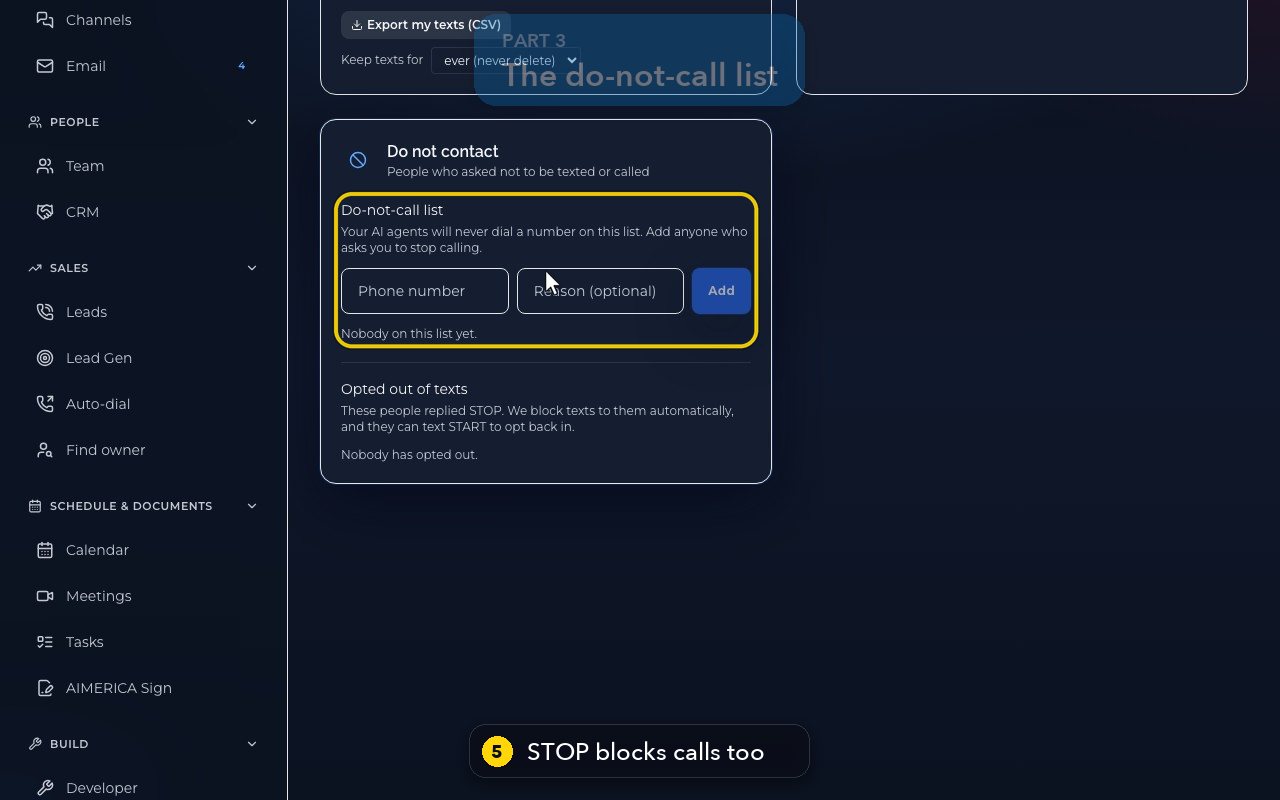
A STOP also blocks calls: your AI agents never dial that number, and the app refuses calls to it.
- 6
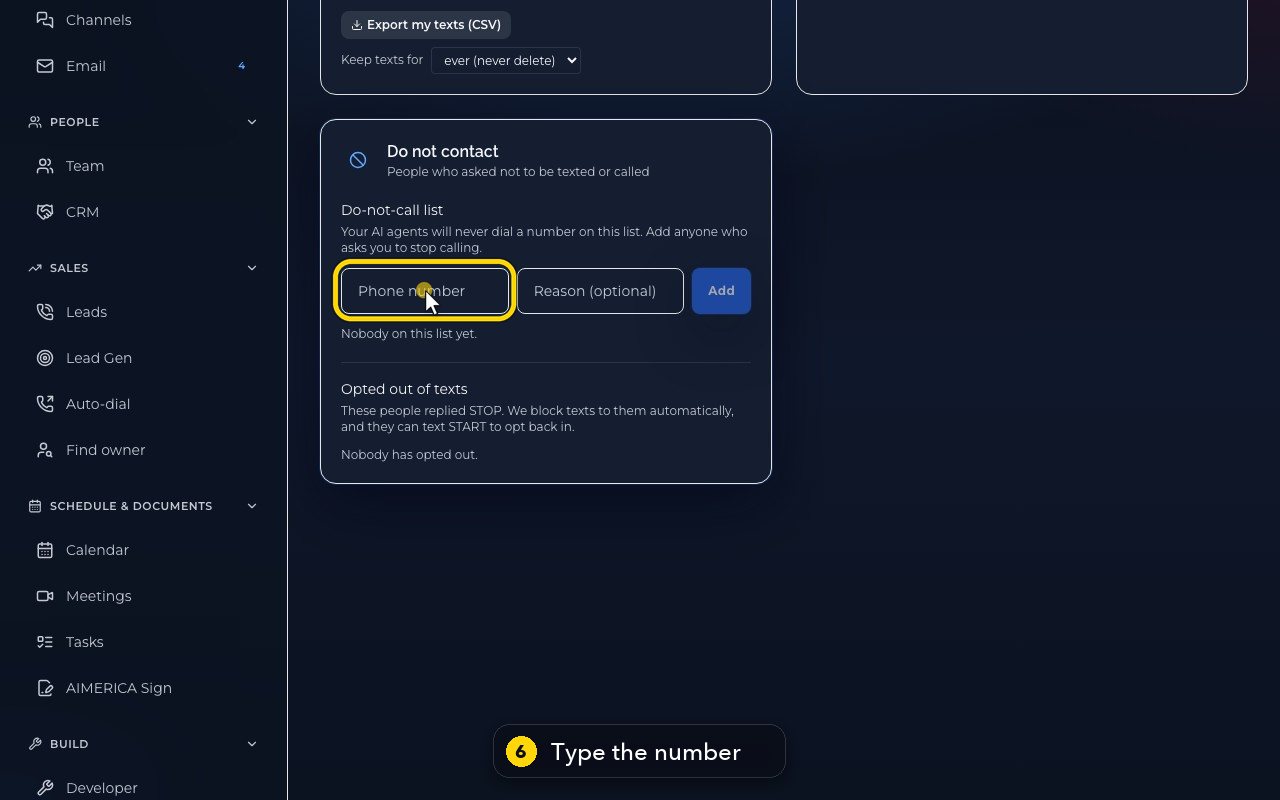
The do-not-call list is the one you keep by hand. Type the number of anyone who asks you to stop calling.
- 7
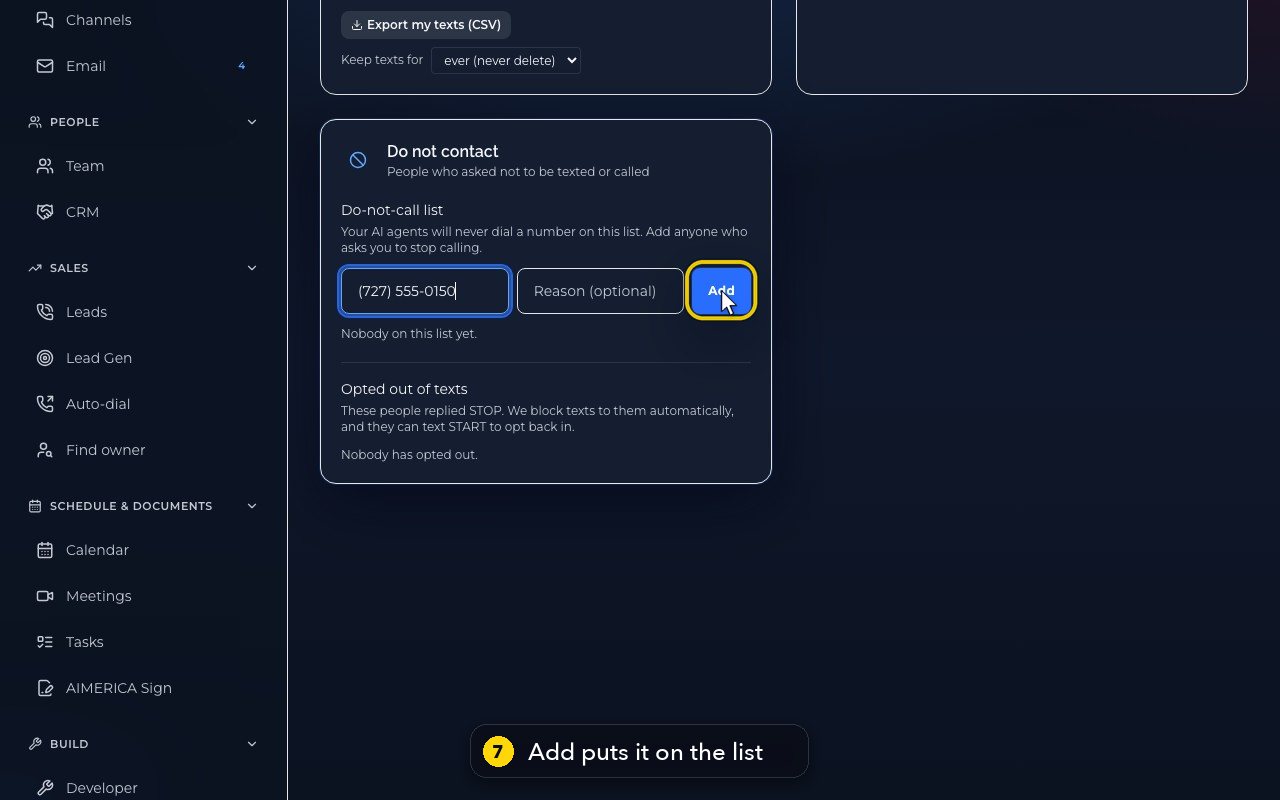
Add puts it on the list, with a reason if you give one. The same call block then applies.
Read and answer texts on the phone app
Open a text conversation in the phone app, answer it or leave a note for your team, and start a new text.
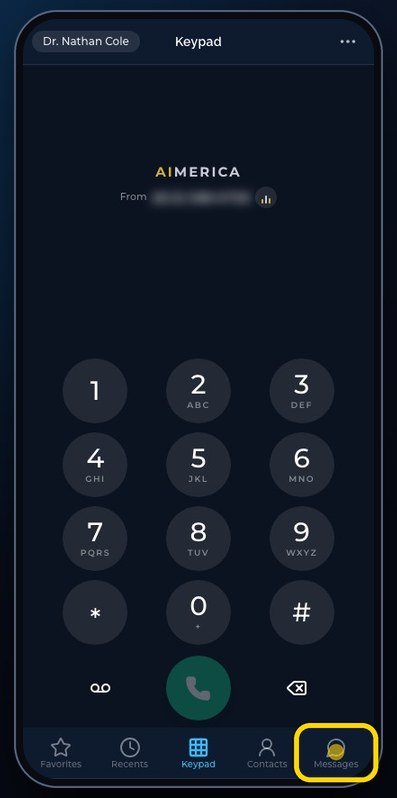
The Messages tab of the phone app is the same inbox as Messages on the web: a text answered on one shows on the other.
In this video
Step by step (11 steps)
- 1
Messages shows the texts of every line you can use, newest first.
- 2
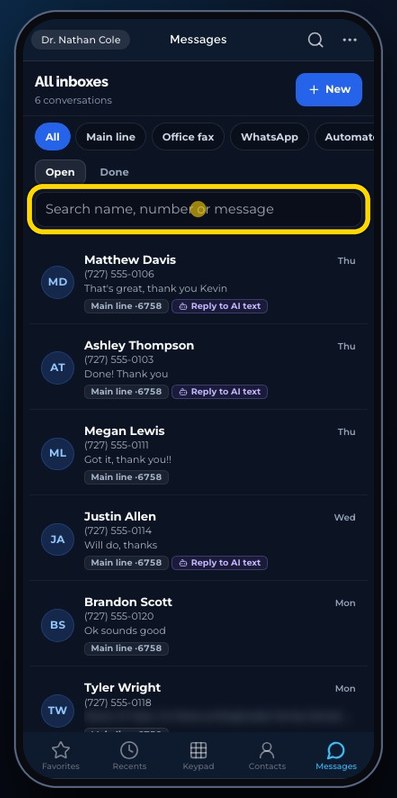
Filter by line with the chips at the top, then tap All to see every text again.
- 3
Search finds a name, a number, or words from a message.
- 4
Tap a conversation to open it.
- 5
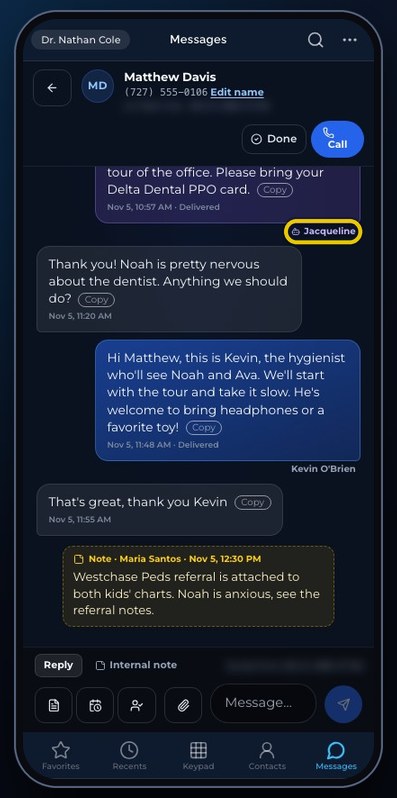
Texts your AI receptionist sent carry its name. Yellow notes are seen only by your team.
- 6
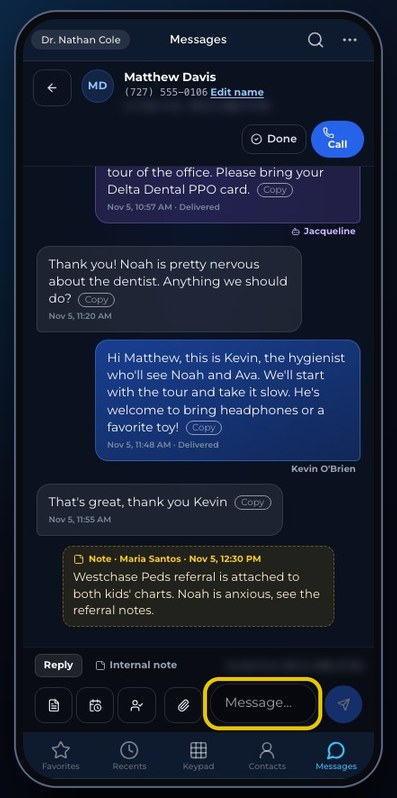
To answer, write at the bottom, and tap the arrow to send. Here, we do not send.
- 7
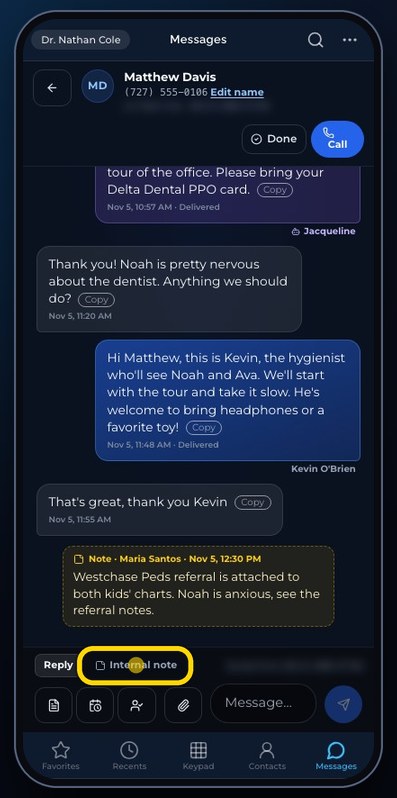
Internal note writes a note only your team can see. Tap Reply to go back to texting the customer.
- 8
The small buttons add a saved reply, send it later, assign the conversation, or attach a file.
- 9
Done closes the conversation for the team. The arrow at the top goes back to the list.
- 10
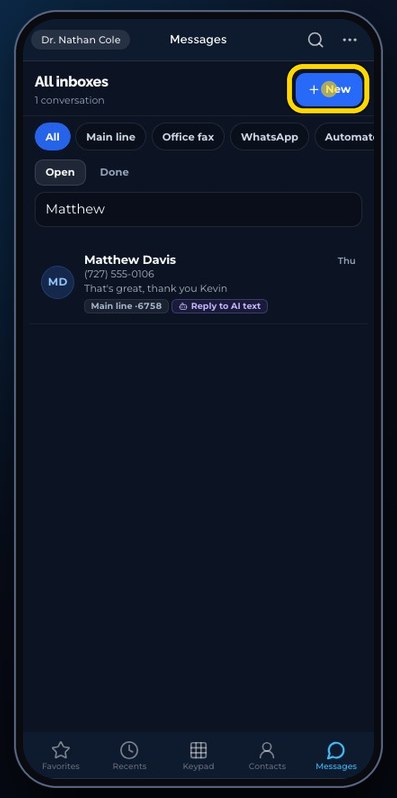
New starts a text to any number. Type the number, pick the line it goes out from, and write your message.
- 11
Send message sends it. Here, we tap Cancel instead.
In short
- Text from any of your numbers in Messages. Every number has its own inbox, and All inboxes shows them together.
- On a computer, Enter sends a reply and Shift + Enter makes a new line. On a phone, Return makes a new line and the arrow sends. In the New message form, Enter always makes a new line.
- If someone replies STOP (or UNSUBSCRIBE, CANCEL, END, QUIT), your company stops texting them at once. That is the law, not a setting. If they text START, they can get your texts again.
- Owners and admins see everyone who opted out in Settings › Company › Texting, card Do not contact. Numbers you add there by hand go on the do-not-call list: your AI agents never dial them, and the app refuses calls to them.
- Pictures sent to you are kept with the conversation.
Related tutorials
 1:30VideoThe Inbox: every call, text, voicemail and faxSee the last 14 days of calls, texts, voicemail and fax in one list, spot what needs you, and open it where it is handled.
 1:09VideoLeave a private note for your team in a textAdd an internal note to a customer conversation and @mention a teammate; the customer never sees it.
 0:51VideoMark a text conversation done, and reopen itKeep the Open list short: file handled conversations under Done, and find or reopen them later.
 1:02VideoAnswer faster with saved repliesPut a ready-made reply into the message box with one click, and save your own replies for you or the whole team.
 1:03VideoSchedule a text with Send laterWrite a text now and pick the date and time it leaves by itself; see and cancel the texts waiting to go.
 0:55VideoAssign a text conversation to a teammateShow who looks after a conversation, hand it to someone who can see the line, or clear it.
Was this not what you needed? Write to us.