
Phone orders with Clover: what to connect
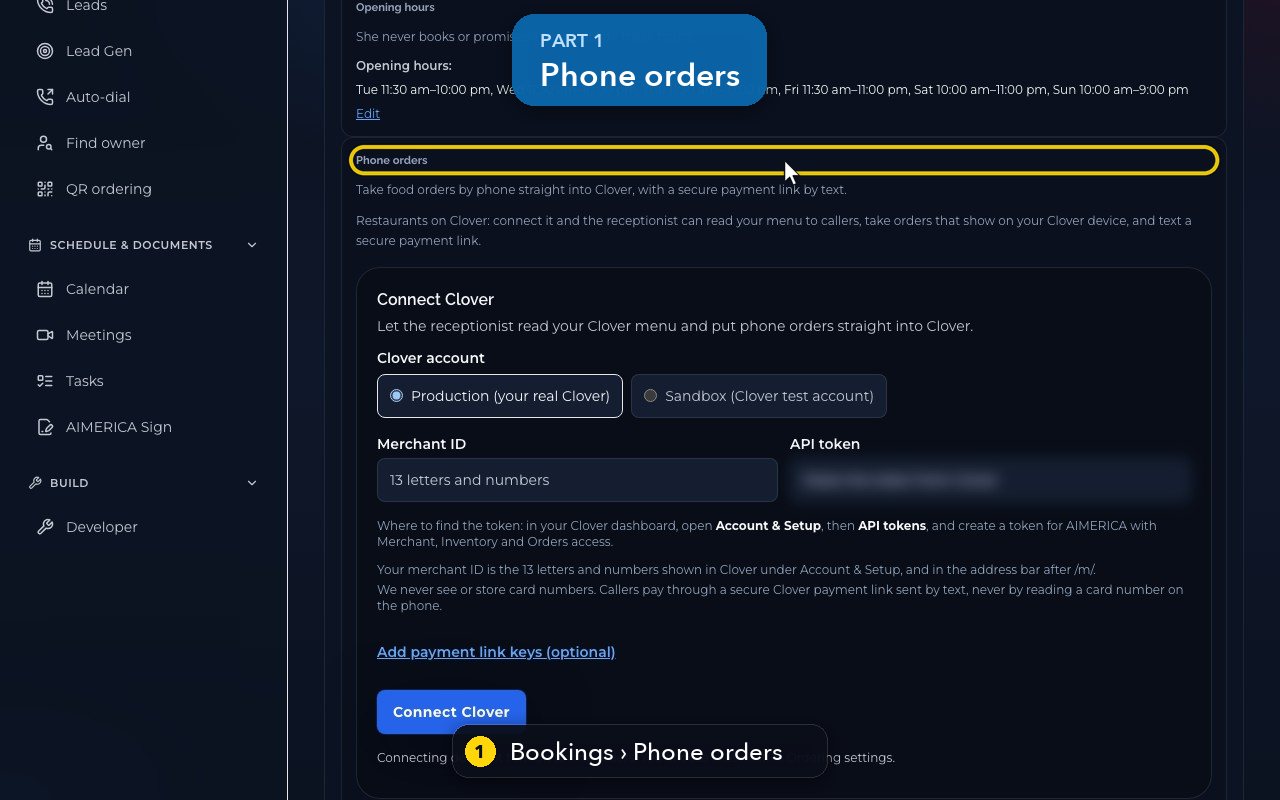
See where a restaurant on Clover connects it so the receptionist can take phone orders (shown, not connected).
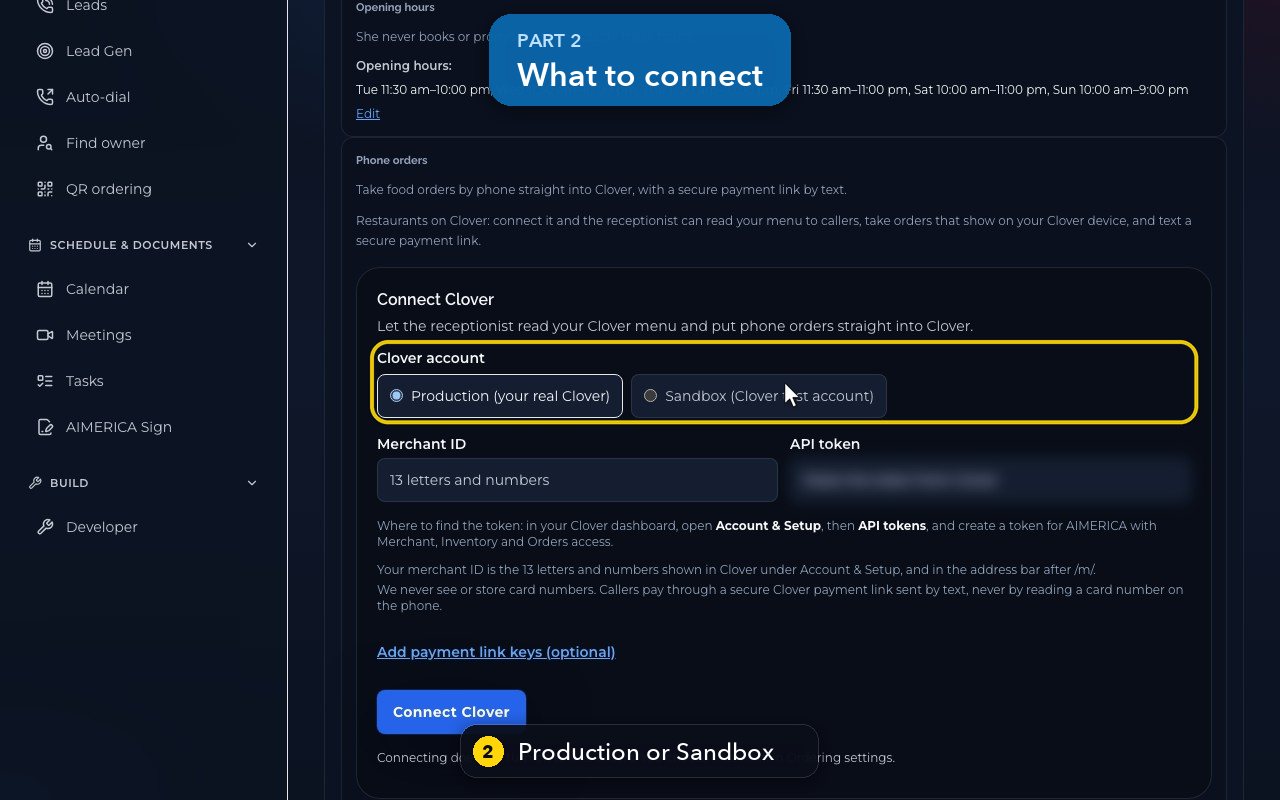
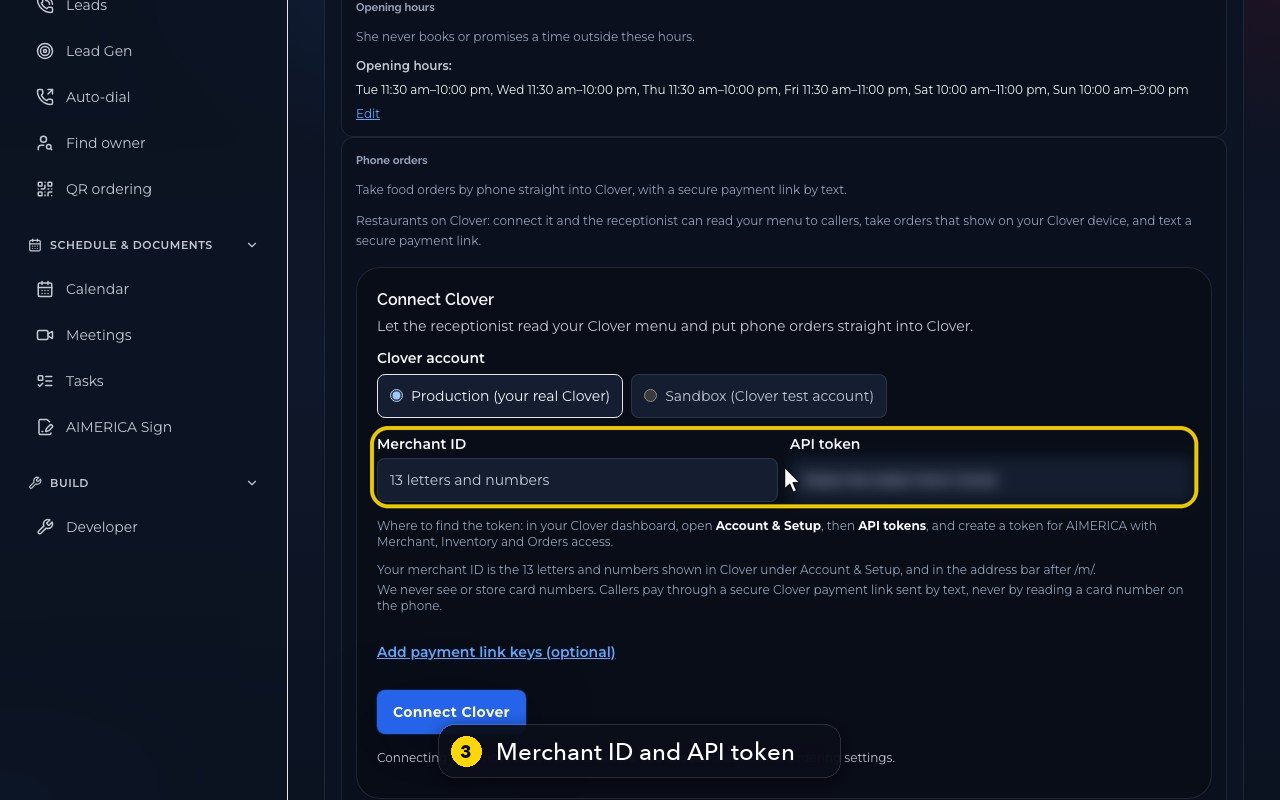
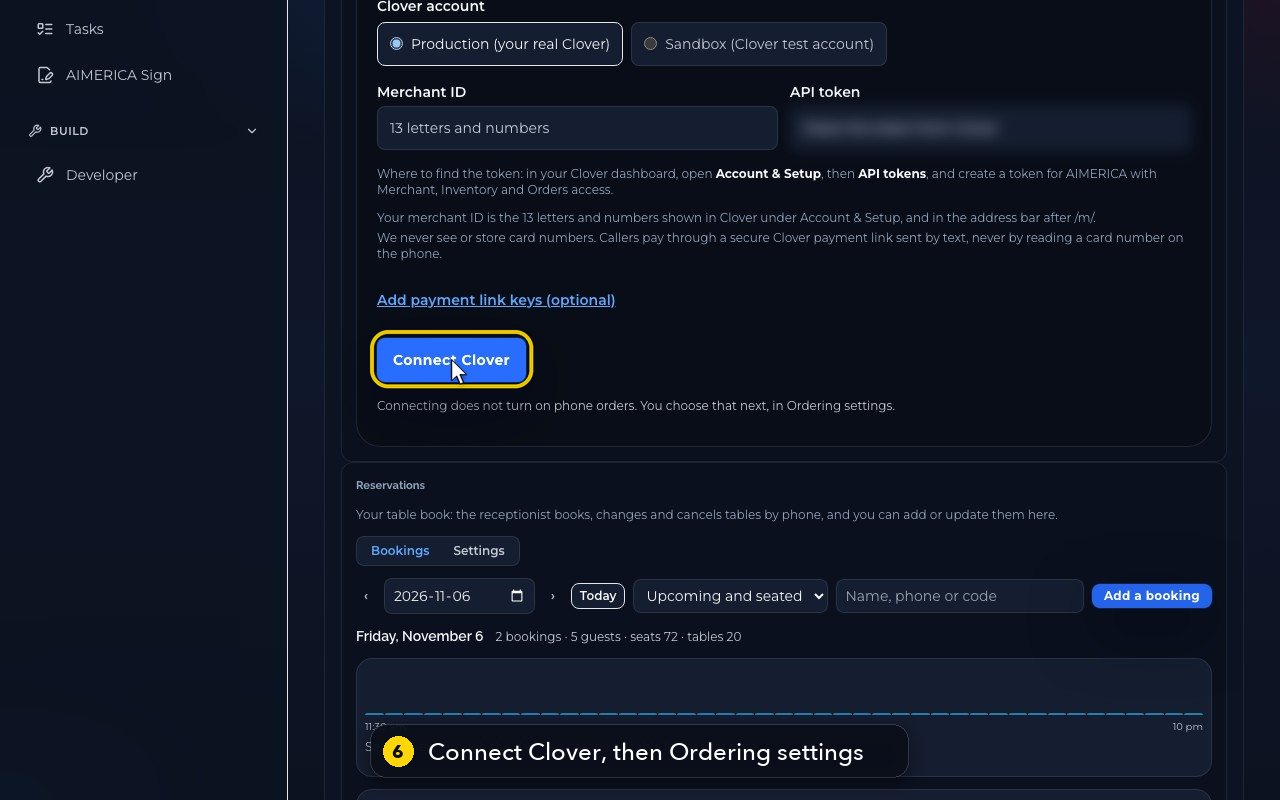
Open AI Agents, your receptionist, then the Bookings tab, and scroll to Phone orders. Choose Production (your real Clover) or Sandbox, paste your Merchant ID (13 letters and numbers, in Clover under Account & Setup) and an API token (Account & Setup › API tokens, with Merchant, Inventory and Orders access), then press Connect Clover. Payment link keys are optional. Once connected, the panel shows Orders, Menu and the Clover connection, and you turn phone orders on in Ordering settings.
In this video
Step by step
- 1
Restaurants on Clover can let the receptionist read the menu, take phone orders that show on the Clover device, and text a payment link.
- 2
Choose your real Clover account. Sandbox is Clover's test account.
- 3
Paste your merchant ID and an API token. The card says where to find both, in your Clover dashboard.
- 4
Callers never read a card number on the phone. They pay through a secure Clover link, sent by text.
- 5
Payment link keys are optional. They let the receptionist text that payment link.
- 6
Connect Clover checks the token with Clover. Connecting does not turn on phone orders: you choose that next, in Ordering settings.
- 7
Once connected, this panel shows Orders, the Menu, and the Clover connection. Our demo restaurant is not connected.
Related tutorials
 1:18VideoFind your AI receptionist and her settingsOpen AI Agents, find your receptionist and learn what each of her four tabs holds.
 1:35VideoSet up your AI receptionist (guided)Answer six short questions and AIMERICA writes your receptionist's instructions, ready to answer your line.
 1:16VideoSet your receptionist's opening hoursSet the days and times your receptionist treats as open, so she never books or promises a time when you are closed.
 1:17VideoChoose who your receptionist transfers calls toSee and add the people and numbers your receptionist may transfer a caller to, and when she should.
 1:35VideoTeach your receptionist your factsReview and add the facts your receptionist answers from: hours, services, prices, policies and common questions.
 0:58VideoChange your receptionist's greeting and nameFind the first sentence callers hear and your receptionist's name, and see how to change them.
Was this not what you needed? Write to us.