
Create an Auto-dial campaign
Fill in a new AI outbound campaign: agent, calling number, minute limit and consent, before adding the list.
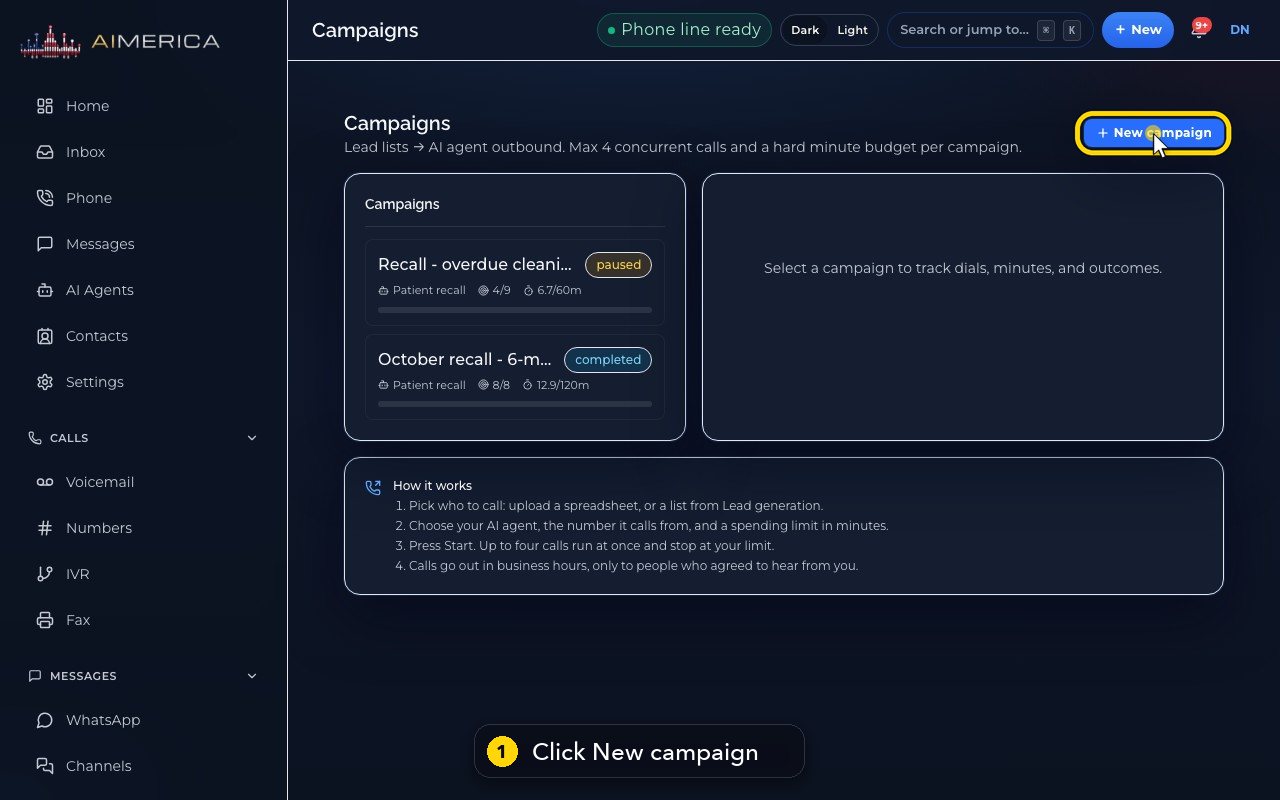
Open Auto-dial (the Campaigns page) and press New campaign. Give it a Name, pick the AI agent (an outbound agent) and the From number, keep or choose a Lead-gen job, set Max concurrent calls (1–4) and Max outbound minutes, and choose the TCPA consent basis. Create campaign saves a draft; upload the list, then press Start.
In this video
Step by step
- 1
To call a list with an outbound AI agent, open Auto-dial, and press New campaign.
- 2
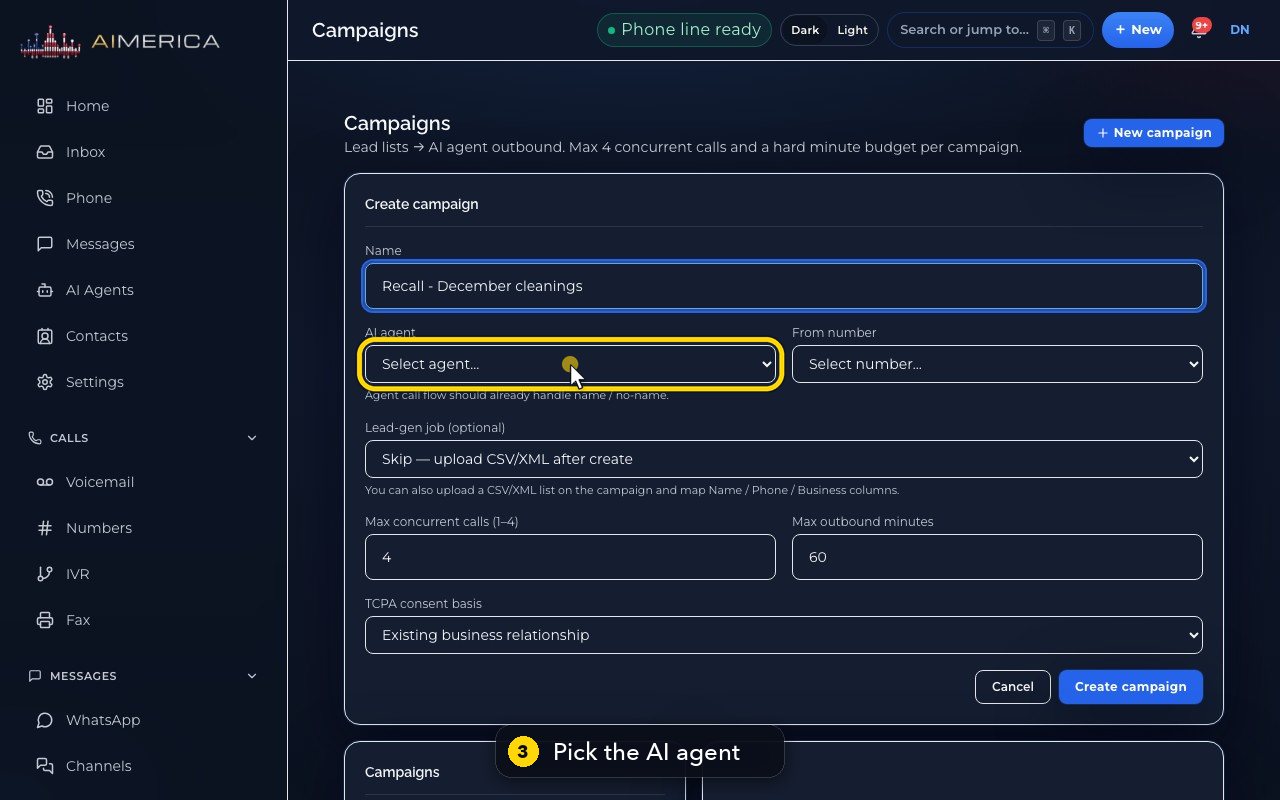
Give the campaign a name you will recognize.
- 3
Pick the outbound agent that makes the calls.
- 4
Then the number the calls come from.
- 5
A lead-gen list is optional. Skip it, and upload a spreadsheet after you create the campaign.
- 6
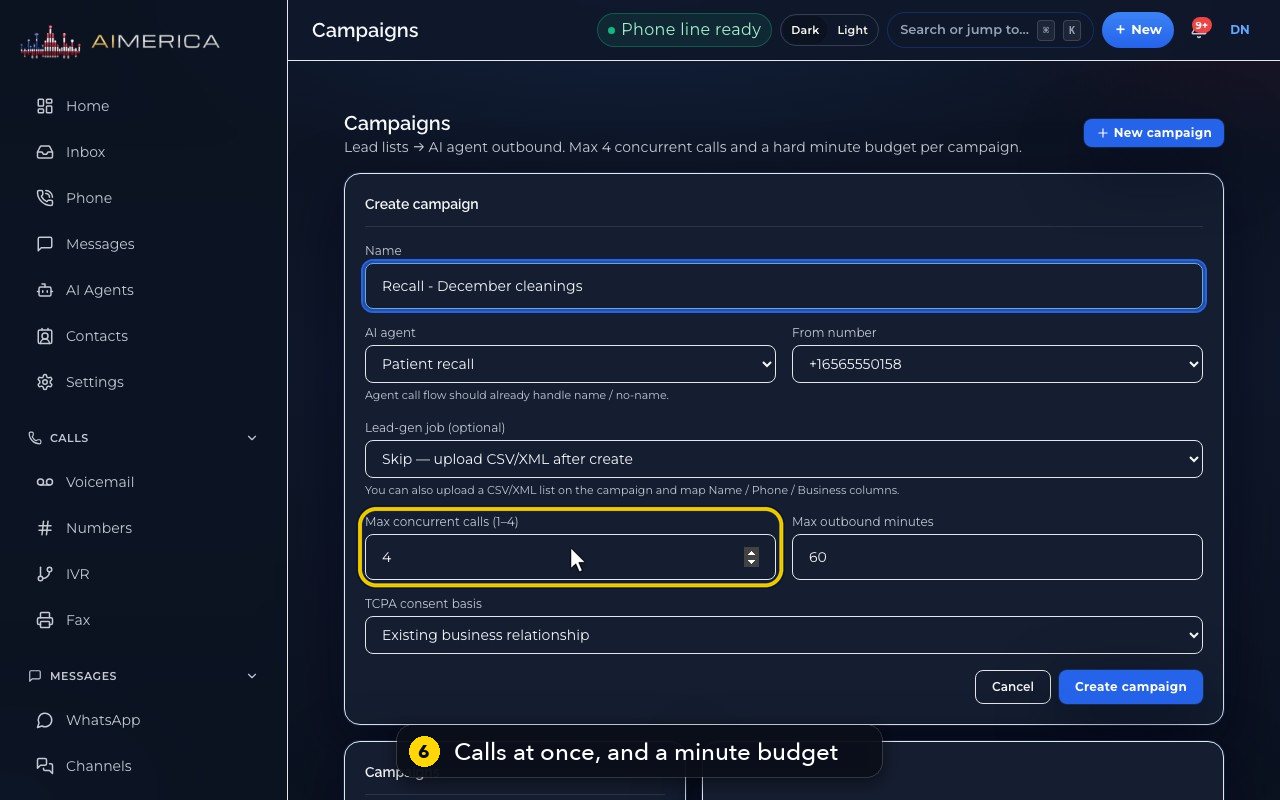
Up to four calls run at once. Max outbound minutes is a hard budget: the campaign stops when it is used.
- 7
Pick the consent you have for this list: an existing business relationship, written consent, or another reason you note.
- 8
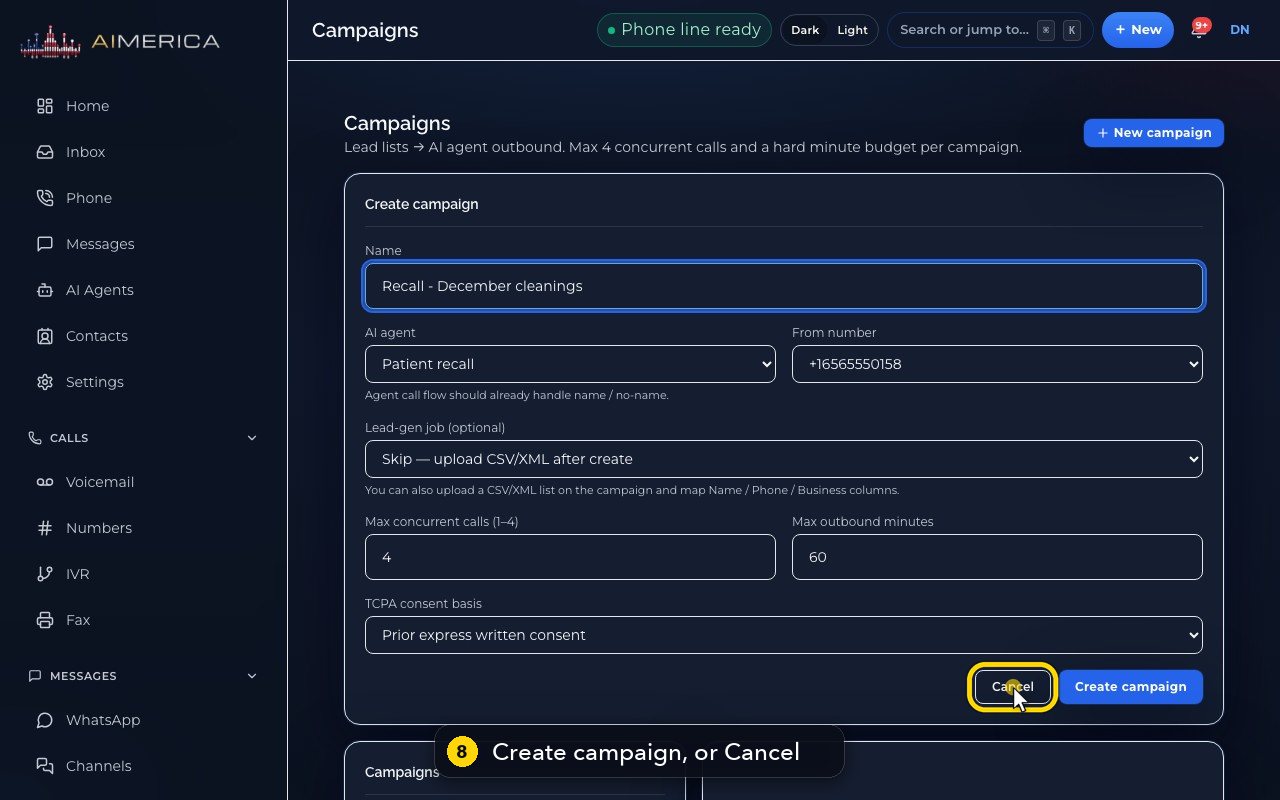
Create campaign saves it as a draft, ready for its list. Start then begins the calls. In this demo, we press Cancel.
Related tutorials
 1:18VideoFind your AI receptionist and her settingsOpen AI Agents, find your receptionist and learn what each of her four tabs holds.
 1:35VideoSet up your AI receptionist (guided)Answer six short questions and AIMERICA writes your receptionist's instructions, ready to answer your line.
 1:16VideoSet your receptionist's opening hoursSet the days and times your receptionist treats as open, so she never books or promises a time when you are closed.
 1:17VideoChoose who your receptionist transfers calls toSee and add the people and numbers your receptionist may transfer a caller to, and when she should.
 1:35VideoTeach your receptionist your factsReview and add the facts your receptionist answers from: hours, services, prices, policies and common questions.
 0:58VideoChange your receptionist's greeting and nameFind the first sentence callers hear and your receptionist's name, and see how to change them.
Was this not what you needed? Write to us.