
Change your password
Change your AIMERICA password and choose whether SIP desk phones stay connected.
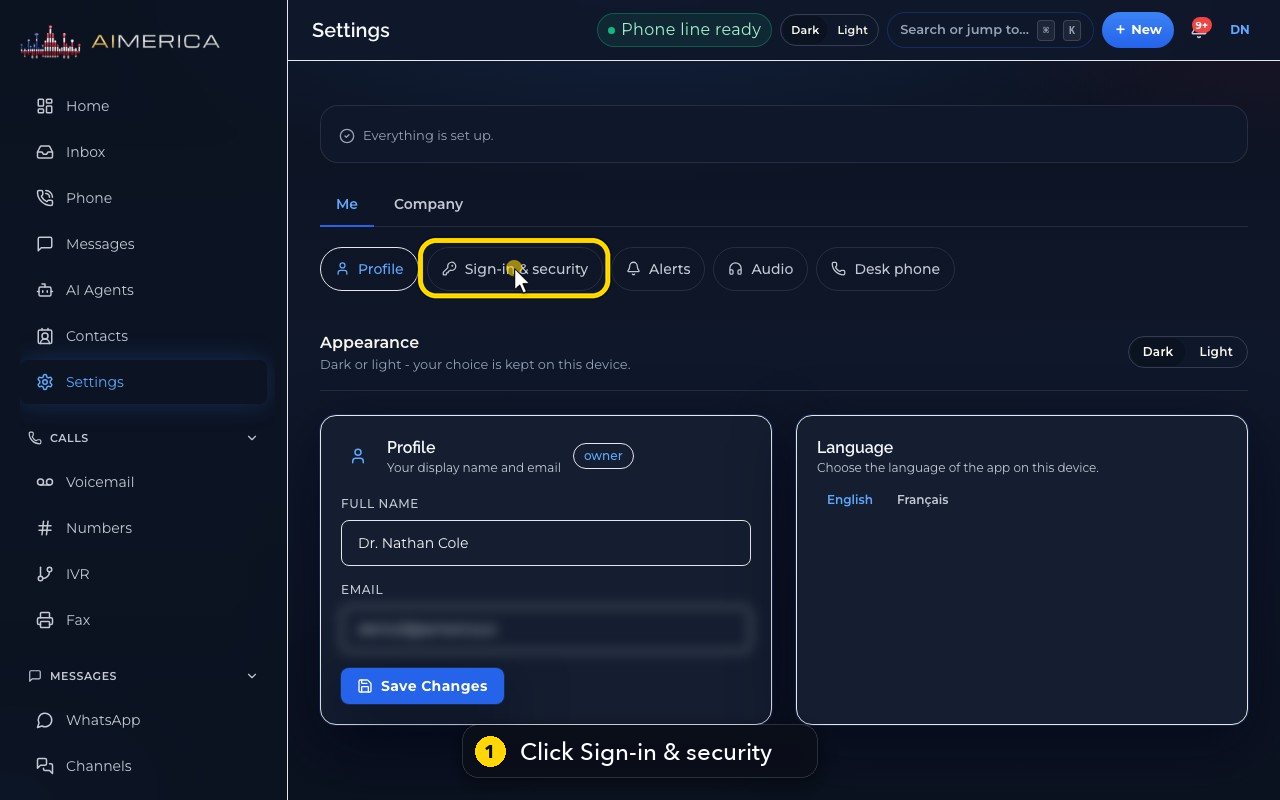
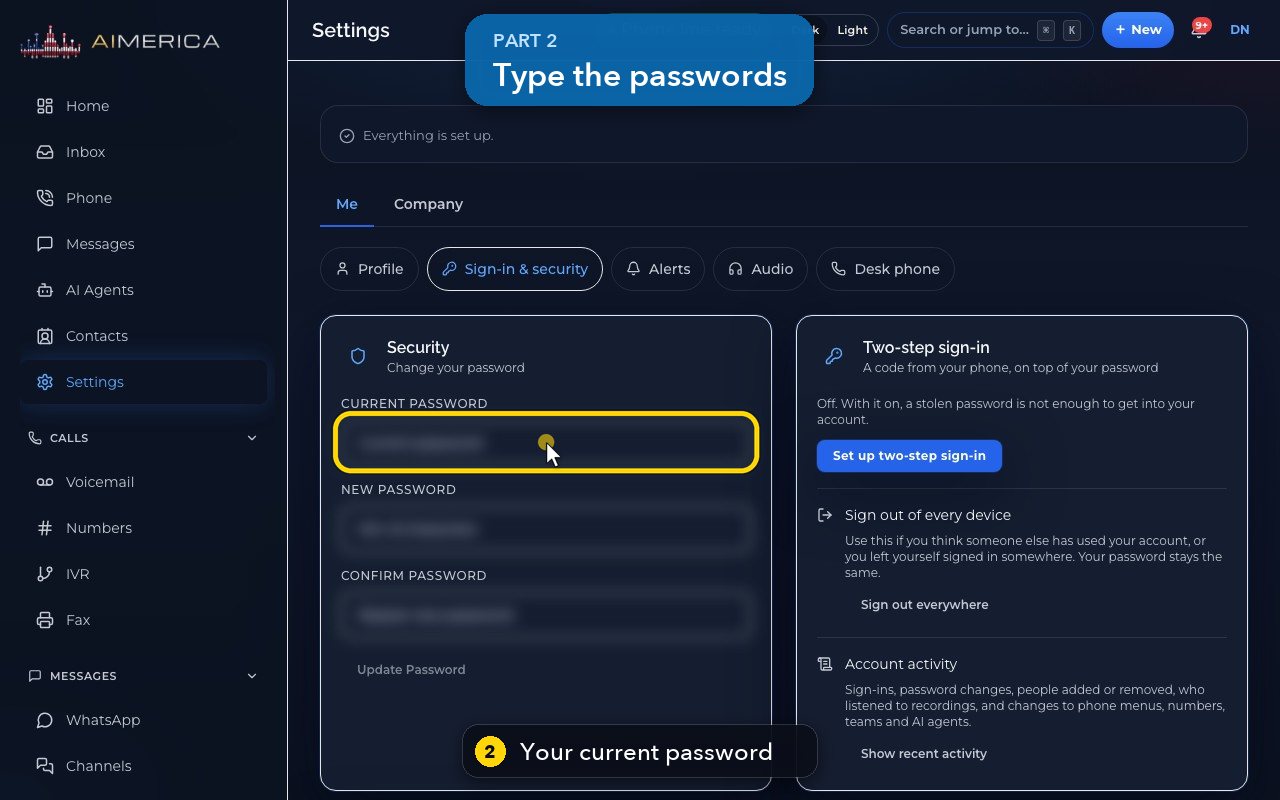
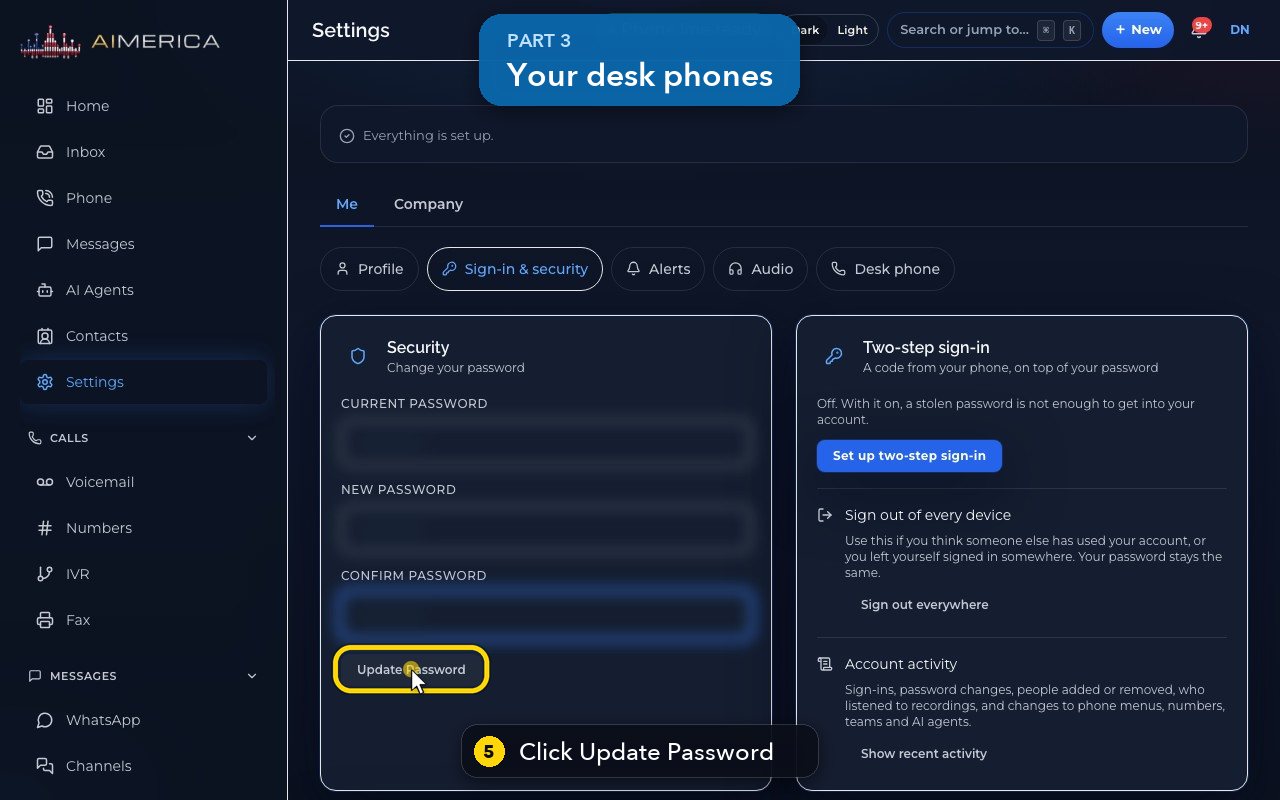
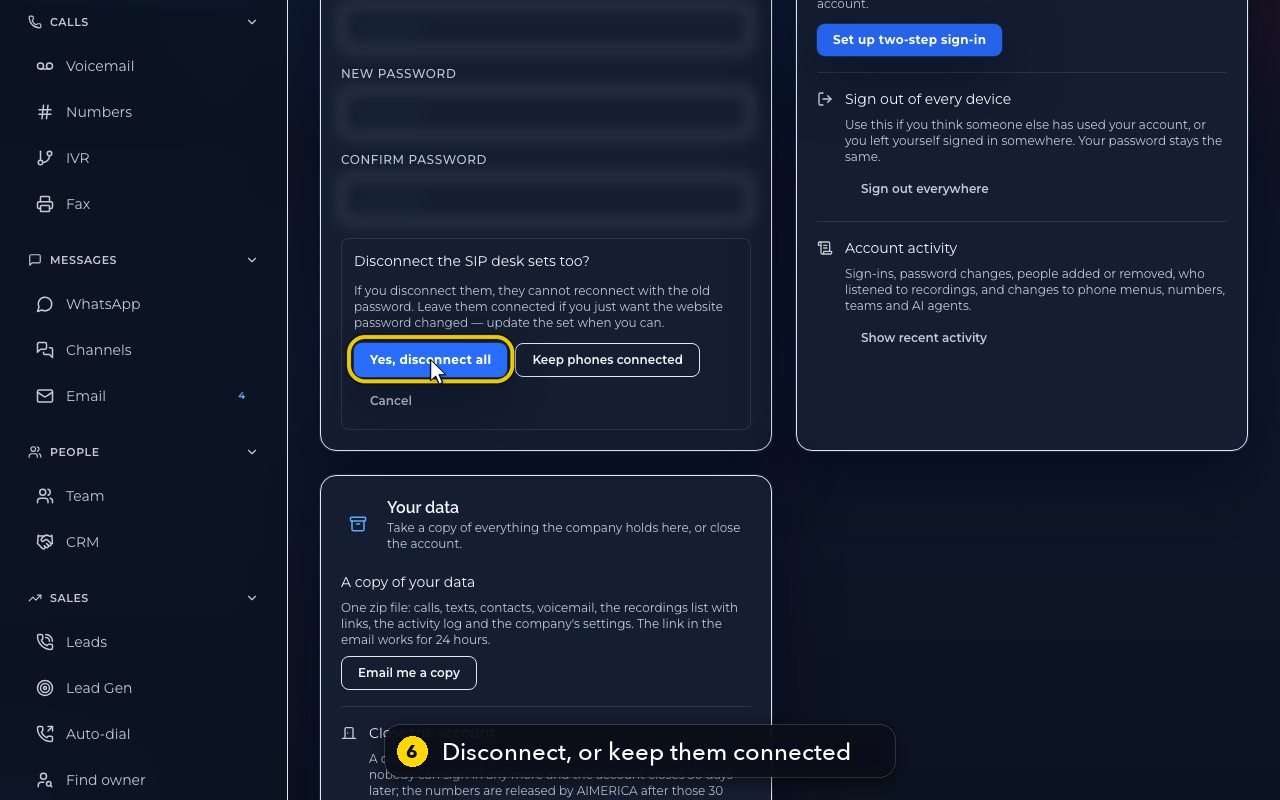
Open Settings › Me › Sign-in & security. In the Security card, type your current password, the new one (at least 8 characters) twice, then press Update Password and choose Yes, disconnect all or Keep phones connected for your SIP desk phones.
In this video
Step by step
- 1
Your password is in Settings, under Me. Click Sign-in and security.
- 2
Type your current password. The boxes stay hidden on screen.
- 3
Then the new one. It needs at least 8 characters.
- 4
Type the new password again, to confirm it.
- 5
Press Update Password. It first asks about your desk phones.
- 6
Disconnect them, and they cannot reconnect with the old password. Or keep them connected, and update each phone later.
- 7
Cancel leaves your password as it is.
- 8
Good to know: desk phones signed in with a code are signed out when your password changes.
Related tutorials
 1:09VideoTurn on two-step sign-inProtect your account with a six-digit code from an authenticator app on top of your password.
 0:54VideoChoose your call and voicemail alertsChoose whether AIMERICA alerts you to missed calls and new voicemail, and let this browser ring in the background.
 1:06VideoUse AIMERICA in FrenchSwitch the app between English and French for yourself, and choose your desk phone's voicemail language.
 0:47VideoChange your name and the app's appearanceSet the name your team sees and switch the app between dark and light.
 1:25VideoFind Billing and read your planOpen Billing from your account page and read your plan, this month's minutes, texts and numbers, and the plans you can switch to.
 1:02VideoAdd or change the card on fileAdd the card that pays your AIMERICA bill, or replace it, from the Billing page.
Was this not what you needed? Write to us.