
Desk phone: home screen and recent calls
Read the home screen, filter your recent calls and open a call's details.
Part 1 of the desk phone walkthrough: the home screen, the Recents list and the details of a call.
In this video
Step by step
- 1
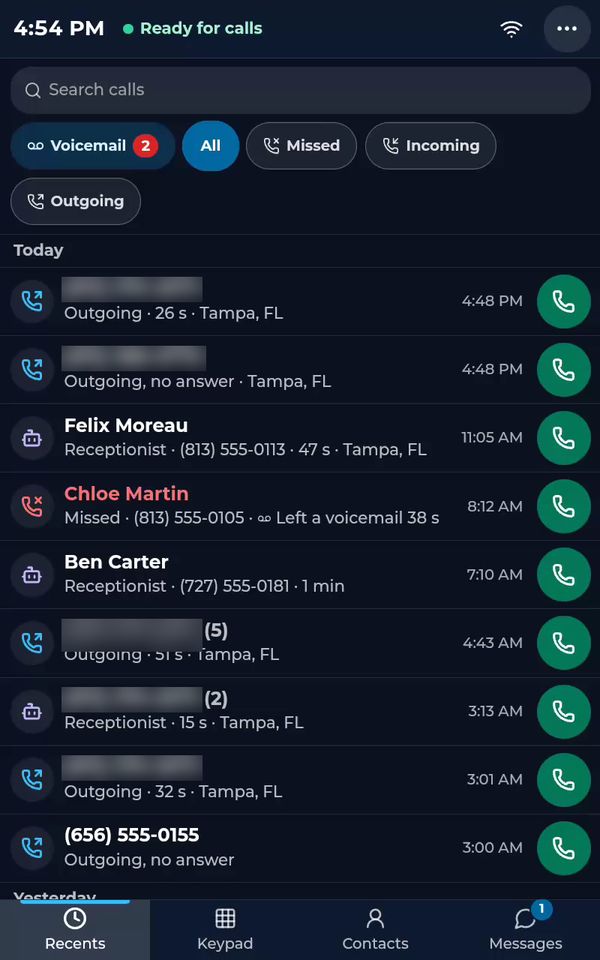
This is the AIMERICA desk phone. At the top you see the time, and a green dot telling you the phone is ready for calls.
- 2
The Recents tab lists every call: answered, missed, and the calls your AI receptionist took for you.
- 3
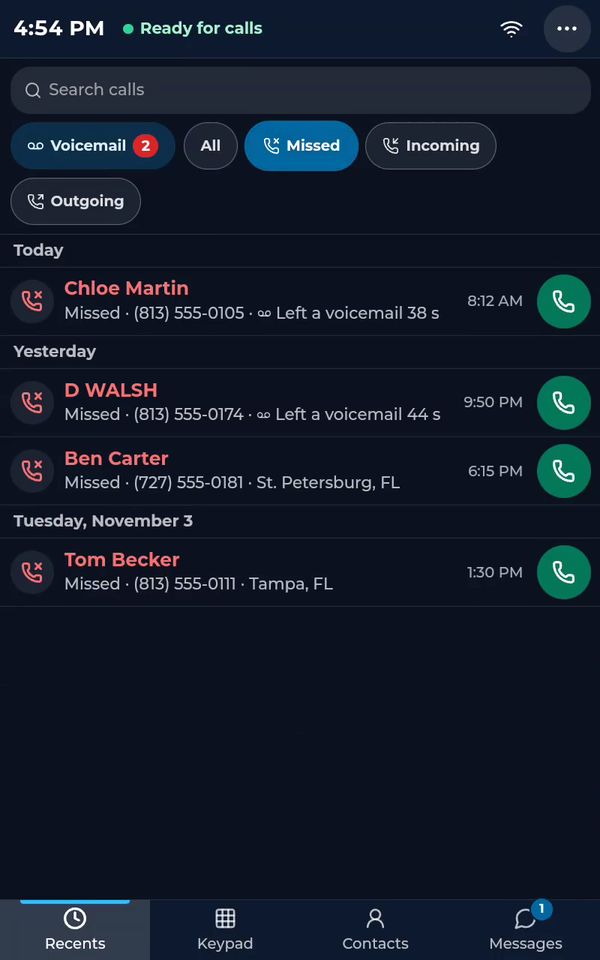
Use the filters to see only some calls. Here are the missed calls.
- 4
Tap All to see everything again.
- 5
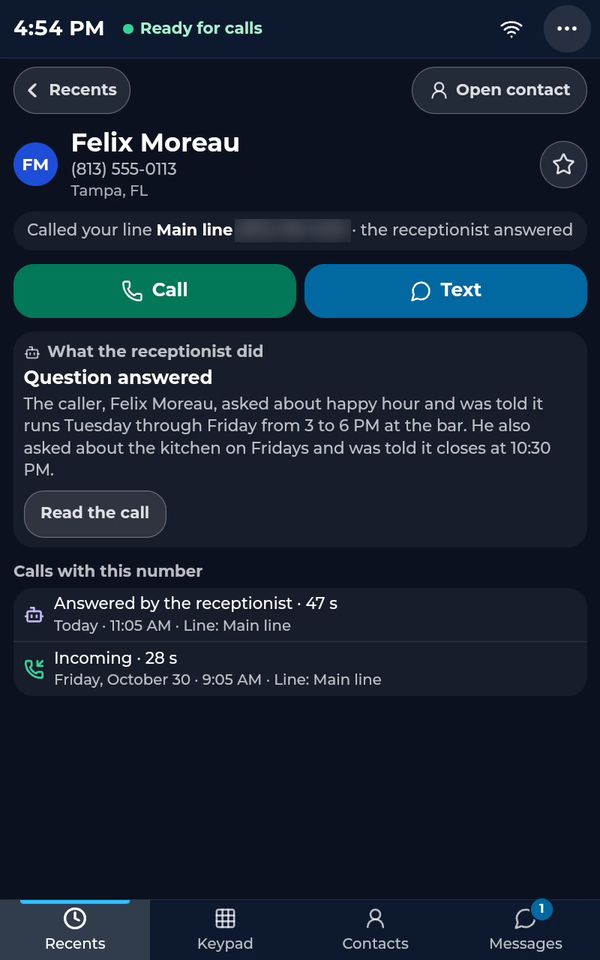
Tap any call to open its details.
- 6
You see who called, which of your lines they called, and what the AI receptionist did on the call, in plain words.
- 7
From here you can call back or send a text with one tap.
- 8
Tap Recents to go back.
See the whole desk phone in one video: The desk phone: a full walkthrough (4:31, part 1 of 7).
Related tutorials
 4:31VideoThe desk phone: a full walkthroughEverything the AIMERICA desk phone does: calls, voicemail, contacts, texts and the menu.
 0:37VideoDesk phone: voicemailRead and play your voicemail, call back or delete, and open the voicemail settings.
 0:51VideoDesk phone: make a call, hold, mute and transferDial a number, then use hold, mute, transfer and the other buttons during a call.
 0:18VideoDesk phone: use the handsetLift the handset to dial, and move a call from the speaker to the handset.
 0:29VideoDesk phone: contactsFind a contact by name or number, then call or text in one tap.
 0:20VideoDesk phone: texts and WhatsAppOpen a conversation, reply, or write a note only your team sees.
Was this not what you needed? Write to us.