
The desk phone: a full walkthrough
Everything the AIMERICA desk phone does: calls, voicemail, contacts, texts and the menu.
A tour of the AIMERICA desk phone in four and a half minutes: recent calls, voicemail, making a call, the handset, contacts, texts and the menu. Each part is also a short video of its own.
In this video
Step by step
- 1
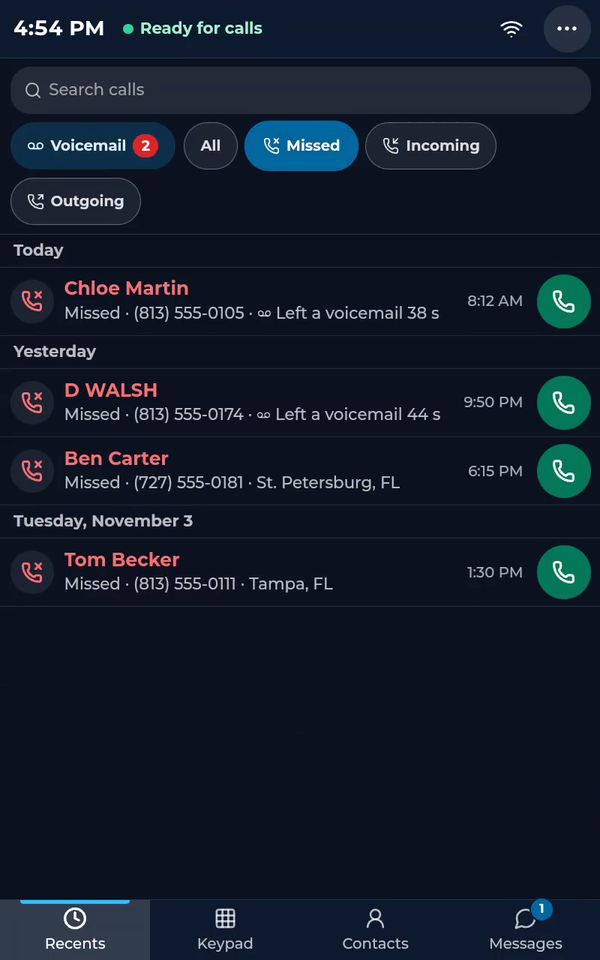
The home screen shows the time, and a green dot when the phone is ready for calls. Recents lists every call: filter them, then tap a call to see what happened and call back or text in one tap.
- 2
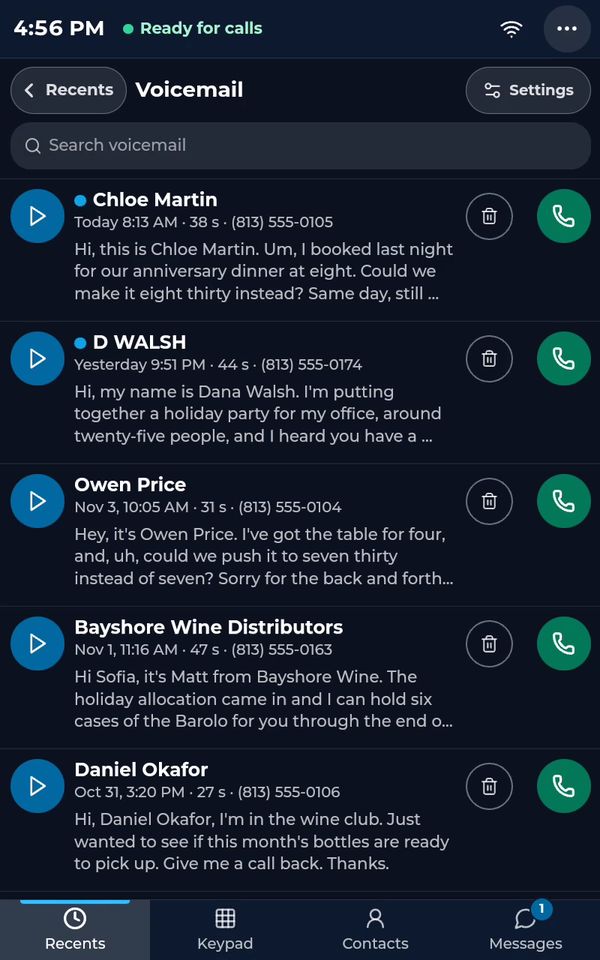
Tap Voicemail to read every message written out, or tap play to listen. Call back or delete from the list, and use Settings for the rings, your greeting and quick replies.
- 3
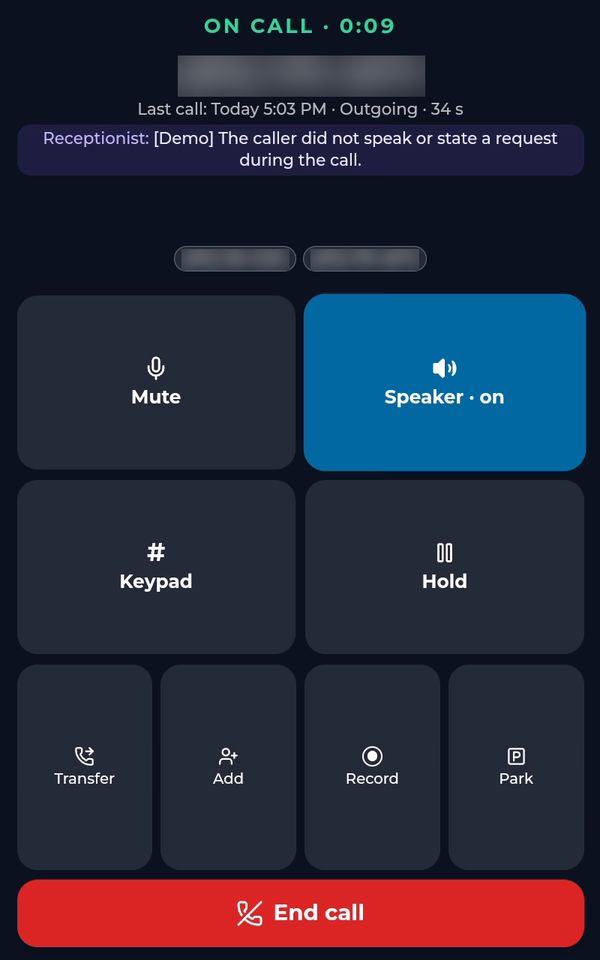
Tap Keypad, pick a recent number or type one, then tap Call. During the call you have mute, speaker, hold with music, transfer, add a person, record and park.
- 4
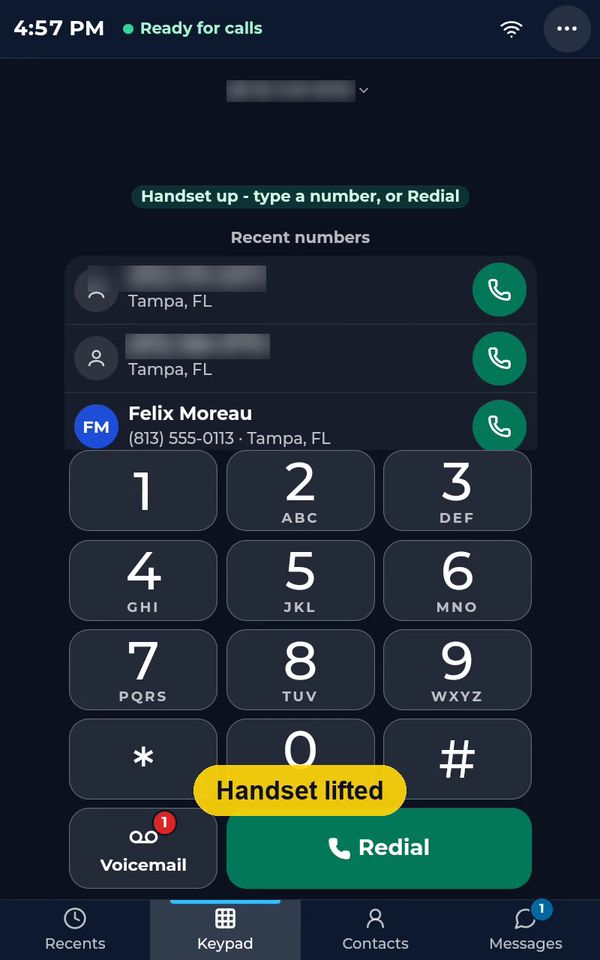
Lift the handset and the keypad opens: type a number or tap Redial. During a call, lifting the handset moves the call from the speaker to the handset.
- 5
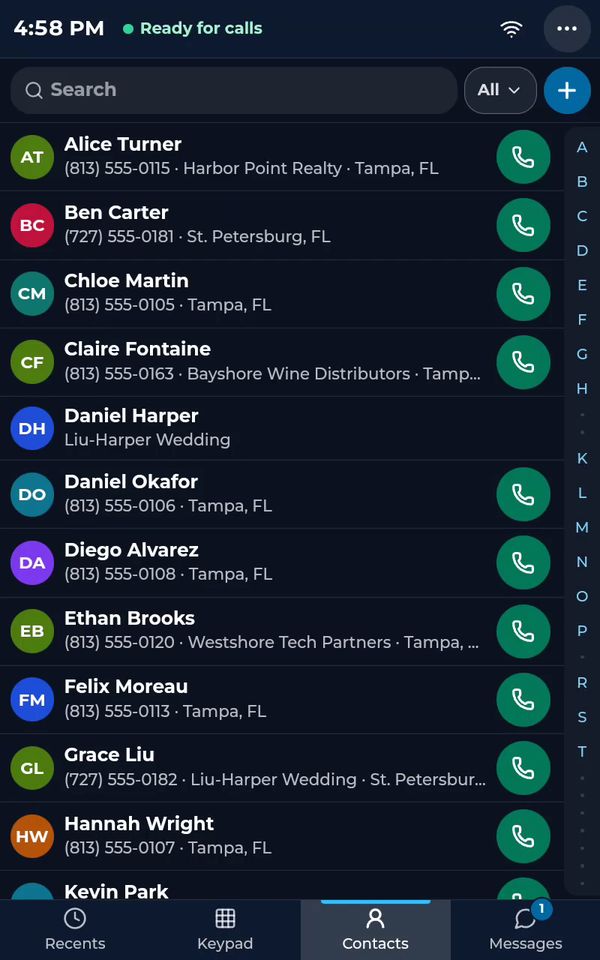
Contacts holds your company's contacts, shared with the whole team. Search by name or number, then call or text in one tap.
- 6
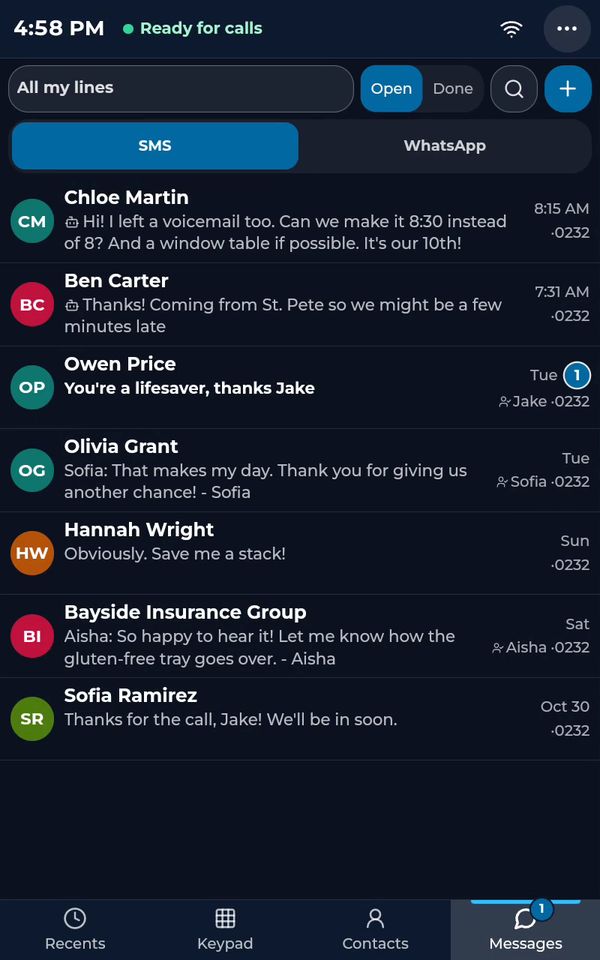
Messages shows the texts of all your lines, and WhatsApp has its own tab. Reply at the bottom, or switch to Note to write something only your team will see.
- 7
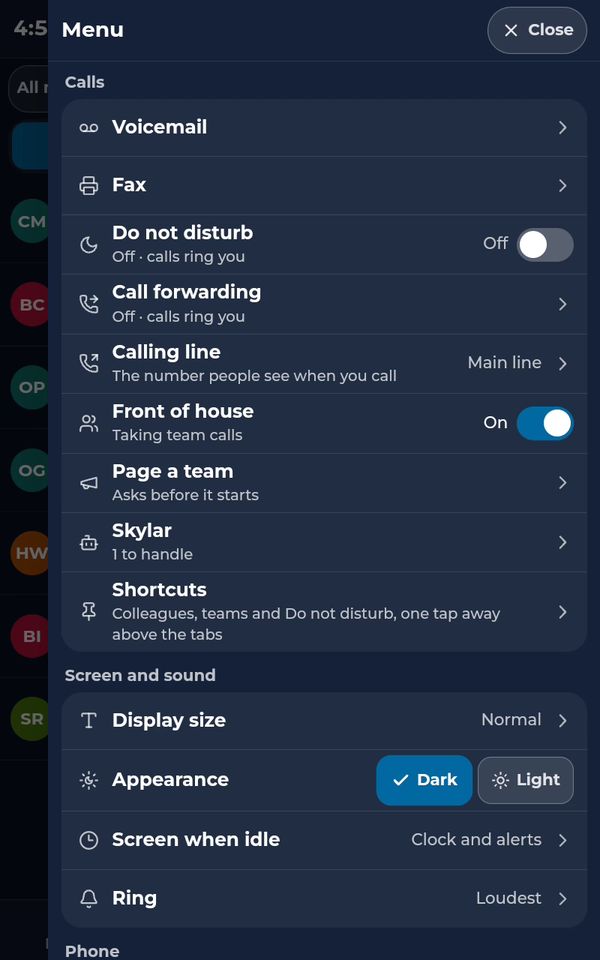
The menu at the top right holds Do not disturb, Call forwarding, the calling line and Page a team. Further down: the display, the ringtone, Wi-Fi, the language and your account.
One part at a time
- Home screen and recent calls (0:41)
- Voicemail (0:37)
- Make a call, hold, mute and transfer (0:51)
- Use the handset (0:18)
- Contacts (0:28)
- Texts and WhatsApp (0:20)
- Do not disturb, forwarding and settings (0:55)
Related tutorials
 0:41VideoDesk phone: home screen and recent callsRead the home screen, filter your recent calls and open a call's details.
 0:37VideoDesk phone: voicemailRead and play your voicemail, call back or delete, and open the voicemail settings.
 0:51VideoDesk phone: make a call, hold, mute and transferDial a number, then use hold, mute, transfer and the other buttons during a call.
 0:18VideoDesk phone: use the handsetLift the handset to dial, and move a call from the speaker to the handset.
 0:29VideoDesk phone: contactsFind a contact by name or number, then call or text in one tap.
 0:20VideoDesk phone: texts and WhatsAppOpen a conversation, reply, or write a note only your team sees.
Was this not what you needed? Write to us.