
Desk phone: do not disturb, forwarding and settings
The menu: do not disturb, call forwarding, the calling line, paging and the phone's settings.
Part 7 of the desk phone walkthrough: everything in the menu at the top right of the screen.
In this video
Step by step
- 1
Everything else is in the menu, at the top right.
- 2
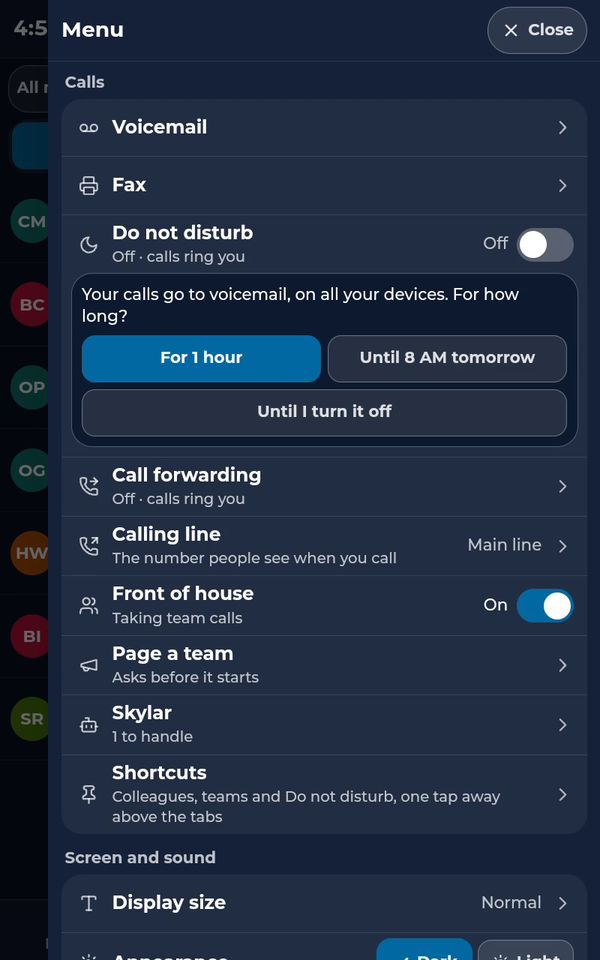
Do not disturb sends your calls to voicemail: for one hour, until tomorrow morning, or until you turn it off.
- 3
Here we leave it off.
- 4
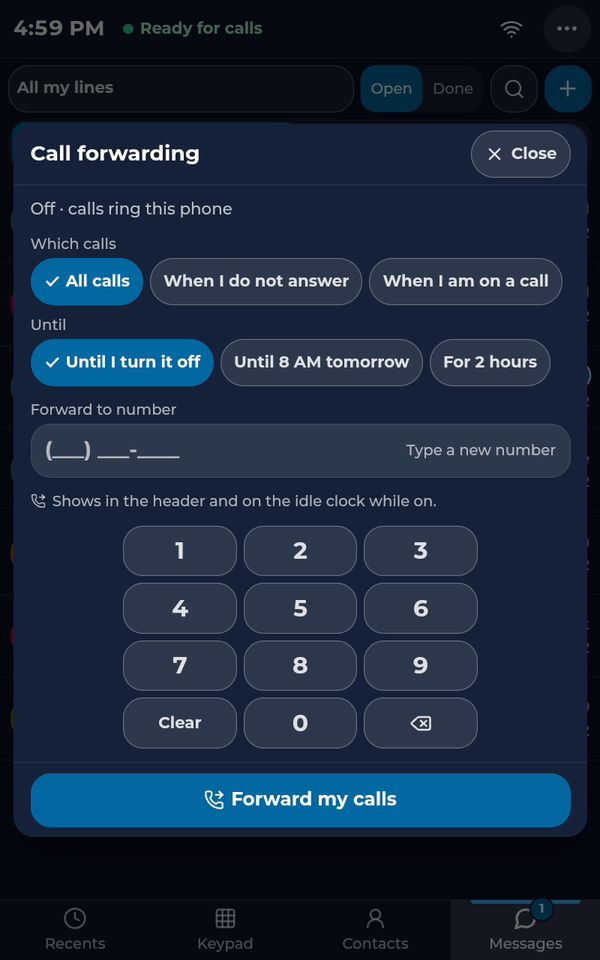
Call forwarding sends your calls to another number, for example your cell phone, for all calls, or only when you do not answer.
- 5
Close it to keep calls ringing here.
- 6
Back in the menu.
- 7
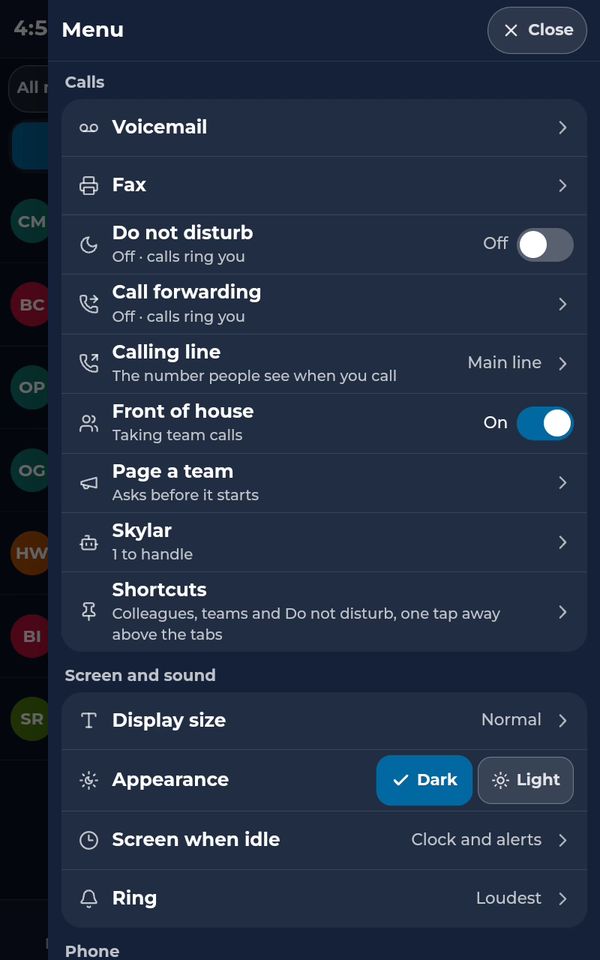
Calling line picks the number people see. Front of house decides if team calls ring this phone. And Page a team makes an announcement.
- 8
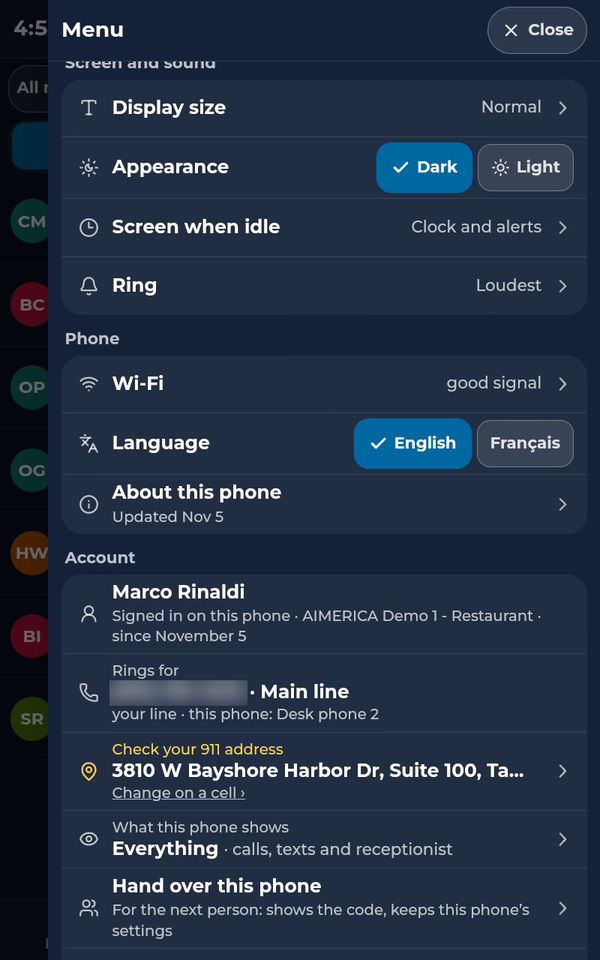
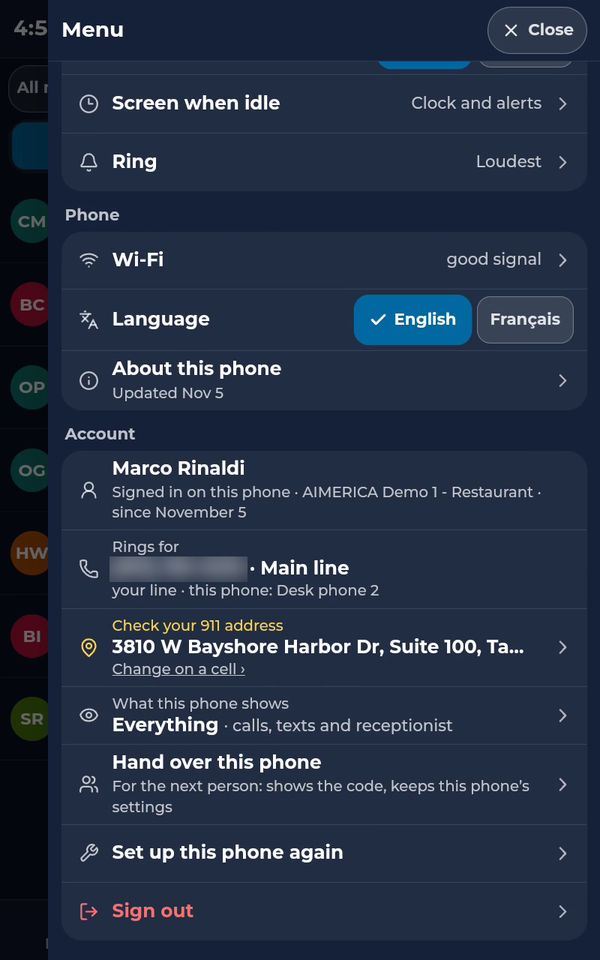
Further down: the display size, a dark or light look, the screen when the phone is idle, and the ringtone.
- 9
Then Wi-Fi, English or French, and your account: the 911 address of this phone, and Hand over this phone, when someone new takes the desk.
- 10
Tap Close when you are done.
See the whole desk phone in one video: The desk phone: a full walkthrough (4:31, part 7 of 7).
Related tutorials
 4:31VideoThe desk phone: a full walkthroughEverything the AIMERICA desk phone does: calls, voicemail, contacts, texts and the menu.
 0:41VideoDesk phone: home screen and recent callsRead the home screen, filter your recent calls and open a call's details.
 0:37VideoDesk phone: voicemailRead and play your voicemail, call back or delete, and open the voicemail settings.
 0:51VideoDesk phone: make a call, hold, mute and transferDial a number, then use hold, mute, transfer and the other buttons during a call.
 0:18VideoDesk phone: use the handsetLift the handset to dial, and move a call from the speaker to the handset.
 0:29VideoDesk phone: contactsFind a contact by name or number, then call or text in one tap.
Was this not what you needed? Write to us.