
Subscribe to events with webhooks
Add a webhook subscription that sends calls, texts, voicemails and other events to your server.
Open Developer (owners and admins), tab Webhooks. Type your server's https address, choose how many days the subscription lasts, tick the events (finished calls, texts and test pings are ticked already; live call events, voicemails, faxes, presence and recordings are there too) and press Add webhook. Your server must echo the validation token. Copy the signing secret: it is shown once.
In this video
Step by step
- 1
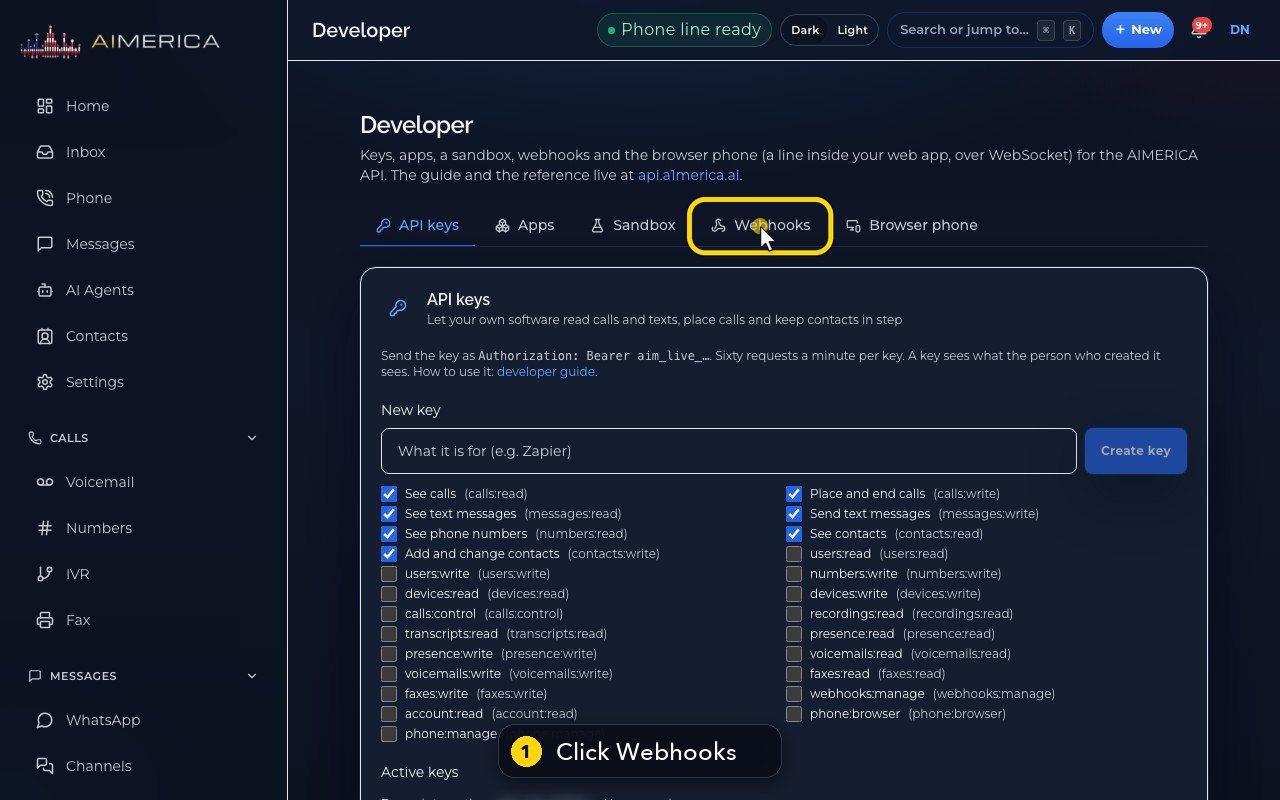
Webhooks send events to your own server the moment they happen. In Developer, open the Webhooks tab.
- 2
These are subscriptions with a handshake, filters and an expiry. Your server must echo a validation token when you add one.
- 3
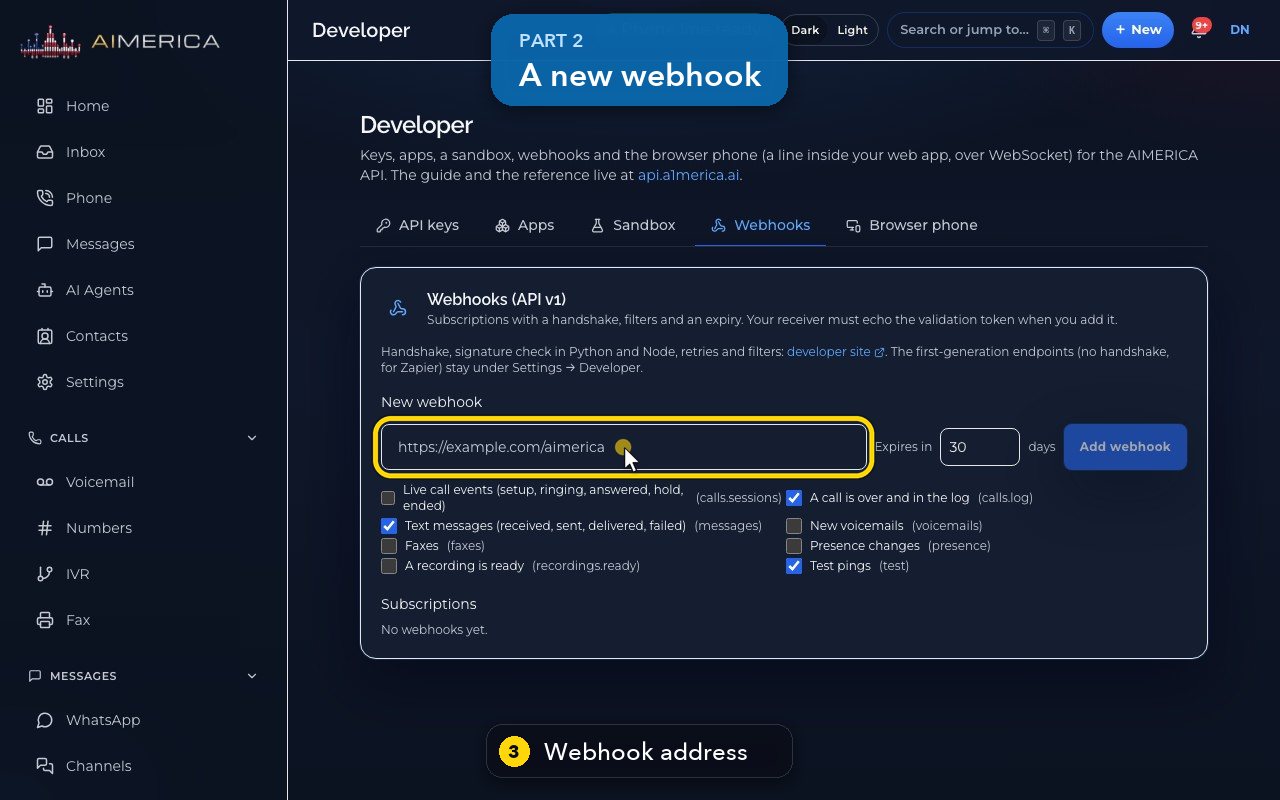
Type your server's address.
- 4
Choose how many days it lasts before it expires.
- 5
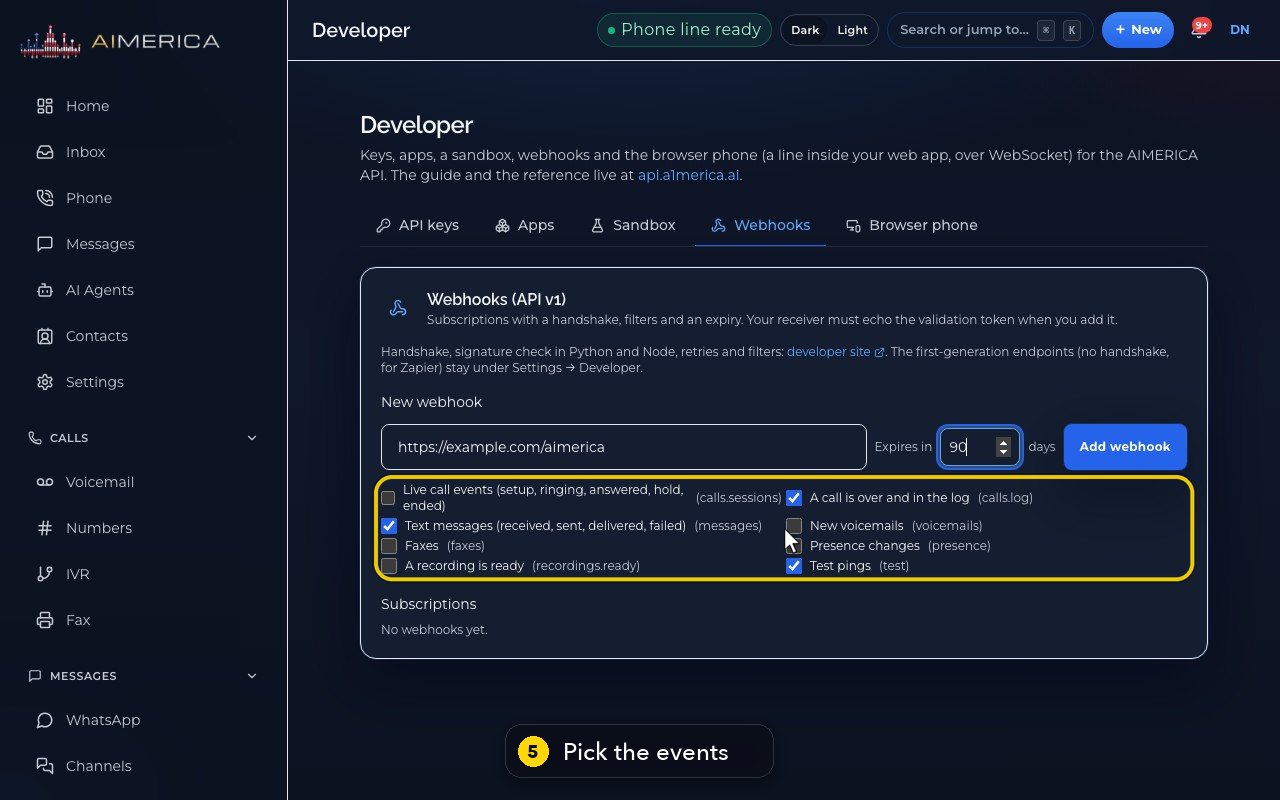
Pick the events. Finished calls, texts and test pings start ticked. There are also live calls, voicemails, faxes, presence and recordings.
- 6
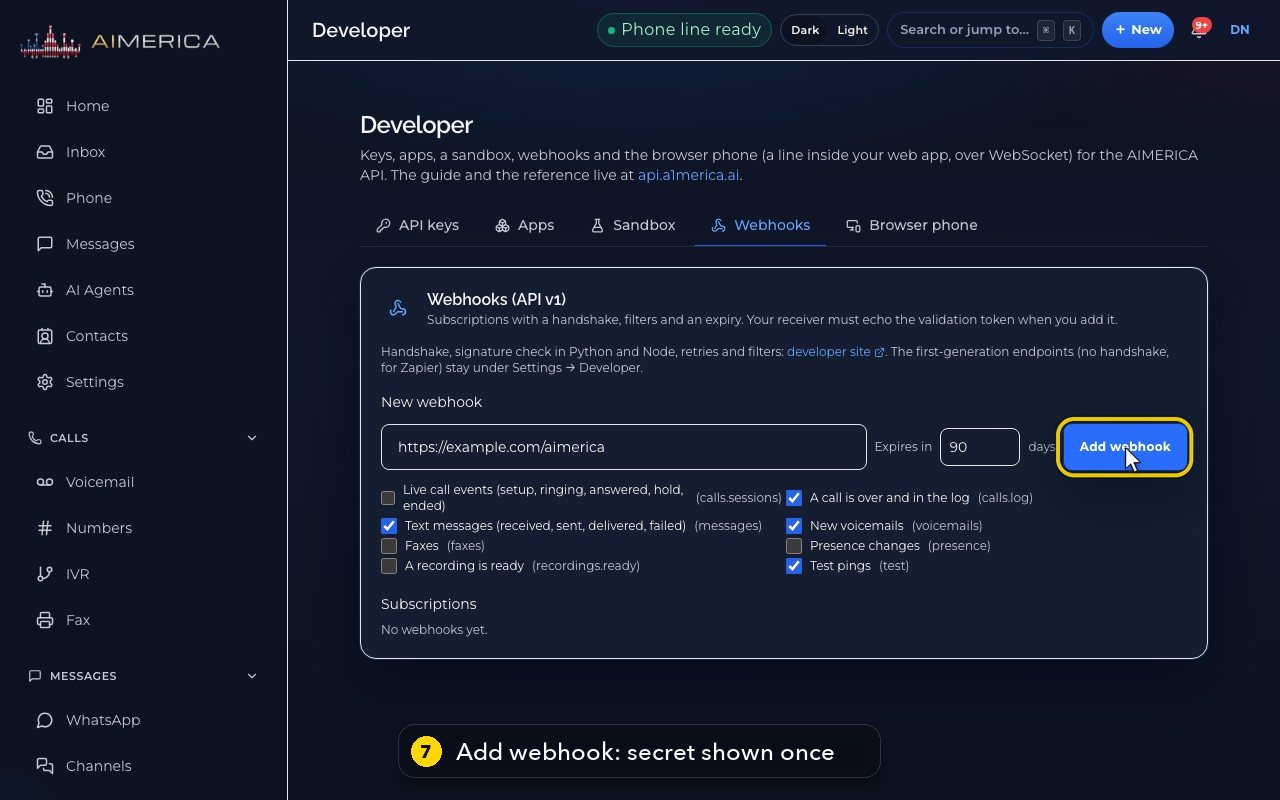
Tick new voicemails too.
- 7
Add webhook creates the subscription and shows its signing secret once. Here we stop before adding it.
- 8
Your subscriptions are listed below, with their status, events and expiry date. There are none yet on this demo.
- 9
The developer site explains the handshake, how to check the signature, and the retries.
- 10
The simpler webhooks Zapier uses, without a handshake, stay under Settings, Developer.
Related tutorials
 1:05VideoPost missed calls and voicemails to SlackSend missed calls, voicemails, texts and faxes to a Slack channel as they happen.
 1:14VideoConnect HubSpot, Salesforce or OdooFind Integrations, see what each CRM connection syncs, and where a HubSpot private-app token goes.
 1:09VideoZapier webhooks in Settings, DeveloperUnder Settings, Company, Developer, make keys and the simple webhooks Zapier uses for calls, texts, voicemail and fax.
 1:19VideoCreate an API key for your own softwareMake an API key with only the permissions your software needs, for tools like Zapier or your own code.
 1:16VideoRegister an app other companies can authorizeRegister an OAuth app with its redirect addresses and scopes, so other AIMERICA companies can allow it.
 1:07VideoPut your phone line inside your own web appAllow your web app's address and see how a browser phone registers your AIMERICA line over a secure WebSocket.
Was this not what you needed? Write to us.