
AIMERICA Payment: what each tab does
Tour AIMERICA Payment, where you take card payments from your own customers, and see what to set up first.
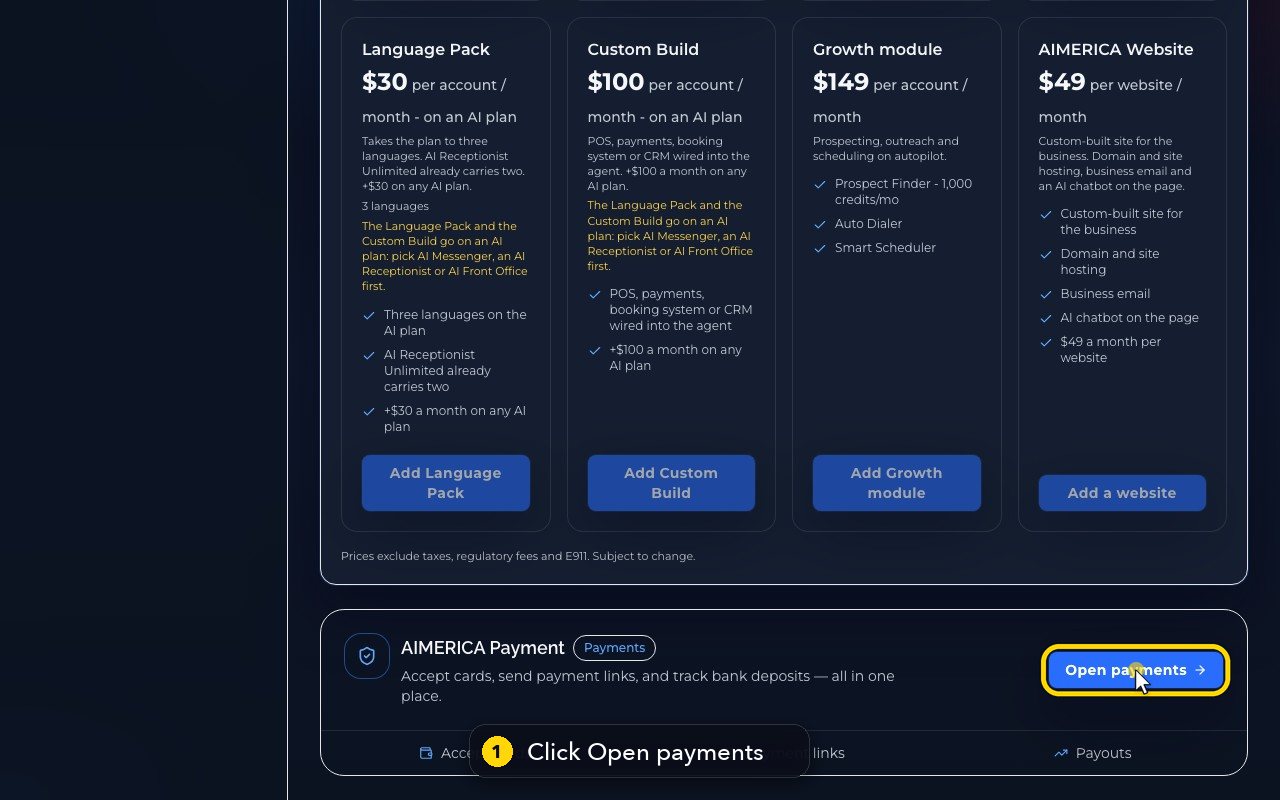
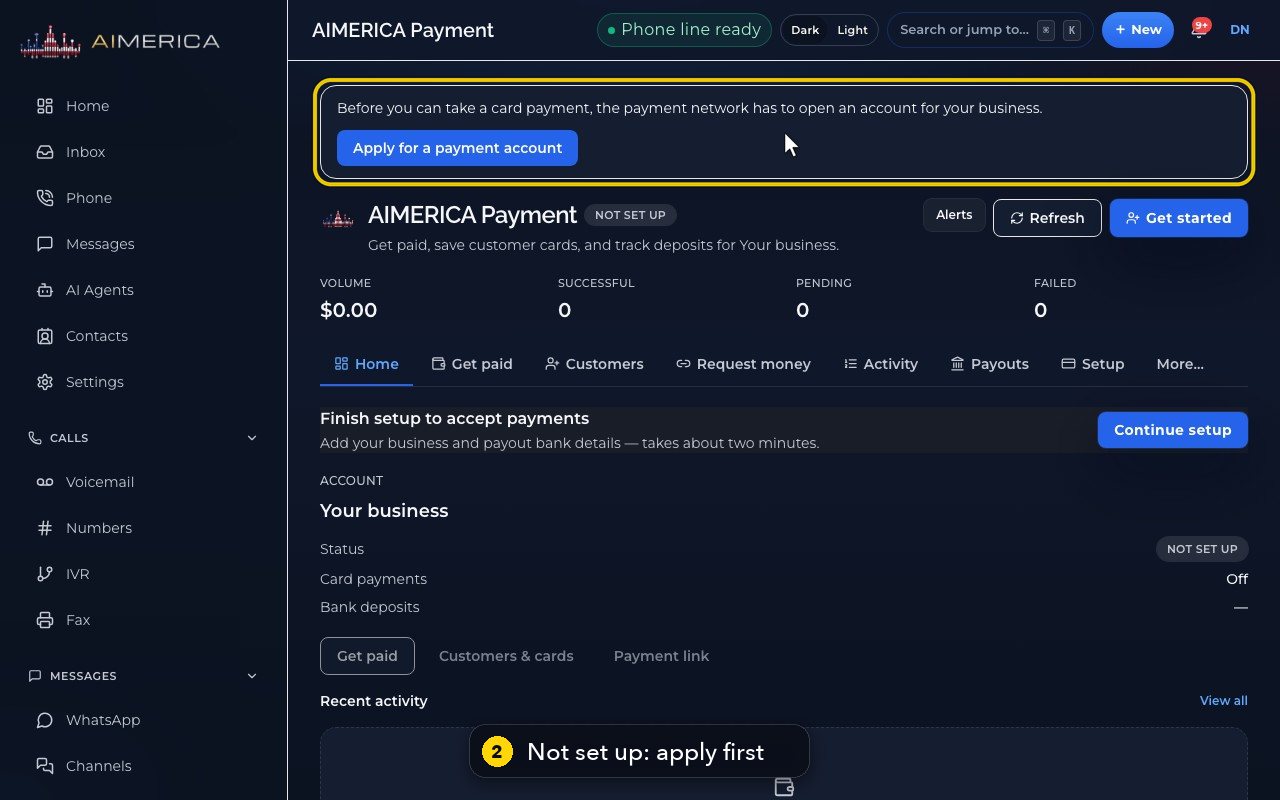
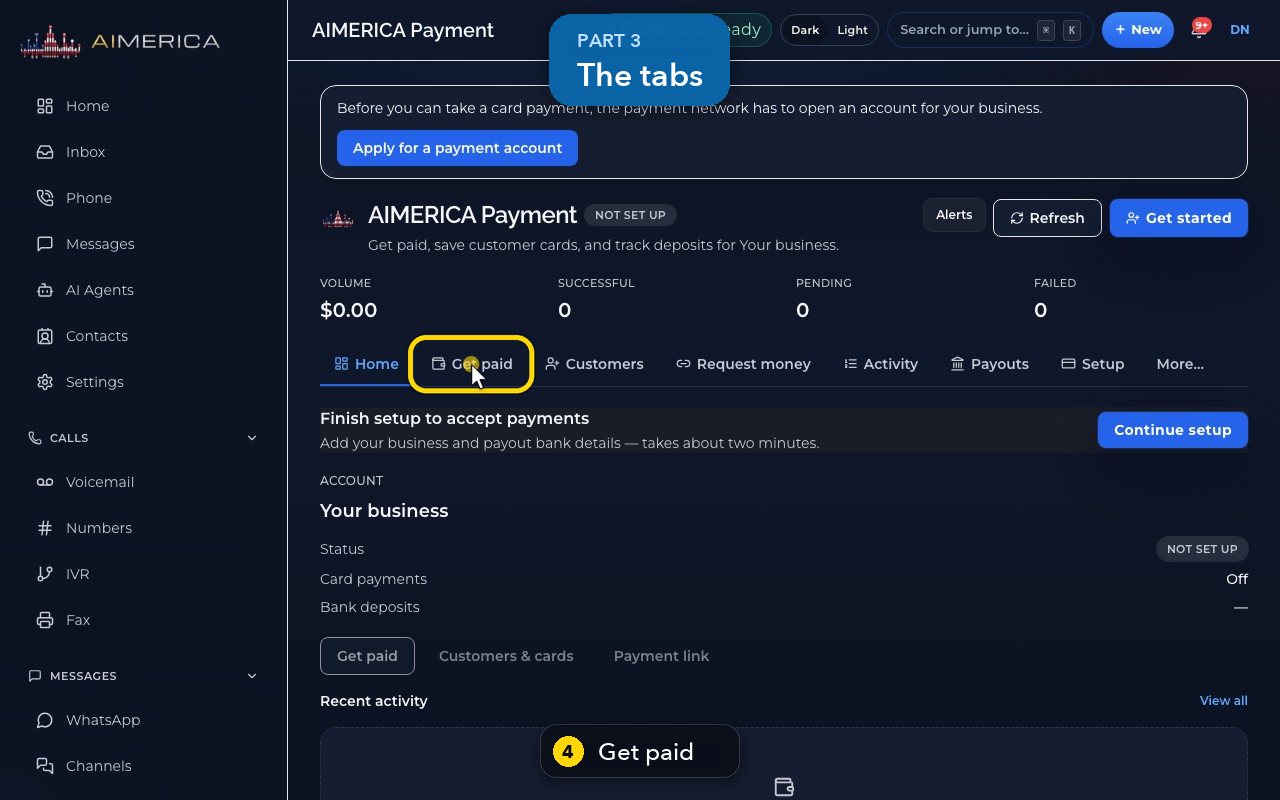
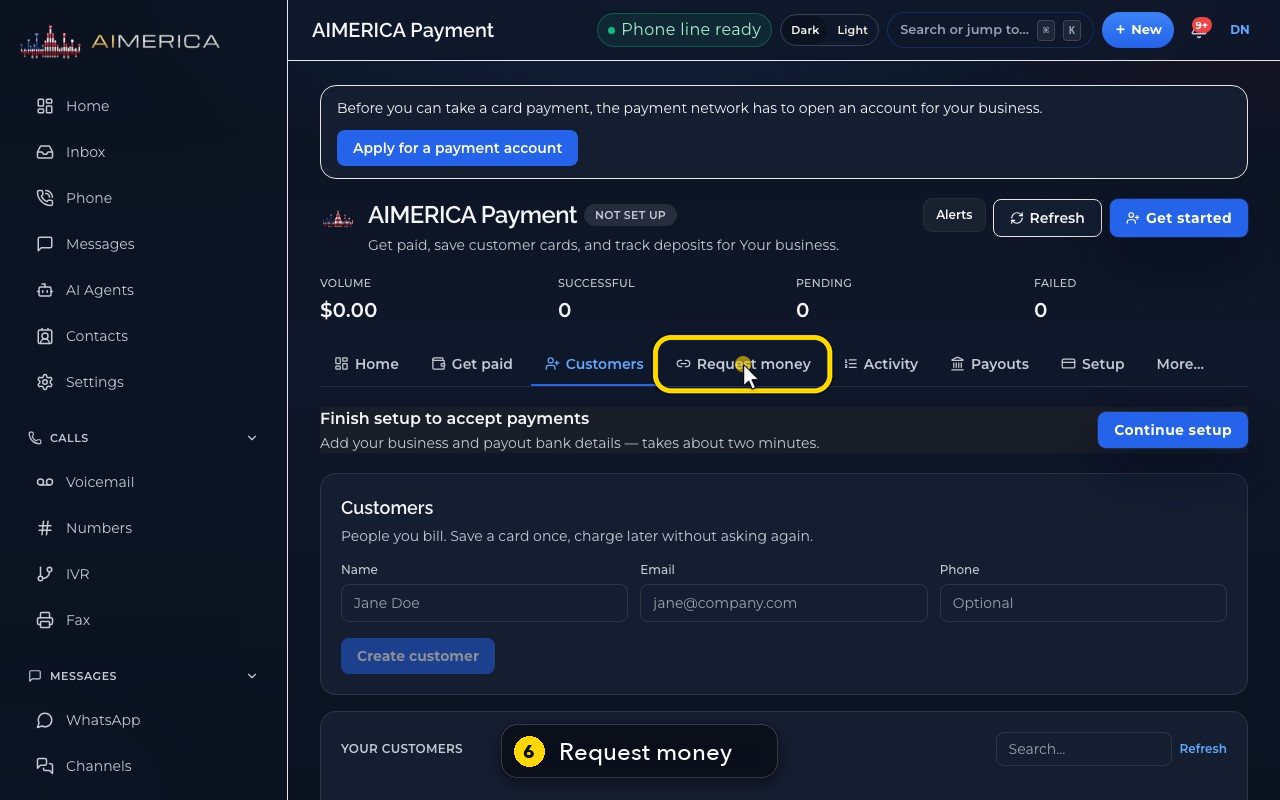
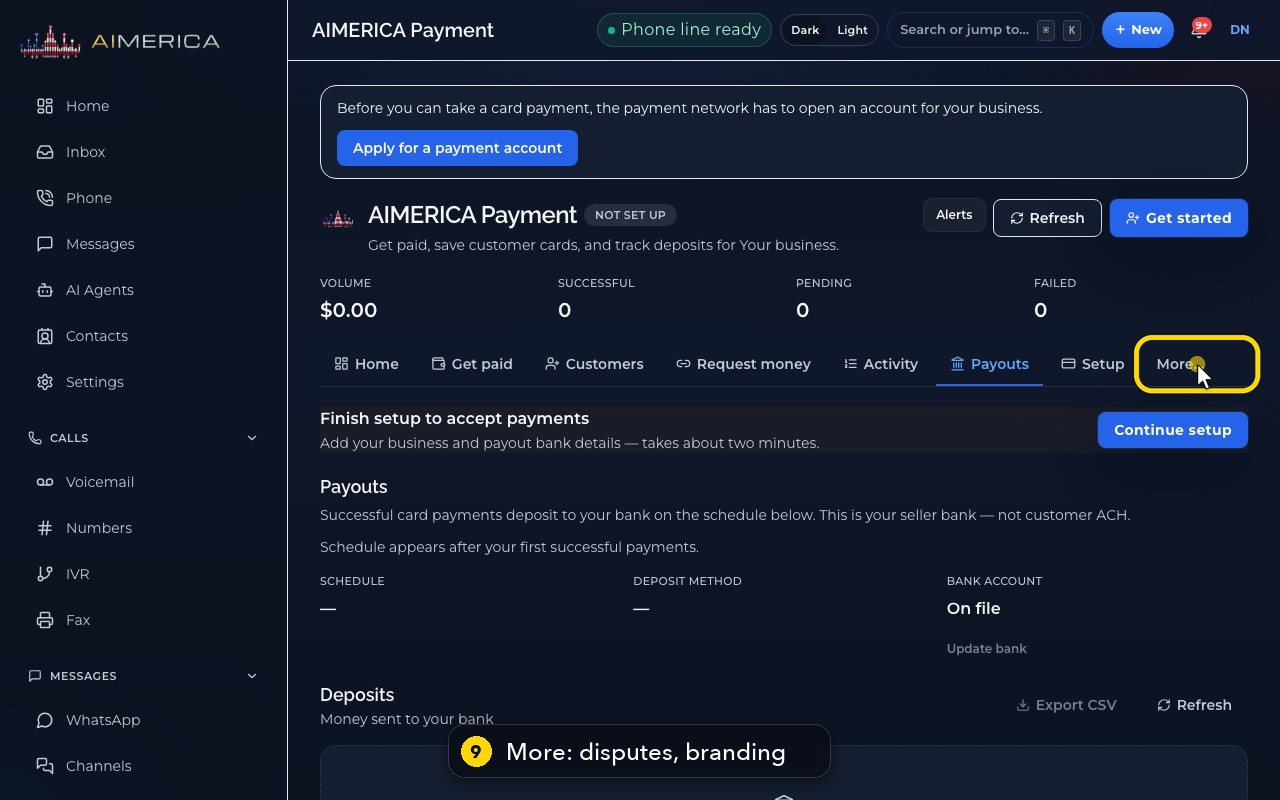
Open Billing (from your initials) and click Open payments at the bottom. Until the payment network opens an account for your business, AIMERICA Payment says Not set up: press Apply for a payment account first. Then Get paid charges a card, Customers keeps saved cards, Request money makes pay links and invoices, Activity lists payments and refunds, Payouts shows deposits, and More holds disputes and branding.
In this video
Step by step
- 1
Card payments from your own customers start at the bottom of Billing. Click Open payments.
- 2
Until the payment network opens an account for your business, the page says Not set up, and asks you to apply.
- 3
Four figures sum up your payments: volume, successful, pending and failed.
- 4
Get paid charges a card now, or a customer whose card is on file.
- 5
Customers keeps the people you bill, with their saved cards.
- 6
Request money makes pay links and invoices, to send by text or email.
- 7
Activity lists your payments and refunds.
- 8
Payouts shows the deposits to your bank, and their schedule.
- 9
More holds the disputes, and the branding of your payment page.
- 10
Home brings you back to the summary.
Related tutorials
 1:09VideoTurn on two-step sign-inProtect your account with a six-digit code from an authenticator app on top of your password.
 0:55VideoChange your passwordChange your AIMERICA password and choose whether SIP desk phones stay connected.
 0:54VideoChoose your call and voicemail alertsChoose whether AIMERICA alerts you to missed calls and new voicemail, and let this browser ring in the background.
 1:06VideoUse AIMERICA in FrenchSwitch the app between English and French for yourself, and choose your desk phone's voicemail language.
 0:47VideoChange your name and the app's appearanceSet the name your team sees and switch the app between dark and light.
 1:25VideoFind Billing and read your planOpen Billing from your account page and read your plan, this month's minutes, texts and numbers, and the plans you can switch to.
Was this not what you needed? Write to us.