
Check account activity and sign out everywhere
See who signed in and what changed in your company, and sign out every device if something looks wrong.
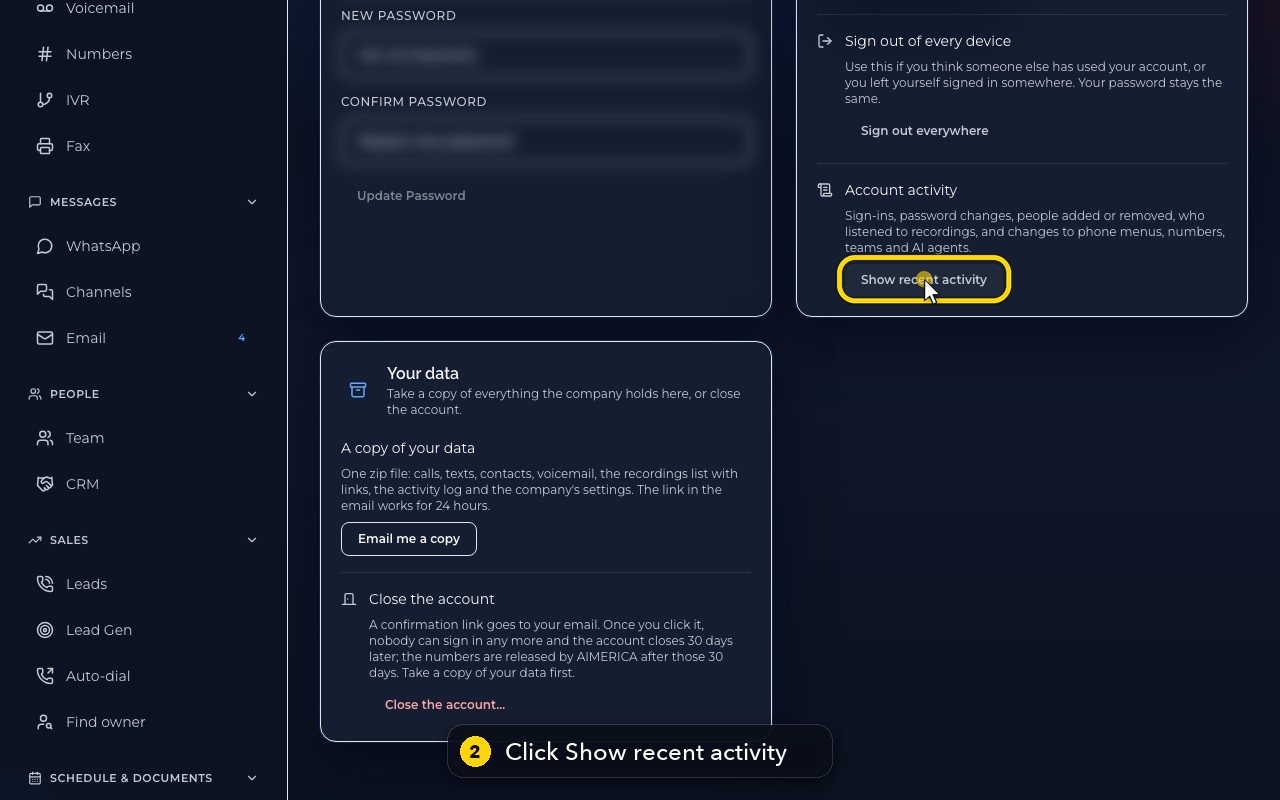
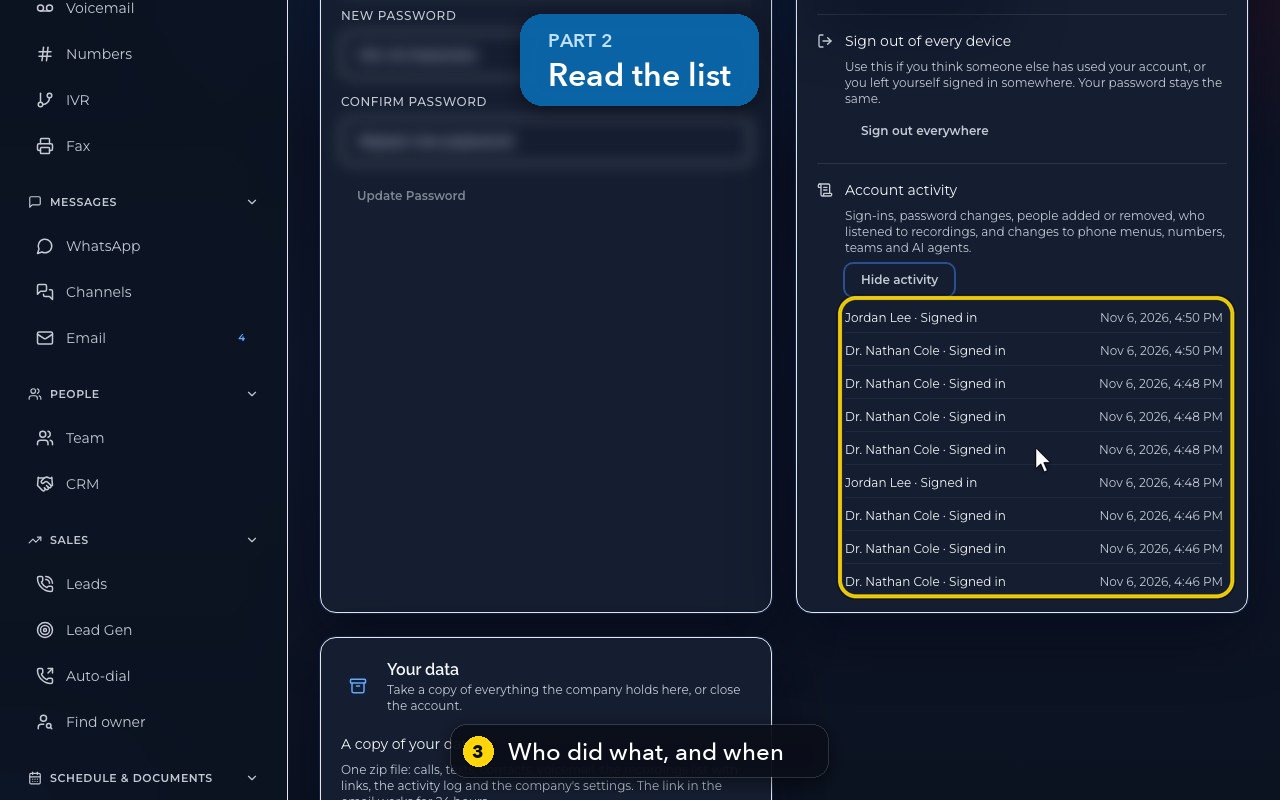
Owners and admins open Settings › Sign-in & security and press Show recent activity under Account activity: sign-ins, password changes, people added or removed, who listened to recordings, and changes to phone menus, numbers, teams and AI agents. Each line says who did what, and when. Hide activity folds the list away.
In this video
Step by step
- 1
Account activity is in Settings, under Sign-in and security, for owners and admins. Click it.
- 2
Press Show recent activity: sign-ins, password changes, people added or removed, who listened to recordings, and changes to menus, numbers, teams and AI agents.
- 3
Each line says who did what, and when. In this demo, most lines are sign-ins from our own recordings.
- 4
Hide activity folds the list away.
- 5
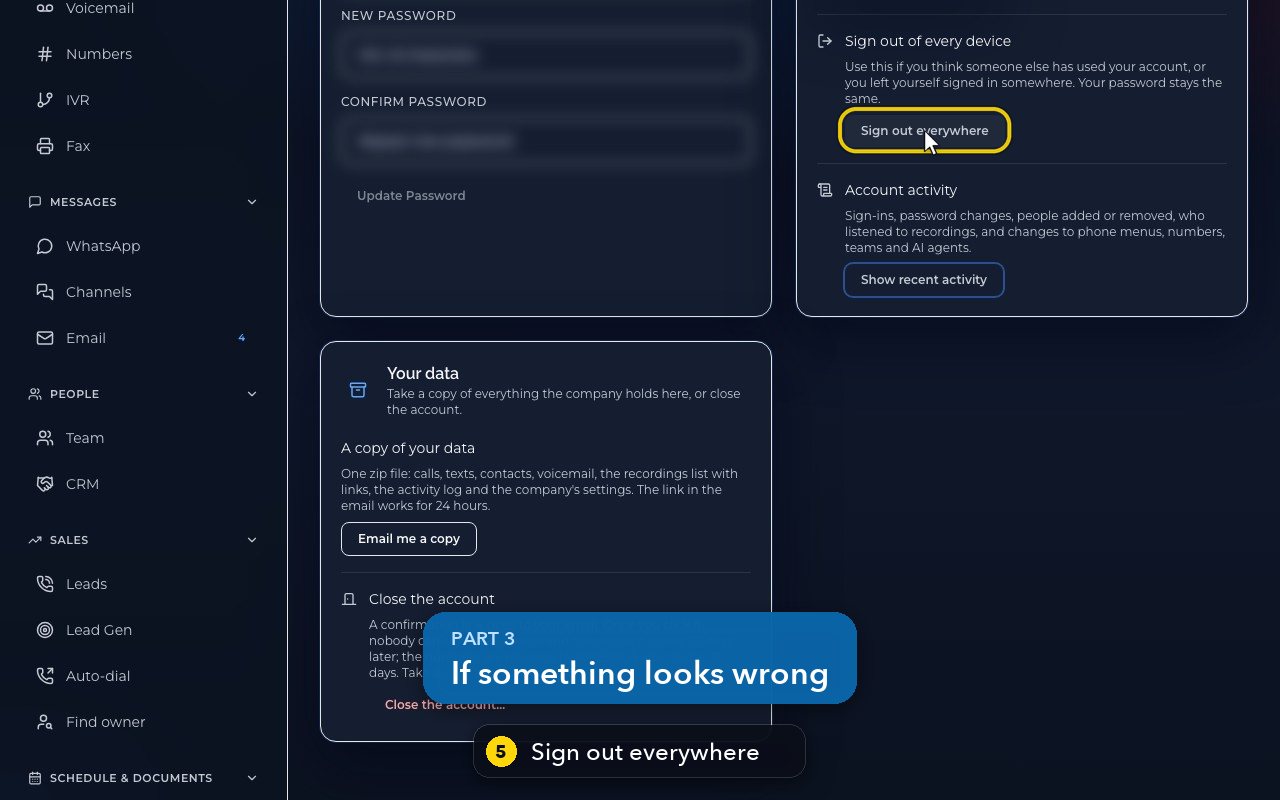
Think someone else used your account? Sign out everywhere ends every session, this one included. Your password stays the same.
- 6
Then change your password, and turn on two-step sign-in, on this same page.
Related tutorials
 1:09VideoTurn on two-step sign-inProtect your account with a six-digit code from an authenticator app on top of your password.
 0:55VideoChange your passwordChange your AIMERICA password and choose whether SIP desk phones stay connected.
 0:54VideoChoose your call and voicemail alertsChoose whether AIMERICA alerts you to missed calls and new voicemail, and let this browser ring in the background.
 1:06VideoUse AIMERICA in FrenchSwitch the app between English and French for yourself, and choose your desk phone's voicemail language.
 0:47VideoChange your name and the app's appearanceSet the name your team sees and switch the app between dark and light.
 1:25VideoFind Billing and read your planOpen Billing from your account page and read your plan, this month's minutes, texts and numbers, and the plans you can switch to.
Was this not what you needed? Write to us.