
Sign in and find your way around Home
Sign in to the AIMERICA web app and read the Home page: meetings, Needs you, your numbers and the menu.
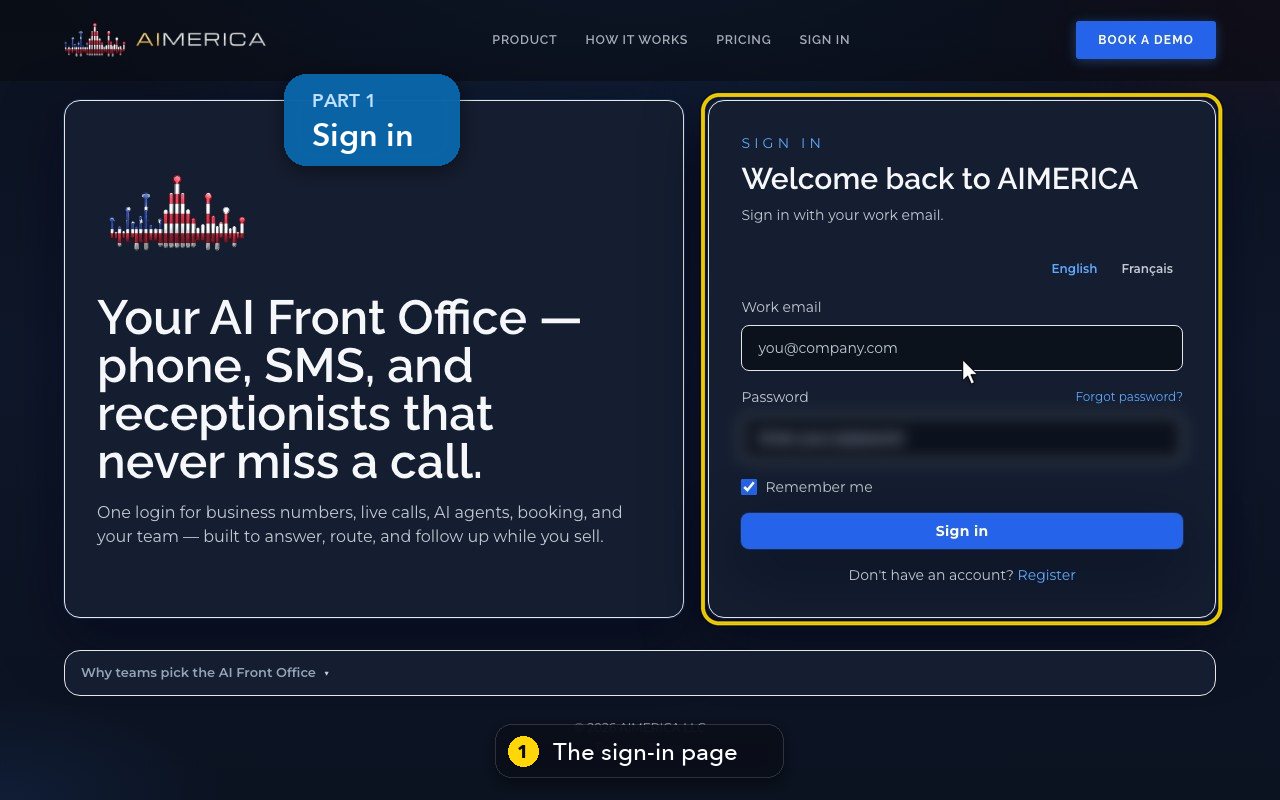
Sign in at a1merica.ai/voip with your work email and your password. Owners and admins land on Home; team members land on Phone.
In this video
Step by step
- 1
In your browser, open the sign-in page. It asks for your work email, and your password.
- 2
Type the email address you use for work.
- 3
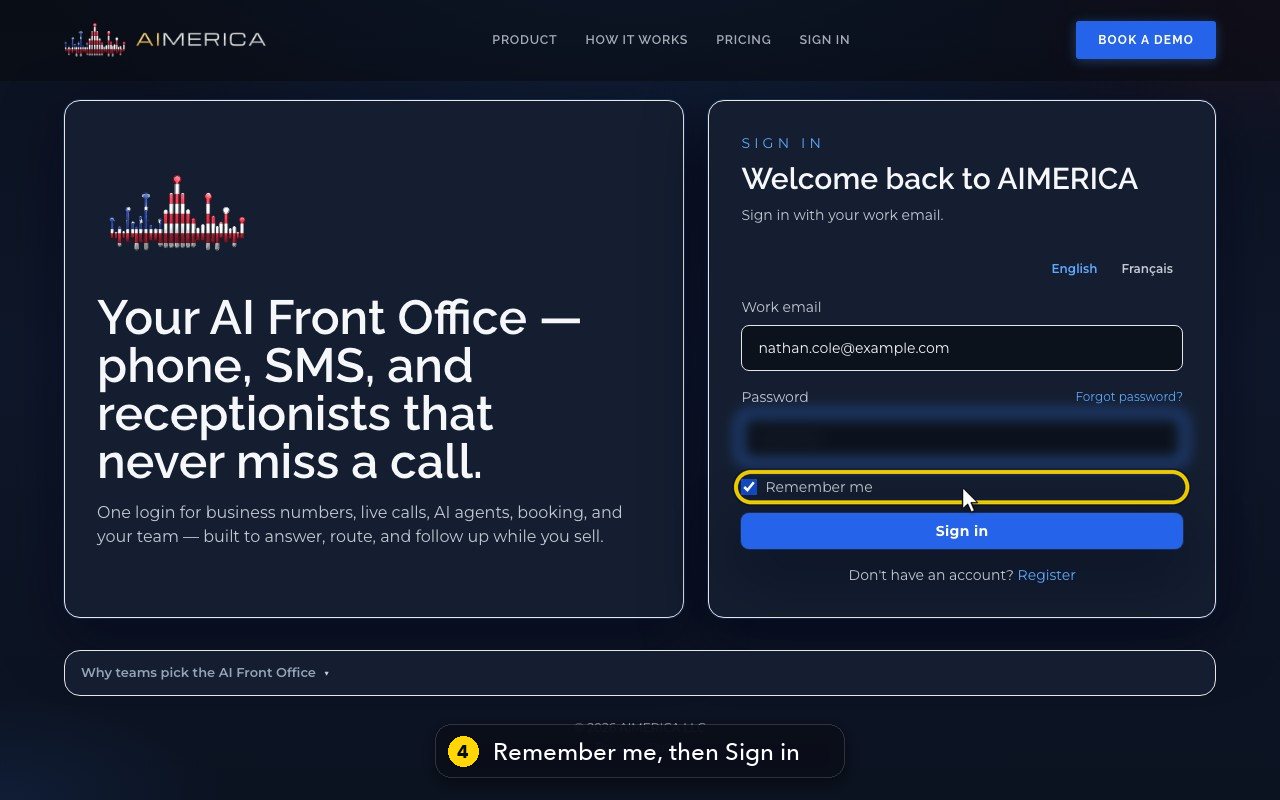
Then type your password. It stays hidden. Forgot it? The link above the box sends you a reset email.
- 4
Keep Remember me ticked on your own computer, then press Sign in.
- 5
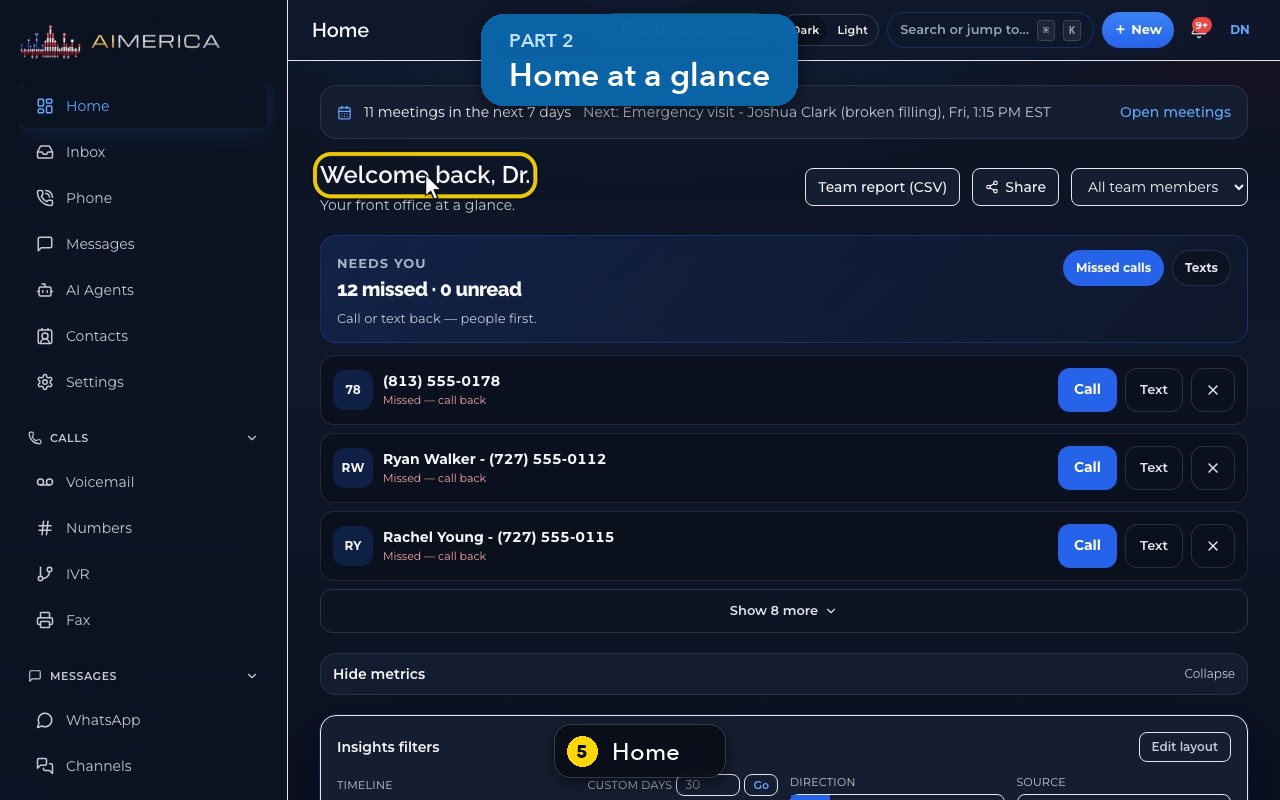
Owners and admins land on Home. Team members go straight to the Phone page instead.
- 6
The strip at the top counts your meetings for the next seven days, and names the next one.
- 7
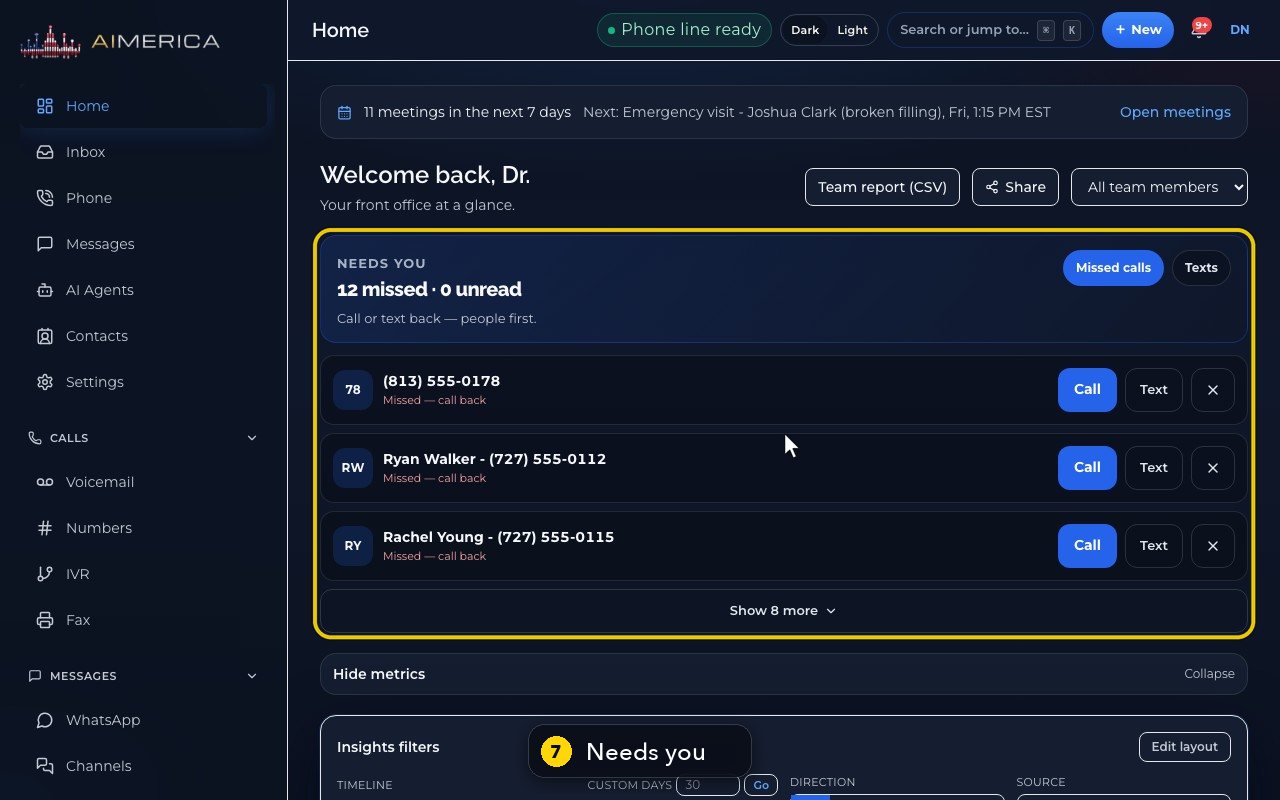
Needs you counts your missed calls and unread texts, then lists the people to call or text back.
- 8
Every row has Call and Text. Show more opens the rest of the list.
- 9
Missed calls opens your call history, filtered to the calls you missed.
- 10
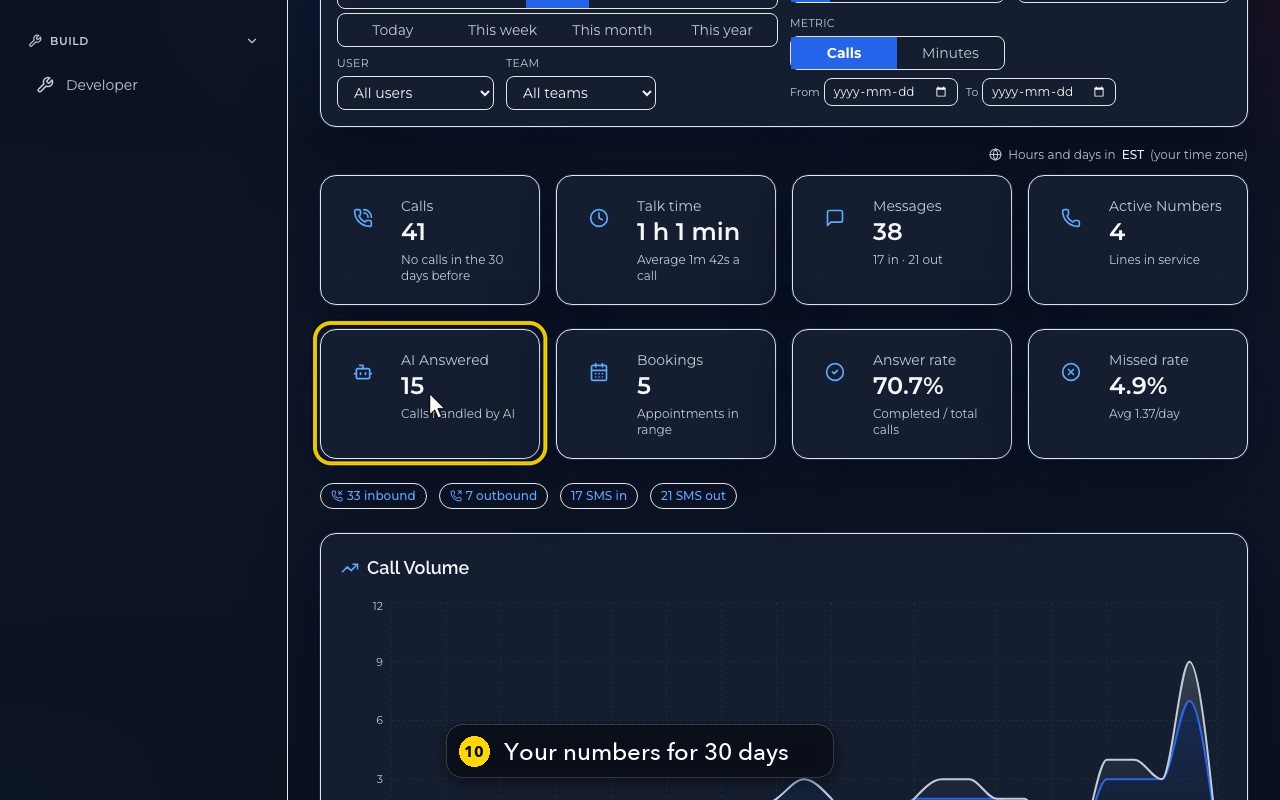
Further down are your numbers for the last 30 days: calls, talk time, messages, and the calls your AI answered.
- 11
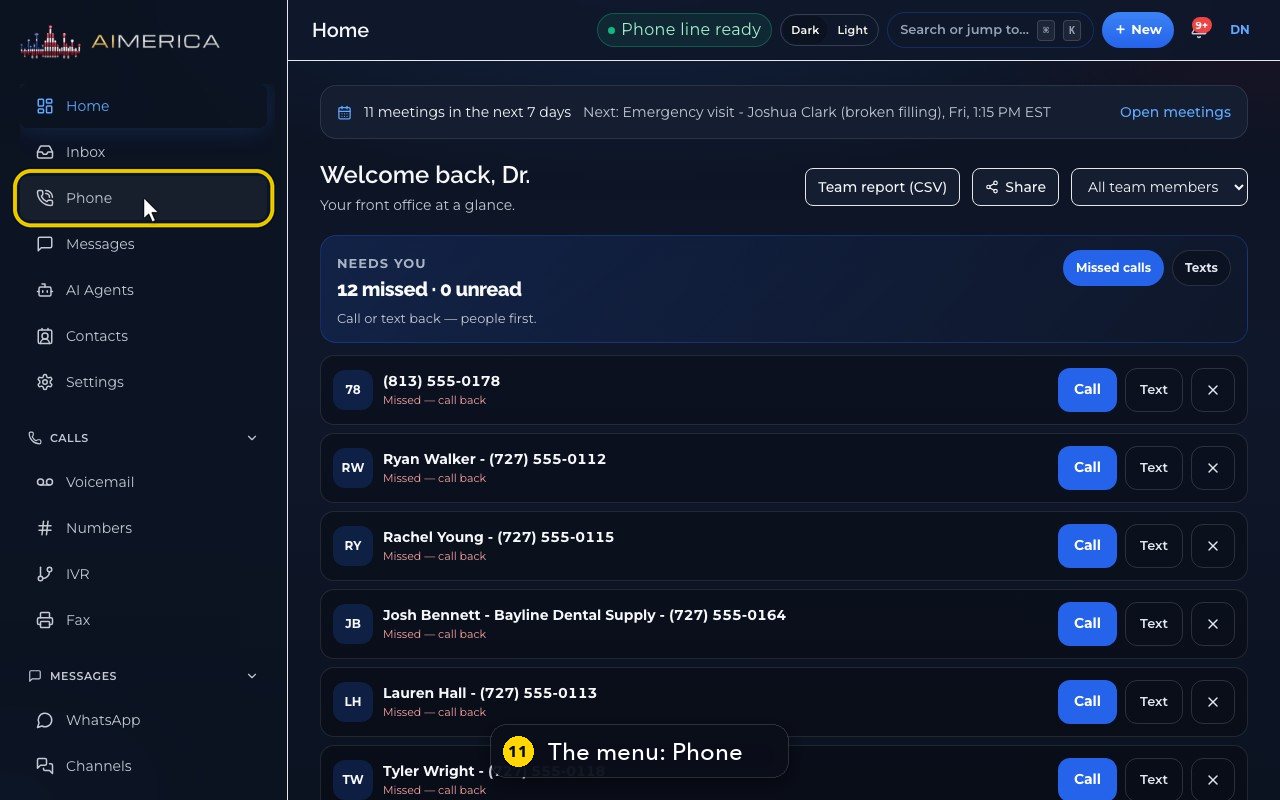
The menu on the left reaches every part of the app. Phone is where you make and take calls.
- 12
At the top are your phone line status, search, and the bell for your notifications.
Related tutorials
 1:20VideoThe Get set up checklistFollow the Get set up page to finish your first-week setup: account, 911 address, number, receptionist, test call and go live.
 1:35VideoYour 911 address (calling waits for it)Check the company's emergency address, set your own 911 address when you work elsewhere, and name emergency contacts.
 1:14VideoGet around fast: Search, New and shortcutsJump to any page with Search (Cmd/Ctrl K), start a call, text or contact from New, and see the keyboard shortcuts.
 0:47VideoForgot your passwordAsk for a password reset link from the sign-in page.
Was this not what you needed? Write to us.