
Turn on call alerts in your browser
Let your browser alert you about calls and voicemail while AIMERICA is in a background tab.
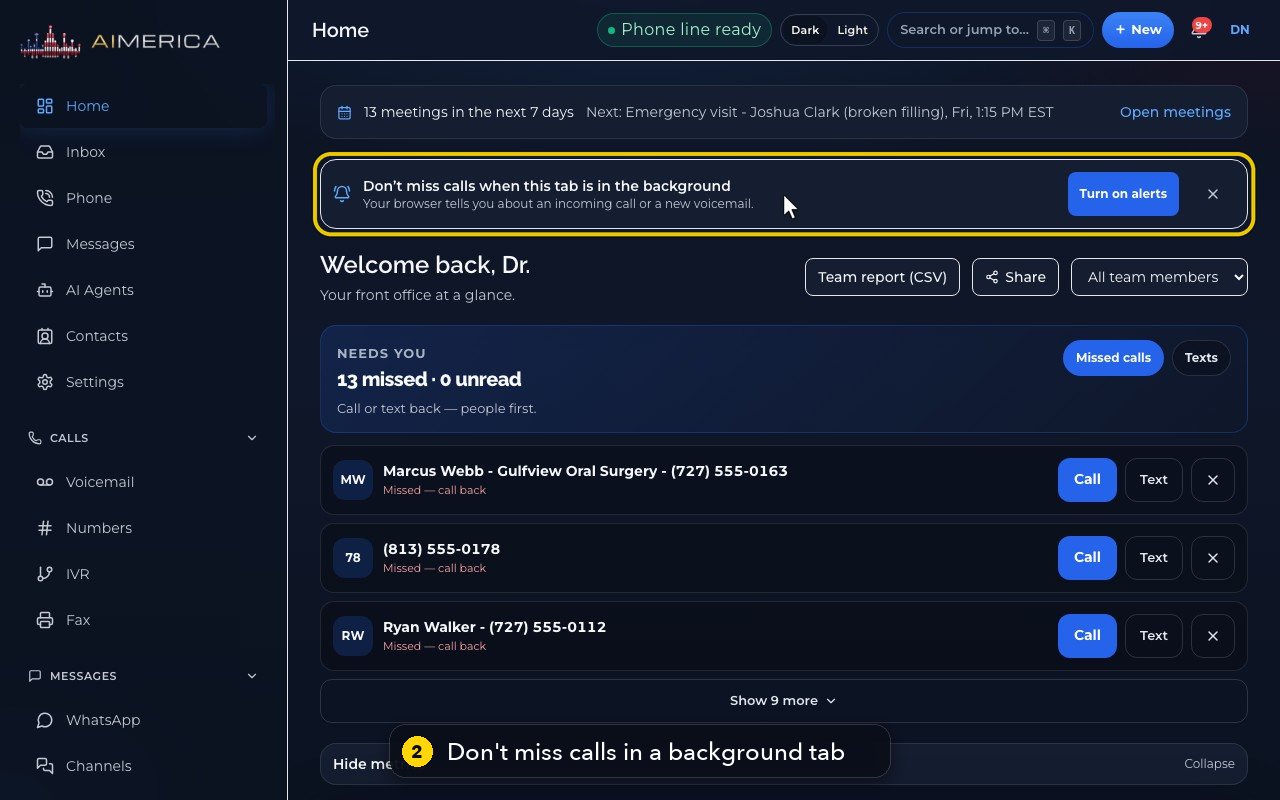
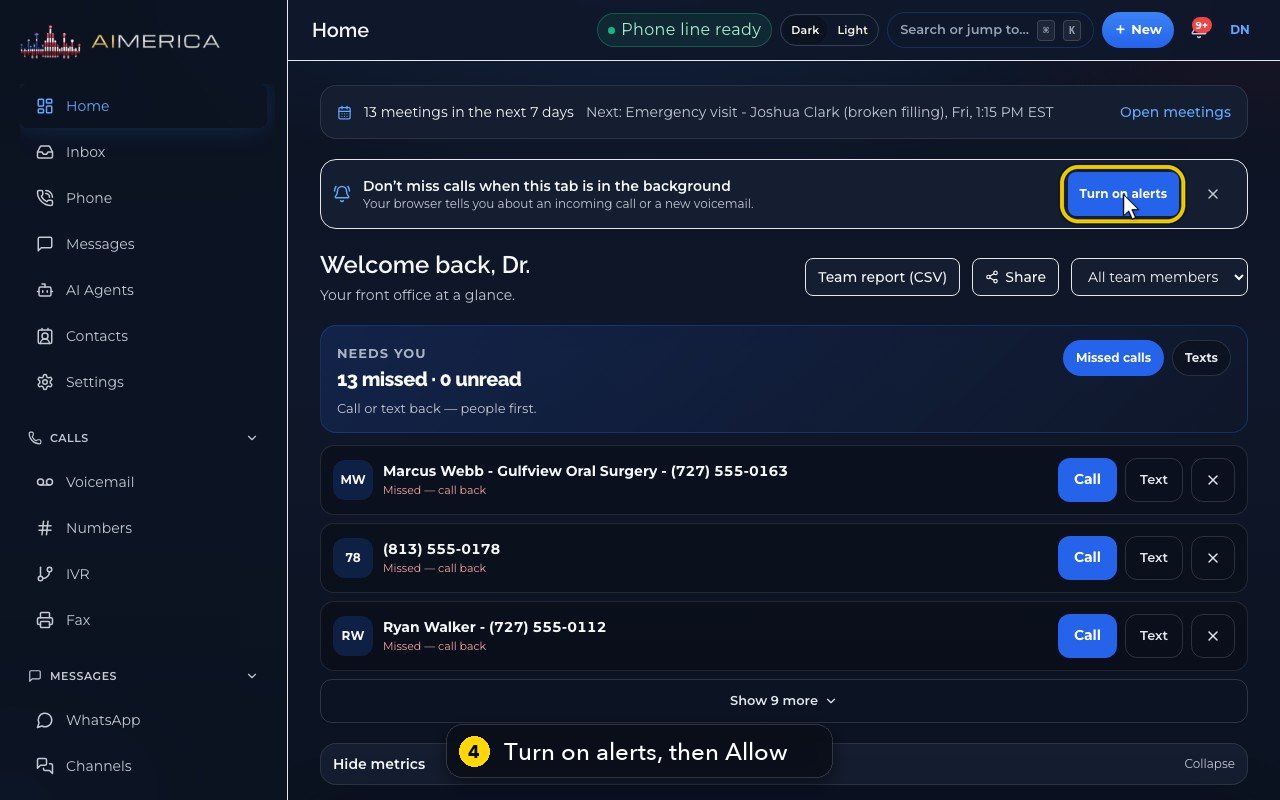
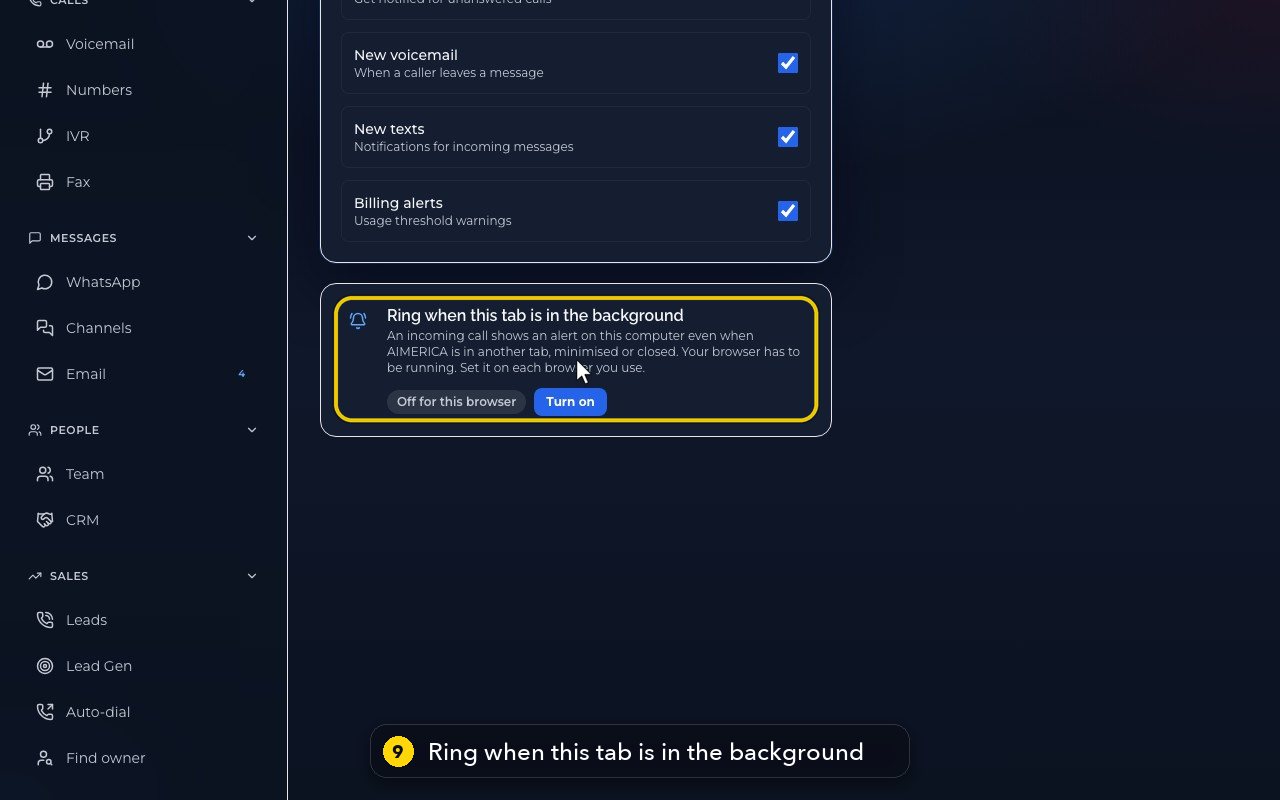
On Home, the card Don’t miss calls when this tab is in the background has Turn on alerts: click it, then Allow when your browser asks. Later, the same switch is in Settings › Me › Alerts, under Ring when this tab is in the background.
In this video
Step by step
- 1
In the menu on the left, open Home.
- 2
A browser tab in the background can miss a ringing call. This card fixes that, and it asks only once.
- 3
Your browser then tells you about an incoming call, or a new voicemail, even in another tab.
- 4
Click Turn on alerts, then Allow, when your browser asks. In this demo, we stop here.
- 5
If your browser blocked alerts, the card says so. Allow them in the site settings, with the icon left of the address, then reload the page.
- 6
Close hides the card.
- 7
Later, you find the same switch in Settings.
- 8
Under Me, click Alerts.
- 9
Ring when this tab is in the background does the same, once for each browser you use.
- 10
The browser has to be running for this alert. The phone app rings on its own, even when it is closed.
Related tutorials
 4:31VideoThe desk phone: a full walkthroughEverything the AIMERICA desk phone does: calls, voicemail, contacts, texts and the menu.
 0:41VideoDesk phone: home screen and recent callsRead the home screen, filter your recent calls and open a call's details.
 0:37VideoDesk phone: voicemailRead and play your voicemail, call back or delete, and open the voicemail settings.
 0:51VideoDesk phone: make a call, hold, mute and transferDial a number, then use hold, mute, transfer and the other buttons during a call.
 0:18VideoDesk phone: use the handsetLift the handset to dial, and move a call from the speaker to the handset.
 0:29VideoDesk phone: contactsFind a contact by name or number, then call or text in one tap.
Was this not what you needed? Write to us.