
Business hours and call forwarding
What happens when you are closed, or away.
Both are set per number, in Numbers. Open the line's settings with its gear.
In this video
Step by step
- 1
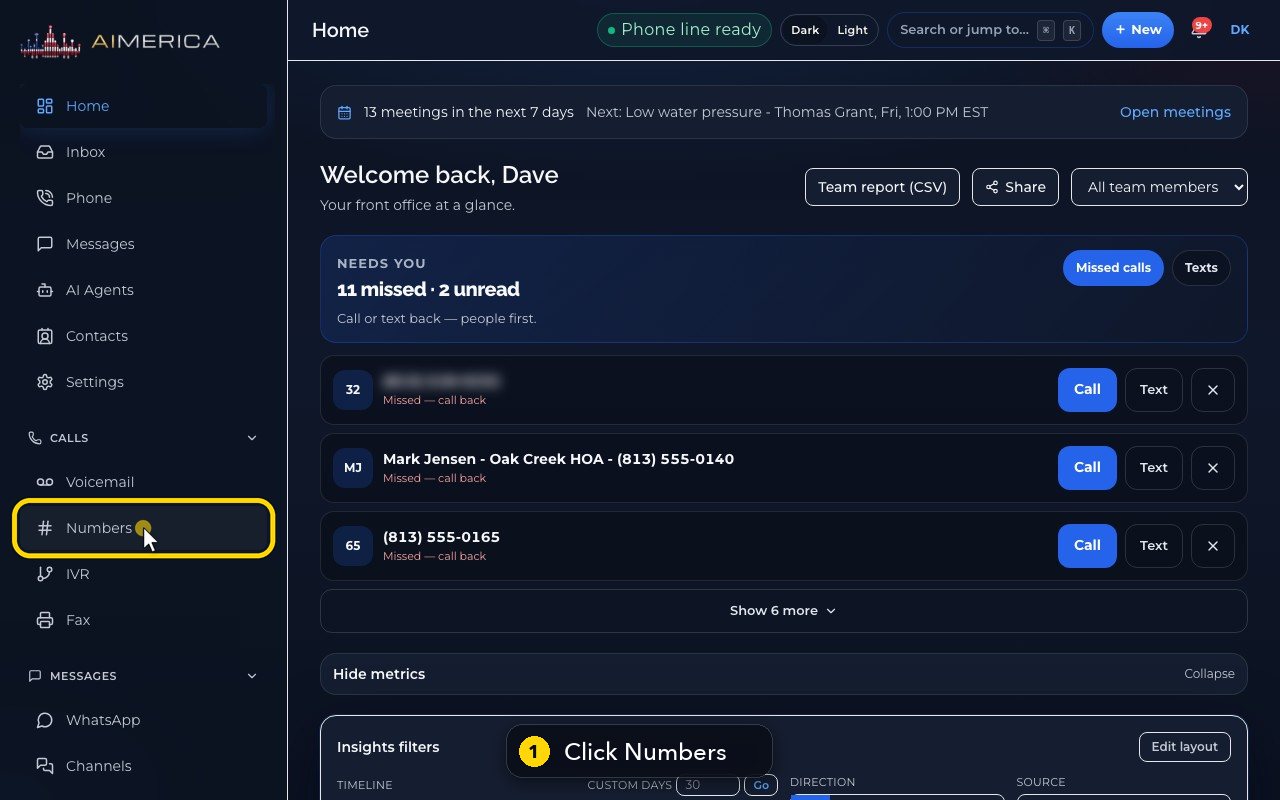
Business hours and call forwarding are set for each phone number. Click Numbers, in the menu on the left.
- 2
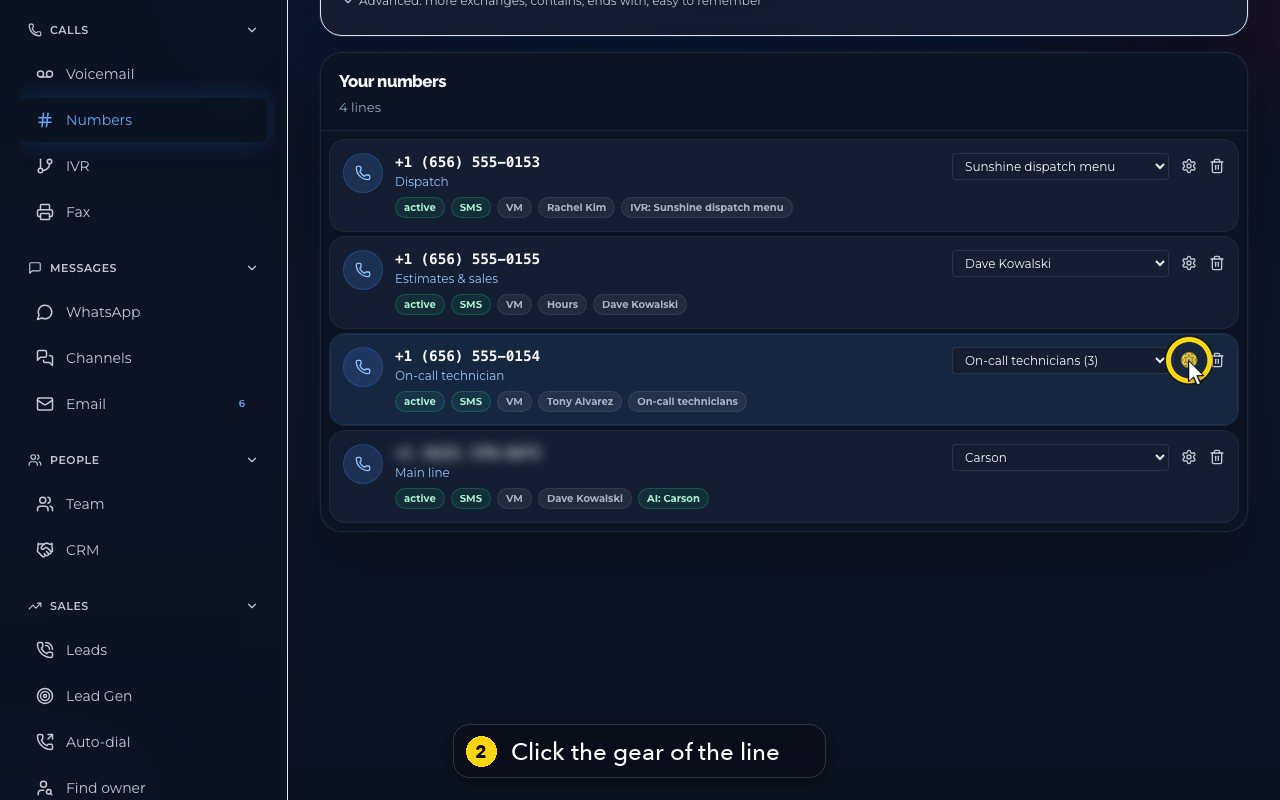
Here are all your lines. Find the one you want to change, and click its gear.
- 3
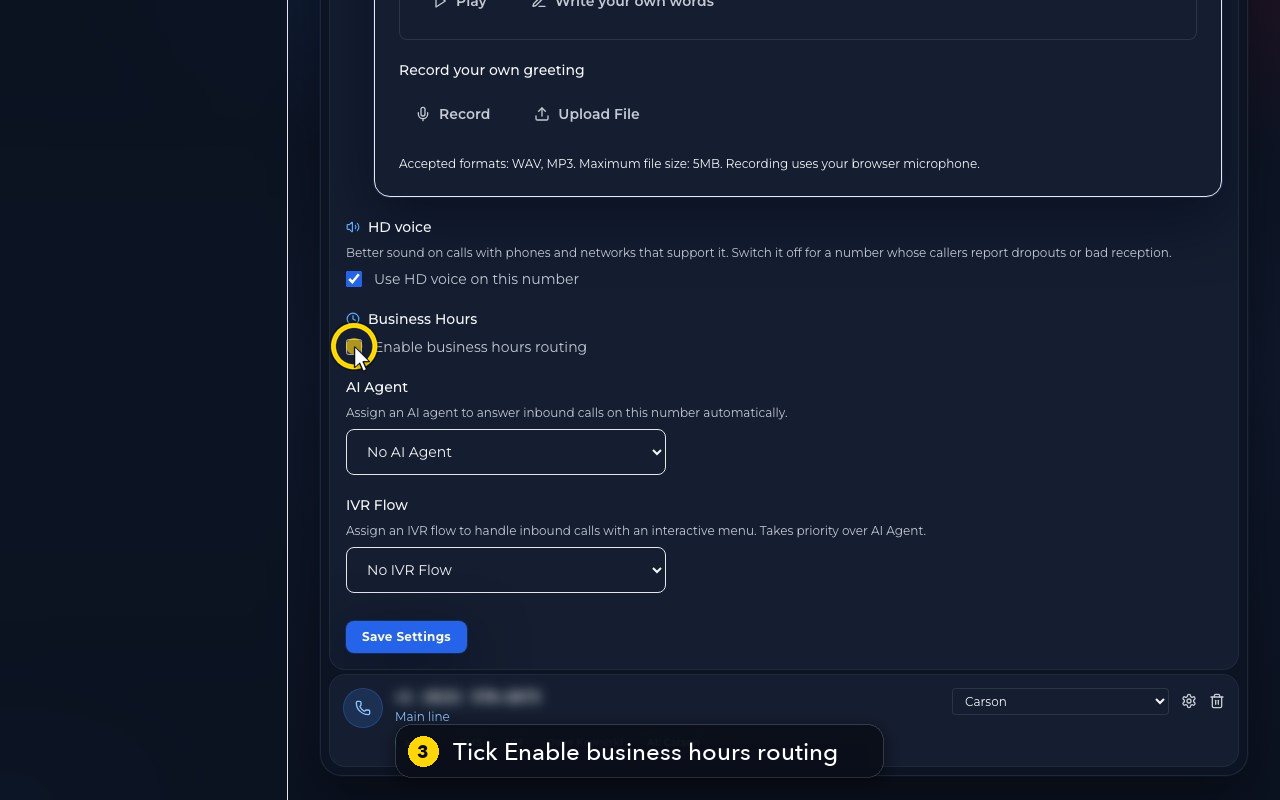
Scroll down to Business Hours, and tick Enable business hours routing.
- 4
Pick your time zone.
- 5
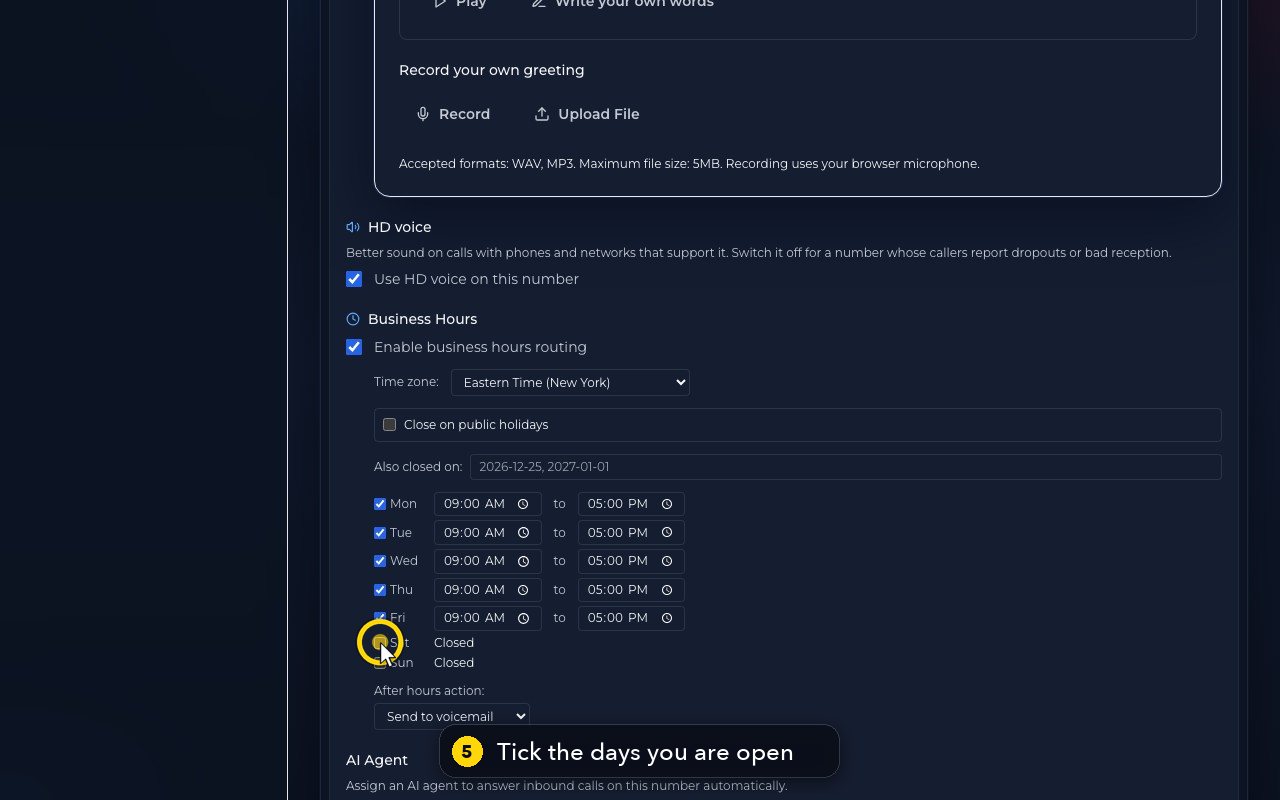
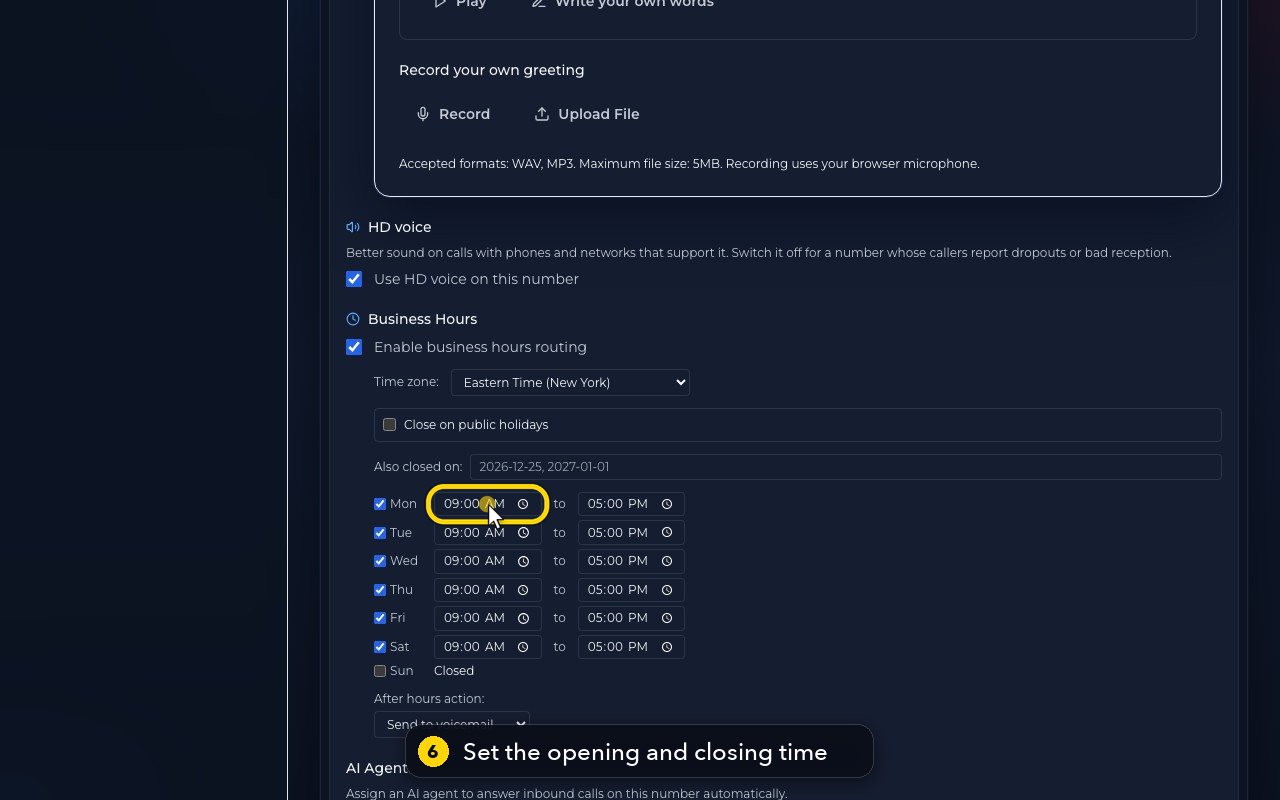
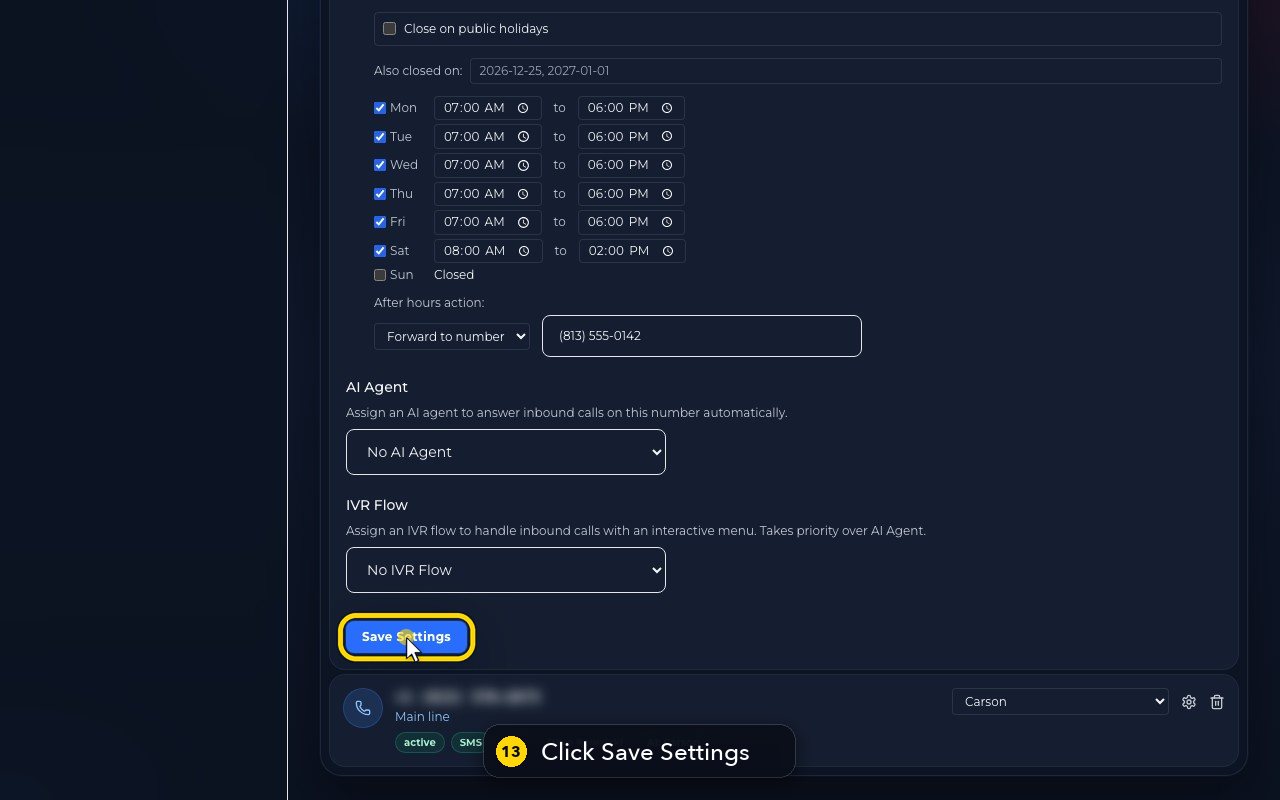
Then tick the days you are open. Monday to Friday are ticked for you. This business also opens on Saturday.
- 6
Set the opening and closing time for each day. Here, Monday opens at 7 AM, and closes at 6 PM.
- 7
Do the same for the other days.
- 8
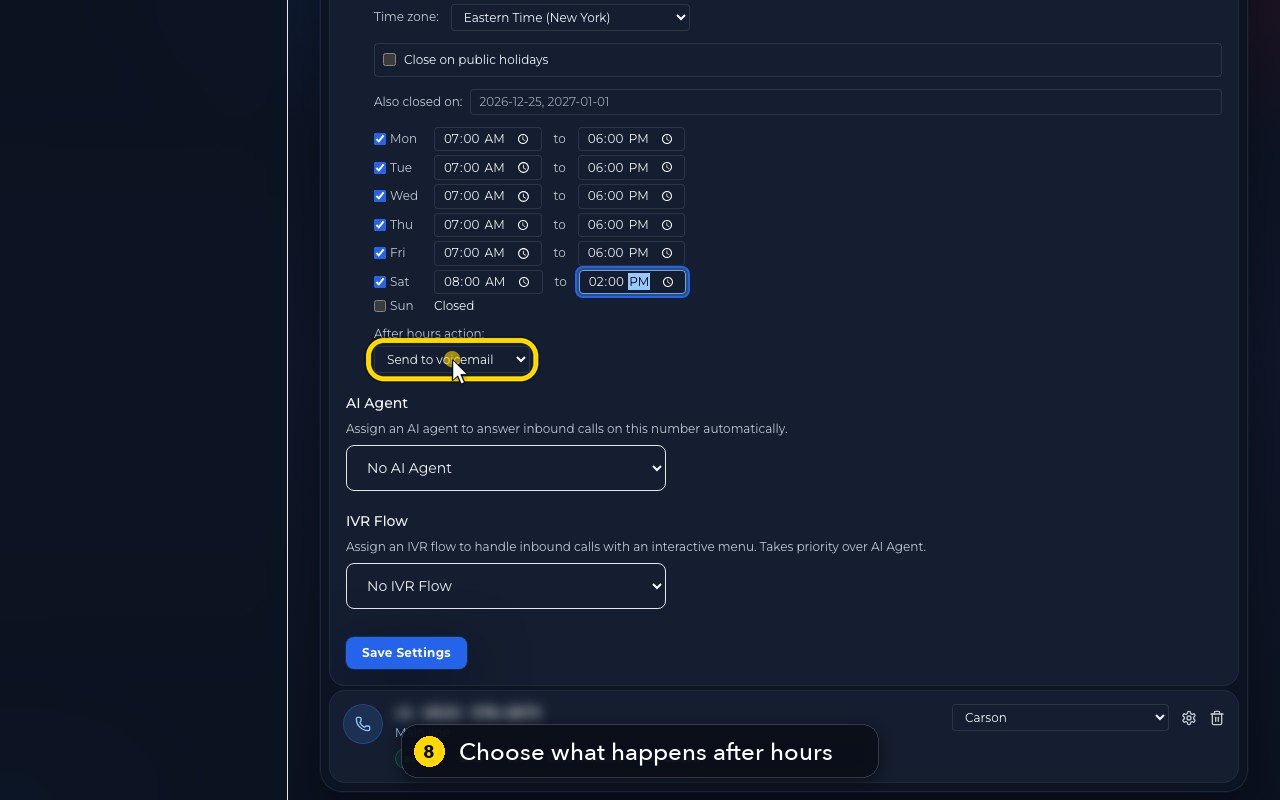
Now choose what happens after hours. Callers can go to voicemail, or be forwarded to another number.
- 9
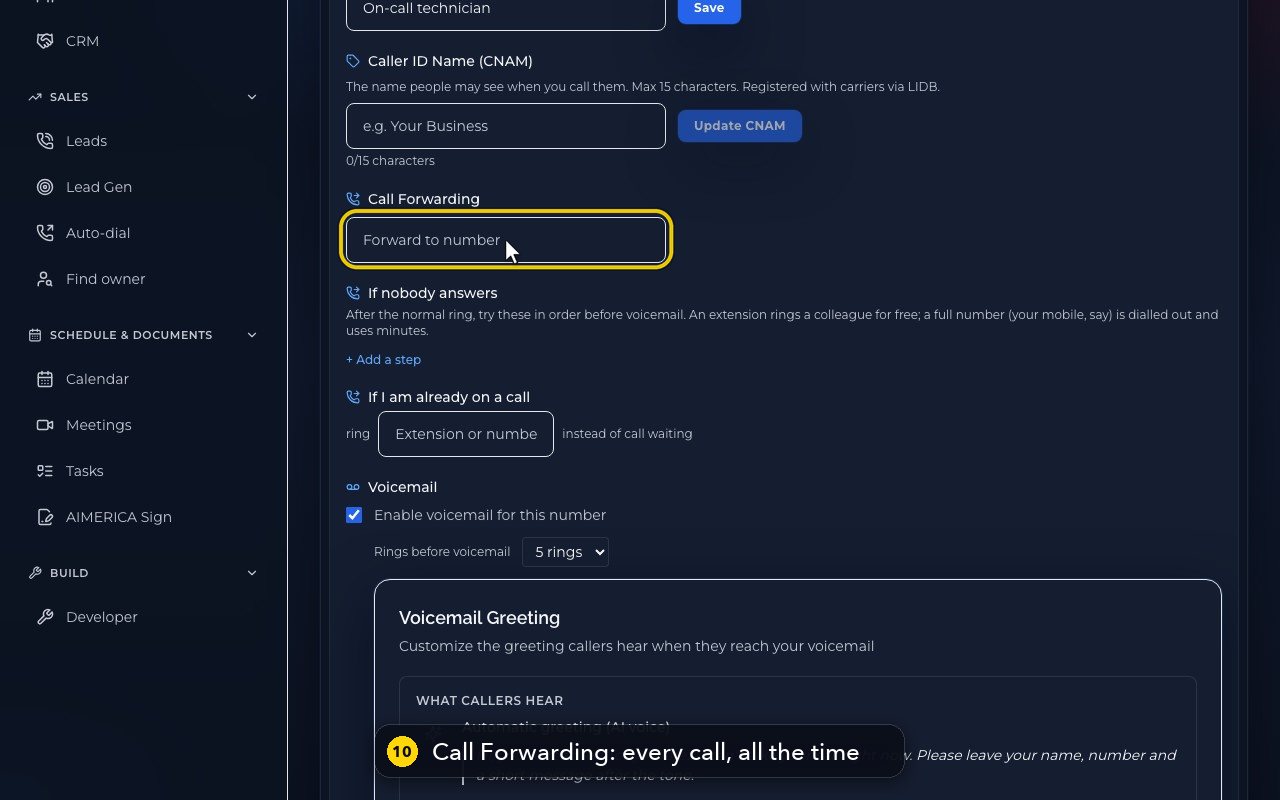
Type the number to forward to, for example the technician's cell phone.
- 10
Call forwarding is at the top of the settings. A number typed here gets every call, all the time. Leave it empty to ring your team as usual.
- 11
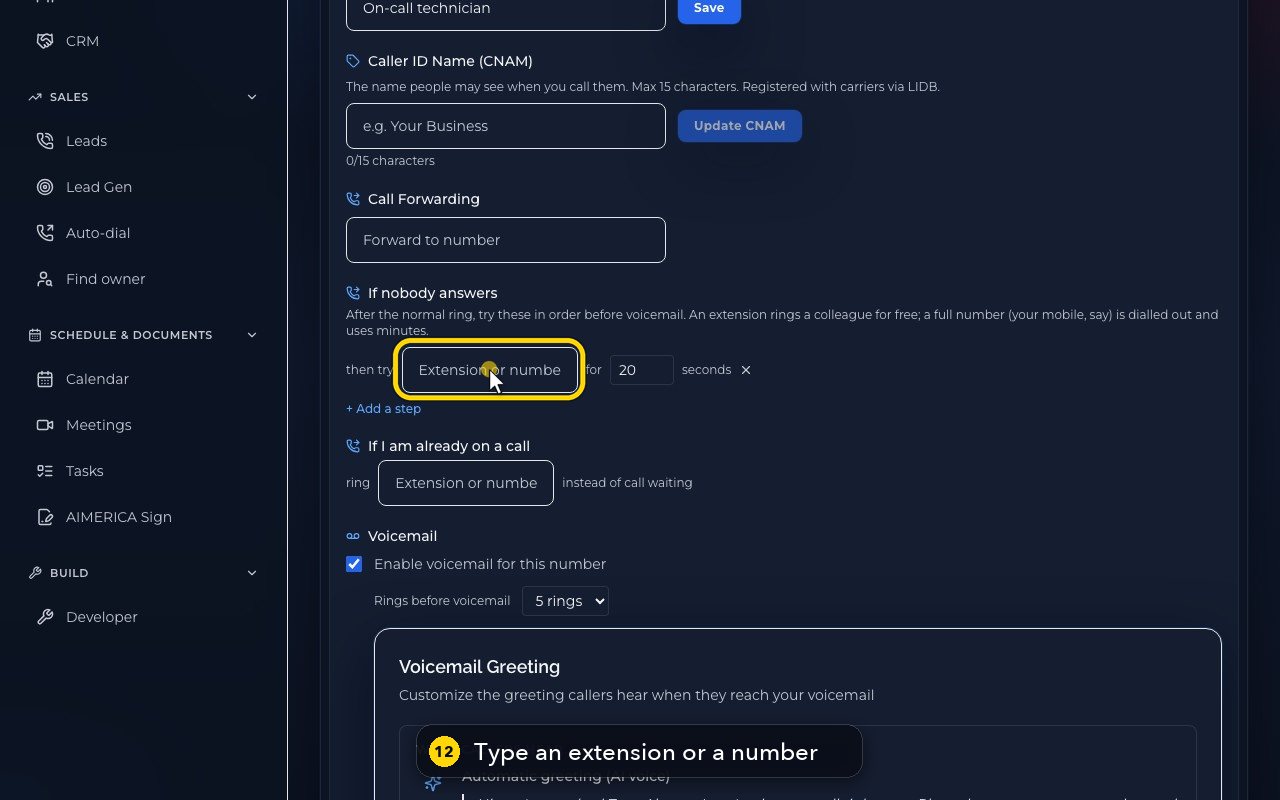
Just below, If nobody answers tries other people before voicemail. Click Add a step.
- 12
Type an extension, or a full number, and how many seconds it rings.
- 13
When you are done, scroll down and click Save Settings.
- 14
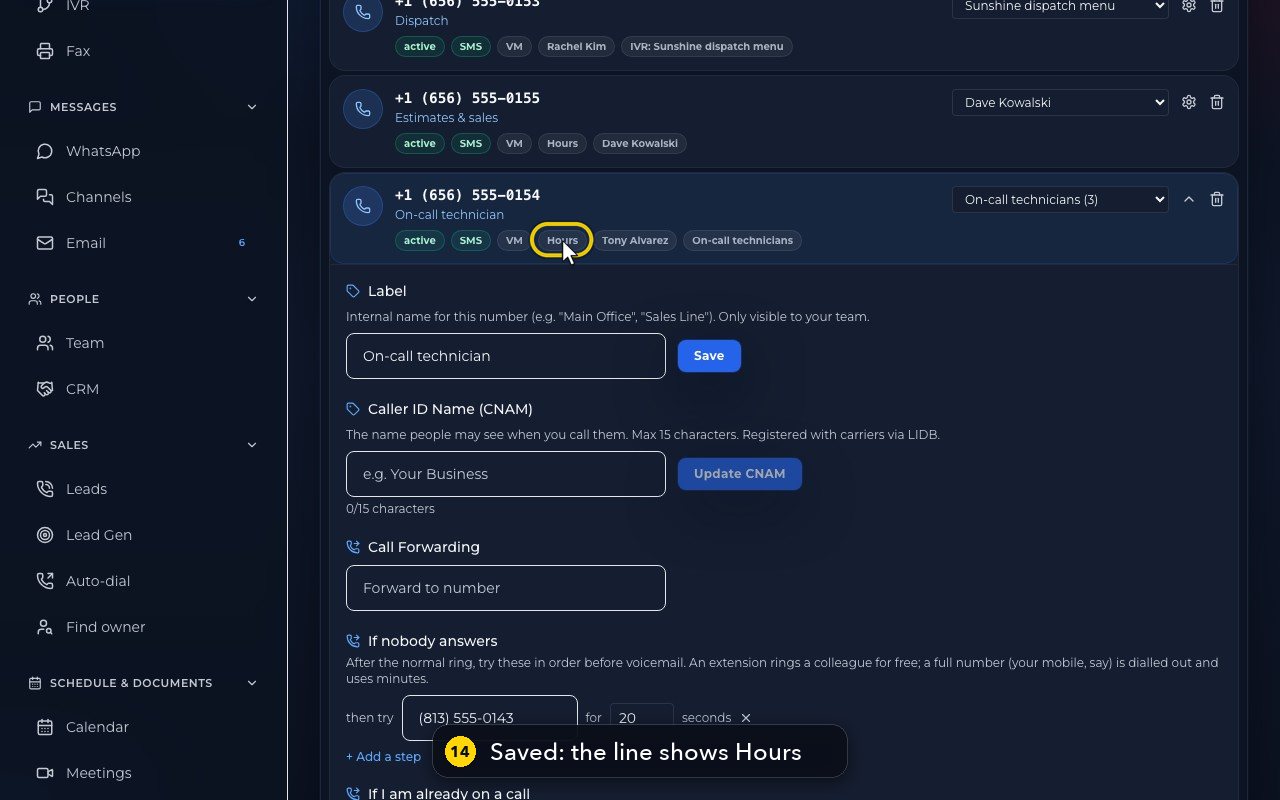
A green Saved note confirms it, and the line now shows Hours.
Do not disturb and call forwarding on the phone app
Stop your calls ringing with Do not disturb, or send them to another number with Call forwarding, from the phone app.
These two switches are just for you. They follow you on every device you use: the phone app, the web and the desk phone.
In this video
Step by step (7 steps)
- 1
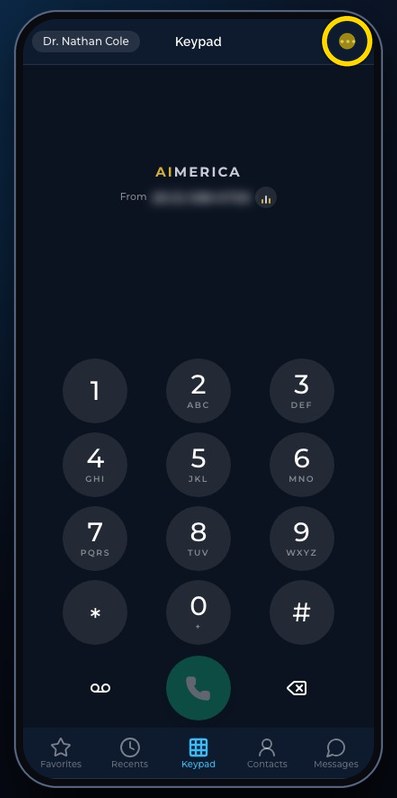
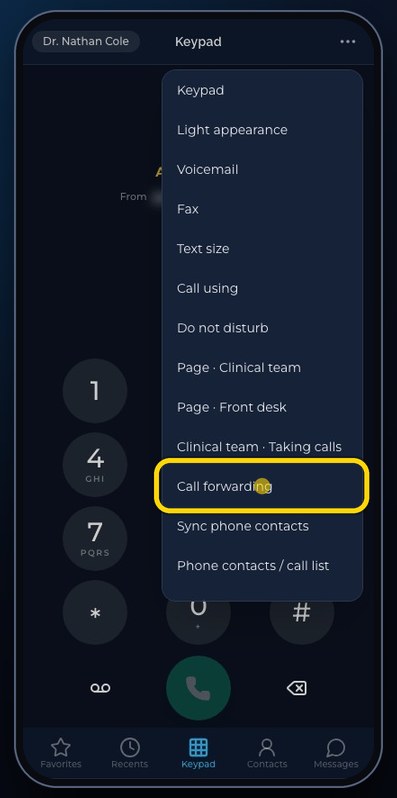
Do not disturb and Call forwarding are in the Menu: the three dots at the top right.
- 2
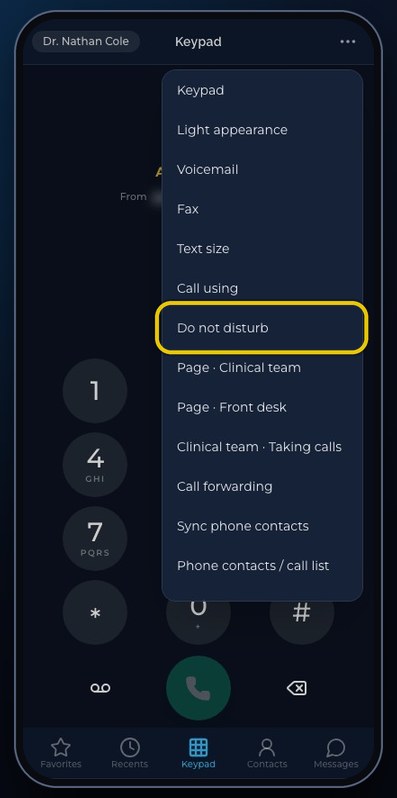
Do not disturb stops your calls ringing, on all your devices. Callers to your own number go to voicemail.
- 3
One tap turns it on, and the row then says On. Tap it again to turn it off. Here, we leave it off.
- 4
To send every call straight to another number, for example your cell while you travel, tap Call forwarding.
- 5
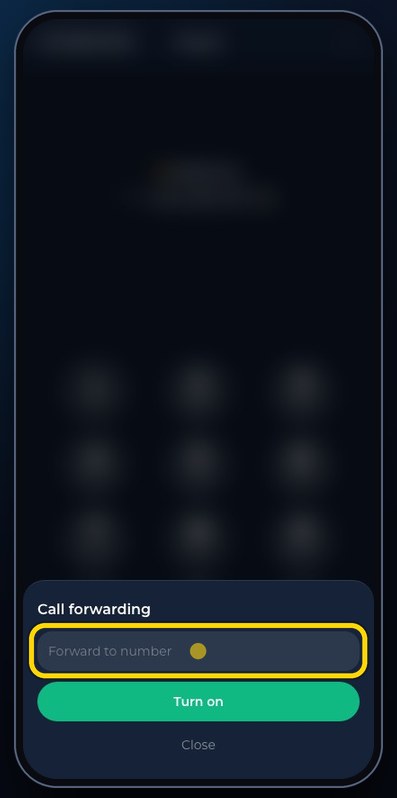
Type the number your calls should go to.
- 6
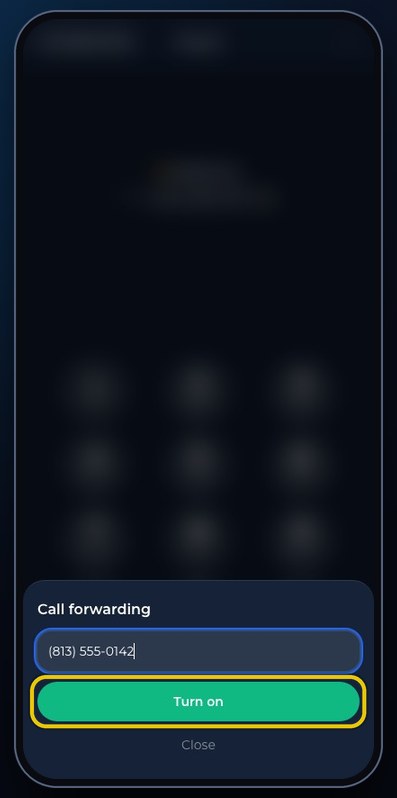
Turn on starts it at once, and the Menu then shows Call forwarding, On. The same button turns it off.
- 7
Here, we tap Close, so nothing changes.
In short
Both are set for each phone number: open Numbers, then the line's gear. Nothing changes until you press Save Settings, except HD voice, Rings before voicemail, AI Agent and IVR Flow, which apply the moment you change them.
- Business Hours: tick Enable business hours routing, pick the time zone, tick the days you are open and set their times.
- Close on public holidays follows the United States, Canada or Québec calendar; untick a holiday to stay open that day. Also closed on takes your own dates, like 2026-12-24, separated by commas.
- After hours action: Send to voicemail, Forward to number, or Ring anyway. Closed hours are checked first, before a phone menu or the AI receptionist answers.
- Call Forwarding sends every call on the line to another number, for example your mobile while you travel. Leave it empty to ring as usual.
- If nobody answers tries up to four other phones in turn, 10 to 45 seconds each, before voicemail. An extension rings a colleague for free; a full number is dialled out and uses minutes.
- If I am already on a call rings someone else instead of call waiting.
Your own Call forwarding and Do not disturb, for you alone, are in the phone app's Menu.
Related tutorials
 1:18VideoChoose who answers each numberRead your numbers list and point each line at a person, a ring group, a phone menu or an AI agent.
 1:16VideoAdd a teammateInvite a new person with a title, a number and an extension, without ever knowing their password.
 1:15VideoExtensions: reach a colleague in a few digitsFind each person's extension, choose one for a new person, and dial it from the browser phone.
 1:24VideoCreate a ring group and choose how it ringsPut people in a group, choose whether phones ring together, one at a time or in turns, and point a number at it.
 1:23VideoGet a new phone numberSearch for a local or toll-free number, see the price, and know what happens before you add it.
 1:27VideoBring your existing number (porting)Start moving a number from your current provider and know what the carrier will ask for.
Was this not what you needed? Write to us.