
Get a phone number
Pick a local number and put it to work.
Each line has a drop-down on the right of Numbers: a phone menu, an AI agent, a ring group or one person. It applies at once, without a Save button.
In this video
Step by step
- 1
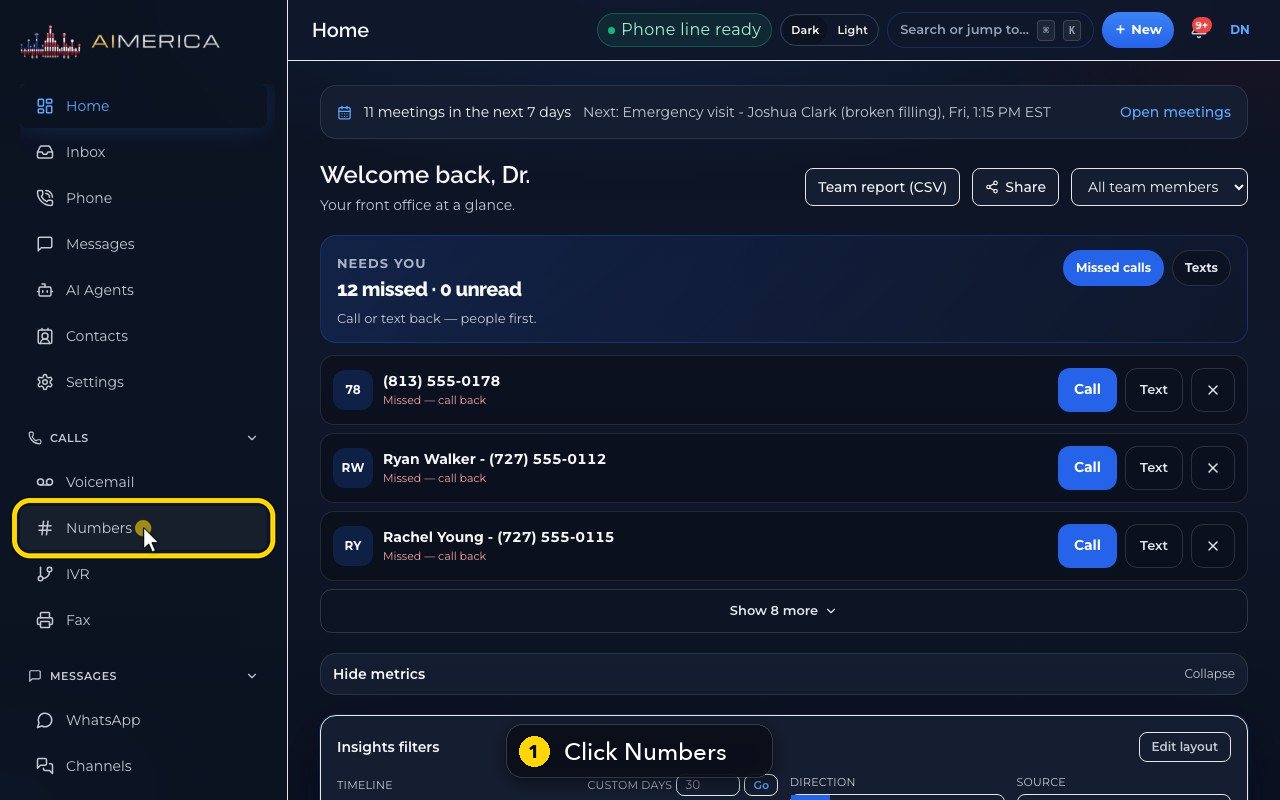
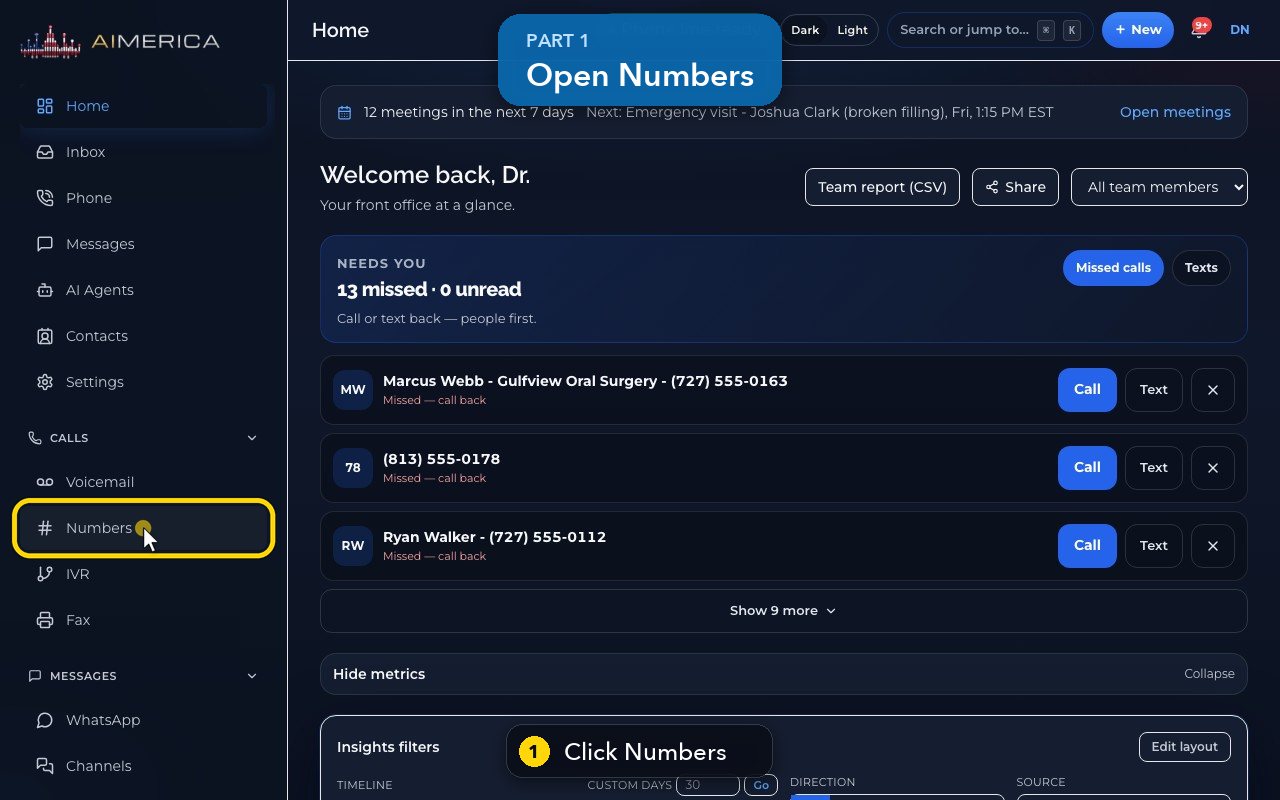
Every phone number decides who answers its calls. Click Numbers, in the menu on the left.
- 2
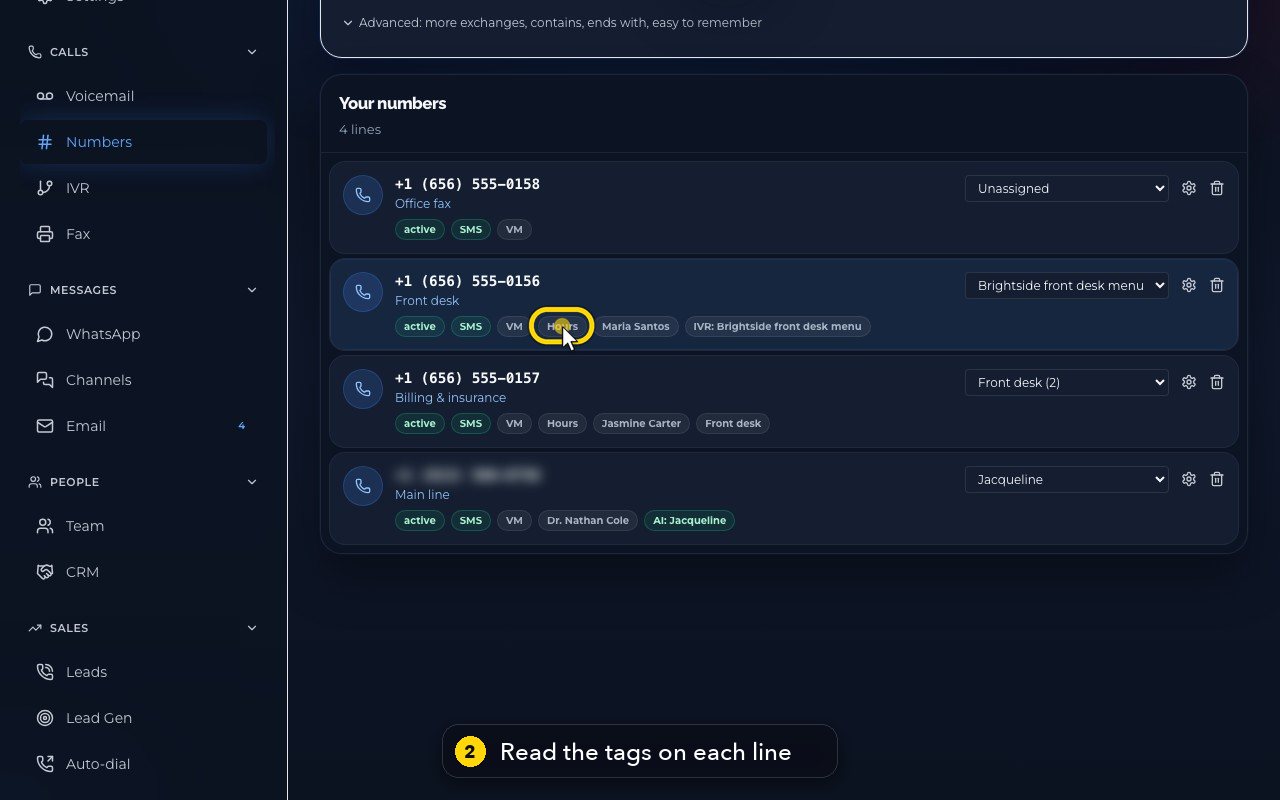
Your numbers lists every line. Tags show how each one is set up, like Hours when business hours are on.
- 3
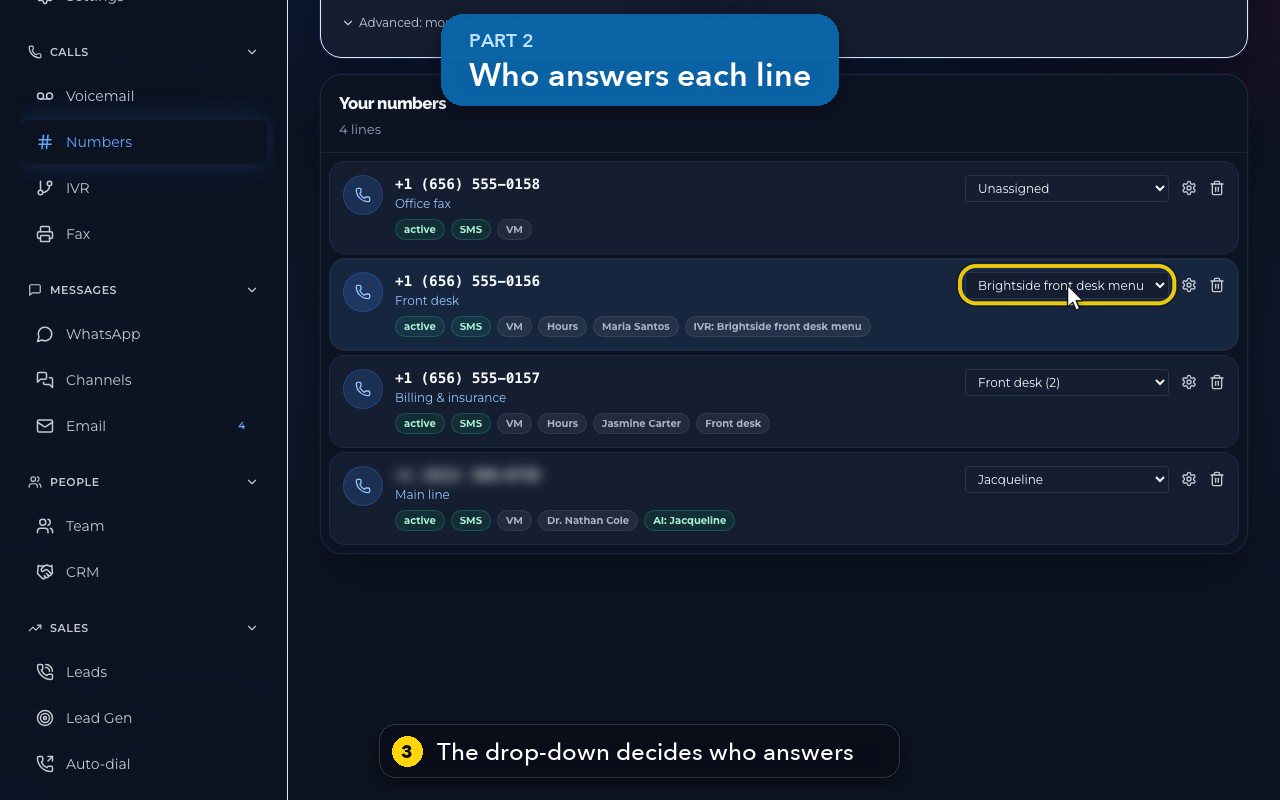
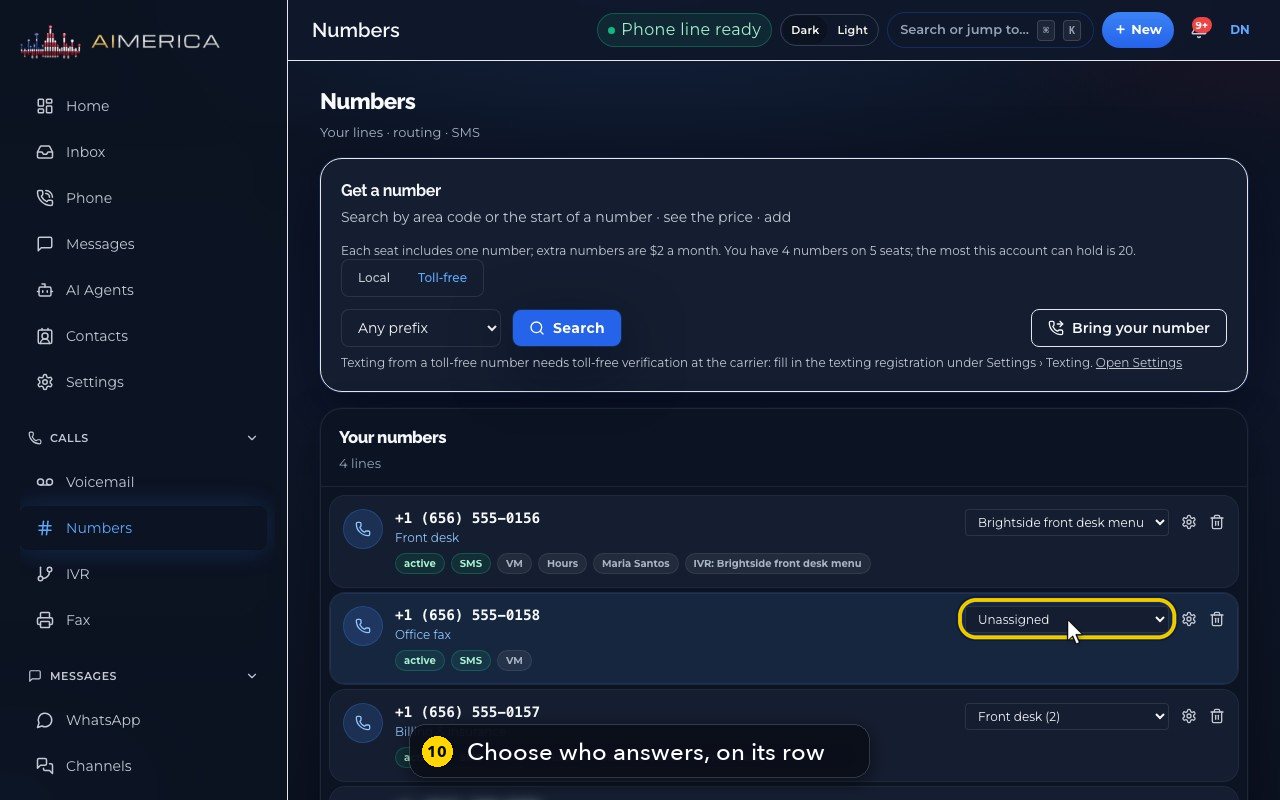
The drop-down on the right decides who answers. The Front desk line goes to a phone menu.
- 4
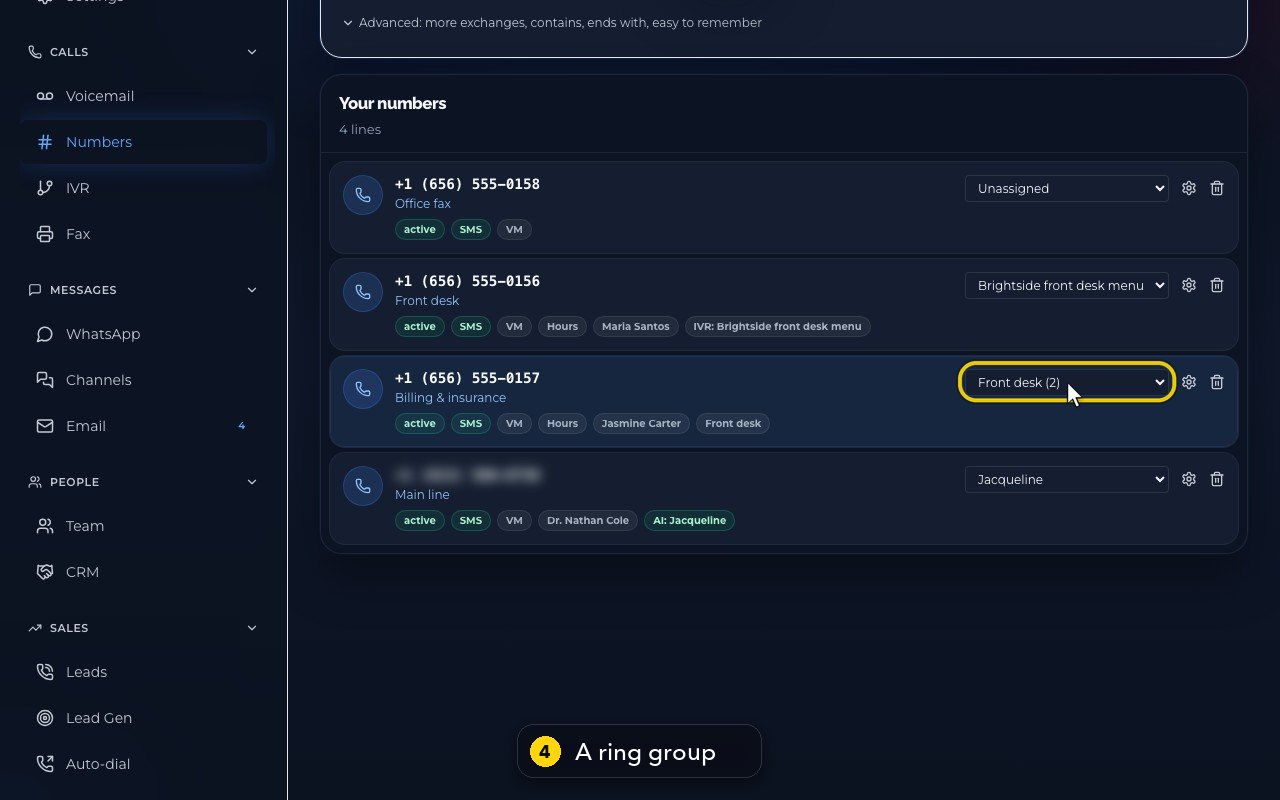
Billing and insurance rings a ring group: the two people of the Front desk team.
- 5
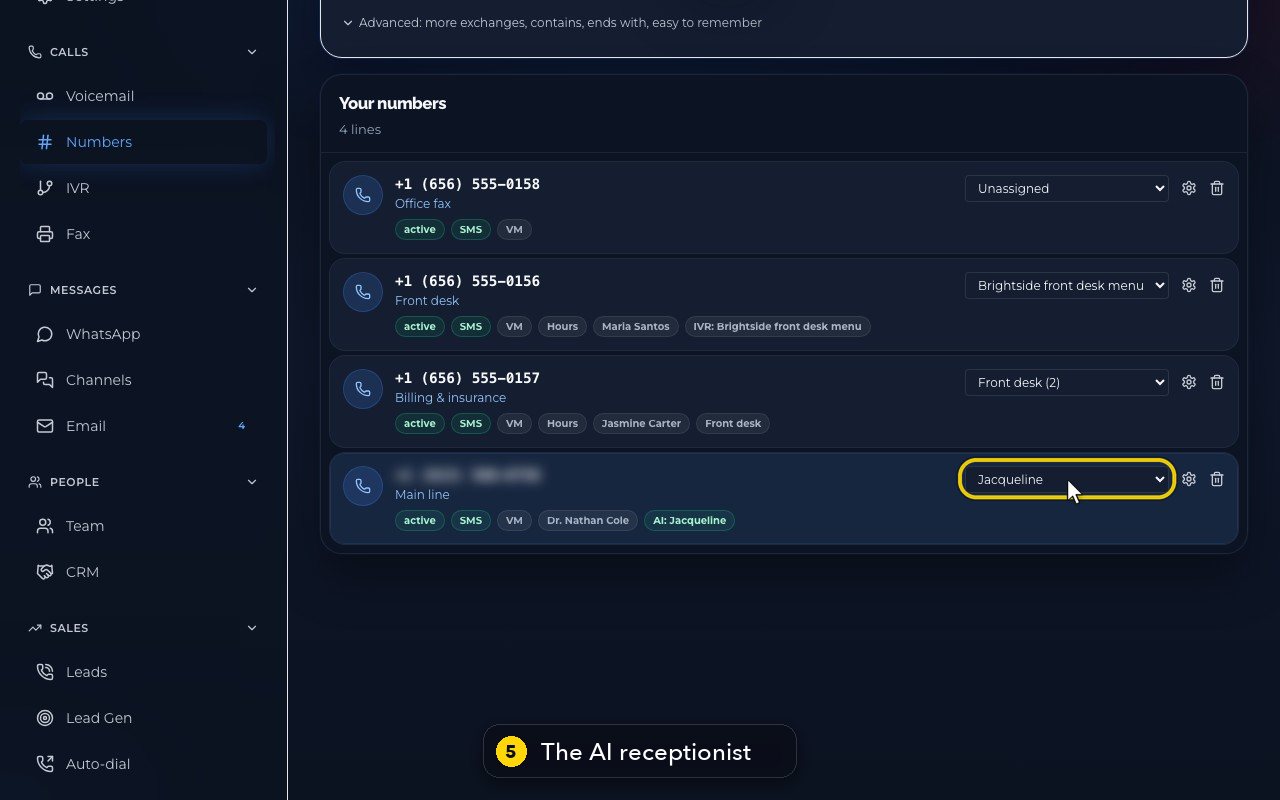
And the main line is answered by the AI receptionist, Jacqueline.
- 6
The list offers phone menus, AI agents, ring groups and single people. Unassigned means nobody is chosen yet.
- 7
A new choice applies at once. There is no Save button, only a short Undo, so choose with care.
- 8
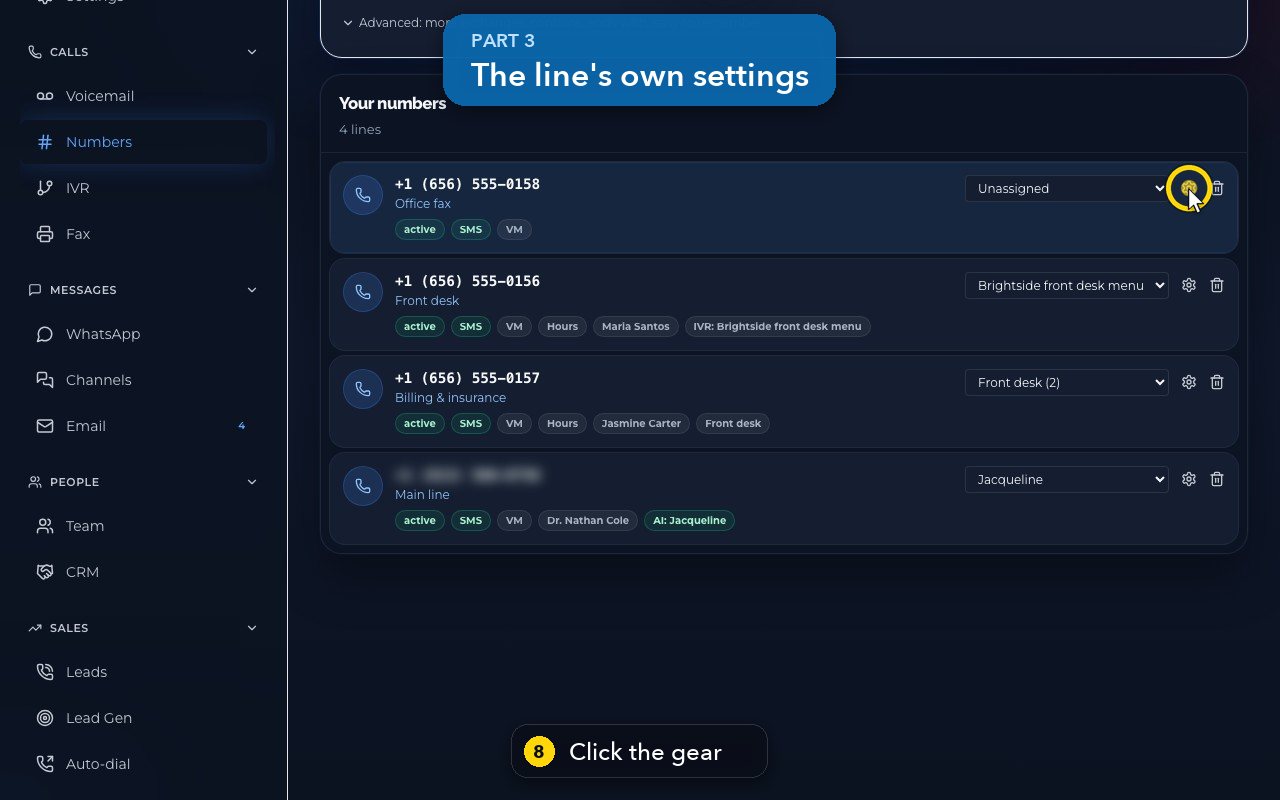
The gear opens a line's settings.
- 9
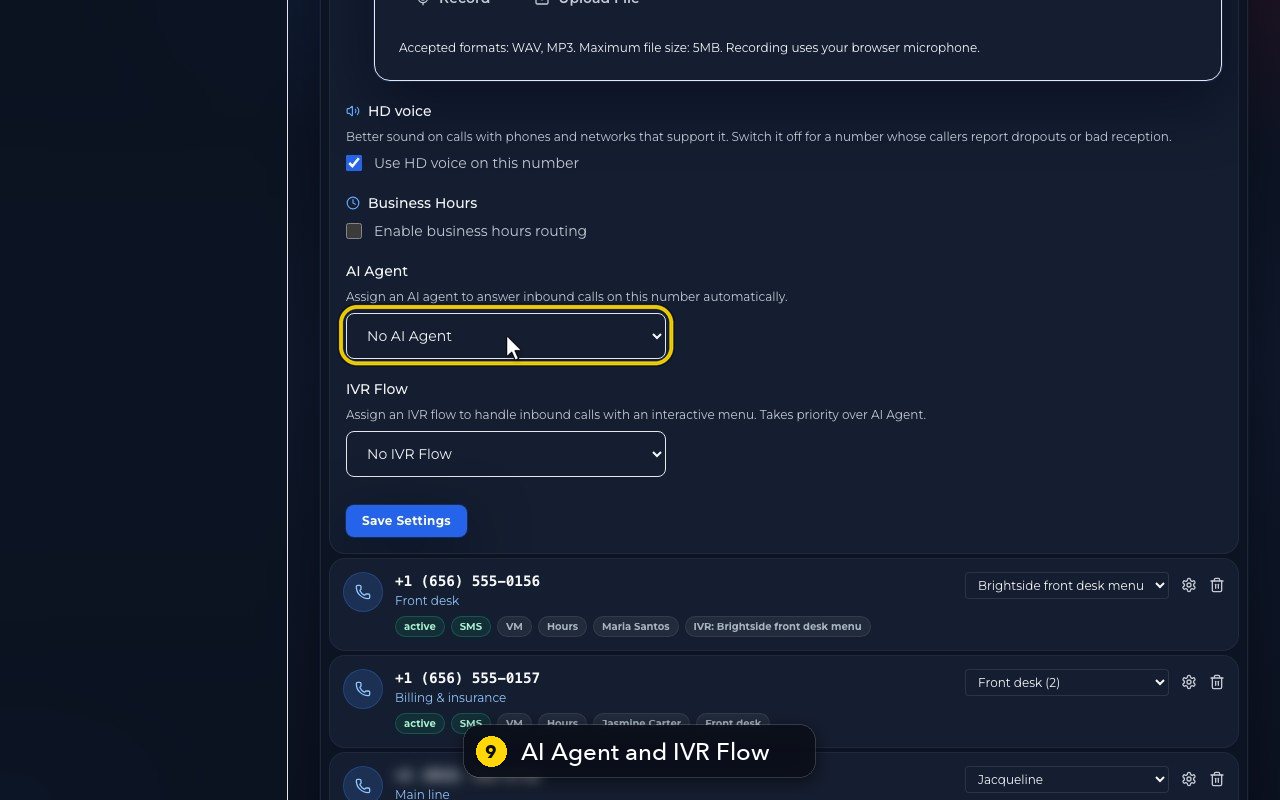
Near the bottom, AI Agent and IVR Flow also choose who answers. A phone menu comes before an AI agent.
- 10
These two also apply the moment you pick. Click the same button to close the settings.
Get a new phone number
Search for a local or toll-free number, see the price, and know what happens before you add it.
Owners, and titles allowed to buy numbers, open Numbers and use Get a number: type an area code or the start of a number, press Search, then Add on the number you want. A window shows the price and asks before anything is bought.
In this video
Step by step (10 steps)
- 1
To add a line, open Numbers, in the menu on the left. Get a number is at the top.
- 2
This note says what numbers cost. Each seat includes one, and extra numbers are 2 dollars a month.
- 3
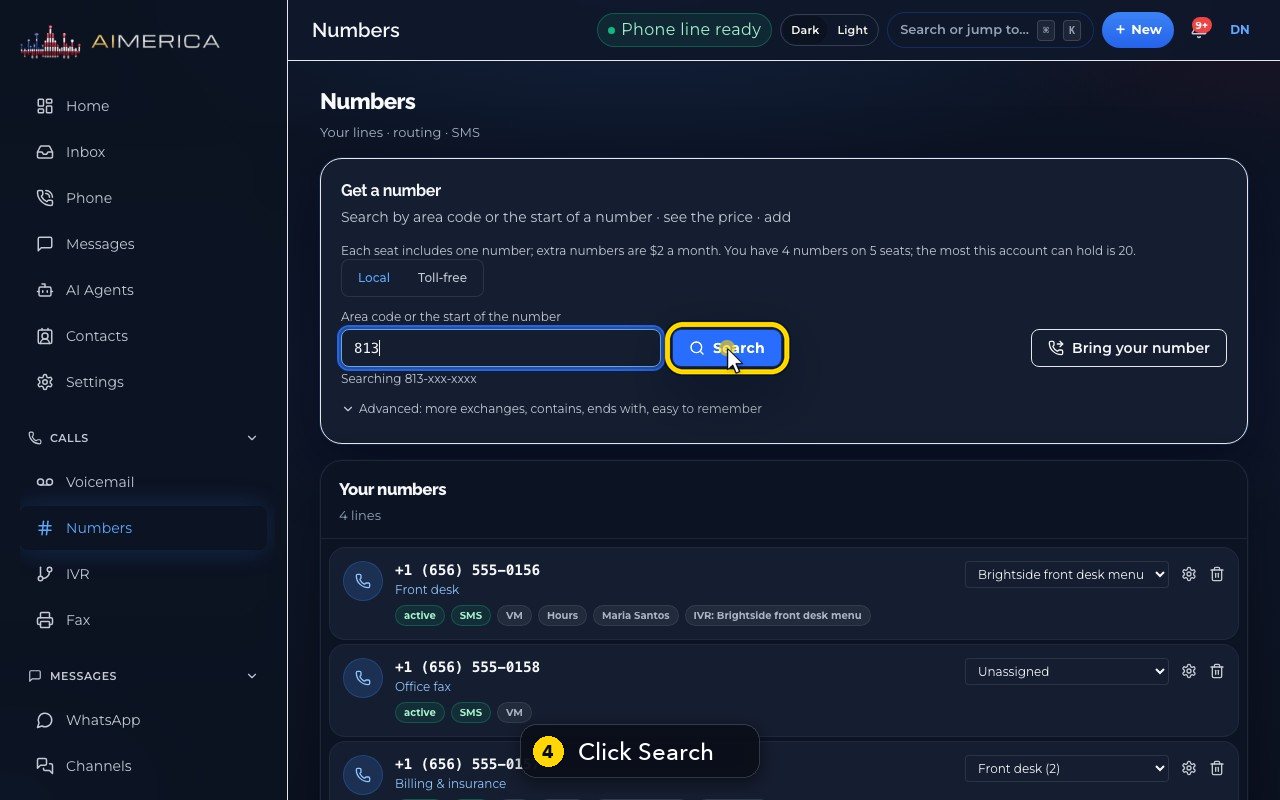
Type an area code, or the start of a number, to narrow it down.
- 4
Search lists numbers you can have, with their town.
- 5
Tags like repeats, sequence or pattern mark the numbers that are easy to remember.
- 6
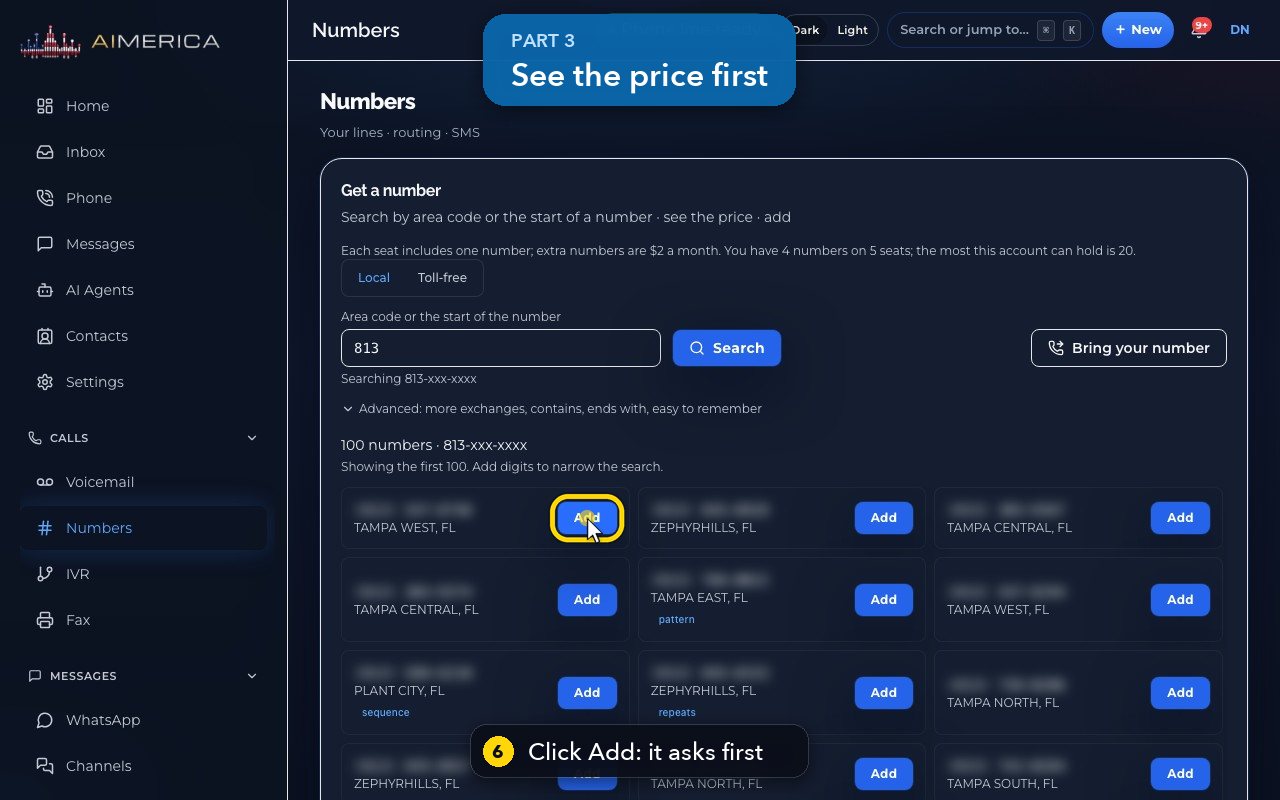
Add never buys straight away. It asks first, and shows the price. Here, it is included with your seats.
- 7
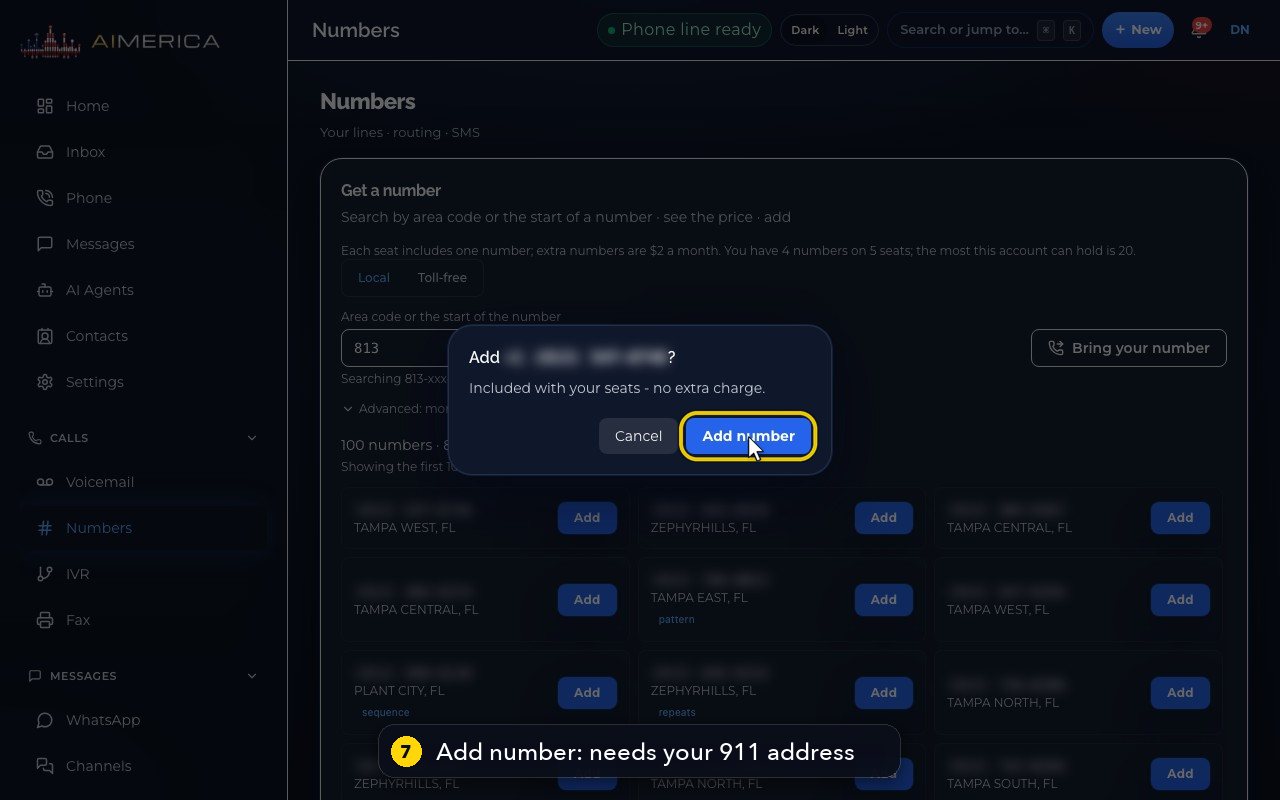
A local number also needs your 9-1-1 address. If it is missing, this button says Add 9-1-1 address instead.
- 8
We click Cancel, so nothing is bought.
- 9
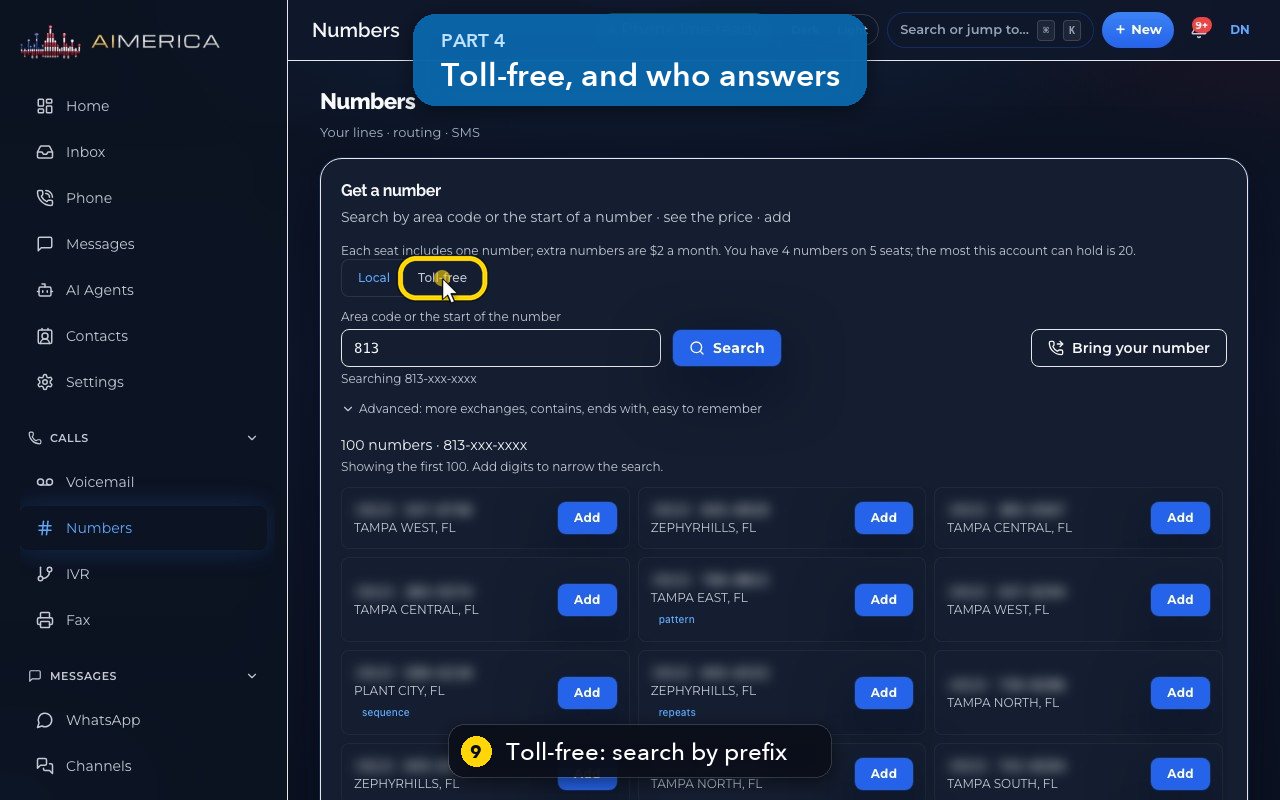
Toll-free numbers search by prefix. Texting from them needs toll-free verification, in Settings, under Texting.
- 10
Once a number is yours, it joins Your numbers. Choose who answers it, from the drop-down on its row.
Fix call quality with the HD voice switch
Know when to switch HD voice off for one number whose callers report dropouts.
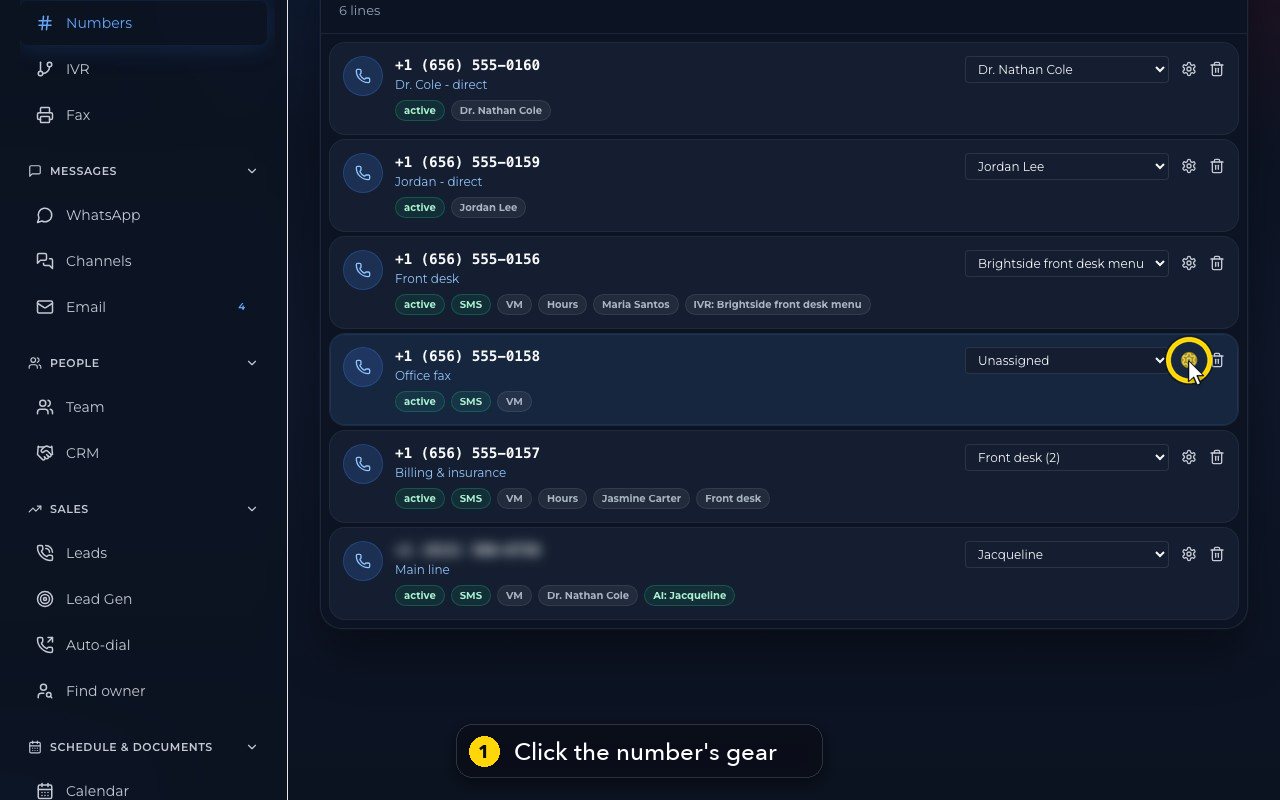
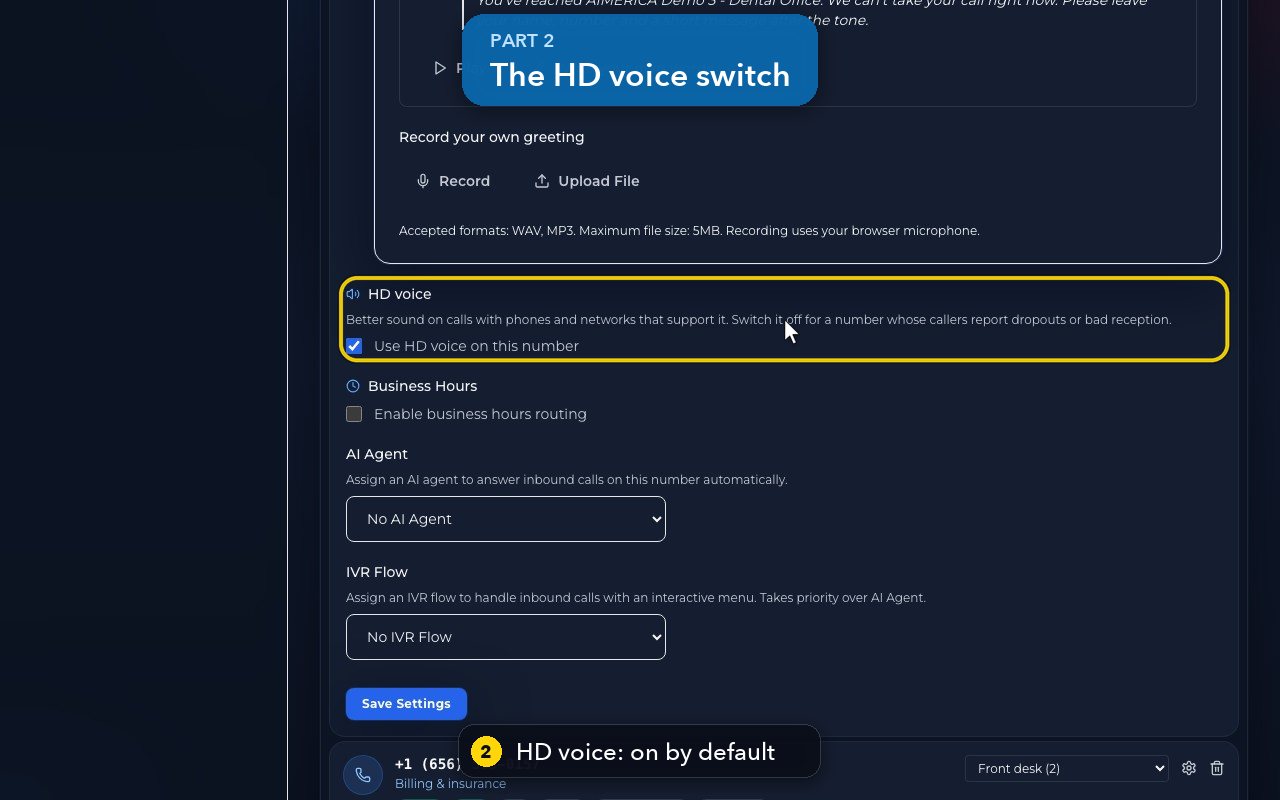
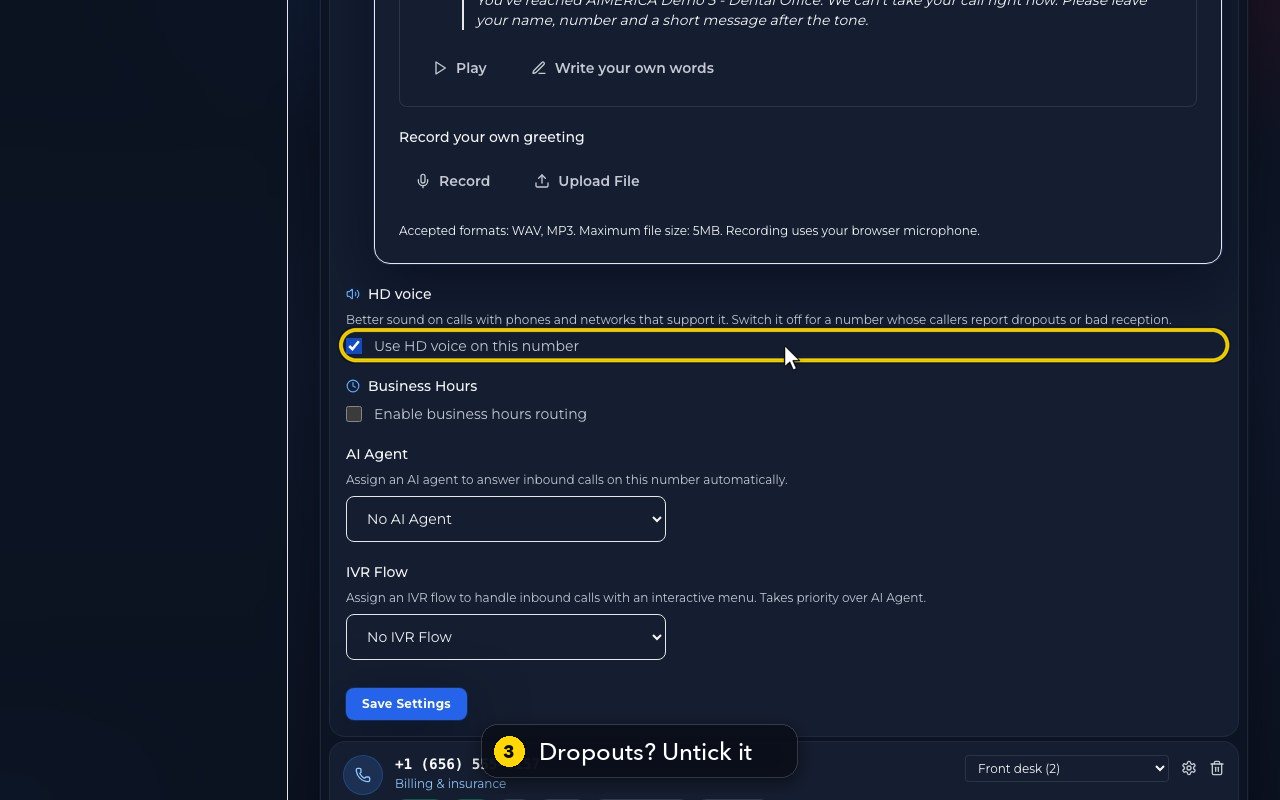
Open Numbers and click the gear on the number's row. Under HD voice, Use HD voice on this number is ticked by default: it gives better sound on phones and networks that support it. If callers on that number report dropouts or bad reception, untick it: the change saves at once and goes to the carrier.
In this video
Step by step (6 steps)
- 1
HD voice is set for each number, in Numbers. Click the gear on the number's row.
- 2
Further down, HD voice gives better sound on phones and networks that support it. It is on by default.
- 3
If callers on this number report dropouts or bad reception, untick Use HD voice on this number.
- 4
The change saves at once and goes to the carrier, so in this demo we leave it on.
- 5
Toll-free and Canadian numbers do not offer it. The switch then says, not offered by the carrier.
- 6
Click the same button on the row to close the settings.
Find an easy-to-remember number
Use the advanced number search to find numbers with your digits or easy patterns.
In Numbers, type an area code in Get a number, then open Advanced: more exchanges, contains, ends with, easy to remember. More exchanges in this area code searches up to ten prefixes at once; Contains and Ends with look for your own digits; Easy to remember first puts repeats, sequences and round numbers on top. Press Search, then Add on the number you want: it asks first and shows the price.
In this video
Step by step (8 steps)
- 1
Advanced search, in Numbers, helps you find a memorable number. Start with an area code.
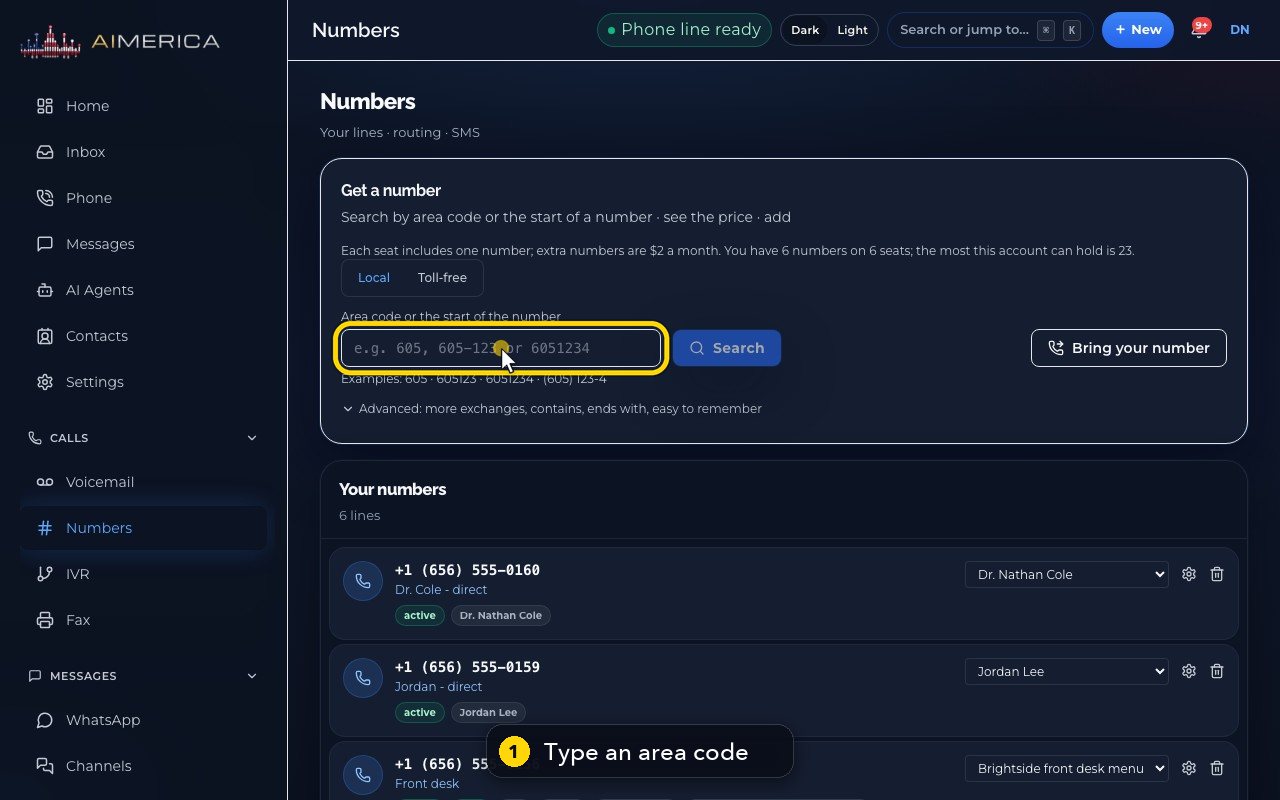
- 2
Then open Advanced, under the search box.
- 3
More exchanges searches several prefixes in the same area code at once, up to ten.
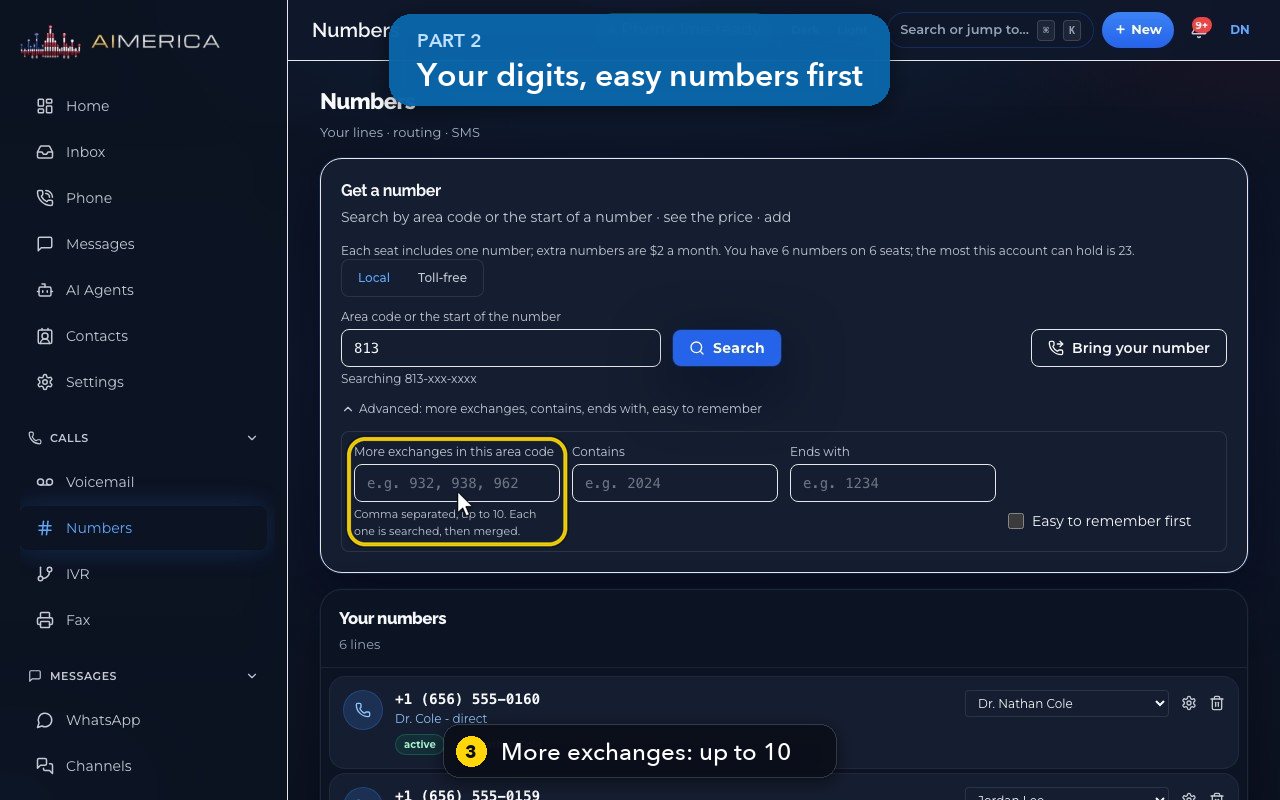
- 4
Contains and Ends with look for your own digits, like a number ending in zero zero.
- 5
Easy to remember first puts repeats, sequences and round numbers on top.
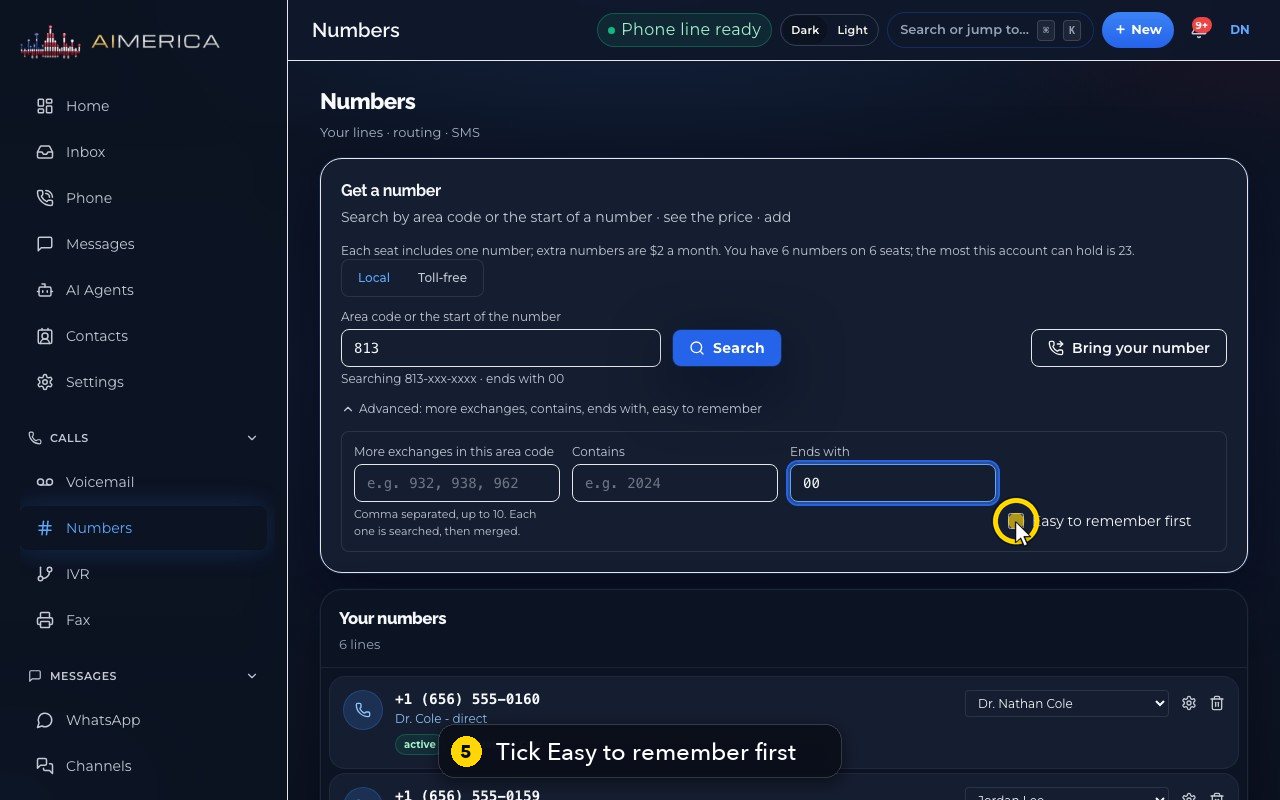
- 6
Now press Search.
- 7
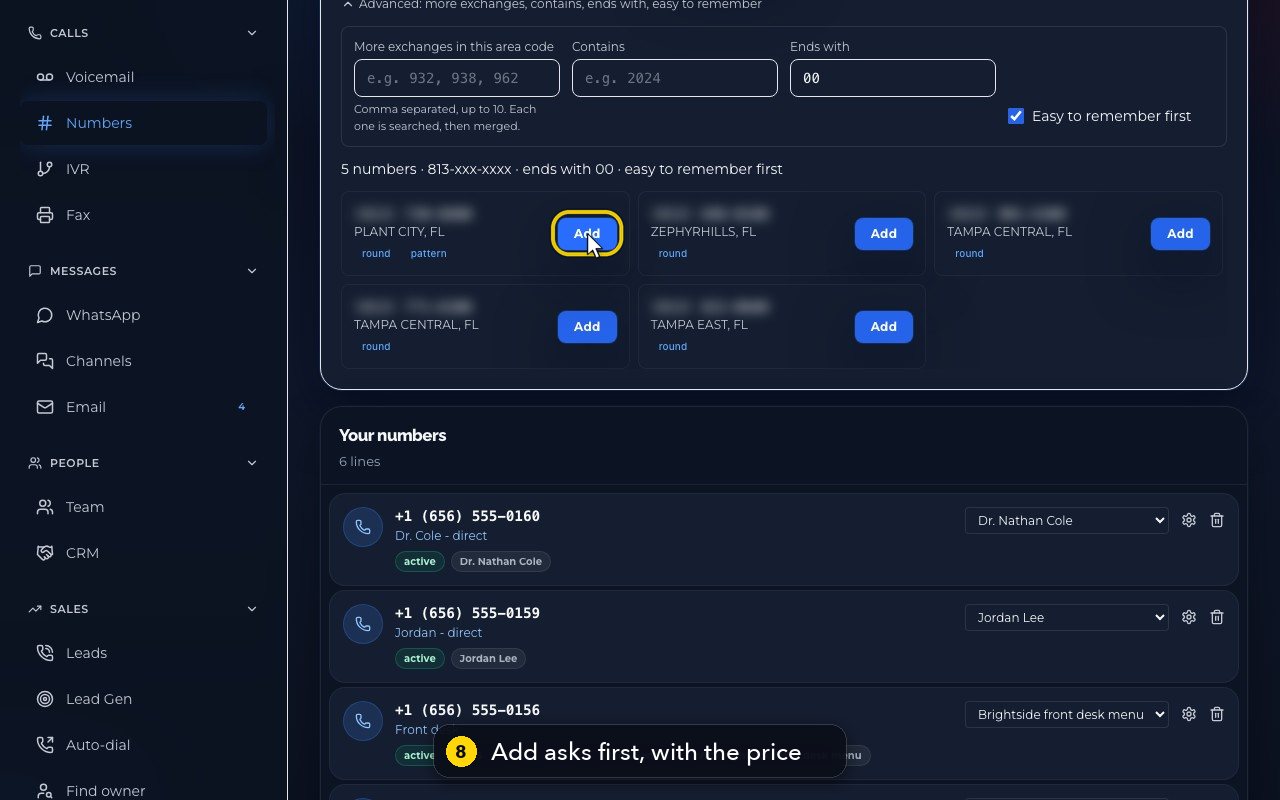
The numbers that end in zero zero come first, with tags like round, repeats or pattern.
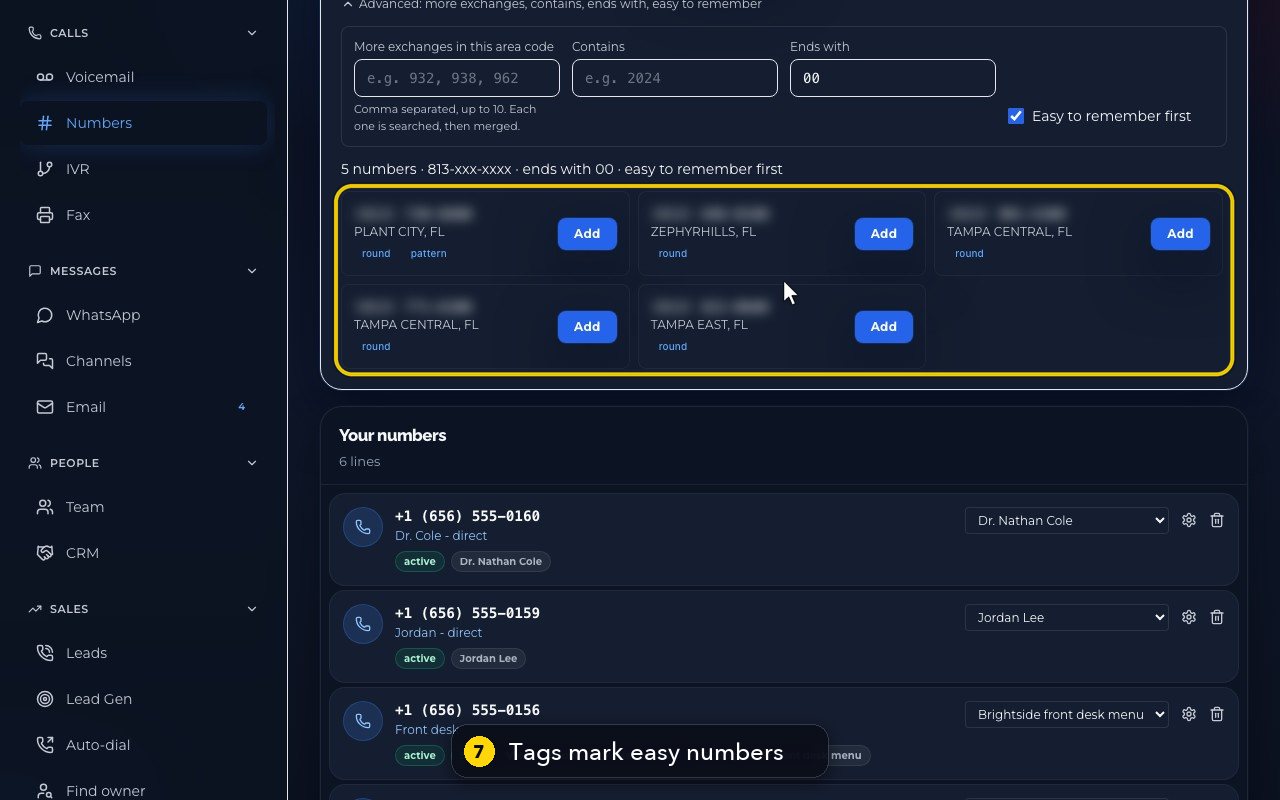
- 8
Each card's Add button asks first and shows the price. Nothing is bought until you confirm.
In short
- Open Numbers in the app.
- Under Get a number, type an area code or the start of a number (for example 605 or 6051234) and press Search. Advanced also finds more exchanges, numbers that contain or end with your digits, and easy-to-remember numbers.
- Pick a number. Before it is added, the app says what it costs: one number per seat is included, extra numbers are billed monthly. A local number needs your 911 address first; the app asks for it when it is missing.
- Choose who answers it with the drop-down on its row: a person, a ring group, a phone menu or an AI agent. The video above shows how.
A number given to a person rings that person on every device they are signed in on. A number given to a ring group rings its people the way the group is set in Team.
Every number uses HD voice by default: better sound on calls with phones and networks that support it. If callers on one number report dropouts or bad reception, open that number's settings and switch HD voice off; the carrier does not offer it on toll-free or Canadian numbers, and the switch says so.
One person can have several numbers.
Related tutorials
 1:38VideoBusiness hours and call forwardingChoose when a line is open, and where calls go when you are closed, away or busy.
 1:16VideoAdd a teammateInvite a new person with a title, a number and an extension, without ever knowing their password.
 1:15VideoExtensions: reach a colleague in a few digitsFind each person's extension, choose one for a new person, and dial it from the browser phone.
 1:24VideoCreate a ring group and choose how it ringsPut people in a group, choose whether phones ring together, one at a time or in turns, and point a number at it.
 1:27VideoBring your existing number (porting)Start moving a number from your current provider and know what the carrier will ask for.
 1:17VideoName a number and set its caller ID nameGive a line an internal label, set the name people see when you call, and show callers' names to your team.
Was this not what you needed? Write to us.