
See and sign out your desk phones in Settings
See every AIMERICA desk phone signed in as you in Settings > Me > Desk phone, and sign out one you lost or left.
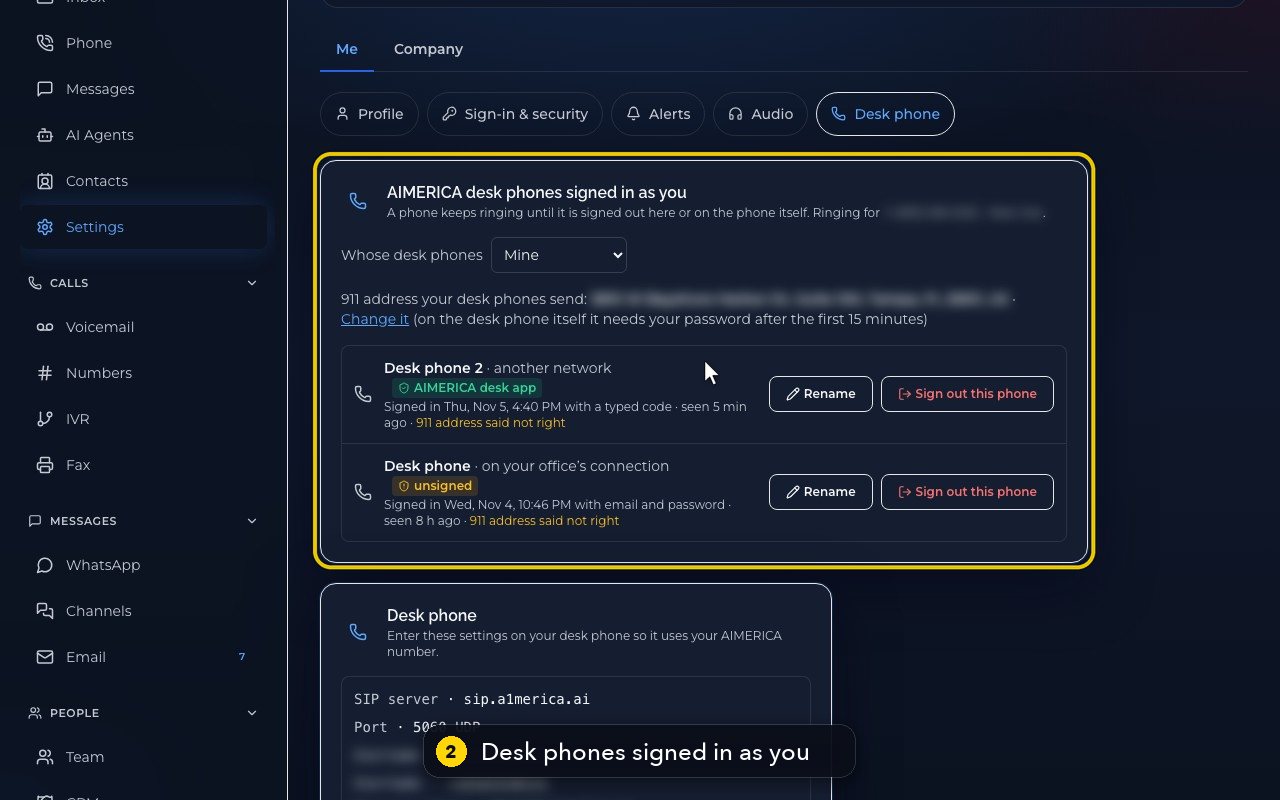
Open Settings › Me › Desk phone. The card AIMERICA desk phones signed in as you lists each phone, how and when it was signed in and when it was last seen. Sign out this phone stops it ringing at once.
In this video
Step by step
- 1
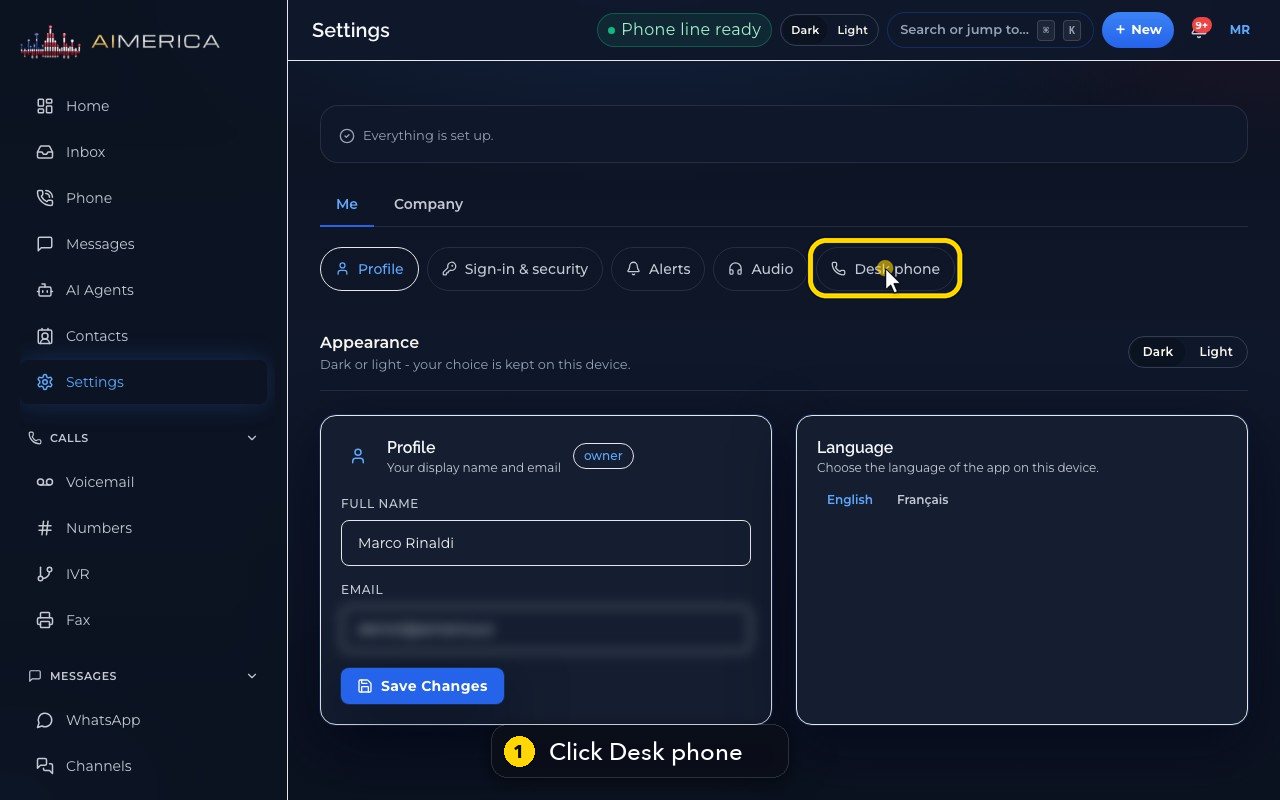
Your desk phones are in Settings, under Me. Click Desk phone.
- 2
This card lists every desk phone using your account. A phone keeps ringing until it is signed out.
- 3
This line says which of your numbers ring on them.
- 4
Owners and admins can look at a teammate's desk phones too.
- 5
The 9-1-1 address your desk phones send is shown here. Change it opens the safety settings.
- 6
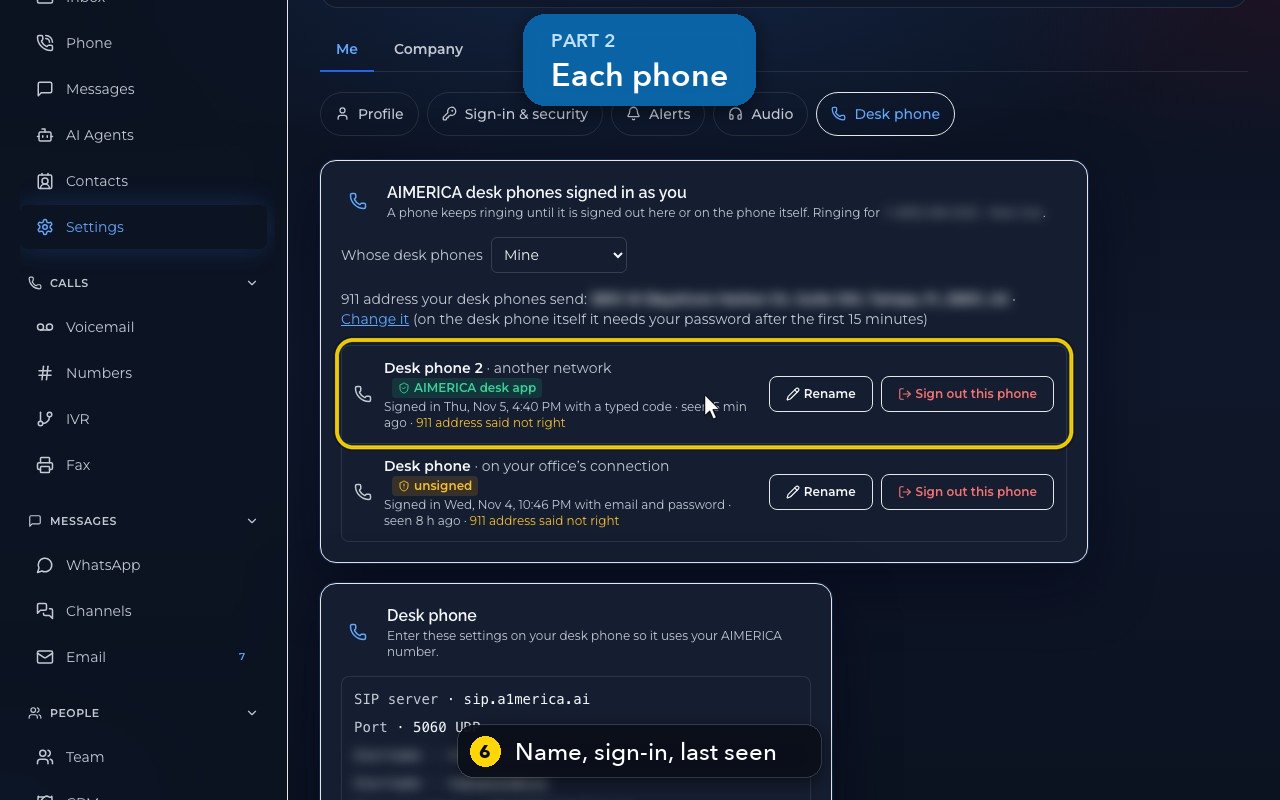
Each phone shows its name, how and when it was signed in, when it was last seen, and a badge when our desk app signed the pairing.
- 7
Rename gives a phone a clear name, like Front desk.
- 8
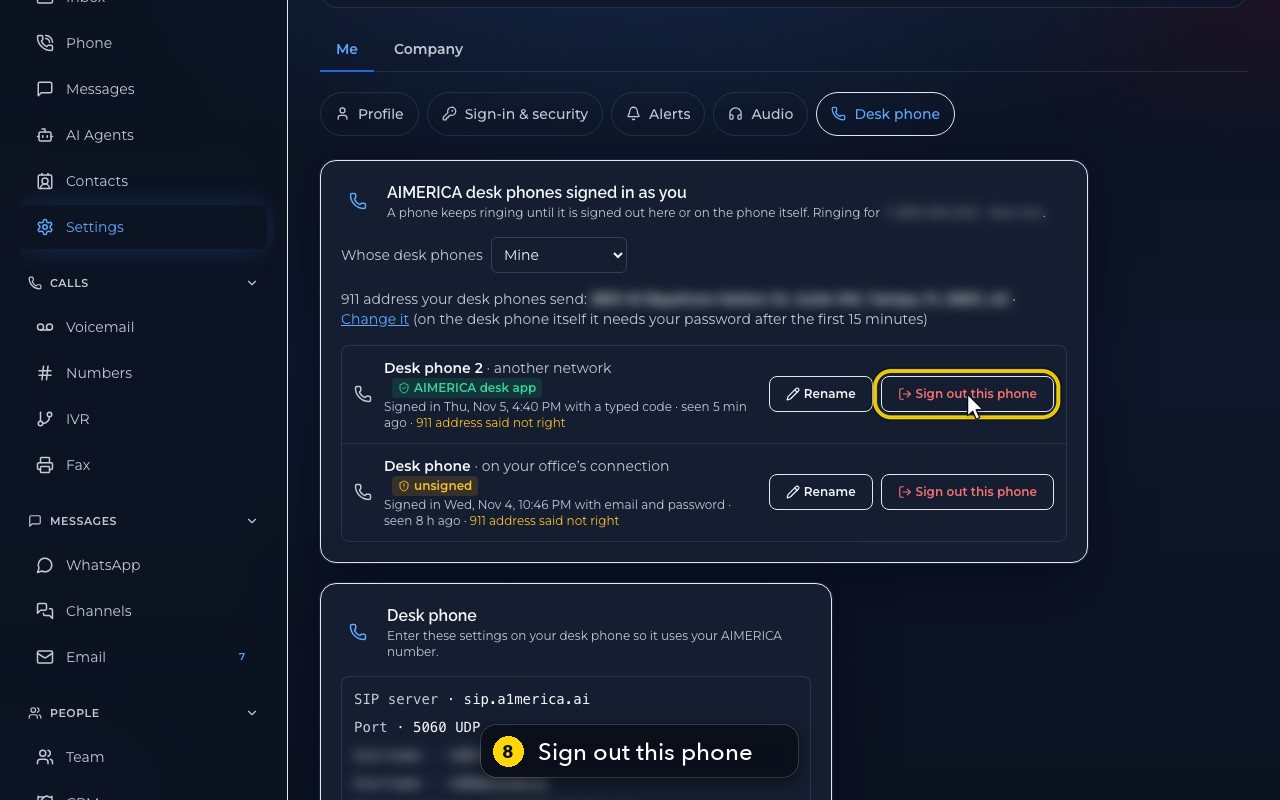
Lost a phone, or someone left? Sign out this phone stops it ringing at once, and it needs a new code to come back. In this demo, we do not press it.
- 9
Your other devices keep working. Below, the Desk phone card has the settings for a phone you bought yourself.
Related tutorials
 4:31VideoThe desk phone: a full walkthroughEverything the AIMERICA desk phone does: calls, voicemail, contacts, texts and the menu.
 0:41VideoDesk phone: home screen and recent callsRead the home screen, filter your recent calls and open a call's details.
 0:37VideoDesk phone: voicemailRead and play your voicemail, call back or delete, and open the voicemail settings.
 0:51VideoDesk phone: make a call, hold, mute and transferDial a number, then use hold, mute, transfer and the other buttons during a call.
 0:18VideoDesk phone: use the handsetLift the handset to dial, and move a call from the speaker to the handset.
 0:29VideoDesk phone: contactsFind a contact by name or number, then call or text in one tap.
Was this not what you needed? Write to us.