
A desk phone was signed in as you: what to do
Understand the 'A desk phone was signed in as you' banner, check your desk phones, and react if it was not you.
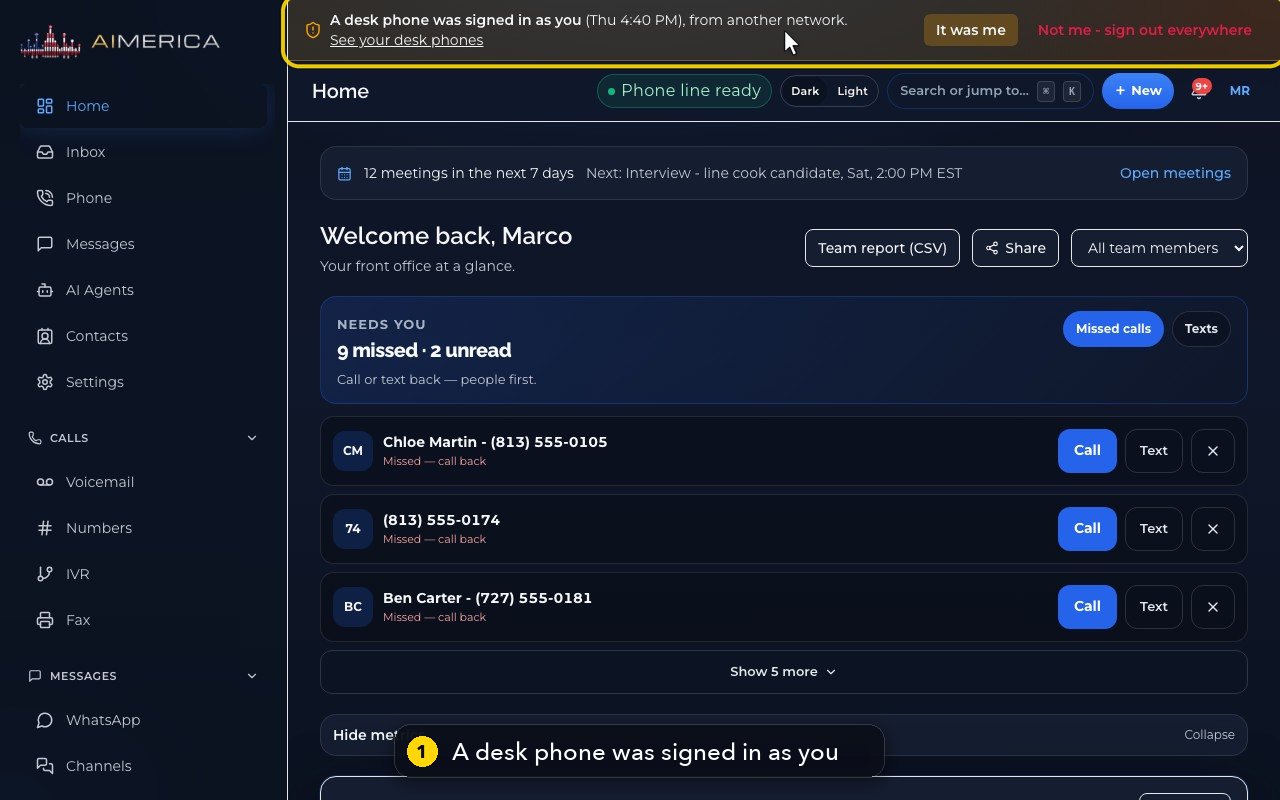
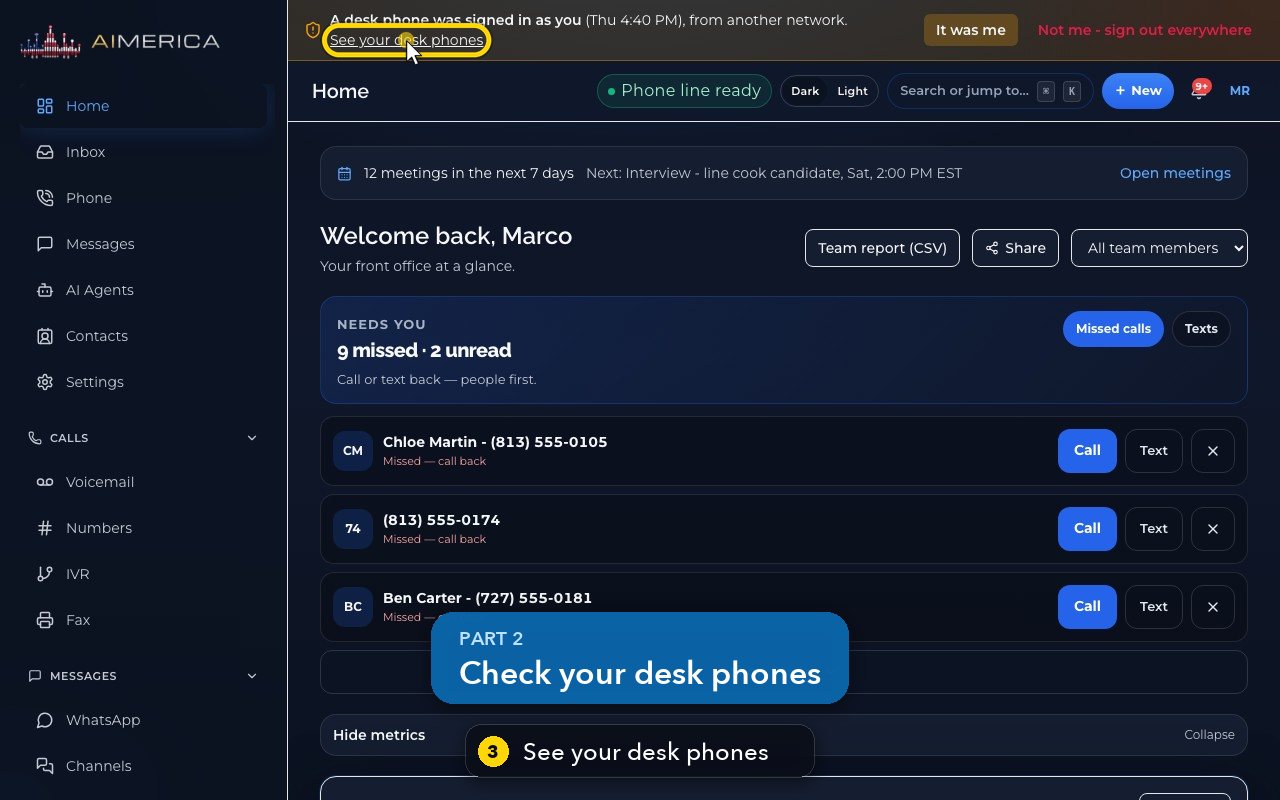
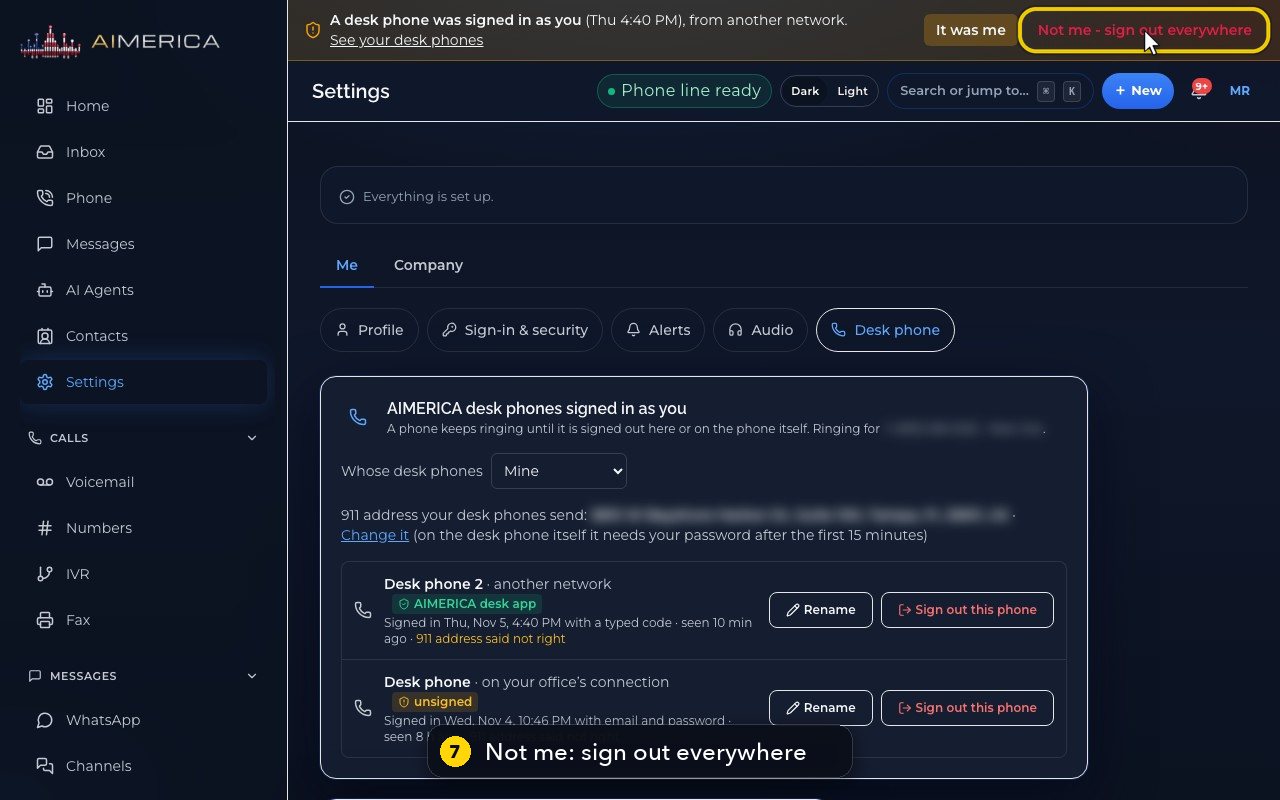
When a desk phone is signed in as you, a notice at the top of every page says when, and from where. See your desk phones opens Settings › Desk phone, with every phone signed in as you.
In this video
Step by step
- 1
When a desk phone is signed in as you, a notice says so at the top of every page, on the computer and in the phone app.
- 2
It tells you when, and whether it was on your office's connection, or from another network.
- 3
See your desk phones opens the list of every phone signed in as you.
- 4
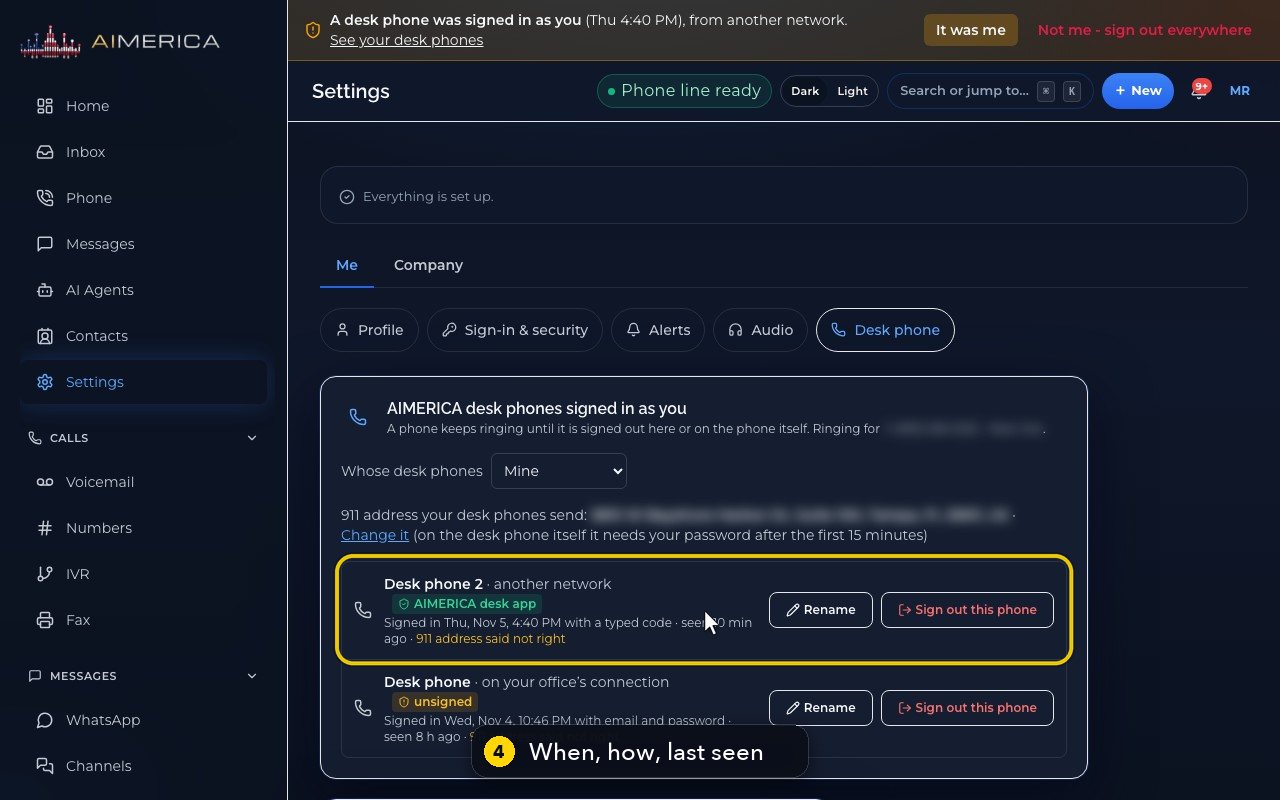
Each phone shows when it was signed in, how, and when it was last seen.
- 5
To stop just one phone, use Sign out this phone, on its row.
- 6
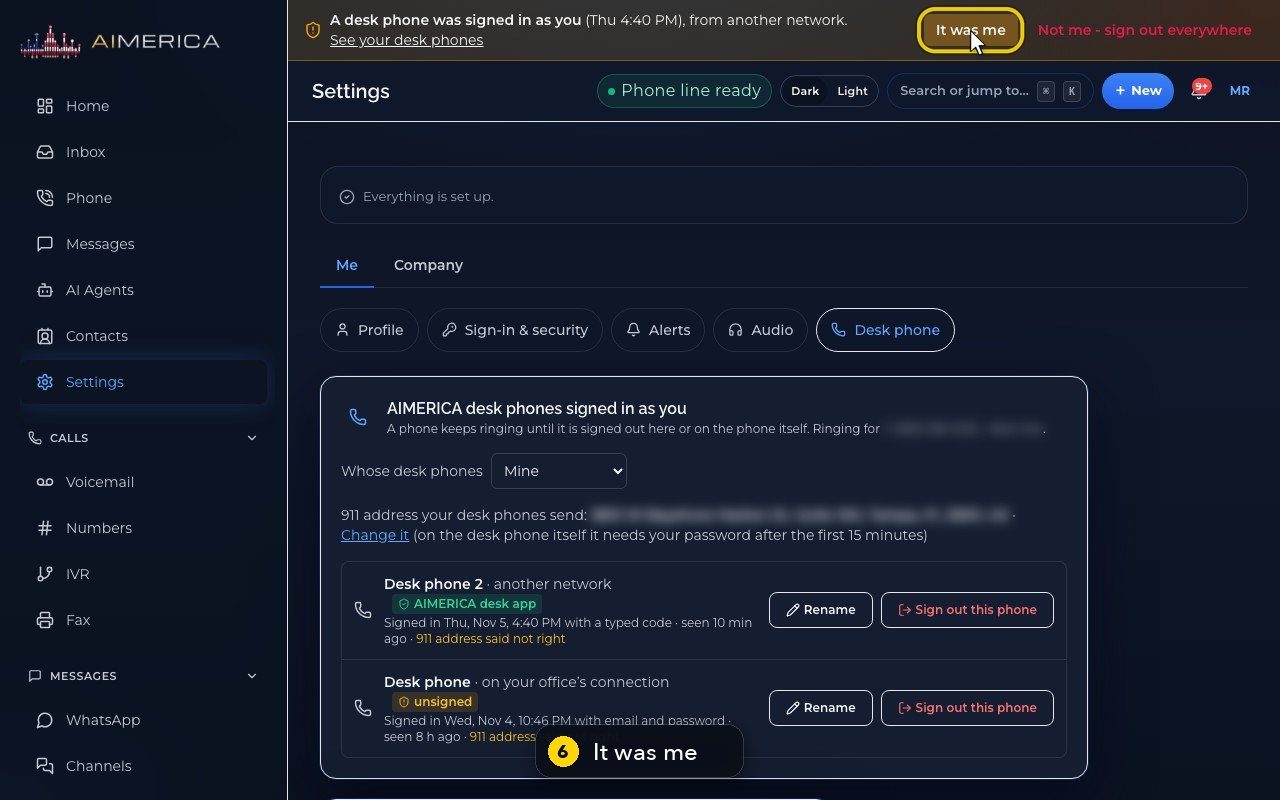
If it was you, or a colleague you asked, It was me makes the notice go away.
- 7
If you did not sign in any phone, Not me, sign out everywhere, signs out every device. Then change your password.
Related tutorials
 4:31VideoThe desk phone: a full walkthroughEverything the AIMERICA desk phone does: calls, voicemail, contacts, texts and the menu.
 0:41VideoDesk phone: home screen and recent callsRead the home screen, filter your recent calls and open a call's details.
 0:37VideoDesk phone: voicemailRead and play your voicemail, call back or delete, and open the voicemail settings.
 0:51VideoDesk phone: make a call, hold, mute and transferDial a number, then use hold, mute, transfer and the other buttons during a call.
 0:18VideoDesk phone: use the handsetLift the handset to dial, and move a call from the speaker to the handset.
 0:29VideoDesk phone: contactsFind a contact by name or number, then call or text in one tap.
Was this not what you needed? Write to us.