
Install the apps
iPhone, Android, Mac and any browser.
The app is free on the App Store (AIMERICA Business Phone & AI) and on Google Play. Your account is made on the web or by your admin; the app only signs you in.
In this video
Step by step
- 1
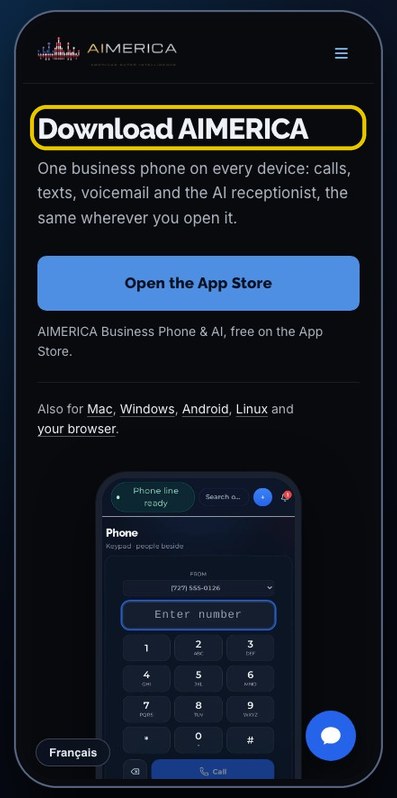
Your business line can ring on your cell phone. First, open the download page on your phone.
- 2
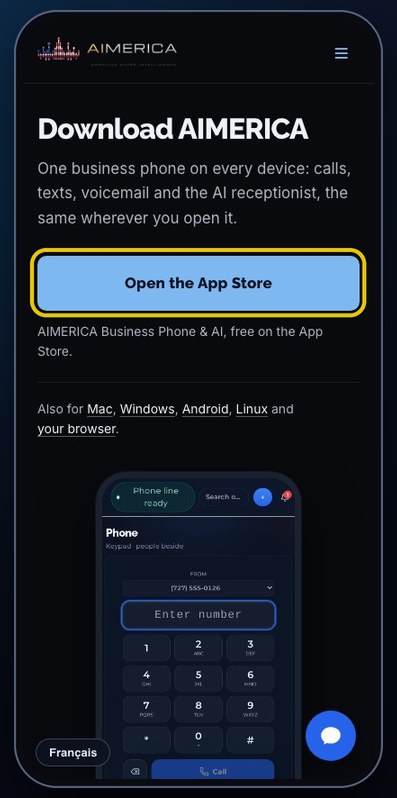
On an iPhone, tap Open the App Store.
- 3
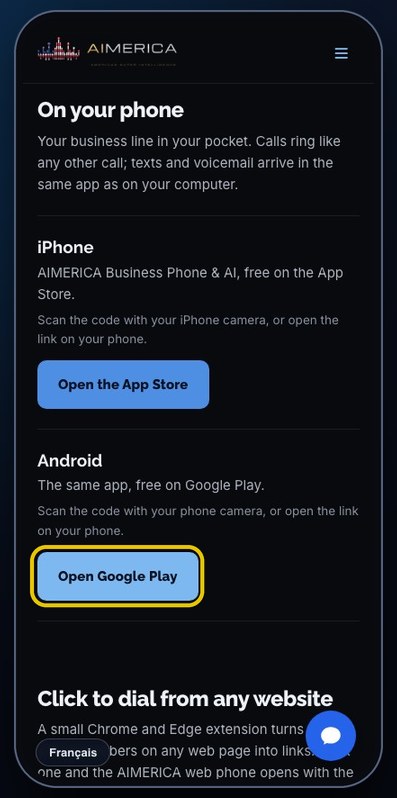
On Android, scroll down to On your phone, and tap Open Google Play.
- 4
Look for the name shown here. It is free: tap Get on an iPhone, or Install on Android, then open it.
- 5
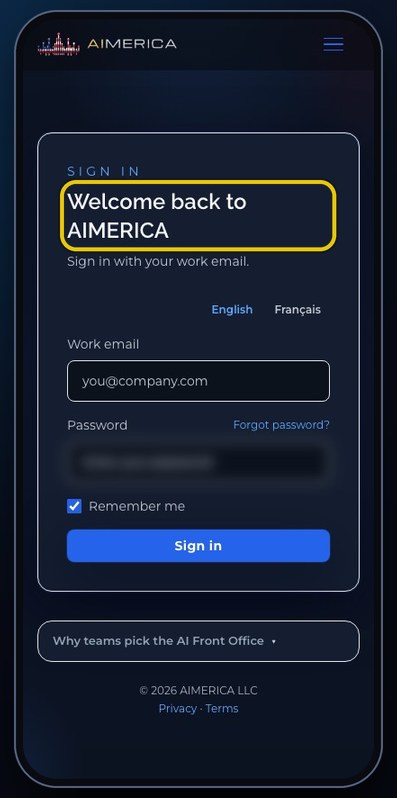
Open the app. The first screen is the sign-in page.
- 6
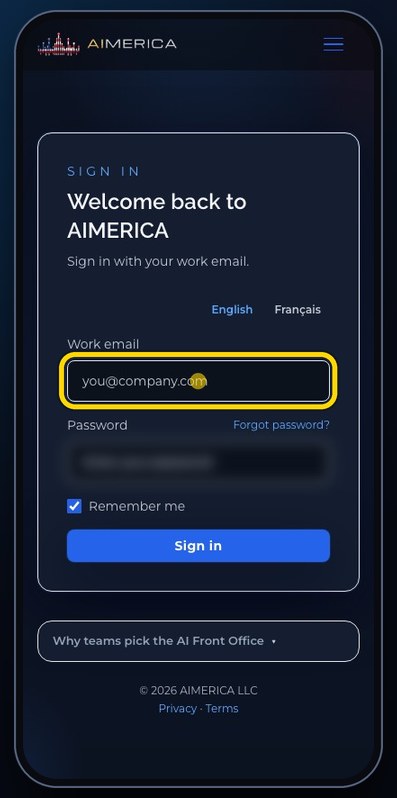
Type the work email you use for your account.
- 7
Then your password. Forgot it? Tap Forgot password, and a reset link comes by email.
- 8
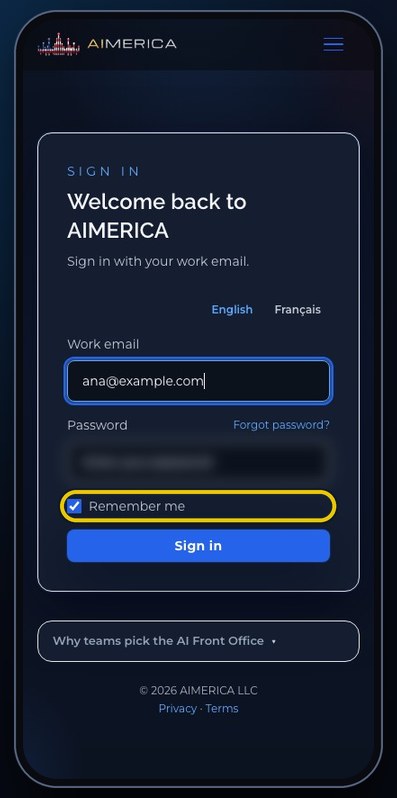
Leave Remember me on, and tap Sign in. New accounts are made on the web or by your admin, not in the app.
- 9
The first time, your phone asks to use the microphone, and on Android to send notifications. Allow both, so calls can ring and callers can hear you.
- 10
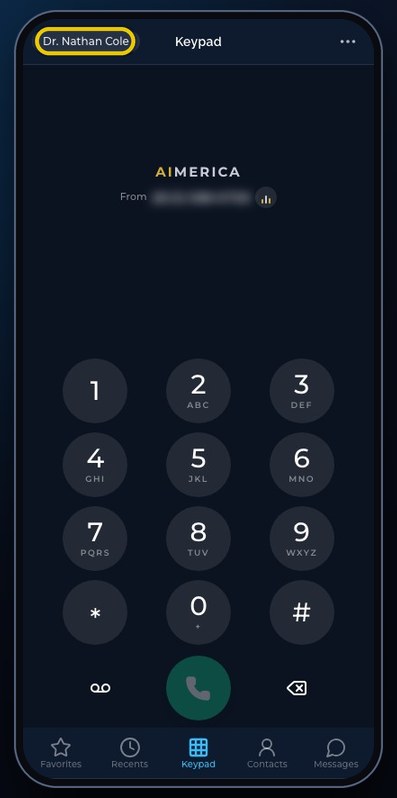
Then the keypad opens. Your name is at the top left. The tabs at the bottom are Favorites, Recents, Keypad, Contacts and Messages.
- 11
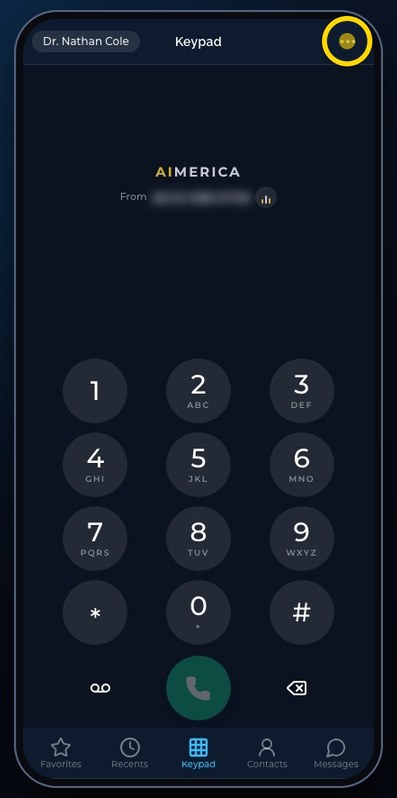
Everything else is in the Menu, the three dots at the top right.
Check your phone line and audio
Check that your line can place and receive calls, and pick your microphone, speaker or USB headset.
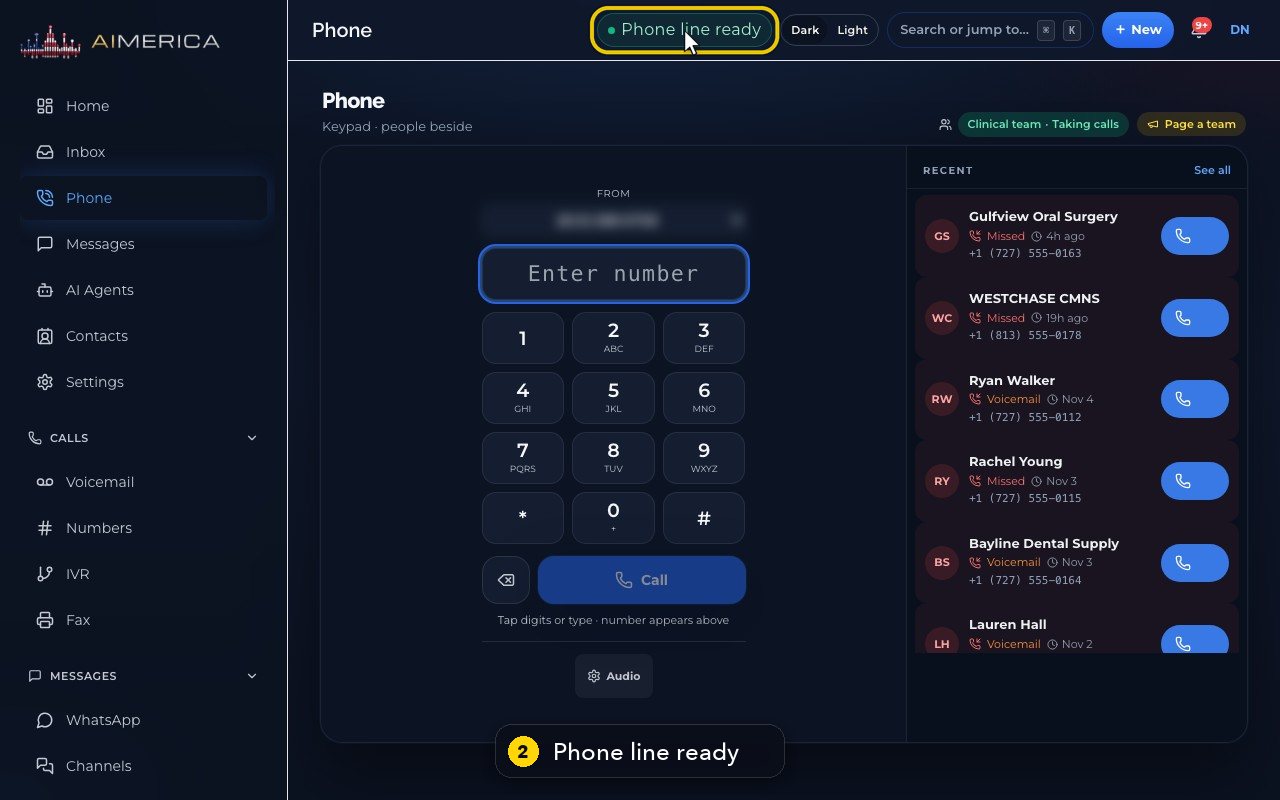
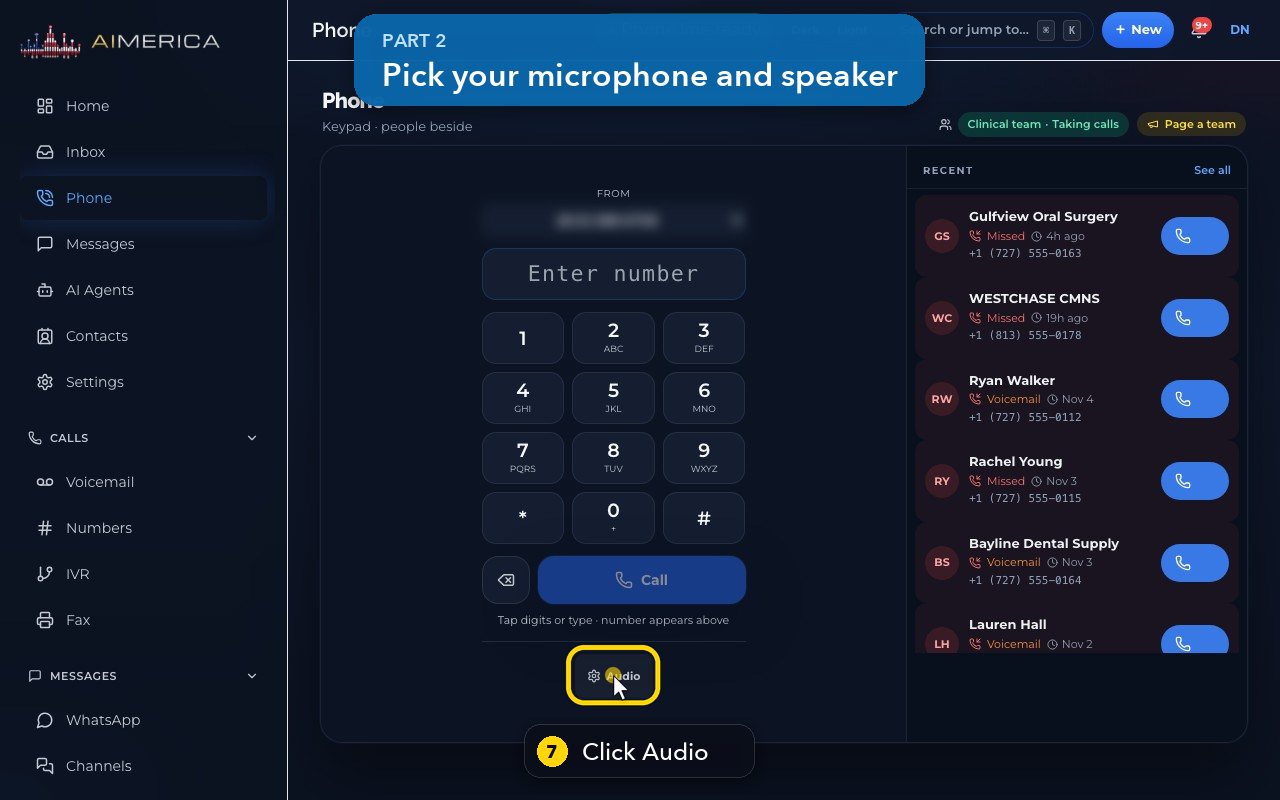
Phone line ready, at the top of every page, means your number can place and receive calls. Audio, under the keypad on the Phone page, picks your microphone and speaker.
In this video
Step by step (9 steps)
- 1
Before your first call, check two things: your line, and your audio.
- 2
Phone line ready, at the top of every page, means your number can place and receive calls.
- 3
Click it to see the details.
- 4
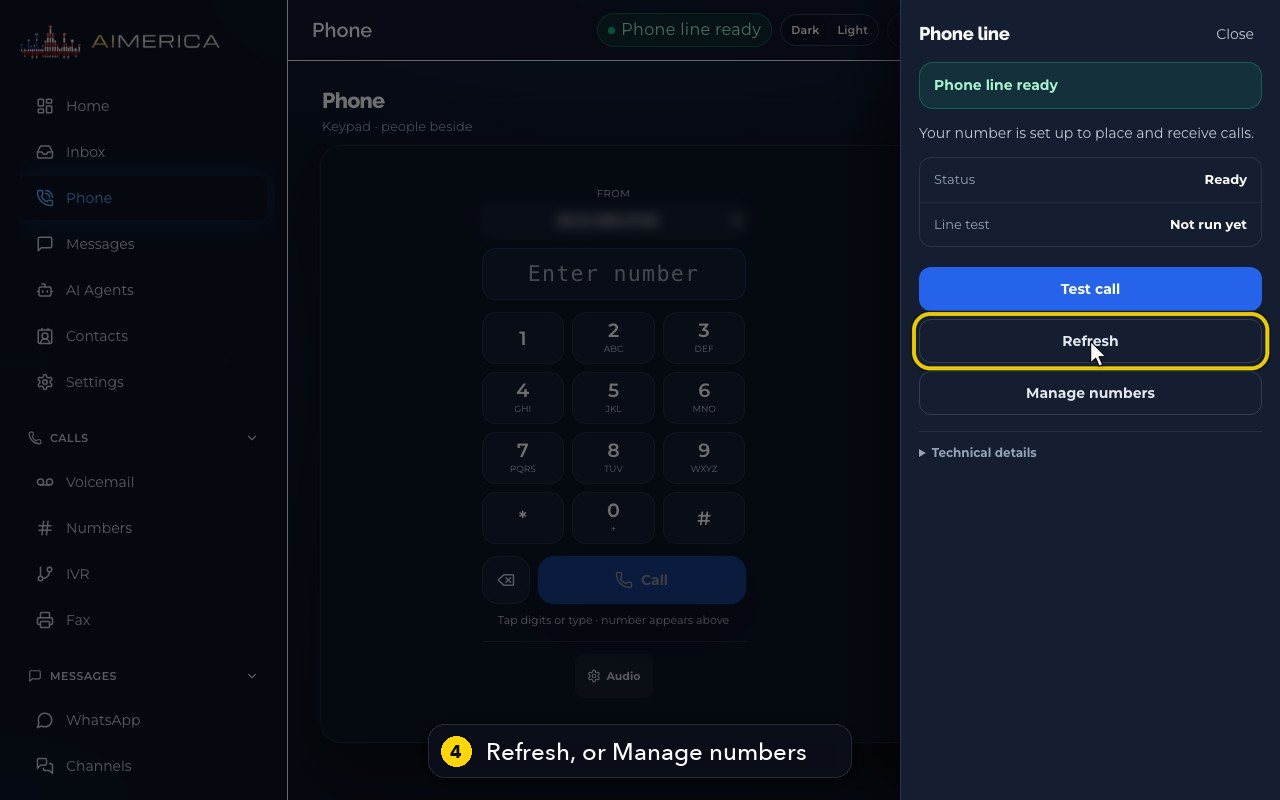
Status says Ready. If it ever says the line needs attention, Refresh checks again, and Manage numbers opens your numbers.
- 5
Technical details is for our support team, if something is ever wrong.
- 6
Close the panel.
- 7
Audio, under the keypad, opens your microphone and speaker.
- 8
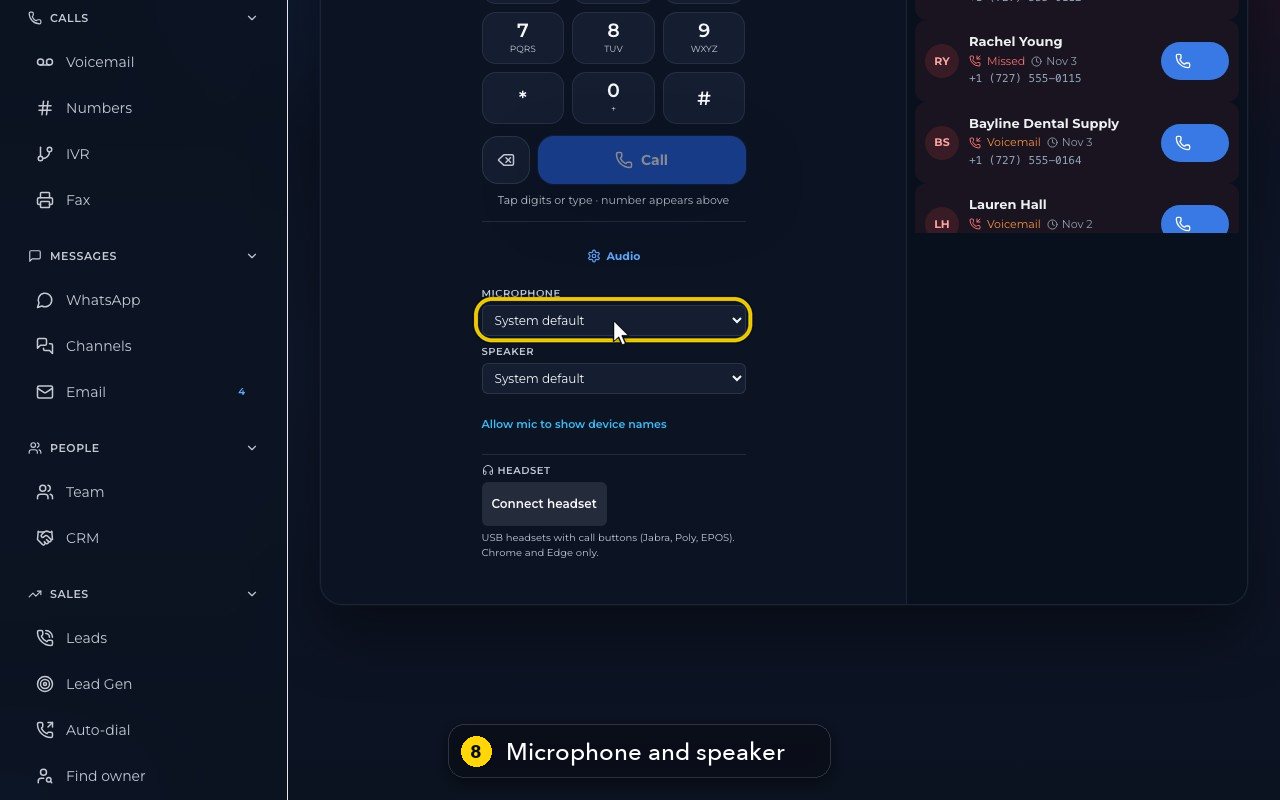
Choose each one in its list. The first time, your browser asks to use the microphone. Allow it, and each device shows by name.
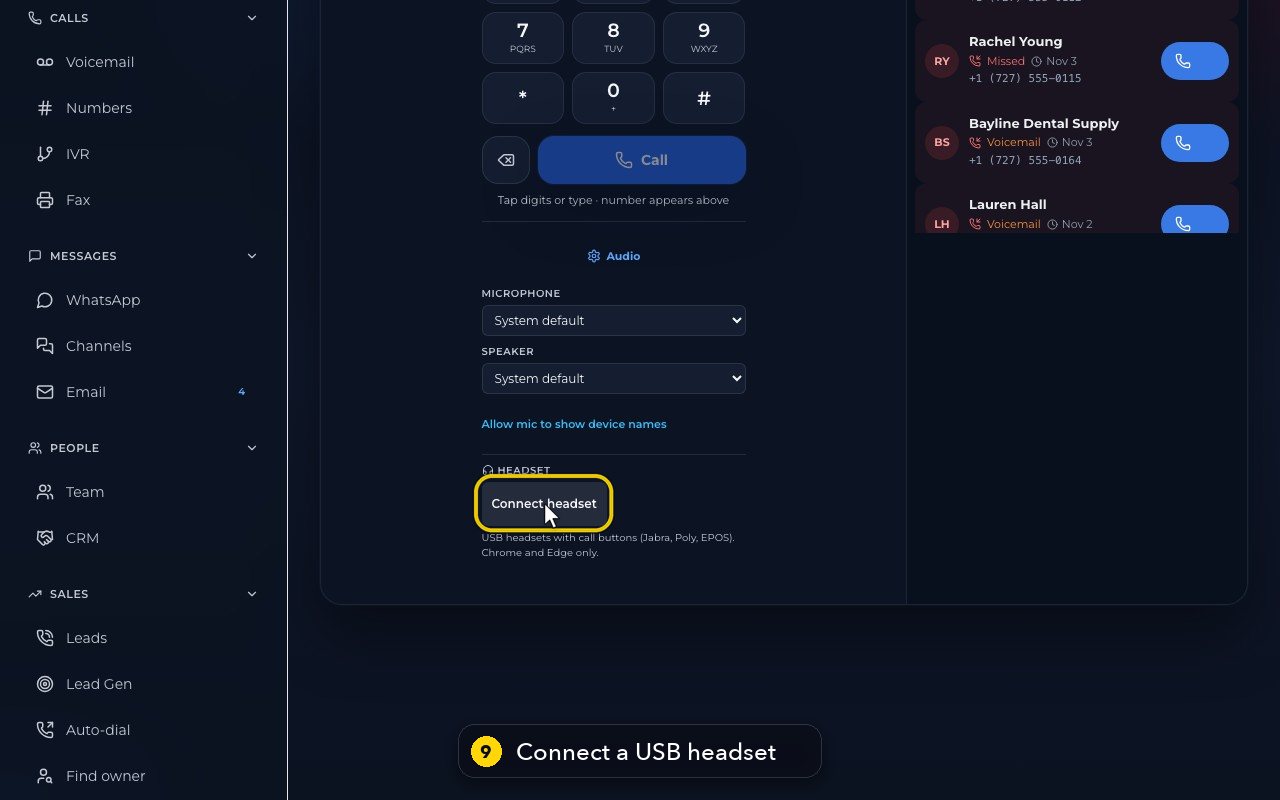
- 9
Got a USB headset with call buttons? Connect headset links it, in Chrome or Edge.
In short
- iPhone and Android: on your phone, open a1merica.ai/apps and tap Open the App Store or Open Google Play. In the App Store the app is called “AIMERICA Business Phone & AI”.
- Mac, Windows and Linux: download the desktop app from a1merica.ai/apps.
- Any computer: sign in at a1merica.ai/voip — nothing to install.
Sign in with your work email and password. Accounts are created on the web or by your admin, not in the app.
Allow the microphone when asked, and on Android the notifications too: without them the phone cannot ring for an incoming call, and callers cannot hear you.
Related tutorials
 4:31VideoThe desk phone: a full walkthroughEverything the AIMERICA desk phone does: calls, voicemail, contacts, texts and the menu.
 0:41VideoDesk phone: home screen and recent callsRead the home screen, filter your recent calls and open a call's details.
 0:37VideoDesk phone: voicemailRead and play your voicemail, call back or delete, and open the voicemail settings.
 0:51VideoDesk phone: make a call, hold, mute and transferDial a number, then use hold, mute, transfer and the other buttons during a call.
 0:18VideoDesk phone: use the handsetLift the handset to dial, and move a call from the speaker to the handset.
 0:29VideoDesk phone: contactsFind a contact by name or number, then call or text in one tap.
Was this not what you needed? Write to us.