
Join a meeting and share your screen
Join a meeting from its link, check your microphone, then share your screen.
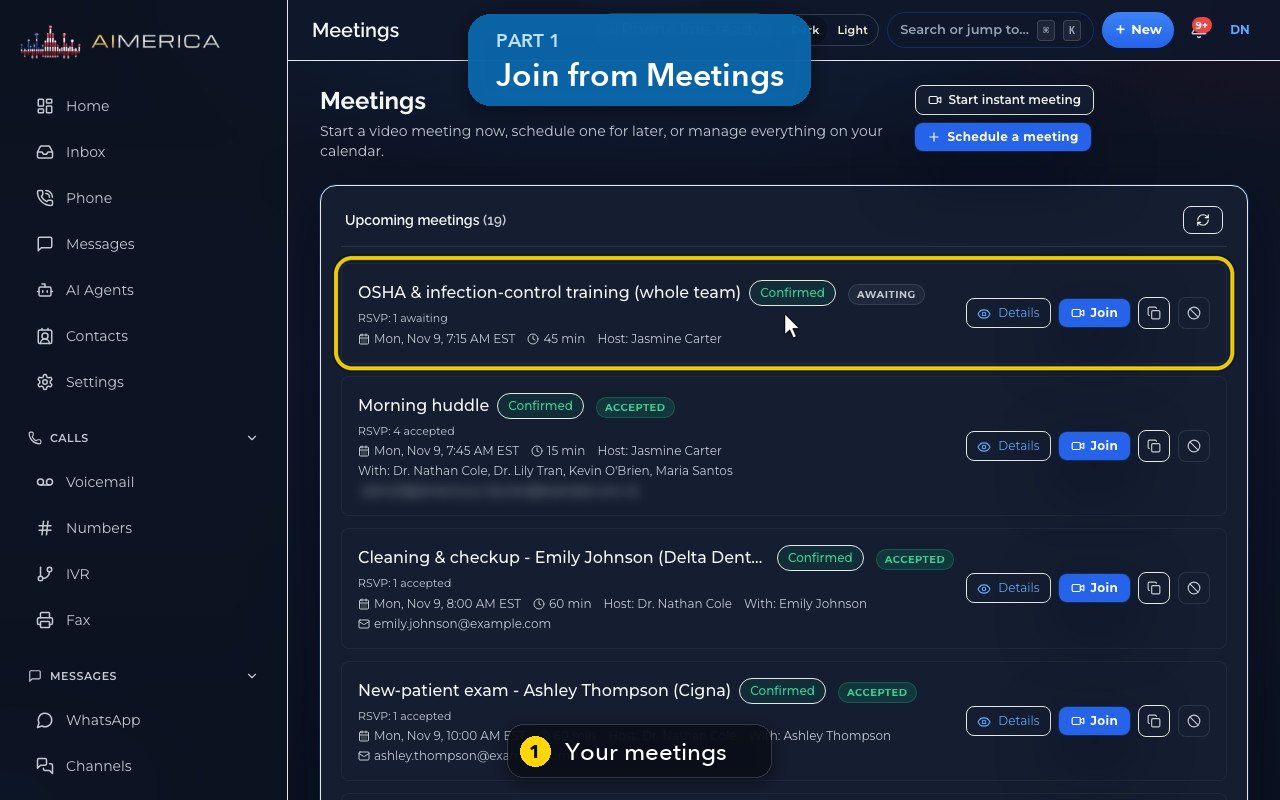
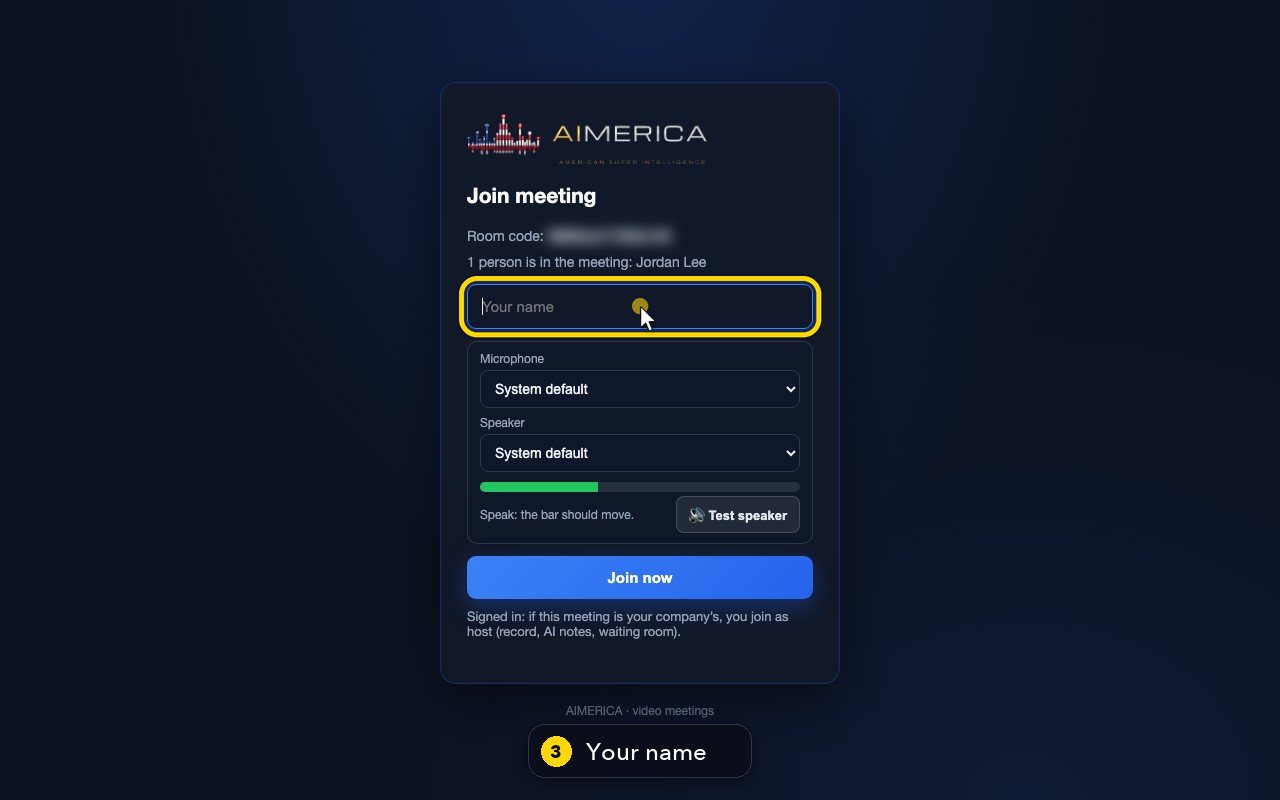
Open Meetings and click Join on the meeting. Type the name the others will see, check your microphone (speak: the bar should move), and click Join now. Signed in, you join your company's meetings as the host. In the meeting, the bar at the bottom turns your microphone and camera on or off; Share screen shows everyone one tab, one window or your whole screen, and Stop screen share ends it. Leave leaves the meeting; it goes on for the others.
In this video
Step by step
- 1
Your meetings are listed here, with a Join button on each one.
- 2
Click Join, to open the meeting in your browser.
- 3
Type the name the others will see.
- 4
Check your microphone here: speak, and the bar should move.
- 5
Signed in, you join your company's meetings as the host.
- 6
Click Join now.
- 7
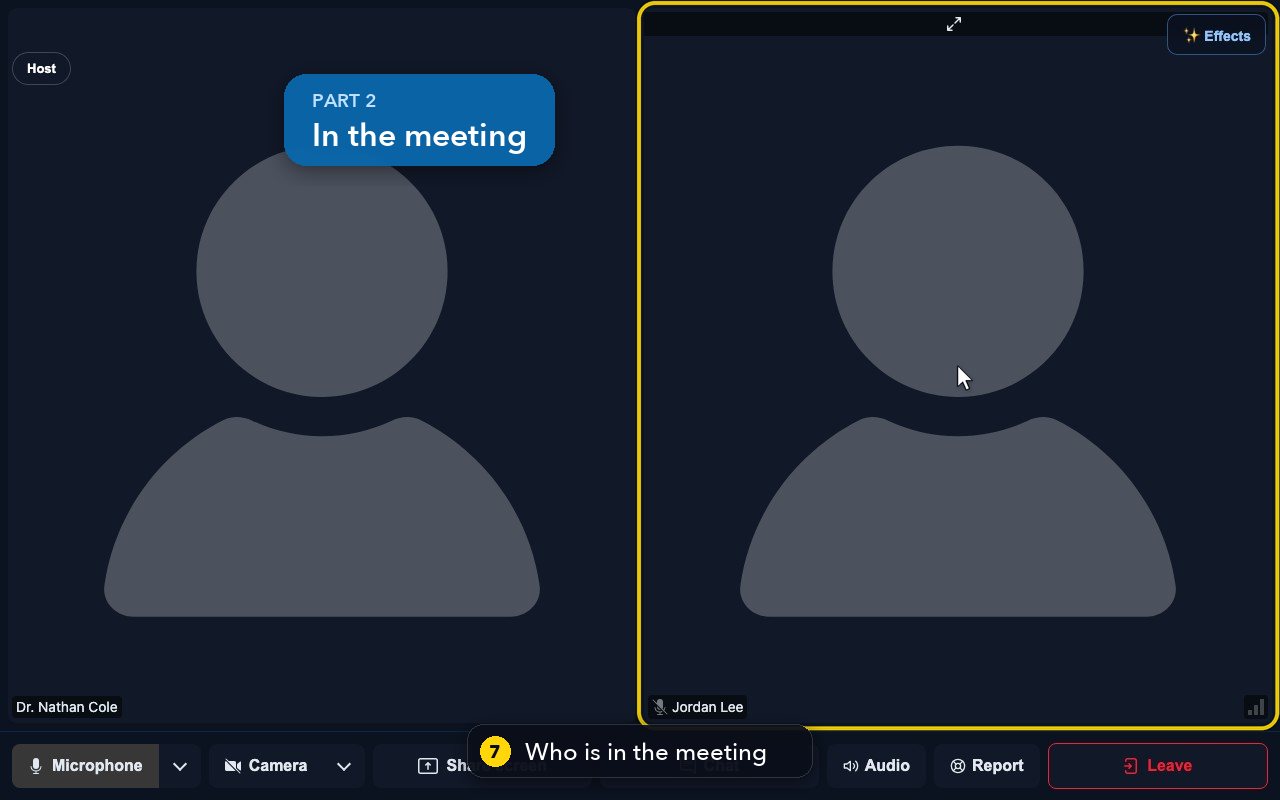
Everyone in the meeting has a tile. Here, Jordan from the front desk is already in.
- 8
The bar at the bottom turns your microphone and your camera on or off.
- 9
To show your screen, click Share screen. Everyone can see one tab, one window, or your whole screen: your browser asks which one.
- 10
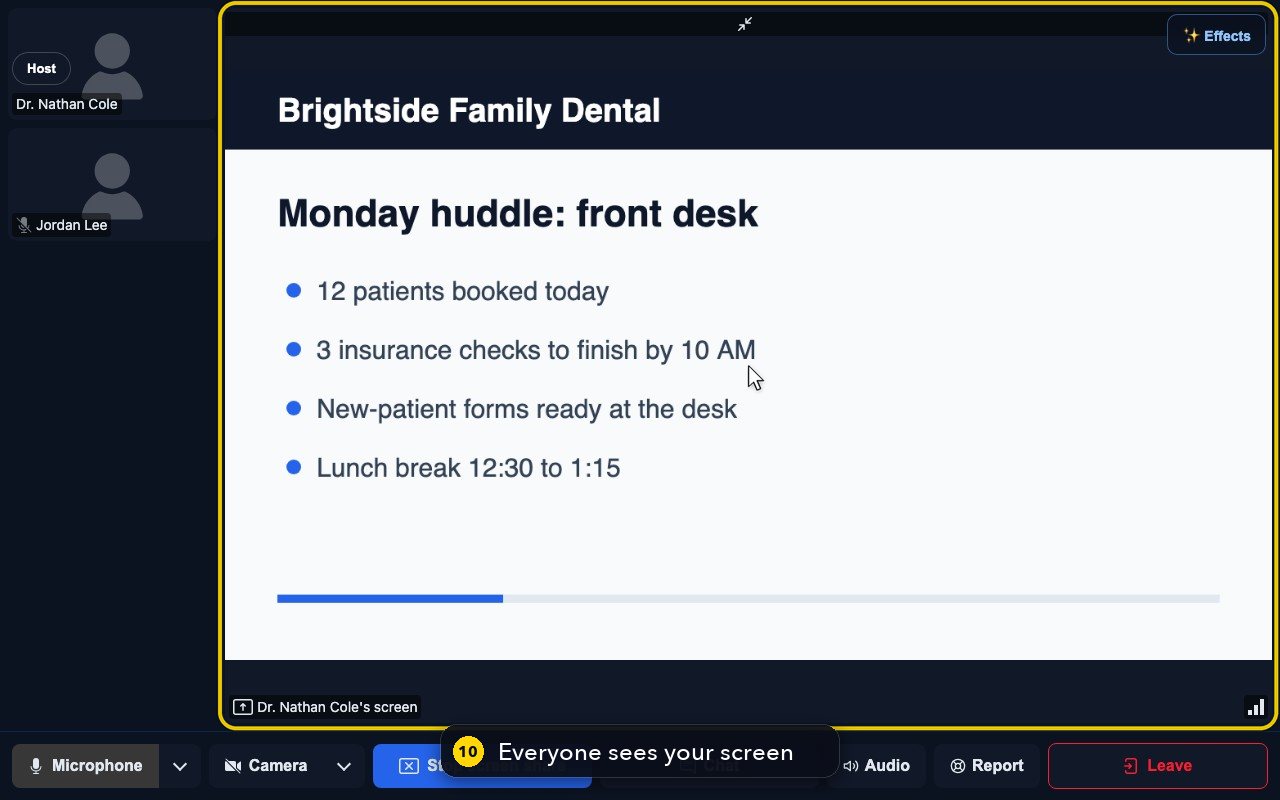
Everyone now sees your screen, large.
- 11
When you are done, click Stop screen share.
- 12
Chat, in the same bar, sends a message to everyone in the meeting.
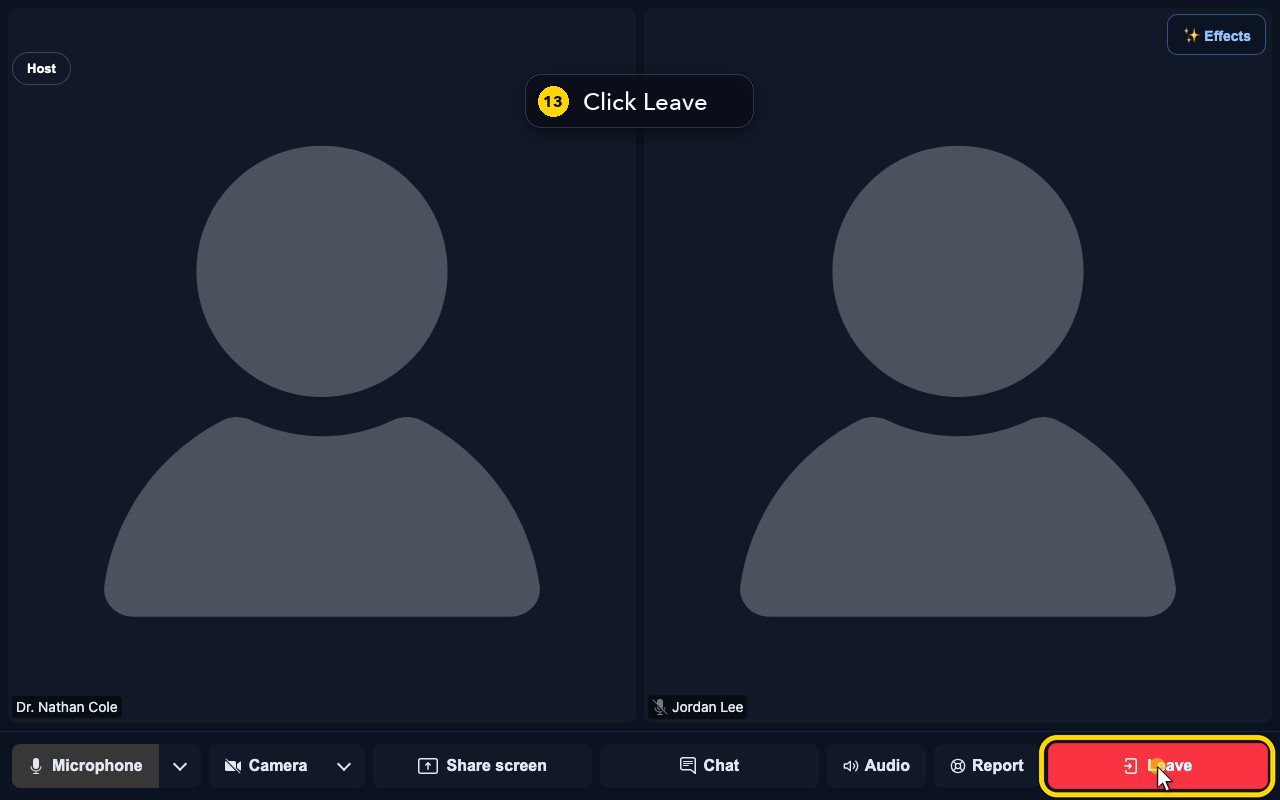
- 13
To finish, click Leave. The meeting goes on for the others.
Related tutorials
 1:15VideoSchedule a video meeting and invite guestsPlan a video meeting, add guests from Contacts or Team, and check the time before inviting.
 0:50VideoPlan a meeting straight from the calendarClick an empty hour in week view to open the meeting form with that day and time filled in.
 1:17VideoChange a meeting's time or guestsOpen a meeting's details to change its time, guests or notes, and choose whether guests are told.
 0:56VideoSee who accepted a meeting inviteRead the RSVP badges so you know who is coming.
 1:14VideoHost controls: waiting room, lock and muteAs host, let people in, lock the meeting, mute everyone and share the invite or dial-in.
 0:52VideoLook back at past and cancelled meetingsFind meetings that are over, cancelled or no-shows, and open their details.
Was this not what you needed? Write to us.