
Schedule a video meeting and invite guests
Plan a video meeting, add guests from Contacts or Team, and check the time before inviting.
Open Meetings in the menu on the left, under Schedule & documents, and click Schedule a meeting. Pick the host, name the meeting, add your guests, then the length, the time zone, the date and the time.
In this video
Step by step
- 1
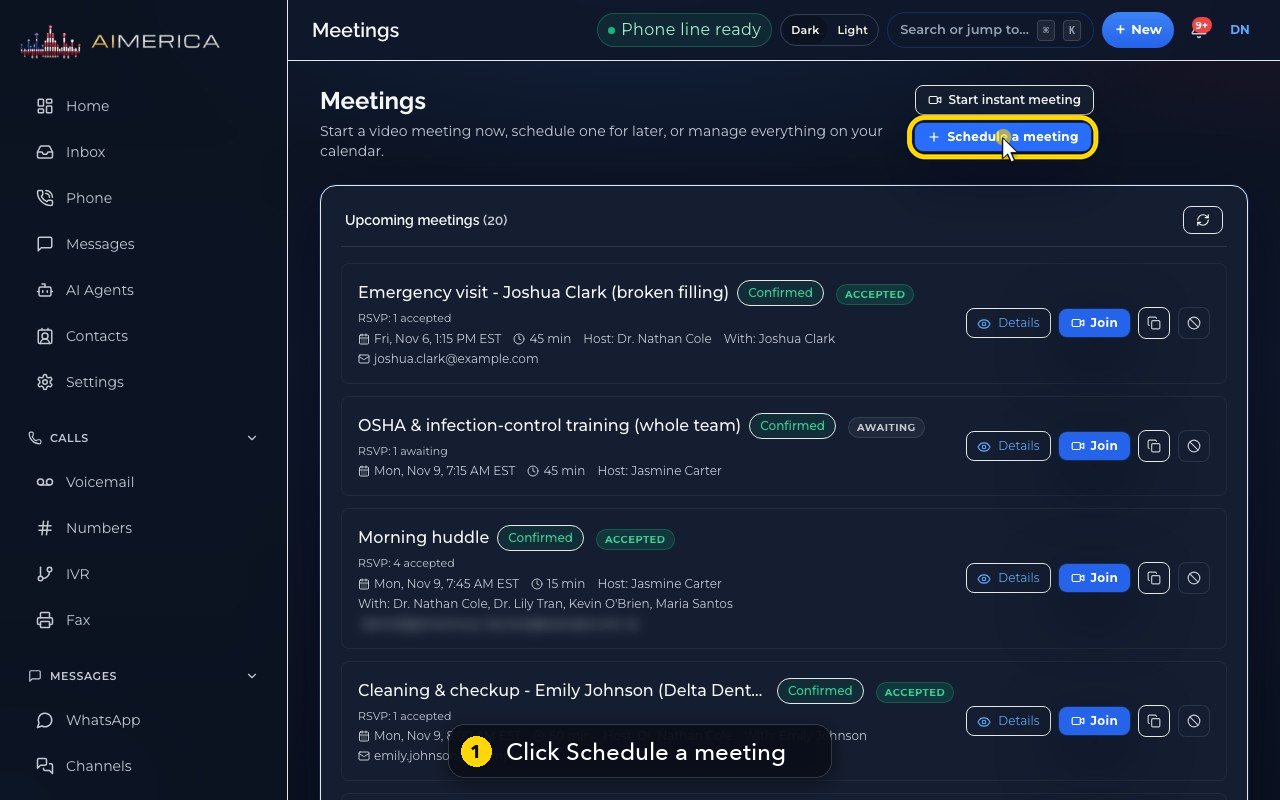
Meetings is where you start, plan and manage video meetings. To plan one for later, click Schedule a meeting.
- 2
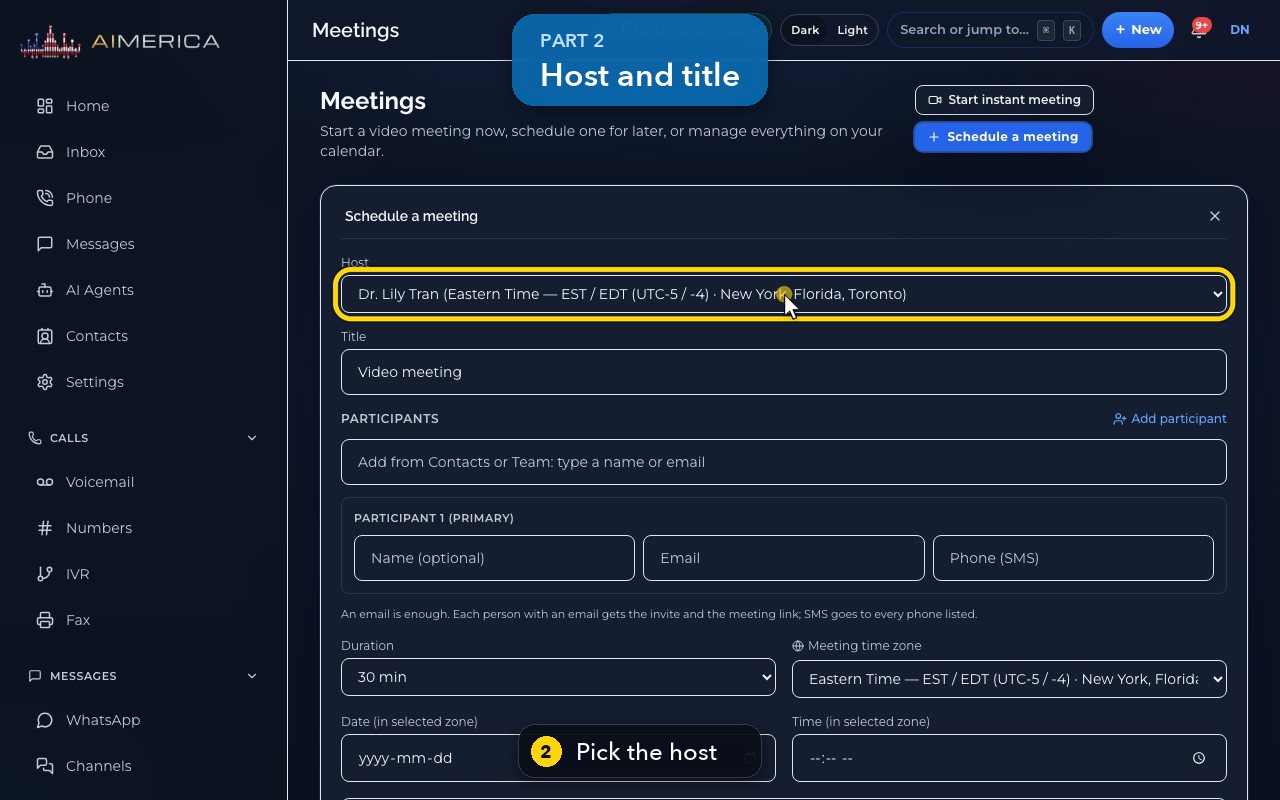
First, pick the host. The meeting goes on their calendar.
- 3
Give the meeting a name.
- 4
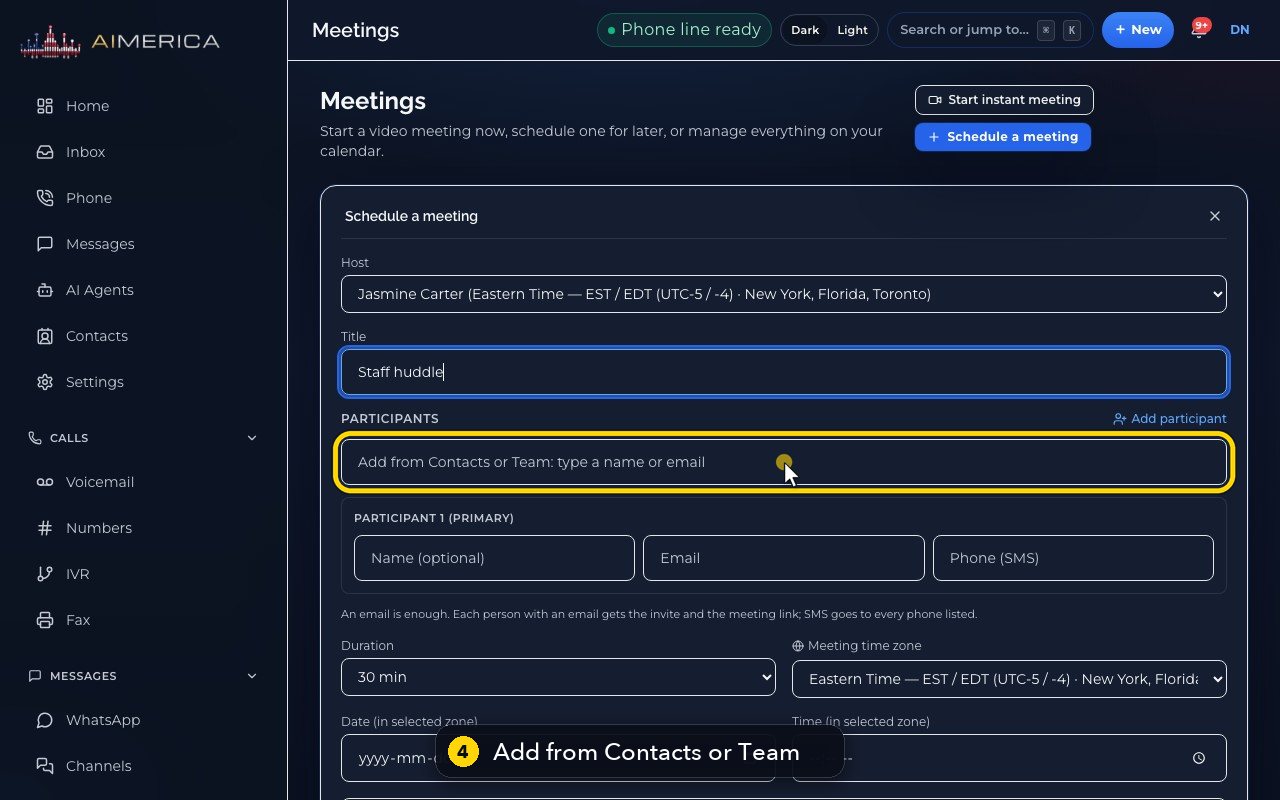
To add a guest from Contacts or Team, type a few letters, then pick the name.
- 5
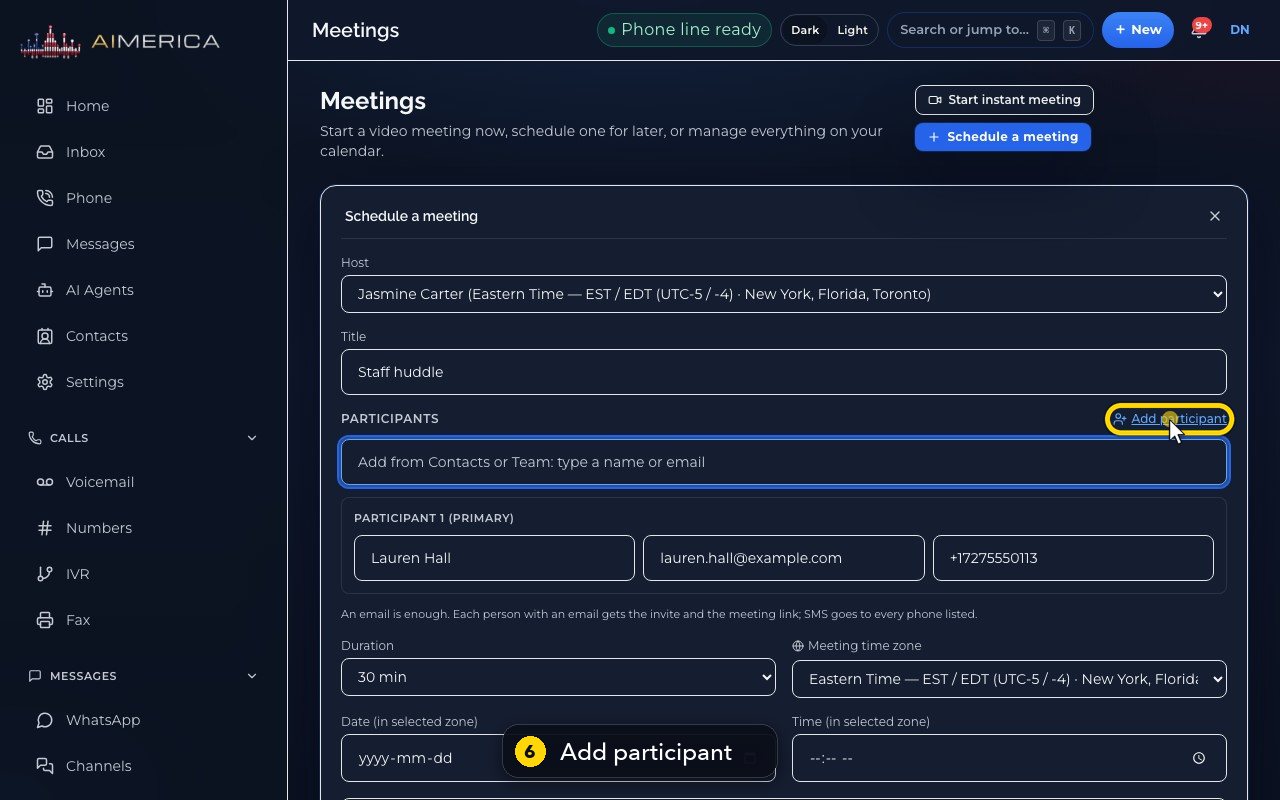
She is now the first guest, with her email filled in.
- 6
Or add a guest yourself. An email is enough. A mobile number also gets the invite by text.
- 7
Choose how long it lasts.
- 8
The time zone is the zone of the time you type.
- 9
Then pick the date.
- 10
And the start time.
- 11
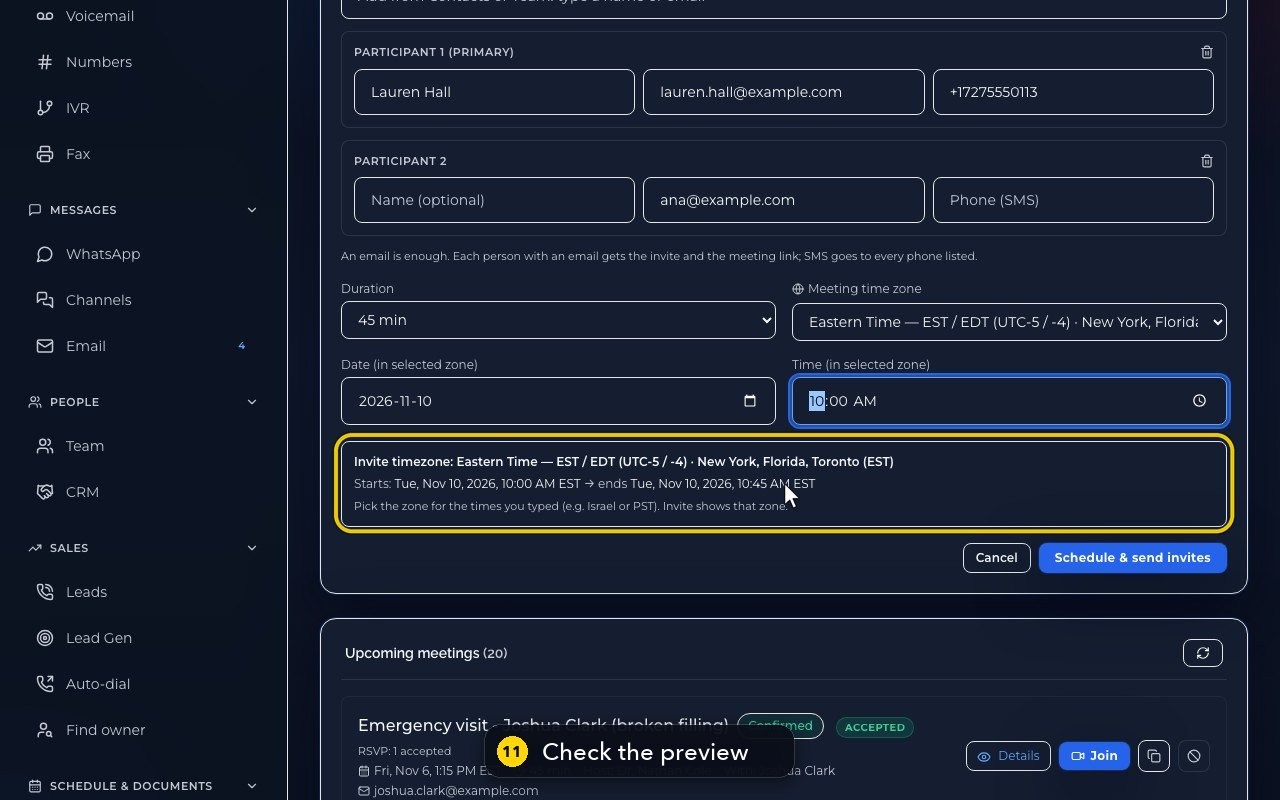
The preview spells out the start and the end, exactly as your guests will see it.
- 12
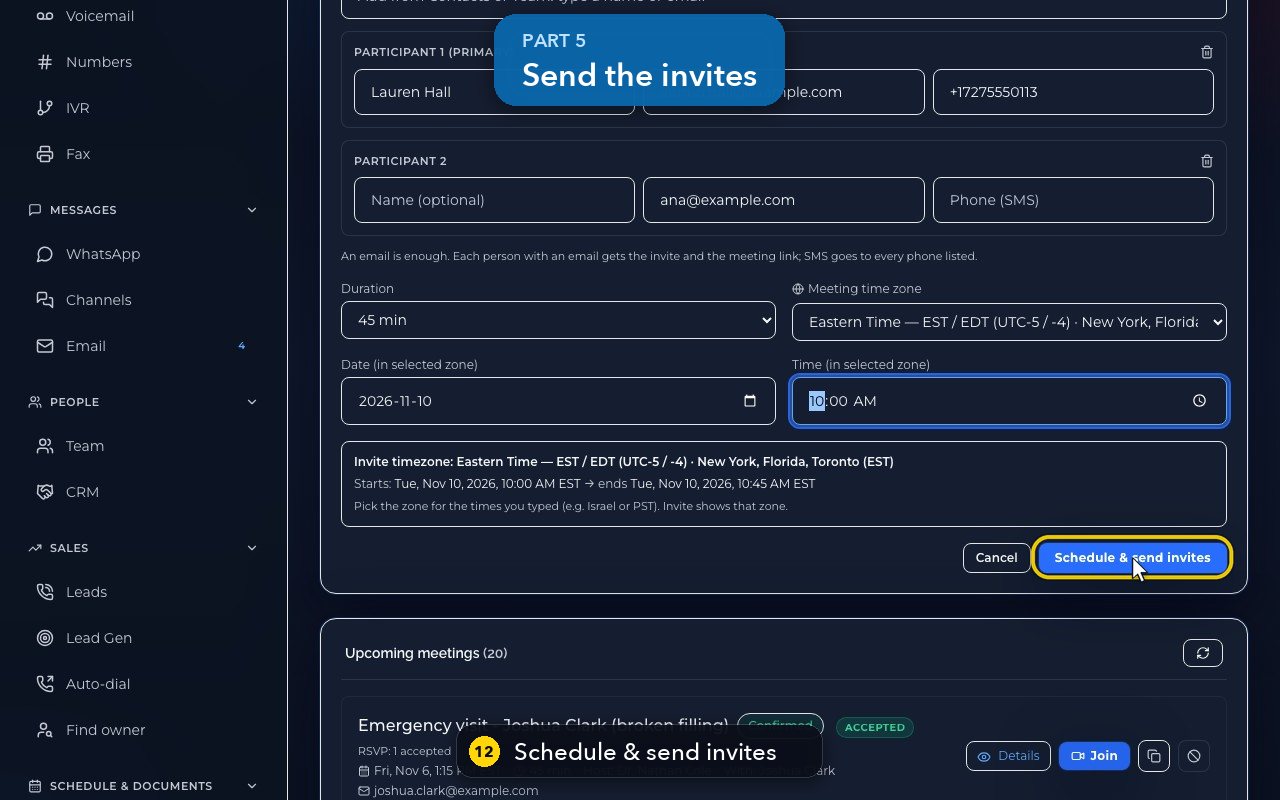
Schedule and send invites books the meeting, and emails each guest the invite with the meeting link.
- 13
Here we press Cancel instead, so nobody is invited.
Related tutorials
 1:14VideoJoin a meeting and share your screenJoin a meeting from its link, check your microphone, then share your screen.
 0:50VideoPlan a meeting straight from the calendarClick an empty hour in week view to open the meeting form with that day and time filled in.
 1:17VideoChange a meeting's time or guestsOpen a meeting's details to change its time, guests or notes, and choose whether guests are told.
 0:56VideoSee who accepted a meeting inviteRead the RSVP badges so you know who is coming.
 1:14VideoHost controls: waiting room, lock and muteAs host, let people in, lock the meeting, mute everyone and share the invite or dial-in.
 0:52VideoLook back at past and cancelled meetingsFind meetings that are over, cancelled or no-shows, and open their details.
Was this not what you needed? Write to us.