
Contacts and favorites on the phone app
Find a contact in the phone app, open it, and add a business contact from your phone.
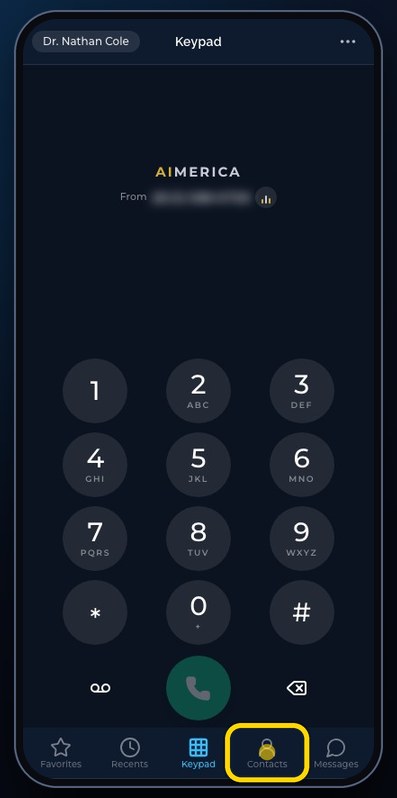
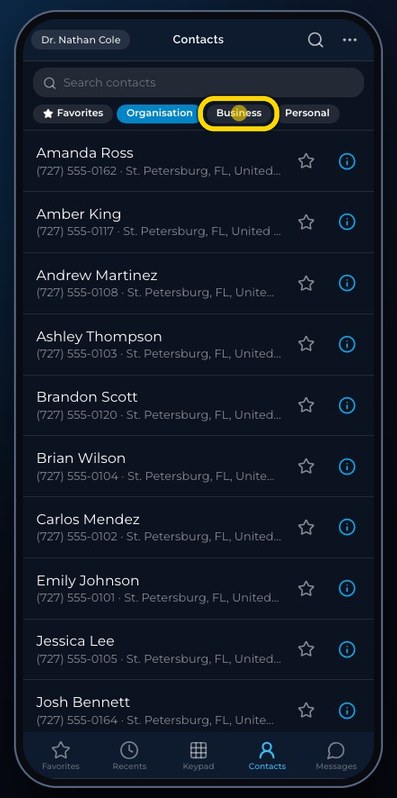
In the phone app, tap Contacts. Organisation holds your company's shared contacts, Business the ones you add from the phone, and Personal the ones synced from your phone's address book. The blue info button opens a contact.
In this video
Step by step
- 1
Contacts has its books at the top. Organisation holds the contacts your whole company shares.
- 2
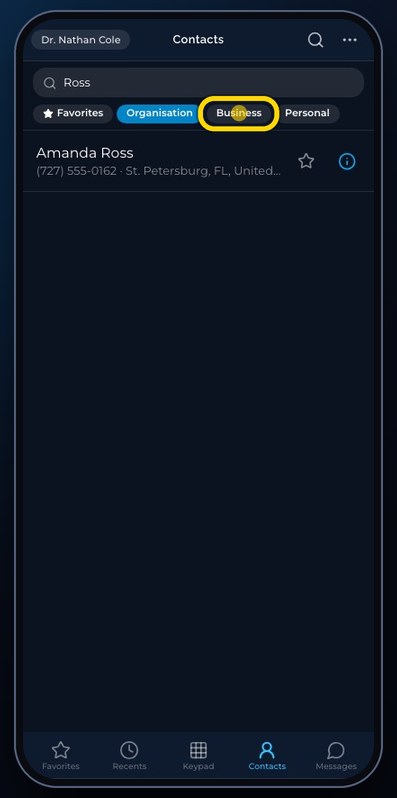
Business holds the contacts you add from the phone. Personal holds the ones synced from your phone's own address book.
- 3
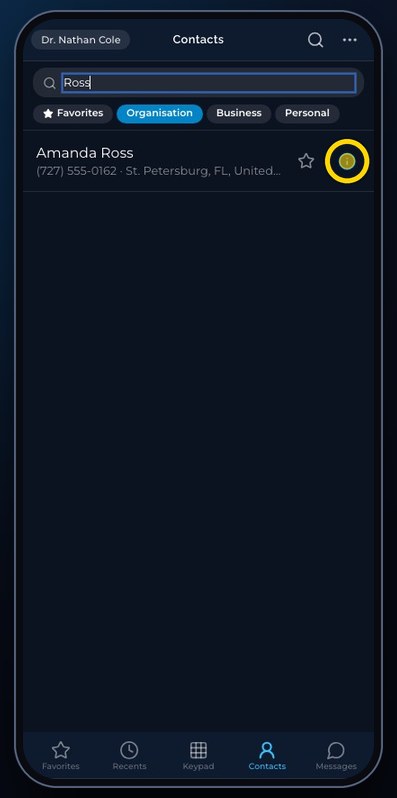
Back in Organisation, search by name, number or company.
- 4
Tap the blue info button to open a contact. A tap on the row itself calls them at once.
- 5
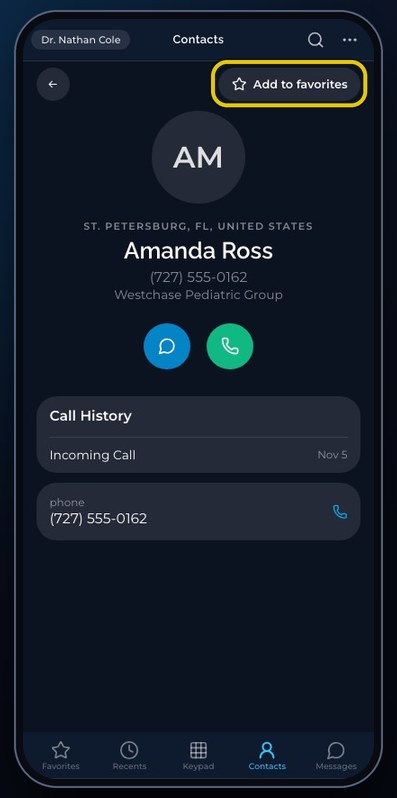
From here, you can text or call them. Add to favorites puts them on your Favorites tab.
- 6
The arrow goes back.
- 7
To create one, choose Business, then Add.
- 8
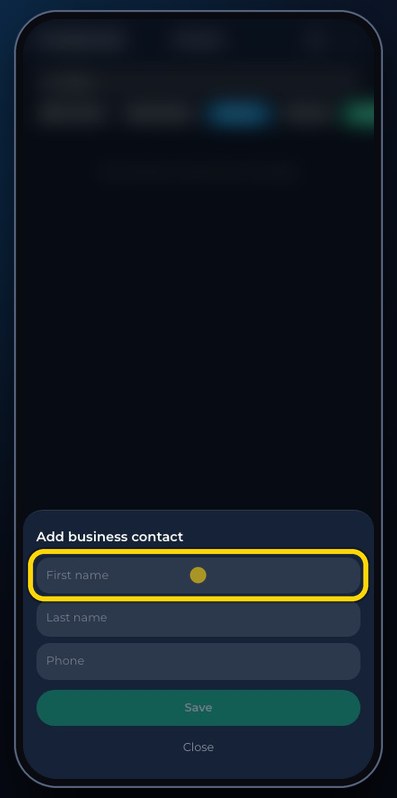
Type the first name. Then the last name. Then the phone number.
- 9
Save adds the contact. Here, we close without saving.
- 10
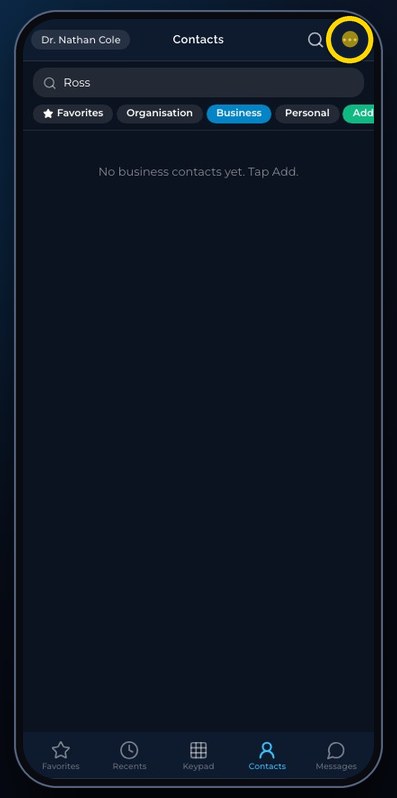
In the menu, Sync phone contacts copies your phone's own address book into Personal.
- 11
Close the menu.
Related tutorials
 4:31VideoThe desk phone: a full walkthroughEverything the AIMERICA desk phone does: calls, voicemail, contacts, texts and the menu.
 0:41VideoDesk phone: home screen and recent callsRead the home screen, filter your recent calls and open a call's details.
 0:37VideoDesk phone: voicemailRead and play your voicemail, call back or delete, and open the voicemail settings.
 0:51VideoDesk phone: make a call, hold, mute and transferDial a number, then use hold, mute, transfer and the other buttons during a call.
 0:18VideoDesk phone: use the handsetLift the handset to dial, and move a call from the speaker to the handset.
 0:29VideoDesk phone: contactsFind a contact by name or number, then call or text in one tap.
Was this not what you needed? Write to us.