
Recents and call details on the phone app
Go through your recent calls in the phone app, filter them, open a call's details and name an unknown number.
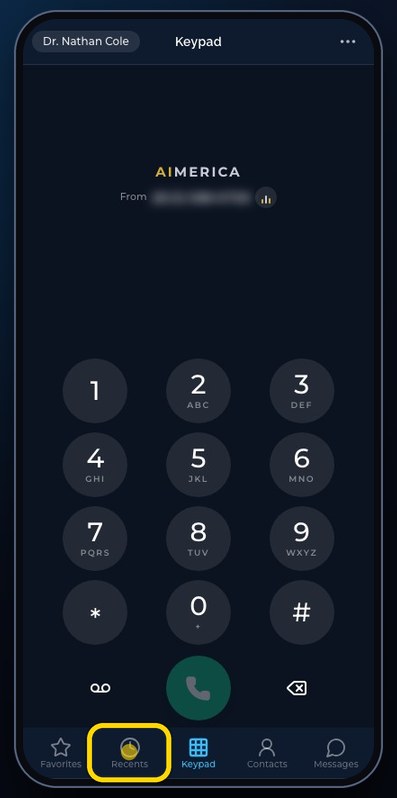
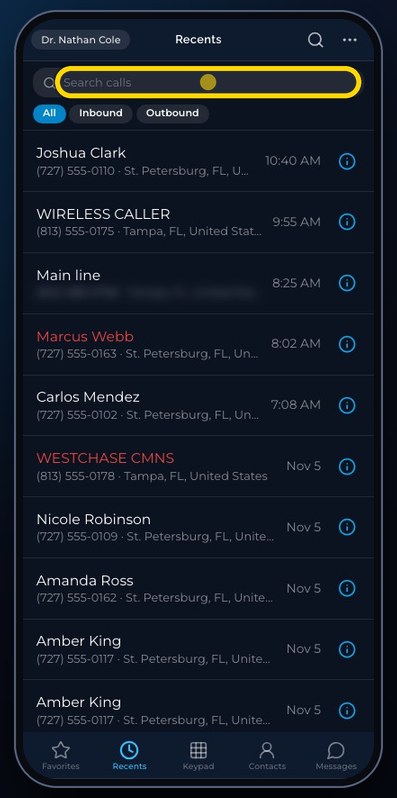
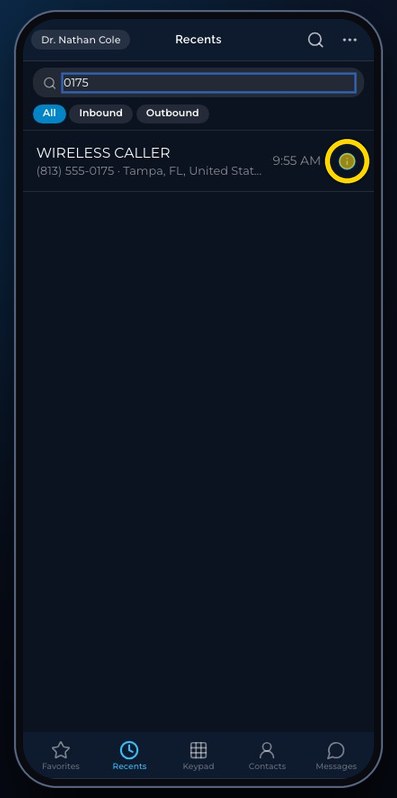
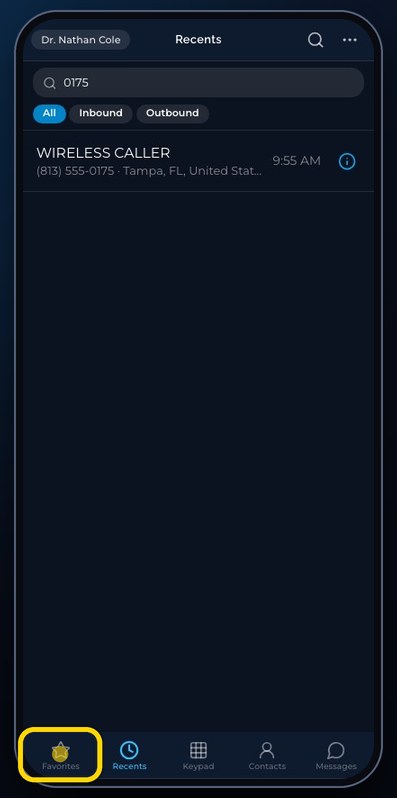
In the phone app, tap Recents. Missed calls are in red. All, Inbound and Outbound filter the list, and the search finds a name or a number. The blue info button opens a call's details.
In this video
Step by step
- 1
Recents lists your calls, newest first. Missed calls are in red.
- 2
Show only incoming or outgoing calls, then All again.
- 3
Search finds a name or a number.
- 4
Tap the blue info button at the end of a call for its details. A tap on the row itself calls back at once.
- 5
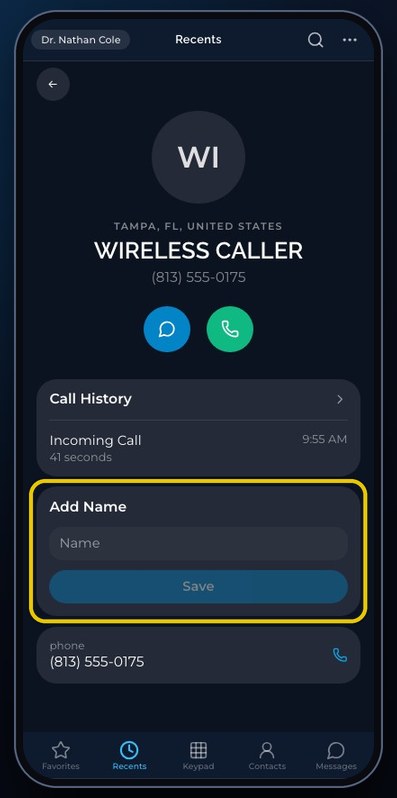
Call History shows your last calls with this number.
- 6
An unknown caller? Add Name saves a name for this number, in your Business contacts.
- 7
The arrow goes back.
- 8
Favorites shows the people you starred. Until you star someone, it lists the numbers you used last.
Related tutorials
 4:31VideoThe desk phone: a full walkthroughEverything the AIMERICA desk phone does: calls, voicemail, contacts, texts and the menu.
 0:41VideoDesk phone: home screen and recent callsRead the home screen, filter your recent calls and open a call's details.
 0:37VideoDesk phone: voicemailRead and play your voicemail, call back or delete, and open the voicemail settings.
 0:51VideoDesk phone: make a call, hold, mute and transferDial a number, then use hold, mute, transfer and the other buttons during a call.
 0:18VideoDesk phone: use the handsetLift the handset to dial, and move a call from the speaker to the handset.
 0:29VideoDesk phone: contactsFind a contact by name or number, then call or text in one tap.
Was this not what you needed? Write to us.