
Titles and permissions for your team
Give each job title exactly the parts of the app it needs, and see who has which title.
Open Team › Roles and permissions. Pick a title to tick what it can open; for Numbers, IVR, Voicemail and Messages choose Only theirs or All. Save applies the change to everyone with that title.
In this video
Step by step
- 1
Titles and permissions live on one page. Open Team, in the menu on the left.
- 2
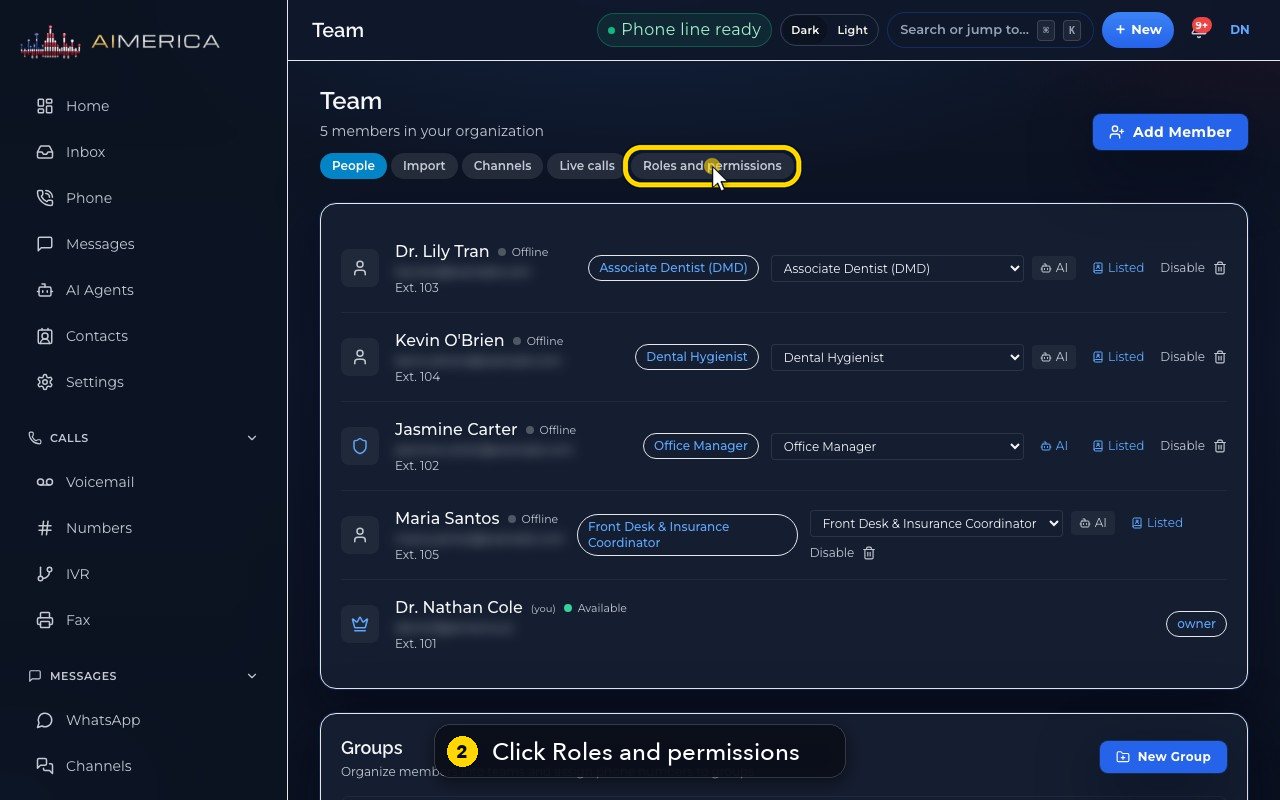
Then, at the top, click Roles and permissions.
- 3
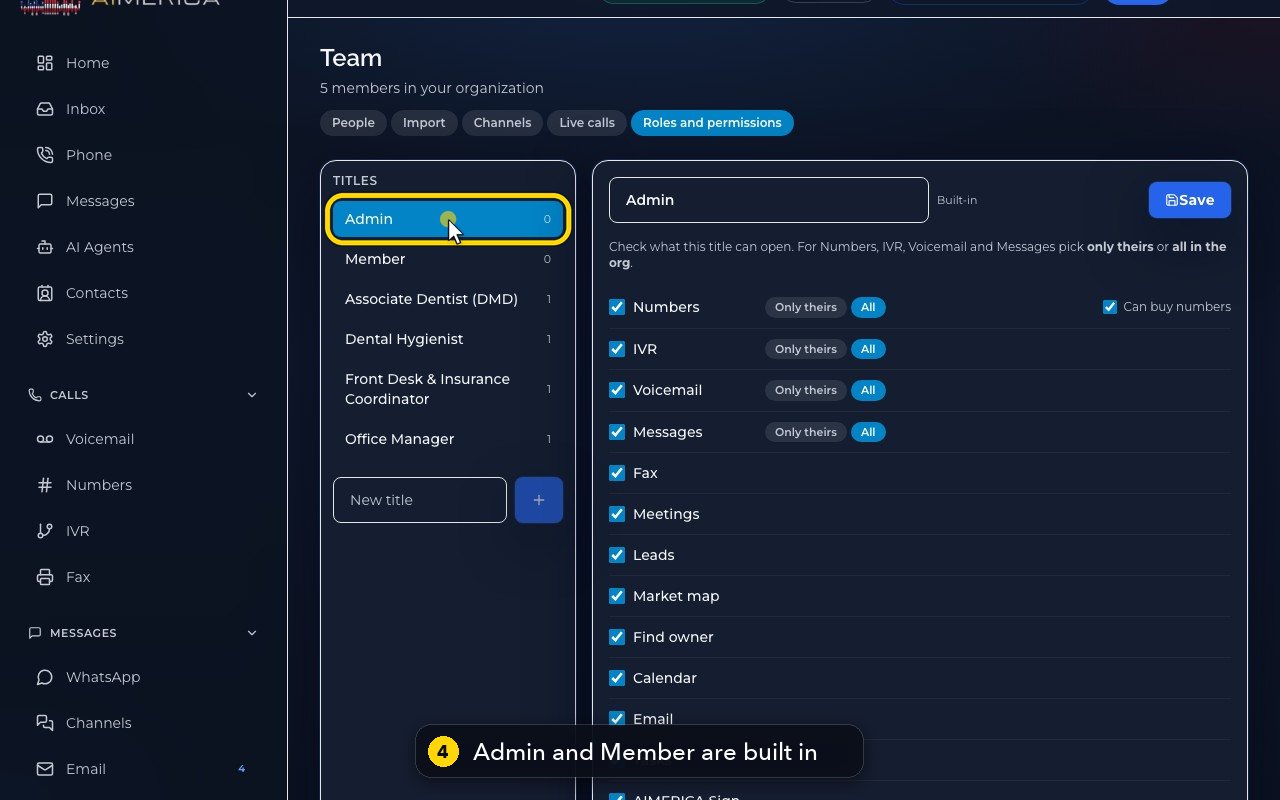
A title is a job name with its own permissions. The number shows how many people have it.
- 4
Admin and Member are built in. Admin can manage the whole company.
- 5
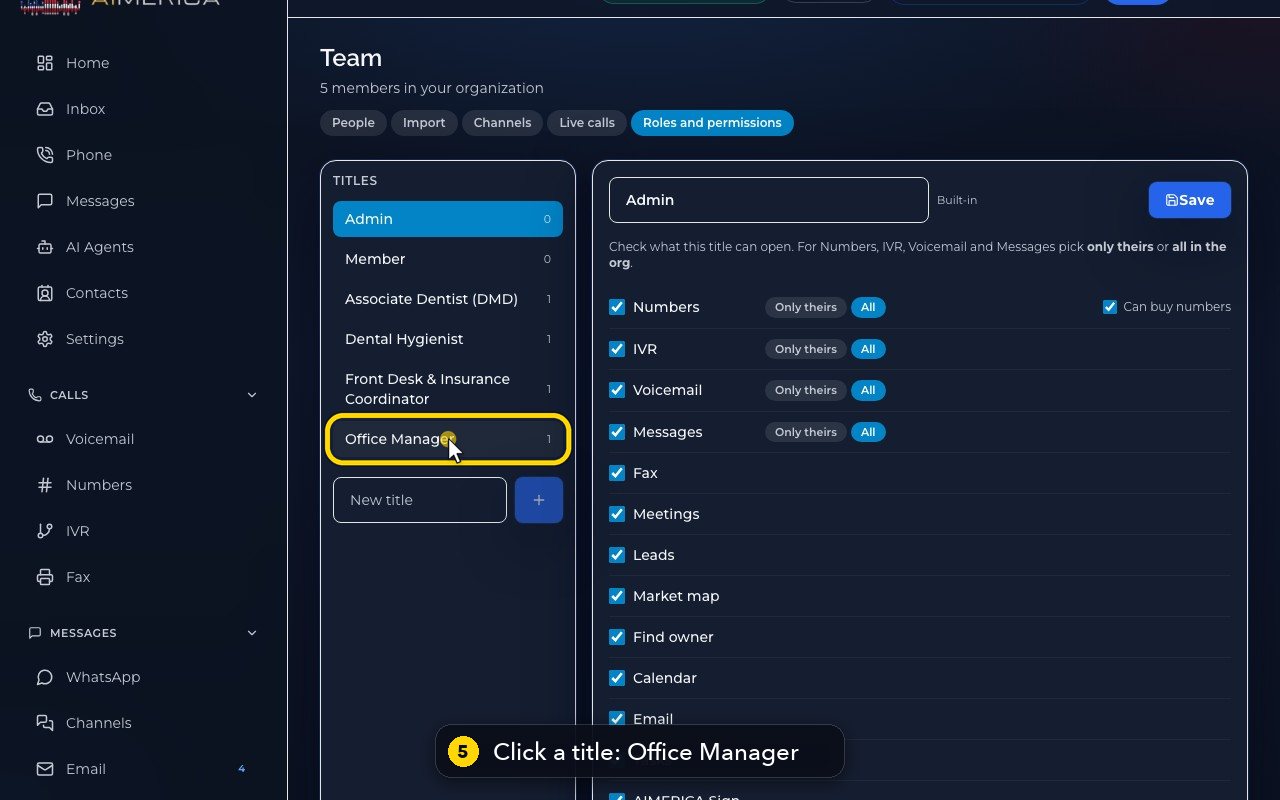
Pick a custom title to see what it can open. Here, Office Manager.
- 6
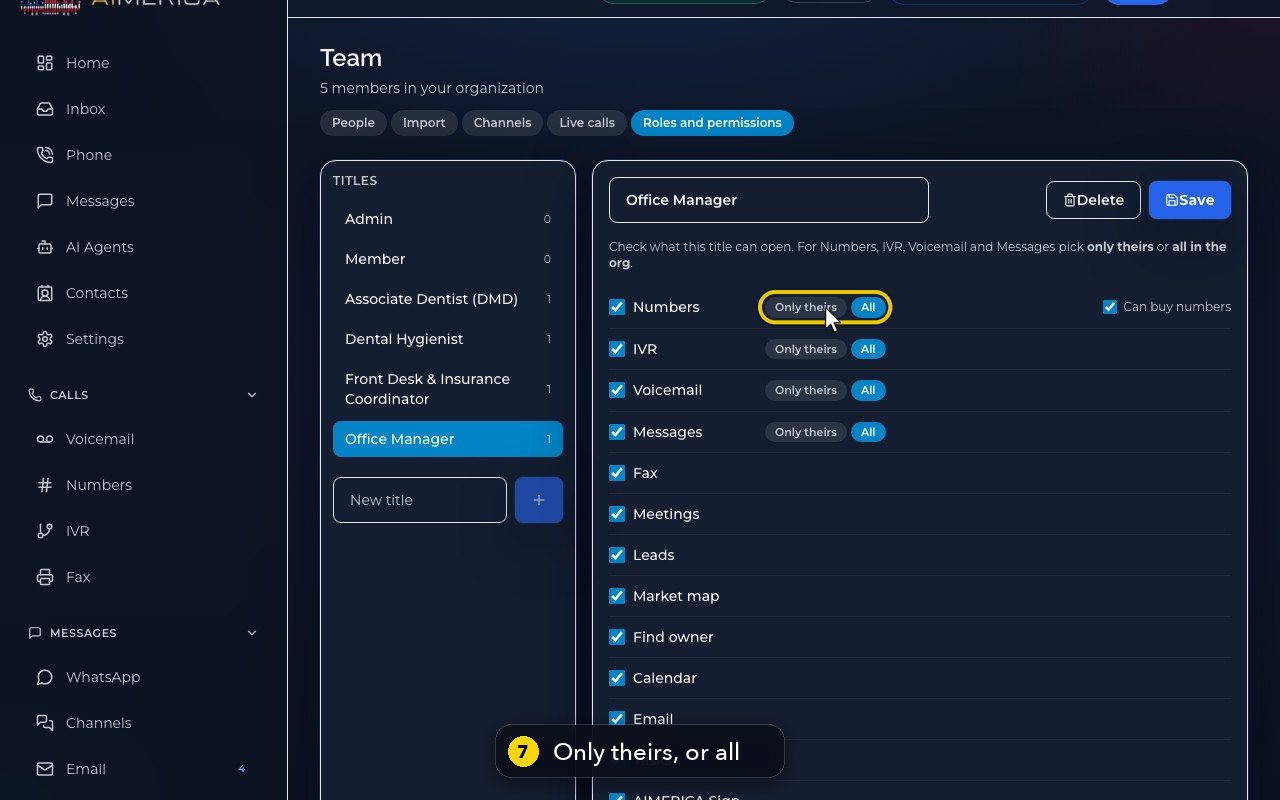
Tick what this title can open, and untick anything they should not see.
- 7
For Numbers, IVR, Voicemail and Messages, choose only their own, or everything in the company.
- 8
To let this title order new numbers, tick the box that says, can buy numbers.
- 9
Save applies the changes to everyone with this title. In this demo, we leave without saving.
- 10
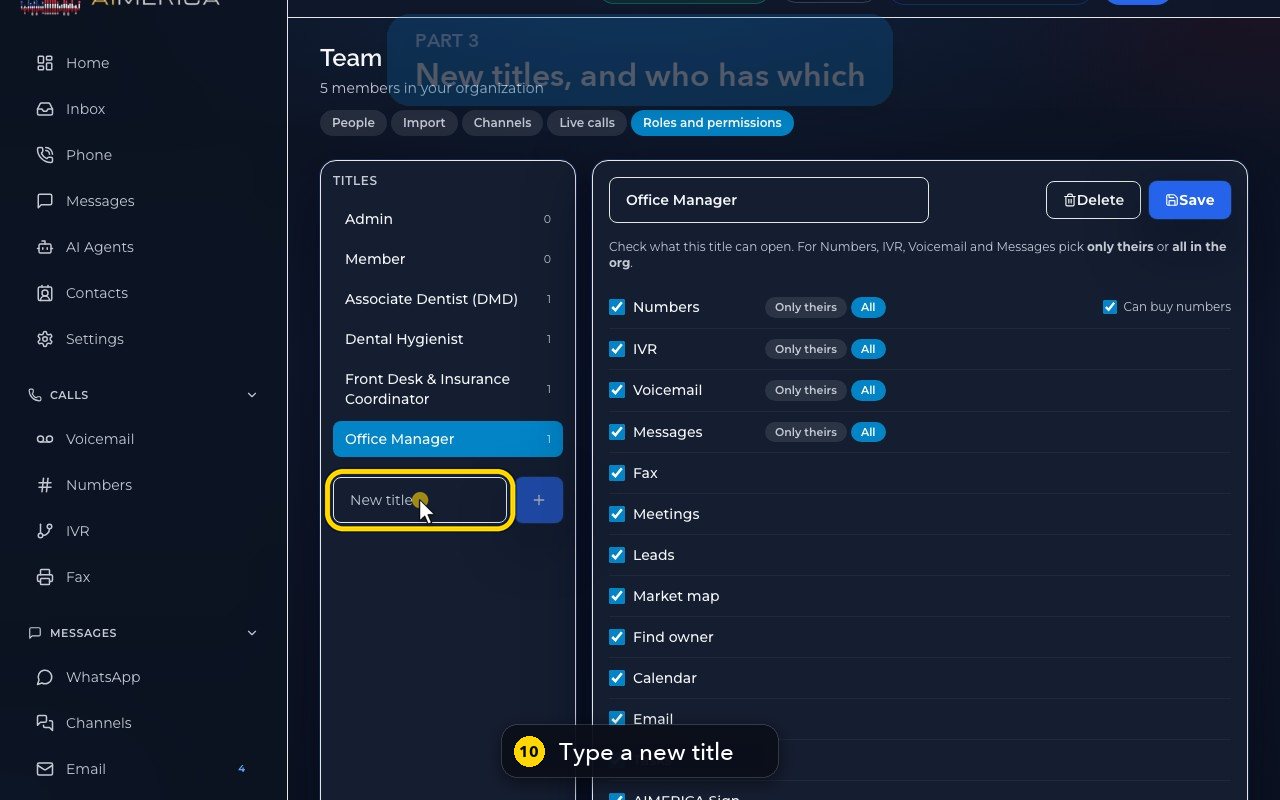
New title adds another job name. Type it, and the plus button would create it.
- 11
Last, the People tab.
- 12
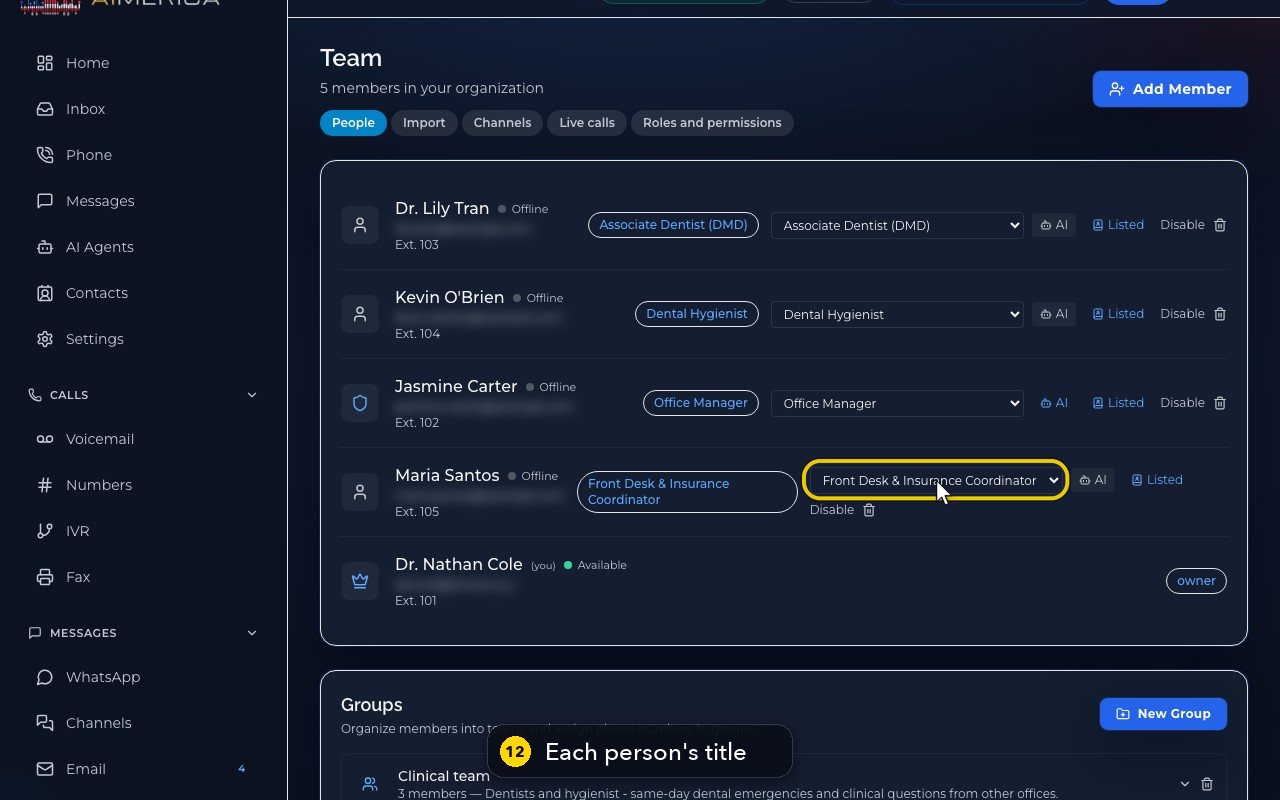
The drop-down beside each person sets their title. It changes at once, so here we only point at it.
Related tutorials
 1:38VideoBusiness hours and call forwardingChoose when a line is open, and where calls go when you are closed, away or busy.
 1:18VideoChoose who answers each numberRead your numbers list and point each line at a person, a ring group, a phone menu or an AI agent.
 1:16VideoAdd a teammateInvite a new person with a title, a number and an extension, without ever knowing their password.
 1:15VideoExtensions: reach a colleague in a few digitsFind each person's extension, choose one for a new person, and dial it from the browser phone.
 1:24VideoCreate a ring group and choose how it ringsPut people in a group, choose whether phones ring together, one at a time or in turns, and point a number at it.
 1:23VideoGet a new phone numberSearch for a local or toll-free number, see the price, and know what happens before you add it.
Was this not what you needed? Write to us.