
Watch your teams on the wallboard
Open the wallboard from Team, read waiting callers and answer times per team, and show it full screen.
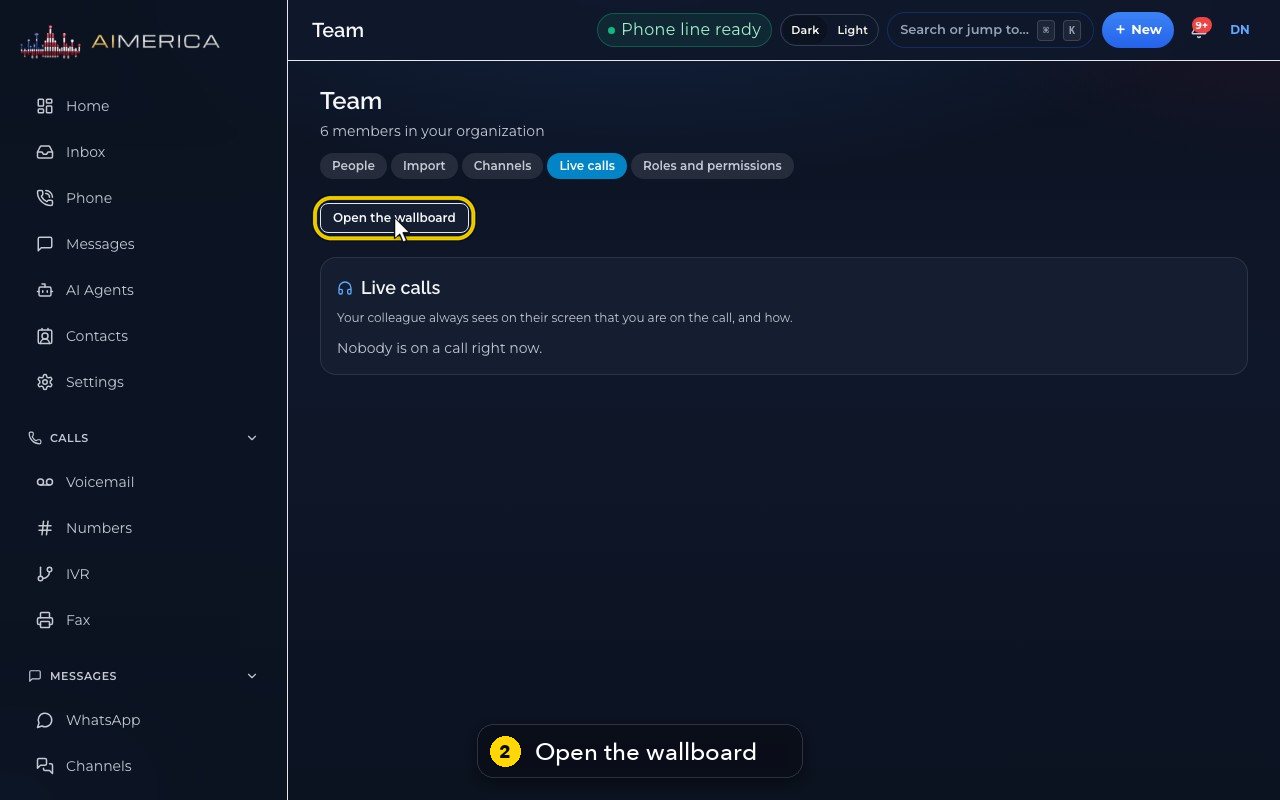
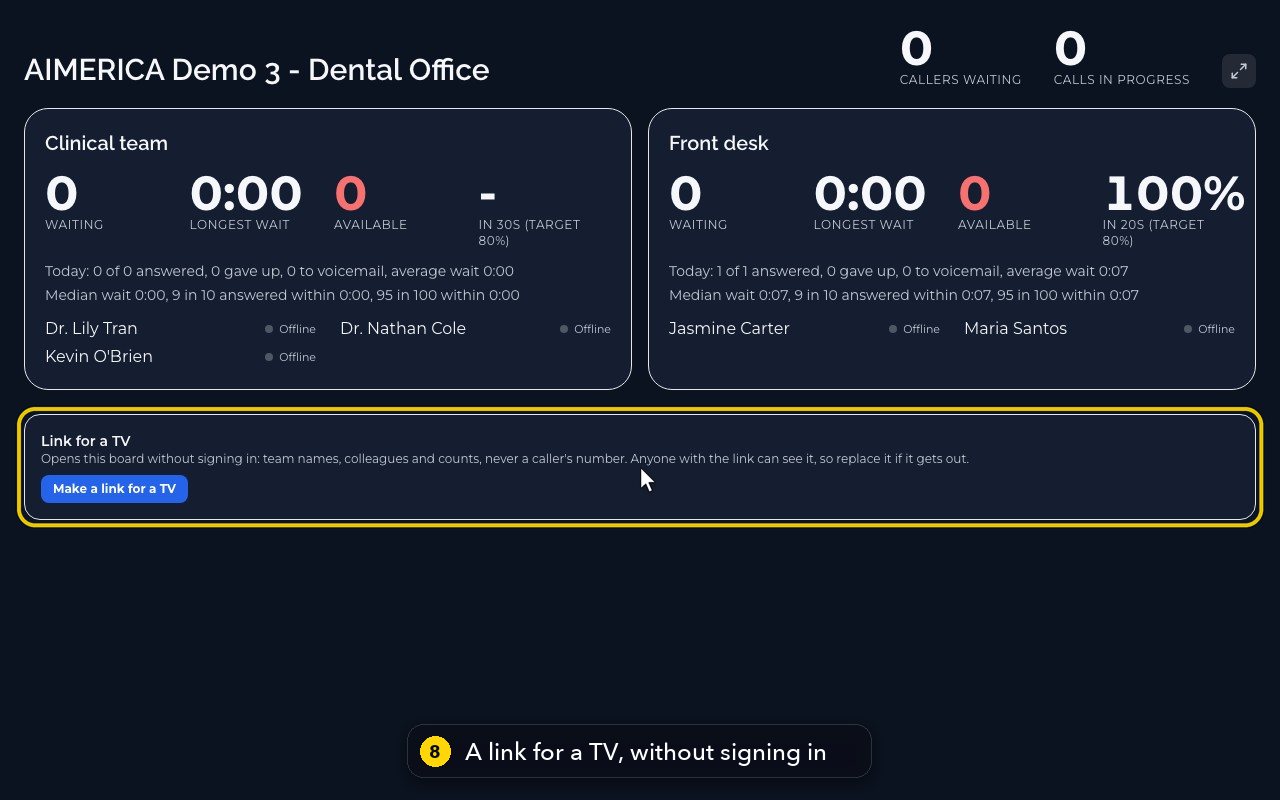
Owners and admins open Team, click Live calls, then Open the wallboard (it opens in a new tab). The top shows callers waiting and calls in progress for the whole company; each team shows callers waiting, the longest wait, who is available, the share answered within the target, today's calls and wait times, and each person's status. The board updates every 5 seconds.
In this video
Step by step
- 1
The wallboard is a big-screen view of your teams, for owners and admins. It opens from Team, under Live calls.
- 2
Open the wallboard opens it in a new tab.
- 3
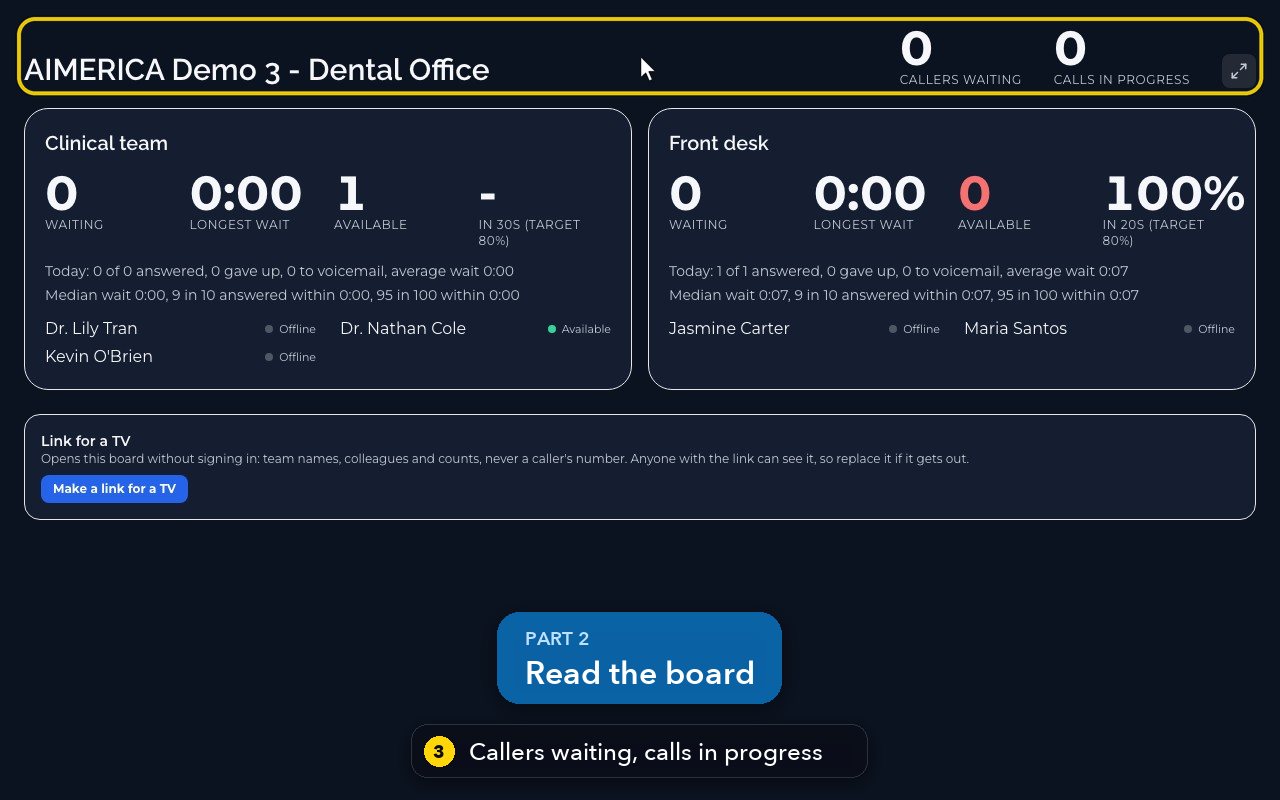
At the top, callers waiting and calls in progress, for the whole company.
- 4
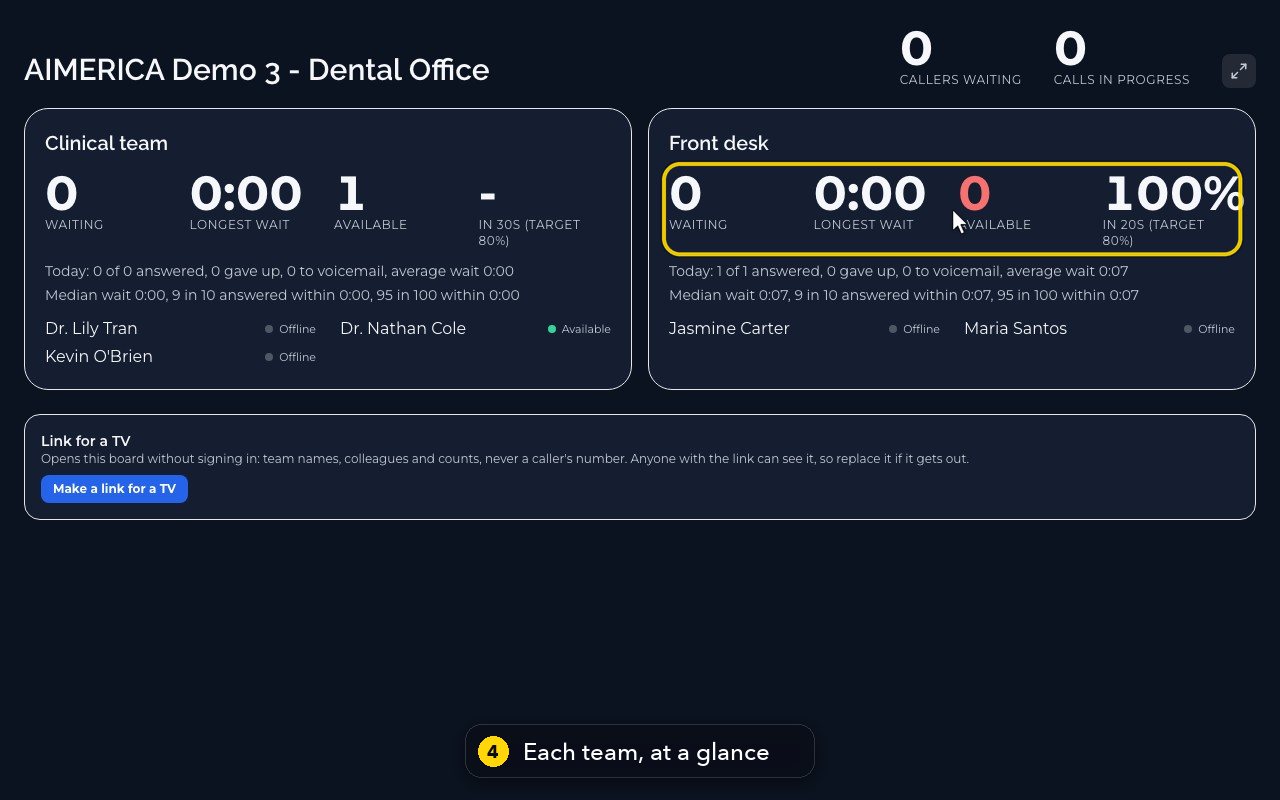
Each team shows callers waiting, the longest wait, who is available, and the share answered within the target.
- 5
Under it: today's answered calls, callers who gave up, calls sent to voicemail, and the wait times.
- 6
Each person shows their status, so you know who is free.
- 7
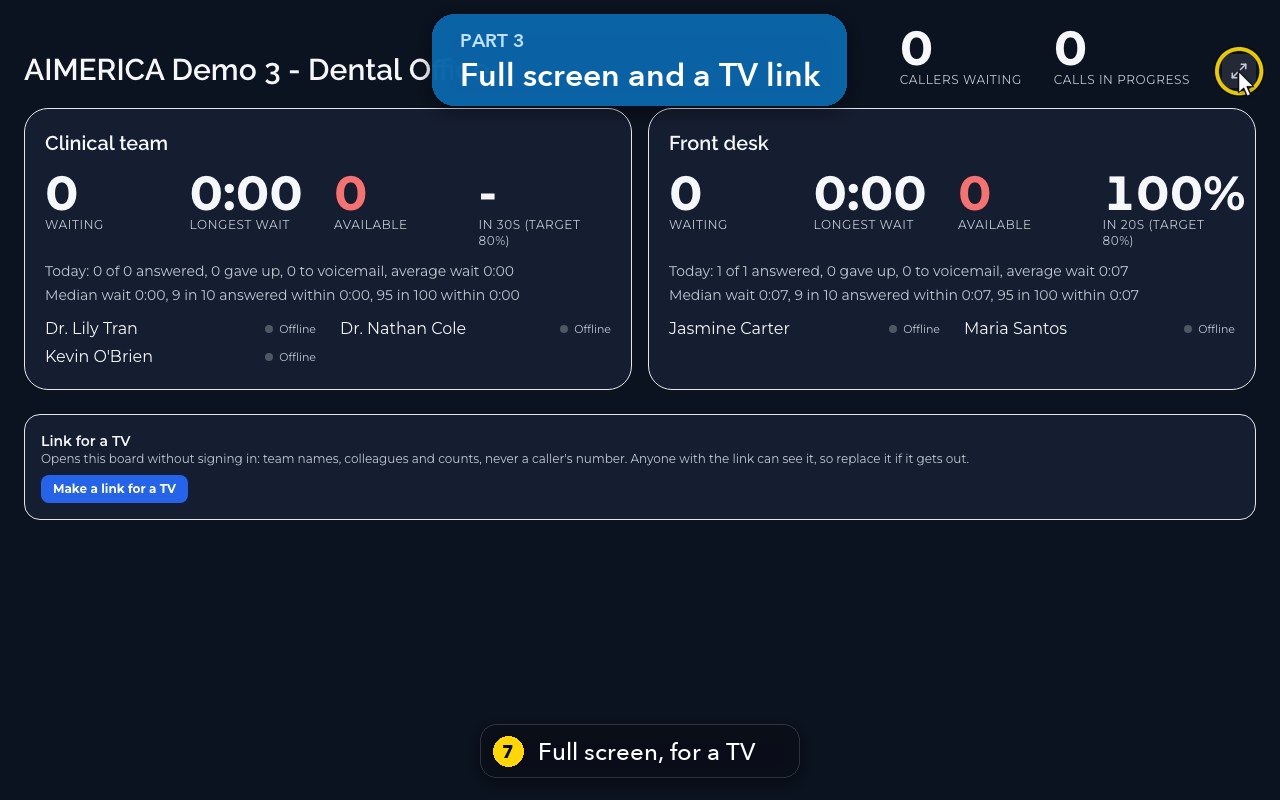
The full screen button, at the top right, fits the board to a TV or a big monitor. Escape leaves full screen.
- 8
Make a link for a TV opens the board on a TV without signing in. It shows team names, colleagues and counts, never a caller's number.
- 9
Anyone with the link can see the board, so replace it if it gets out.
Related tutorials
 1:38VideoBusiness hours and call forwardingChoose when a line is open, and where calls go when you are closed, away or busy.
 1:18VideoChoose who answers each numberRead your numbers list and point each line at a person, a ring group, a phone menu or an AI agent.
 1:16VideoAdd a teammateInvite a new person with a title, a number and an extension, without ever knowing their password.
 1:15VideoExtensions: reach a colleague in a few digitsFind each person's extension, choose one for a new person, and dial it from the browser phone.
 1:24VideoCreate a ring group and choose how it ringsPut people in a group, choose whether phones ring together, one at a time or in turns, and point a number at it.
 1:23VideoGet a new phone numberSearch for a local or toll-free number, see the price, and know what happens before you add it.
Was this not what you needed? Write to us.