
Answer a call in the browser phone
Turn on call alerts, then answer, decline or send to voicemail a call that rings in your browser.
Calls ring in every browser tab where you are signed in to AIMERICA. Keep a tab open on the Phone page, and allow the microphone when your browser asks, so the caller can hear you.
In this video
Step by step
- 1
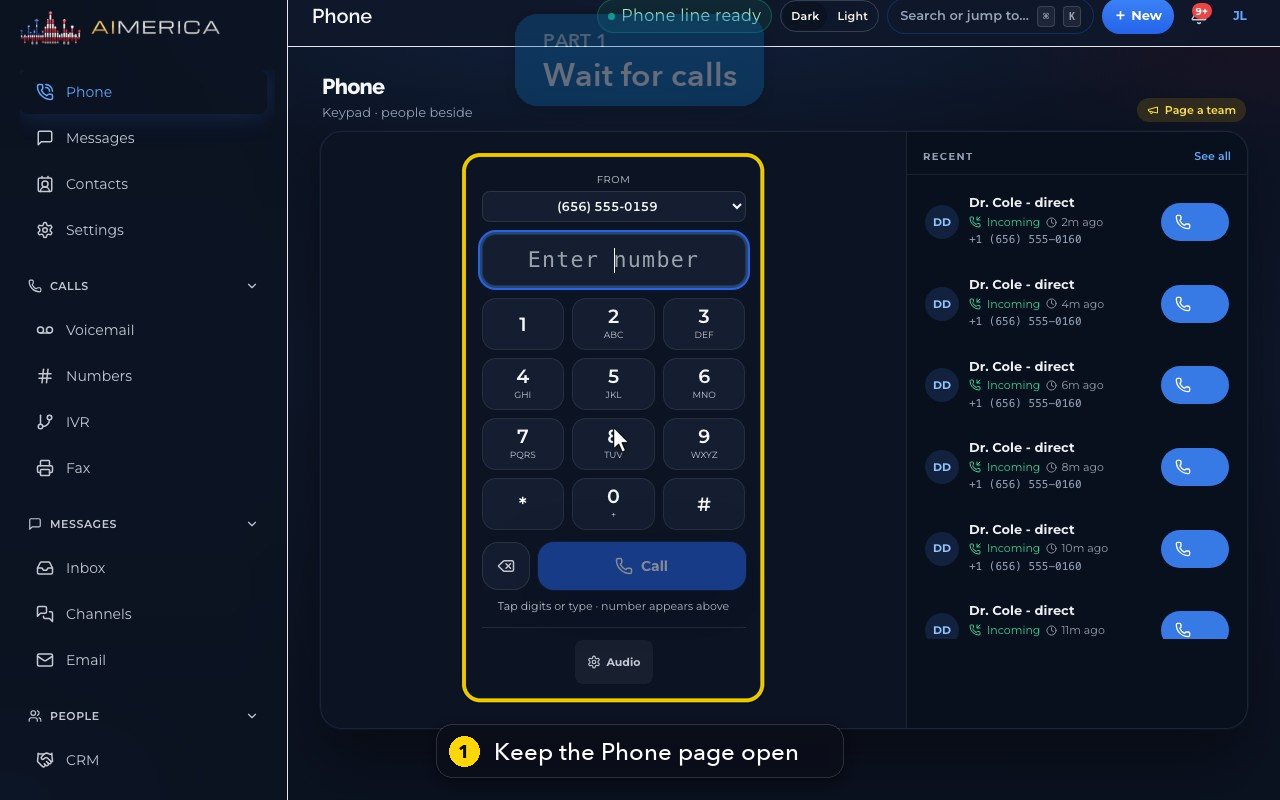
Keep the app open in a browser tab. The Phone page is a good place to wait for calls.
- 2
The green chip at the top means your line is ready to take calls.
- 3
To hear calls while this tab is in the background, turn on alerts in Settings, under Me, then Alerts.
- 4
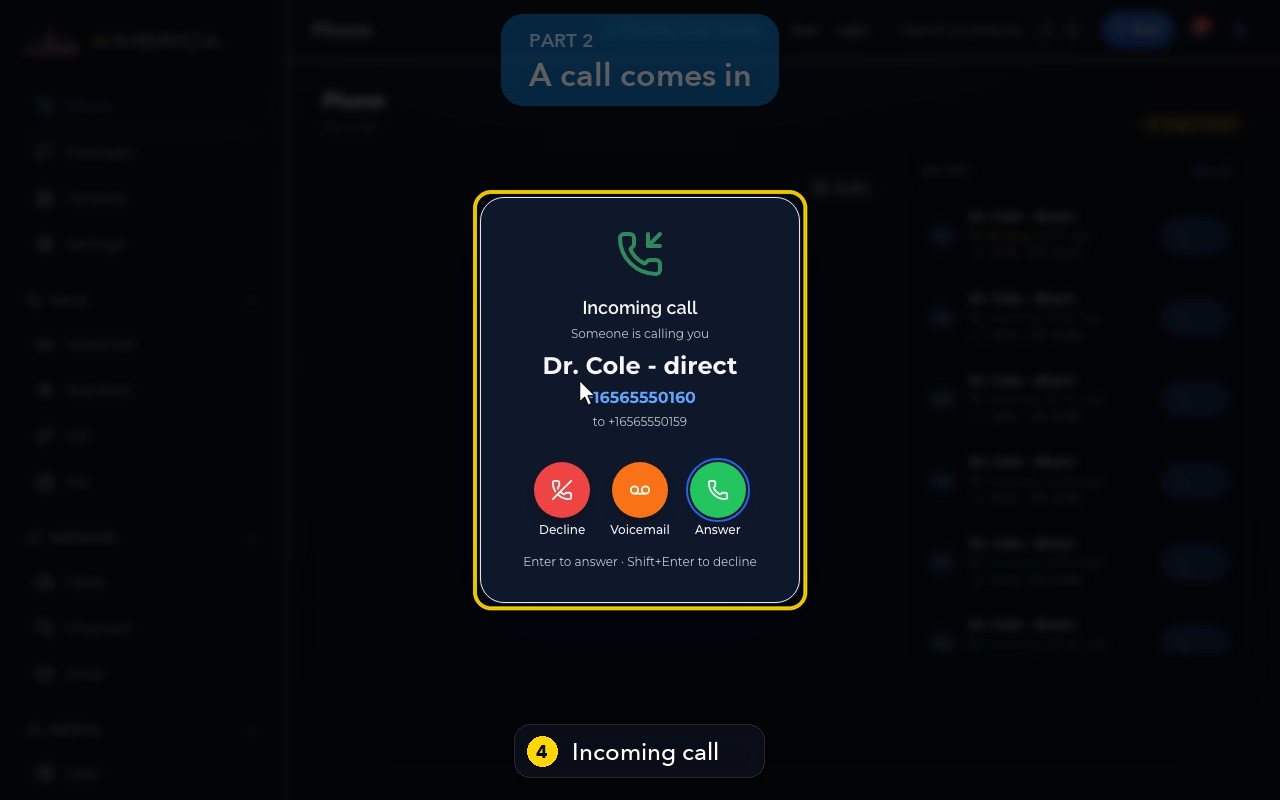
When someone calls, you see Incoming call, the caller's name and number, and the line they called.
- 5
Decline sends the call away. Voicemail sends the caller to your voicemail.
- 6
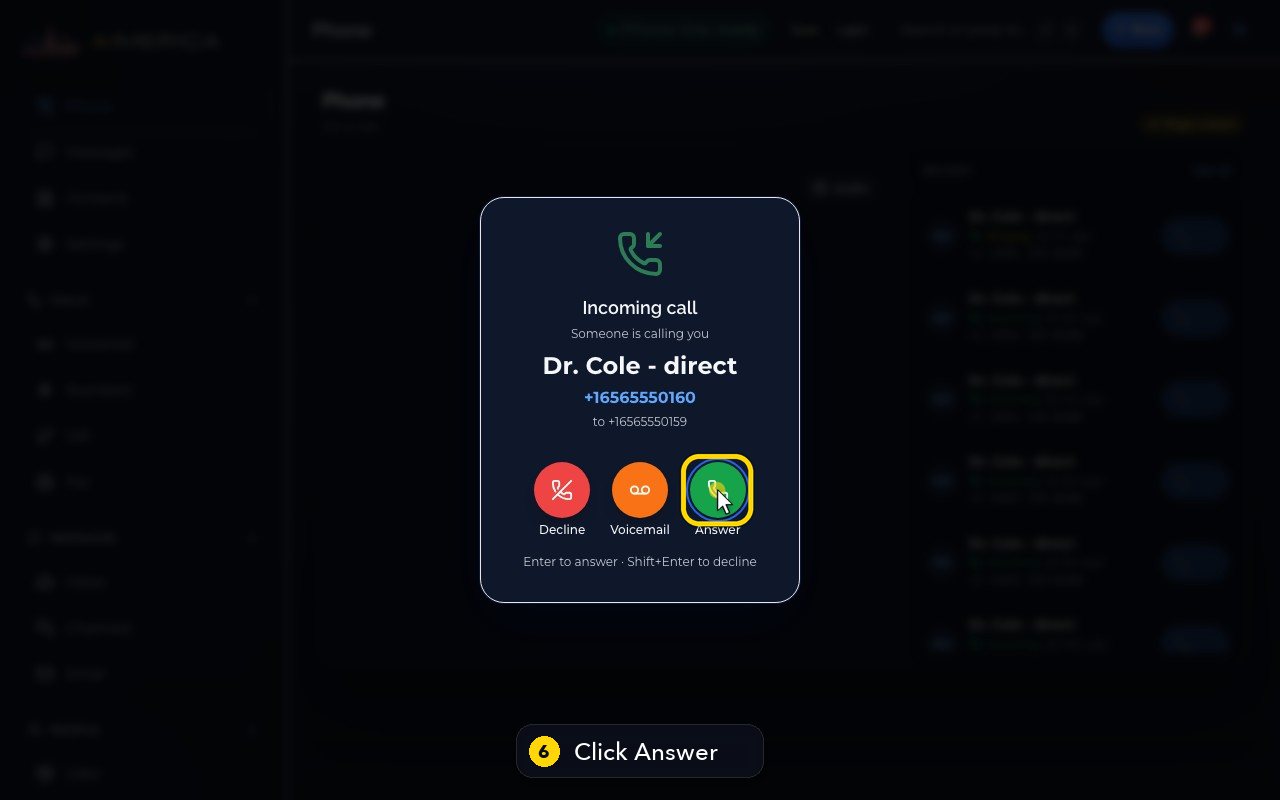
Answer takes the call. The Enter key answers too, and Shift plus Enter declines.
- 7
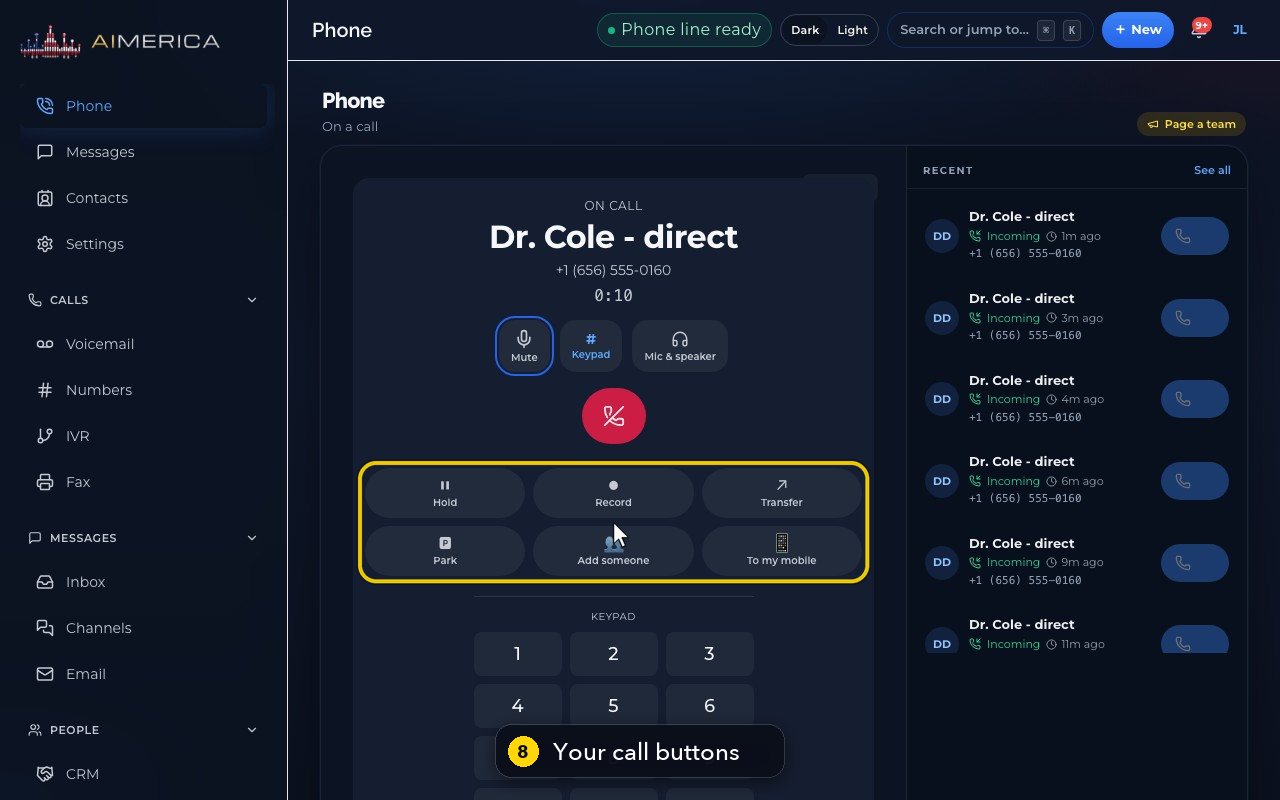
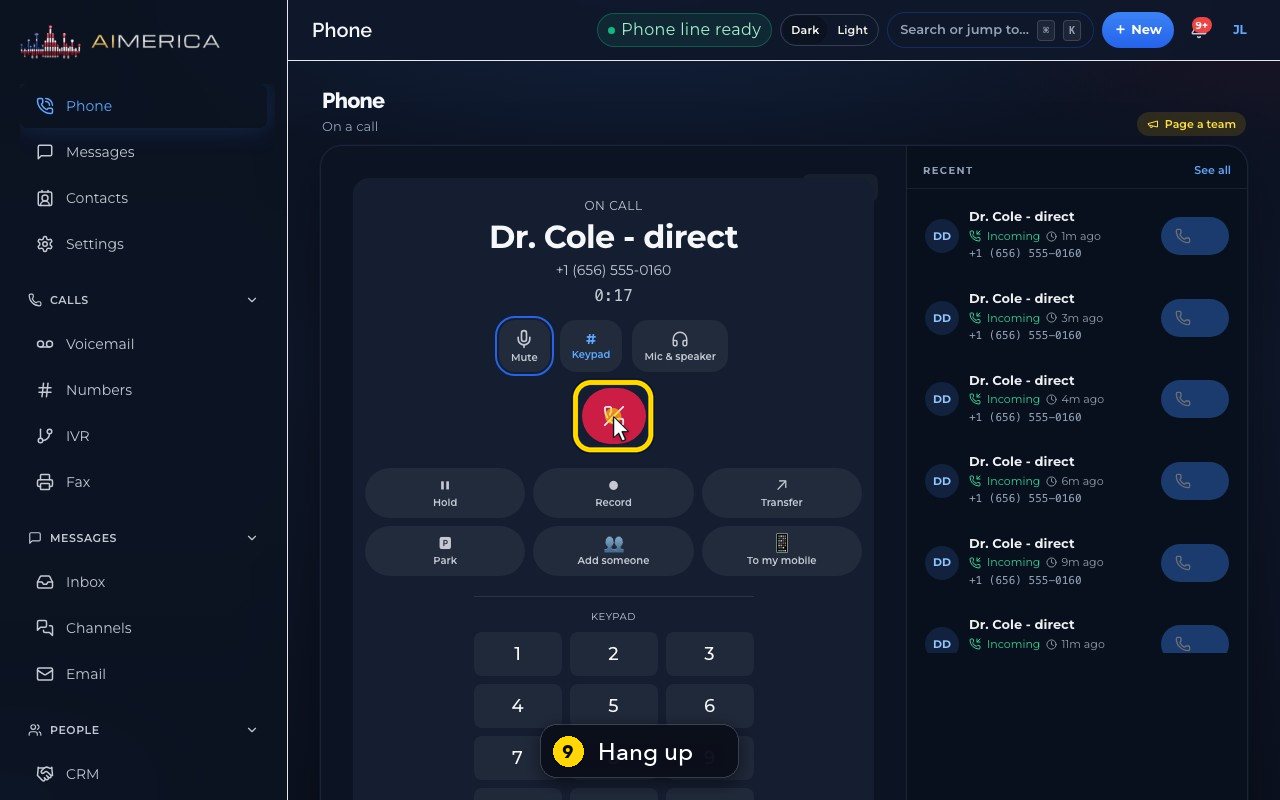
You're on the call. The stage shows who you're talking to, their number, and a timer.
- 8
Mute, Keypad, Hold, Record and Transfer work like on any call. Each one has its own video.
- 9
When you're done, press the red button to hang up, or Shift plus Escape.
- 10
The call is now at the top of Recent, with when it came in.
Related tutorials
 1:28VideoMake a call in the browser phoneDial a number from the Phone page keypad or from Recent, choose the line callers see, and check your audio.
 1:27VideoRecent calls and AI call summariesFind any call in Recent, filter missed, AI and booked calls, and read what the AI receptionist did on a call.
 1:01VideoReturn a missed call: call back, text back, save the nameOpen a missed caller from Phone, call or text them back, and save their name to Contacts.
 0:58VideoTransfer a call to a teammateHand a live call to a teammate, a team, an extension or another number, straight away or after talking first.
 0:59VideoRecord a callStart and stop recording during a call, with the spoken notice, and find the recording in Recent.
 0:54VideoCall waiting: a second call while you talkHold and answer, end and answer, or send to voicemail a second caller, then swap between calls.
Was this not what you needed? Write to us.