
Make a call in the browser phone
Dial a number from the Phone page keypad or from Recent, choose the line callers see, and check your audio.
The browser phone is on the Phone page. When your browser asks, allow the microphone, so the person you call can hear you.
In this video
Step by step
- 1
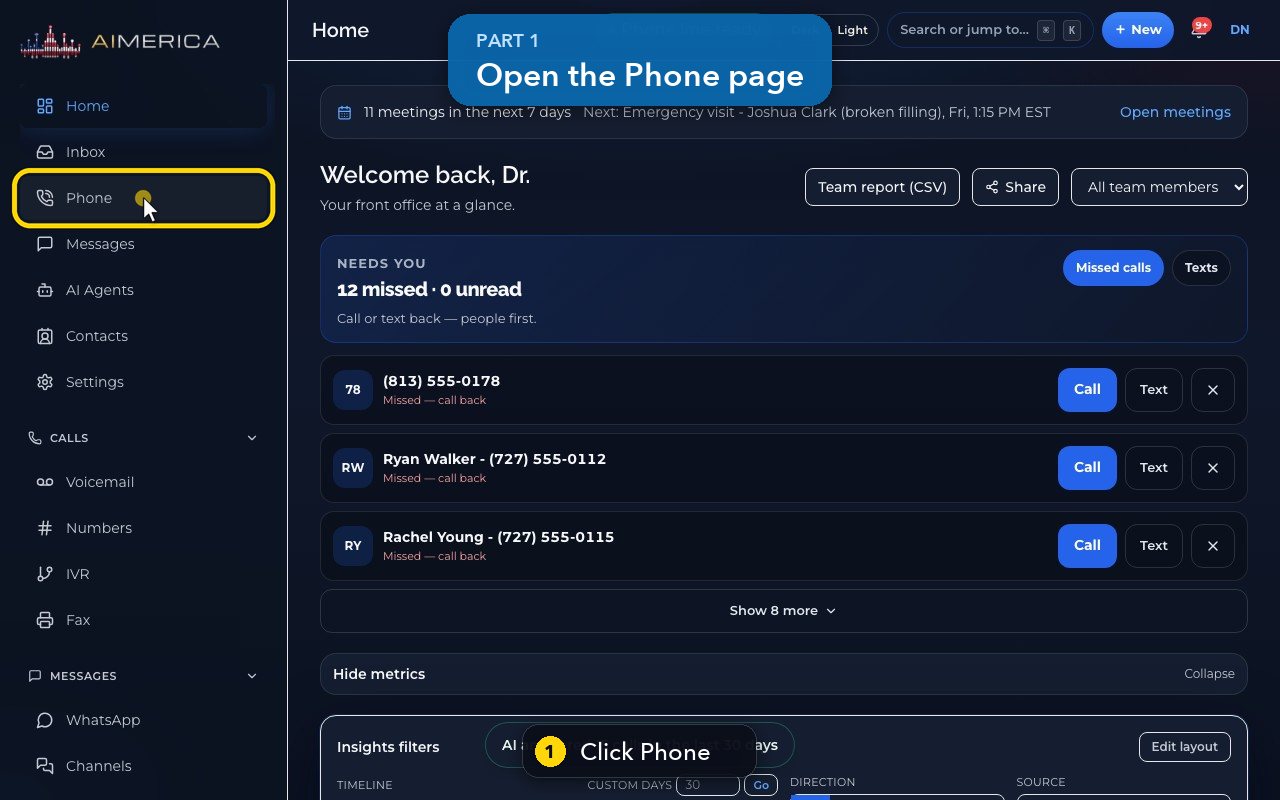
Click Phone, in the menu on the left. The keypad is in the middle, and your recent calls are on the right.
- 2
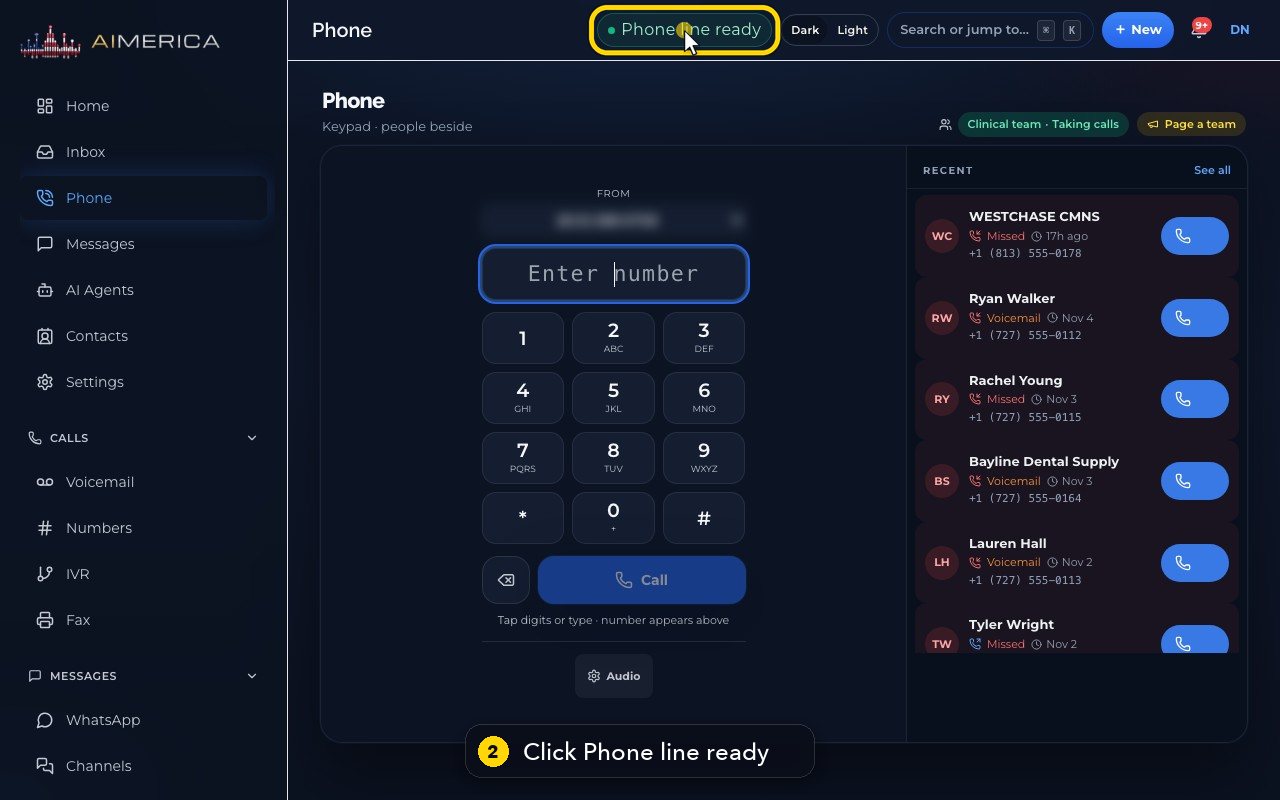
At the top, the green chip means your line can place and receive calls. Click Phone line ready for the details.
- 3
The panel shows the status of your line. Press Escape to close it.
- 4
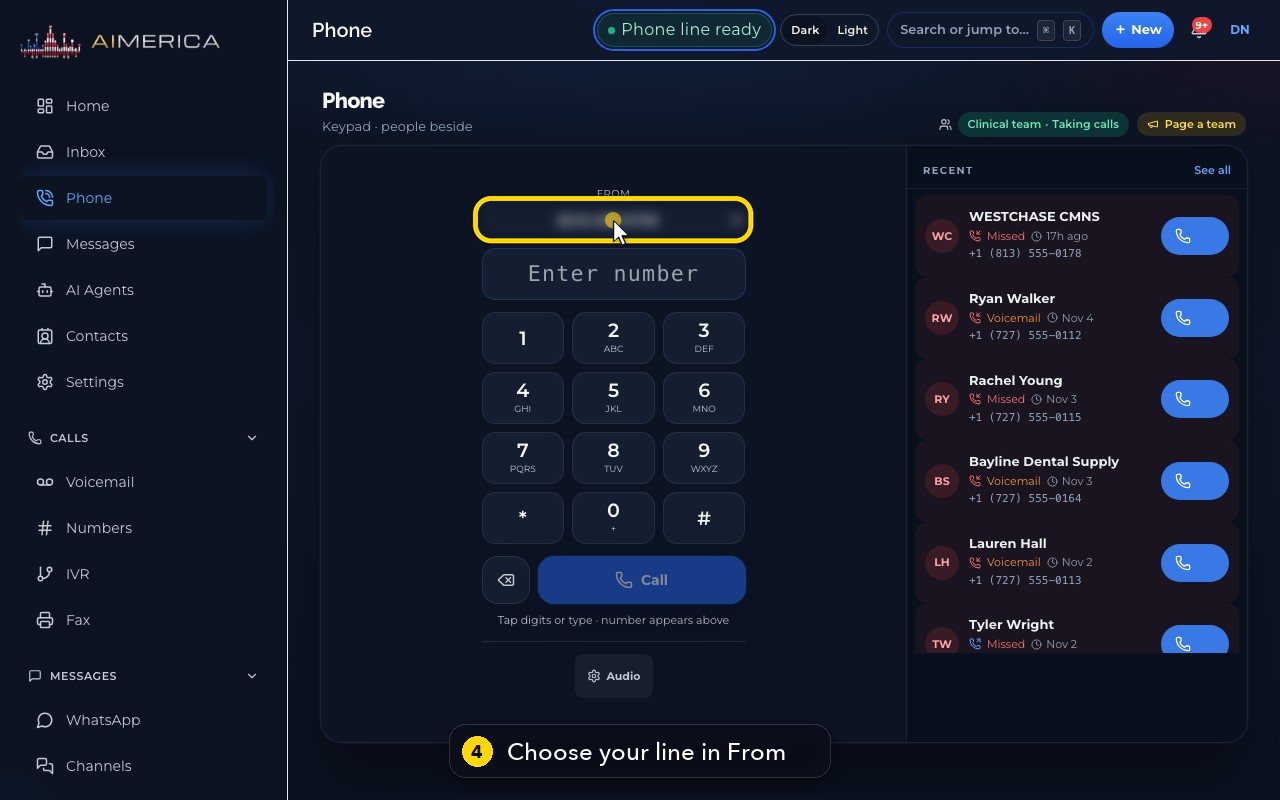
The From list sets which of your numbers the person you call will see. Choose the line to call from.
- 5
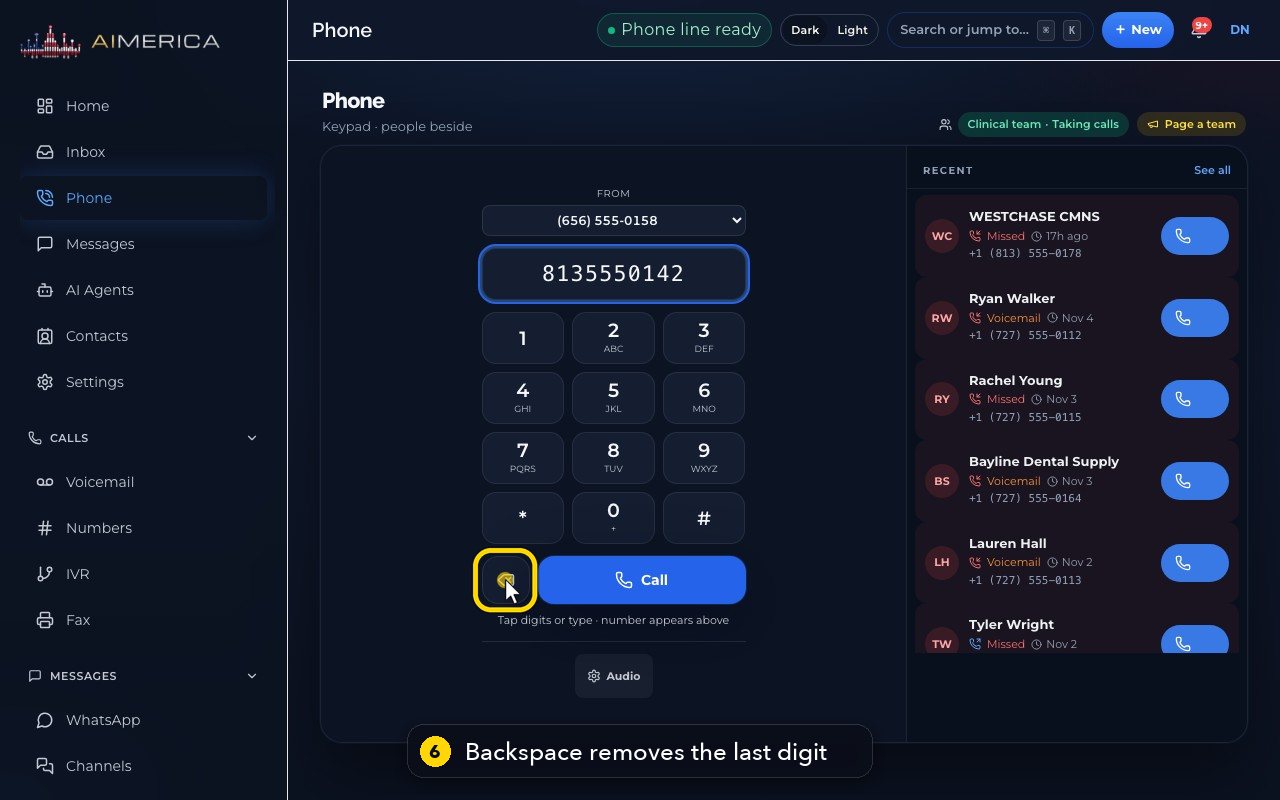
Type the number with your keyboard, or click the keys on the keypad. It appears in the box above the keys.
- 6
Typed a wrong digit? Backspace removes the last one. Then put in the right digit.
- 7
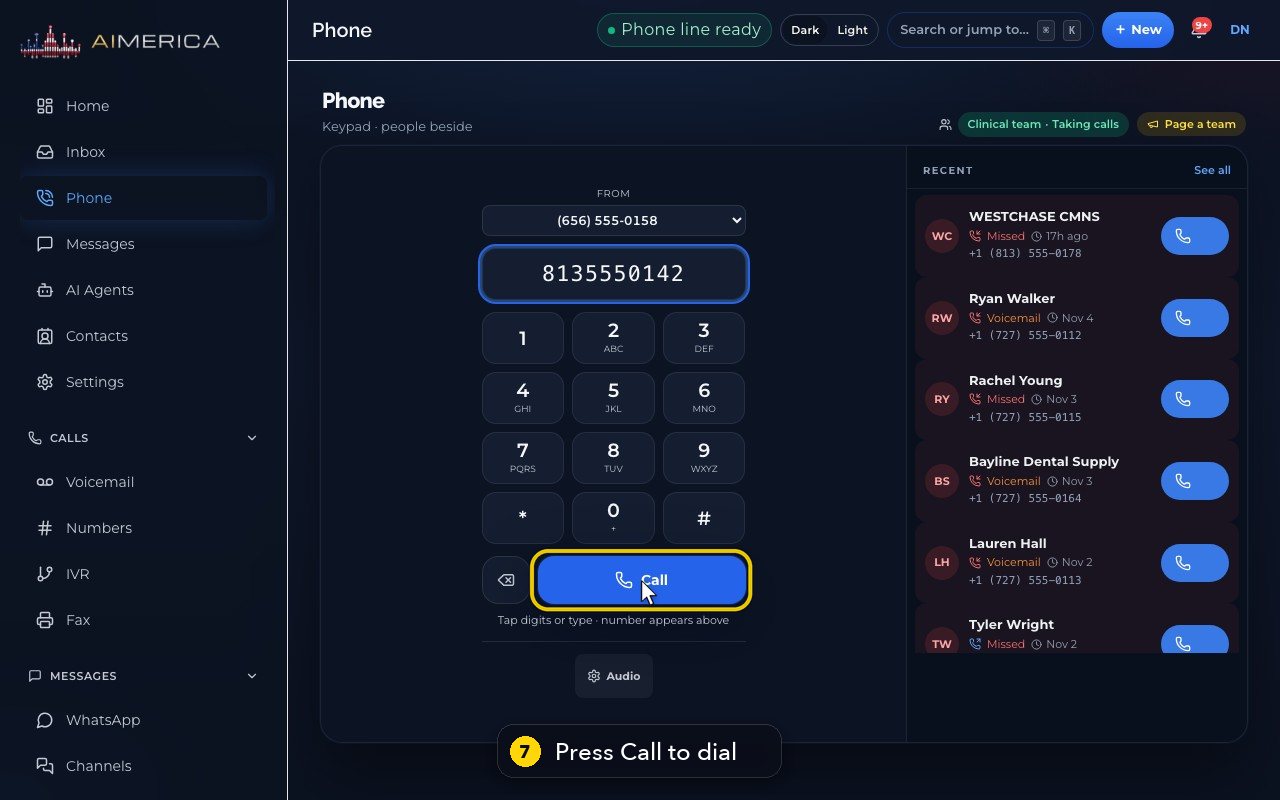
Then press Call, or the Enter key, to place the call. The live call appears right here on the Phone page.
- 8
To call someone back, use the phone button next to their name in Recent. It dials straight away.
- 9
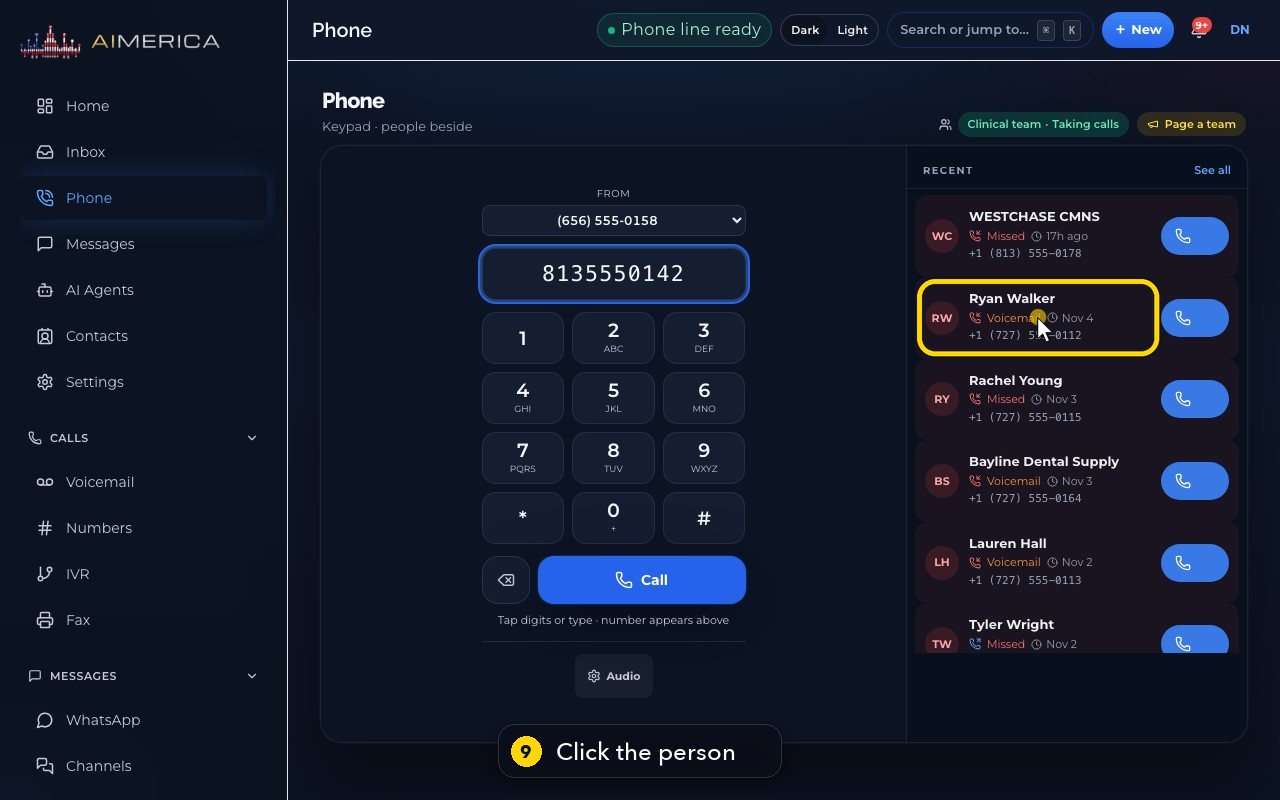
Or click the person to see their last call, with Call back and Text.
- 10
Close the card with the X, or the Escape key.
- 11
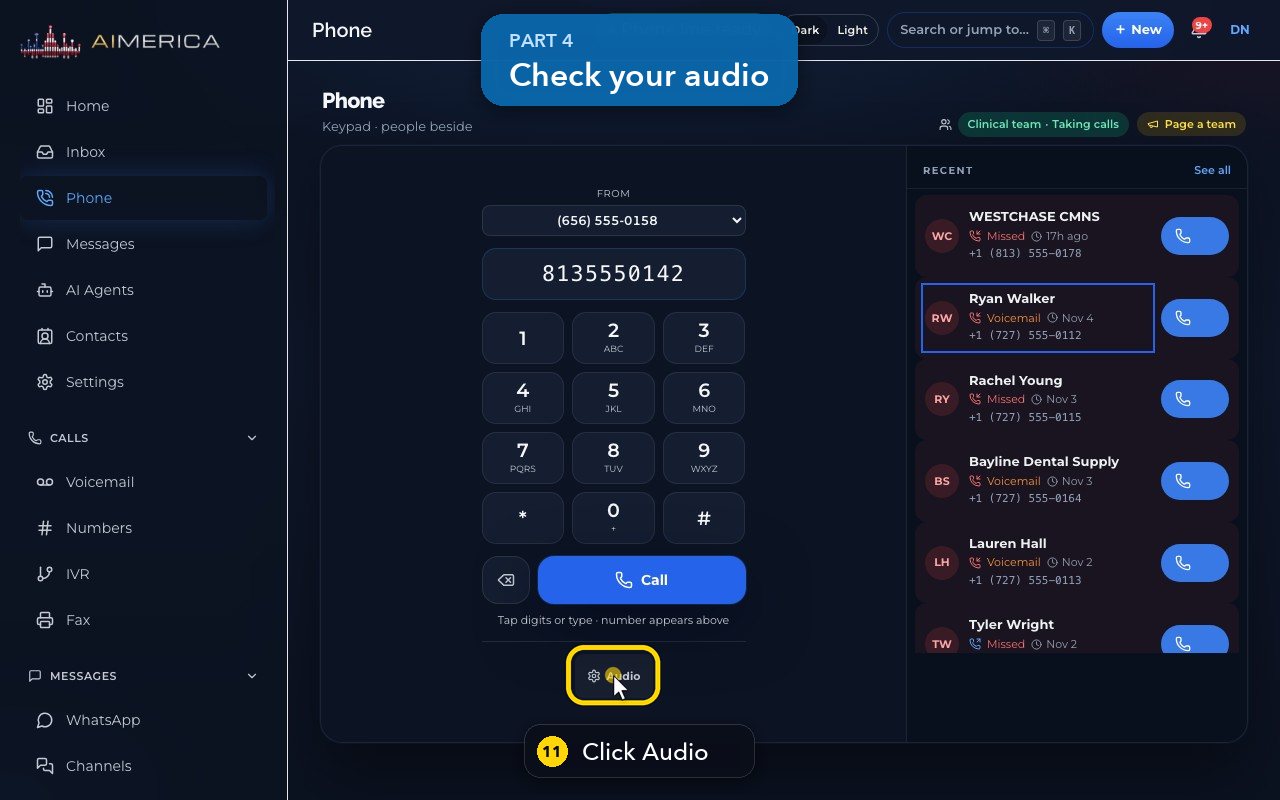
Audio, under the keypad, picks your microphone and your speaker.
- 12
Connect headset links a USB headset that has call buttons, in Chrome or Edge.
Related tutorials
 1:15VideoAnswer a call in the browser phoneTurn on call alerts, then answer, decline or send to voicemail a call that rings in your browser.
 1:27VideoRecent calls and AI call summariesFind any call in Recent, filter missed, AI and booked calls, and read what the AI receptionist did on a call.
 1:01VideoReturn a missed call: call back, text back, save the nameOpen a missed caller from Phone, call or text them back, and save their name to Contacts.
 0:58VideoTransfer a call to a teammateHand a live call to a teammate, a team, an extension or another number, straight away or after talking first.
 0:59VideoRecord a callStart and stop recording during a call, with the spoken notice, and find the recording in Recent.
 0:54VideoCall waiting: a second call while you talkHold and answer, end and answer, or send to voicemail a second caller, then swap between calls.
Was this not what you needed? Write to us.