
Check an appointment's status and guests
Open an appointment's details, see its status choices and manage its guest list.
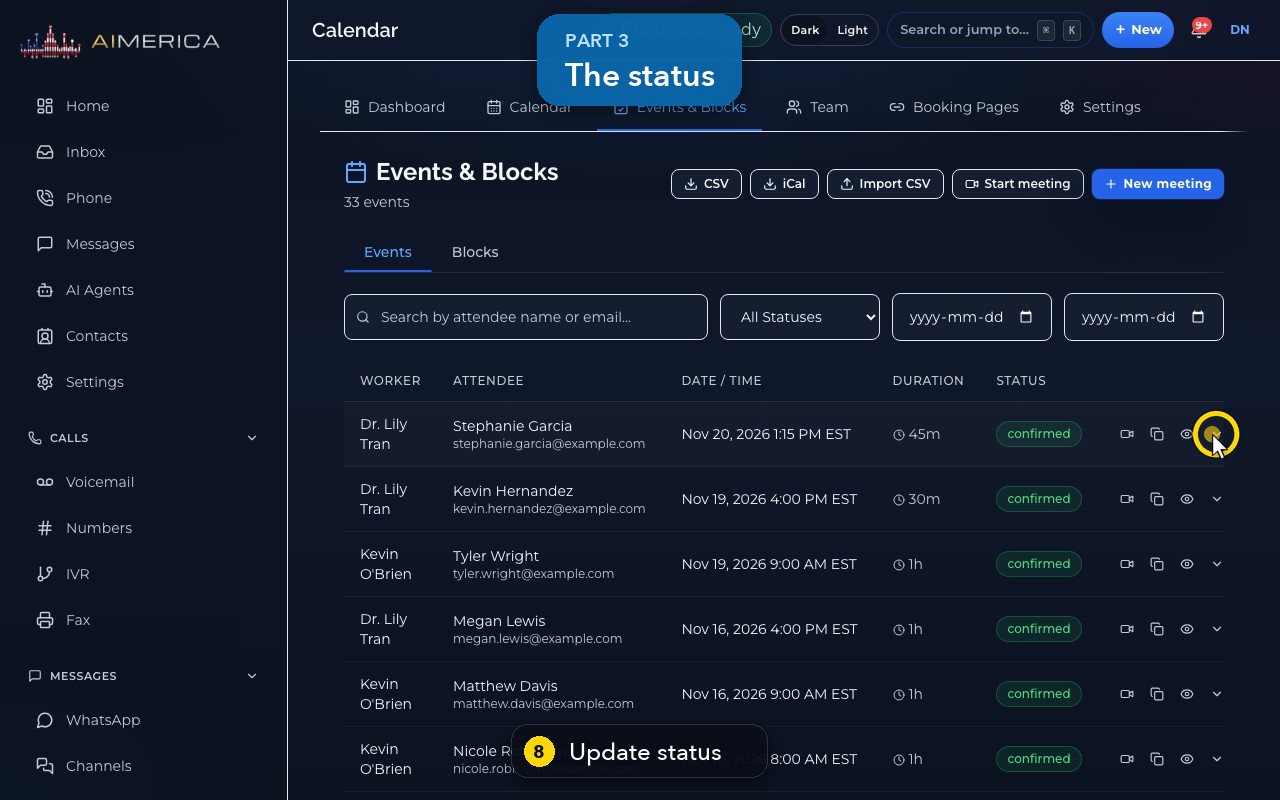
Open Calendar › Events & Blocks. The eye icon of a row shows the details; Attendees in that window manages the guest list. The arrow next to the eye changes the status: confirmed, pending or cancelled.
In this video
Step by step
- 1
Every appointment can be checked and managed from Events and Blocks.
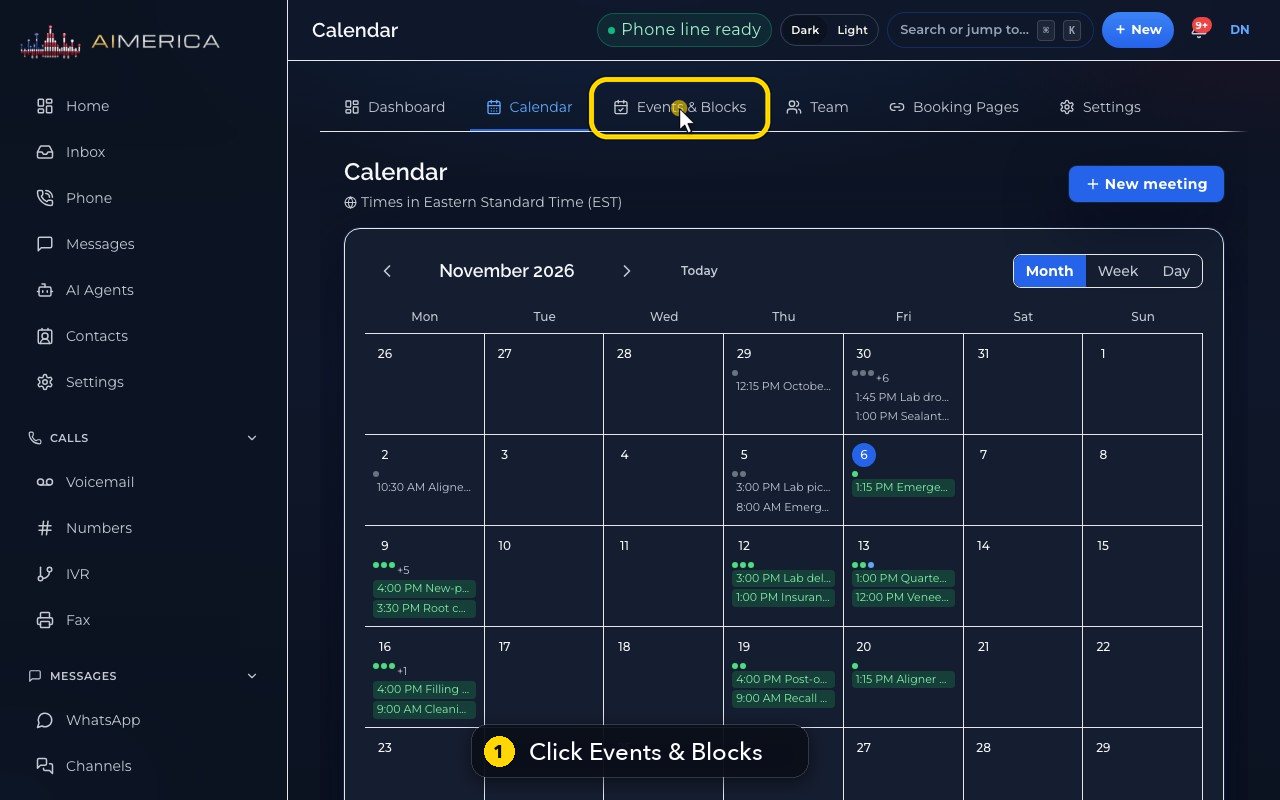
- 2
The eye icon shows the details.
- 3
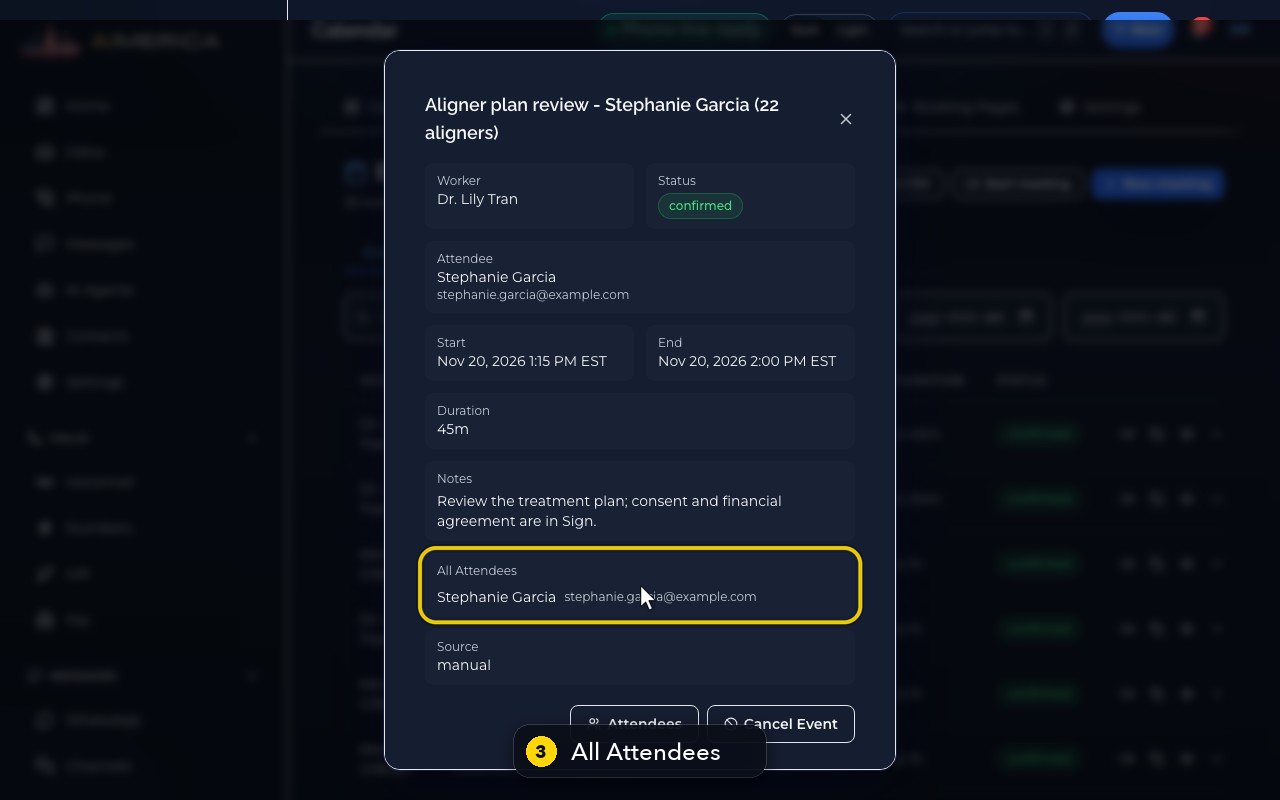
All Attendees lists everyone on the invite.
- 4
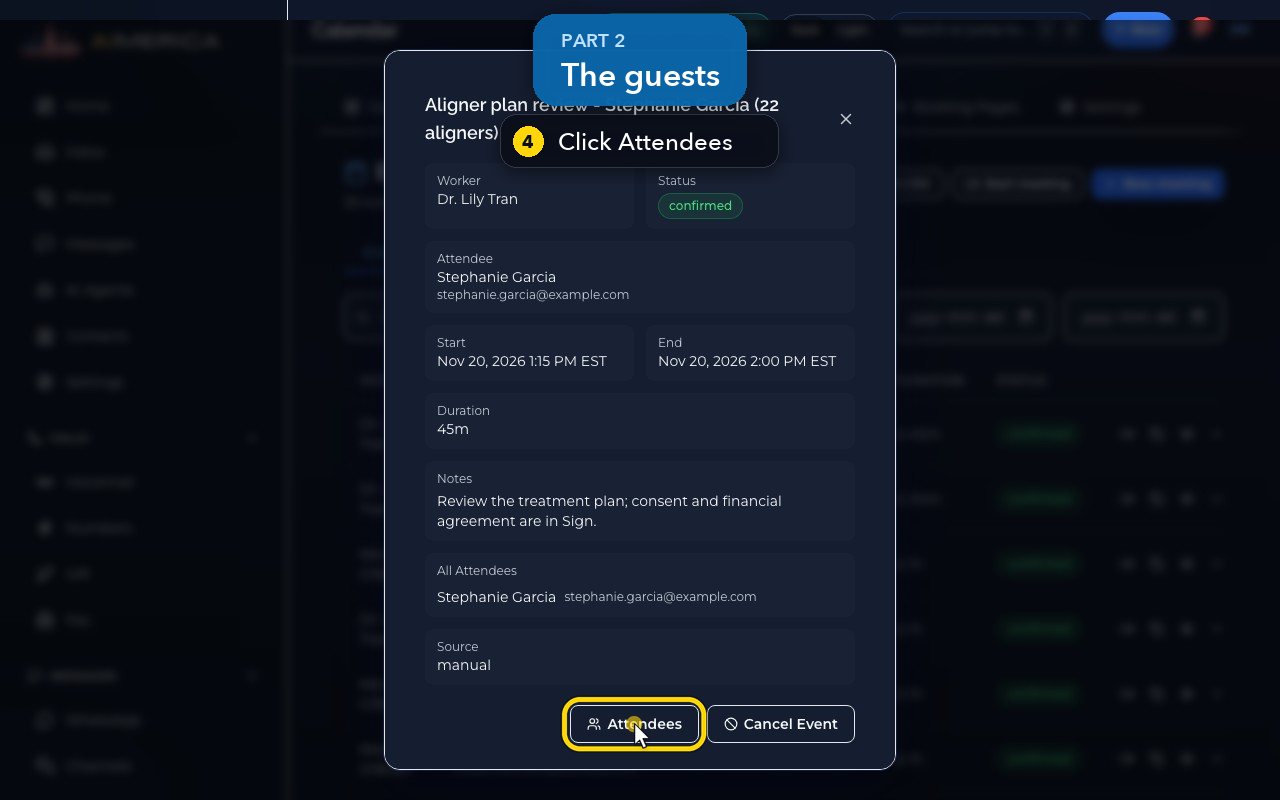
Attendees, at the bottom, manages the guest list.
- 5
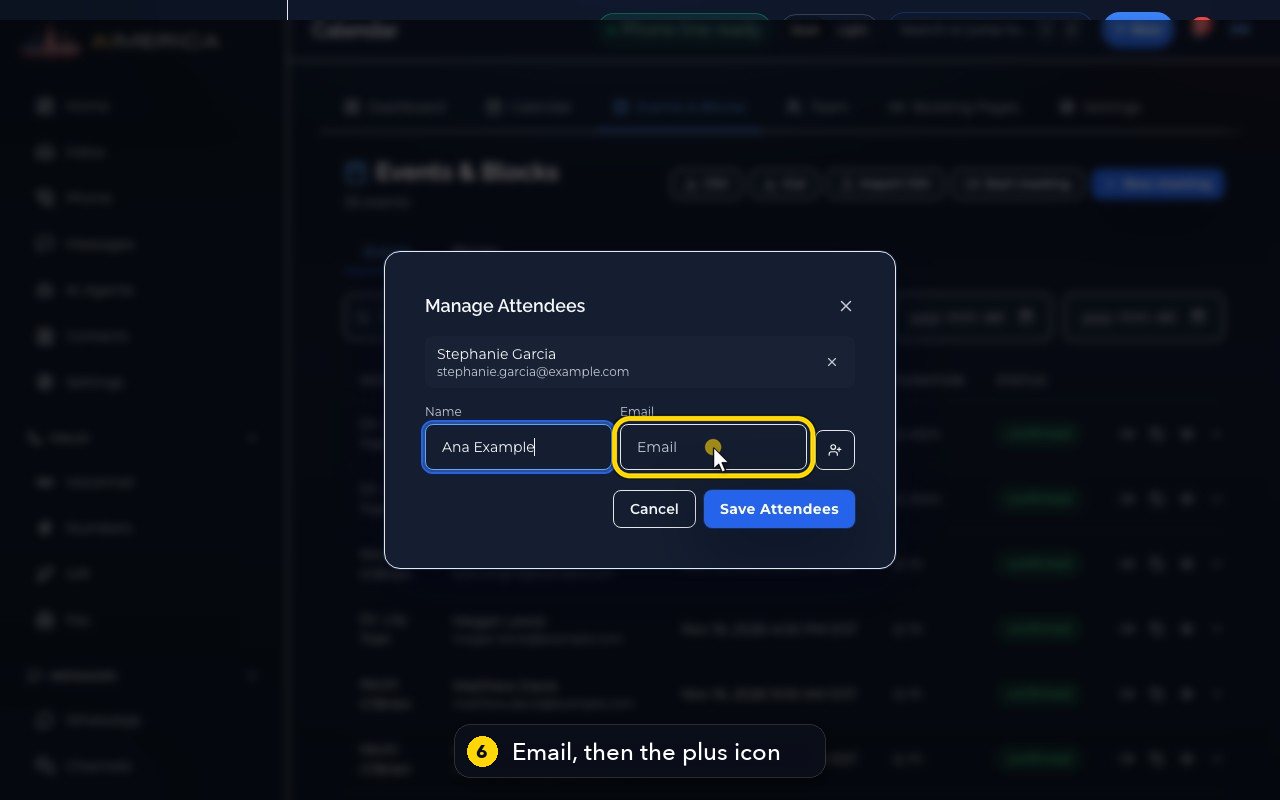
Type the new guest's name.
- 6
And their email. The plus icon next to it adds them to the list.
- 7
Save Attendees would update the invite. Here we press Cancel.
- 8
In the list, the arrow next to the eye changes the status: confirmed, pending or cancelled.
- 9
Each button saves at once, so here we only look.
- 10
Escape closes it, unchanged.
Related tutorials
 1:15VideoSchedule a video meeting and invite guestsPlan a video meeting, add guests from Contacts or Team, and check the time before inviting.
 1:14VideoJoin a meeting and share your screenJoin a meeting from its link, check your microphone, then share your screen.
 0:50VideoPlan a meeting straight from the calendarClick an empty hour in week view to open the meeting form with that day and time filled in.
 1:17VideoChange a meeting's time or guestsOpen a meeting's details to change its time, guests or notes, and choose whether guests are told.
 0:56VideoSee who accepted a meeting inviteRead the RSVP badges so you know who is coming.
 1:14VideoHost controls: waiting room, lock and muteAs host, let people in, lock the meeting, mute everyone and share the invite or dial-in.
Was this not what you needed? Write to us.