
Block time off on a calendar
Add a block so a teammate can't be booked during a holiday, lunch or training.
Open Calendar › Events & Blocks, switch to Blocks and click Add Block. Choose the teammate, give the block a title, pick its start and end, then press Add Block: nobody can book that person during that time.
In this video
Step by step
- 1
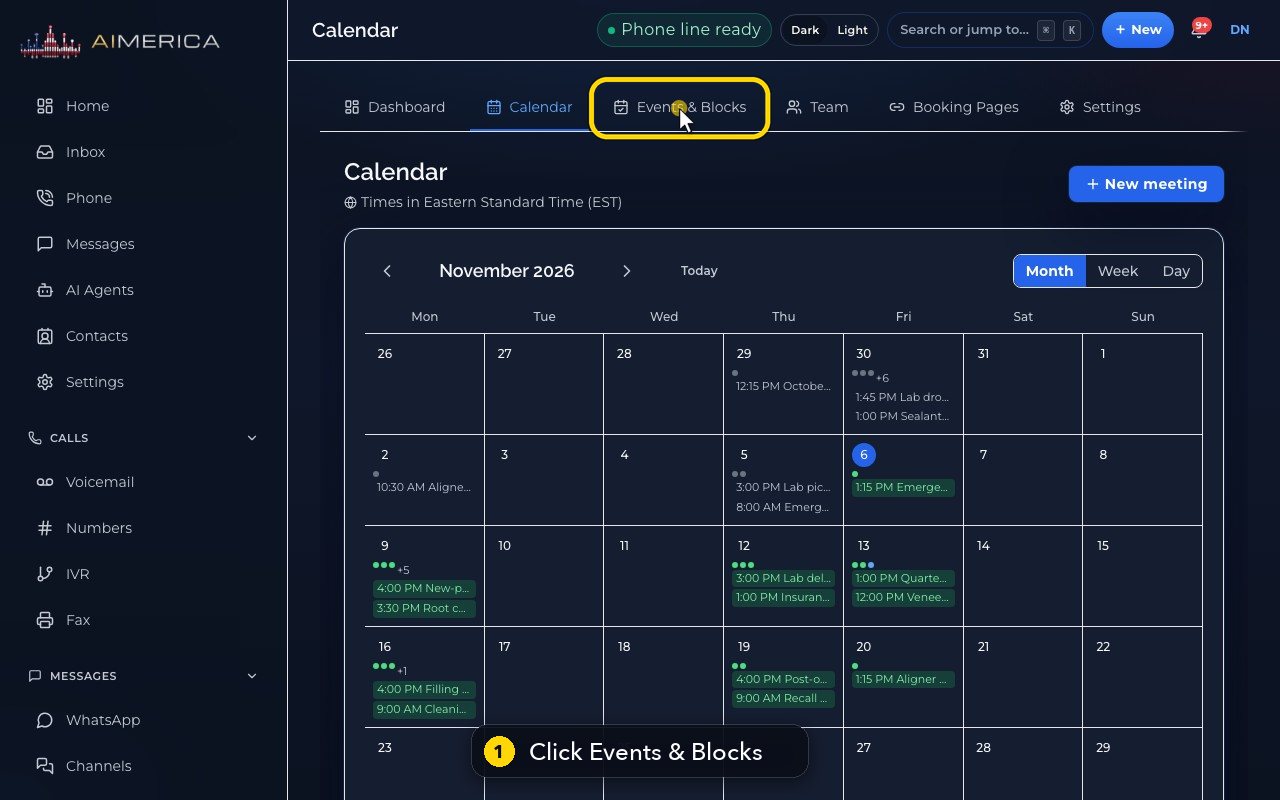
Going on holiday, or to a course? Add a block. Blocks live in Calendar, under Events and Blocks.
- 2
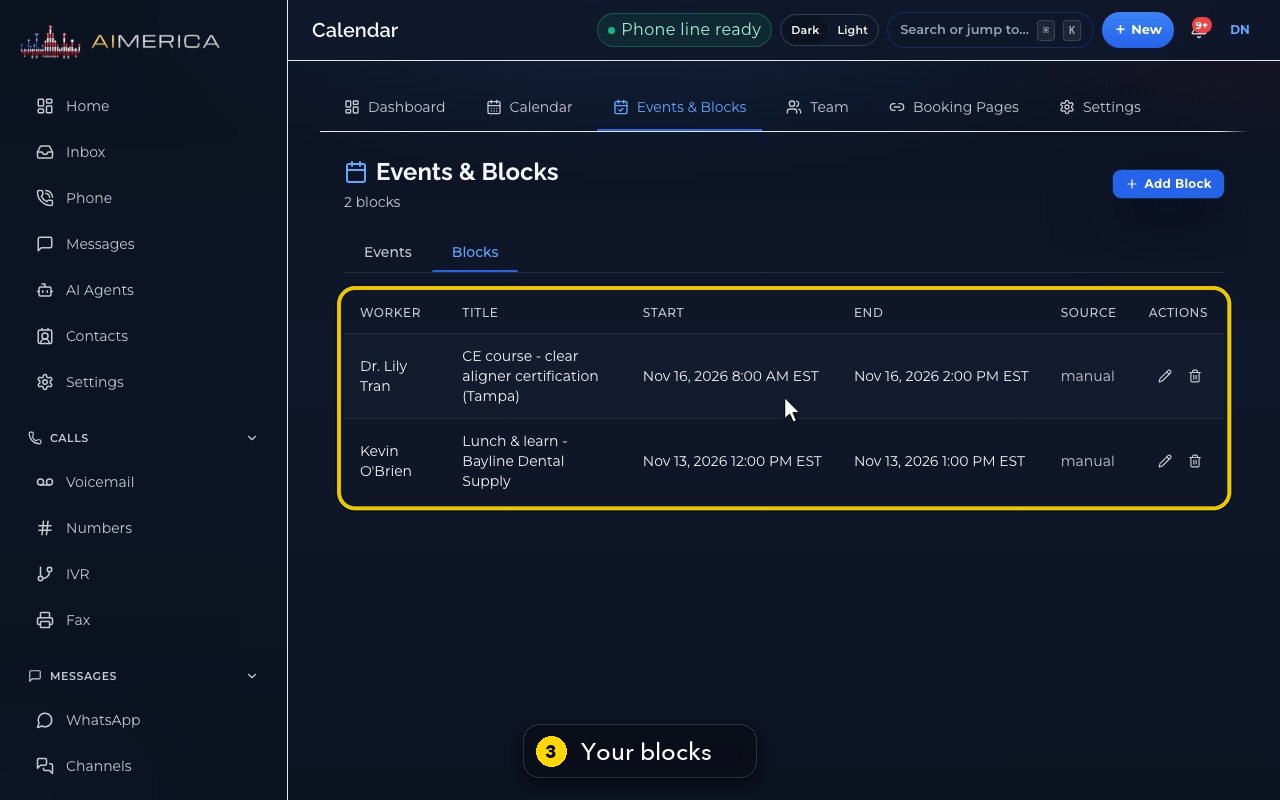
Switch to Blocks, to see the time already blocked.
- 3
Each block shows the teammate, the title, the start, the end, and where it comes from.
- 4
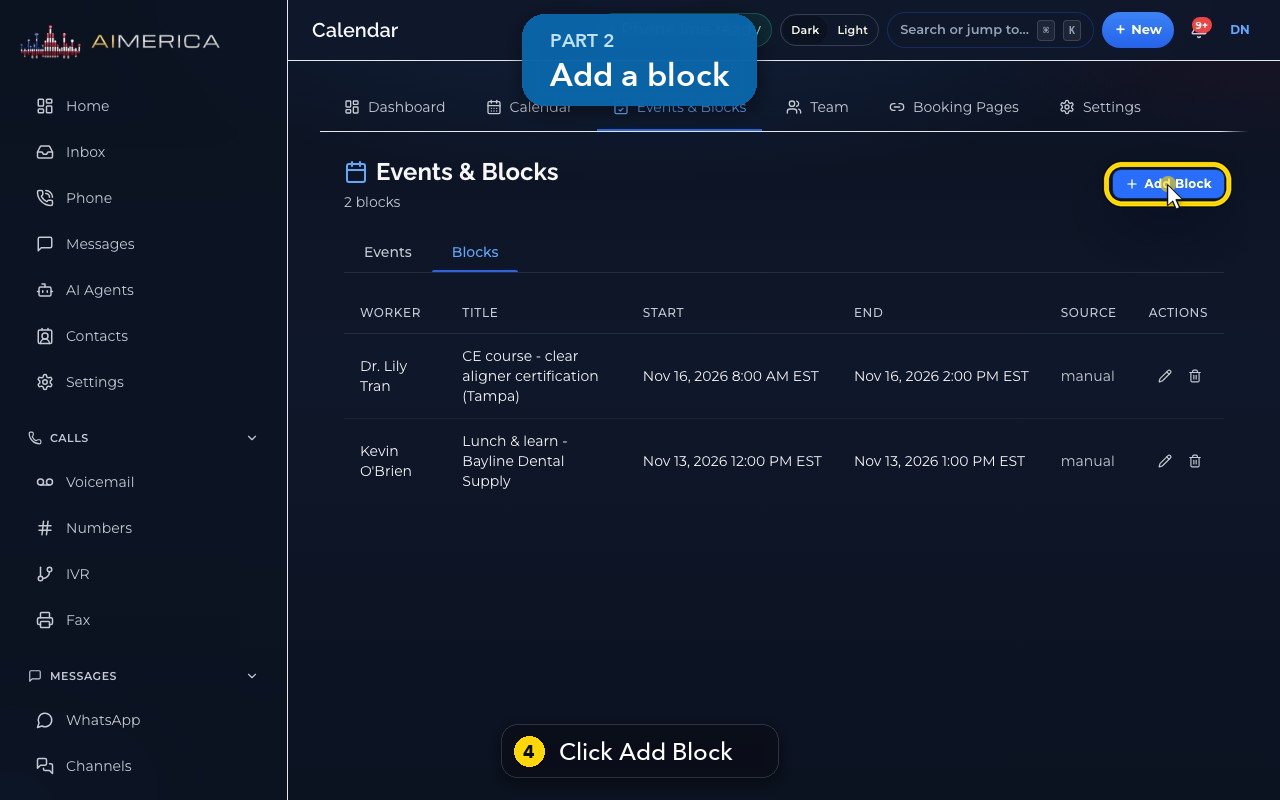
To add one, click Add Block.
- 5
Choose whose calendar to block.
- 6
Give it a name everyone understands.
- 7
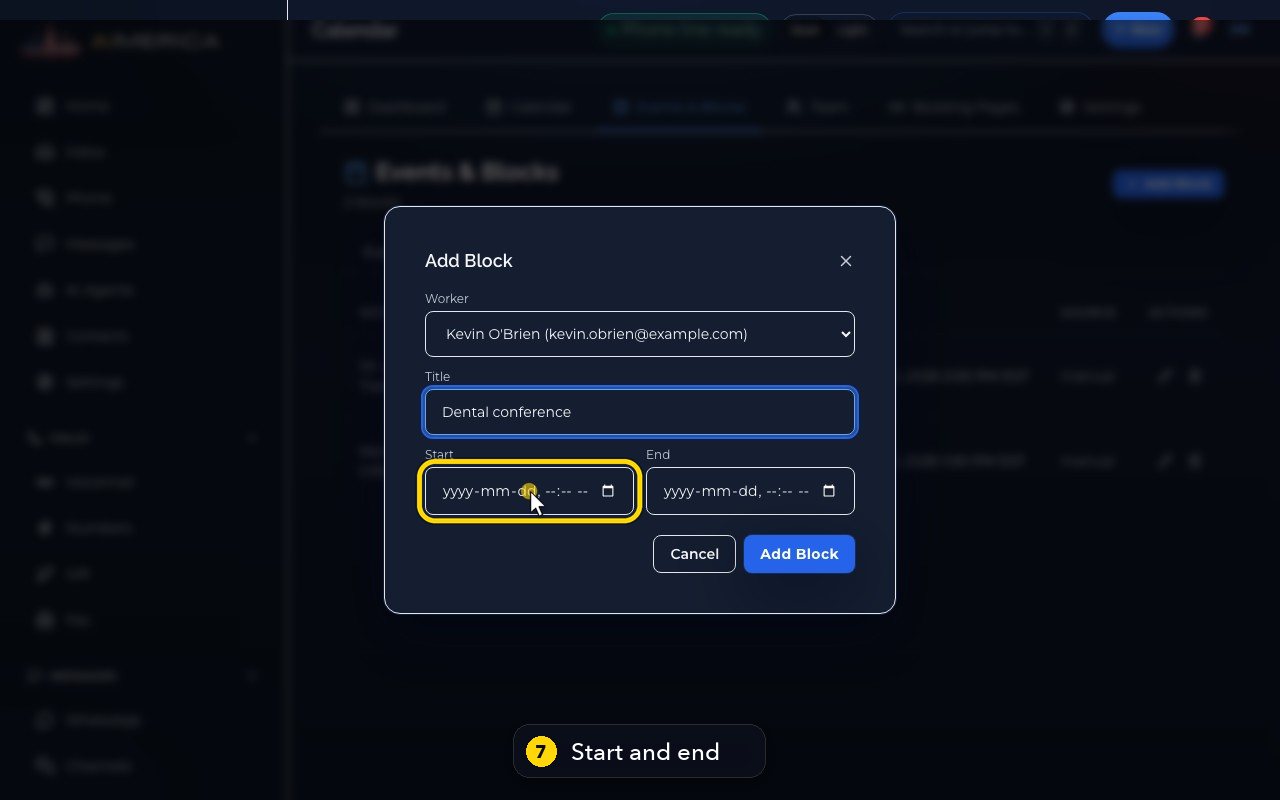
Pick when it starts, and when it ends. It can be one hour, or several days.
- 8
Add Block would save it, and the time would show as busy. Here we press Cancel, so the demo calendar stays as it is.
Related tutorials
 1:15VideoSchedule a video meeting and invite guestsPlan a video meeting, add guests from Contacts or Team, and check the time before inviting.
 1:14VideoJoin a meeting and share your screenJoin a meeting from its link, check your microphone, then share your screen.
 0:50VideoPlan a meeting straight from the calendarClick an empty hour in week view to open the meeting form with that day and time filled in.
 1:17VideoChange a meeting's time or guestsOpen a meeting's details to change its time, guests or notes, and choose whether guests are told.
 0:56VideoSee who accepted a meeting inviteRead the RSVP badges so you know who is coming.
 1:14VideoHost controls: waiting room, lock and muteAs host, let people in, lock the meeting, mute everyone and share the invite or dial-in.
Was this not what you needed? Write to us.