
Connect Outlook or Google Calendar
Link your Outlook or Google calendar so your busy times block bookings.
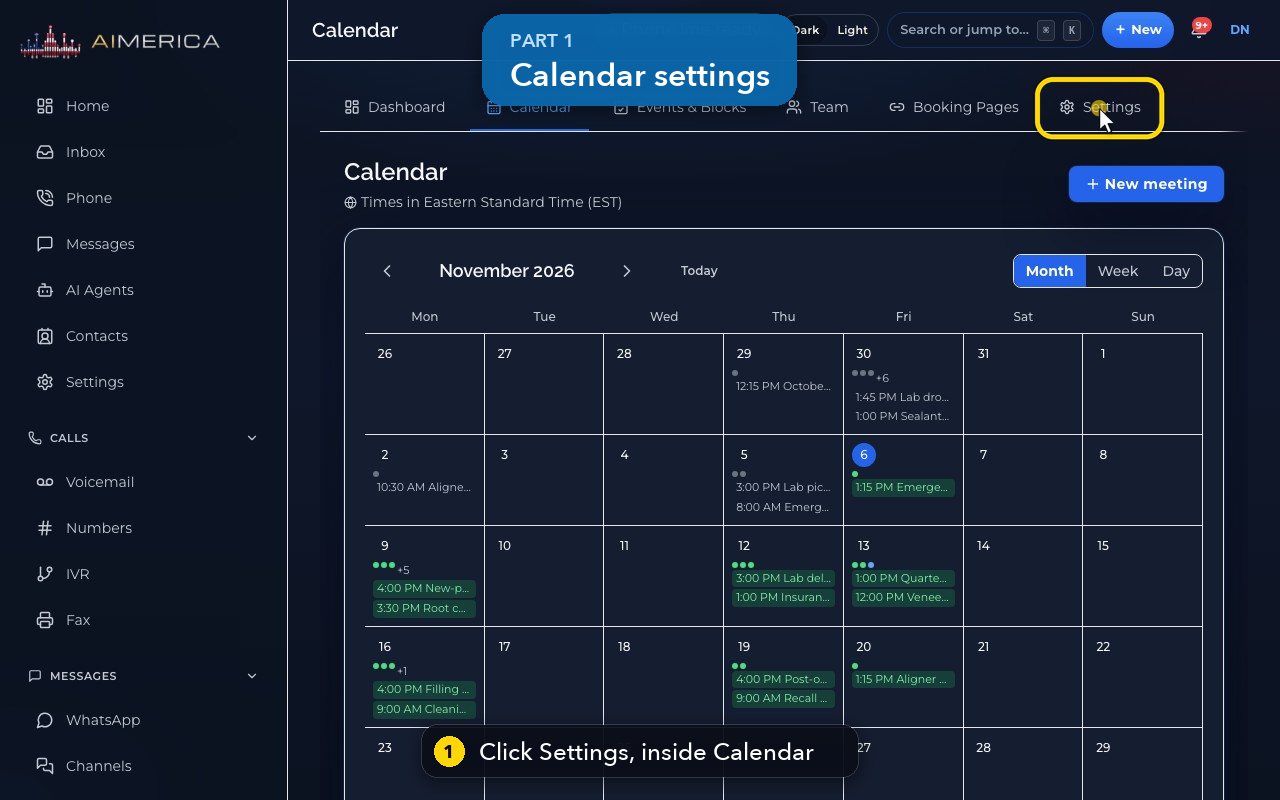
Open Calendar › Settings (the tab inside Calendar) › Integrations. Connect with Microsoft is for Outlook and Microsoft 365 work or school accounts, Connect with Google for Gmail and Google Workspace. You sign in on their own page and come back connected.
In this video
Step by step
- 1
Your calendar connections are in the Settings tab, inside Calendar.
- 2
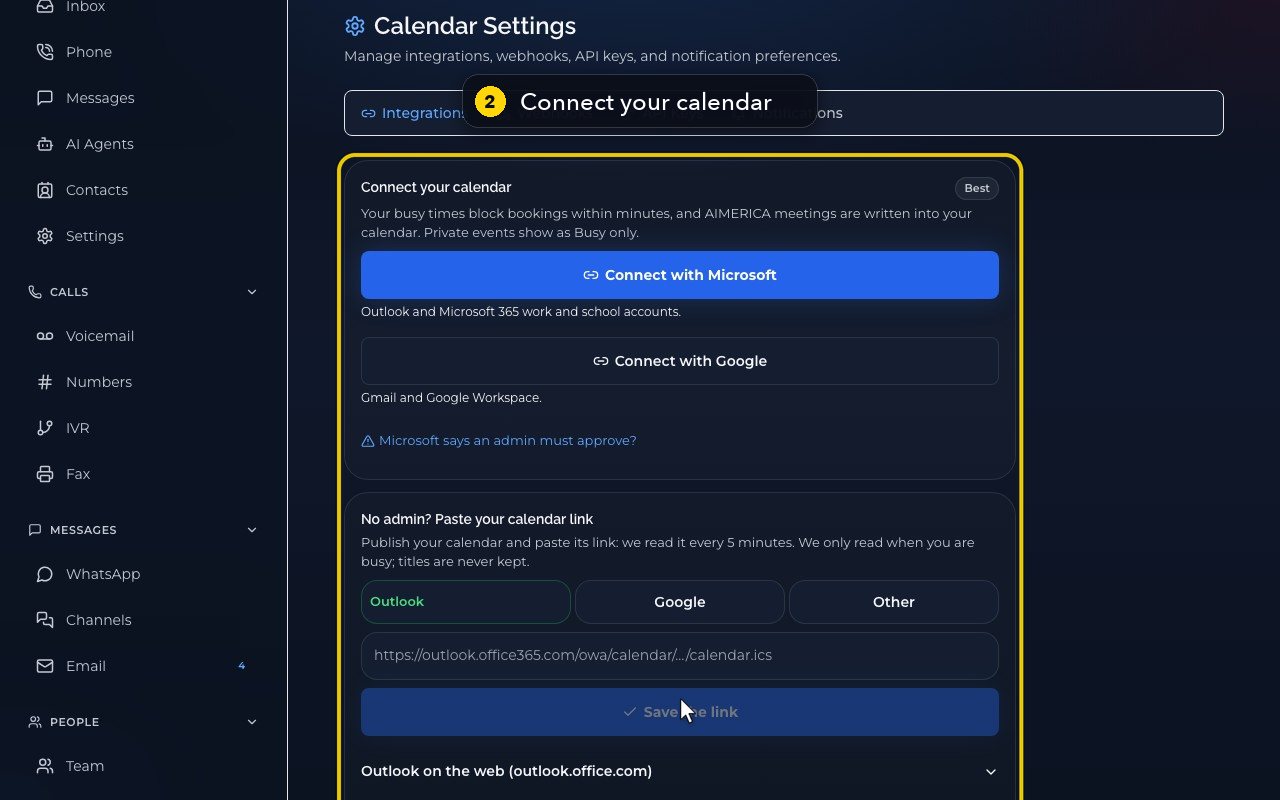
Integrations opens first. Connect your calendar is the best way.
- 3
Your busy times then block bookings within minutes, and the meetings you book here are written into your calendar.
- 4
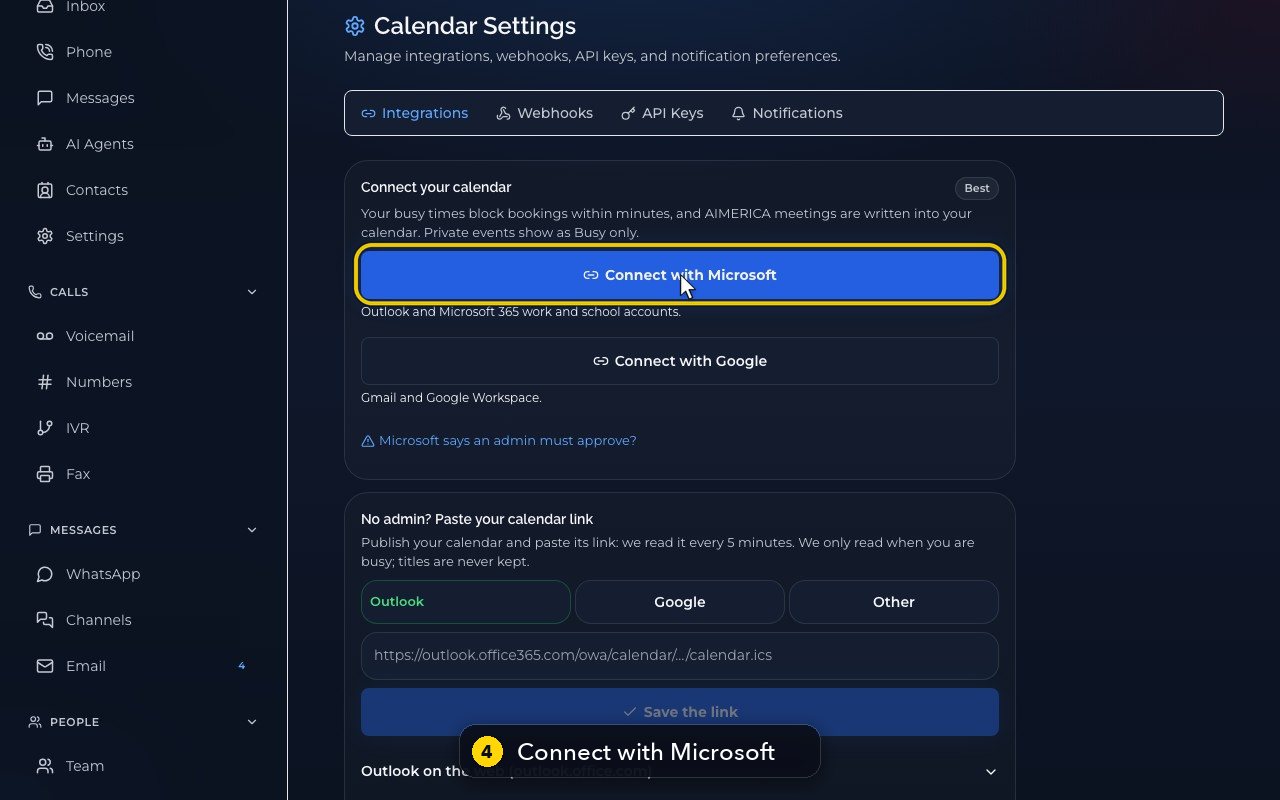
Outlook and Microsoft 365 work or school accounts use Connect with Microsoft.
- 5
Gmail and Google Workspace use Connect with Google.
- 6
You sign in on Microsoft's or Google's own page, then come back here, connected.
- 7
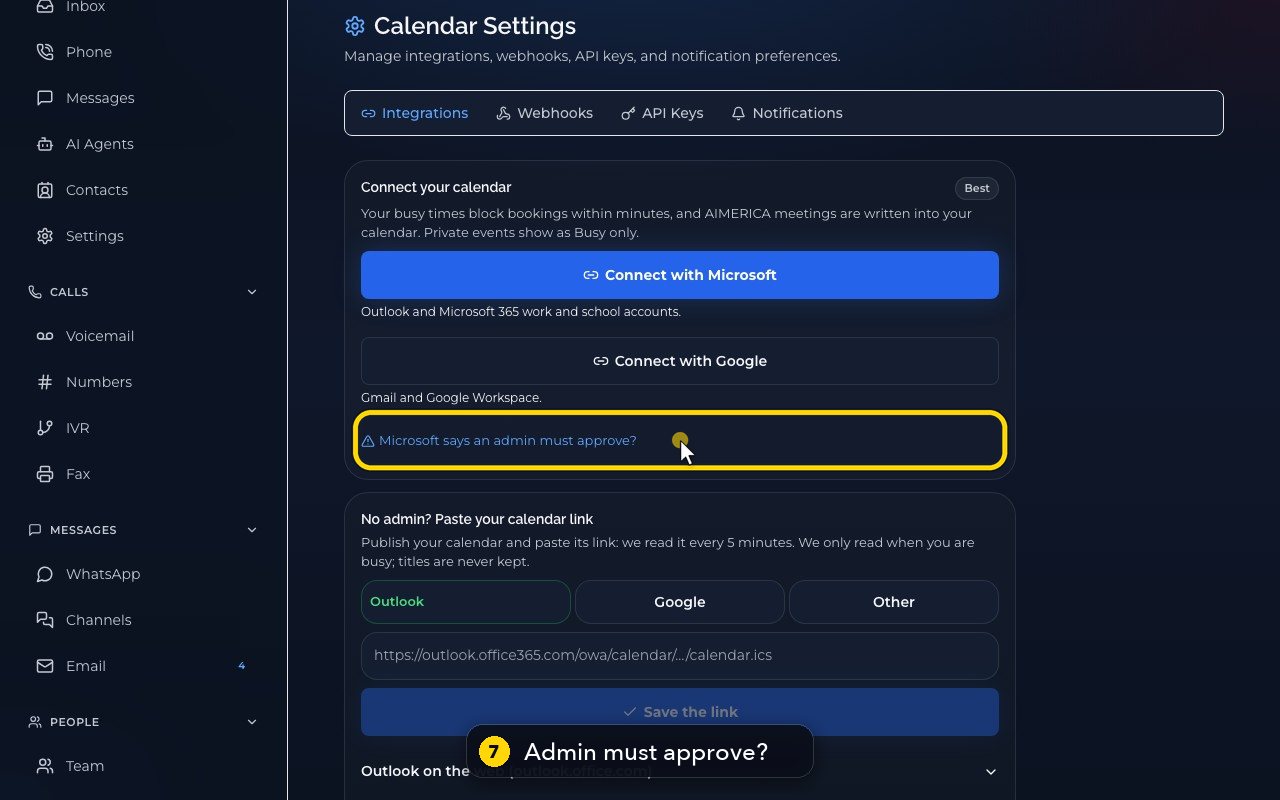
Some companies need their Microsoft admin to approve the calendar app once. Open this to get the approval link.
- 8
Send to my admin opens a ready email. Copy copies the link instead.
Related tutorials
 1:15VideoSchedule a video meeting and invite guestsPlan a video meeting, add guests from Contacts or Team, and check the time before inviting.
 1:14VideoJoin a meeting and share your screenJoin a meeting from its link, check your microphone, then share your screen.
 0:50VideoPlan a meeting straight from the calendarClick an empty hour in week view to open the meeting form with that day and time filled in.
 1:17VideoChange a meeting's time or guestsOpen a meeting's details to change its time, guests or notes, and choose whether guests are told.
 0:56VideoSee who accepted a meeting inviteRead the RSVP badges so you know who is coming.
 1:14VideoHost controls: waiting room, lock and muteAs host, let people in, lock the meeting, mute everyone and share the invite or dial-in.
Was this not what you needed? Write to us.