
Calendar webhooks and API keys
Send booking events to another system with a webhook, or create an API key for a developer.
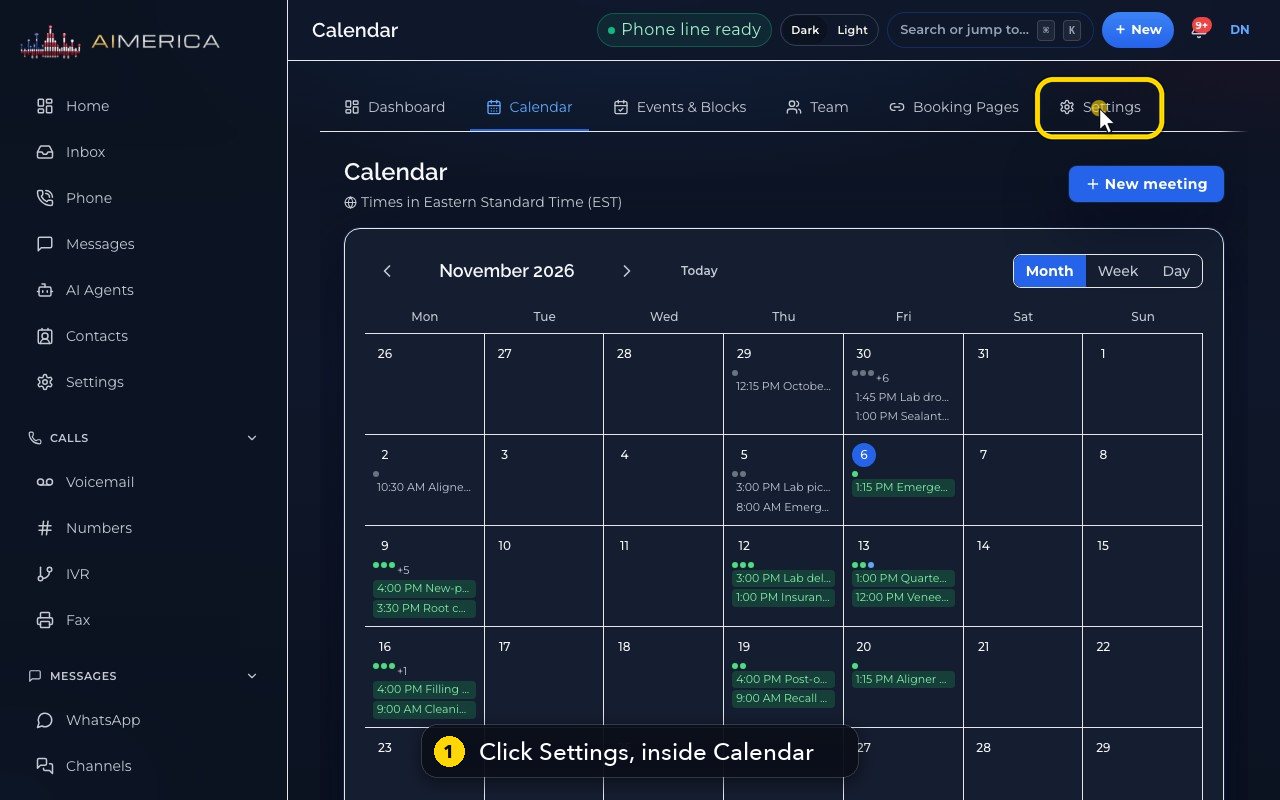
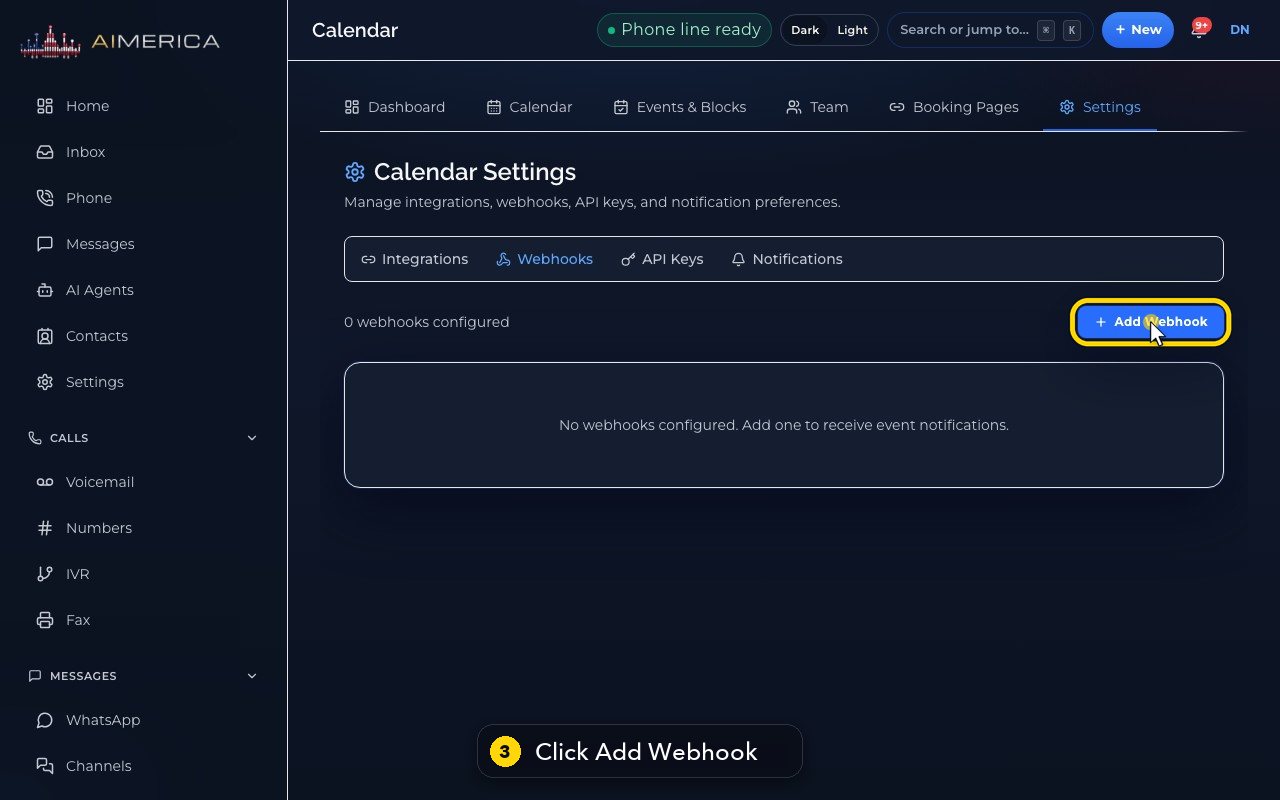
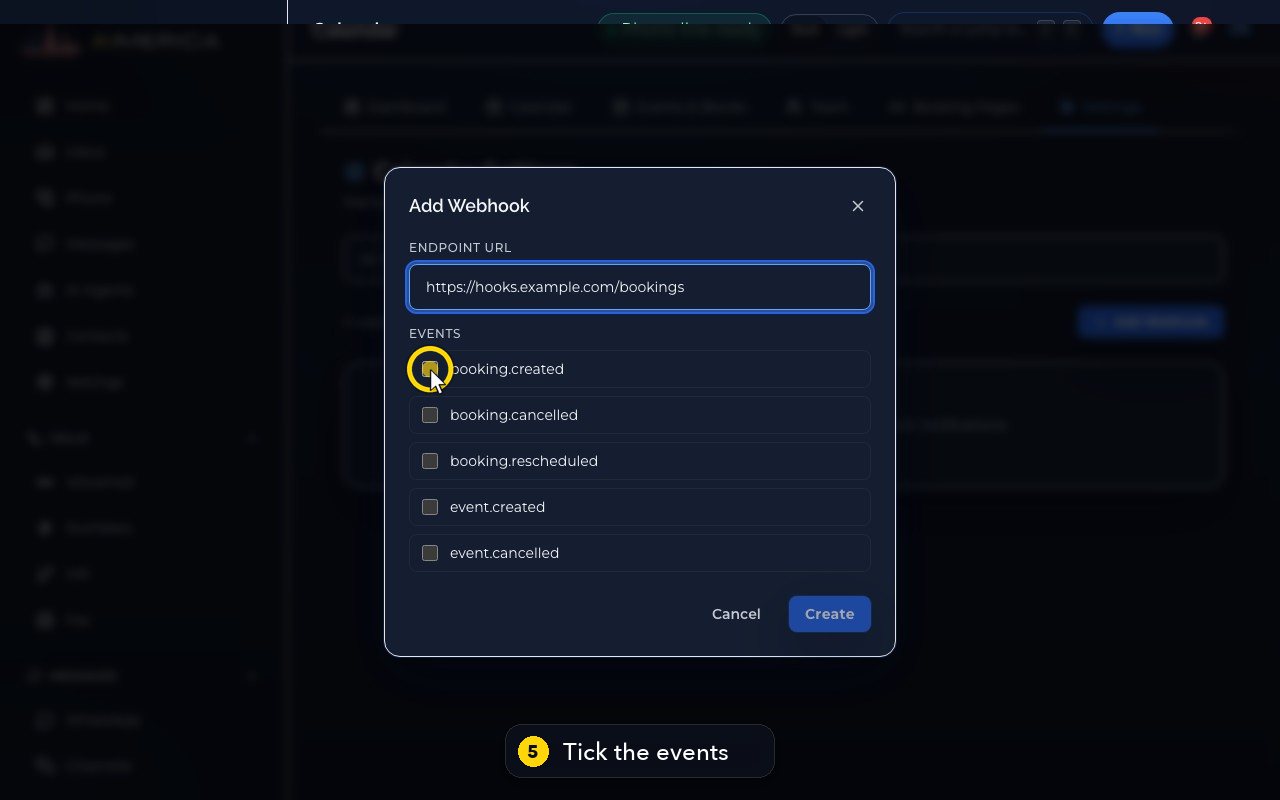
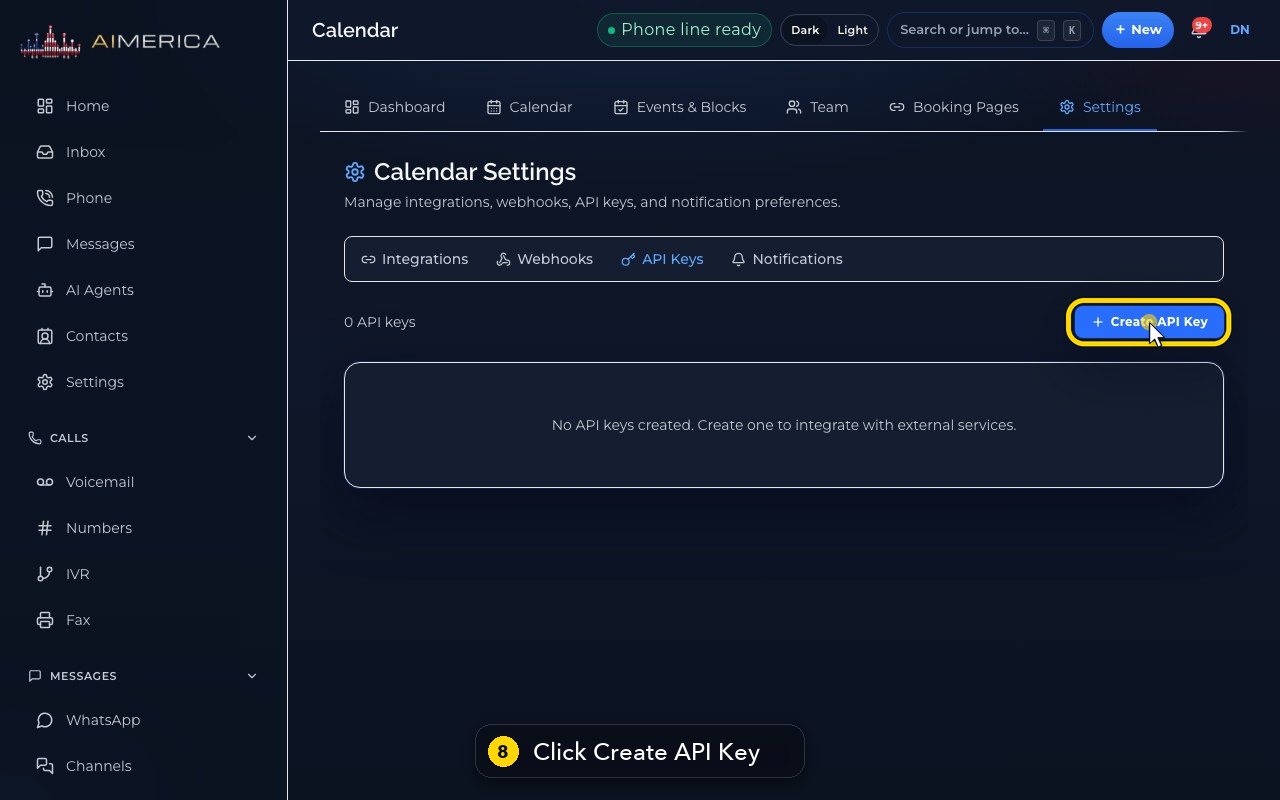
Open Calendar, then the Settings tab inside it. Webhooks > Add Webhook: paste the address that should receive the events, tick the events (booking.created, booking.cancelled, booking.rescheduled, event.created, event.cancelled) and press Create. API Keys > Create API Key: give it a label and press Create.
In this video
Step by step
- 1
Owners and admins can connect the calendar to other systems. Open the Settings tab, inside Calendar.
- 2
A webhook tells another system the moment something happens, like a new booking. Open Webhooks.
- 3
Add Webhook opens the form.
- 4
Paste the address that should receive the events.
- 5
Tick the events to send: here, a new booking and a cancelled booking.
- 6
Create would start sending them. We press Cancel instead, to keep the demo as it is.
- 7
API Keys let a developer use the calendar API.
- 8
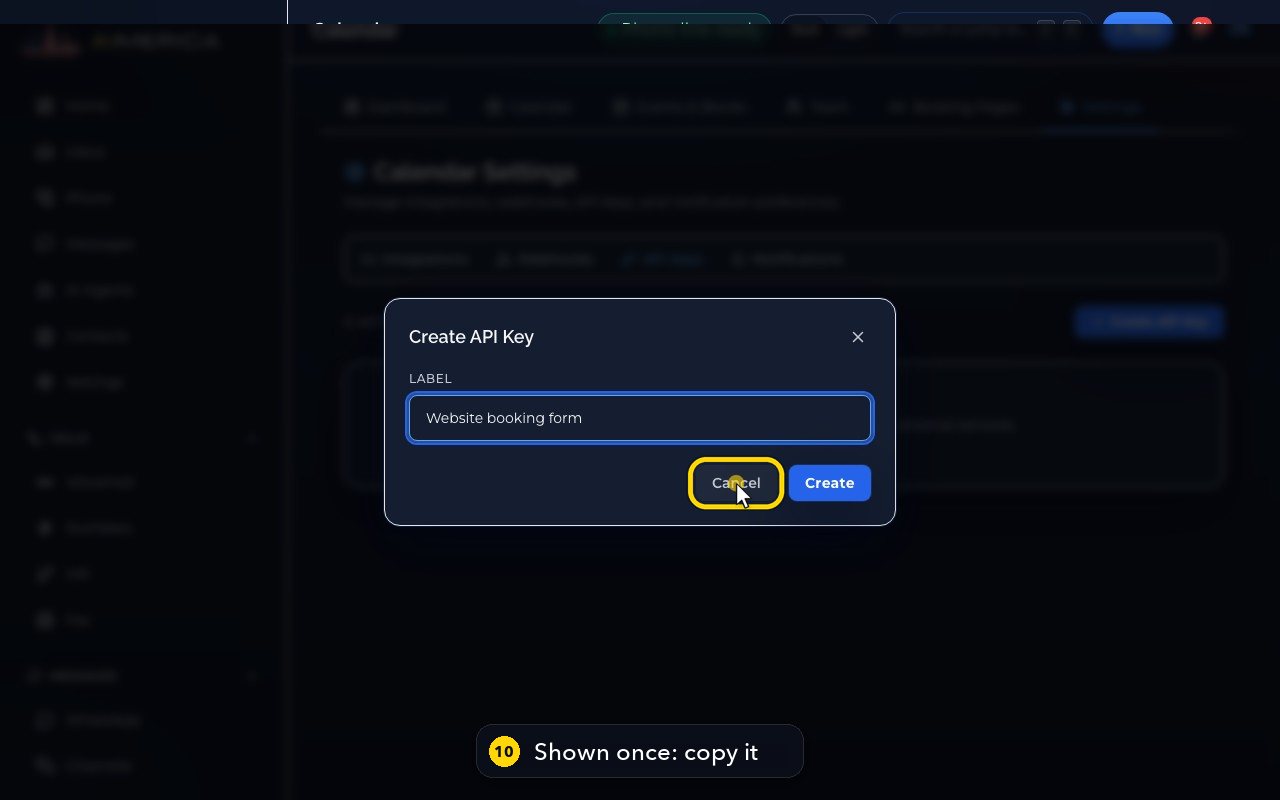
Create API Key asks for a label, so you know later what uses the key.
- 9
Name it after the tool that will use it.
- 10
Create shows the key only once, so copy it right away. We cancel here too.
Related tutorials
 1:15VideoSchedule a video meeting and invite guestsPlan a video meeting, add guests from Contacts or Team, and check the time before inviting.
 1:14VideoJoin a meeting and share your screenJoin a meeting from its link, check your microphone, then share your screen.
 0:50VideoPlan a meeting straight from the calendarClick an empty hour in week view to open the meeting form with that day and time filled in.
 1:17VideoChange a meeting's time or guestsOpen a meeting's details to change its time, guests or notes, and choose whether guests are told.
 0:56VideoSee who accepted a meeting inviteRead the RSVP badges so you know who is coming.
 1:14VideoHost controls: waiting room, lock and muteAs host, let people in, lock the meeting, mute everyone and share the invite or dial-in.
Was this not what you needed? Write to us.