
Add a contact
Add a person or business to your team's shared contacts, with phone, email, notes and tags.
Contacts is in the menu on the left. Anyone on the team can add a contact, and everyone sees it.
In this video
Step by step
- 1
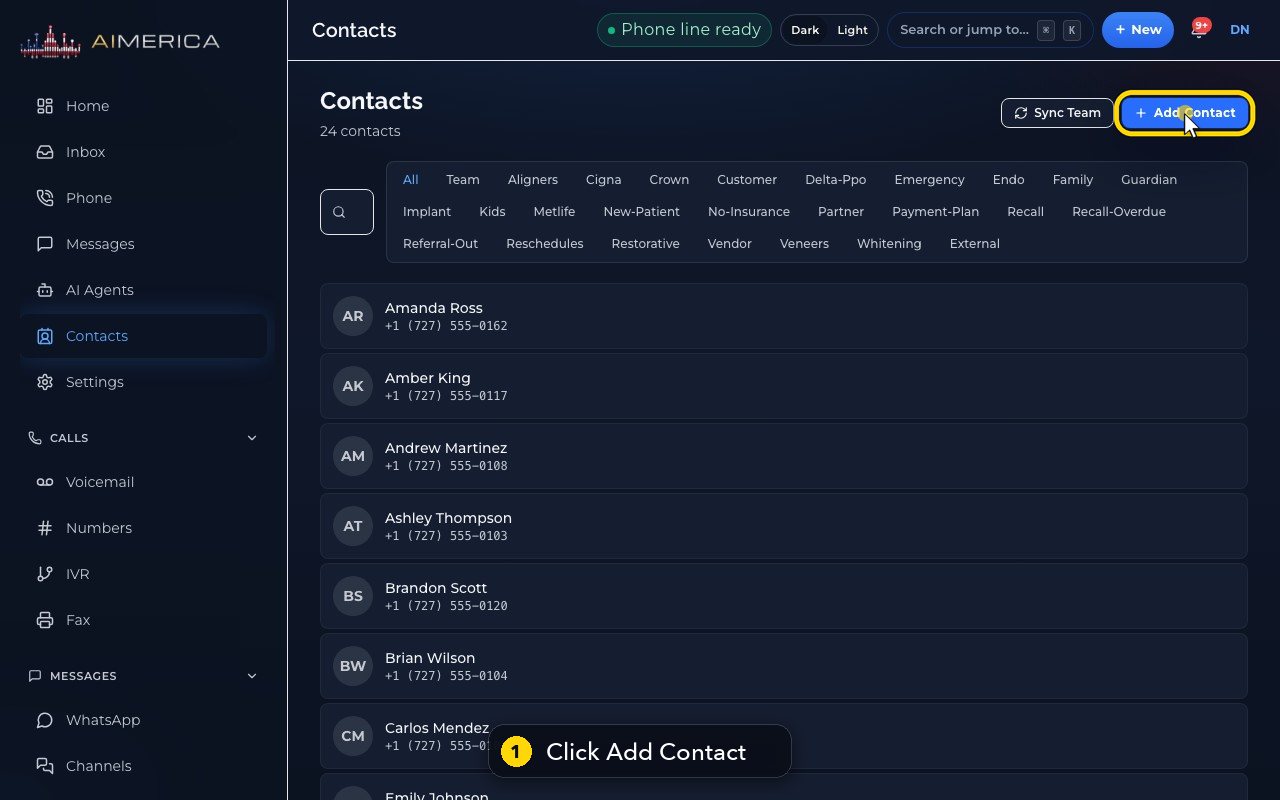
Contacts is shared by your whole team, and anyone can add a person or a business. Click Add Contact.
- 2
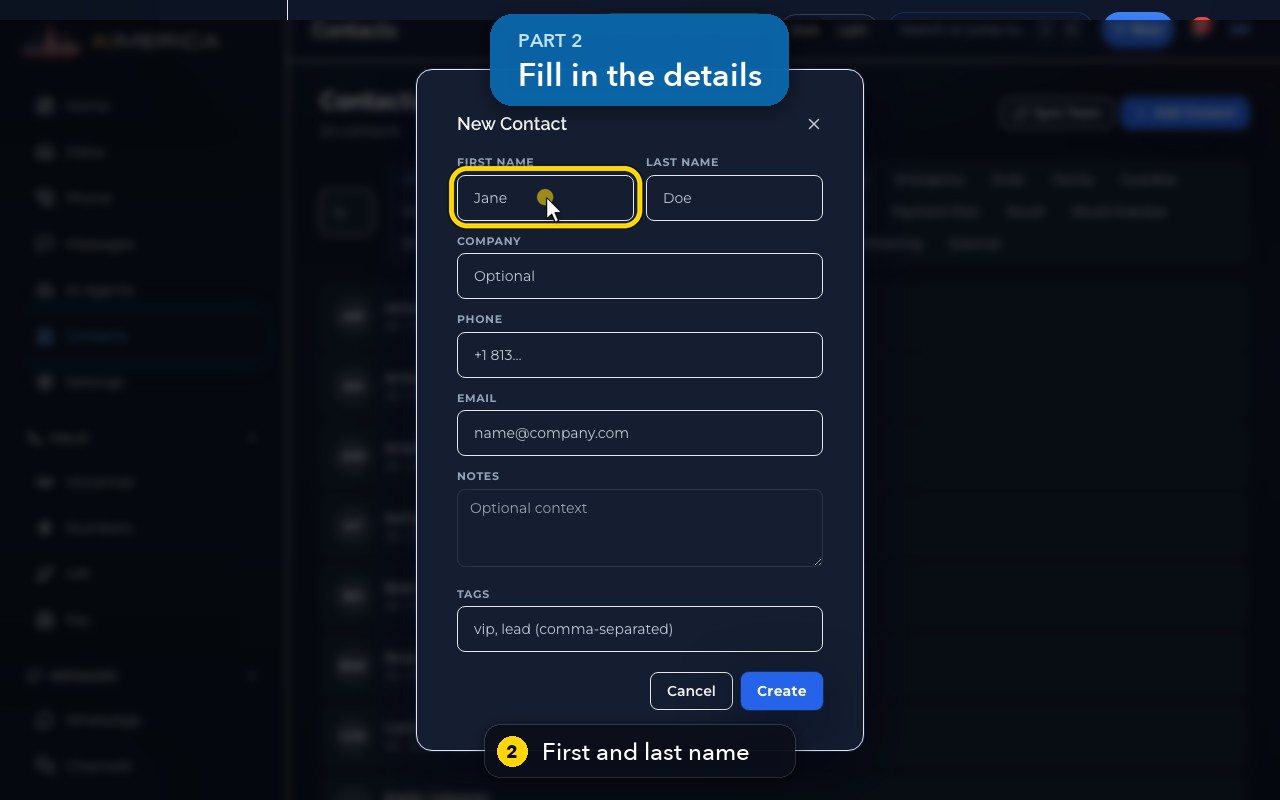
Type the first name, then the last name. Only the first name is required.
- 3
For a business, add the company.
- 4
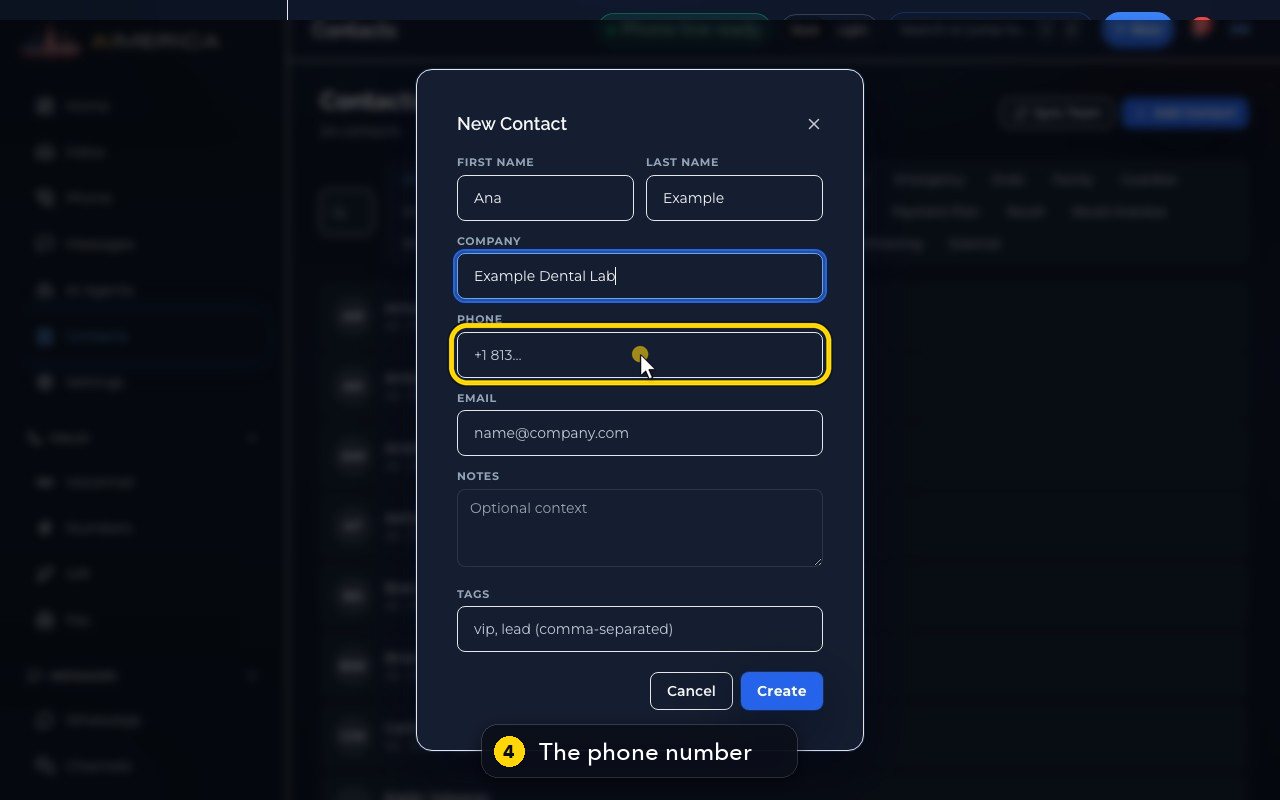
Add the phone number. Calls, texts and voicemails from it then show this name.
- 5
Add an email address, if you have one.
- 6
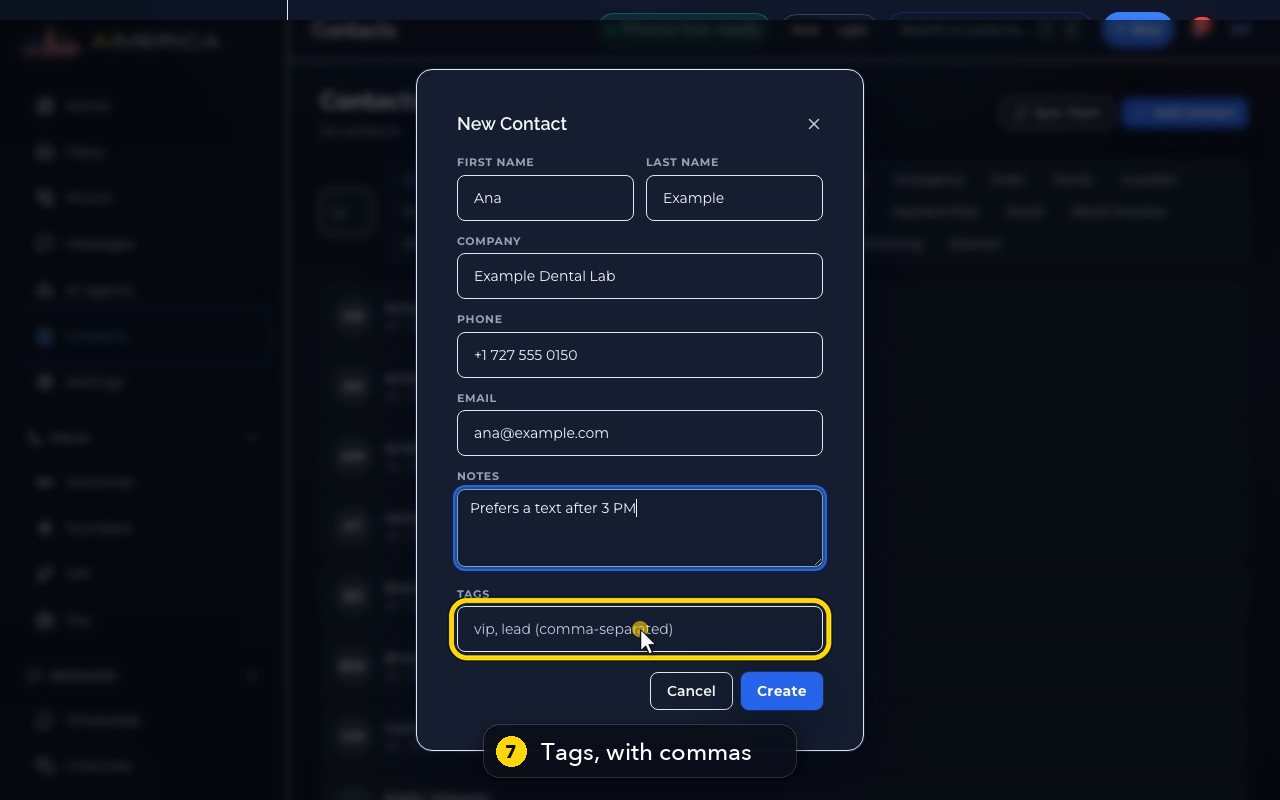
Notes are for anything the team should know.
- 7
Tags group contacts, so you can filter them later. Separate tags with commas.
- 8
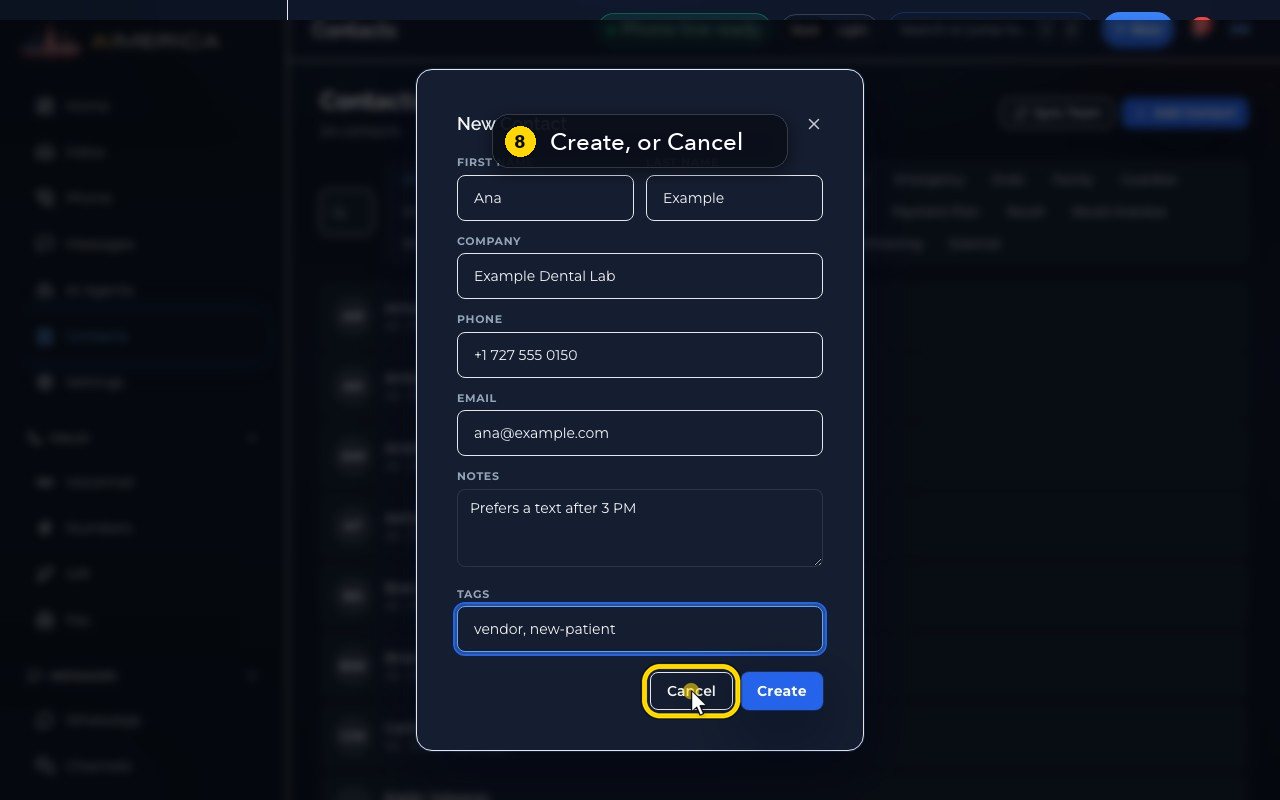
Create saves the contact for everyone on your team. Cancel closes the form without saving.
- 9
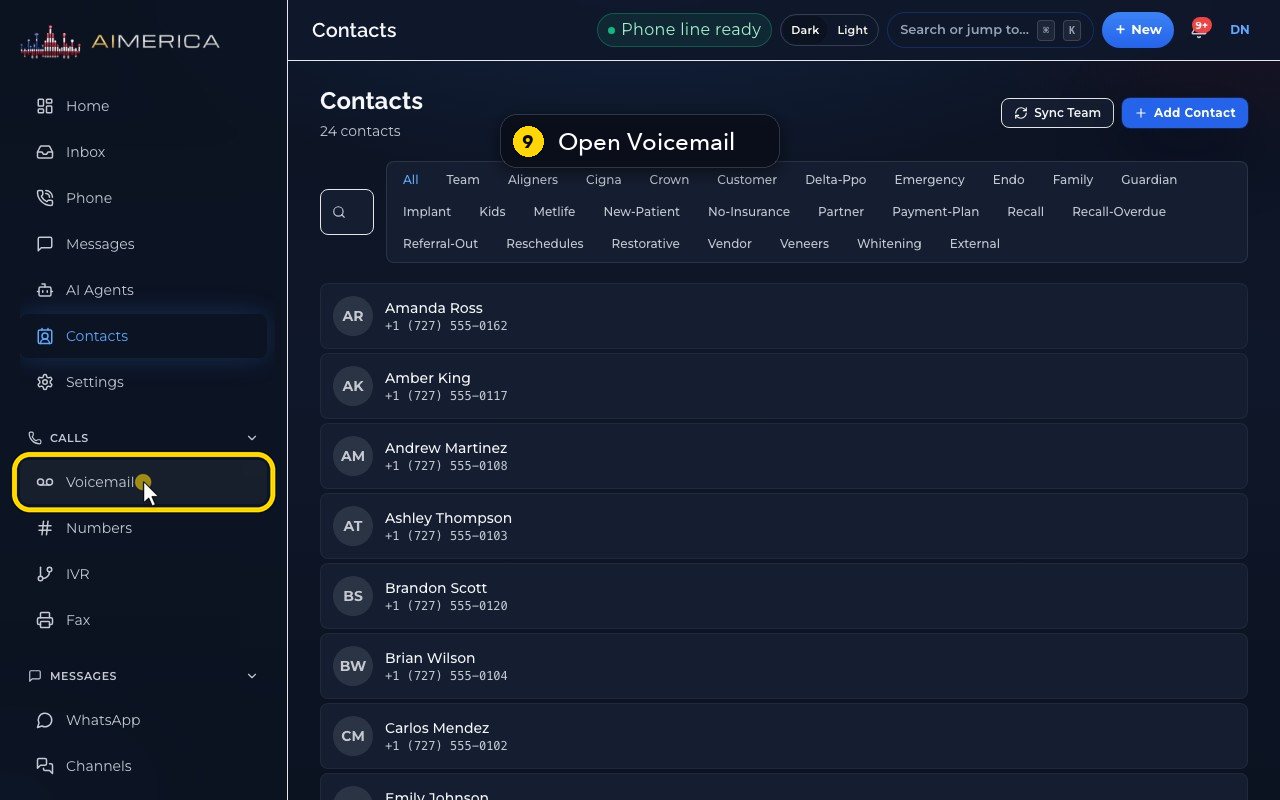
You can also save a caller straight from their voicemail. Open Voicemail, in the menu.
- 10
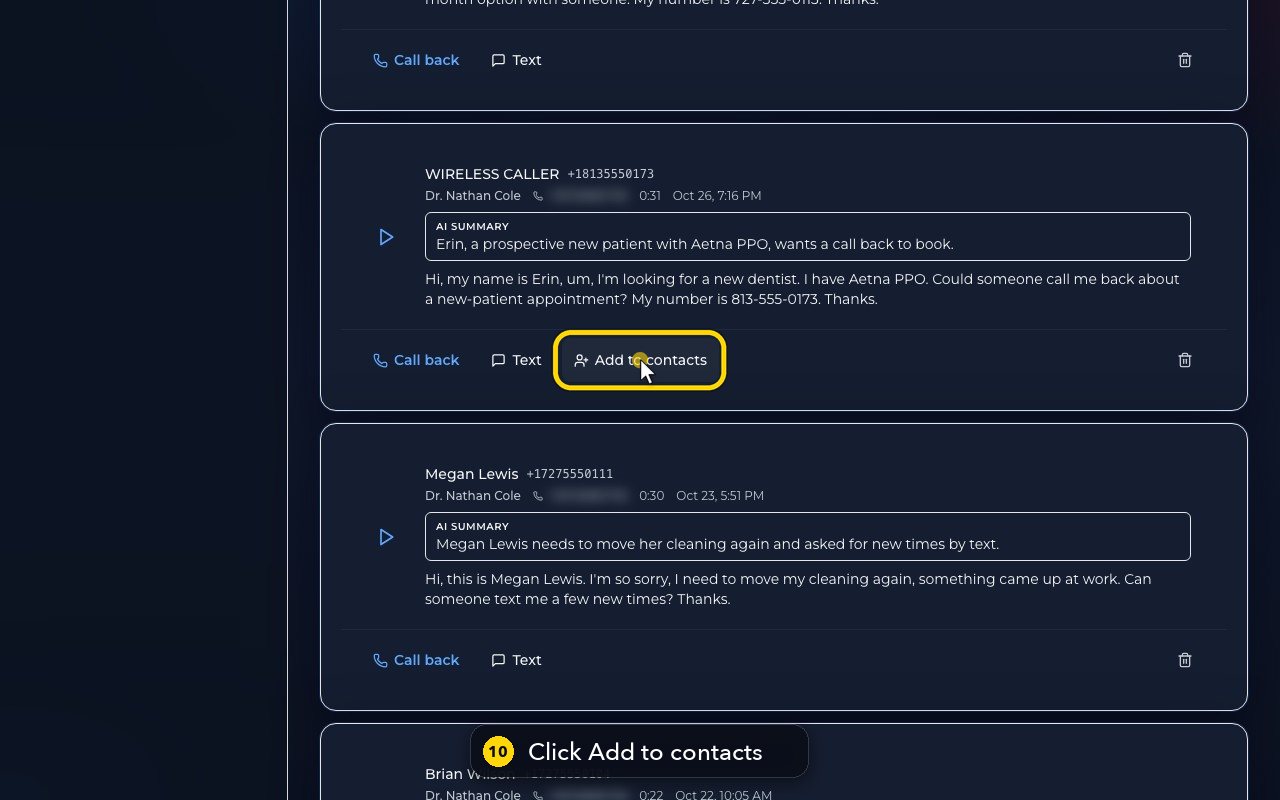
On a caller who is not in your contacts yet, click Add to contacts.
- 11
The same form opens, with the number already filled in.
- 12
Type the name and click Create, or Cancel to close without saving.
Related tutorials
 1:42VideoListen to voicemail and call backPlay a voicemail, read its AI summary and transcript, then call back, text or save the caller.
 1:28VideoSet your voicemail greetingHear the greeting callers get on your line, then write your own words for an AI voice to speak, or record your own.
 1:11VideoFind a contact and call or text themSearch or filter your shared contacts, open one, and call or text them from the line you pick.
 1:22VideoSend a fax with a cover pageFax a PDF from your business number, with an optional cover page, without a fax machine.
 1:04VideoFind a received fax and download itCheck the faxes you received and sent, see their status, and download any of them as a PDF.
 0:51VideoChoose how many rings before voicemailDecide how long calls to your lines ring before the caller reaches your voicemail.
Was this not what you needed? Write to us.