
Find a contact and call or text them
Search or filter your shared contacts, open one, and call or text them from the line you pick.
Contacts is in the menu on the left. Everyone on your team sees the same contacts.
In this video
Step by step
- 1
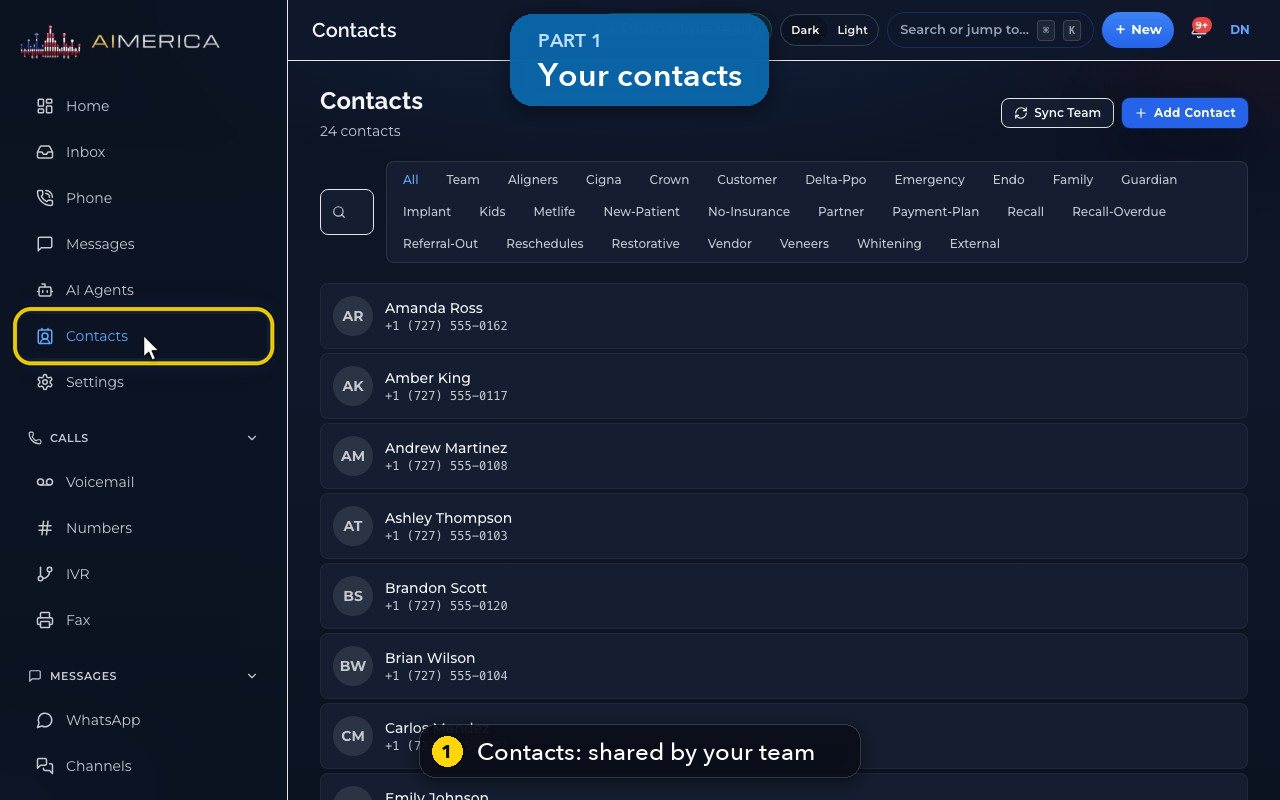
Contacts, in the menu on the left, is the address book your whole team shares.
- 2
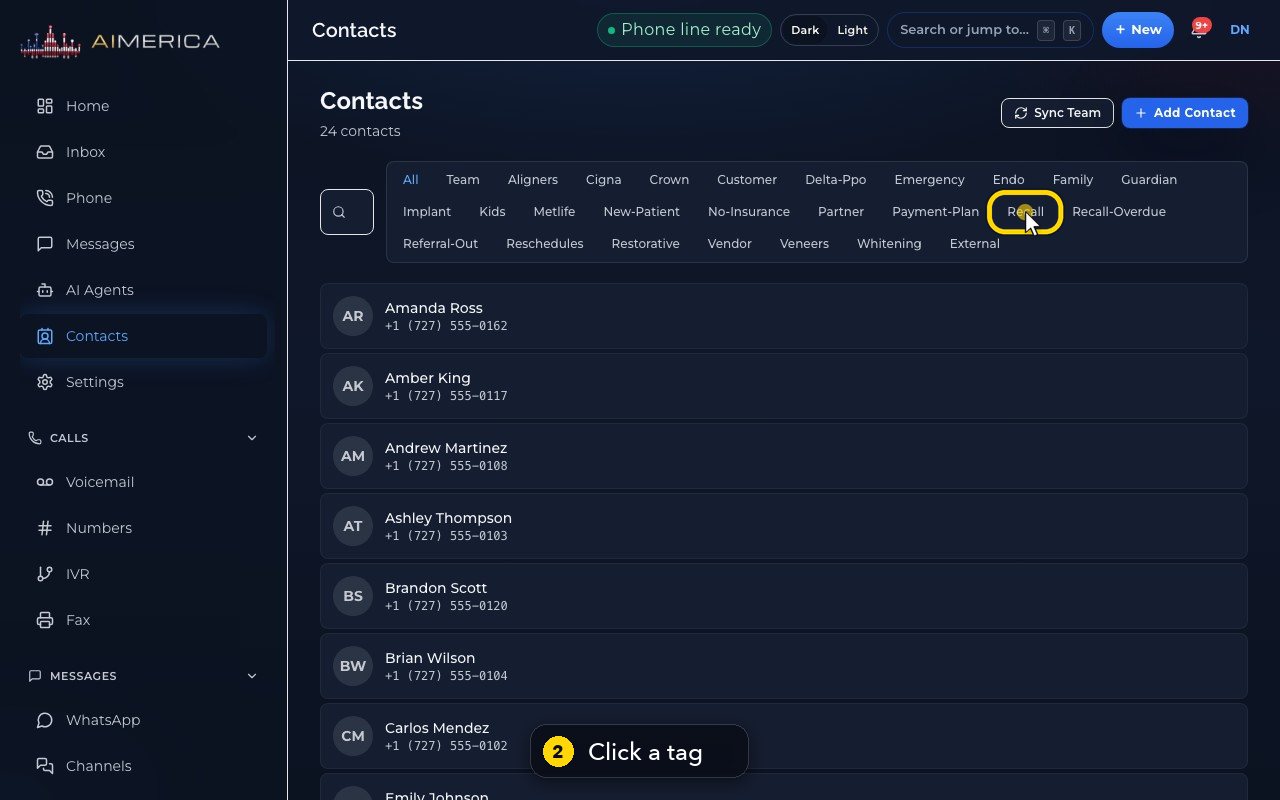
Click a tag to see only those contacts. Recall shows the patients tagged recall.
- 3
All brings everyone back.
- 4
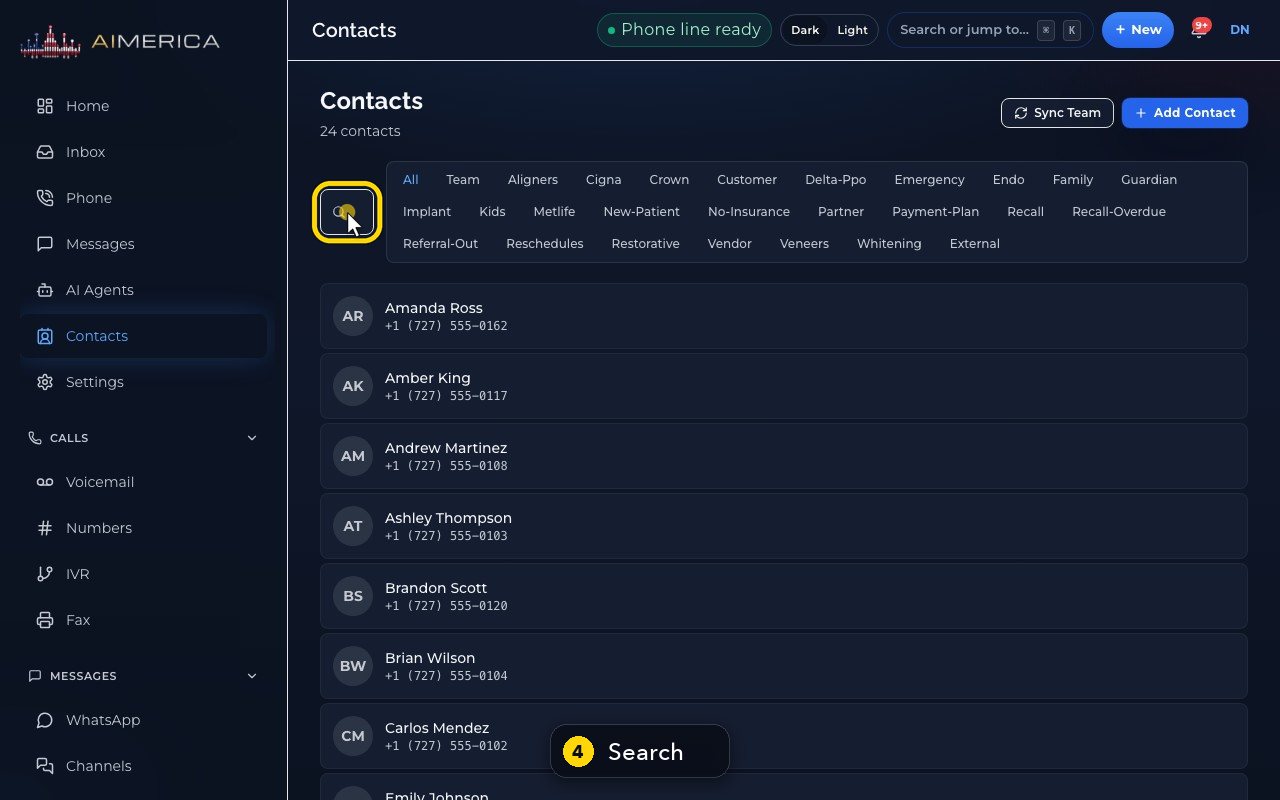
To search, click the small box left of the tags. It finds names, companies, emails and numbers.
- 5
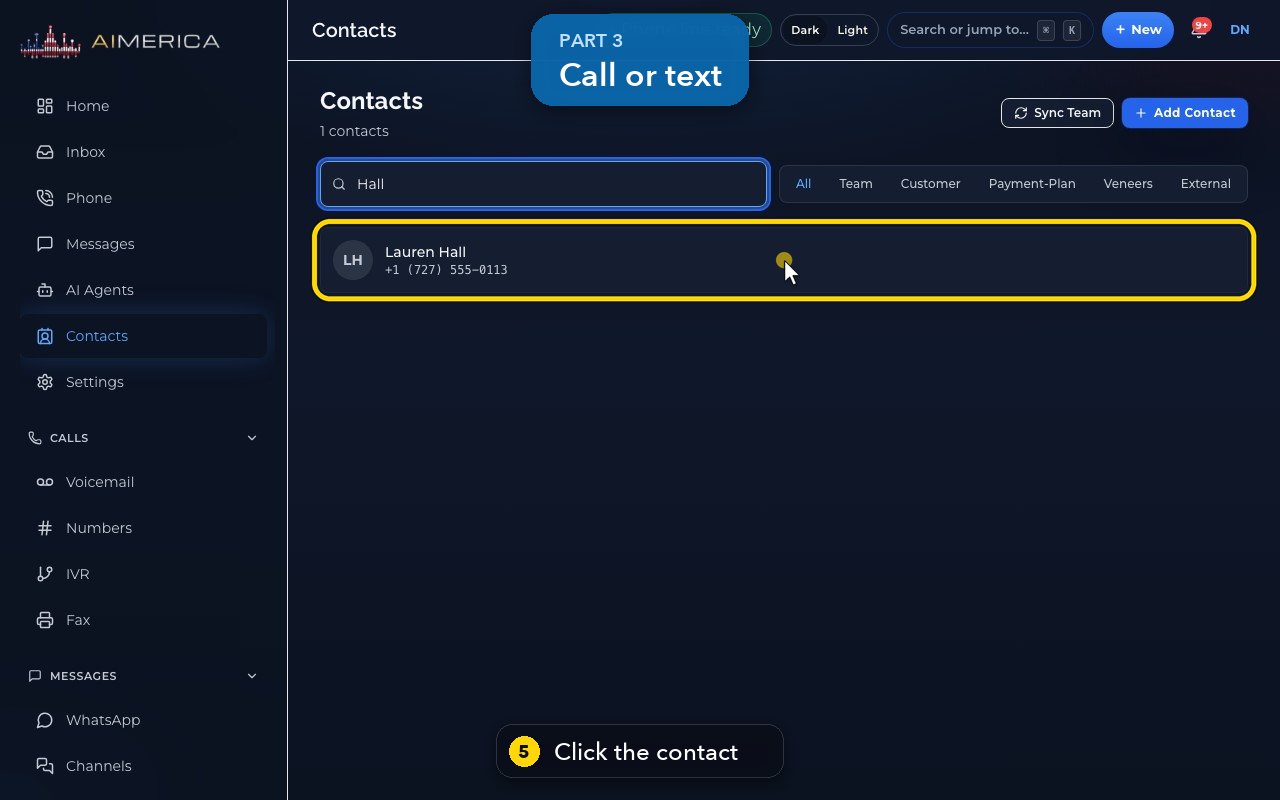
Click a contact to see their number, email, tags and history.
- 6
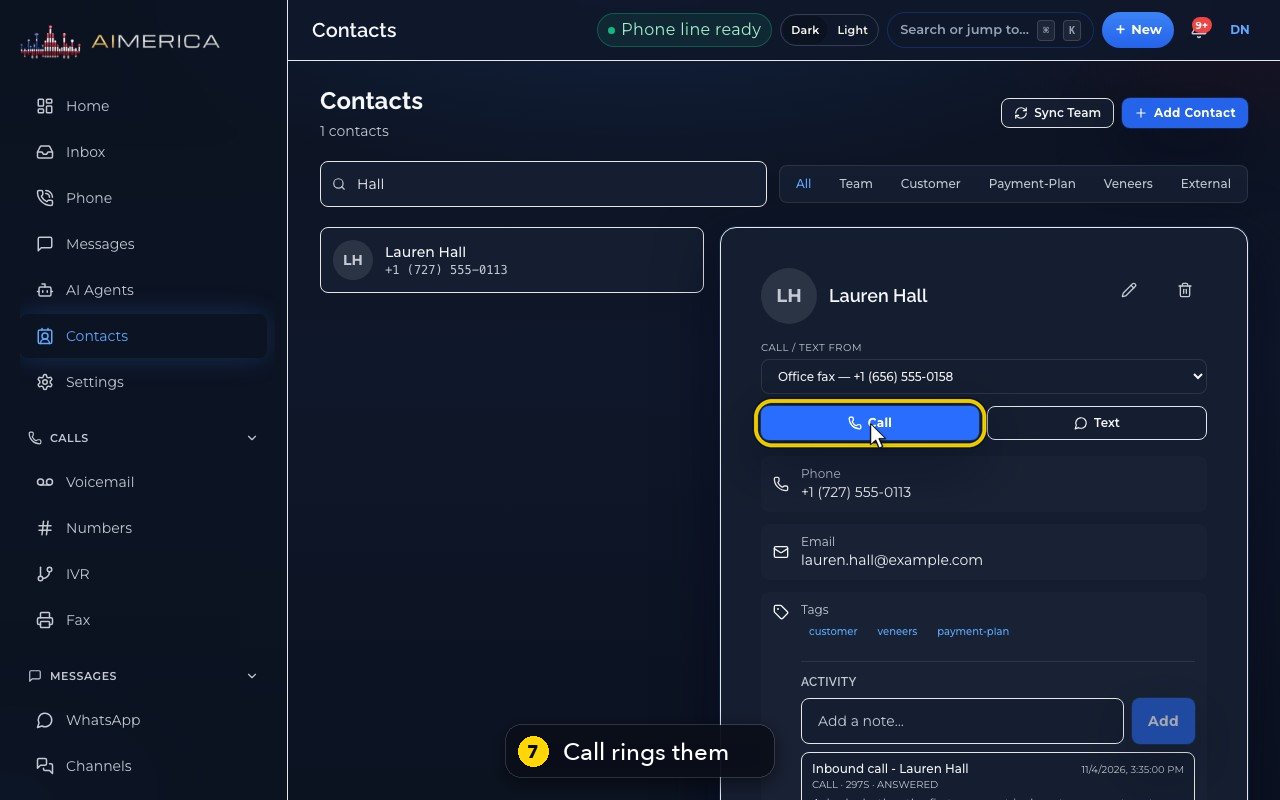
First, choose which of your lines to call or text from. The customer sees that number.
- 7
Call rings them straight away, from your browser phone.
- 8
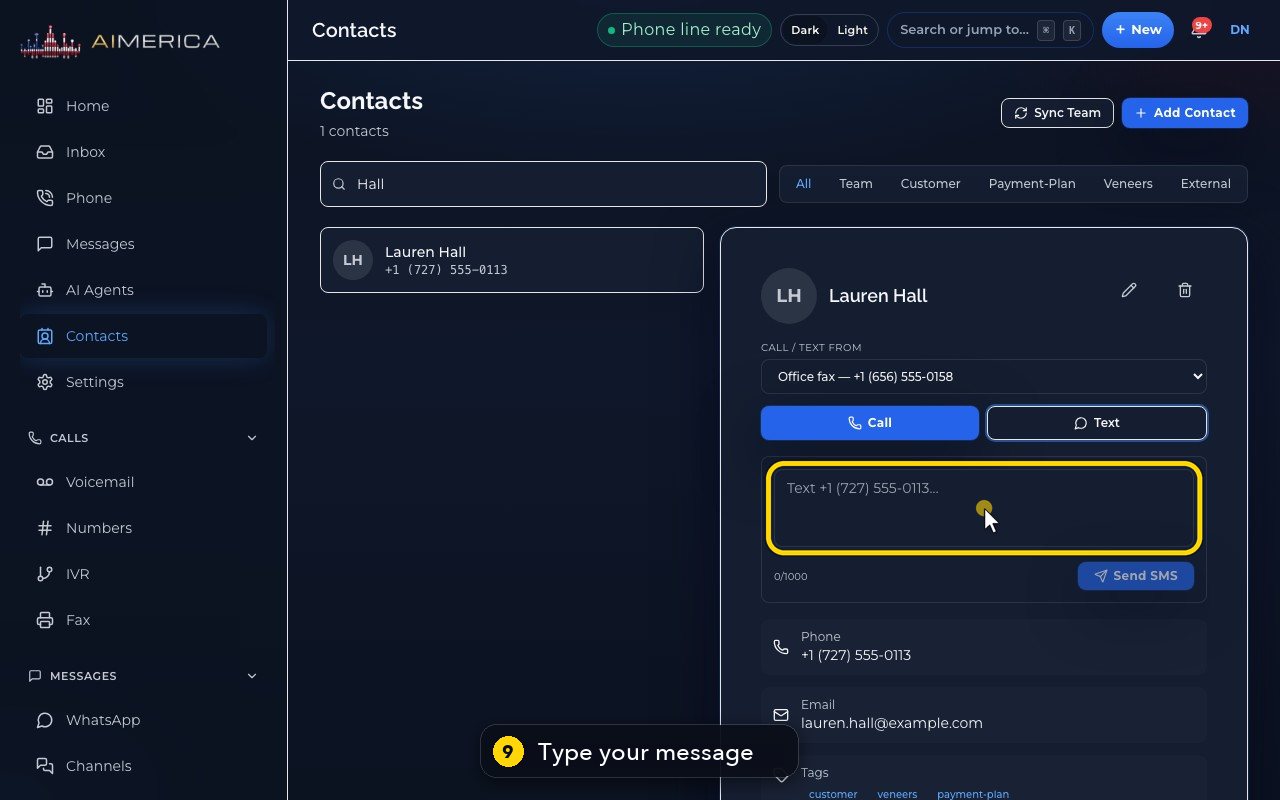
Text opens a message box, right inside the contact.
- 9
Type your message. It can be up to a thousand characters.
- 10
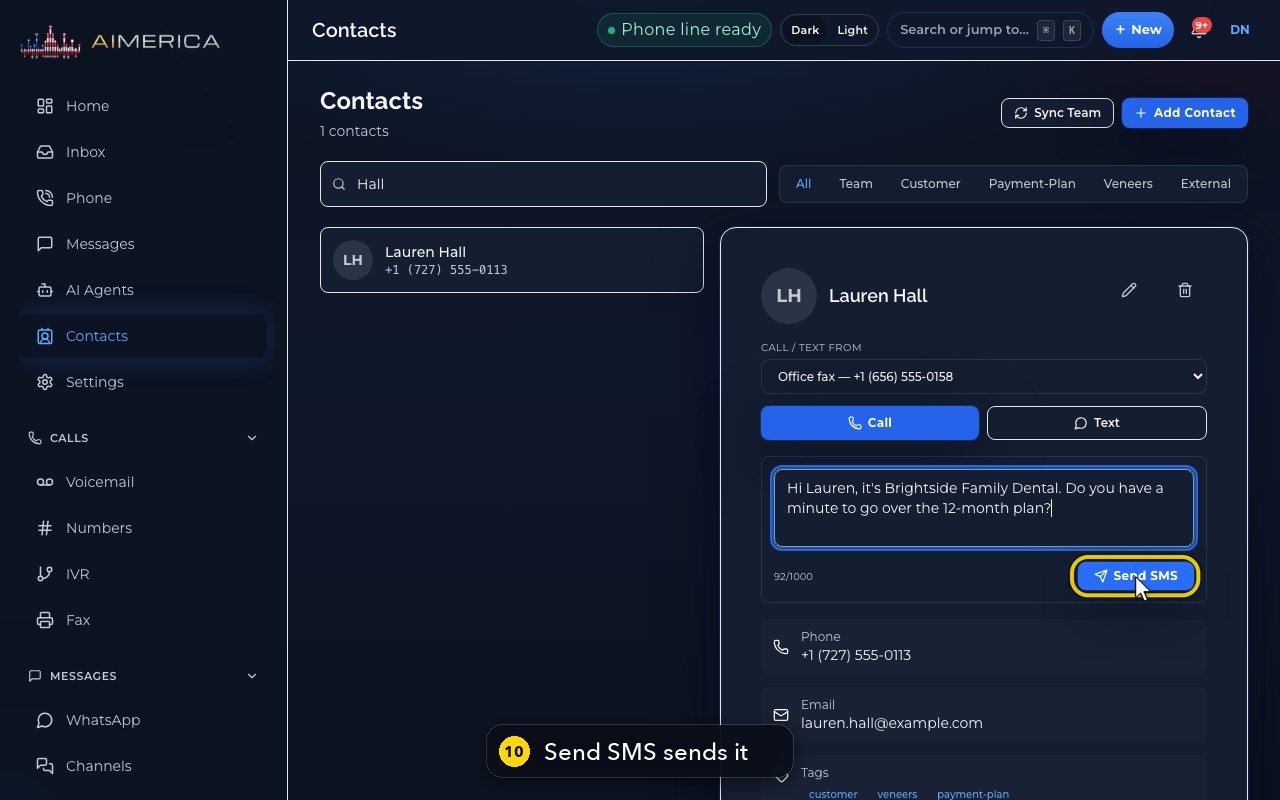
Send SMS sends it from the line you chose. The conversation then continues in Messages.
Related tutorials
 1:42VideoListen to voicemail and call backPlay a voicemail, read its AI summary and transcript, then call back, text or save the caller.
 1:28VideoSet your voicemail greetingHear the greeting callers get on your line, then write your own words for an AI voice to speak, or record your own.
 1:14VideoAdd a contactAdd a person or business to your team's shared contacts, with phone, email, notes and tags.
 1:22VideoSend a fax with a cover pageFax a PDF from your business number, with an optional cover page, without a fax machine.
 1:04VideoFind a received fax and download itCheck the faxes you received and sent, see their status, and download any of them as a PDF.
 0:51VideoChoose how many rings before voicemailDecide how long calls to your lines ring before the caller reaches your voicemail.
Was this not what you needed? Write to us.