
Set your voicemail greeting
Record it, upload it, or let us speak it.
Open Voicemail, press Voicemail settings, then Voicemail greetings. Each phone number has its own greeting.
In this video
Step by step
- 1
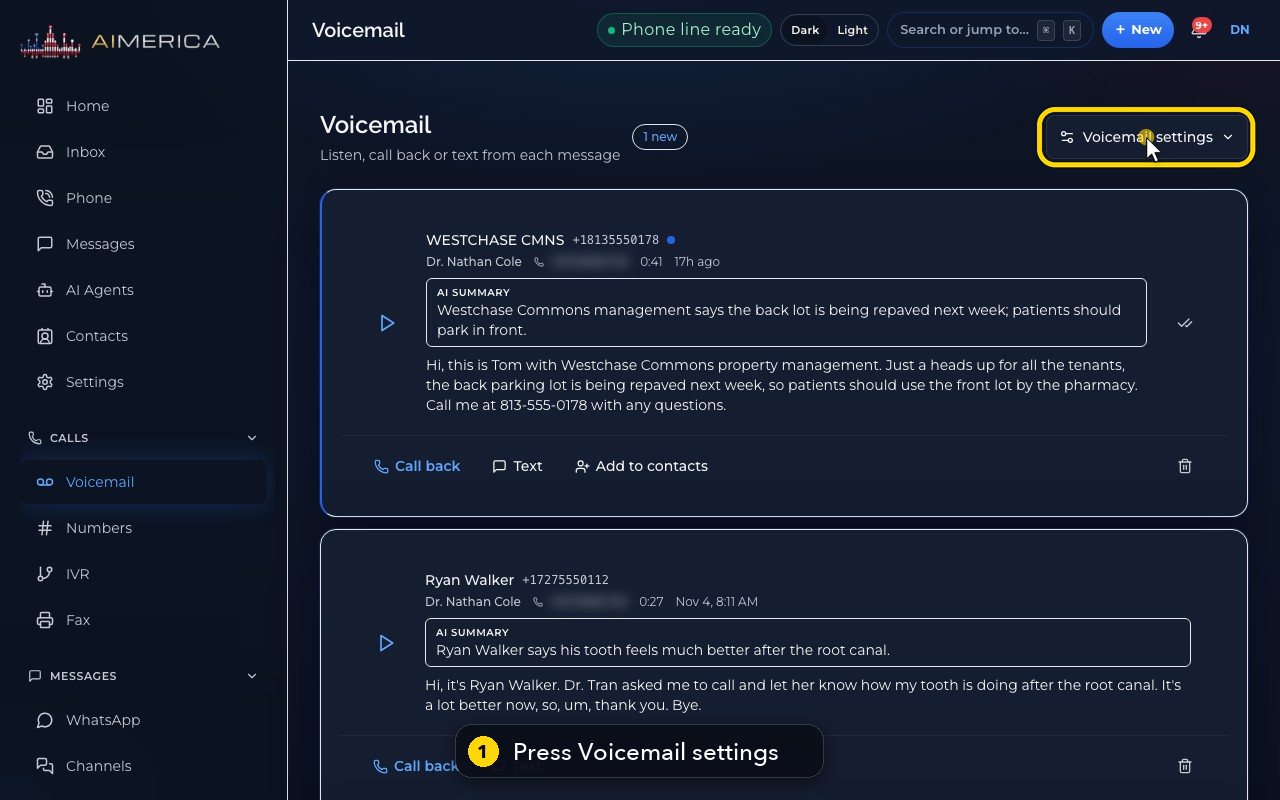
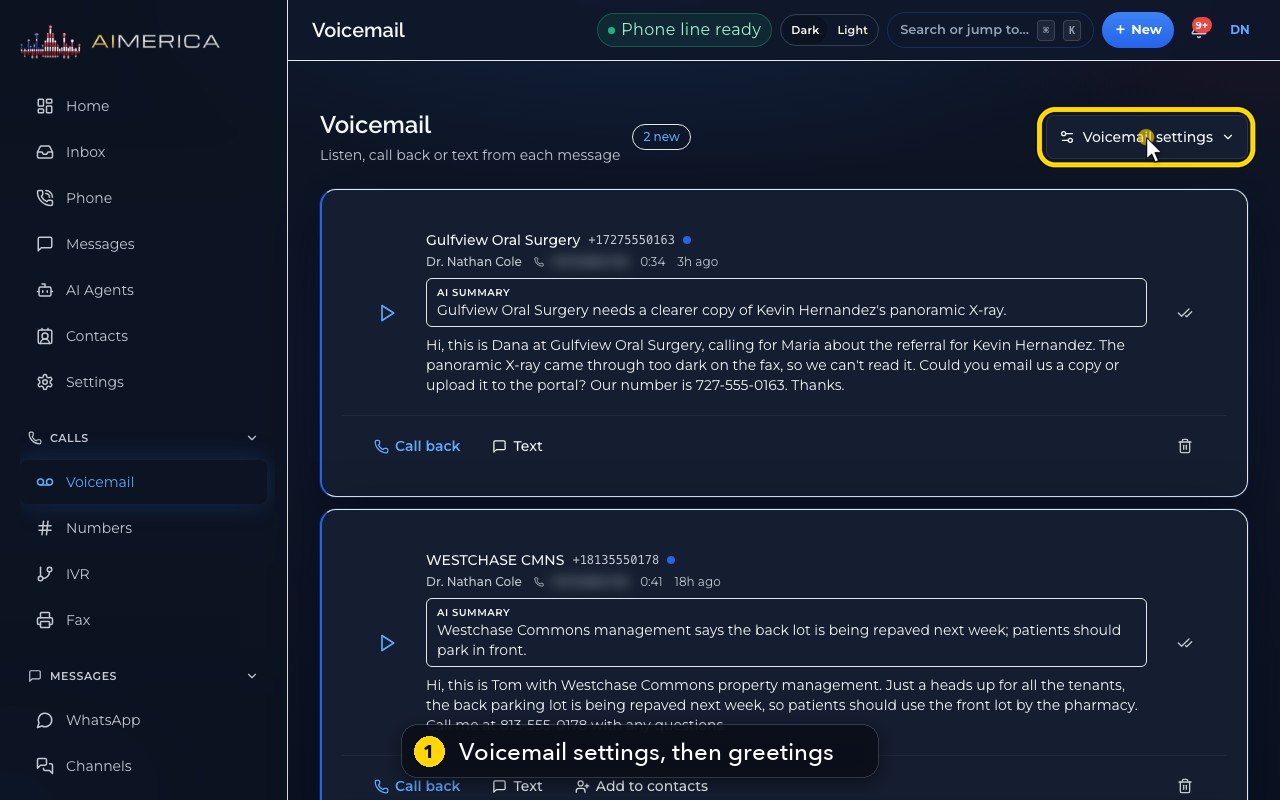
Your voicemail greeting is on the Voicemail page. Press Voicemail settings, at the top right.
- 2
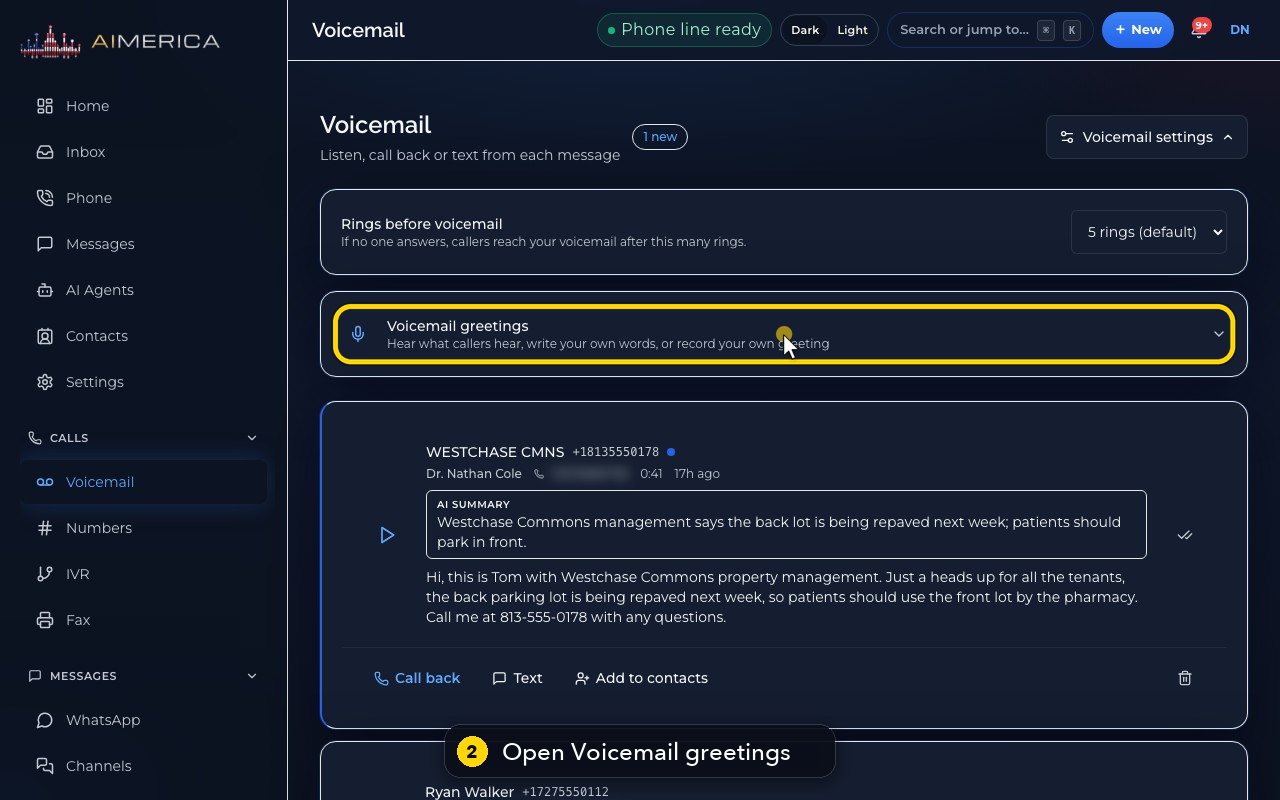
Two cards open. Open Voicemail greetings.
- 3
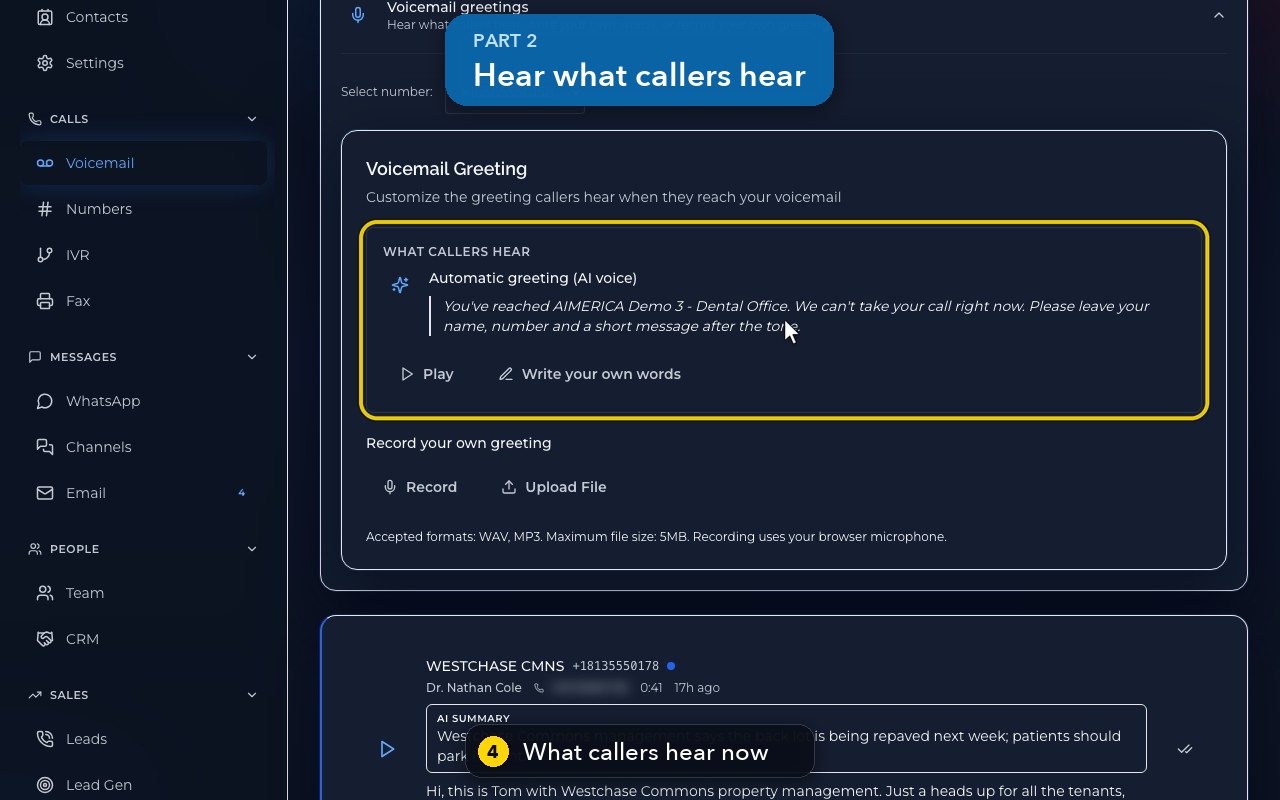
Each line has its own greeting. If you have more than one, pick the line at Select number.
- 4
What callers hear shows the greeting that plays now. Until you set one, it is an automatic greeting, spoken by an AI voice.
- 5
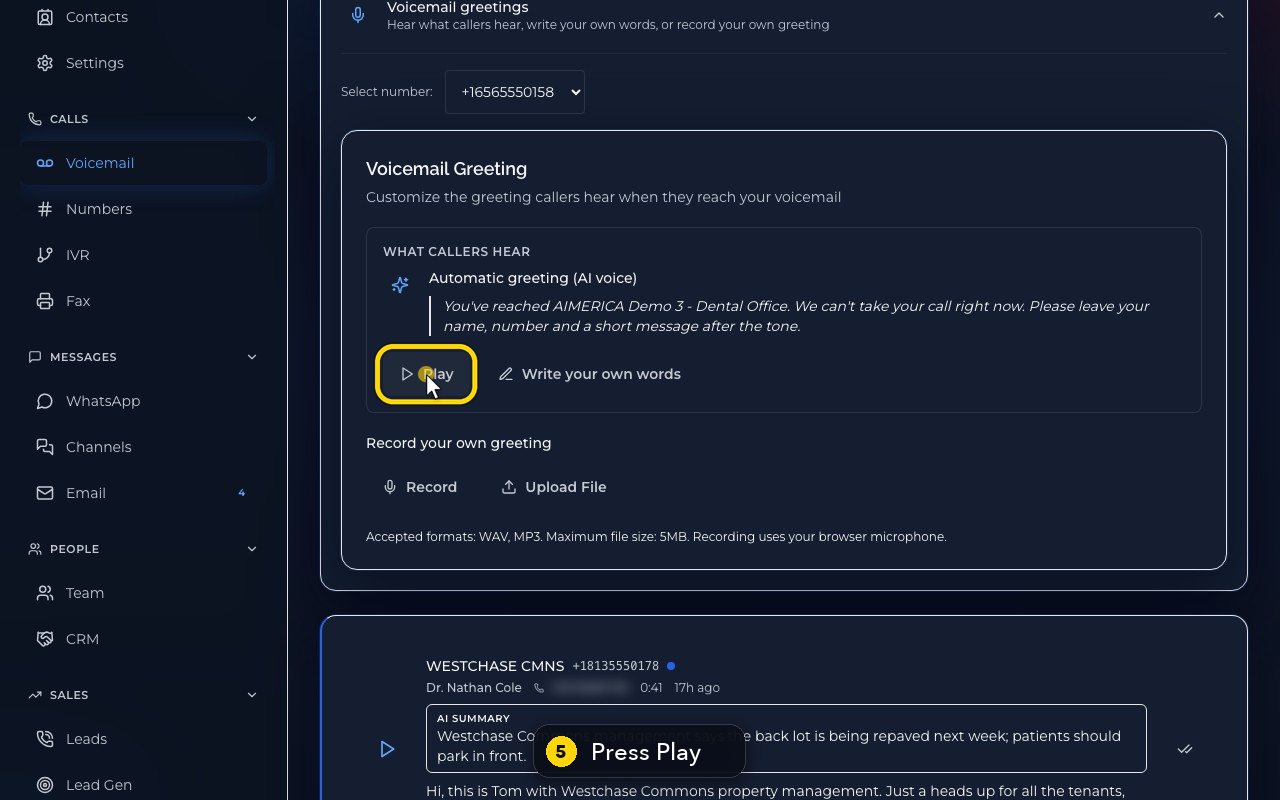
Press Play to hear it, exactly as callers do. The first time can take a few seconds.
- 6
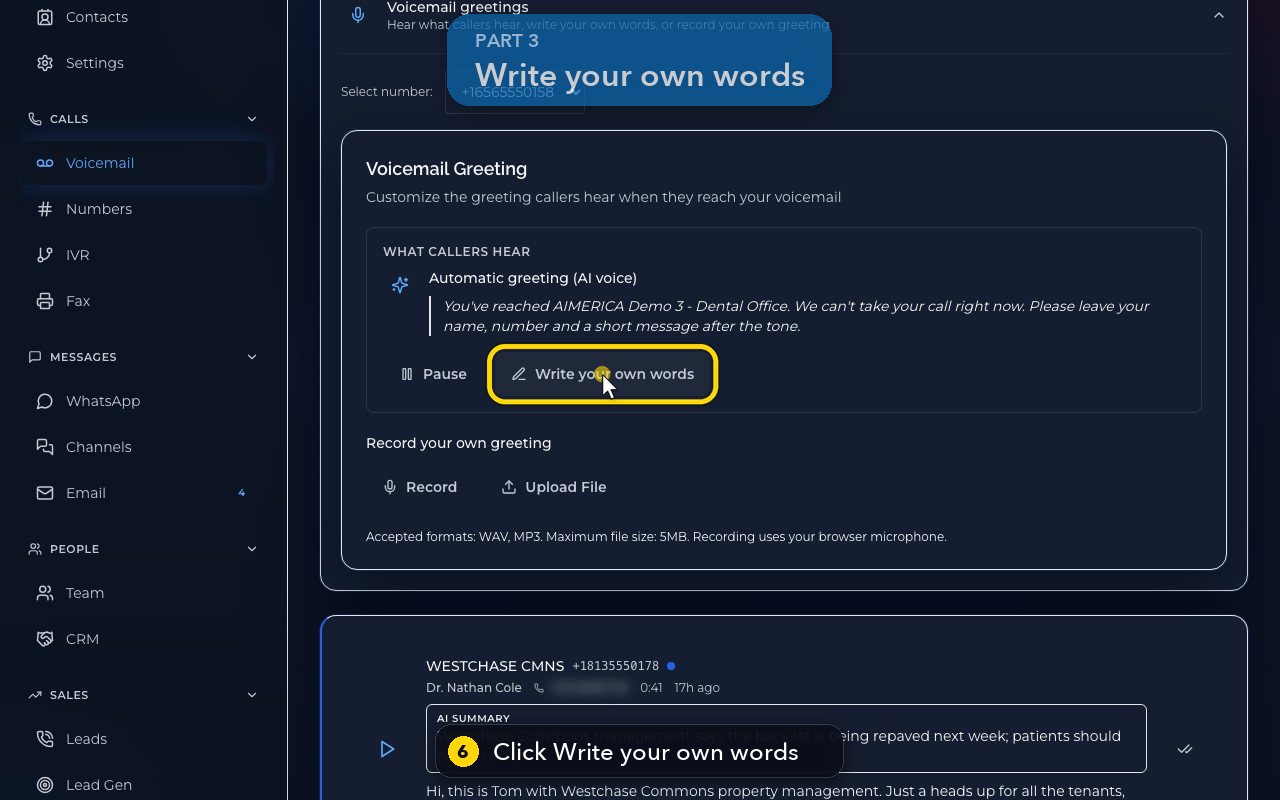
To use your own words, press Write your own words.
- 7
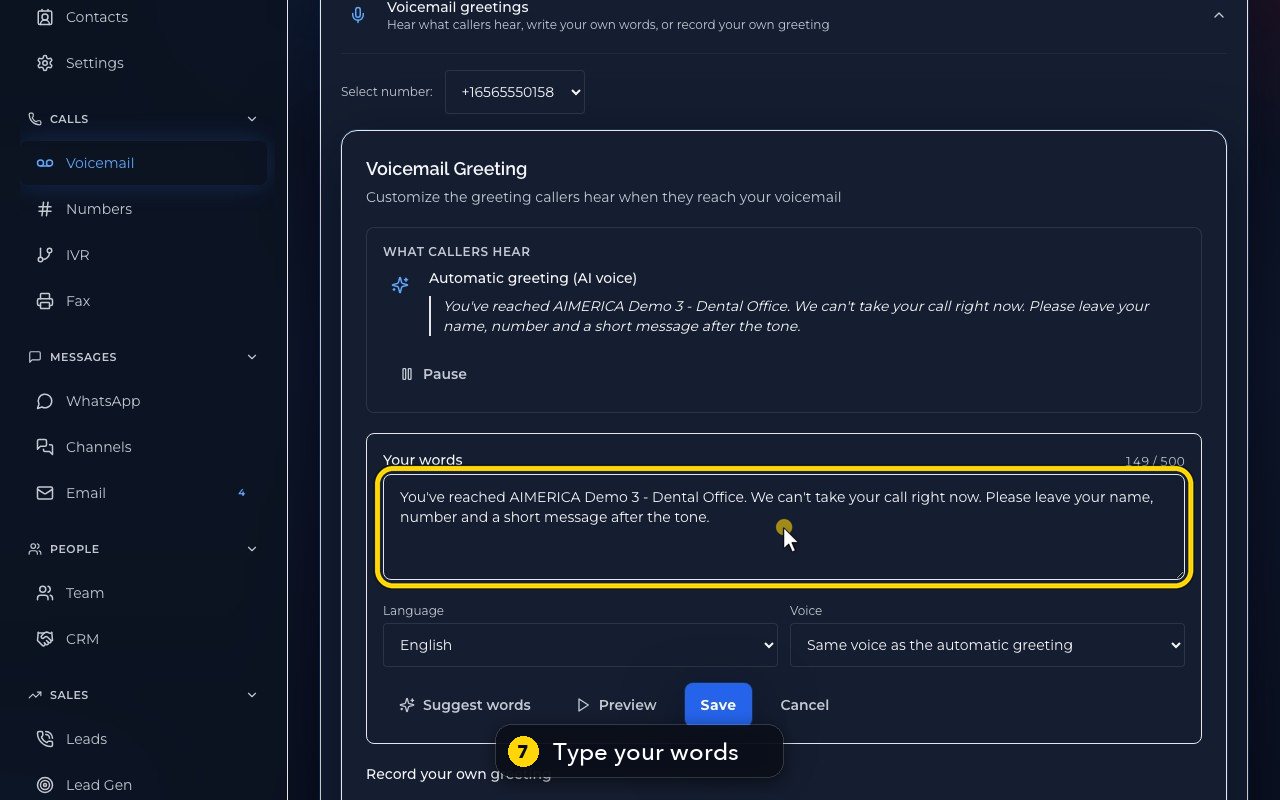
Type what callers should hear, up to 500 characters.
- 8
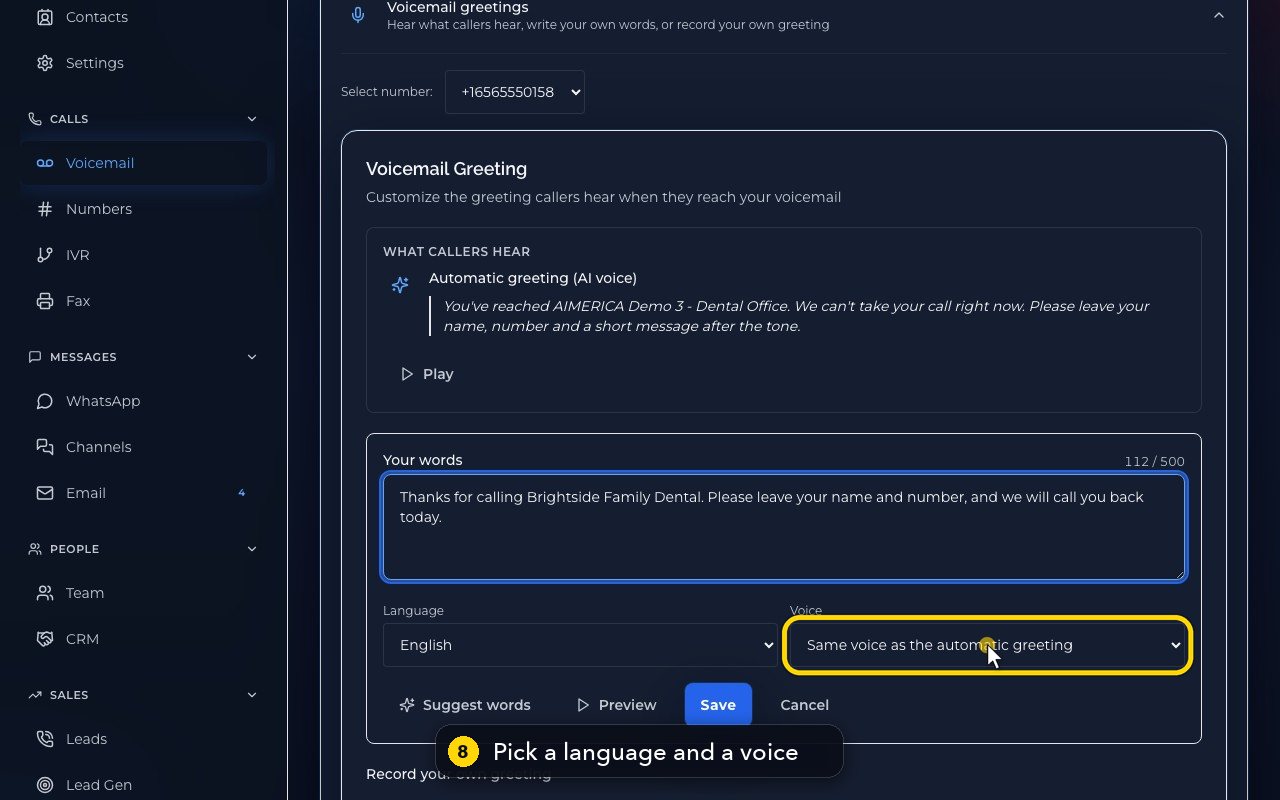
Then pick the language, and a voice. Here, Jacqueline.
- 9
Preview plays your words in that voice. Nothing is saved yet.
- 10
Stuck for words? Suggest words asks the AI for a draft, from your name, your company and your hours.
- 11
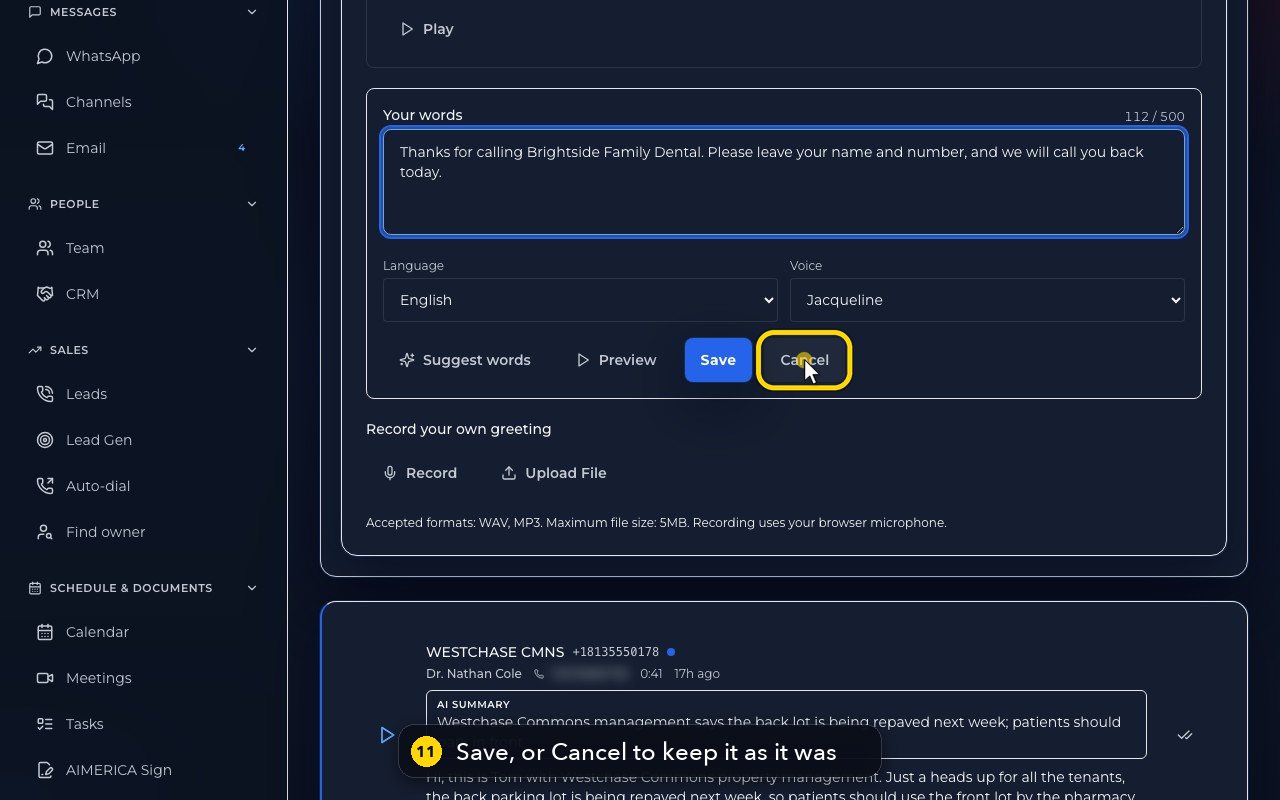
When it sounds right, press Save, and callers hear your words. Here, press Cancel instead.
- 12
Prefer your own voice? Record a greeting with your microphone, or upload a WAV or MP3 file, up to 5 megabytes.
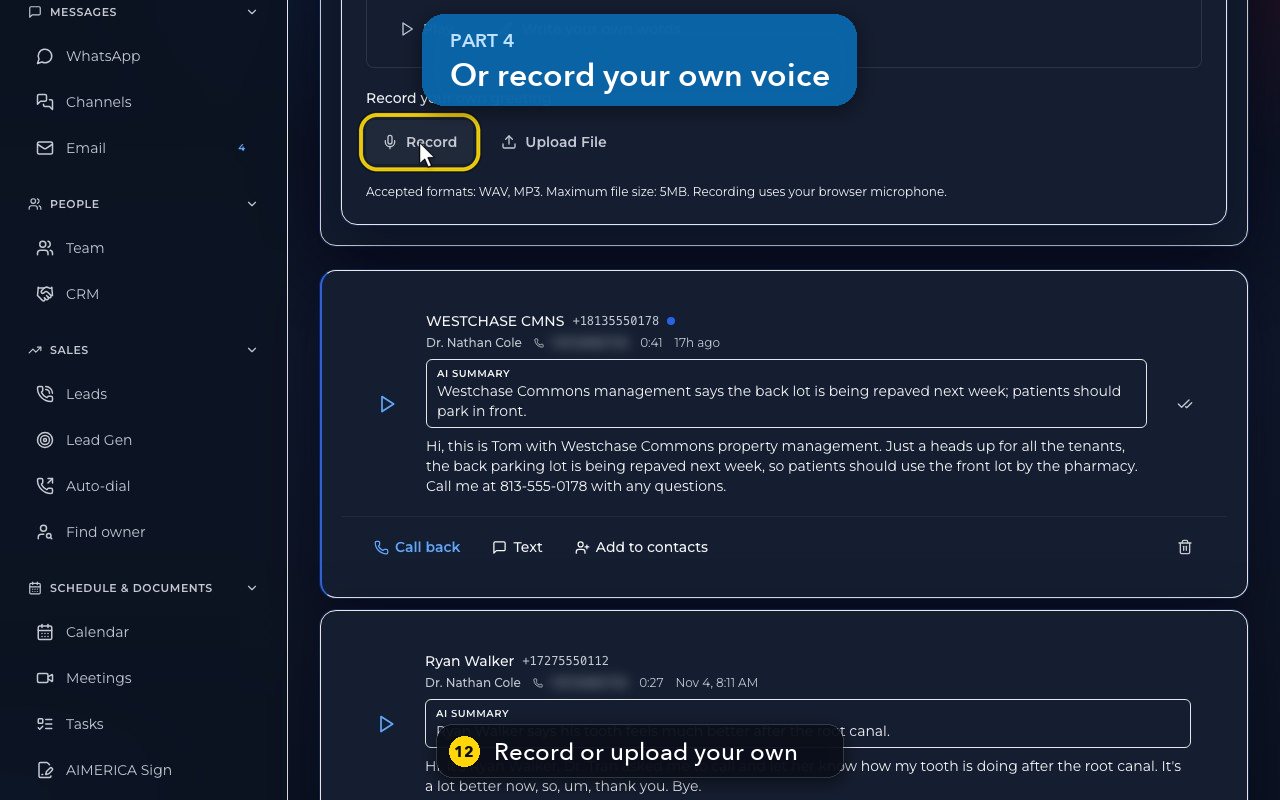
Record your voicemail greeting in your own voice
Record a greeting with your computer's microphone, keep it or try again, or upload an audio file.
Open Voicemail, press Voicemail settings, then Voicemail greetings. Pick the line, press Record, speak, then Stop Recording. Save as Greeting keeps it; Discard throws it away.
In this video
Step by step (8 steps)
- 1
Your greeting is recorded on the Voicemail page. Open Voicemail settings, then Voicemail greetings.
- 2
Select number picks the line this greeting is for.
- 3
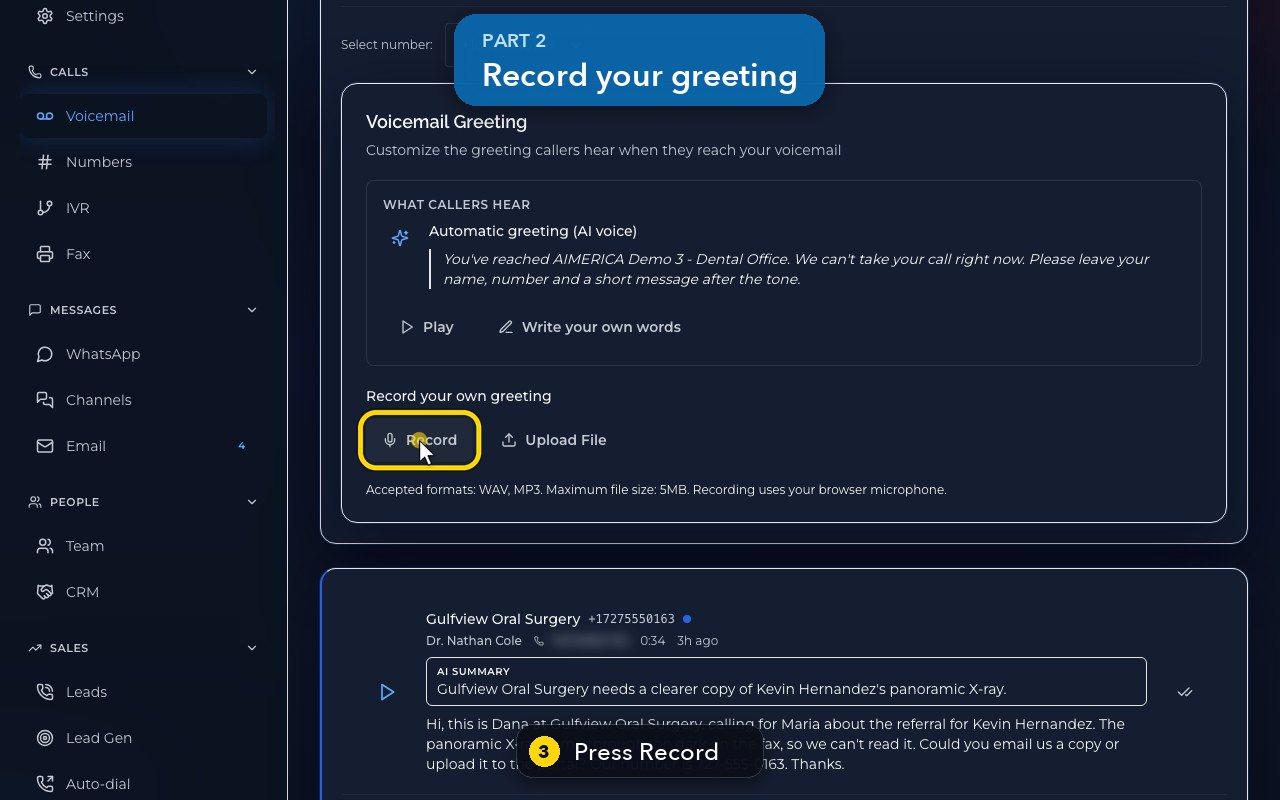
Further down, press Record. The first time, your browser asks to use the microphone: allow it.
- 4
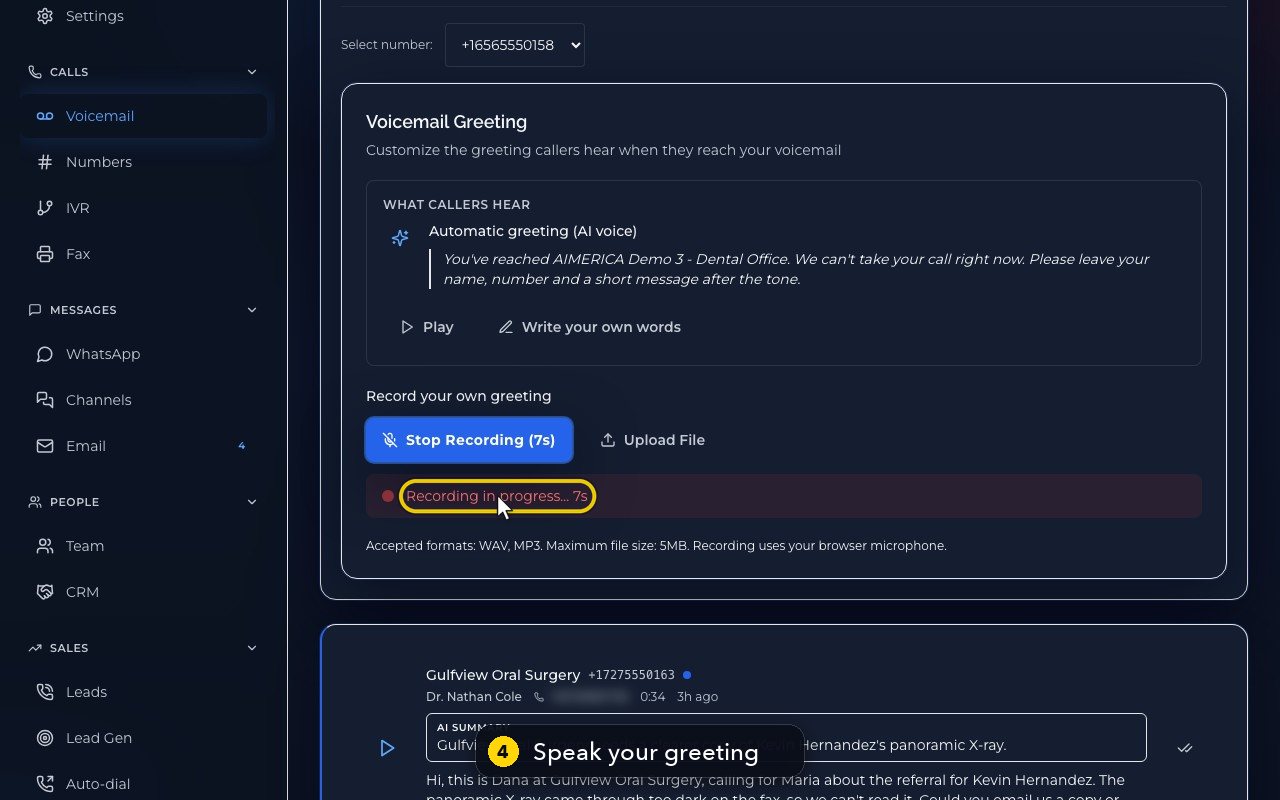
Speak your greeting clearly. The timer shows how long you have been speaking.
- 5
Press Stop Recording when you are done.
- 6
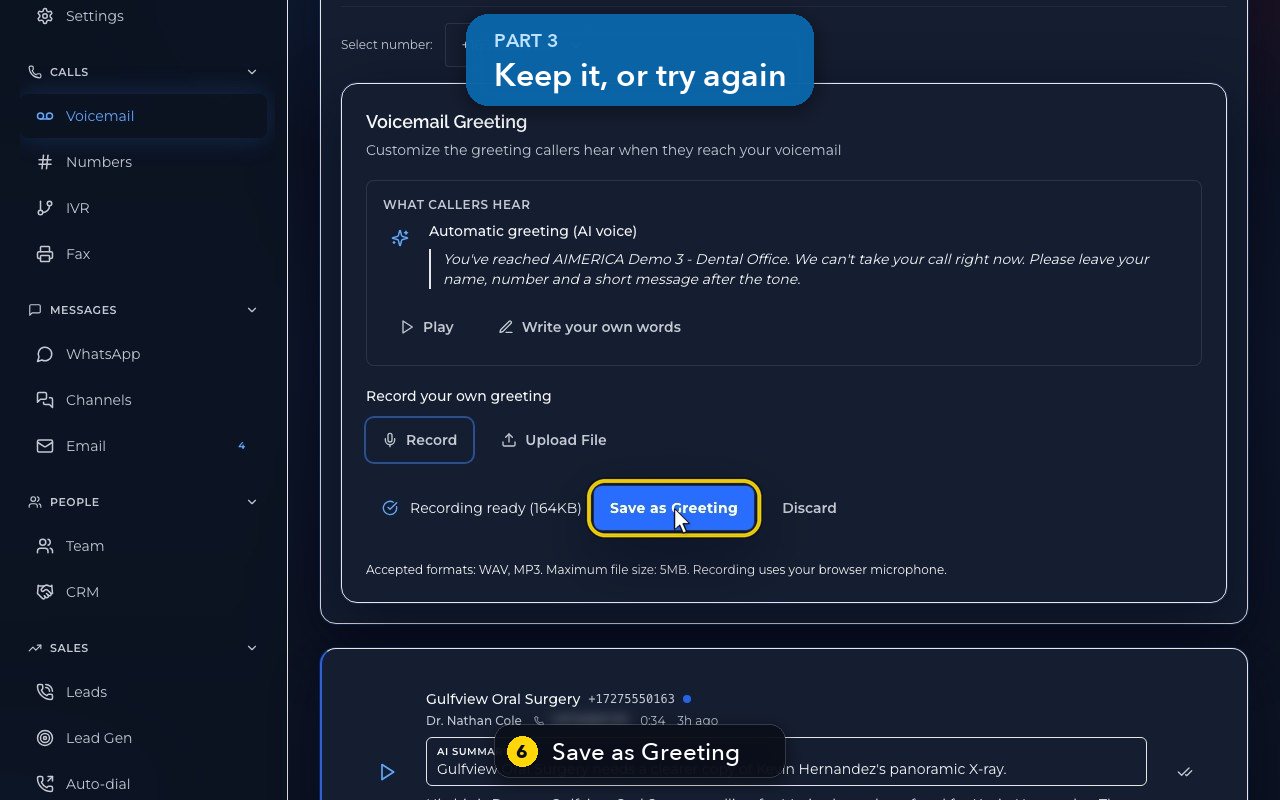
Save as Greeting makes it what callers hear. Your own recording comes before any other greeting.
- 7
Not happy with it? Press Discard, and record again.
- 8
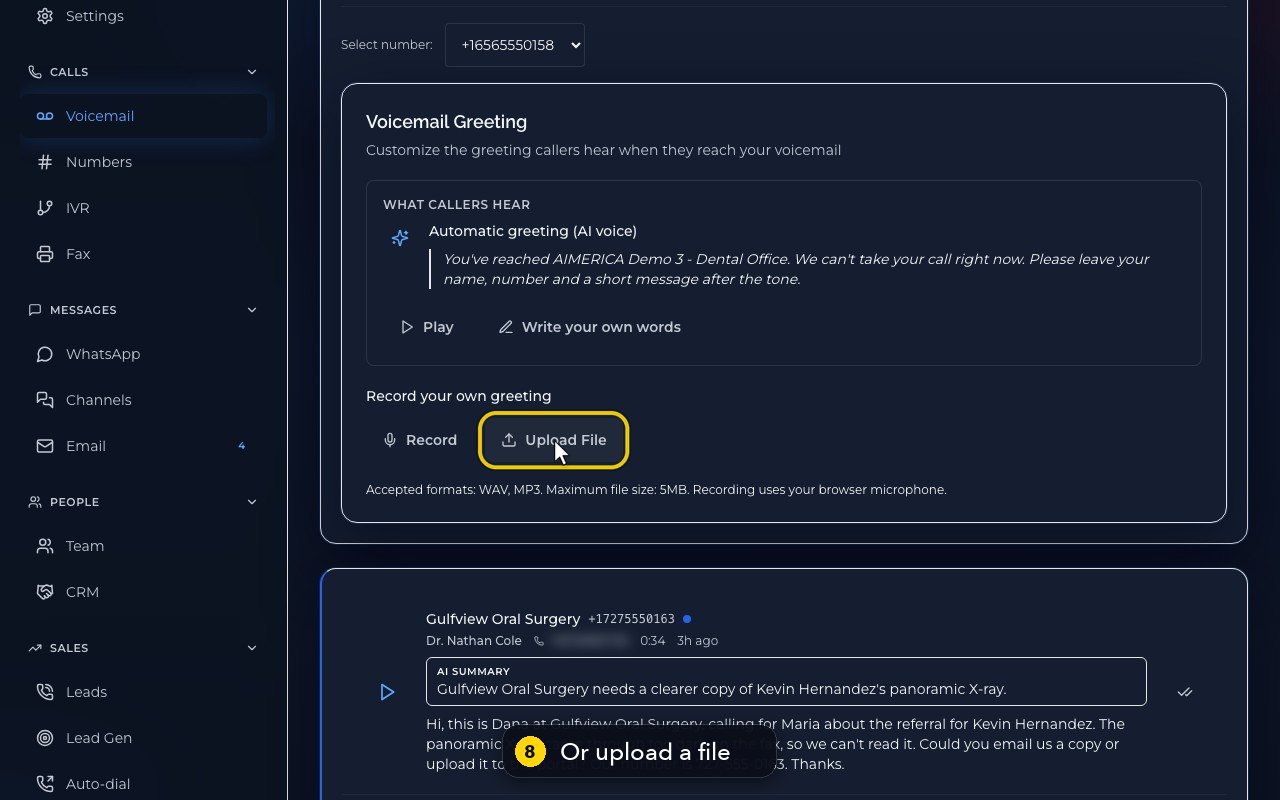
Already have a file? Upload File takes a WAV or MP3 of up to five megabytes, and it is used straight away.
In short
Your greeting is in Voicemail › Voicemail settings › Voicemail greetings. Each phone number has its own greeting: pick the line at Select number.
- What callers hear shows the greeting that plays now. Press Play to hear it.
- Write your own words: type up to 500 characters, pick the language and a voice, and press Preview to listen. Suggest words writes a draft for you from your name, your company and your hours. Press Save when it sounds right.
- Record a greeting with your browser microphone, then press Save as Greeting. Or press Upload File for a WAV or MP3 file up to 5 MB: an uploaded file becomes your greeting at once.
With no greeting of your own, callers hear an automatic greeting, spoken by an AI voice, that names you, your team or your company. Companies set to French hear it in French.
Every message is written out as text and emailed to the people on that line, with the recording attached.
Related tutorials
 1:42VideoListen to voicemail and call backPlay a voicemail, read its AI summary and transcript, then call back, text or save the caller.
 1:11VideoFind a contact and call or text themSearch or filter your shared contacts, open one, and call or text them from the line you pick.
 1:14VideoAdd a contactAdd a person or business to your team's shared contacts, with phone, email, notes and tags.
 1:22VideoSend a fax with a cover pageFax a PDF from your business number, with an optional cover page, without a fax machine.
 1:04VideoFind a received fax and download itCheck the faxes you received and sent, see their status, and download any of them as a PDF.
 0:51VideoChoose how many rings before voicemailDecide how long calls to your lines ring before the caller reaches your voicemail.
Was this not what you needed? Write to us.