
Send a fax with a cover page
Fax a PDF from your business number, with an optional cover page, without a fax machine.
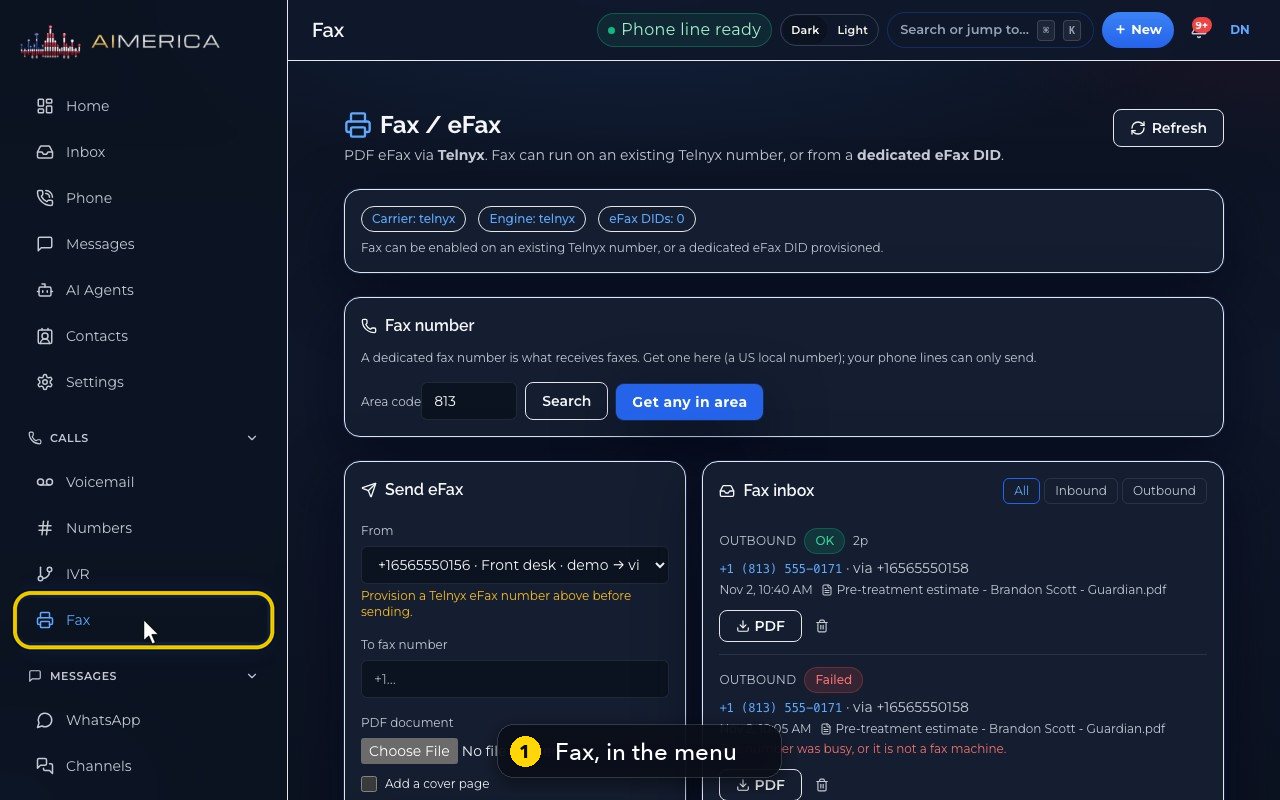
Faxes are sent from Fax, in the menu on the left, under Calls. You need a PDF of the document.
In this video
Step by step
- 1
Fax sends and receives faxes as PDF files. It is in the menu on the left, under Calls.
- 2
To send one, use the Send eFax card.
- 3
From is the number your fax comes from.
- 4
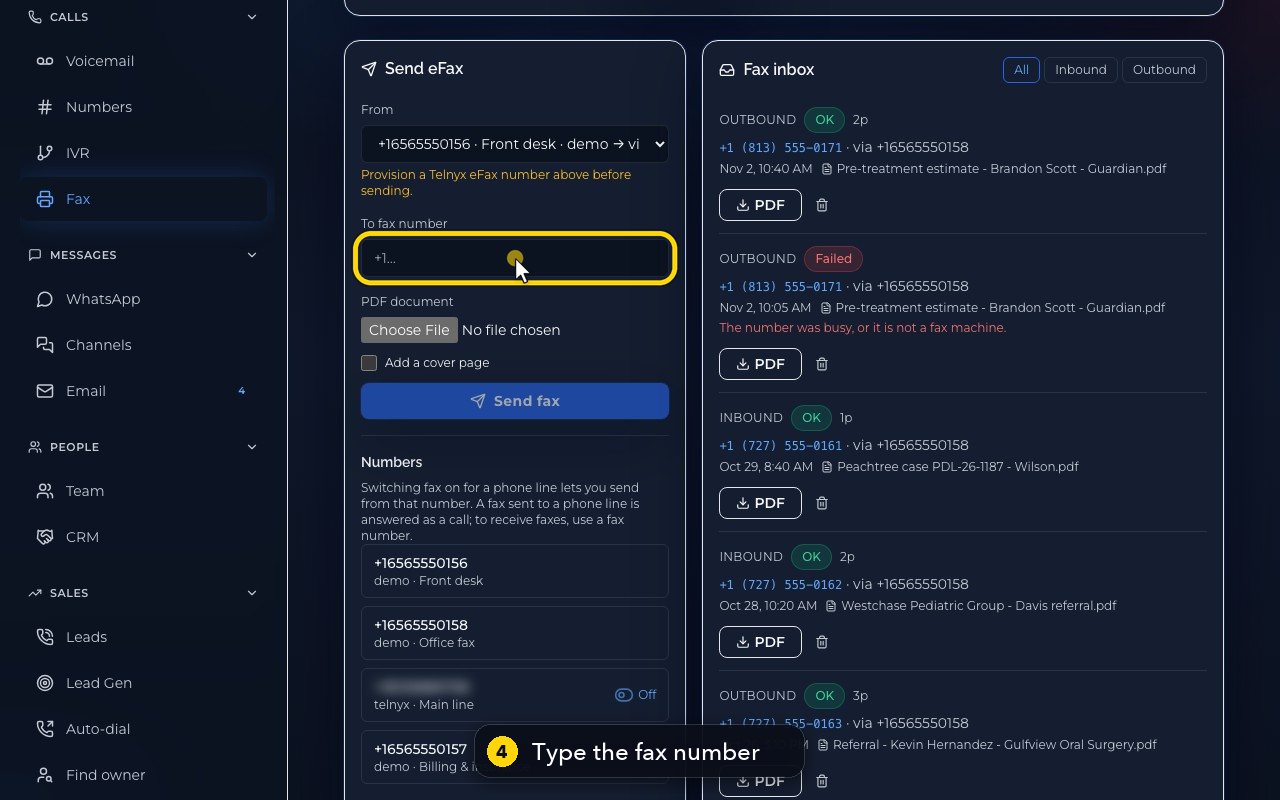
Type the fax number you are sending to.
- 5
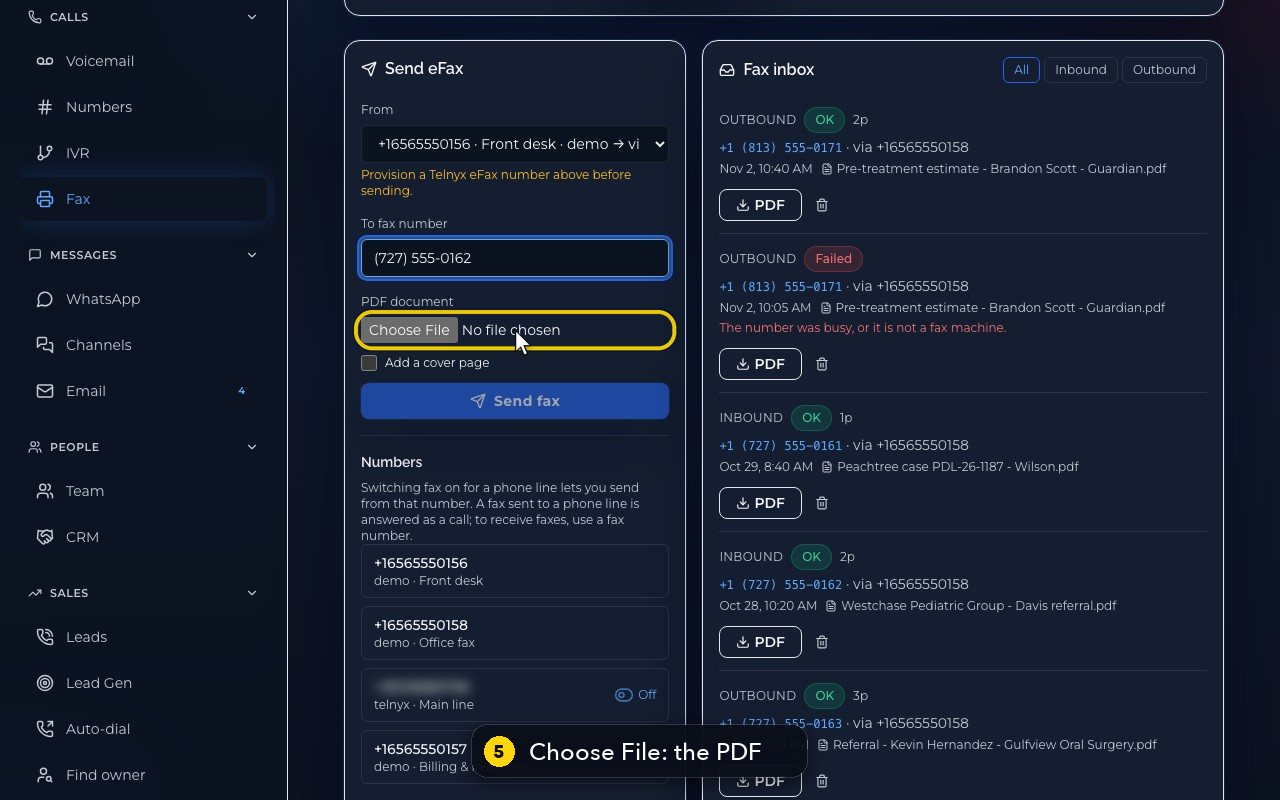
Choose File picks the PDF to send. Only PDF files work, up to 15 megabytes.
- 6
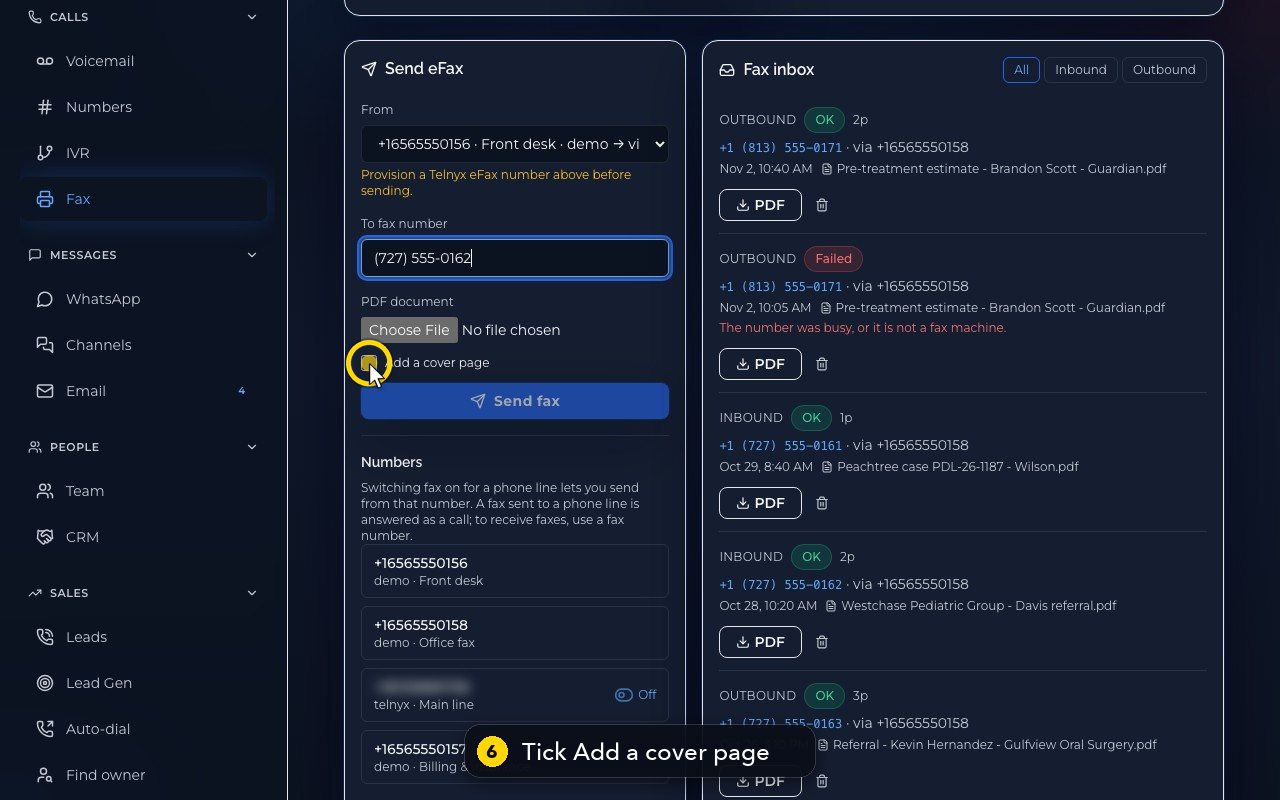
Tick Add a cover page, to put a first page in front of your document.
- 7
Say who the fax is for, and give it a subject.
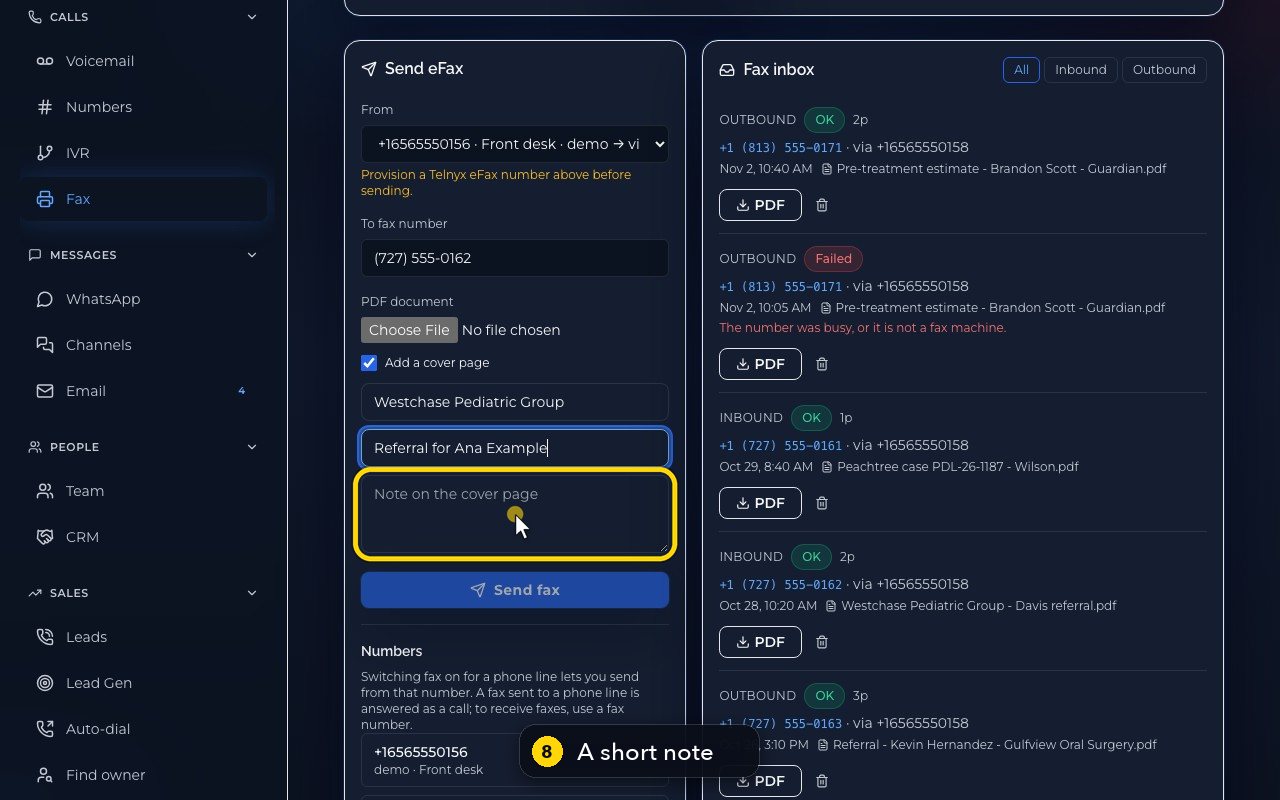
- 8
Add a short note. The cover page also shows both fax numbers, your name and the page count.
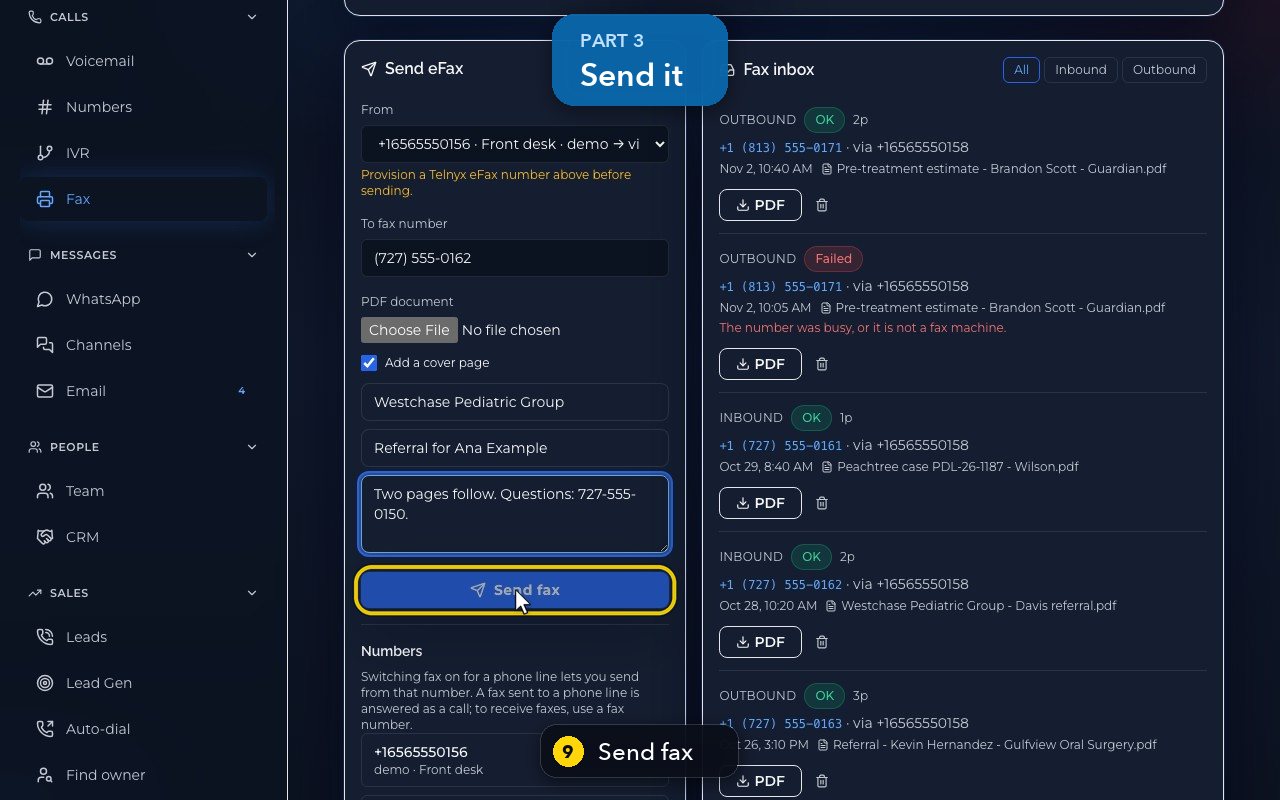
- 9
Send fax sends it. You will see it in the Fax inbox, under Outbound.
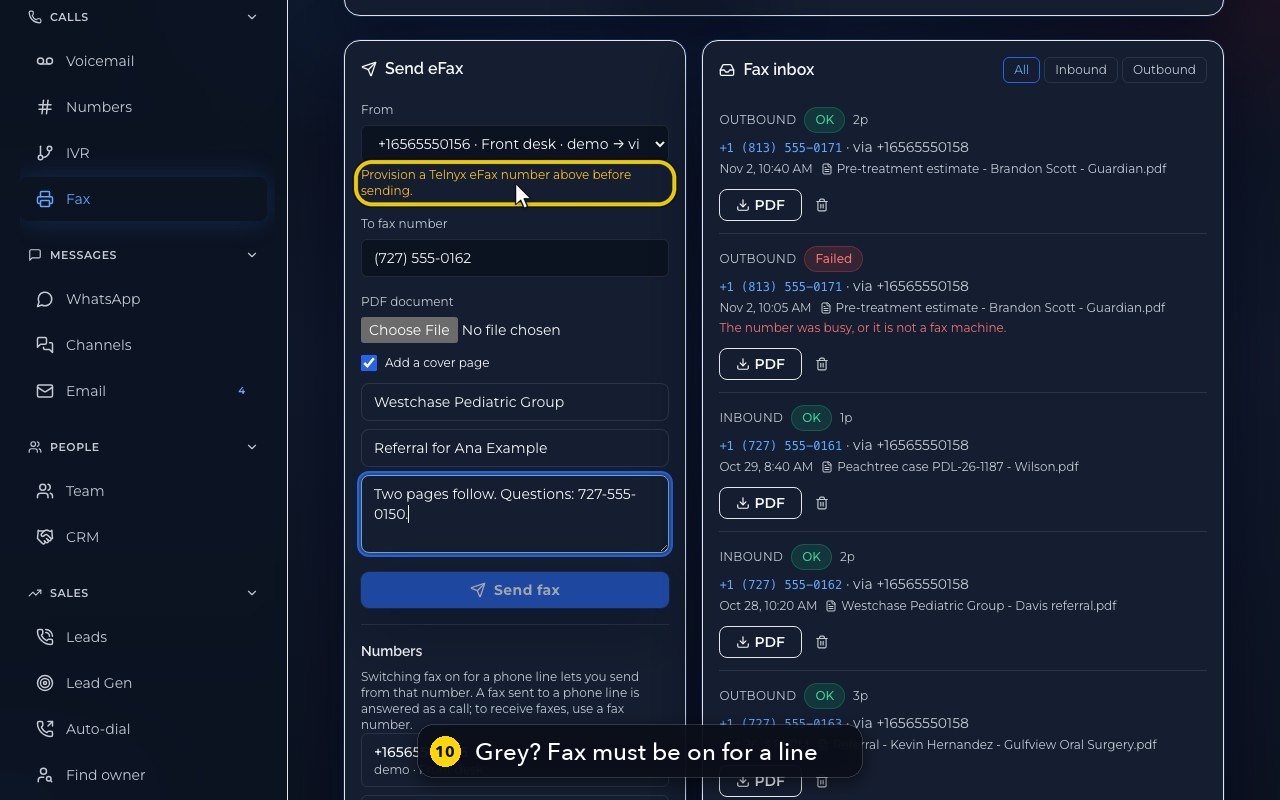
- 10
If Send fax is grey, like here, fax is not switched on for any of your lines yet. An owner or admin turns it on in the list just below.
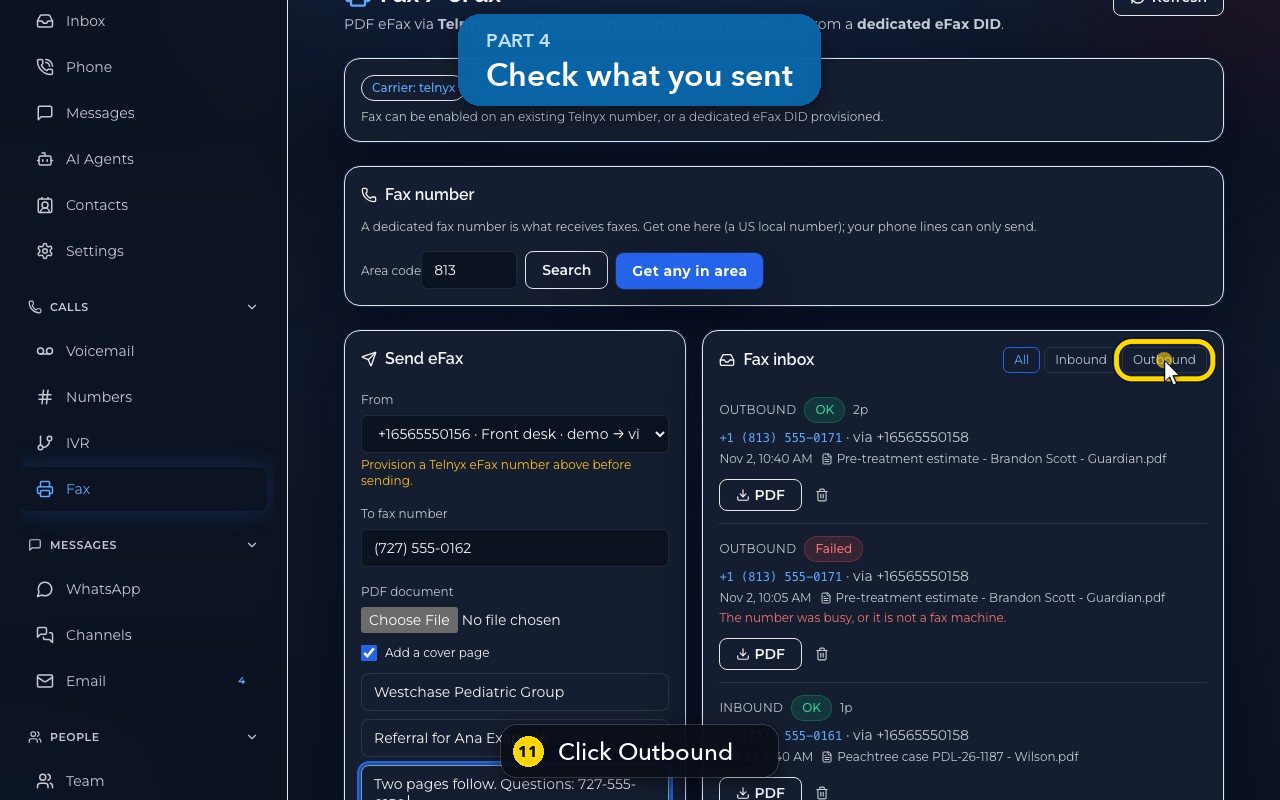
- 11
To check what you sent, click Outbound. A failed fax says why: here, the line was busy, or it was not a fax machine.
Related tutorials
 1:42VideoListen to voicemail and call backPlay a voicemail, read its AI summary and transcript, then call back, text or save the caller.
 1:28VideoSet your voicemail greetingHear the greeting callers get on your line, then write your own words for an AI voice to speak, or record your own.
 1:11VideoFind a contact and call or text themSearch or filter your shared contacts, open one, and call or text them from the line you pick.
 1:14VideoAdd a contactAdd a person or business to your team's shared contacts, with phone, email, notes and tags.
 1:04VideoFind a received fax and download itCheck the faxes you received and sent, see their status, and download any of them as a PDF.
 0:51VideoChoose how many rings before voicemailDecide how long calls to your lines ring before the caller reaches your voicemail.
Was this not what you needed? Write to us.