
See a contact's history and add a note
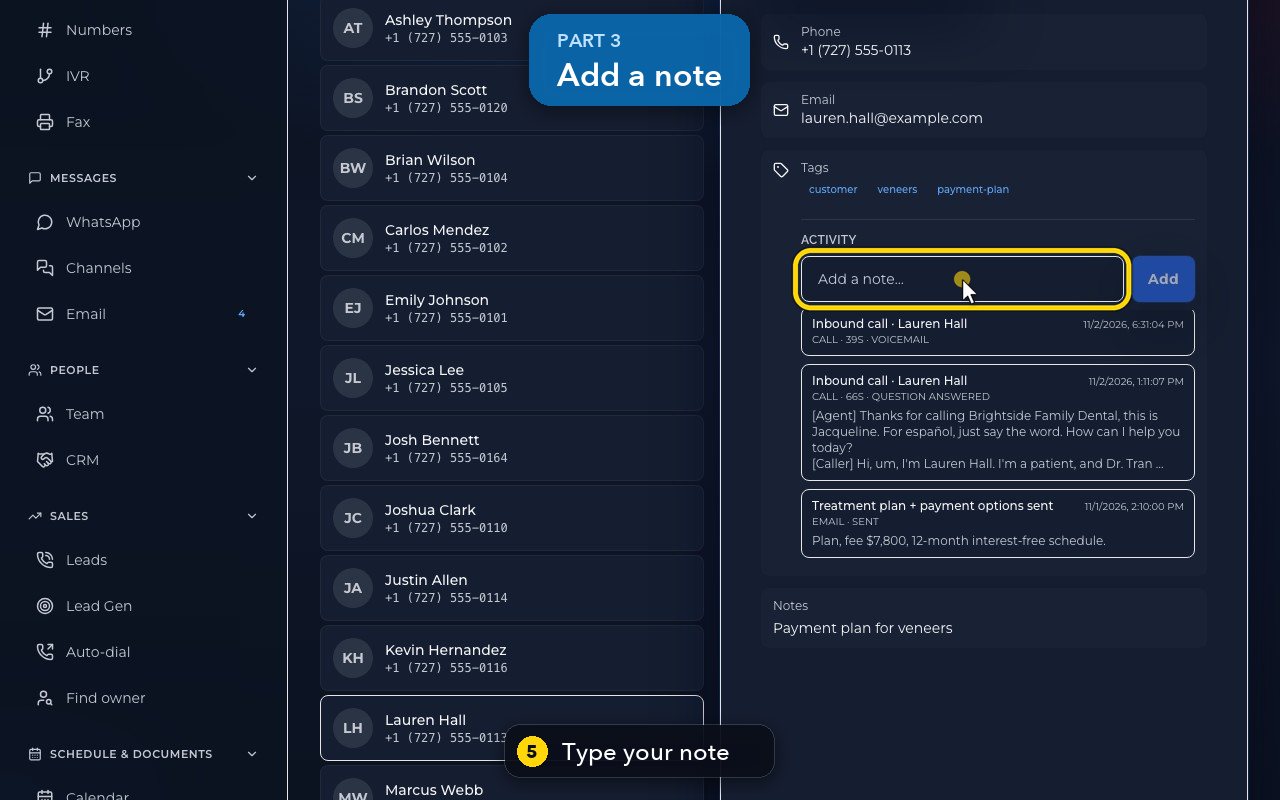
Open a contact to see every call with them, with AI notes and transcripts, and add your own note.
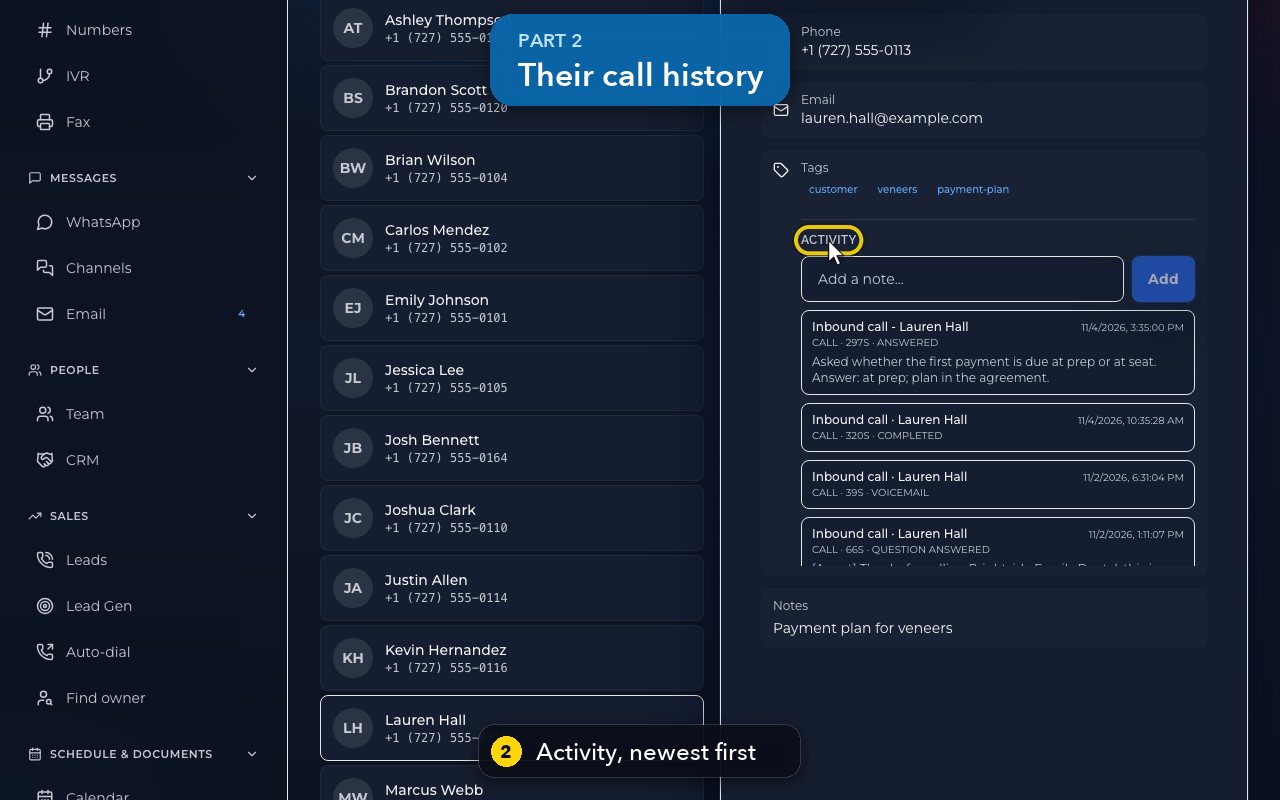
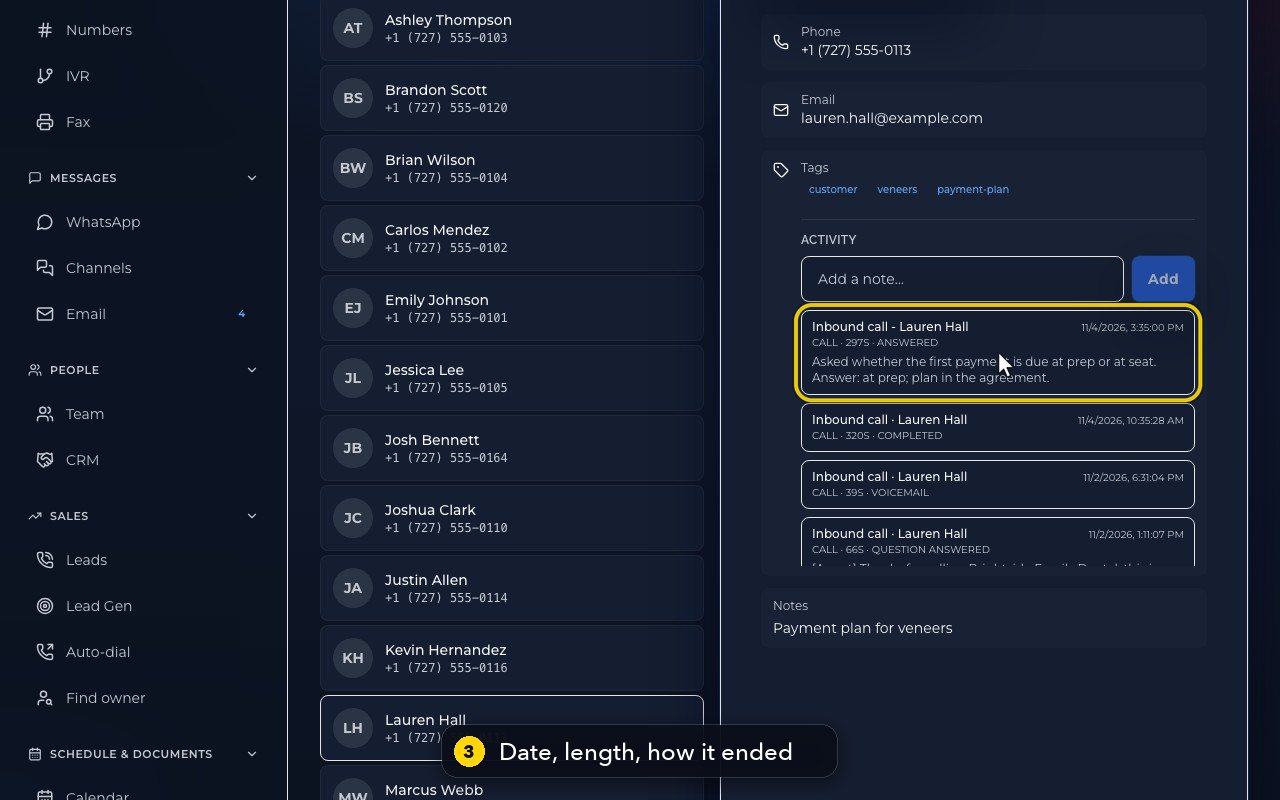
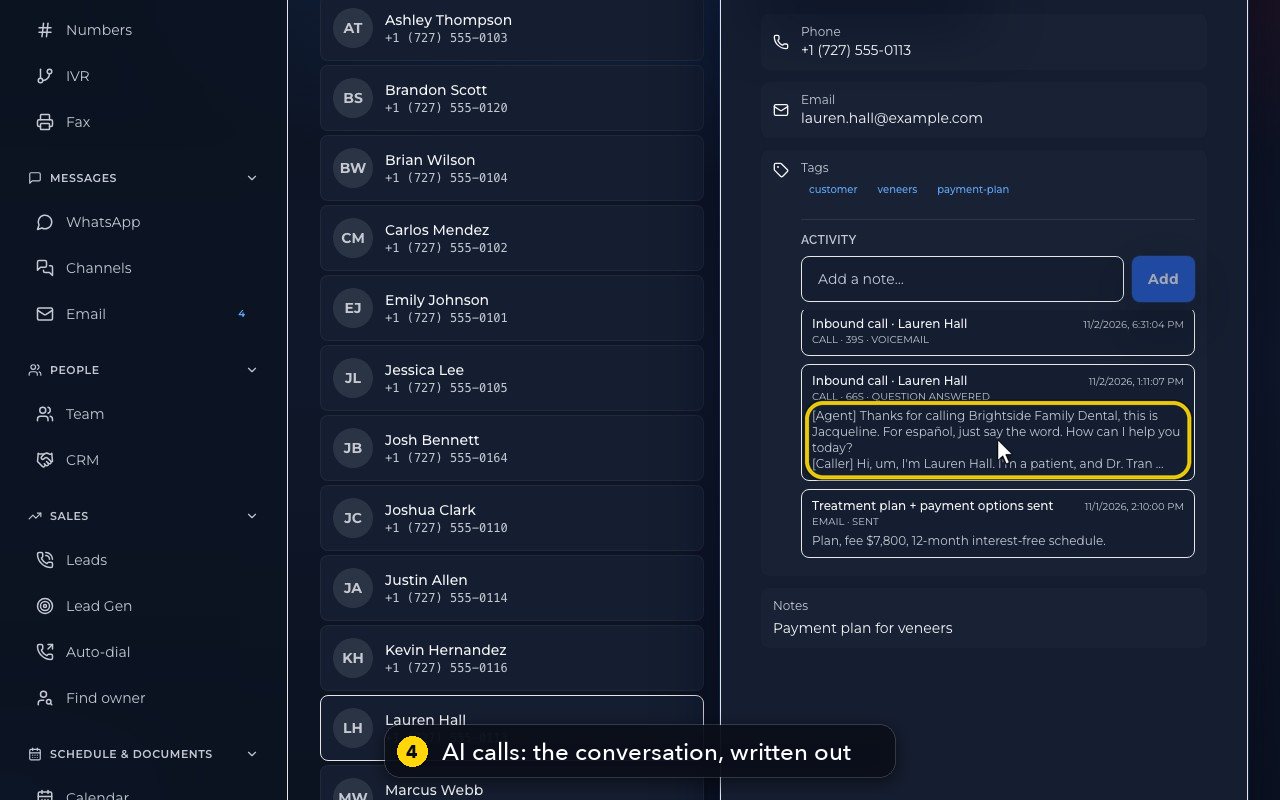
Open Contacts and click a person. Activity lists your calls with them, newest first: the date, how long, and how it ended. Calls your AI receptionist answered include the conversation, written out.
In this video
Step by step
- 1
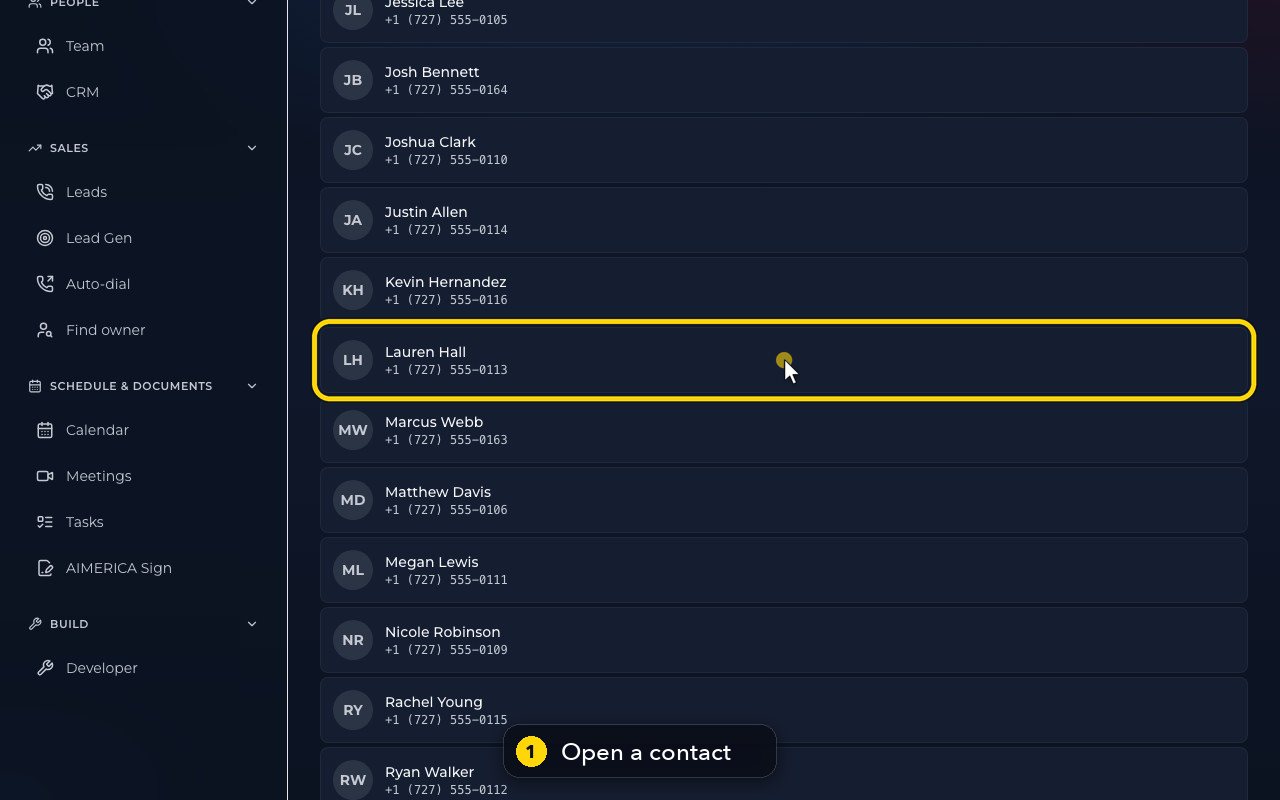
Every contact keeps a history of your calls with them. In Contacts, open one.
- 2
Activity lists the calls with this person, newest first.
- 3
Each entry shows the date, how long the call lasted, and how it ended: answered, completed, or voicemail.
- 4
Calls your AI receptionist answered include the conversation, written out.
- 5
To add your own note, type it here.
- 6
Press Add, and the note joins the history for your whole team. Here, we do not add it.
- 7
The contact's own notes stay below the history.
Related tutorials
 1:42VideoListen to voicemail and call backPlay a voicemail, read its AI summary and transcript, then call back, text or save the caller.
 1:28VideoSet your voicemail greetingHear the greeting callers get on your line, then write your own words for an AI voice to speak, or record your own.
 1:11VideoFind a contact and call or text themSearch or filter your shared contacts, open one, and call or text them from the line you pick.
 1:14VideoAdd a contactAdd a person or business to your team's shared contacts, with phone, email, notes and tags.
 1:22VideoSend a fax with a cover pageFax a PDF from your business number, with an optional cover page, without a fax machine.
 1:04VideoFind a received fax and download itCheck the faxes you received and sent, see their status, and download any of them as a PDF.
Was this not what you needed? Write to us.