
Read your call numbers on Home
Filter Home's insights by period, team and direction to read calls, talk time, answer rate and your busiest hours.
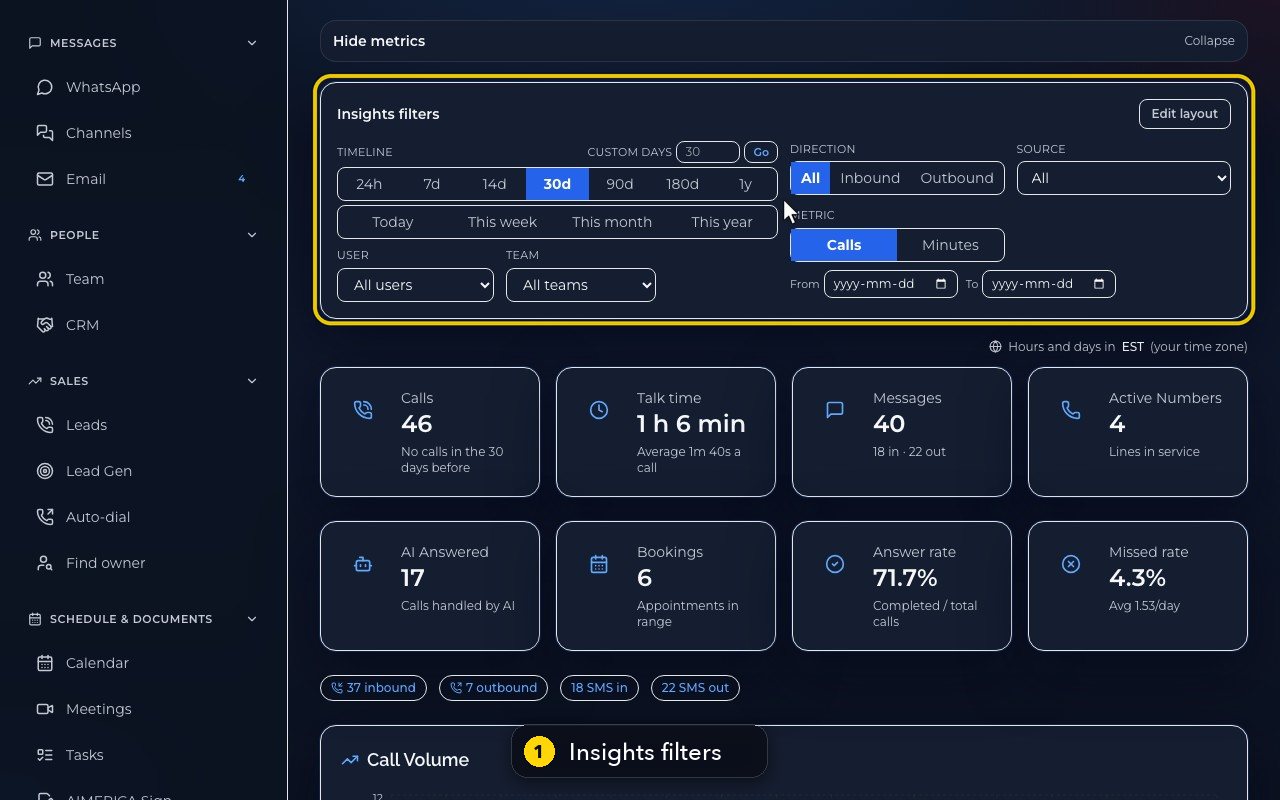
On Home, Insights filters set the period (24h to 1y), the user, the team and the direction for every card and chart below: calls, talk time, answer rate, Call Volume, Peak Hours, Call Status, Calls by source and Top Users.
In this video
Step by step
- 1
Home shows your front office at a glance. Below the calls that need you, Insights filters decide what every card and chart shows.
- 2
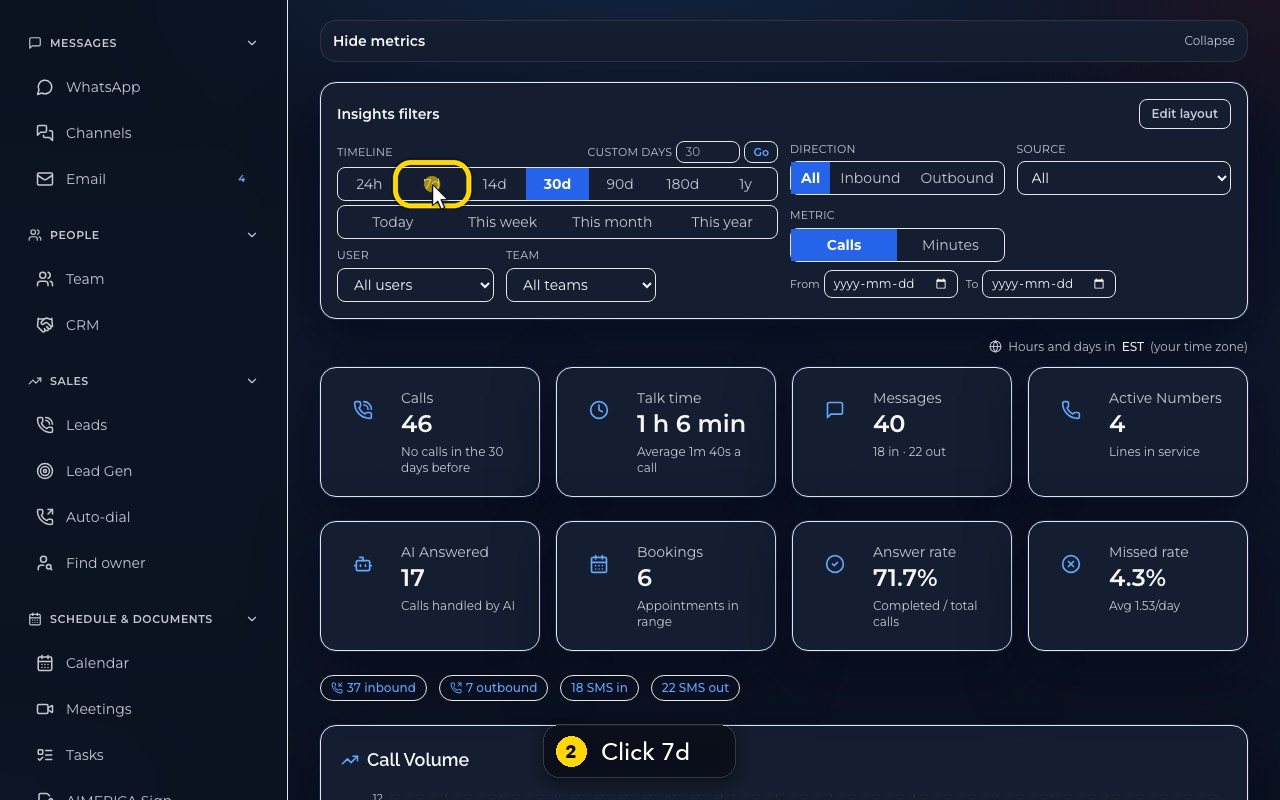
Pick a period. Seven days compares this week with the week before.
- 3
Back to thirty days, for the whole month.
- 4
Narrow everything to one team, for example the front desk.
- 5
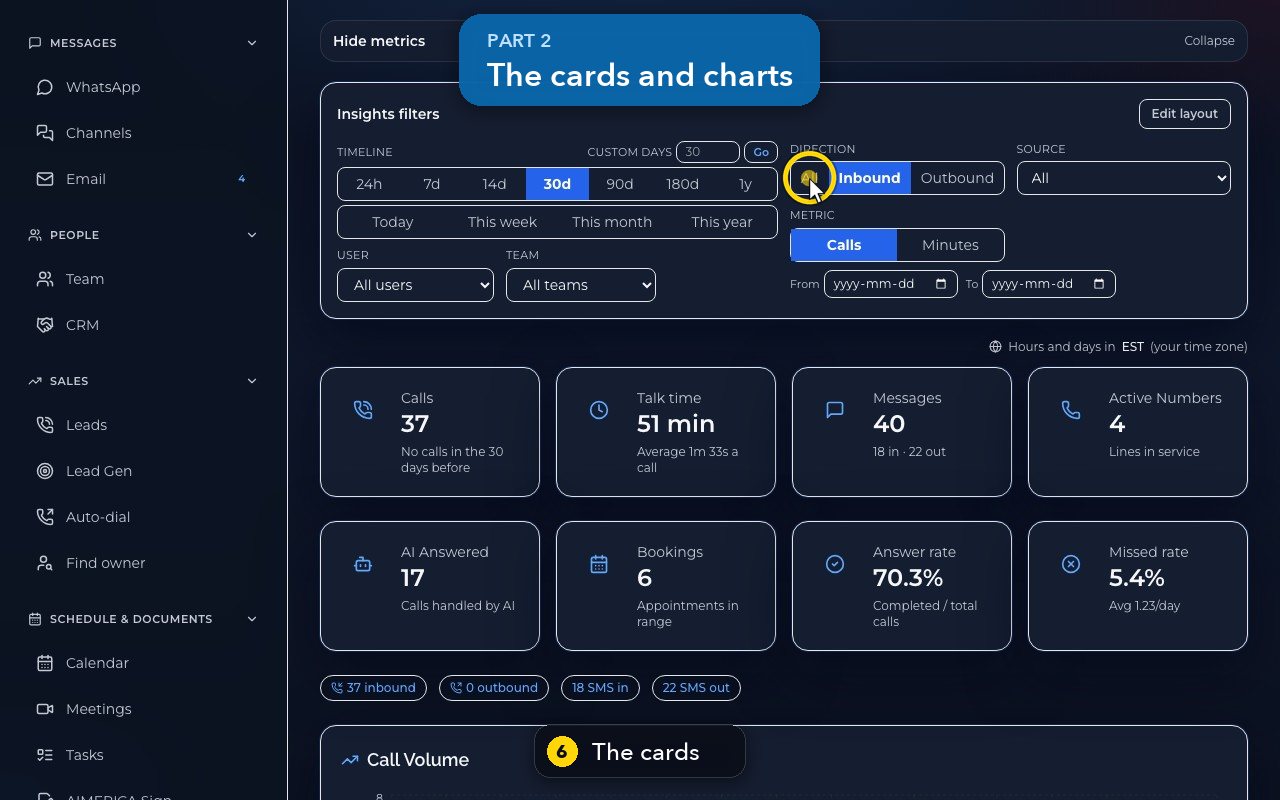
Put it back to all teams. Then keep only incoming calls, with Direction.
- 6
Back to all calls. The cards give calls, talk time, texts, numbers, AI-answered calls, bookings, answer rate and missed rate.
- 7
Call Volume charts your calls day by day, in and out.
- 8
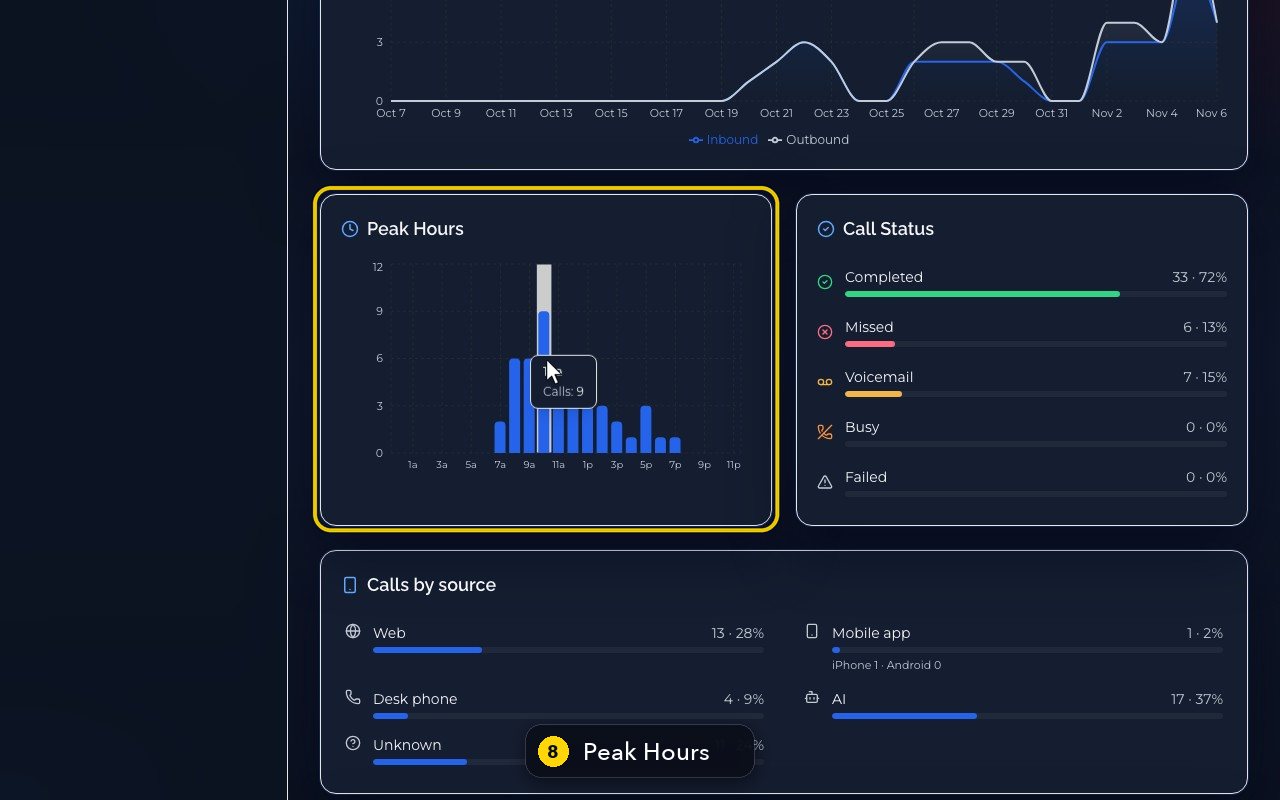
Peak Hours shows when calls arrive, so you can staff the busy hours.
- 9
Call Status splits completed, missed and voicemail. Calls by source shows web, mobile app, desk phone and AI.
- 10
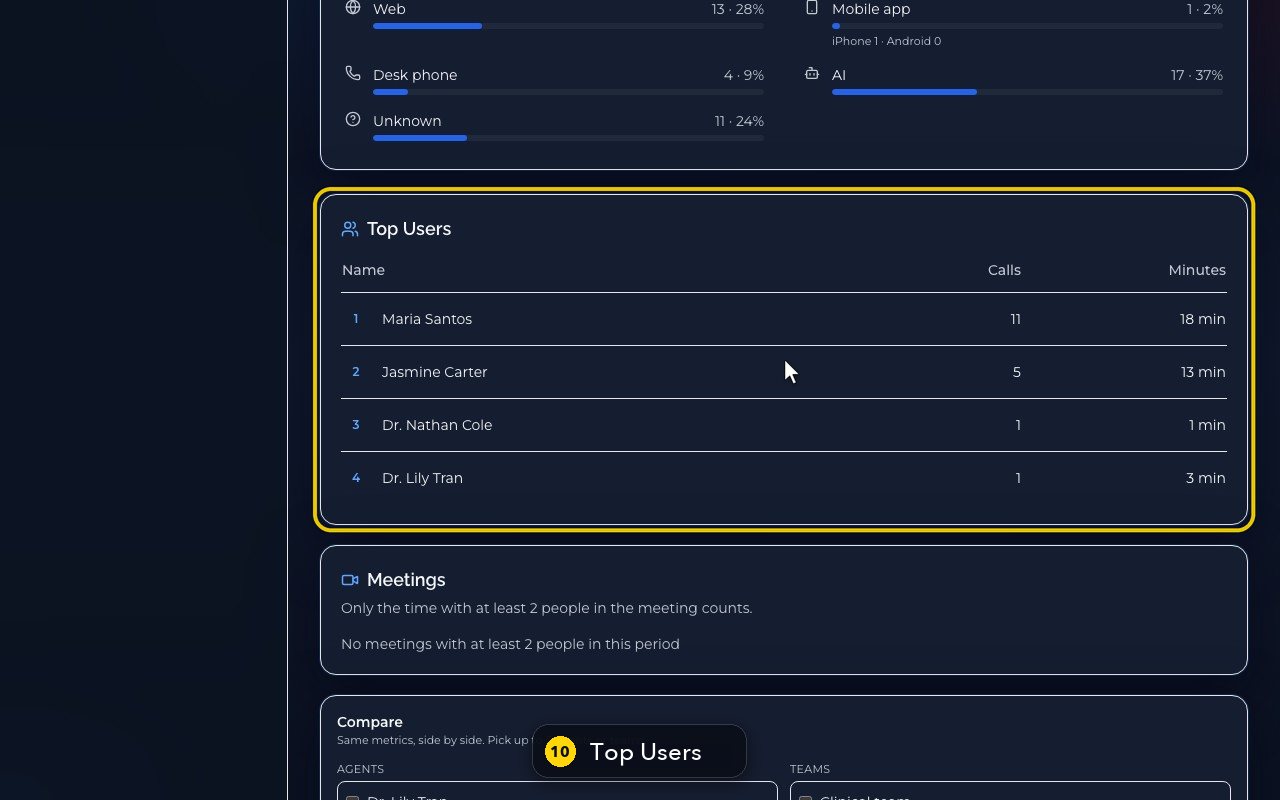
Top Users ranks your team by calls and minutes.
- 11
And Hide metrics, above the filters, folds all of this away, when you only need today's calls.
Related tutorials
 1:28VideoMake a call in the browser phoneDial a number from the Phone page keypad or from Recent, choose the line callers see, and check your audio.
 1:15VideoAnswer a call in the browser phoneTurn on call alerts, then answer, decline or send to voicemail a call that rings in your browser.
 1:27VideoRecent calls and AI call summariesFind any call in Recent, filter missed, AI and booked calls, and read what the AI receptionist did on a call.
 1:01VideoReturn a missed call: call back, text back, save the nameOpen a missed caller from Phone, call or text them back, and save their name to Contacts.
 0:58VideoTransfer a call to a teammateHand a live call to a teammate, a team, an extension or another number, straight away or after talking first.
 0:59VideoRecord a callStart and stop recording during a call, with the spoken notice, and find the recording in Recent.
Was this not what you needed? Write to us.