
Choose your microphone, speaker and call volume
Pick the microphone and speaker the browser phone uses, connect a USB headset, and boost a quiet caller.
Open Settings › Me › Audio: choose the Microphone and Speaker for calls, Connect headset for a USB headset with call buttons (Chrome and Edge), and Call volume: Normal, Louder +6 dB or Loudest +12 dB.
In this video
Step by step
- 1
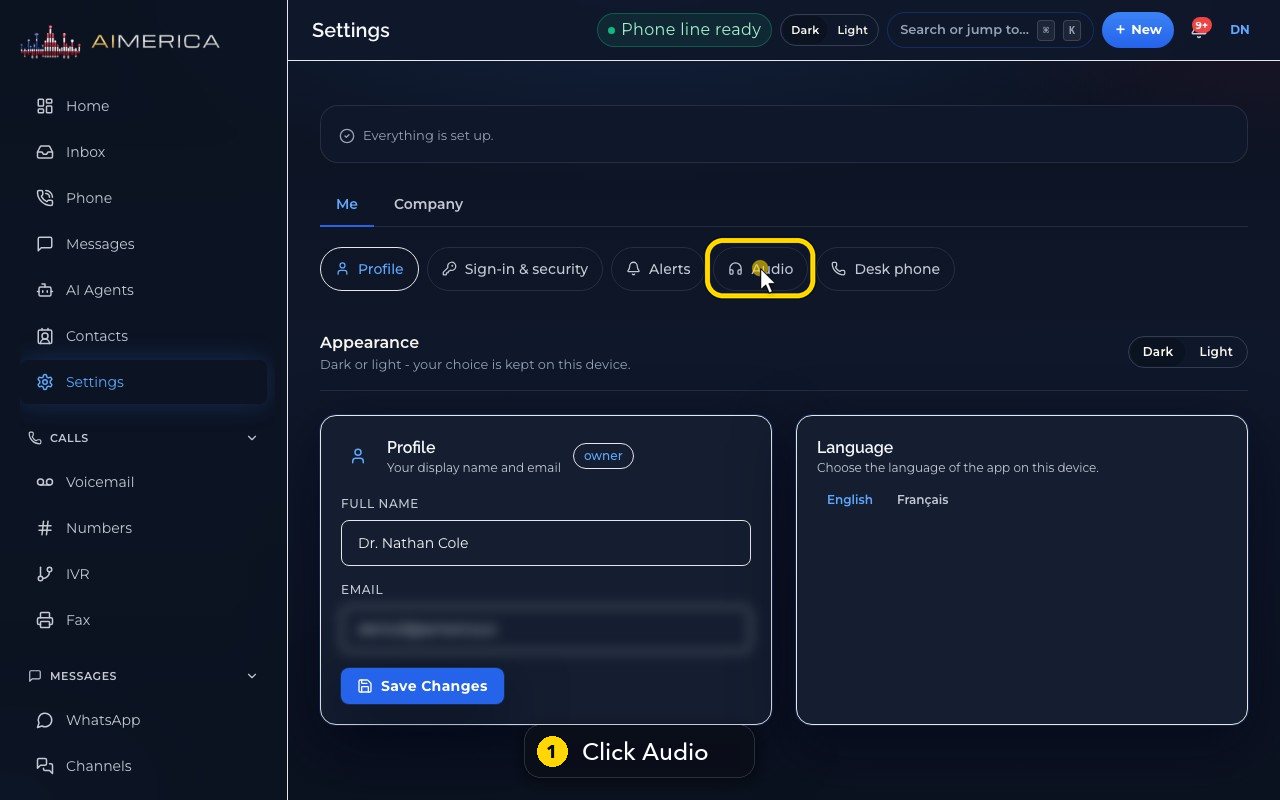
Audio settings are in Settings, under Me. Click Audio.
- 2
These choices are saved on this computer, not on your account. Set them again on another computer, or another browser.
- 3
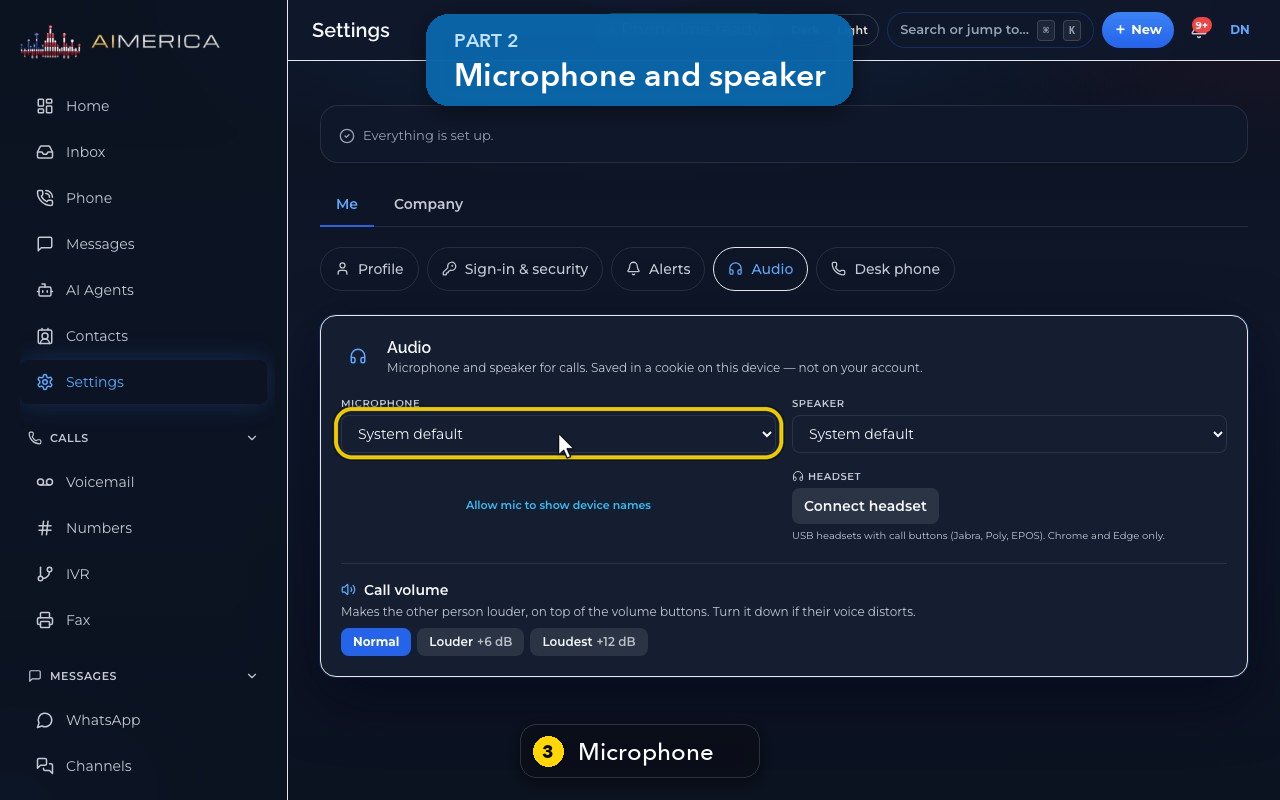
Pick the microphone for calls, for example your headset. System default follows your computer's choice.
- 4
Then pick where you hear callers: your headset, or the computer's speakers.
- 5
If the lists show no device names, Allow mic to show device names asks your browser once.
- 6
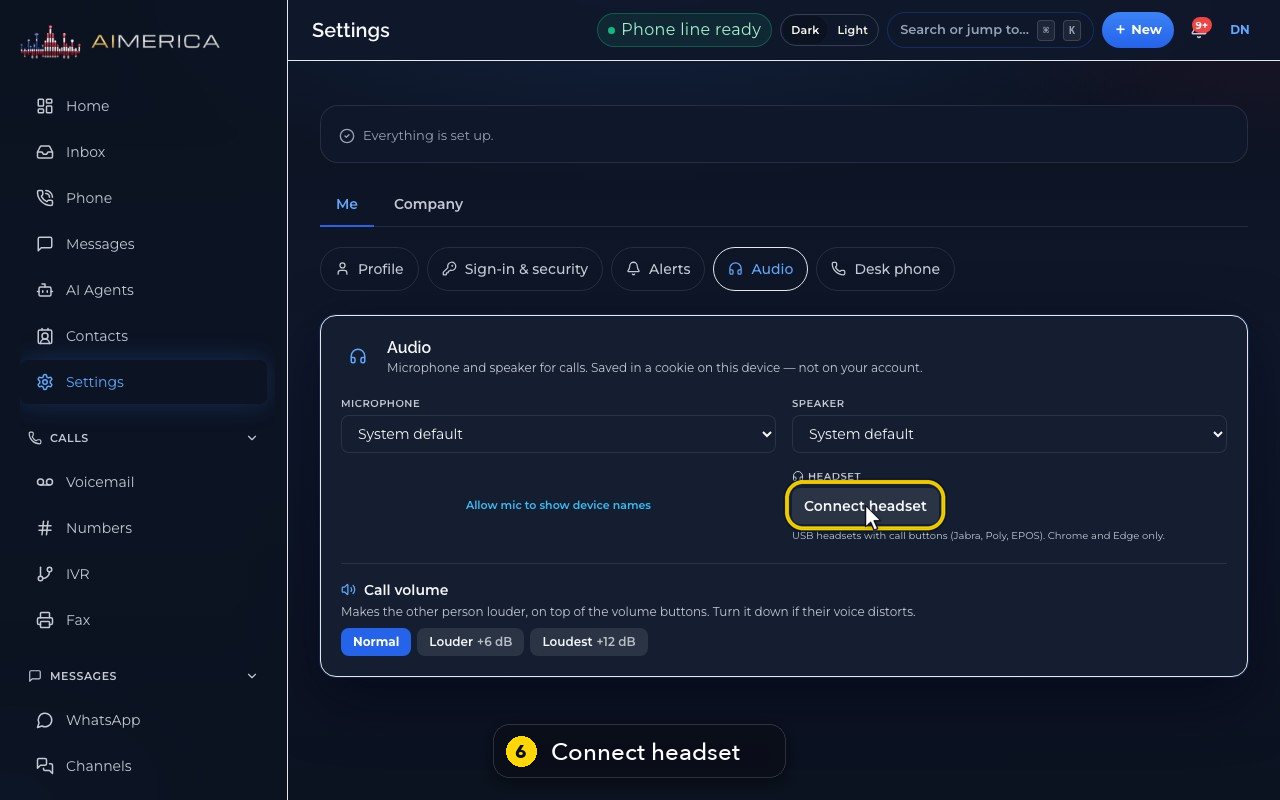
With a USB headset that has call buttons, press Connect headset, in Chrome or Edge. You can then answer, hang up and mute from the headset.
- 7
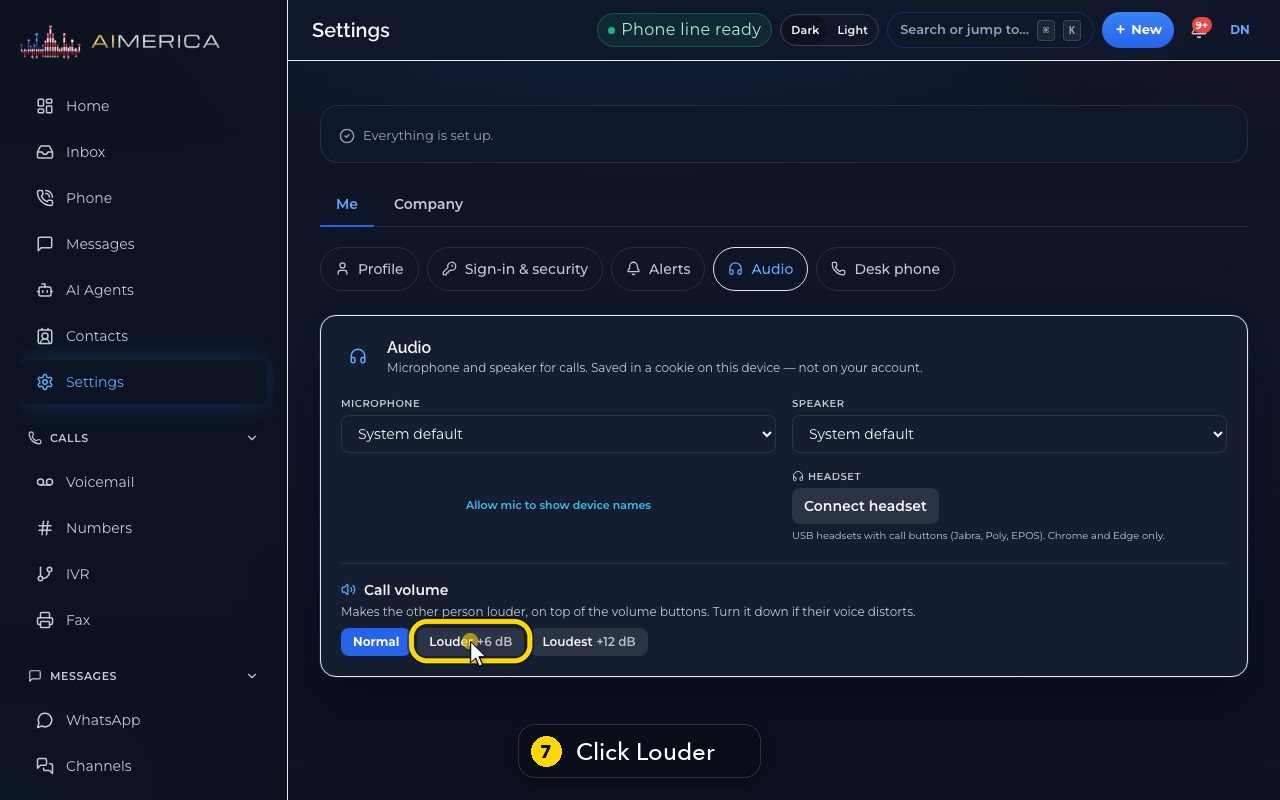
If callers sound quiet, raise Call volume. Louder adds 6 decibels, and Loudest adds 12.
- 8
If their voice distorts, go back to Normal.
Related tutorials
 1:28VideoMake a call in the browser phoneDial a number from the Phone page keypad or from Recent, choose the line callers see, and check your audio.
 1:15VideoAnswer a call in the browser phoneTurn on call alerts, then answer, decline or send to voicemail a call that rings in your browser.
 1:27VideoRecent calls and AI call summariesFind any call in Recent, filter missed, AI and booked calls, and read what the AI receptionist did on a call.
 1:01VideoReturn a missed call: call back, text back, save the nameOpen a missed caller from Phone, call or text them back, and save their name to Contacts.
 0:58VideoTransfer a call to a teammateHand a live call to a teammate, a team, an extension or another number, straight away or after talking first.
 0:59VideoRecord a callStart and stop recording during a call, with the spoken notice, and find the recording in Recent.
Was this not what you needed? Write to us.